How to fix
“Docker Desktop – Unexpected WSL error”
on Windows
Resolve the "Docker Desktop - Unexpected WSL error" on Windows 10 and 11 effortlessly with expert-tested solutions and fixed in minutes.


What causes How to fix “Docker Desktop – Unexpected WSL error” in Windows?
- Improperly configured permissions
- Lack of essential components
- WSL not installed
- Network problems
Repairs Windows system files, removes malware, and restores a clean OS state — without reinstalling.
Hello. I tried to open Docker Dekstop but I got the "Unexpected WSL error" message. What should I do?
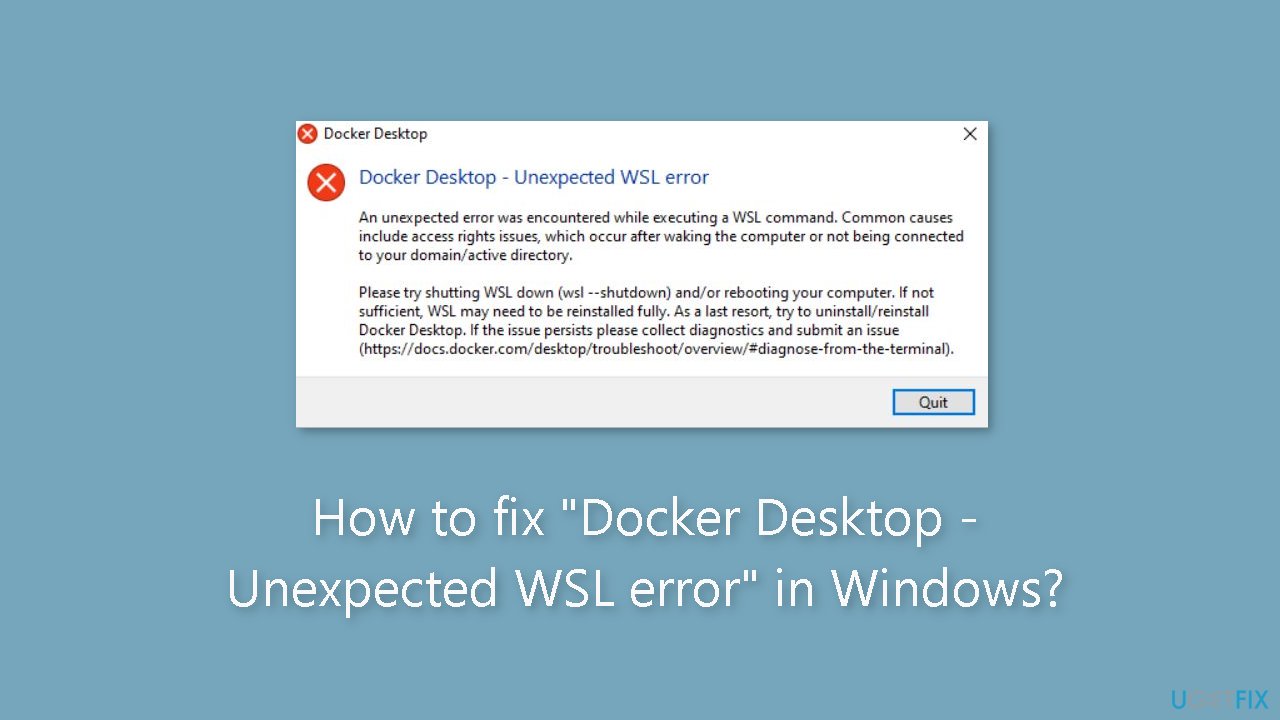
The "Docker Desktop - Unexpected WSL error" encountered by some Windows users has been a cause of frustration and inconvenience for those who rely on Docker Desktop to develop, manage, and share dockerized applications. In addition to being inconvenient, this error suggests deeper problems with the Windows Subsystem for Linux (WSL) and Docker Desktop integration.
The unexpected WSL2 errors with Docker Desktop often point to two main causes. First, this problem may be caused by improperly configured permissions or by the lack of essential components, especially Windows' optional "Virtual Machine Platform." In the absence of certain necessary parts, WSL in Docker Desktop may not operate as intended.
Second, the "Docker Desktop - Unexpected WSL error" may appear if WSL is not installed on the machine. WSL commands will not run as intended in the absence of a working WSL environment, which can lead to problems for Docker Desktop while it is operating. The error's alleged underlying cause has also been linked to network problems, which makes the process of identifying and fixing it much more difficult.
This issue can significantly affect users who depend on Docker Desktop for their containerized application development workflows. It can lead to project delays, productivity setbacks, and frustration as developers are unable to utilize Docker containers effectively.
In order to fix the "Docker Desktop - Unexpected WSL error," users might have to deal with rights and make sure that important parts, like the Virtual Machine Platform, are installed and set appropriately. Additionally, it is crucial to confirm that WSL is present and configured correctly. If network-related problems are suspected, these could also need to be looked into and fixed.
While addressing this error can be complex and may involve various steps, it is crucial to ensure the seamless operation of Docker Desktop, particularly for those who heavily rely on containerization in their development and deployment processes. In this guide, you will find 6 steps that should help you fix the problem.
You can also try running a system repair tool like [d1] that can fix most system errors, BSODs,[ref en-1] corrupted files, and registry[ref en-2] issues. Otherwise, follow the step-by-step instructions below.
Method 1. Install WSL
- Press the Windows key + S to open Search.
- Type Command Prompt in the search bar.
- Click Run as administrator.
- Click Yes in the UAC prompt.
- Paste the following command:
wsl --install

- Hit Enter to install WSL.
- Once done, reboot the PC.
Method 2. Update WSL
- Press the Windows key + R to open Run.
- Type cmd and hit Ctrl + Shift + Enter.
- Click Yes in the prompt that appears.
- Paste the following command:
wsl --update

- Hit Enter to update WSL.
- Restart the PC.
Method 3. Modify the Settings.json File
- Press the Windows key + E to open File Explorer.
- Paste the following path in the address bar and hit Enter:
%Appdata%\Docker

- Double-click the settings.json file.
- Make sure it reads the following:
"integratedWslDistros" : [ ]
"enableIntegrationWithDefaultWslDistro" : false
- If required, make the necessary edits and save the changes.
- Once done, relaunch the project, and it shouldn't throw the Docker Desktop failed to start WSL2 error anymore.
Method 4. Change the Command Prompt Settings
- Press the Windows key + S to open Search.
- Type Command Prompt.
- Right-click on the relevant result.
- Select Run as administrator.
- Click Yes in the UAC prompt that appears.
- Now, right-click on the top bar.

- Select Properties from the context menu.
- Go to the Options tab.
- Tick the checkbox for Use legacy console.
- Click OK to save the changes.
Method 5. Reset Winsock
- Press the Windows key + R to open the Run dialog box.
- Type cmd.
- Hold Ctrl + Shift keys.
- Click OK.
- Click Yes in the prompt.
- Now, paste the following two commands individually and hit Enter after each to reset the corrupt or misconfigured network settings:
netsh int ip reset
netsh winsock reset

- Restart the PC.
Method 6. Reinstall WSL
- Press the Windows key + I to open Settings.
- Go to Apps from the navigation pane.
- Click on Installed apps on the right.
- Now, locate Windows Subsystem for Linux.
- Click the ellipsis next to it.
- Select Uninstall.

- Click Uninstall in the confirmation prompt.
- Similarly, remove the following entries under installed apps if these exist:
Linux
Ubuntu
- Now, go back to the Apps tab.
- Select Optional features.
- Click on More Windows features at the bottom.
- Untick the checkbox for Virtual Machine Platform and Windows Subsystem for Linux.
- Click OK to save the changes.
- Restart the computer for the changes to apply.
- Once done, reinstall WSL (Windows Subsystem for Linux).
Bottom line
To fix the 'Docker Desktop - Unexpected WSL error,' ensure that the Virtual Machine Platform is installed and configured correctly, confirm that WSL is present, and investigate any potential network-related issues. If these steps do not resolve the problem, further troubleshooting may be necessary.
Frequently asked questions
This error typically occurs due to issues with the Windows Subsystem for Linux (WSL) integration or misconfigurations in Docker Desktop settings.
You can reset WSL by opening PowerShell as an administrator and running the command 'wsl --unregister <DistributionName>' followed by 'wsl --set-default-version 2'.
Yes, ensuring that you have the latest version of Docker Desktop can help fix compatibility issues and bugs related to the Unexpected WSL error.




Report an issue
What's wrong with this guide? We review every report and update or remove content.
Report received — thank you. We'll review and fix it.
You need a free account to submit a report.
Be the first to comment