How to fix
Dot4.sys BSOD
on Windows
Resolve Dot4.sys BSOD errors in Windows 10 and 11 quickly and effectively. Expert-tested solutions to get you back on track in minutes.

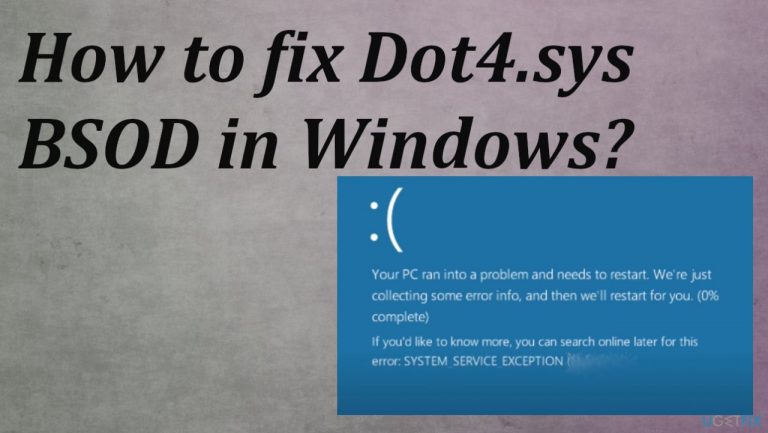
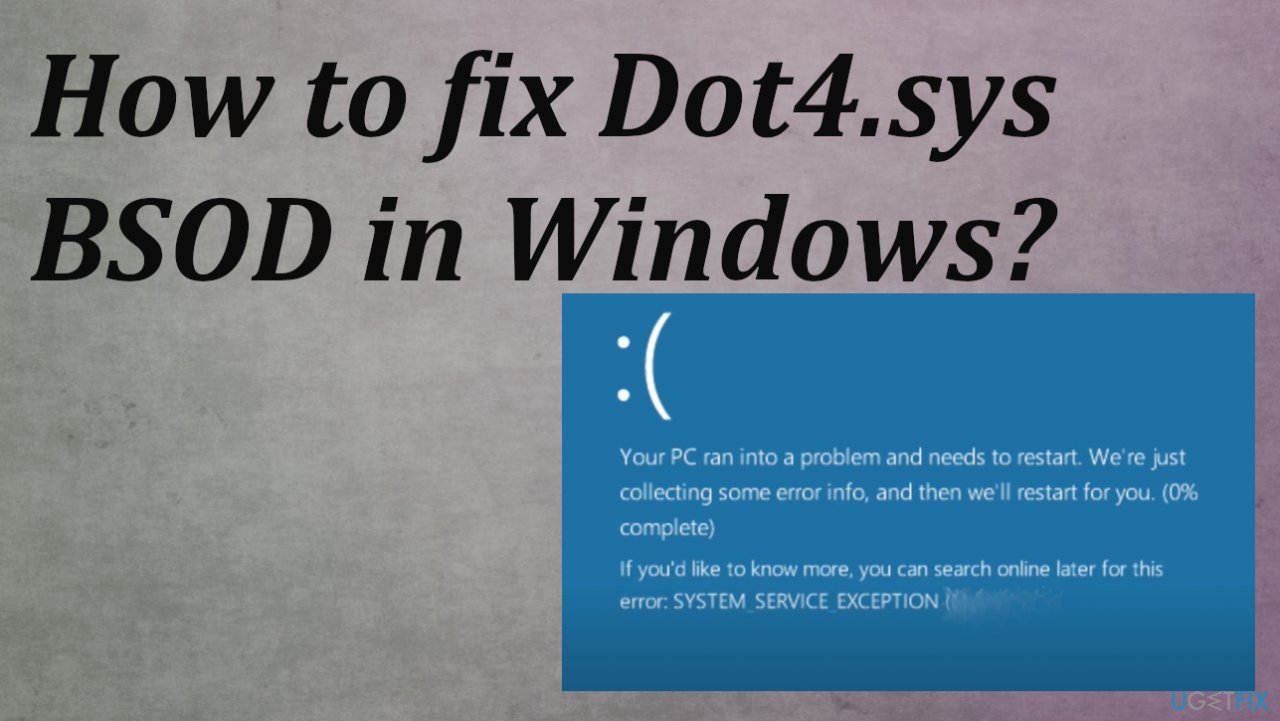
What causes How to fix Dot4.sys BSOD in Windows?
- Driver or software incompatibility issues
- Recently installed or updated programs
- Incomplete installation or uninstallation of programs
- Improper deletion of files and software
- Damage caused by malware
Repairs Windows system files, removes malware, and restores a clean OS state — without reinstalling.
Hello, I get the Stop Code: SYSTEM_SERVICE_EXCEPTION that is related to failing Dot4.sys. The blue screen error appears often, and I don't know how to fix it. I have no idea what this file is and how to solve the issue entirely. Can you help me with a solution?
Dot4.sys BSOD in Windows is one of many common system crash errors that are known as Blue Screen of Death windows.[ref en-1] The particular file that is indicated as the reason for this crash is the piece of the computer system - a driver file. Microsoft Windows create it for the use of this particular operating system.
The file should be misconfigured or affected differently to cause such an error on the machine. Driver or software incompatibility issues mainly trigger such problems. You may want to check recently installed or updated programs or even check for the OS upgrade/ rollback of the recent update.[ref en-2]
SYSTEM_SERVICE_EXCEPTION is the common error that appears on the system when the hard drive, driver, or a different part of the machine fails. The Blue Screen of Death is frustrating, but it can be damaging and critical when the root cause is not fixed quickly.
Dot4.sys BSOD in Windows has many variants and instances when the issues occur. System file entries can be damaged by malware[ref en-3] or a different procedure on the system, so this error occurs. There can be various events when the error occurs, so you need troubleshooting to determine what solution is best for your particular issue.
Errors like this can be caused by the incomplete installation or uninstallation of programs, improper deletion of files and software. If your device recovered from the infection, the damage may be leading to issues with the processes and driver software.
You can see particular errors related to this file, and those errors state:
- Dot4.sys could not be found.
- Dot4.sys failed to load.
- The file Dot4.sys is missing or corrupt.
- Windows failed to start - Dot4.sys.
We recommend running a tool like [d1] that can find affected or corrupted files and fix this issue for you. Troubleshooting particular parts, checking for OS or driver updates can be helpful too. Run the steps listed below and make sure to check if the issue persists after each one, but do not skip methods.
Option 1. Restore the PC
- Type System Restore in search and press ENTER.
- In the search results, find and click System Restore.
- Please enter the administrator password.
- Follow the steps in the Wizard.
- Choose a relevant restore point.
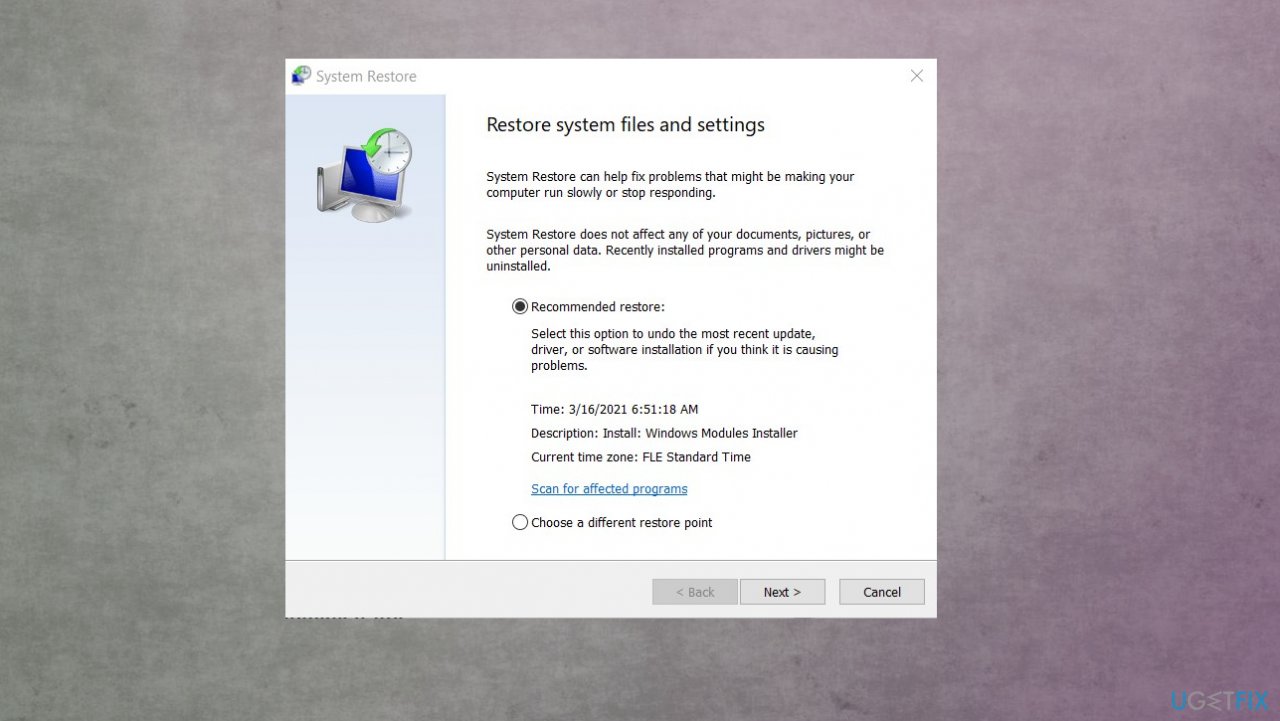
Service exception error dot4 sys restore points - Restore your computer.
Option 2. Run SFC scan
- Type CMD in search.
- Choose the Command Prompt with administrator rights.
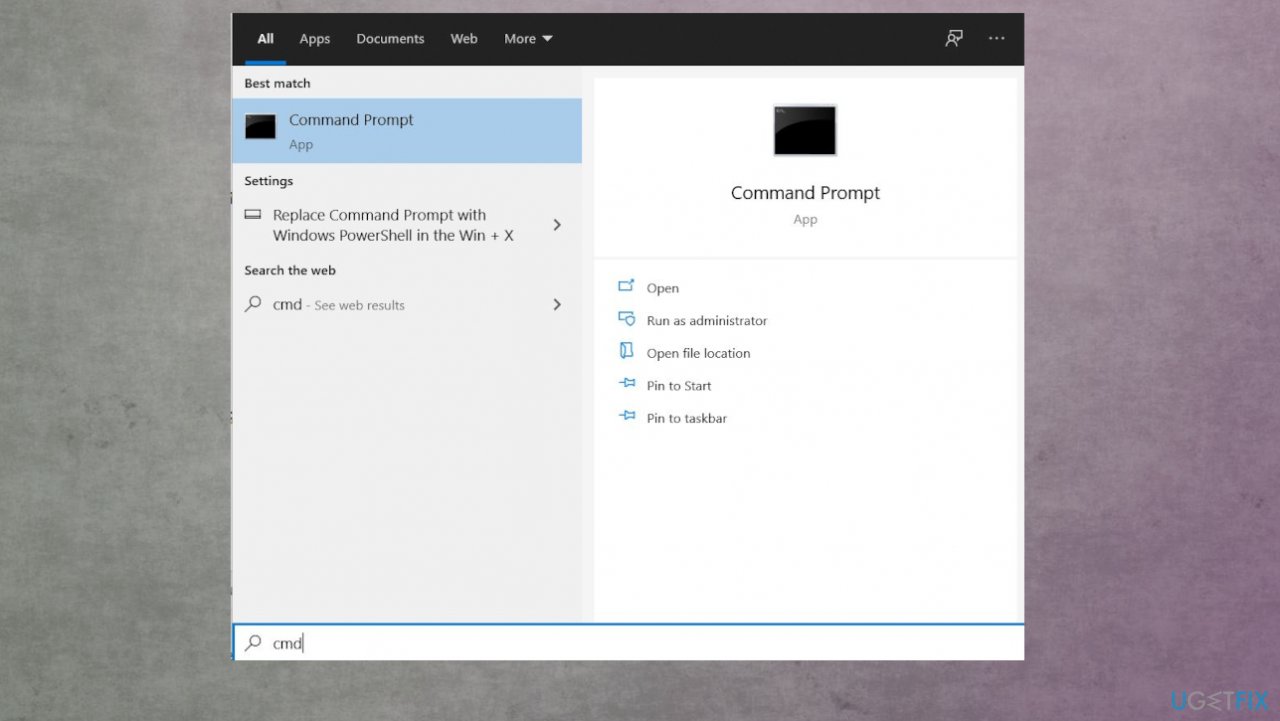
Service exception error dot4 sys cmd - Once the black screen opens, type sfc /scannow and hit ENTER.
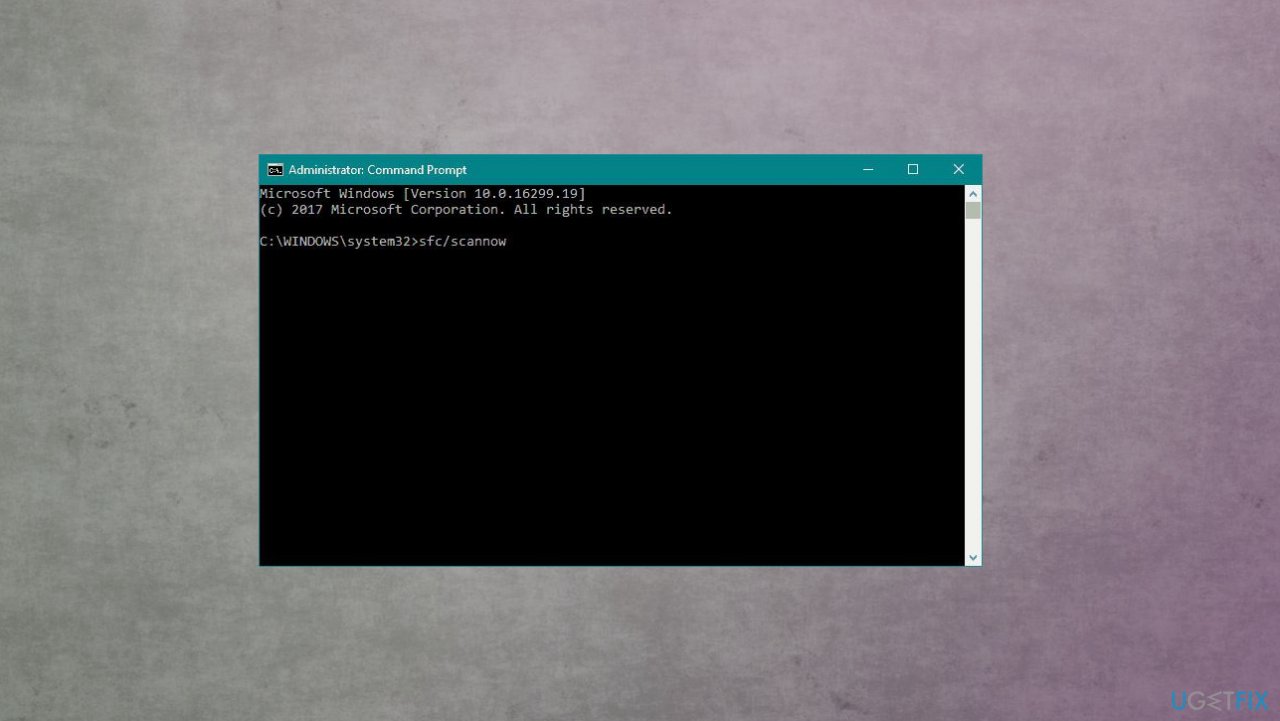
Service exception error dot4 sys sfc scan - SFC will begin scanning for issues.
- Follow commands and complete the process.
Option 3. Check for Windows OS updates
- Hit the Windows Start button.
- Go to Settings.
- Click Update & Security section.
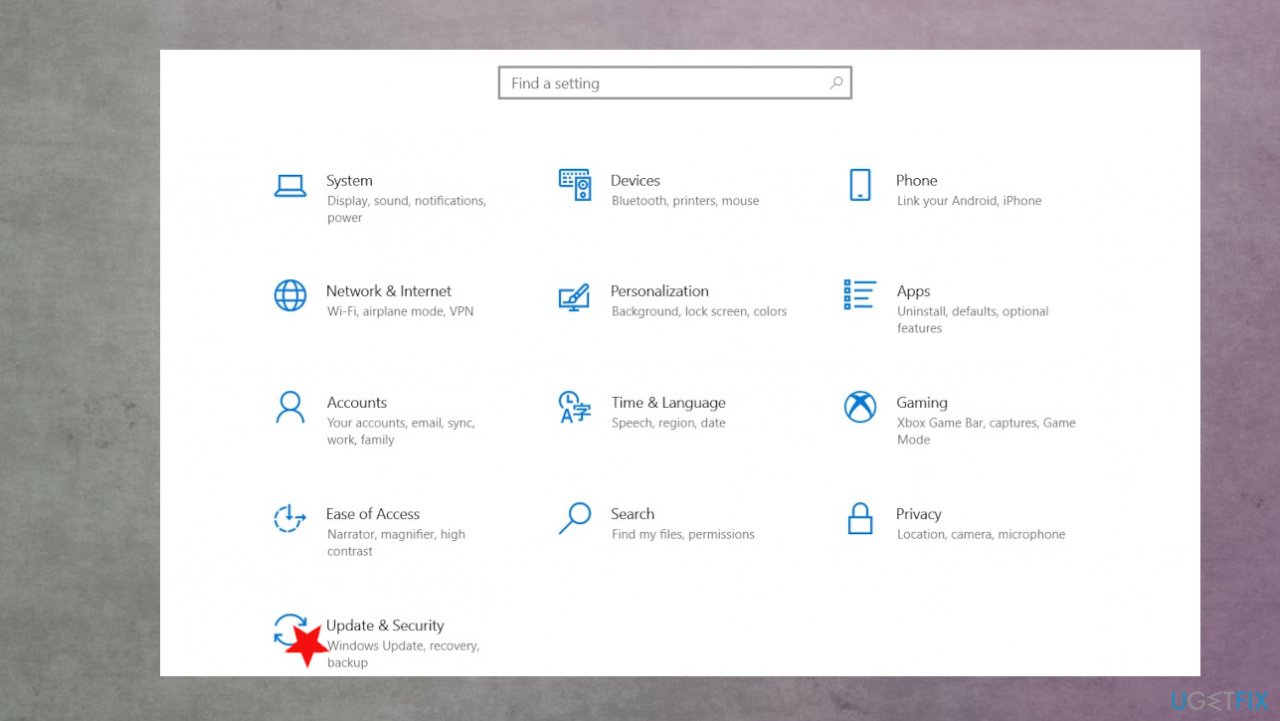
Service exception error dot4 sys settings - Find the Windows Update section and hit Check for Updates.
- If updates are available for download, click Install Updates.
- After the update is completed, restart your PC.
Option 4. Update drivers
- Click on Start and open Device Manager.
- Here you should expand the chosen section and locate the driver in question.
- Check all drivers, and if you find any of them marked with an exclamation mark - update that.
- Right-click and opt for Update Drivers.
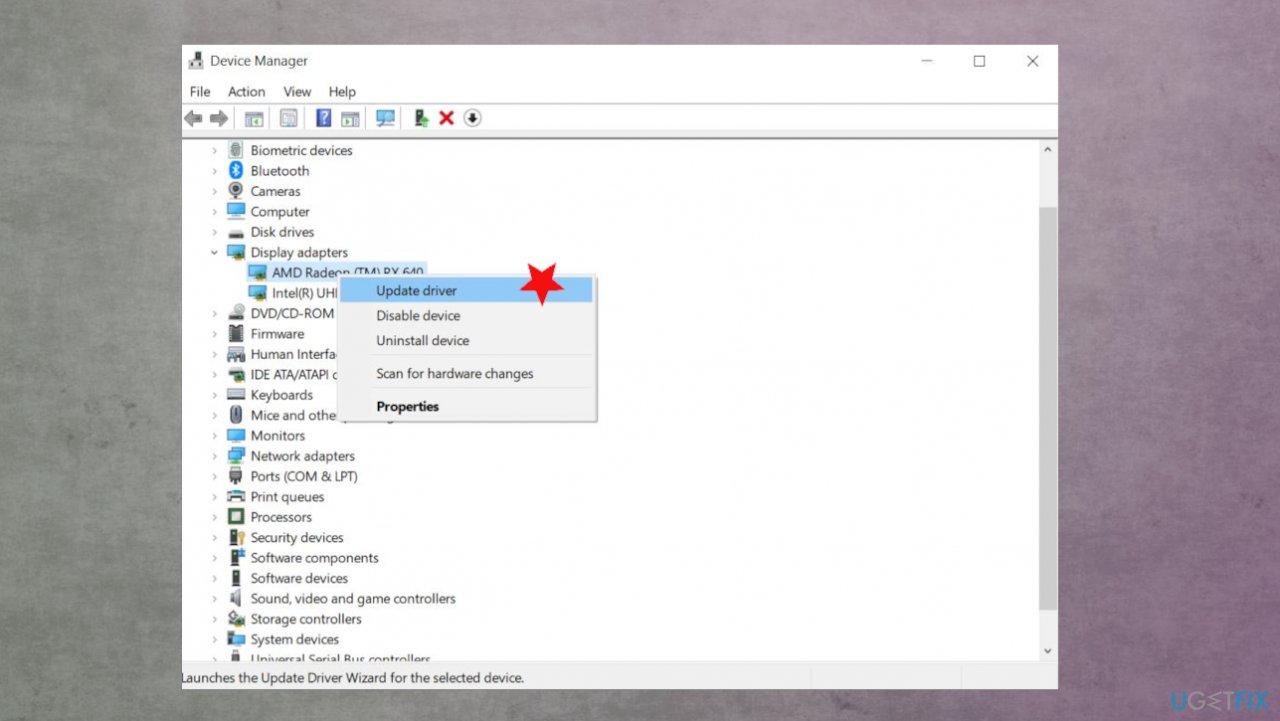
Service exception error dot4 sys update drivers - Choose to search online for drivers.
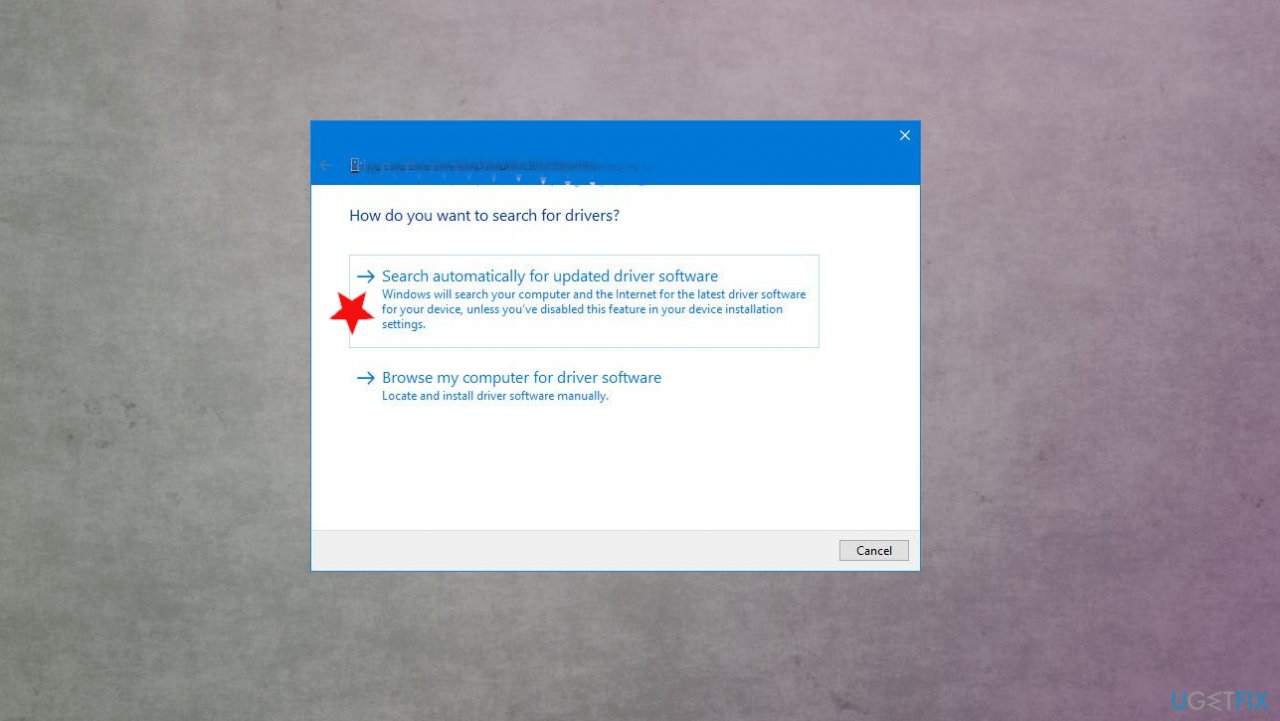
Service exception error dot4 sys auto searchfro drivers - Reboot the system and check if the error appears.
Bottom line
To fix the Dot4.sys BSOD, you should check for recently installed software, consider rolling back recent updates, and run a tool to find and fix corrupted files. If these solutions do not resolve the issue, further troubleshooting may be necessary.
Frequently asked questions
The Dot4.sys BSOD error is typically caused by issues with printer drivers or conflicts with software that manages USB devices. Updating or reinstalling the relevant drivers can often resolve this problem.
To troubleshoot the Dot4.sys error on Windows 11, you can start by booting into Safe Mode and then uninstalling any recent printer drivers or software updates. Additionally, running the Windows Memory Diagnostic tool may help identify hardware issues.
To prevent the Dot4.sys BSOD in Windows 10, ensure that all your printer drivers are up to date and compatible with your system. Regularly updating Windows and performing system scans can also help maintain system stability.




Report an issue
What's wrong with this guide? We review every report and update or remove content.
Report received — thank you. We'll review and fix it.
You need a free account to submit a report.
Be the first to comment