How to fix
“Download failed: blocked” error in Chrome or Edge browsers
on Windows
Resolve the "Download failed: blocked" error in Chrome or Edge on Windows 10 and 11 with effective solutions. Expert-tested fixes await!


What causes How to fix “Download failed: blocked” error in Chrome or Edge browsers?
- Browser extensions that prevent downloads
- Security settings or parental controls
- Strict security settings on browsers or computers
- Network problems such as slow or unstable internet connection
Repairs Windows system files, removes malware, and restores a clean OS state — without reinstalling.
Hello. I tried to download a video file through Chrome multiple files but I receive the "Download failed: blocked" error. How can I fix this?
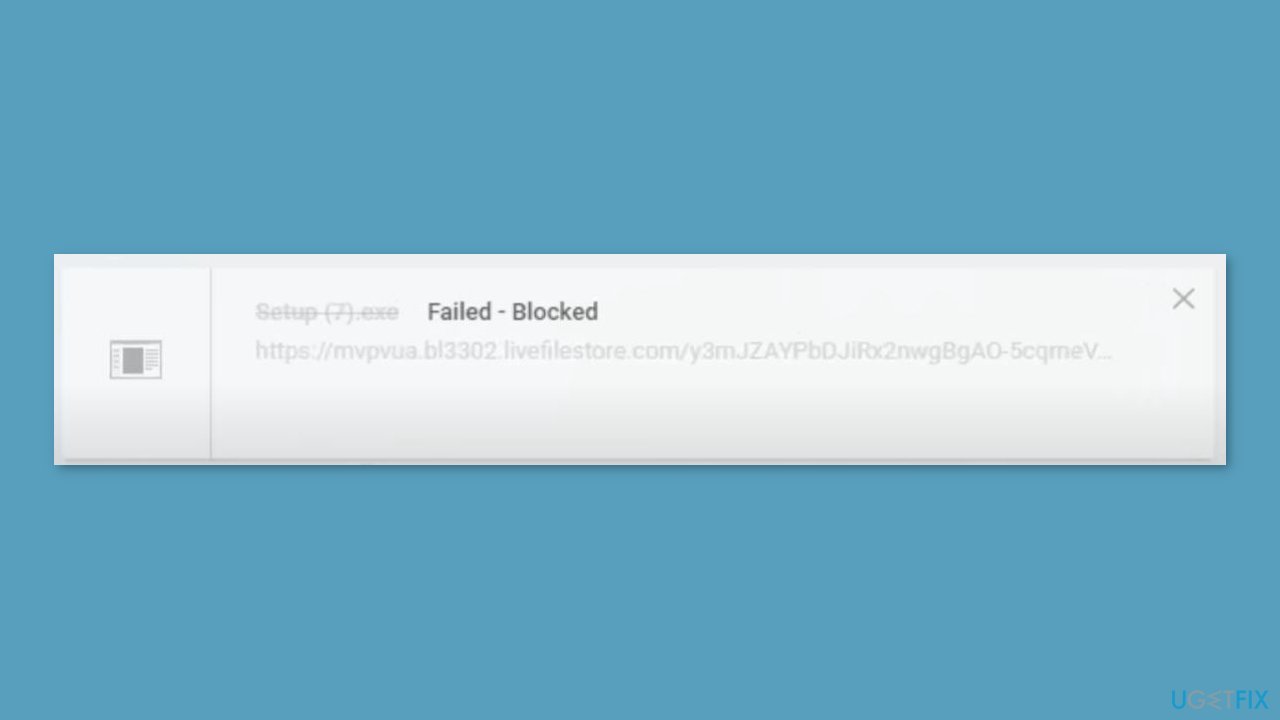
The "Download failed: blocked" error is a common problem that occurs when users try to download a file in Chrome or Edge but the download is blocked. This problem can occur for a variety of reasons, including browser extensions, security settings, or network issues.
Browser extensions that prevent downloads could be one source of this problem. Some browser extensions such as ad-blockers or antivirus software may block downloads by default to protect the user from potentially harmful files. Another reason could be security or parental controls that limit downloads. Users' browsers or computers may have strict security settings or parental controls enabled, which can prevent certain downloads from occurring.
Finally, network problems, such as a slow or unstable internet connection, can result in the "Download failed: blocked" error. If the connection drops or is insufficient to support the download, the browser may block it. Users who need to download important files for work or personal use may be frustrated by the "Download failed: blocked" error.
There are, however, a few solutions to this problem. Resetting the network can help resolve any connectivity issues that may be causing the problem. Another option is to enable downloads in the Internet Properties settings.
In this guide, you will find detailed instructions on how to do this. However, if you suspect that the issue may be caused by underlying operating system problems, you can use a repair tool like [d1]. It can fix most system issues, BSODs,[ref en-1] corrupted files, registry[ref en-2] issues, or even clear cookies and cache[ref en-3] automatically. Otherwise, follow the step-by-step instructions provided below.
Solution 1. Perform a Network Reset
Resetting the network may resolve any connectivity issues that are preventing the download from occurring and thus resolve the "Download failed: blocked" error in Chrome or Edge browsers.
When a user attempts to download a file, their browser sends an internet request to retrieve the file. This request travels through a network of servers and routers before arriving at the destination server, which hosts the file. If any of the network components along this path fails or is blocked, the download may fail or be blocked.
Once the network has been reset, the browser can try to download the file again with a fresh internet connection. If the problem was caused by a temporary network error, resetting the network should resolve it and allow the download to continue.
However, it is important to note that resetting the network may result in the user losing any previously saved network settings or configurations. As a result, before resetting their network, users should proceed with caution and ensure they have any necessary login credentials or settings.
- Right-click on the Start button and go to Settings
- Click on Network & internet in the navigation bar on the left
- Choose Advanced network settings
- Under More settings, click on Network reset
- Click on Reset now
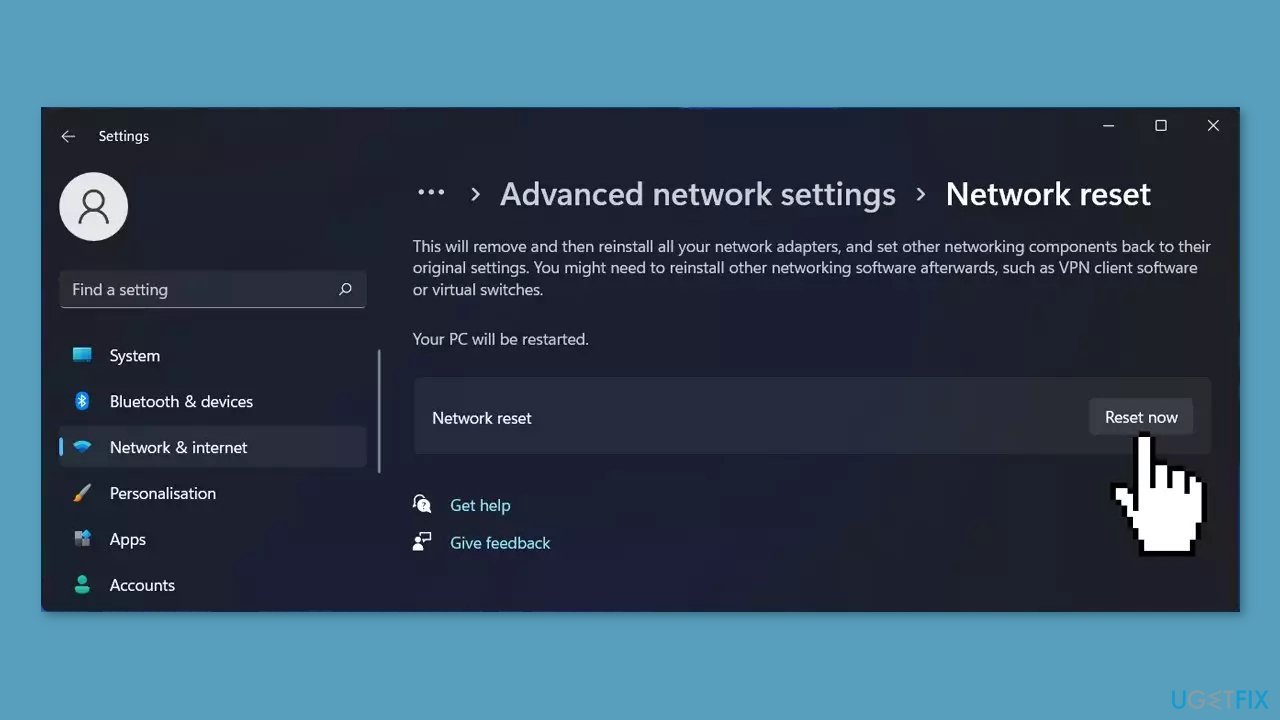
- Your PC will reboot
Solution 2. Modify Internet Properties
When a user attempts to download a file, the browser examines the security settings in Internet Properties to determine whether or not the download is safe. If the browser determines that the download is unsafe or potentially harmful, it may block it to protect the user from harm.
By selecting "Prompt (recommended)," the browser will prompt the user to confirm whether or not they want to download the file and will override any security settings that may be blocking the download. This option gives the user more control over their downloads and allows them to determine whether or not the file is safe to download.
- Press the Windows key + R to open the Run box.
- Type inetcpl.cpl and press OK to open Internet Properties.
- Go to the Security tab, click on Custom level.
- Scroll down to the Miscellaneous section.
- Under Miscellaneous, scroll down to Launching applications and unsafe files.
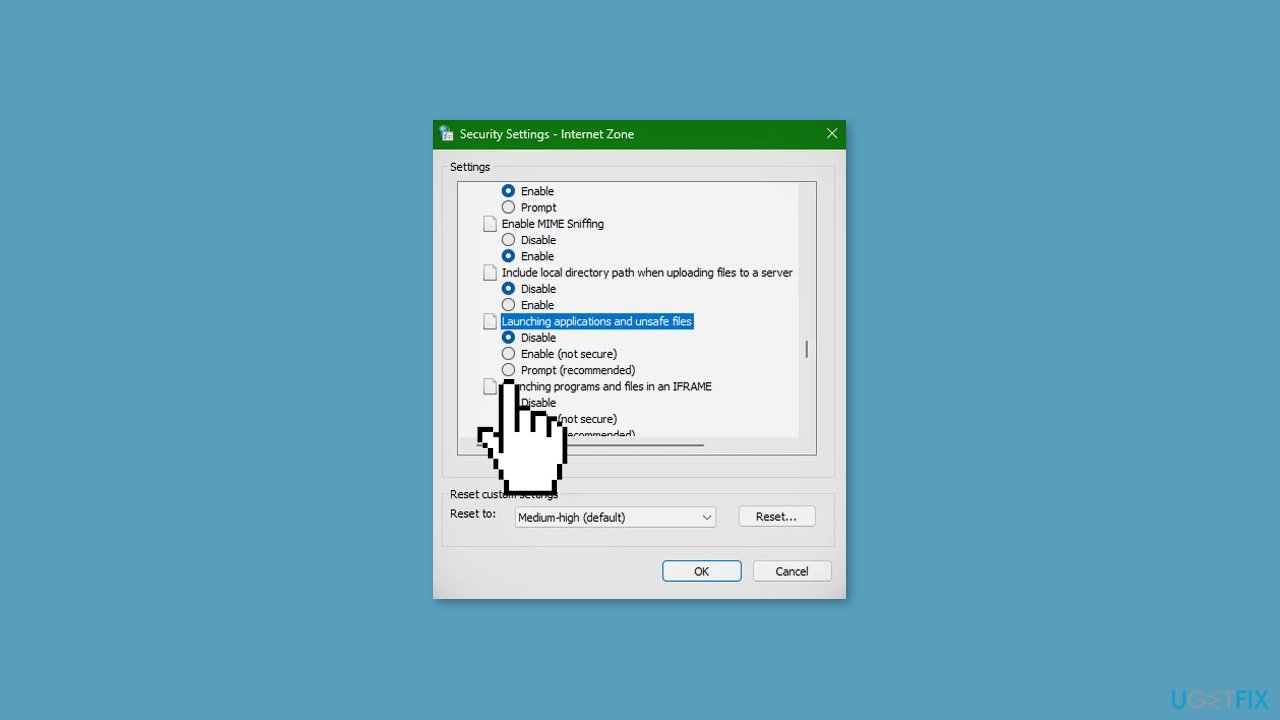
- Choose the Prompt (recommended) option.
- Click OK, Yes, and OK to apply the changes.
- Try to download the file from the browser again.
Bottom line
To fix the 'Download failed: blocked' error in Chrome or Edge, you can perform a network reset and enable downloads in the Internet Properties settings. If these solutions do not resolve the issue, consider using a repair tool to address potential underlying operating system problems.
Frequently asked questions
This error typically occurs when the browser identifies a file as potentially harmful, triggering its built-in security features to block the download. It can also happen due to Windows Defender or other antivirus software settings.
To unblock a download, navigate to the 'Downloads' section in your browser, find the blocked file, and click 'Keep' or 'Allow.' You may also need to adjust your browser's security settings or your antivirus program's settings.
Yes, resetting the browser to its default settings can help eliminate any misconfigurations that may be causing the download block. This action will restore default security settings, which might resolve the issue.




Report an issue
What's wrong with this guide? We review every report and update or remove content.
Report received — thank you. We'll review and fix it.
You need a free account to submit a report.
Be the first to comment