How to fix
DRIVER UNLOADED WITHOUT CANCELLING PENDING OPERATIONS BSOD
on Windows
Resolve the DRIVER UNLOADED WITHOUT CANCELLING PENDING OPERATIONS BSOD on Windows 10 and 11 effortlessly. Expert-tested solutions inside!

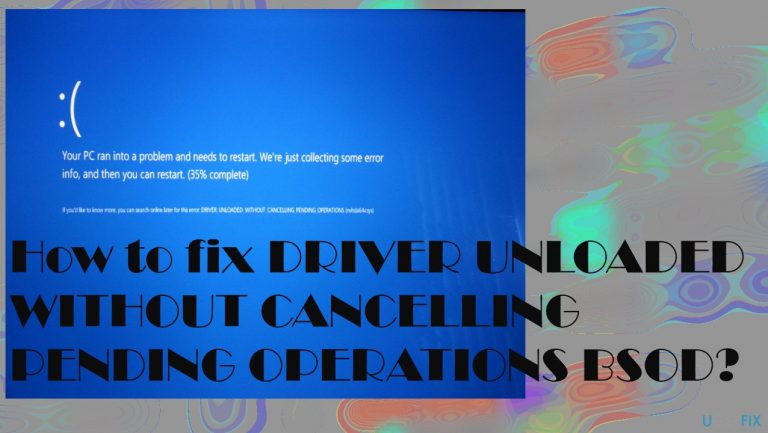
What causes How to fix DRIVER UNLOADED WITHOUT CANCELLING PENDING OPERATIONS BSOD?
- Outdated Intel graphics drivers
- Faulty drivers
- Failed system functions
- Incompatible software updates
- Corrupted system files
Repairs Windows system files, removes malware, and restores a clean OS state — without reinstalling.
I see this error: DRIVER UNLOADED WITHOUT CANCELLING PENDING OPERATIONS BSOD. Please help me! I start the laptop, and the blue screen appears. I get other blue screen errors too, but this has been repeated at least two times. I can start up the computer again, but this thing repeats. Can you offer solutions or explain this to me? I don't want to damage the computer further by doing anything myself without knowing what it is.
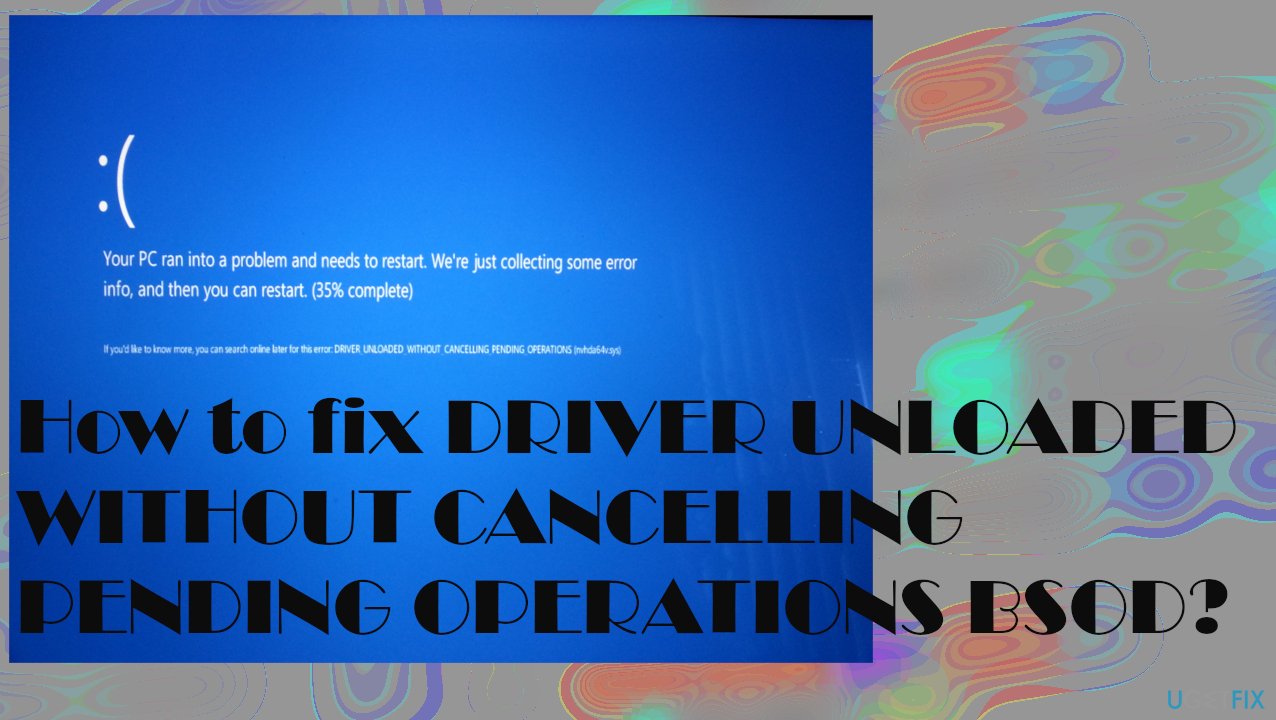
Driver Unloaded Without Cancelling Pending Operations or the particular Stop Code 0x000000CE is the crash error that triggers the restart of the Windows operating system.[ref en-1] This error can come with other driver issue messages. The particular drivers that are starting this problem are related to Intel graphics drivers.
Having the latest Windows 10 operating system update[ref en-2] might help avoid this error, so if you manage to upgrade the system to the new OS version, your device might start working smoothly again. Updating drivers is also a possible solution since faulty pieces trigger the issue.
Various errors can cause trouble on the machine because of failed function, and a piece like a driver can be related to many processes and system features. DRIVER UNLOADED WITHOUT CANCELLING PENDING OPERATIONS is the BSOD[ref en-3] that leads to frustration, and people that have no knowledge of computers and issues can start panicking. The error has troubled many users. However, this is a significant issue, and there are ways to solve the problem.
If the outdated drivers caused this error, you can update them manually or use the automatic third-party tool that does that for you without hassle. There are a few things that you need to determine before running steps and solutions. If you can run a Windows system, you have more options; if you cannot boot the operating system properly, there are fewer methods that can help to fix this BSOD error.
The quick solution would be to check for system damage with [d1] or troubleshoot issues with the general system. Do not skip through the suggestions below and rely on the guide step by step.
Solution 1. Update drivers
- Click on Start and open Device Manager.
- Expand the section with drivers. Find Intel drivers first.
- If you find any of them marked with an exclamation mark – update that.
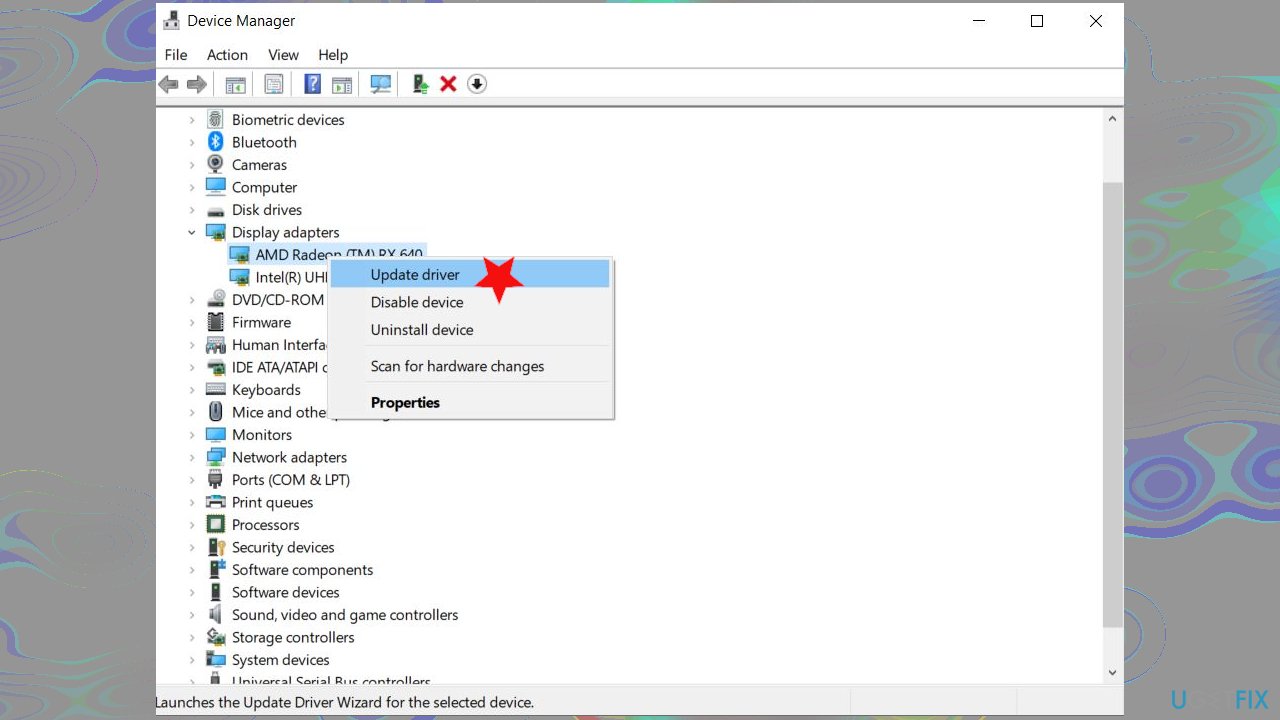
Driver unloaded without cancelling pending operations bsod update drivers - Right-click and opt for Update Drivers.
- Choose to search online for drivers.
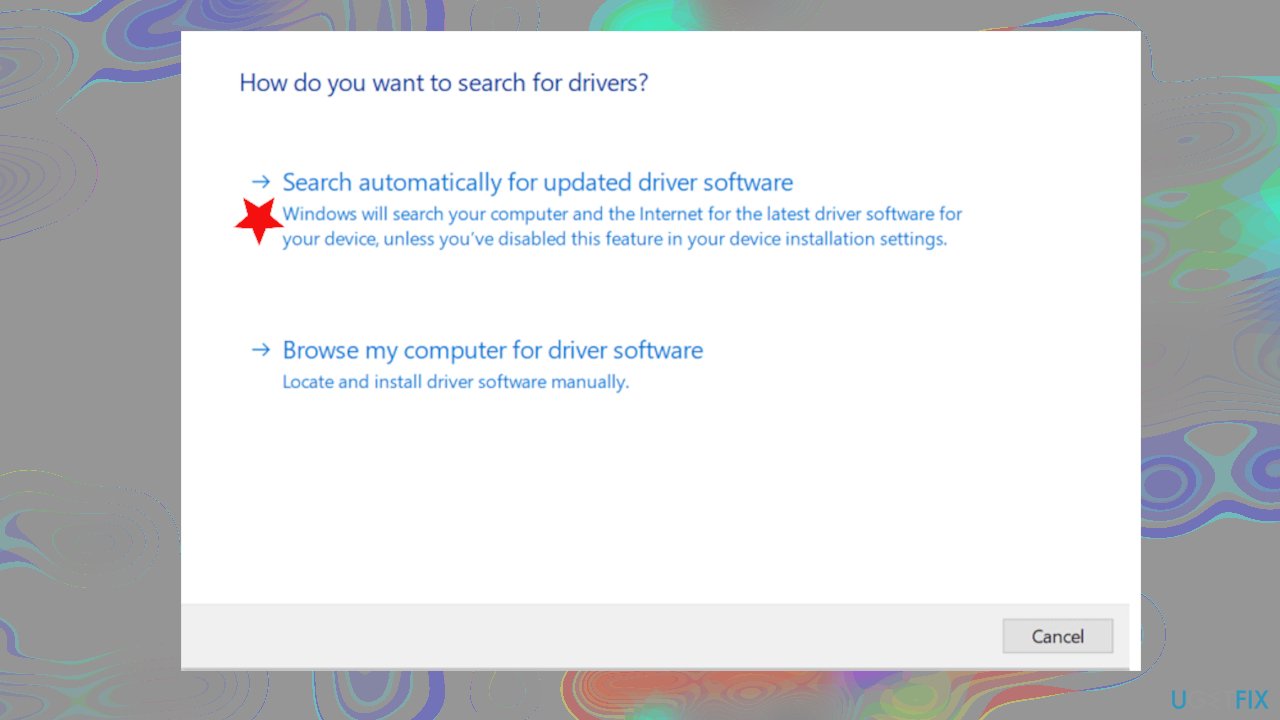
Driver unloaded without cancelling pending operations bsod searchfor - Reboot the system and check if the error appears.
You can run a tool like [rev id="DriverFix"] for a quick driver update. This application can find needed driver versions compatible with your machine and check for needed pieces in the database. You can save time with a method like this.
Solution 2. Update Windows OS
- Go to Settings by pressing the Star button and finding the gear button.
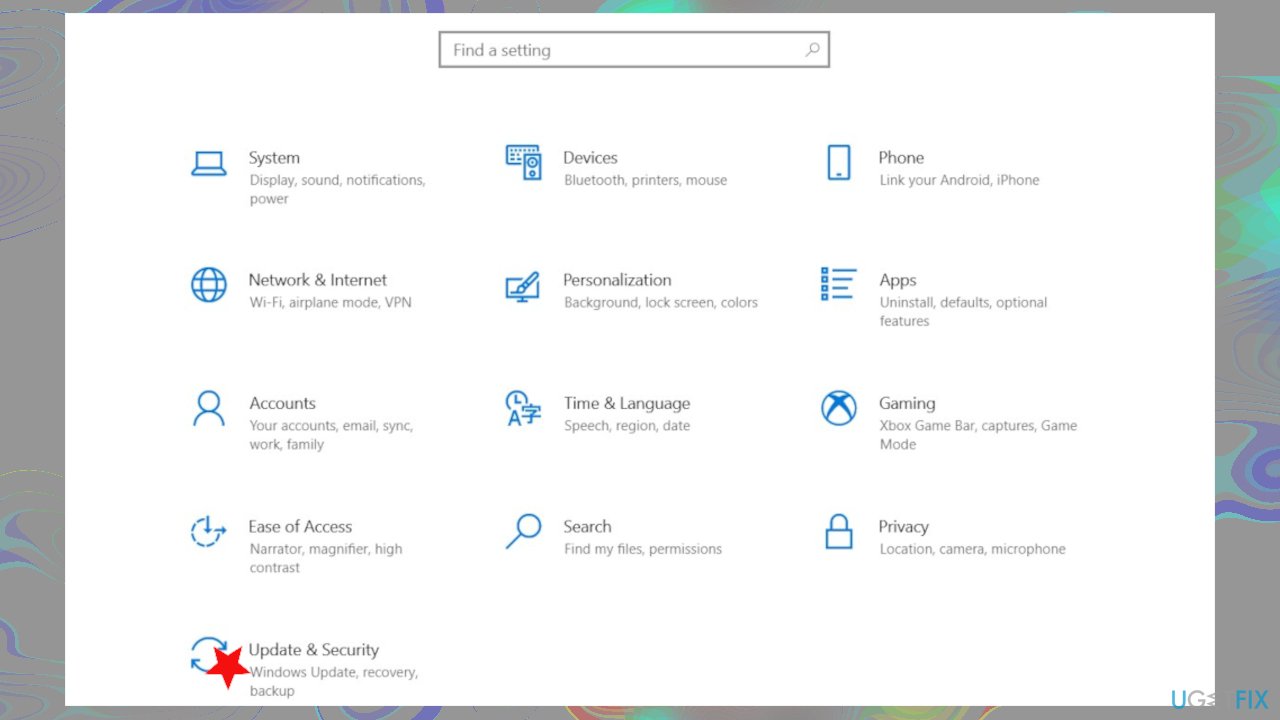
Driver unloaded without cancelling pending operations bsod update security - In the Settings window, click on Update & Security.
- Click on Check for updates and let it check for updates.
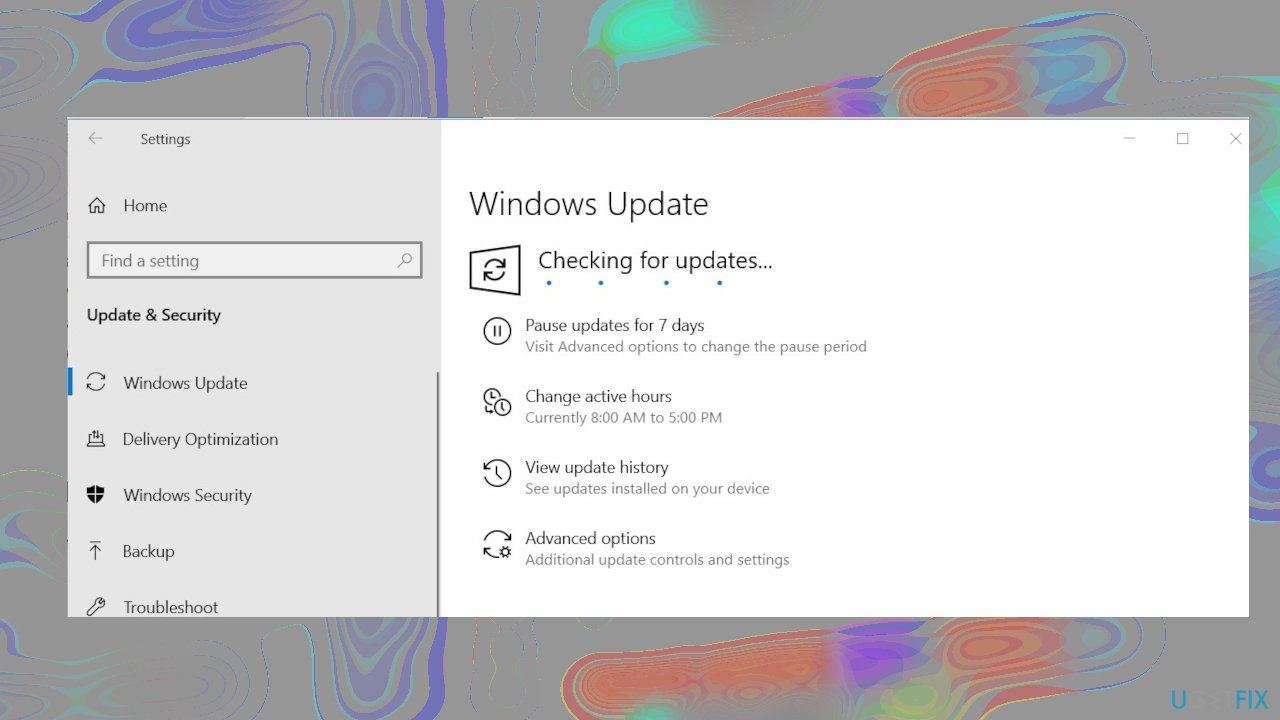
Driver unloaded without cancelling pending operations bsod update - Install.
Solution 3. Run BSOD troubleshooter
- Open the Settings app and go to the Update & Security section.
- Select Troubleshoot from the menu on the left.
- Select BSOD from the right pane and click Run the troubleshooter.
- Follow the process.
Solution 4. Run SFC scan
- Type cmd in Windows search.
- Right-click on Command Prompt and select Run as administrator.
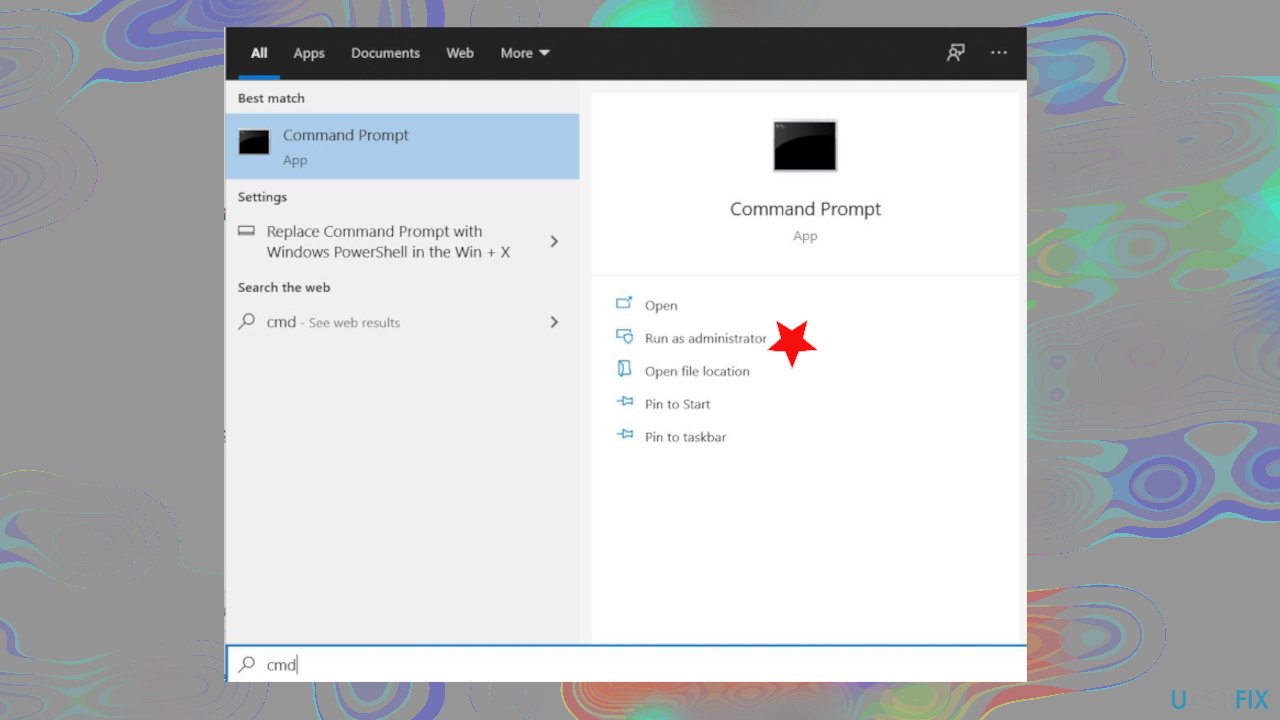
Driver unloaded without cancelling pending operations bsod admin cmd - Paste the following command and press Enter:
sfc /scannow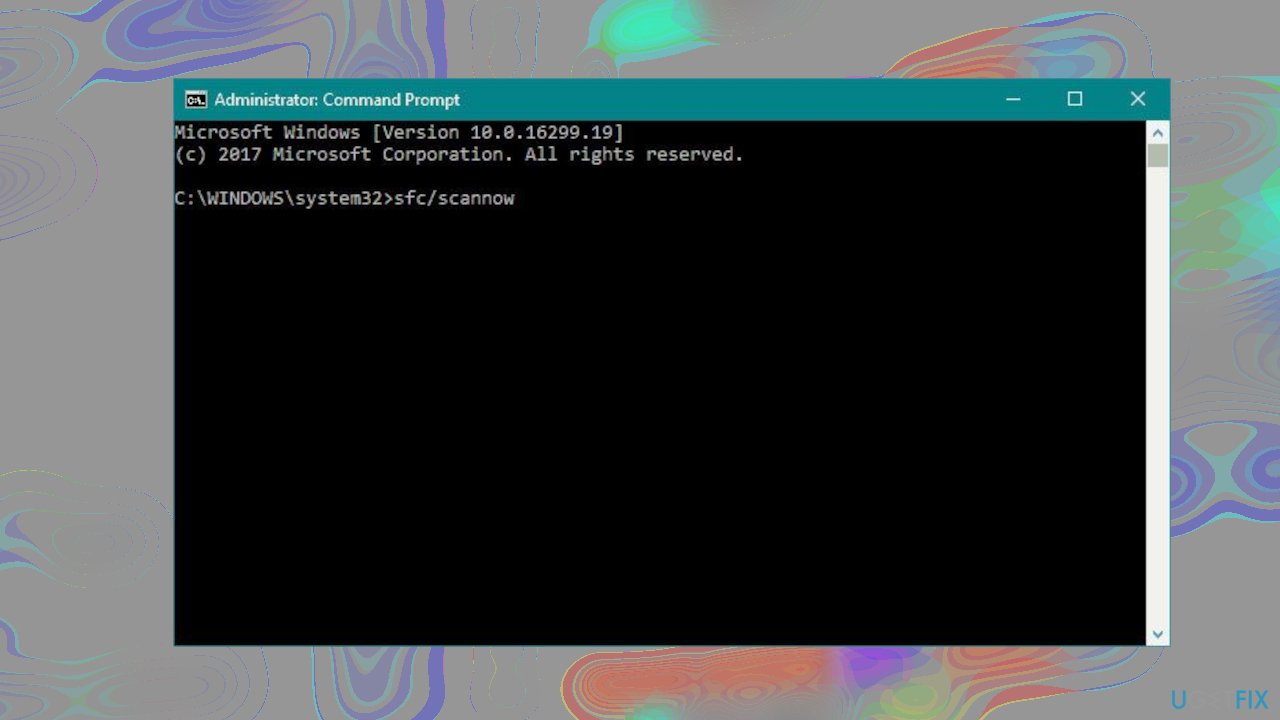
Driver unloaded without cancelling pending operations bsod sfc - Wait till the scan is complete.
Solution 5. Run DISM scan
- Open Command Prompt.
- Cope and paste the following command lines, pressing Enter each time:
DISM /Online /Cleanup-Image /RestoreHealth
Solution 6. Reset the PC
- Power on and off your computer three times.
- On the third time, your computer will boot into the Advanced Recovery environment.
- Choose Advanced Options.
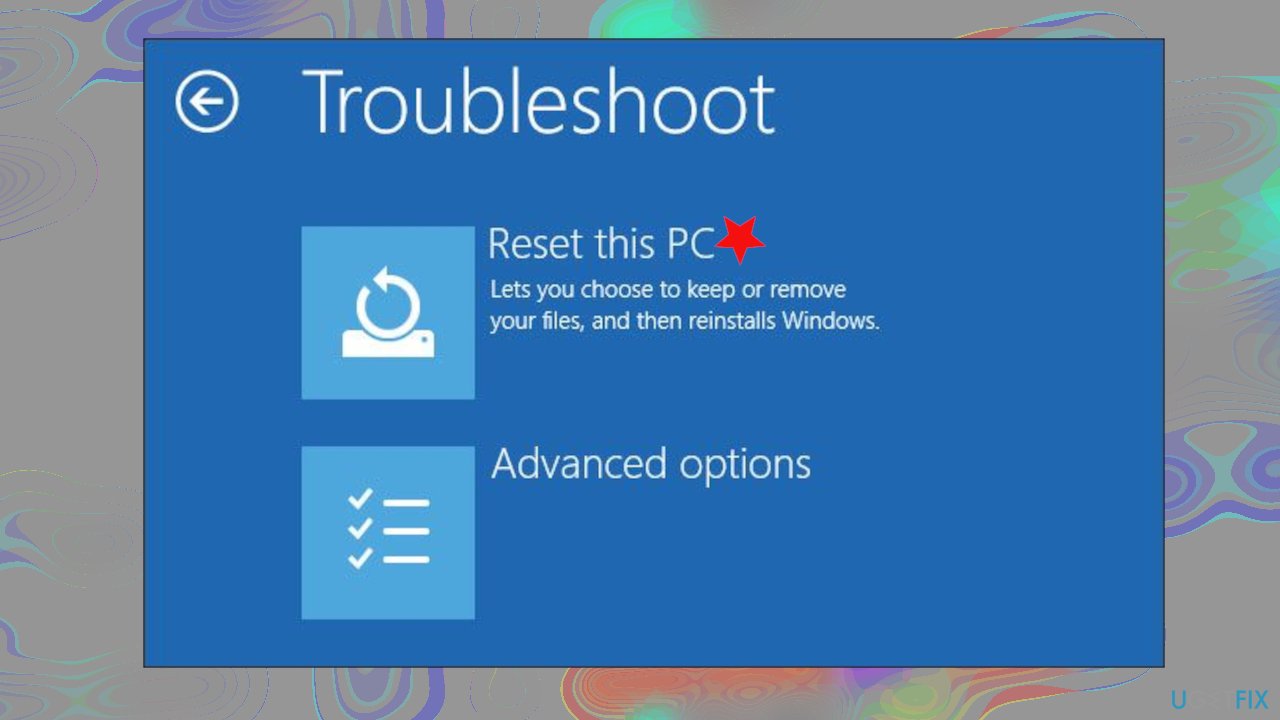
Driver unloaded without cancelling pending operations bsod reset pc - Click Troubleshoot.
- Select Reset this PC.
- Click Keep my files.
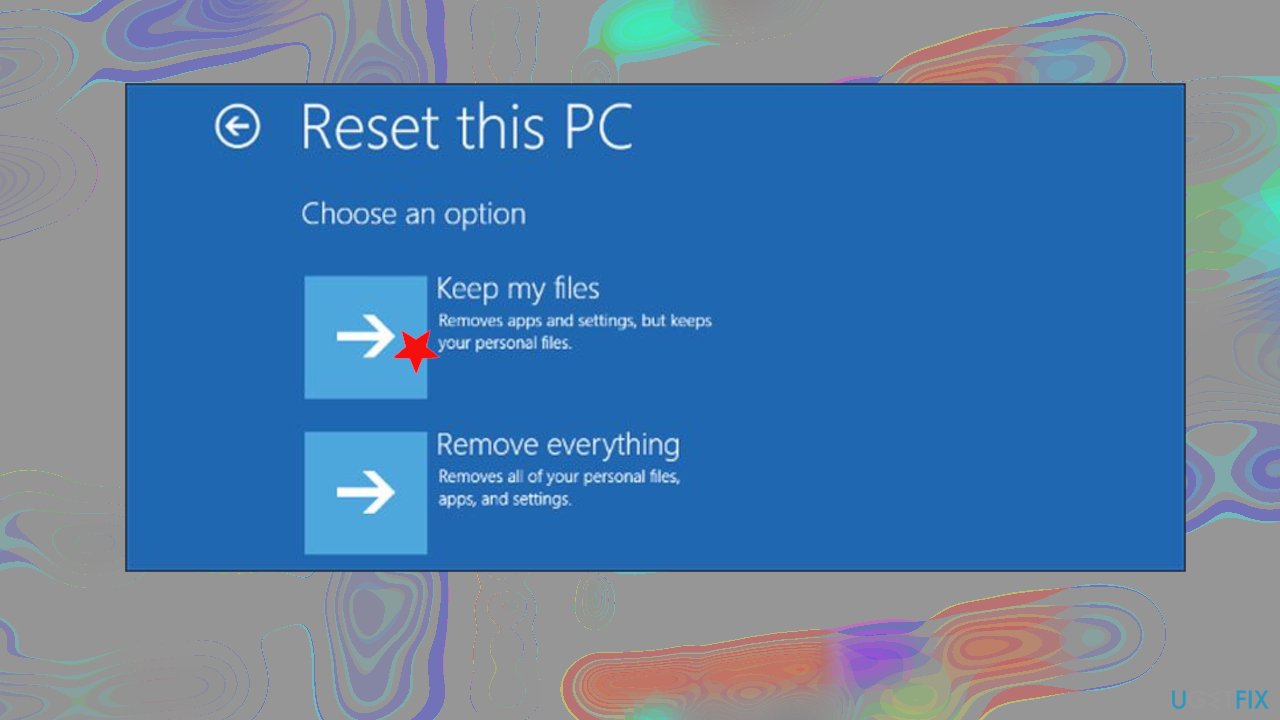
Driver unloaded without cancelling pending operations bsod kep files - Choose your account.
- Enter your password.
- Click Continue.
- Continue with Reset.
Bottom line
To fix the DRIVER UNLOADED WITHOUT CANCELLING PENDING OPERATIONS BSOD, consider updating your Intel graphics drivers and ensuring your Windows 10 operating system is up to date. If the issue persists, you can manually update other drivers or use an automatic third-party tool. If none of these solutions work, you may need to check for system damage or troubleshoot further.
Frequently asked questions
This Blue Screen of Death (BSOD) error indicates that a driver failed to unload properly, potentially causing system instability. It's often related to outdated or incompatible drivers in Windows 10.
You can update drivers by right-clicking the Start menu, selecting Device Manager, and then updating the drivers for any devices with a warning sign. Restart your PC afterward to see if the issue is resolved.
Yes, running the Windows Memory Diagnostic tool can help identify memory-related issues that may contribute to this BSOD error in Windows 10 or Windows 11. To run it, type 'Windows Memory Diagnostic' in the search bar and follow the prompts.




Report an issue
What's wrong with this guide? We review every report and update or remove content.
Report received — thank you. We'll review and fix it.
You need a free account to submit a report.
Be the first to comment