How to fix
DRIVER_INVALID_STACK_ACCESS error
on Windows
Resolve the DRIVER_INVALID_STACK_ACCESS error in Windows 10 effortlessly. Quick solutions to get your system running smoothly, expert-tested for reliabi…

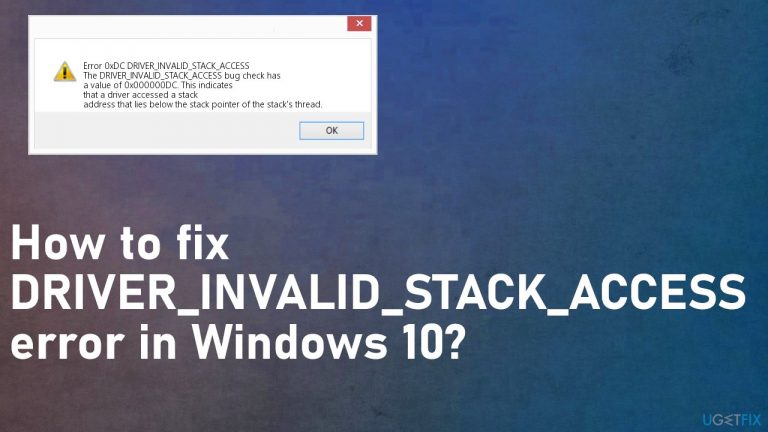
What causes How to fix DRIVER_INVALID_STACK_ACCESS error in Windows 10?
- Faulty driver
- Software corruption
- Incompatible BIOS versions
- Damaged firmware
- Power supply issues
- Bad memory
Repairs Windows system files, removes malware, and restores a clean OS state — without reinstalling.
Hey, I need help to fix the DRIVER_INVALID_STACK_ACCESS error. I receive this continuously on my Windows 10. It is the Blue Screen, but I manage to run the machine again. However, it appears again after that. Help me I don't know what drivers and other pieces need the fix.
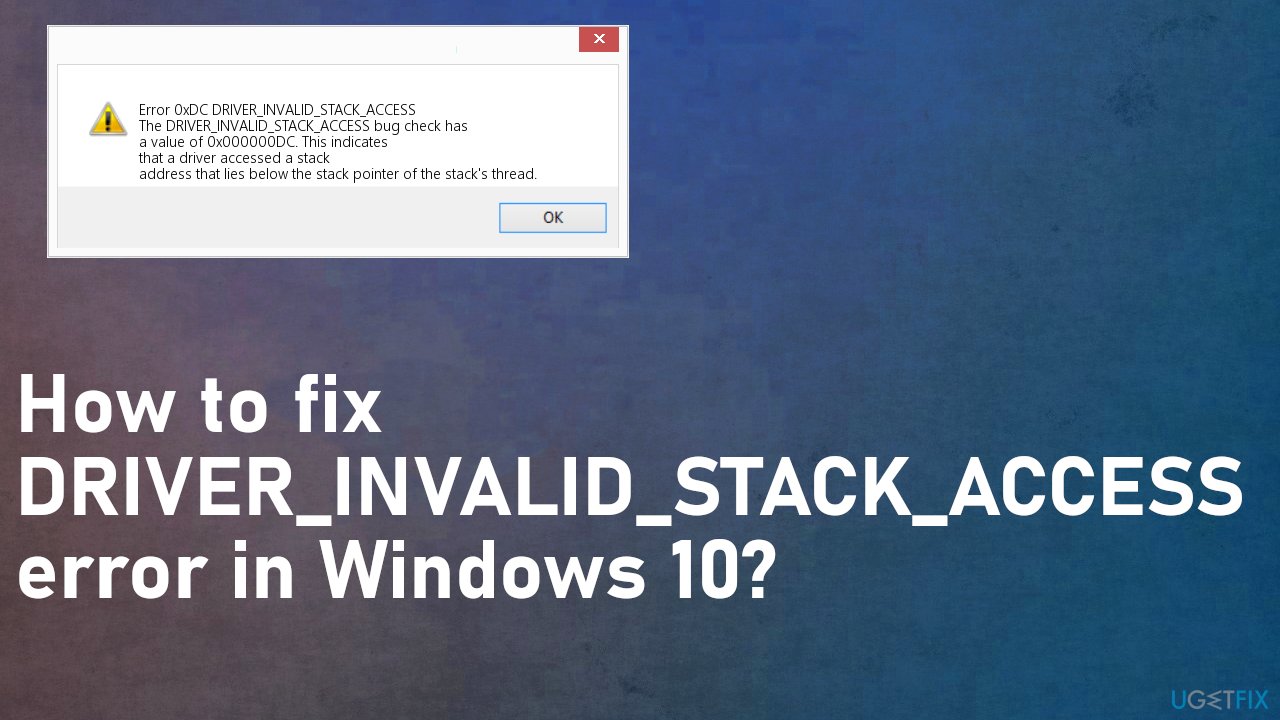
DRIVER_INVALID_STACK_ACCESS error in Windows is a bug that means that driver accessed a stack address that lies below the stack pointer of the thread. Users who encounter the error have no idea what happened and what that means. Device drivers are the ones needed for the computer programs to run by interacting with hardware devices.[ref en-1]
A stack is the type of data needed for the program performance, so when the pointer is not the same value as it should be, the threat cannot stream, and the execution of the application fails, so the DRIVER_INVALID_STACK_ACCESS error appears in Windows 10 and other systems.
Blue Screen of Death[ref en-2] errors like DRIVER_INVALID_STACK_ACCESS issue are generally caused by the faulty driver or software and other corruptions. Failure of the program can then trigger power supply issues, bad memory, or additional compatibility problems. It is crucial to find the error's root cause and fix it before the machine is damaged.
Since this error occurs is related to incompatible versions of BIOS or damaged firmware, driver issues, it is possible to fix the DRIVER_INVALID_STACK_ACCESS error in Windows 10 in different ways. Even your third-party software like AV tools can trigger issues with system files or even delete registry entries and other pieces of data.
The error can also come as the particular value of 0x000000DC, so you should immediately try to find ways to properly fix the DRIVER_INVALID_STACK_ACCESS error in Windows 10. This is not the issue related to updates,[ref en-3] or malware, security issues. But these things can lead to data damage in the system, so run a tool like [d1] as your first troubleshooting step and check for altered or damaged data in system folders. Then you can go for more manual solutions listed.
#1. Check for OS updates to fix DRIVER_INVALID_STACK_ACCESS error
- Right-click on Start and select Settings
- Go to Update & Security
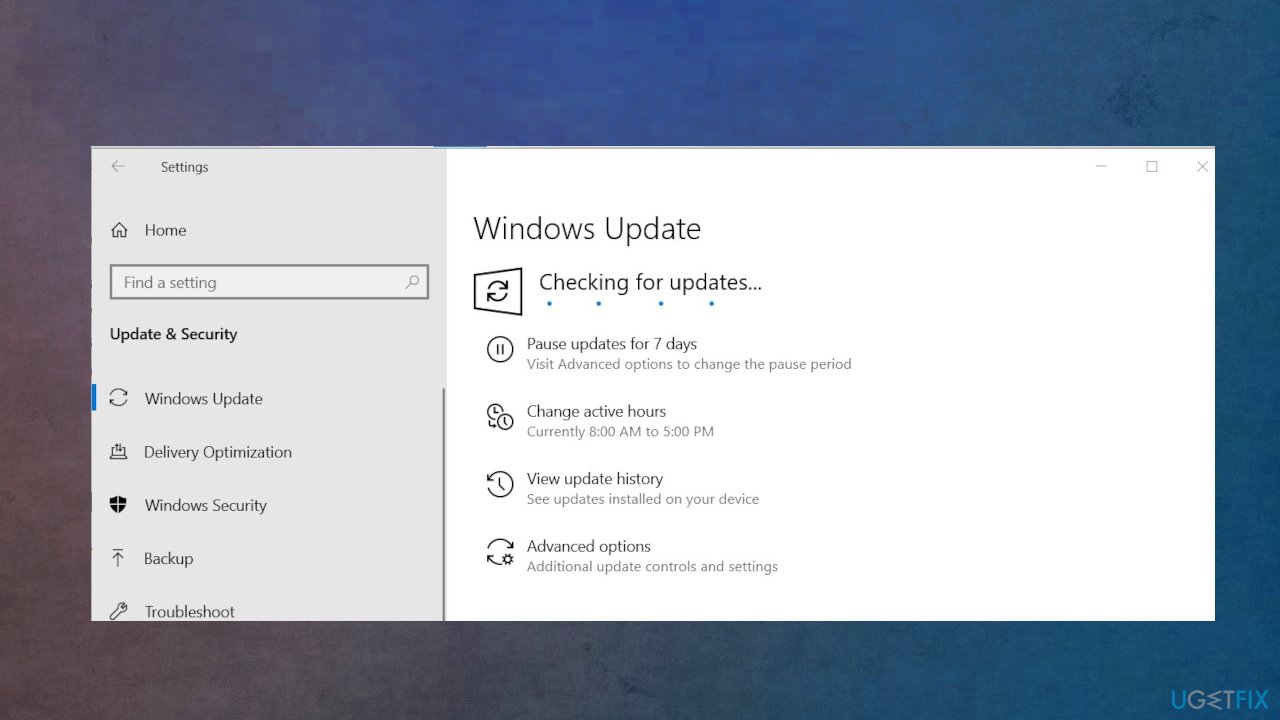
How to fix driver invalid stack access error os update - On the right side, click Check for updates
- Wait till Windows downloads and installs updates
- Reboot your system
#2. Uninstall recently installed programs
- Type Control Panel on the search box and click the result.
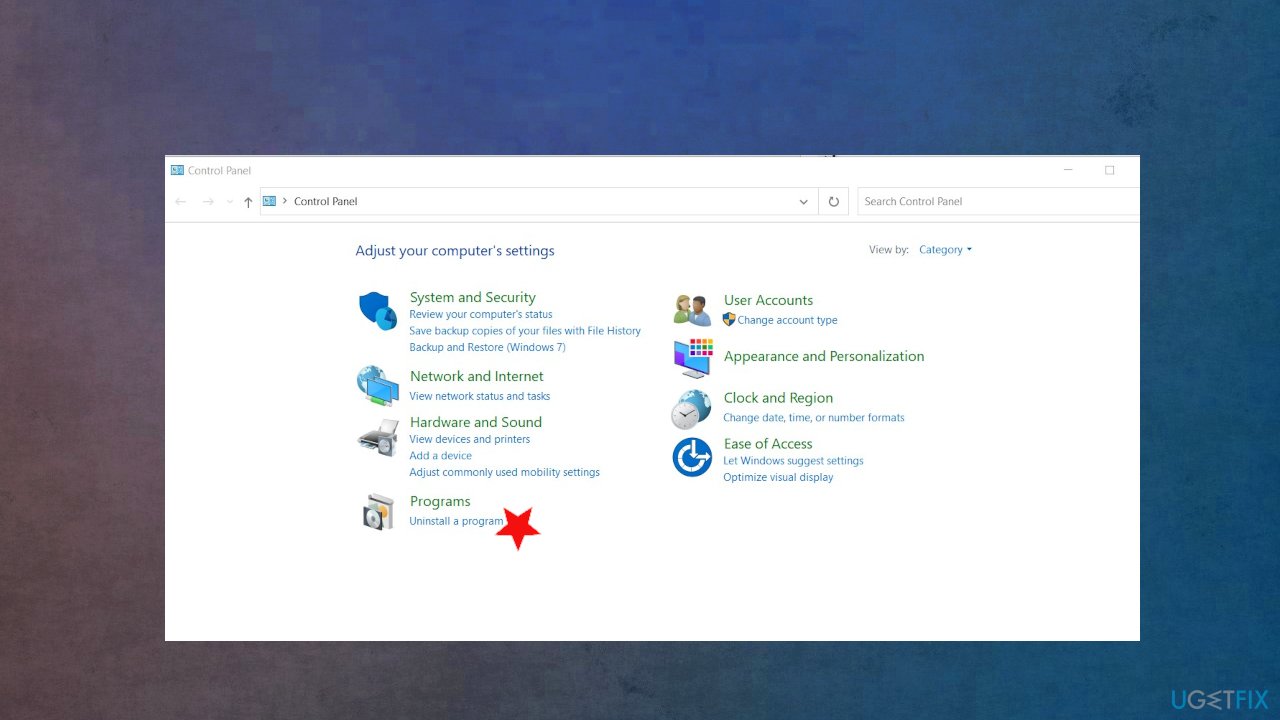
How to fix driver invalid stack access error control panel - Once inside the control panel, click Uninstall a program.
- You will see the Programs and Features window and the list of all installed programs.
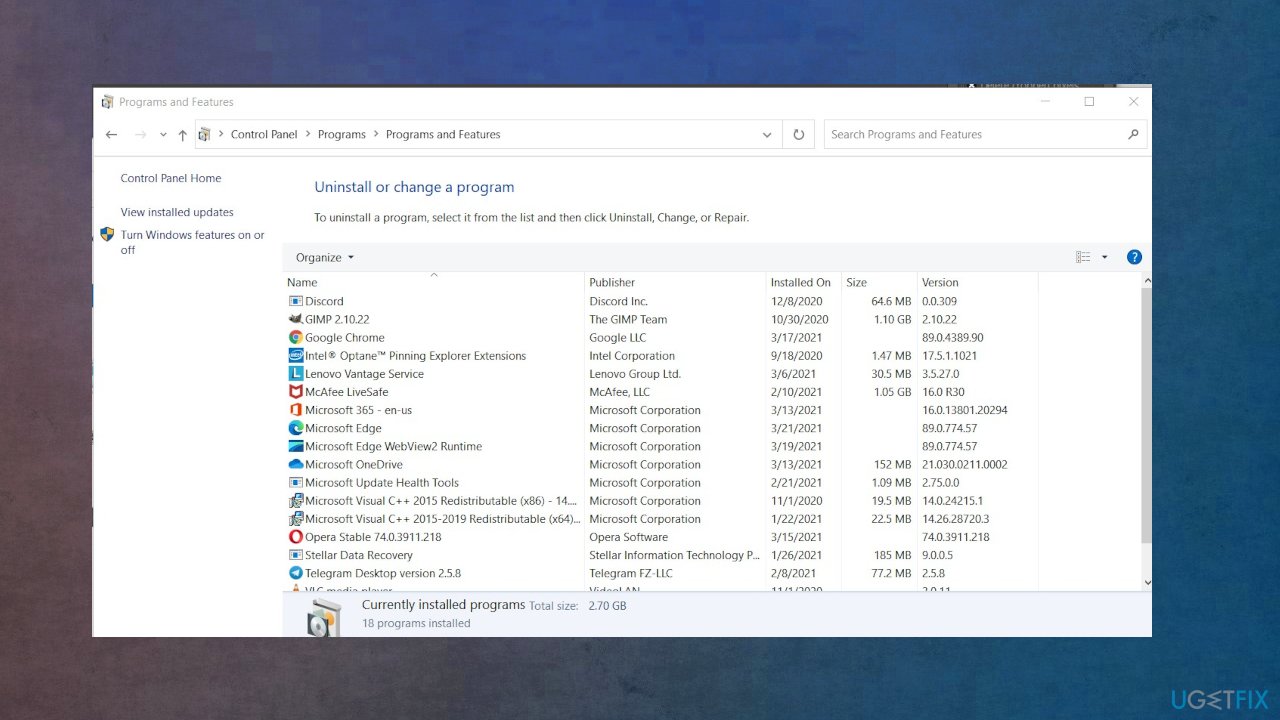
How to fix driver invalid stack access error program uninstall - Look for the ones that are installed just before you received the error.
- Find the item and right-click to Uninstall.
- Follow the direction to uninstall and then reboot your computer.
#3. Edit fast startup settings to fix DRIVER_INVALID_STACK_ACCESS error
- You can type Power Options on the search box, then press enter key.
- Find additional power settings.
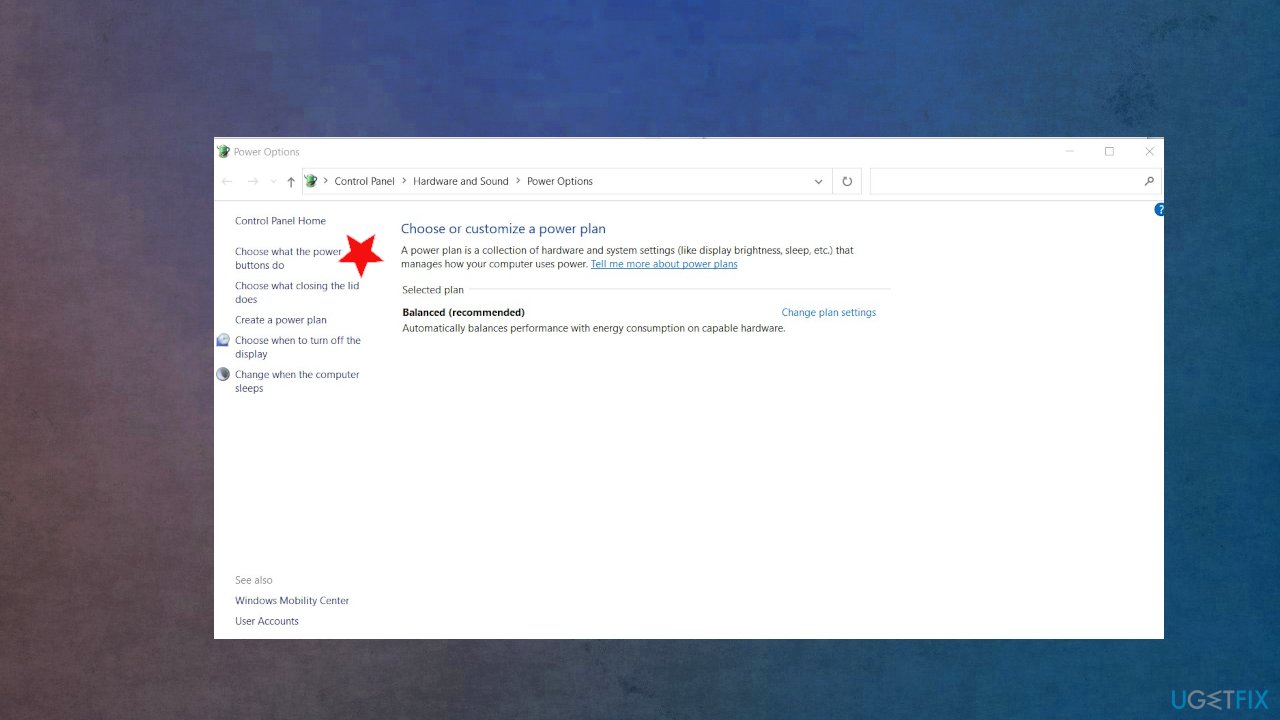
How to fix driver invalid stack access error power options - Click Choose what the power buttons do on the left side.
- Locate and change the status of Turn on fast startup under Shutdown settings.
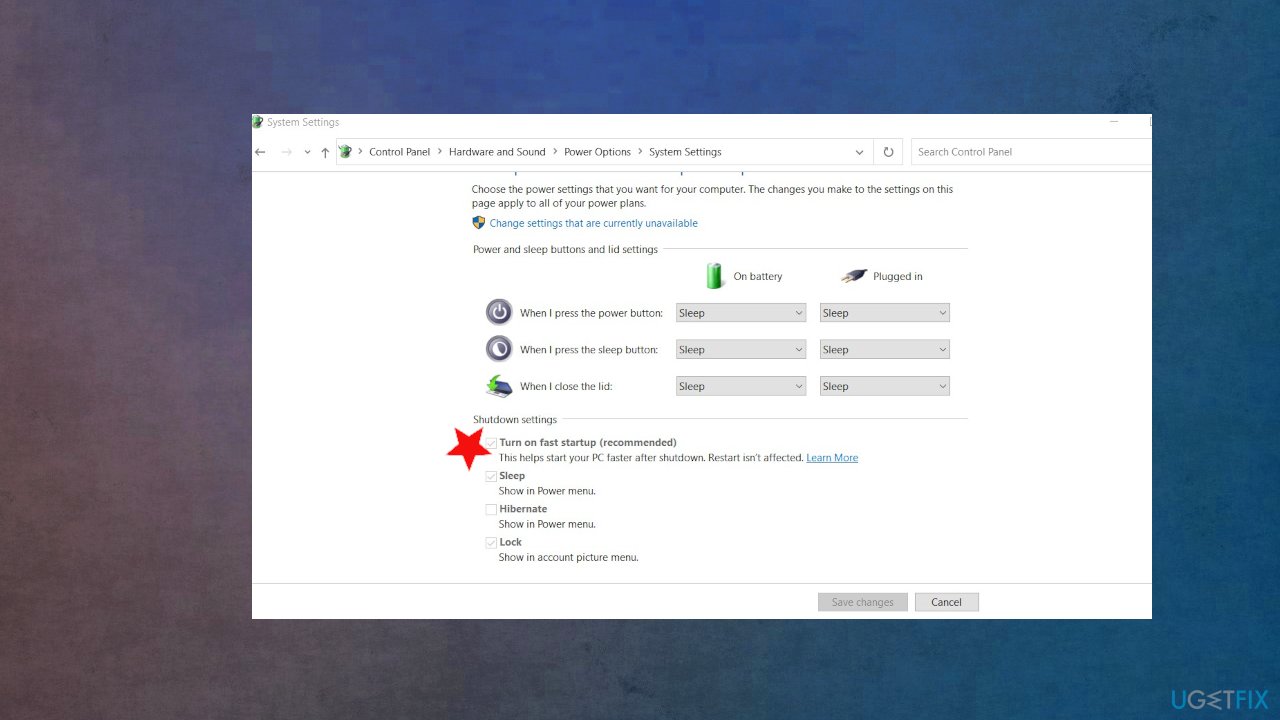
How to fix driver invalid stack access error fast startup - That is, turn it off if it is on, or turn it on if it is off.
- Then click Save changes.
#4. Rely on System Restore
- Hold the power button to turn off your PC and then restart the system.
- Press F8 to boot into Safe Mode.
- Once the system boots up, disable your antivirus.
- Click Windows key and type system restore.
- Select Create a restore point, select System Restore, and hit Next.
- Select the latest system restore point and click Next.
#5. Check for malware to fix DRIVER_INVALID_STACK_ACCESS error in Windows 10
- Click on the Show hidden items arrow at the bottom right corner of your taskbar.
- Click on the Microsoft Defender icon.
- Select Virus & threat protection.
- Pick Scan options.
- Scroll down and select Microsoft Defender Offline scan.
- Finally, choose Scan now.
- Your computer will immediately restart.
#6. Update drivers
- Press Windows + X select Device manager.
- Expand the chosen section, f.e you can see exclamation points near the faulty driver.
- Right-click installed sound driver and then select Update Driver.
- This will check for the latest updated audio driver for your PC.
- Choose to automatically download and install drivers for you.
- Restart Windows.
Bottom line
To fix the DRIVER_INVALID_STACK_ACCESS error in Windows 10, check for OS updates, run a tool to check for altered or damaged data, and consider manual solutions. If these steps do not resolve the issue, further investigation into driver compatibility and system integrity may be necessary.
Frequently asked questions
This error typically occurs due to incompatible or outdated drivers that conflict with the Windows 10 operating system. It can also be triggered by hardware issues or corrupted system files.
You can update drivers by going to Device Manager, right-clicking on the problematic device, and selecting 'Update driver.' Alternatively, you can download the latest drivers from the manufacturer's website.
If updating drivers doesn't resolve the issue, try running the Windows Memory Diagnostic tool to check for RAM issues, and perform a system file check using 'sfc /scannow' in Command Prompt.




Report an issue
What's wrong with this guide? We review every report and update or remove content.
Report received — thank you. We'll review and fix it.
You need a free account to submit a report.
Be the first to comment