How to fix
DRIVER_LEFT_LOCKED_PAGES_IN_PROCESS Blue Screen
on Windows
Resolve the DRIVER_LEFT_LOCKED_PAGES_IN_PROCESS Blue Screen error on Windows 10 and 11 with these effective solutions, expertly tested for quick fixes.

What causes How to fix DRIVER_LEFT_LOCKED_PAGES_IN_PROCESS Blue Screen in Windows?
- Bug in the driver
- Software conflict
- Corrupted system files
- Lack of disk space
- Junk files on the disk
Repairs Windows system files, removes malware, and restores a clean OS state — without reinstalling.
Hello, I have been recently encountering some crashes with the DRIVER_LEFT_LOCKED_PAGES_IN_PROCESS error code. Could you please assist in resolving this?
DRIVER_LEFT_LOCKED_PAGES_IN_PROCESS is an error message that typically appears in the Windows operating system. It occurs when a device driver or a system component has failed to unlock memory pages that it had previously locked. This error can lead to system crashes, instability, and other performance issues. It is usually caused by a bug in the driver or a software conflict.
DRIVER_LEFT_LOCKED_PAGES_IN_PROCESS BSOD might occur at any time - whenever users are booting into Windows, launching programs, or even doing nothing significant at the time. At this point, the system freezes, and the blue screen is shown, which is accompanied by a generic BSOD text along with the error code 0x000000CB.
While for some, this might be a one-time thing, others suffer from repeated crashes, and, in some rare cases, users might not even be able to access their Windows at all due to the reboot loop. This can be particularly problematic, making troubleshooting in normal mode impossible.
Luckily, there are some solutions you could try to fix the DRIVER_LEFT_LOCKED_PAGES_IN_PROCESS error and stop these crashes. The exact cause of the error and the solution will depend on the specific circumstances in which it occurs.
For example, it might be caused by corrupted system files, in which case you could repair it with conning commands via Command Prompt or by employing an automatic PC repair tool [d1]. In other cases, lack of space on the disk may also result in DRIVER_LEFT_LOCKED_PAGES_IN_PROCESS crashes - clearing the disk from junk can be helpful in this case. Below you will find the instructions you should follow carefully. Note that you might go through several of them before you find a solution that works for you.
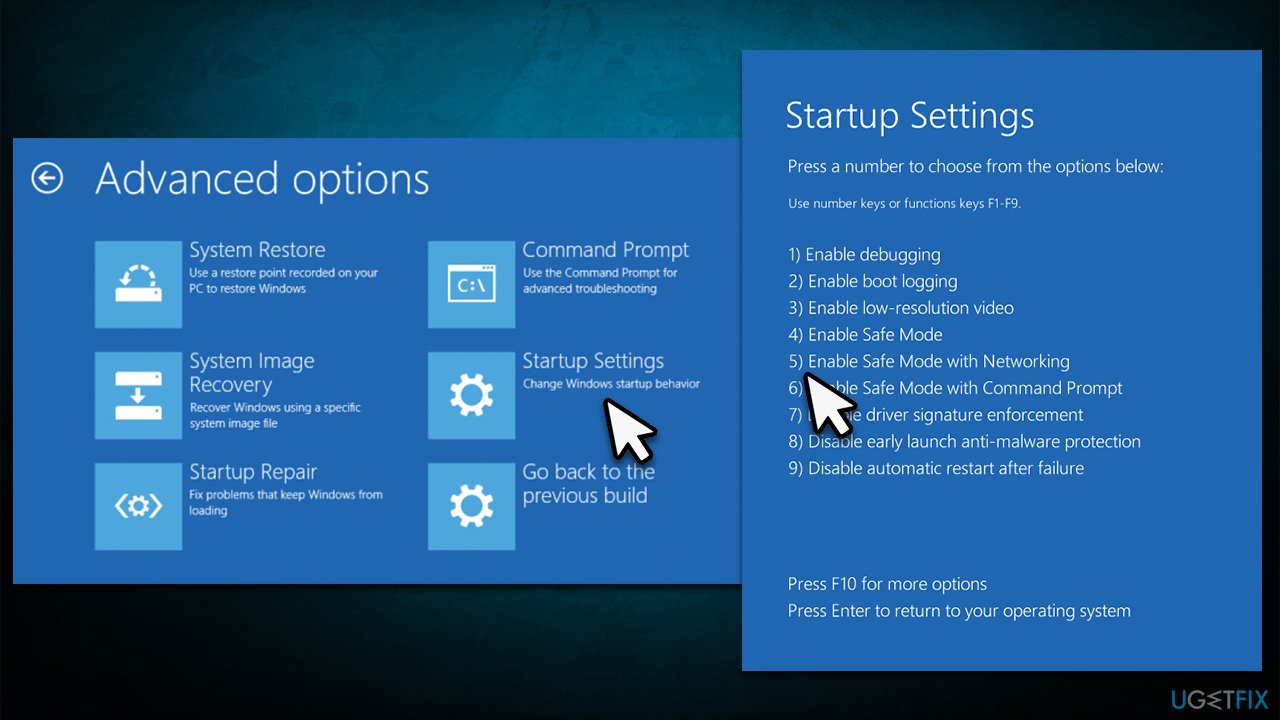
Access Safe Mode [if applicable]
You should be able to bypass the restart loop if you access Safe Mode. If you can access Windows in a regular way, skip this step and proceed with the solutions below.
- Restart your system.
- Once Windows starts booting, press and hold the Power button, interrupting the loading process - do this three times.
- After that, Windows will automatically enter Advanced Startup mode.
- Select Troubleshoot > Advanced options > Startup Settings and Restart.
- After a reboot, pick either 4/F4 for Safe Mode or 5/F5 for Safe Mode with Networking.
Fix 1. Run SFC and DISM
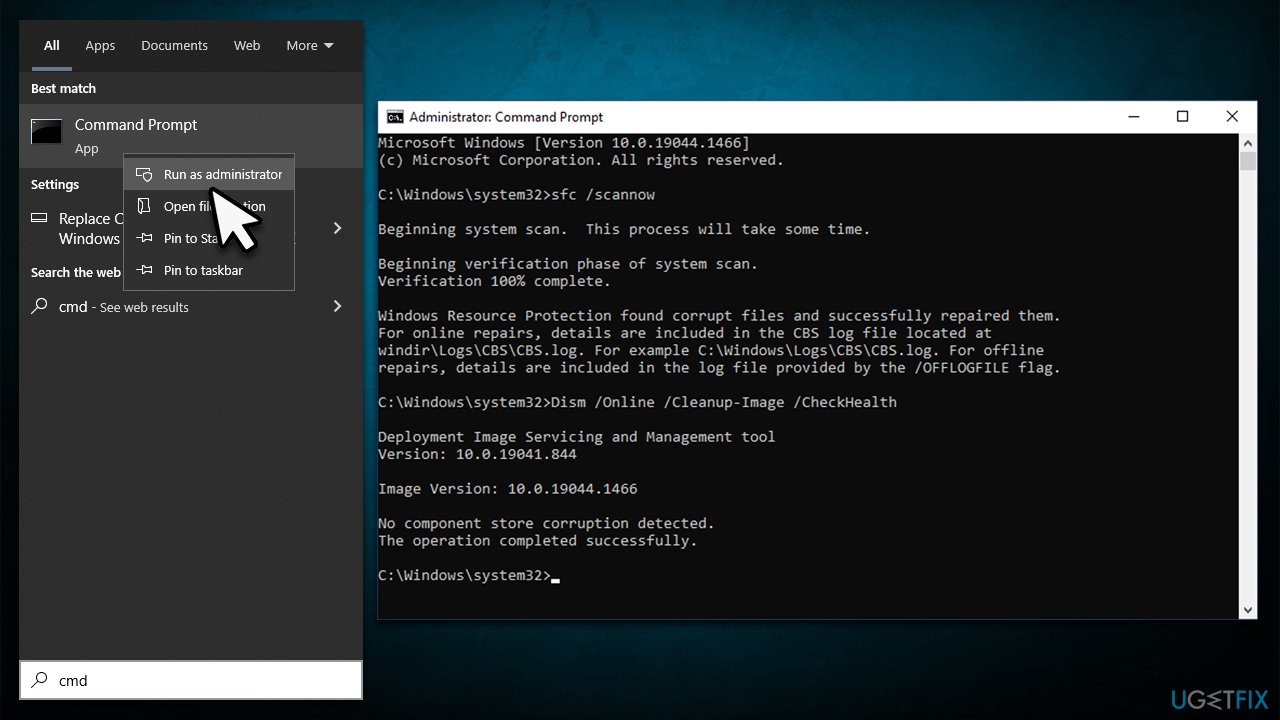
We recommend starting with repairing system files. To do this, access the elevated Command Prompt:
- Type in cmd into Windows search.
- Right-click the Command Prompt result and select Run as administrator.
- User Account Control (UAC) will ask whether you want to allow changes - click Yes.
- Now, type in the following command and press Enter:
sfc /scannow - After the scan is done, copy the following commands and press Enter:
dism /online /cleanup-image /scanhealth
dism /online /cleanup-image /checkhealth
dism /online /cleanup-image /restorehealth - Reboot your system.
Fix 2. Update Windows
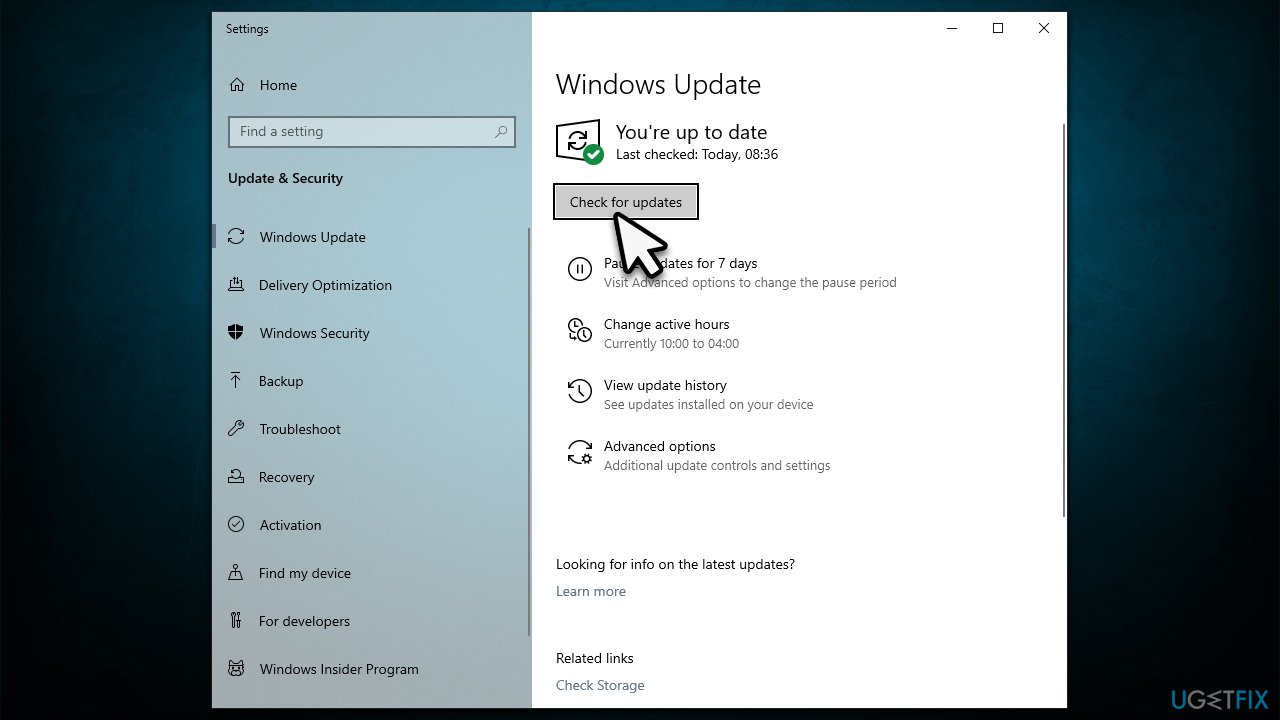
Microsoft ships bug fixes via its routine patch Tuesday update cycle. If you have been neglecting them, please make sure you install the latest available updates:
- Type Update in Windows search and hit Enter.
- Click Check for updates and install everything available.
- If optional updates are available, install them as well.
- Restart your device.
Fix 3. Update drivers
You can use Windows update for your driver updates, although it may not always work. In this case, you can either visit the official website of your device manufacturers or employ a powerful driver updater, such as [rev id="DriverFix"].
Fix 4. Perform Disk Cleanup
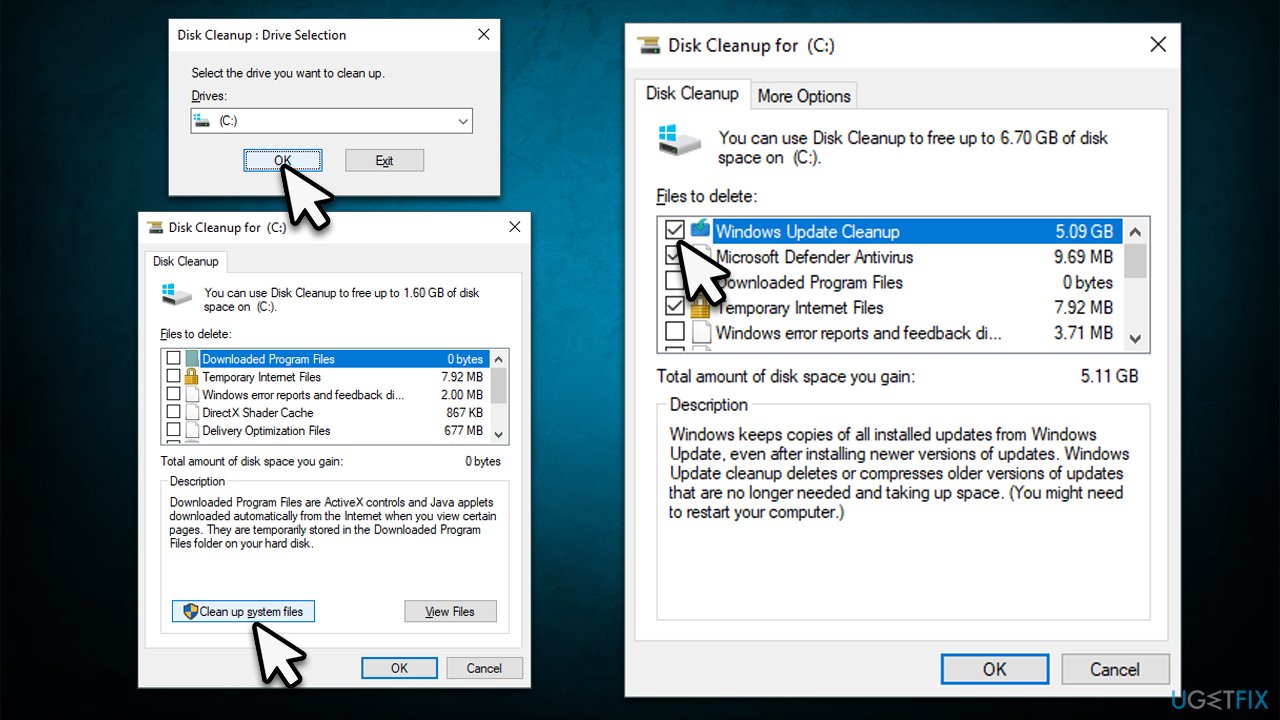
- Open the Windows search bar and type Disk Cleanup. Press Enter to open the Disk Cleanup utility.
- In the Disk Cleanup window, select the drive where your Windows operating system is installed (usually drive C:). and click OK.
- Click Clean up system files to start the scan.
- Select the drive again and click OK.
- In the list of files that can be cleaned up, select the largest portions of data, such as Temporary Internet Files, Windows Update, Temporary Files, and others.
- Click OK to begin the cleanup process.
Fix 5. Reinstall Windows
Reinstalling an operating system can be intimidating, particularly for first-timers. However, the process has become more user-friendly with modern versions of Windows, as they allow you to retain personal files without deletion. Despite this, it's still advisable to back up your files as a precaution. Additionally, it's important to unplug any unnecessary external devices, such as printers, USB drives, scanners, and phones.
- Visit the official Microsoft website and download Windows 10 installation media (Windows 11 version).
- Double-click the installer and select Yes when UAC shows up.
- Agree to terms.
- Pick Create installation media (USB flash drive, DVD or ISO file) for another PC option and click Next.
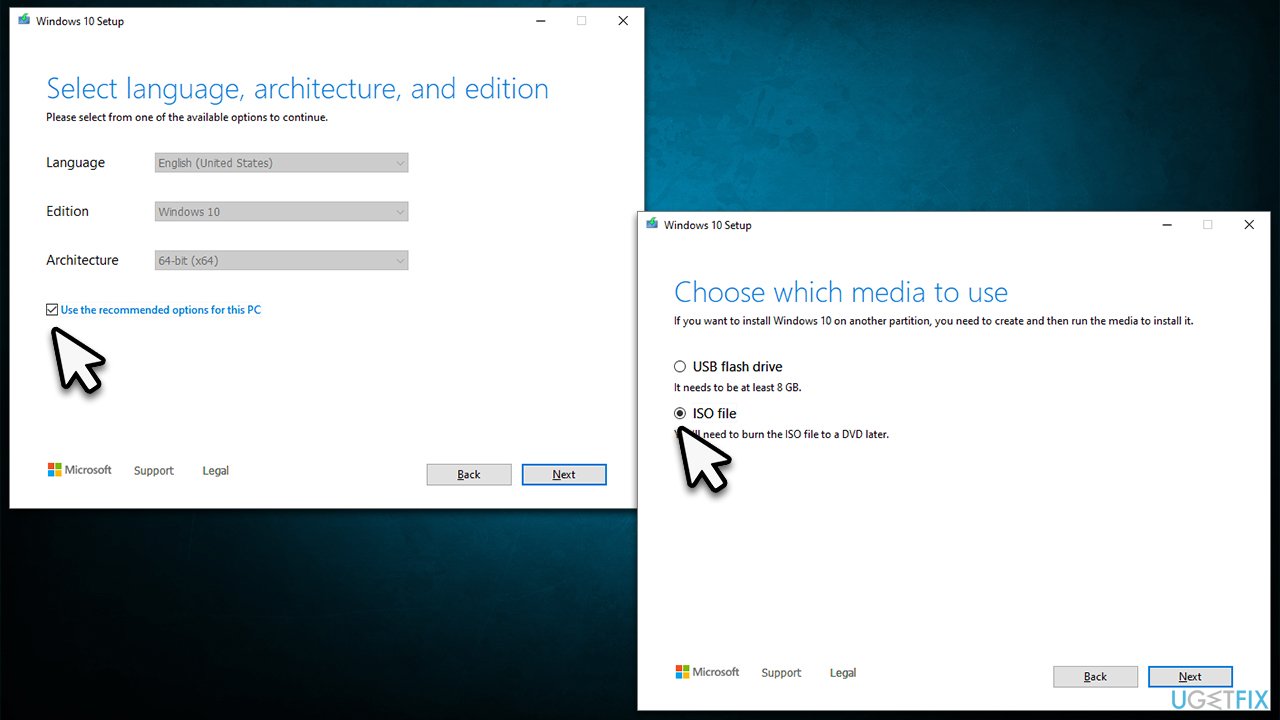
- Select the Use Recommended options for this PC checkbox and click Next.
- Choose the ISO file and click Next.
- Once you have prepared the ISO, put it into the malfunctioning PC
- Restart your machine and rapidly press F8, F10, F12, Del, or another button that would let you load into BIOS
- Here, go to the Boot section and set the boot priority to Flash drive
- Restart your PC, and then proceed with on-screen instructions to reinstall Windows.
Bottom line
To fix the DRIVER_LEFT_LOCKED_PAGES_IN_PROCESS error, you can try repairing corrupted system files using Command Prompt, clearing disk space, or accessing Safe Mode to bypass restart loops. If these solutions do not resolve the issue, you may need to explore additional troubleshooting steps or consult a professional.
Frequently asked questions
This error typically occurs due to faulty drivers or hardware issues that prevent the system from properly managing memory. Outdated or incompatible drivers are often the primary culprits.
You can update drivers by right-clicking the Start button, selecting Device Manager, and then updating the drivers for any devices showing issues. Alternatively, visit the manufacturer's website for the latest driver versions.
Yes, you can troubleshoot this error by performing a System Restore, running the Windows Memory Diagnostic tool, or checking for Windows updates. These methods can often resolve the issue without a full reinstallation.




Report an issue
What's wrong with this guide? We review every report and update or remove content.
Report received — thank you. We'll review and fix it.
You need a free account to submit a report.
Be the first to comment