How to fix
DRIVER_PAGE_FAULT_IN_FREED_SPECIAL_POOL error
on Windows
Resolve the DRIVER_PAGE_FAULT_IN_FREED_SPECIAL_POOL error on Windows 10 effortlessly. Get expert-tested solutions to fix this issue in minutes!

What causes How to fix DRIVER_PAGE_FAULT_IN_FREED_SPECIAL_POOL error on Windows 10?
- Software problem
- Hardware problem
- Malware infection
- Windows 10 system updates
- Chrome web browser
Repairs Windows system files, removes malware, and restores a clean OS state — without reinstalling.
Hello. Recently, my graphics card died, so I bought myself a brand new MSI Radeon 470. Next day, I played Call of Duty and received a Blue Screen of Death, which I quickly recovered from. For the next few days, everything worked fine. However, yesterday, when I was working on my computer while using Chrome (I was not even playing anything), it randomly crashed returning DRIVER_PAGE_FAULT_IN_FREED_SPECIAL_POOL error. Can Chrome make the system crash like that? Thanks for the advice.
Blue Screen of Death[ref en-1] errors, including DRIVER_PAGE_FAULT_IN_FREED_SPECIAL_POOL, are stop errors. It means that the device has stopped its operation to prevent damage to it. While many blue screens can be recovered from soon after a restart, persistent stop errors might indicate software or hardware problem, or even malware infection. Thus, reasons for this issue to arise might vary a lot, depending on your system configuration.
Nevertheless, our team prepared a guide which will help you fix DRIVER_PAGE_FAULT_IN_FREED_SPECIAL_POOL error. Please make sure you follow one step after another, as it is more likely to help you find the correct solution.
The DRIVER_PAGE_FAULT_IN_FREED_SPECIAL_POOL error is also known to be caused by other factors, like Windows 10 system updates or even Chrome web browser.[ref en-2] To fix that, users are recommended to update all their drivers and the operating systems to their latest versions.
Since malware infection can be a culprit as well, we highly advise you scan your PC using reputable security software. Viruses, such as trojans,[ref en-3] worms, keyloggers, and spyware rarely emit any symptoms, so users fail to notice them before it is too late. In such a case. Not only the computer safety is compromised, but also personal data of the user. Therefore, please use [d1] to make sure that malware is not the cause of a crashing computer.
Users also reported that, among DRIVER_PAGE_FAULT_IN_FREED_SPECIAL_POOL error, they are also experiencing SYSTEM_THREAD_EXCEPTION_NOT_HANDLED and VIDEO_TDR_FAILURE errors. If that is the case, make sure to check out guides for these issues as well.
With the help of this video, you will eliminate this issue:
[youtube eibv8Bby_zQ]
Step 1. Disable hardware acceleration on Chrome
This feature in Chrome is designed to redirect of the graphical activity on your browser directly to your GPU. While it can be useful in many ways, it can sometimes cause BSoDs errors, such as DRIVER_PAGE_FAULT_IN_FREED_SPECIAL_POOL. Thus, disable hardware acceleration on Chrome by following these simple steps:
- Open Chrome and click on the Menu button in the top right
- Pick Settings > Advanced Settings > System
- In the right pane, disable Use hardware acceleration when available and click Relaunch
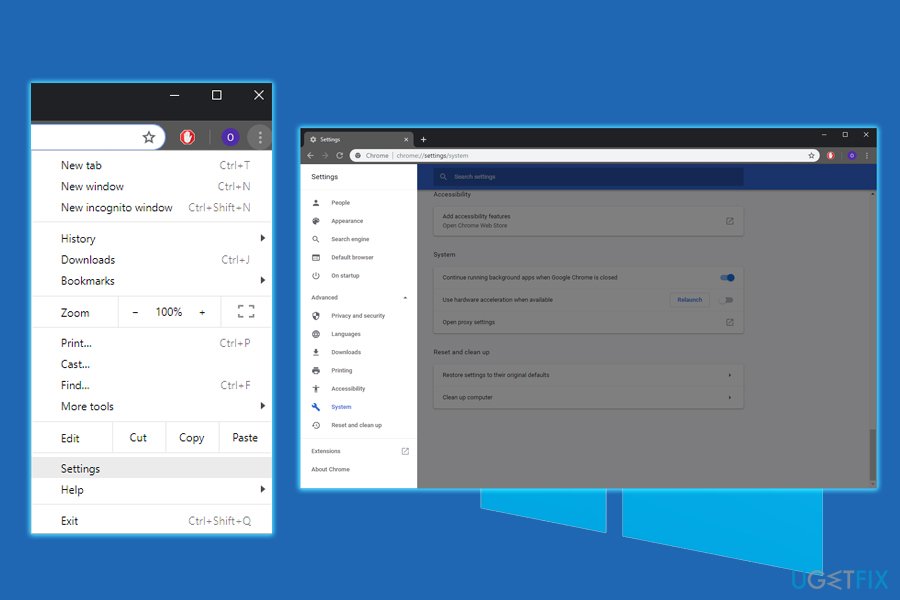
Driver page fault in freed special pool disable hardware acceleration
Step 2. Update Windows 10
Make sure your operating system is running the latest version. Here's how you can update it:
- Right-click on the Start button and select Settings
- Scroll down and pick Updates and security
- Click on Check for updates
- Wait for the updates be be installed and restart your device
Step 3. Update your drivers
Drivers are essential parts of your operating system, as it allows hardware and software to communicate successfully. However, they might malfunction at any time, so making sure that they are up to date is vital. You can update each of the manually as explained below or use automatic driver updater, such as [rev id=”Smart Driver Updater”]. To update manually, follow these instructions:
- Right-click on the Start button and select Device Manager
- Pick a category, for example, Display adapters and expand it
- Right-click on the device, then pick Update Driver
- Finally, select Search automatically for updated driver software and follow onscreen instructions
- Repeat these steps for all your devices, and then restart your PC
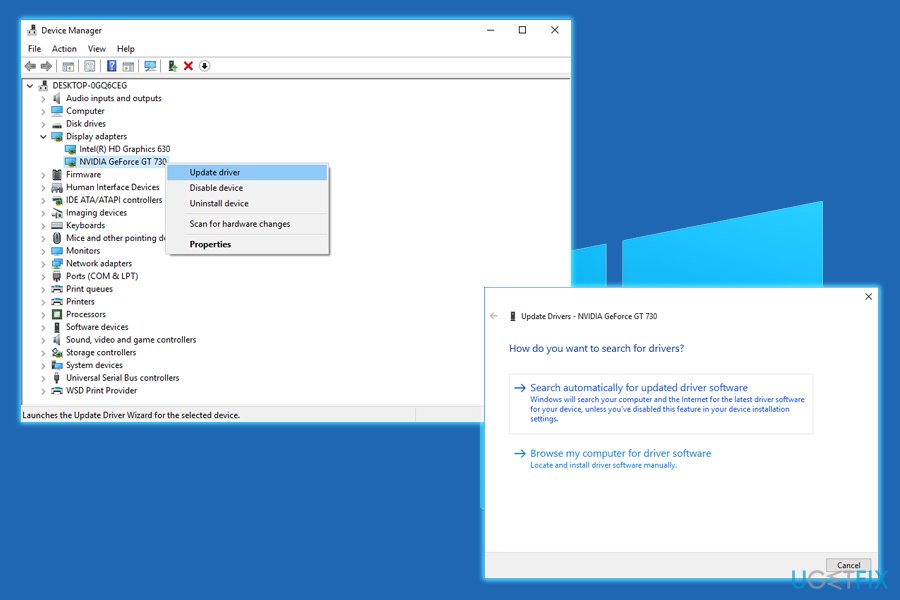
Driver page fault in freed special pool update drivers
Step 4. Get rid of recently installed software
Some software does not work well due to compatibility problems, which might cause DRIVER_PAGE_FAULT_IN_FREED_SPECIAL_POOL error. Thus, remove recently installed applications the following way:
- Click on Start button, type in Apps & Features and select System Settings result
- You will see all installed apps. Sort programs by the install date
- Click on the application you want to get rid of and click Uninstall
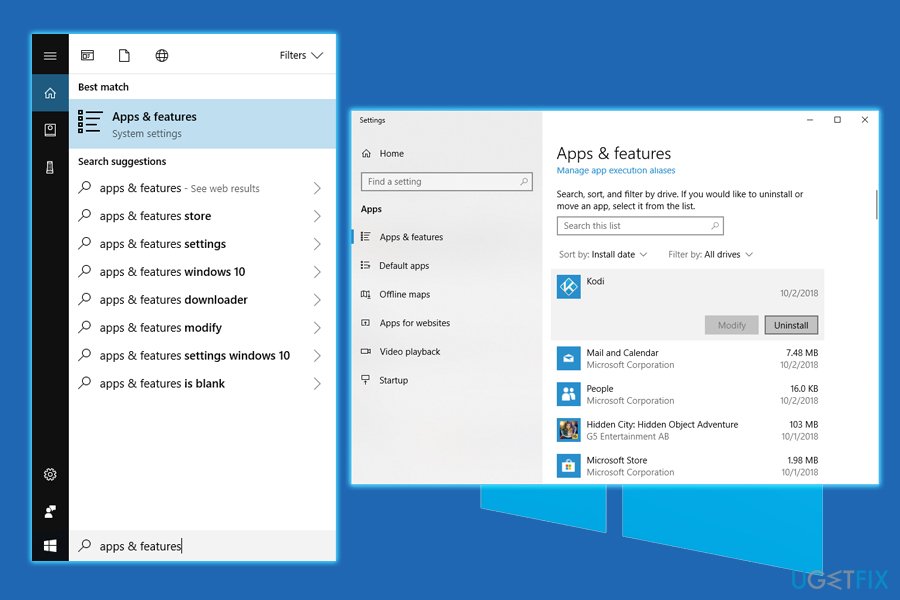
Driver page fault in freed special pool uninstall apps
Step 5. Run built-in system scanners
Windows is equipped with multiple scanners scan can find and fix system errors. Thus, run System File Checker:
- Click on Start button and type in Command Prompt or cmd
- Select Command Prompt from the results, right-click and pick Run as administrator
- Type in sfc /scannow and press Enter
- If Windows finds anything it will repair it automatically
If that brought no results, try DISM scan. Go back to Command Prompt (Admin) and type in DISM /Online /Cleanup-Image /RestoreHealth and hit enter. Let the scan run (note it might take a while).
Bottom line
To fix the DRIVER_PAGE_FAULT_IN_FREED_SPECIAL_POOL error, users are recommended to update all their drivers and the operating system to their latest versions. Additionally, scanning the PC for malware using reputable security software is advised. If these solutions do not work, users should explore guides for related errors like SYSTEM_THREAD_EXCEPTION_NOT_HANDLED and VIDEO_TDR_FAILURE.
Frequently asked questions
This error typically occurs due to faulty drivers, corrupted system files, or issues with installed software that conflict with the Windows operating system.
You can update drivers by right-clicking the Start menu, selecting Device Manager, finding the problematic device, and choosing 'Update driver' to automatically search for updates.
Yes, you can run the System File Checker tool by opening Command Prompt as an administrator and typing 'sfc /scannow' to scan and repair corrupted system files.




Report an issue
What's wrong with this guide? We review every report and update or remove content.
Report received — thank you. We'll review and fix it.
You need a free account to submit a report.
Be the first to comment