How to fix
DRIVER_PNP_WATCHDOG error
on Windows
Resolve the DRIVER_PNP_WATCHDOG error on Windows 10 and 11 effortlessly. Expert-tested solutions ensure your system runs smoothly, fixed in minutes.

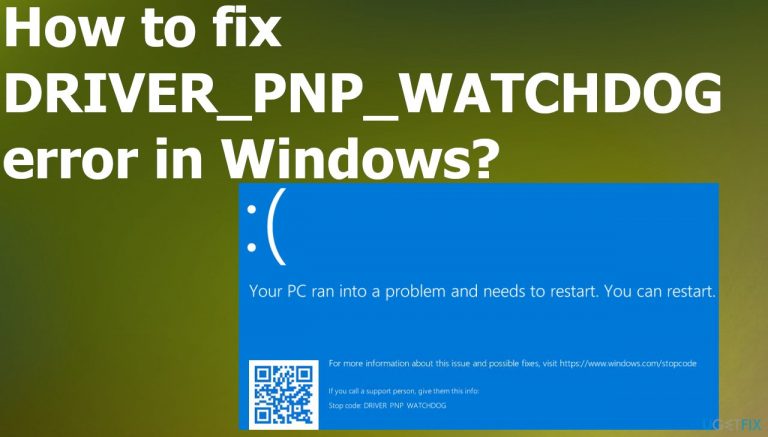
What causes How to fix DRIVER_PNP_WATCHDOG error in Windows?
- SATA controller settings misconfiguration
- Malware or anti-malware solution issues
- Faulty or corrupted drivers
- Outdated device drivers
- RAM issues
Repairs Windows system files, removes malware, and restores a clean OS state — without reinstalling.
Hello. I get the DRIVER_PNP_WATCHDOG error in Windows when trying to install the OS update. The blue screen of death appears during the restart. I managed to restart the machine again normally after that, but the update is failing. I can not install the upgrade now and am afraid of trying again because of the BSOD. Can you explain the issue even or suggest a solution?
The DRIVER_PNP_WATCHDOG error in Windows is the Blue Screen of Death[ref en-1] issue that can scare people because of the fact that it is a major problem of the computer. The problem reportedly occurs when upgrading the operating system or updating Windows 10 to Windows 11, for example.[ref en-2]
The particular error code indicates that the driver in need is the one that triggered the failure of the process. This BSOD error can be critical and lead to loss of data, but if you manage to run the machine normally, you need to react and try to solve the root cause of the issue immediately. The overlooked issue can lead to more problems and real damage.
Reasons behind this problem can include the SATA controller settings that are wrong. These settings in BIOS have various modes and the wrongly configured mode can trigger the failure of a process like an upgrade. Malware[ref en-3] and anti-malware solution issues can also cause these problems. Infections are known to damage drivers, other system files and cause these errors with services and processes.
Firewall or AV solution issues can lead to blocking on some system components and activities. Faulty drivers in general and corrupted ones or damaged pieces can cause permanent problems. If you are not updating those drivers or installing not the needed ones in the first place you can encounter various issues besides the BSOD and the DRIVER_PNP_WATCHDOG error.
However, there are ways to solve these problems with outdated device drivers, RAM issues, faulty or damaged files in the system. You can run the tool like [d1] and find any pieces that have issues that can be repaired automatically. Updating system files is key to fix the system and get those required processes to functioning normally.
Properly running system services are the key components of the operating system, and the upgrade cannot be launched if anything like this fails. So fixing the DRIVER_PNP_WATCHDOG error in Windows requires repairing all the system pieces needed for the update. Follow the steps to find the best option for you.
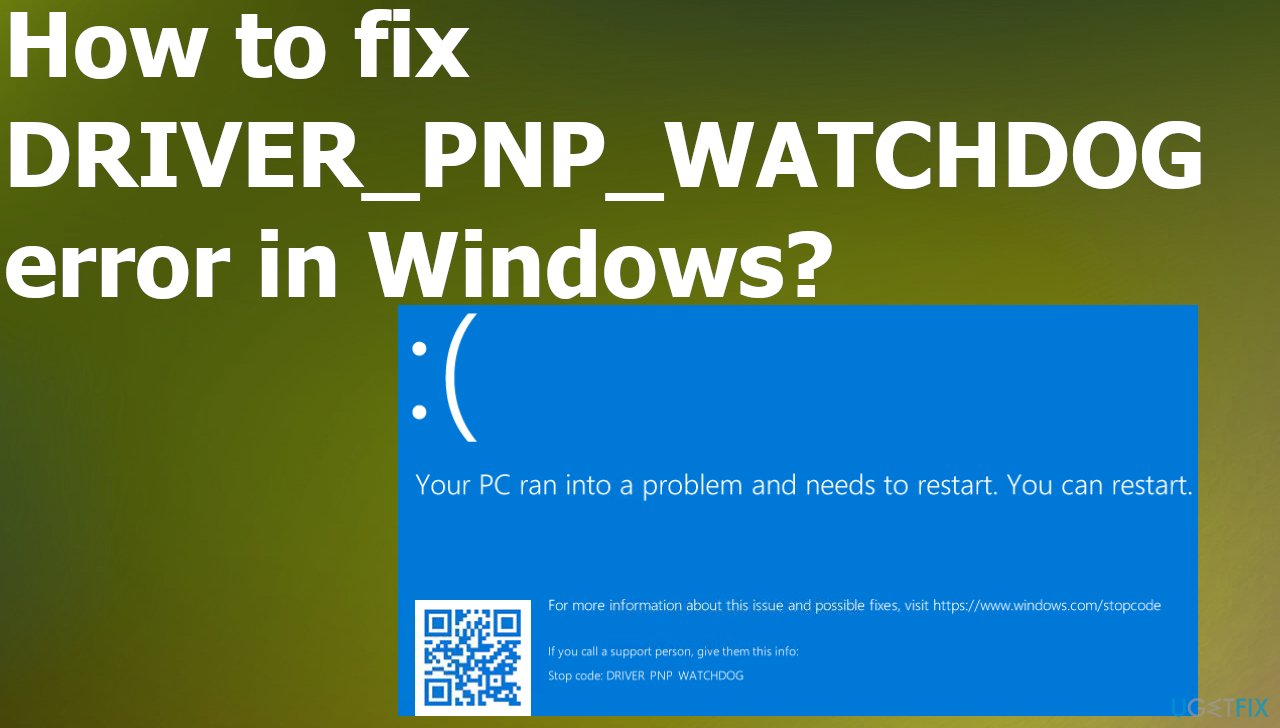
1. Change the SATA controller settings via BIOS
- Ensure your computer is OFF.
- Press the Power button to turn it on.
- Keep pressing the F2 key to enter the BIOS.
- Use the arrow keys to select an option like Advanced or Main.
- Press Enter to access.
- Find the option IDE Configuration, Storage Configuration, or Drive Configuration.
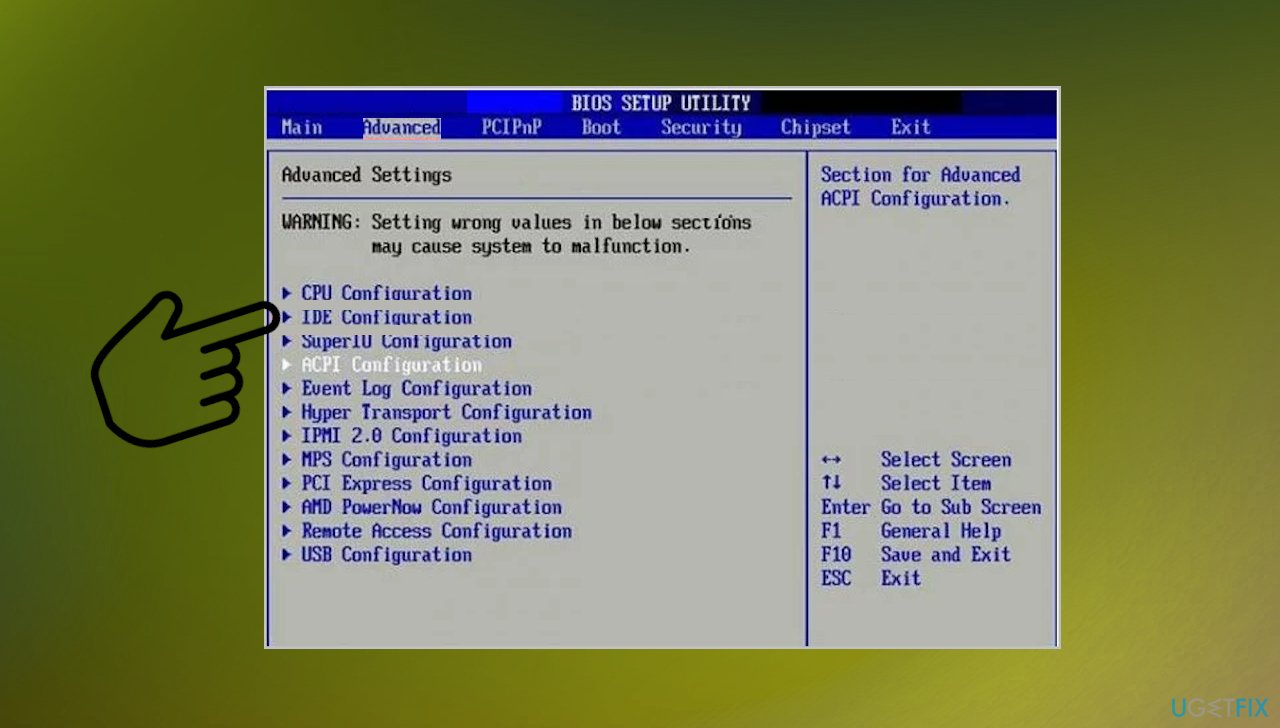
Driver pnp watchdog error in windows configuration - Then press Enter.
- Find an option like Configure SATA, SATA Mode, or SATA Configuration.
- Change that particular option to ATA, IDE, or Compatible.
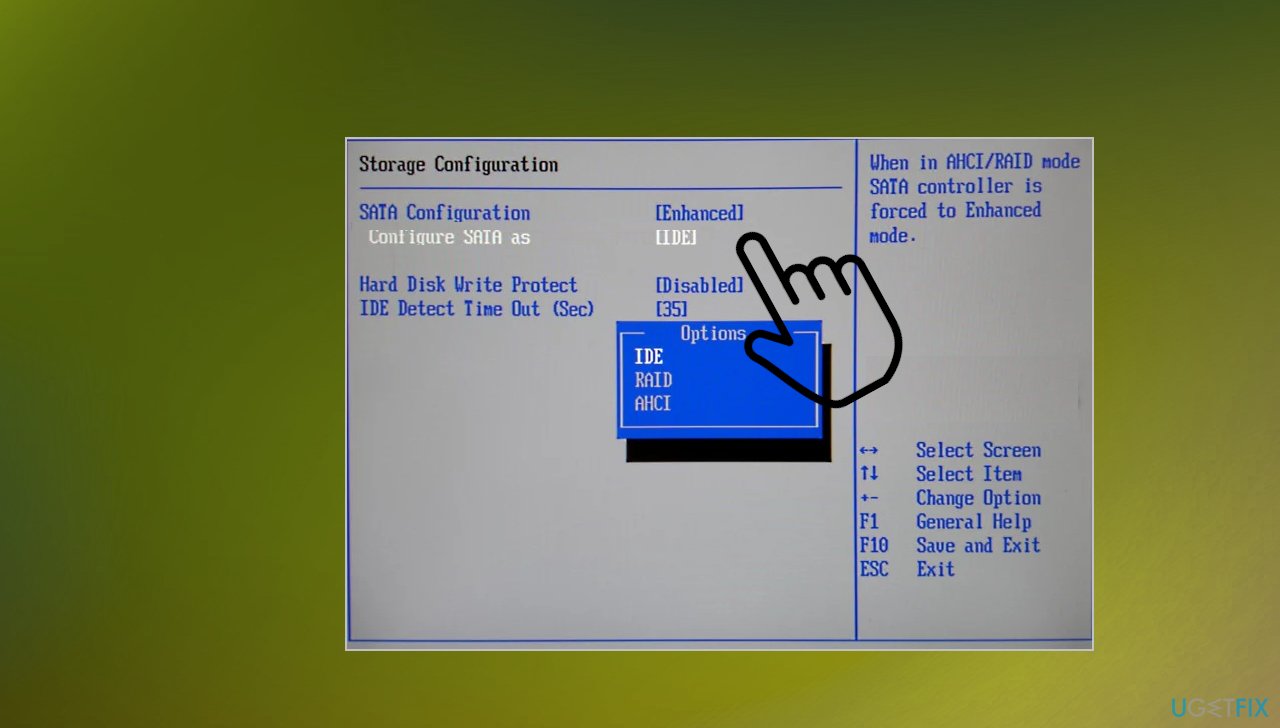
Driver pnp watchdog error in windows controllers - Save and exit.
2. Check the Volume Shadow Copy service
- Press the Windows + R to bring out the Run box.
- Type services.msc and click OK.
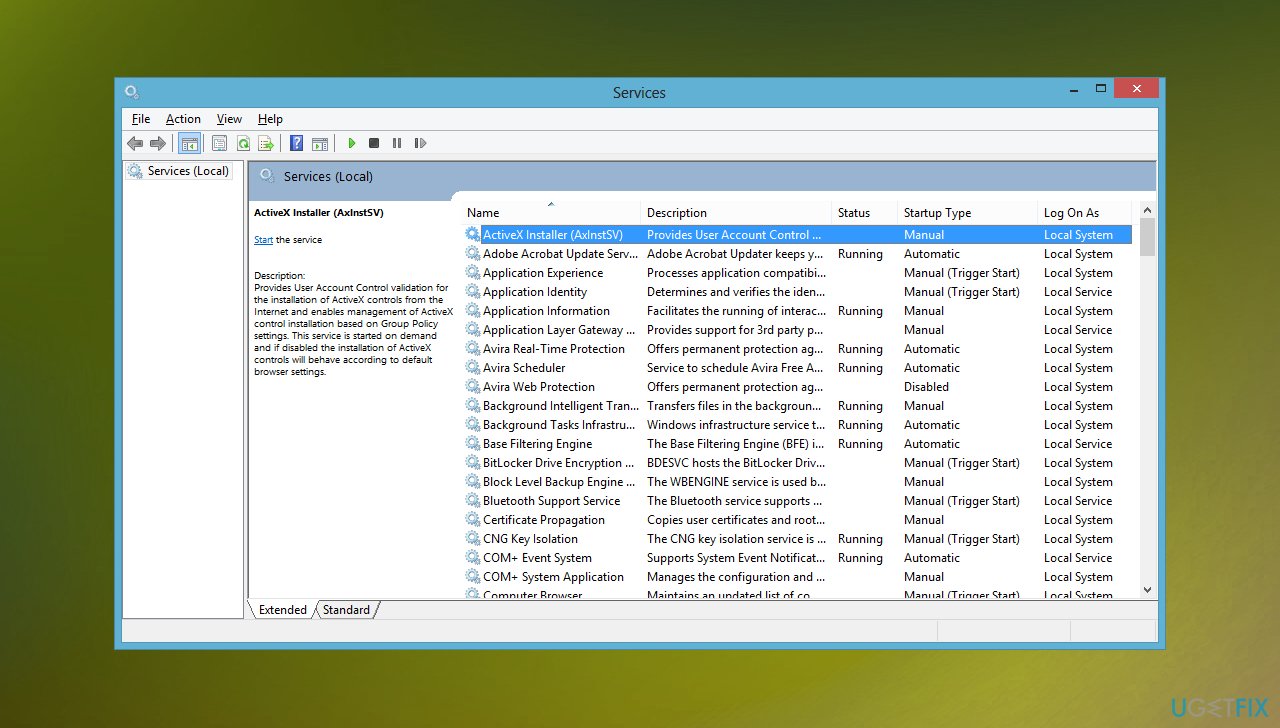
Driver pnp watchdog error in windows services - Scroll down and double click Volume Shadow Copy
- In the Properties, make sure that the Startup type is set to Automatic.
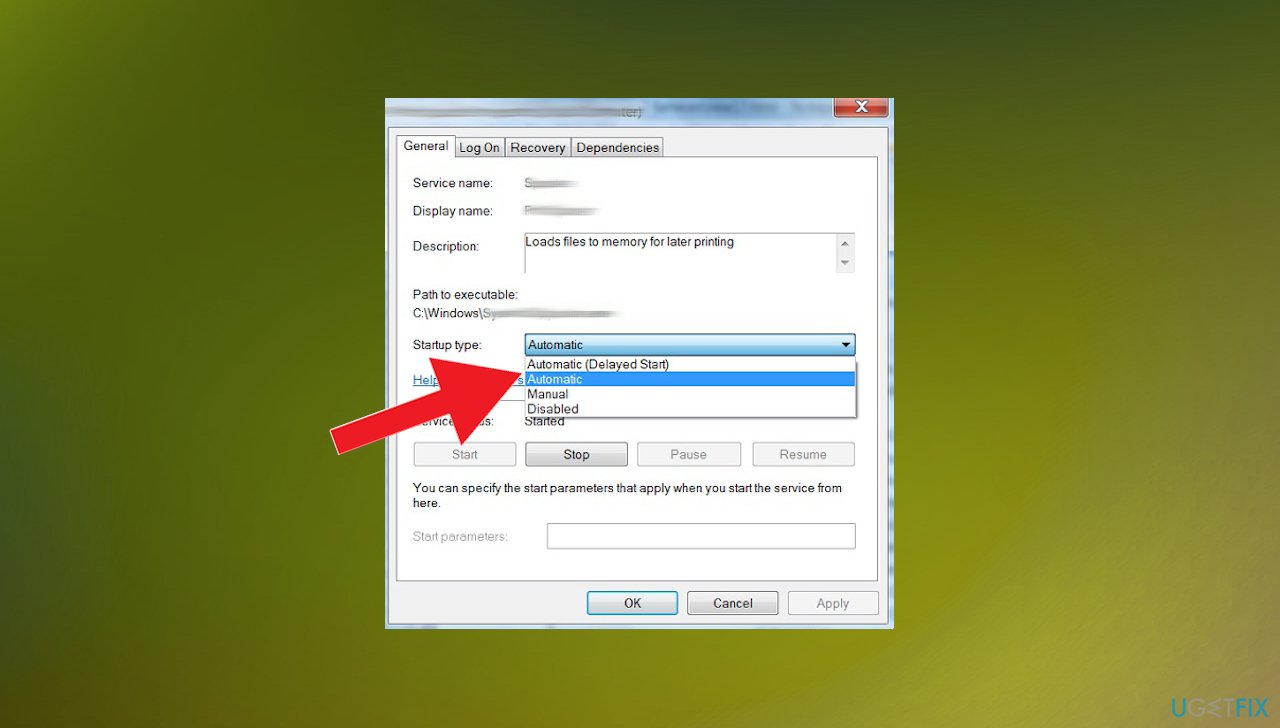
Driver pnp watchdog error in windows startup type - And the Service status is set on the Running.
- Click on the Apply button.
- Hit OK button to save your changes.
- Restart your computer to check.
3. Run automatic repair
- Insert Windows bootable installation and restart your PC afterward.
- Press any key to boot from CD or DVD when prompted to continue.
- Select your language preferences, and click Next.
- Click Repair your computer.
- Click Troubleshoot > Advanced.
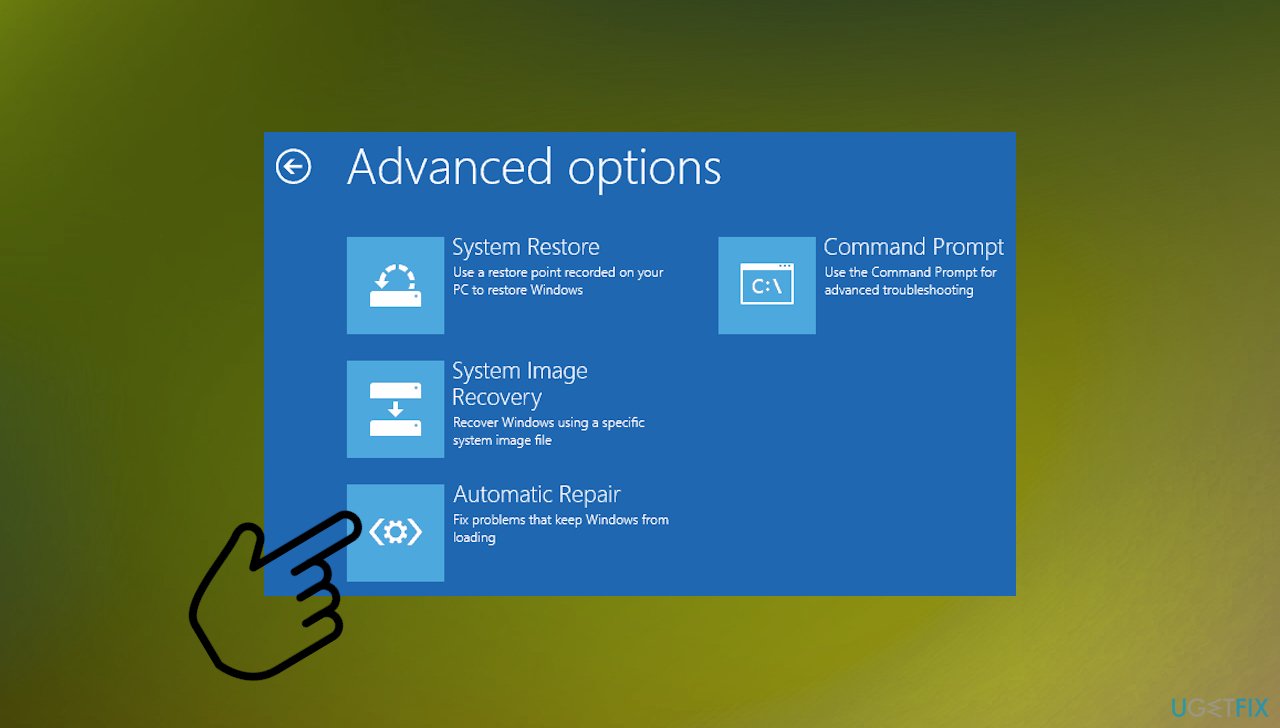
Driver pnp watchdog error in windows auto repair - Choose Automatic Repair.
- Wait for the process to be completed.
- Restart your PC and boot to Windows.
4. Check the hard drive via CMD
- Press Windows key + X or right-click the START.
- Select Command prompt (Admin) to bring up elevated Command prompt.
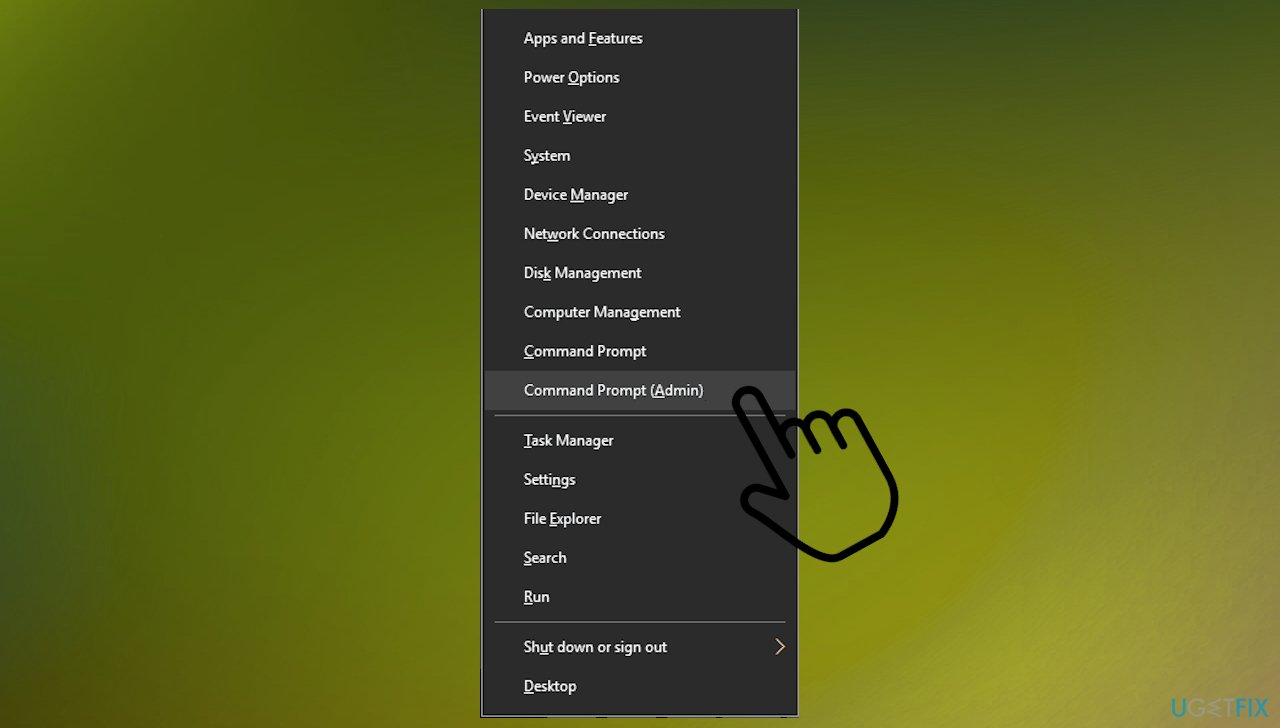
Driver pnp watchdog error in windows command prompt - Type chkdsk D: /f, then press Enter on your keyboard.
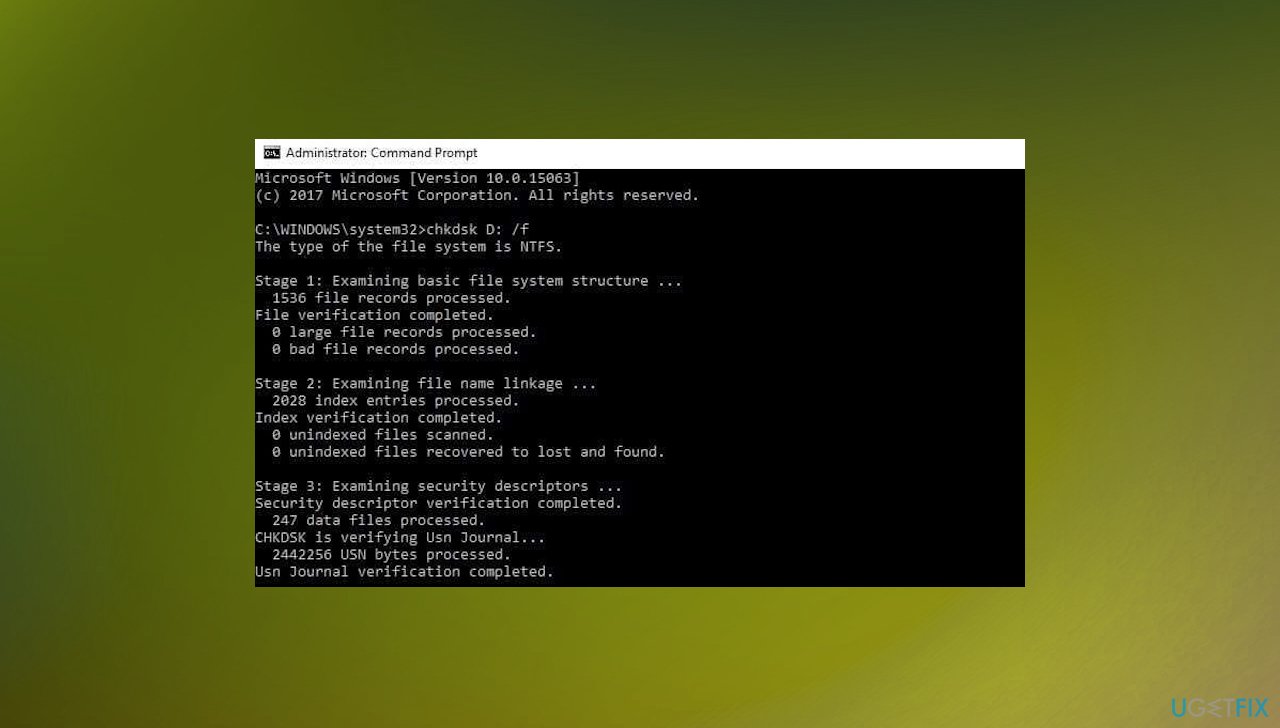
Driver pnp watchdog error in windows chdsk - Type CHKDSK C: /R.
- Hit Enter.
- Restart the PC after the process.
5. Update drivers
- Right-click on Start and select Device Manager.
- Expand the particular section or depend on the exclamation points near particular drivers.
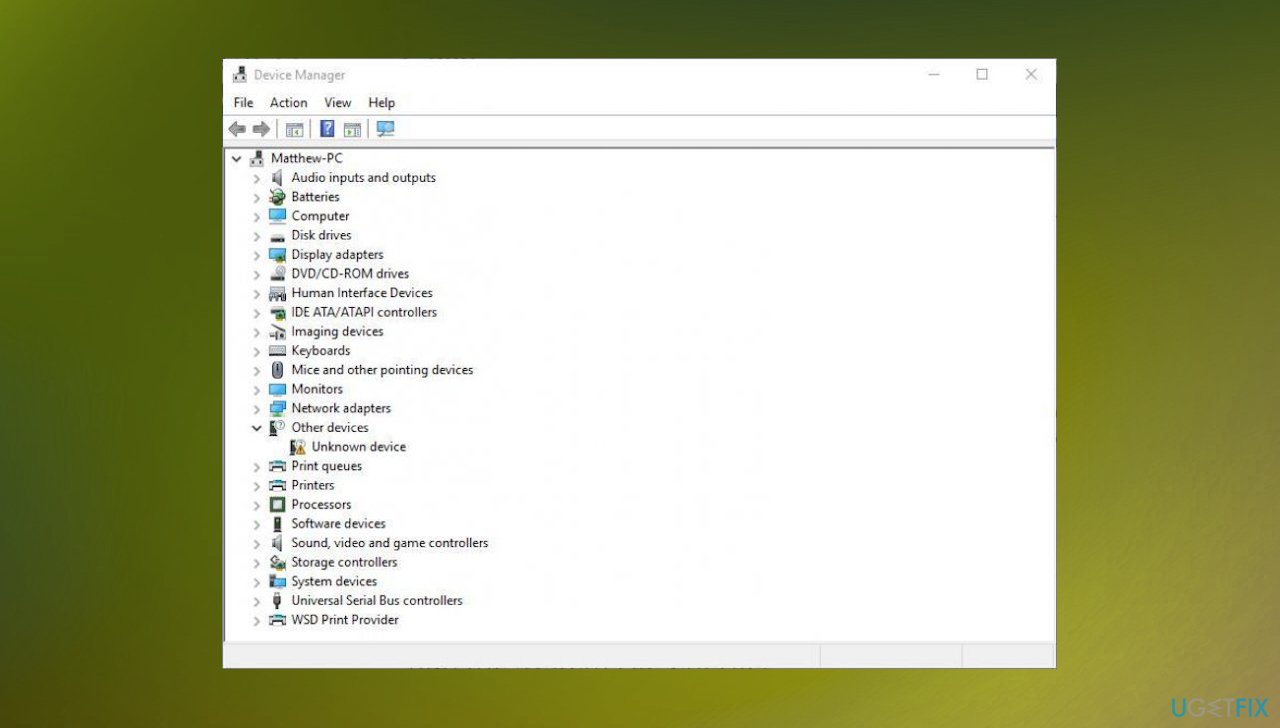
Driver pnp watchdog error in windows device manager - Right-click on the piece and select Update driver.
- Pick Search automatically for updated driver software.
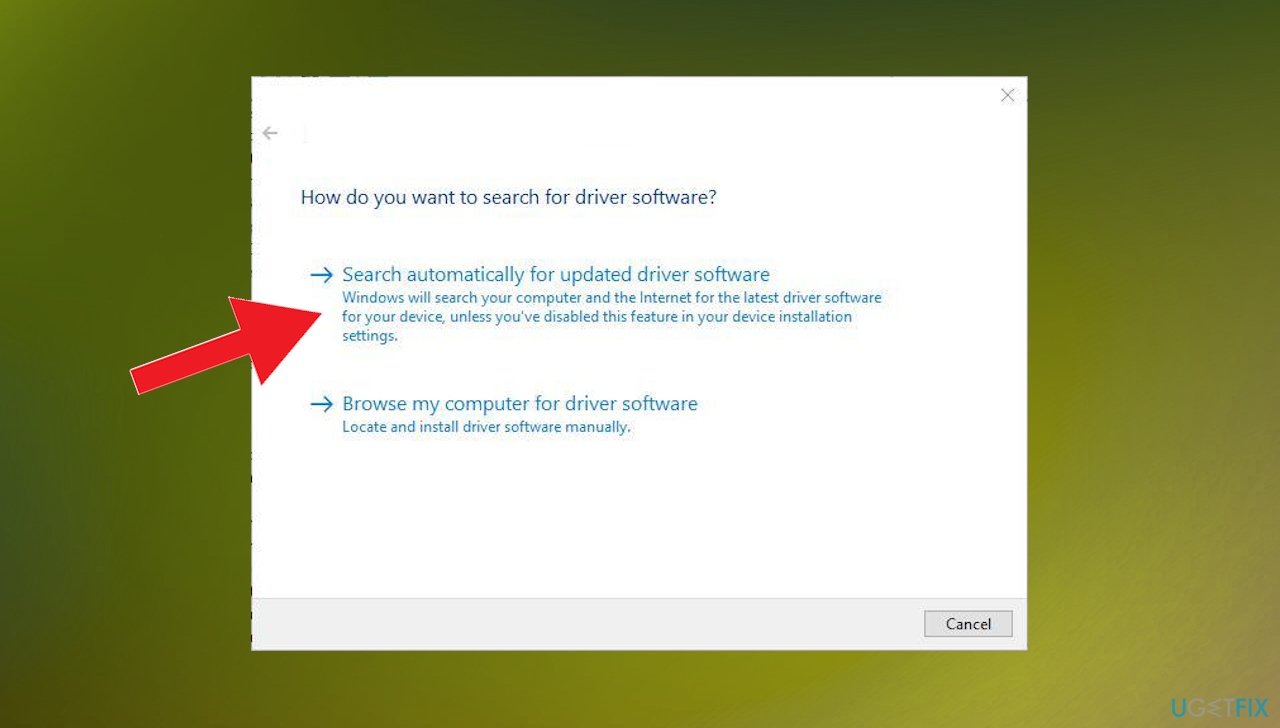
Driver pnp watchdog error in windows update option - Wait for the automatic process.
Another possible option for the driver updates could be the software designed to keep those pieces properly upgraded. [rev id="DriverFix"] can find the needed drivers and update them with compatible versions. This process can be more common, so you do not encounter any of the BSOD errors and different system issues.
6. Troubleshoot Windows Updates
- Go to Start.
- In the search field box, type Troubleshooting.
- Choose Troubleshooting to open options.
- Click View all in the left pane.
- Select Windows Update.
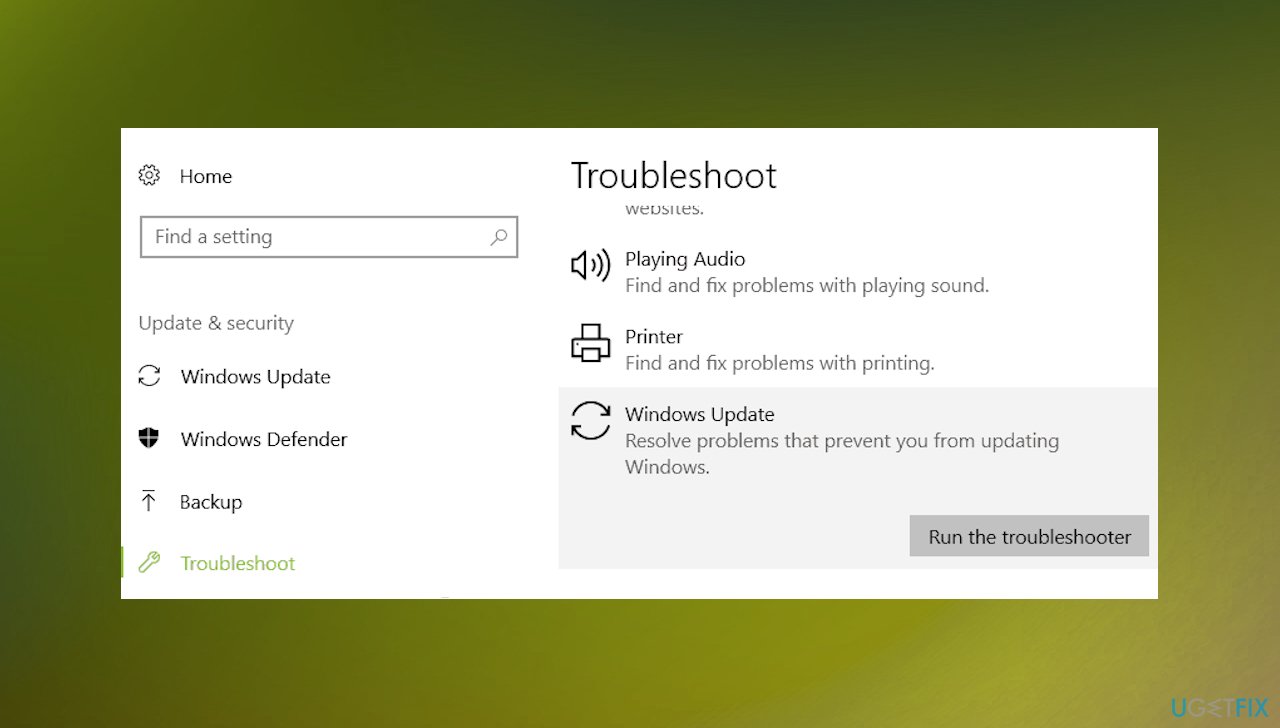
Driver pnp watchdog error in windows troubleshooting - Run Windows Update Troubleshooter.
- Follow the instructions on the screen.
Bottom line
To fix the DRIVER_PNP_WATCHDOG error, you can update system files, check and adjust SATA controller settings in BIOS, and ensure all drivers are current. If these solutions do not resolve the issue, consider running a diagnostic tool to identify and repair any underlying problems.
Frequently asked questions
The DRIVER_PNP_WATCHDOG error usually occurs due to outdated or incompatible drivers, particularly during device connection or disconnection events.
To update drivers, go to Device Manager, right-click on the device with issues, select 'Update driver', and follow the prompts to search automatically for updated driver software.
In Windows 11, you can troubleshoot this error by running the built-in Windows Memory Diagnostic tool and checking for hardware compatibility issues.




Report an issue
What's wrong with this guide? We review every report and update or remove content.
Report received — thank you. We'll review and fix it.
You need a free account to submit a report.
Be the first to comment