How to fix
DRIVER_PORTION_MUST_BE_NONPAGED Blue Screen error
on Windows
Resolve the DRIVER_PORTION_MUST_BE_NONPAGED Blue Screen error on Windows 10 and 11 effortlessly. Expert-tested solutions for quick fixes.


What causes How to fix DRIVER_PORTION_MUST_BE_NONPAGED Blue Screen error?
- Outdated drivers
- Missing or damaged system files
- Damage in system folders
- Faulty updates
- Incompatibility issues
Repairs Windows system files, removes malware, and restores a clean OS state — without reinstalling.
Hello. I need some tips for fighting the DRIVER_PORTION_MUST_BE_NONPAGED BSOD error. I had not updated anything or installed any software before it started to occur, but the issue seems to be persistent. My PC rebooted a few times already. I need to find a solution as soon as possible, so I can avoid losing everything.
The DRIVER_PORTION_MUST_BE_NONPAGED Blue Screen error is the error that delivers a Blue Screen of Death[ref en-1] which scares people a lot. This error can appear on Windows 10 or Windows 11 machines and is considered a critical error because the system introduces the code to indicate the issue that possibly can cause major problems. The computer reboots, and the error is shown to avoid immediate damage.
The error can repeatedly appear in ransom intervals. This type of error typically indicates system file corruption or can be caused by driver issues that lead to HDD or SSD damage. DRIVER_PORTION_MUST_BE_NONPAGED Blue Screen error can be triggered by outdated drivers, missing or damaged system files, damage in system folders, and similar parts of the machine.
These errors can occur when the machine is recently upgraded from Windows 10 to Windows 11 or just updated to a recent version of the operating system.[ref en-2] It is common to get BSOD errors after faulty updates or when some incompatibility issues block the needed system processes and lead to DRIVER_PORTION_MUST_BE_NONPAGED BSOD or similar errors.
Users dealing with similar issues[ref en-3] or the frequent appearance of the blue screen can often solve the issues by managing to check the hardware issues and troubleshooting common problems, fixing them. The generic HDD_related issues can lead to these critical system errors, so the best way to fix the DRIVER_PORTION_MUST_BE_NONPAGED Blue Screen error on Windows could be to fix those problems with the hardware.
Microsoft is aware of the issues with this driver portion Blue Screen of Death error, but there is nothing they can provide for users. Installing pending OS updates and accessing Device Manager to update those drivers to the latest version are the only tips. As for the system file corruption, we can recommend ruing a quick check with [d1], so the affected parts get repaired, or virus damage cleared off, and you can move on with other available fixes.

1. Troubleshoot Windows Hardware issues
- Press the Windows key + R.
- Enter ms-settings:troubleshoot in the text field, and press Enter to start the Hardware and Device Troubleshooter.
- Go to the Troubleshooting tab.
- Choose Other troubleshooters from the menu on the right-hand side.
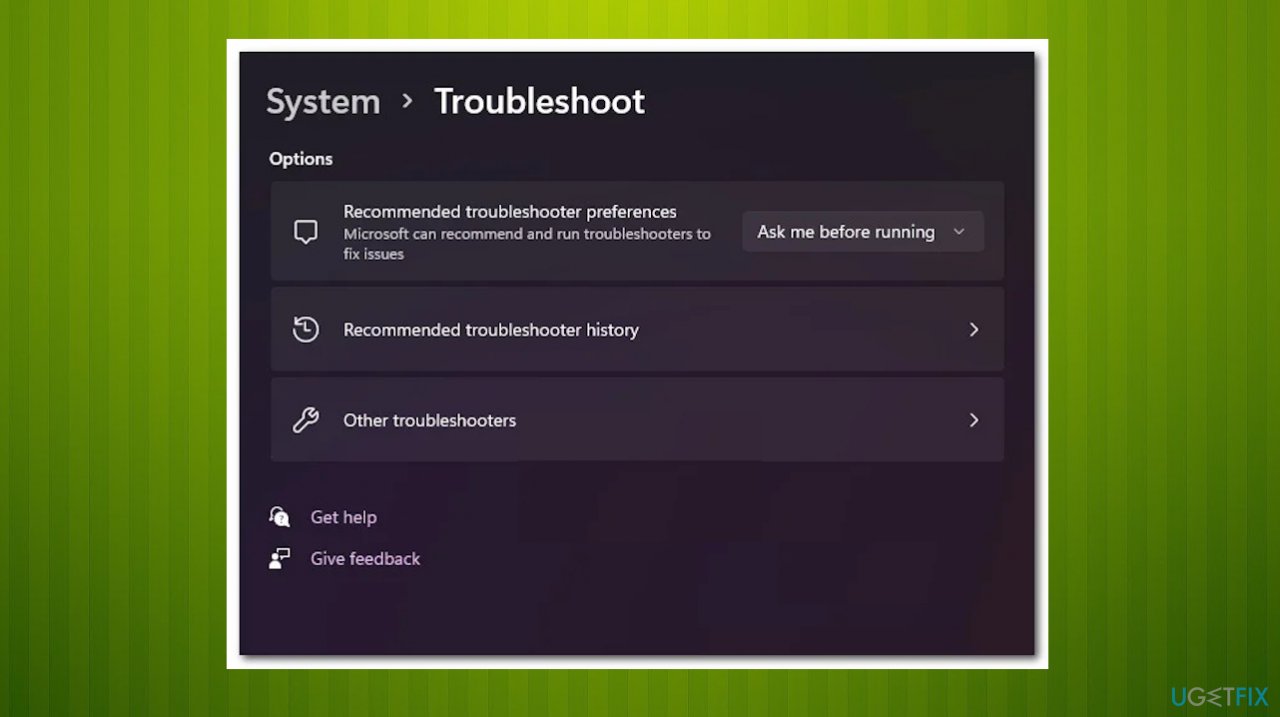
Driver portion must be nonpaged blue screen troubleshooting - Scroll down to Find and fix more problems, and expand the Hardware and Devices section.
- Then select Run the troubleshooter.
- Wait until the initial scan is finished.
- Click Enable to instruct Windows to always check for updated driver signatures if the software discovers the same problem.
- Restart the PC.
2. Update disk drives
- Press the Windows key + R to open the Run dialog box.
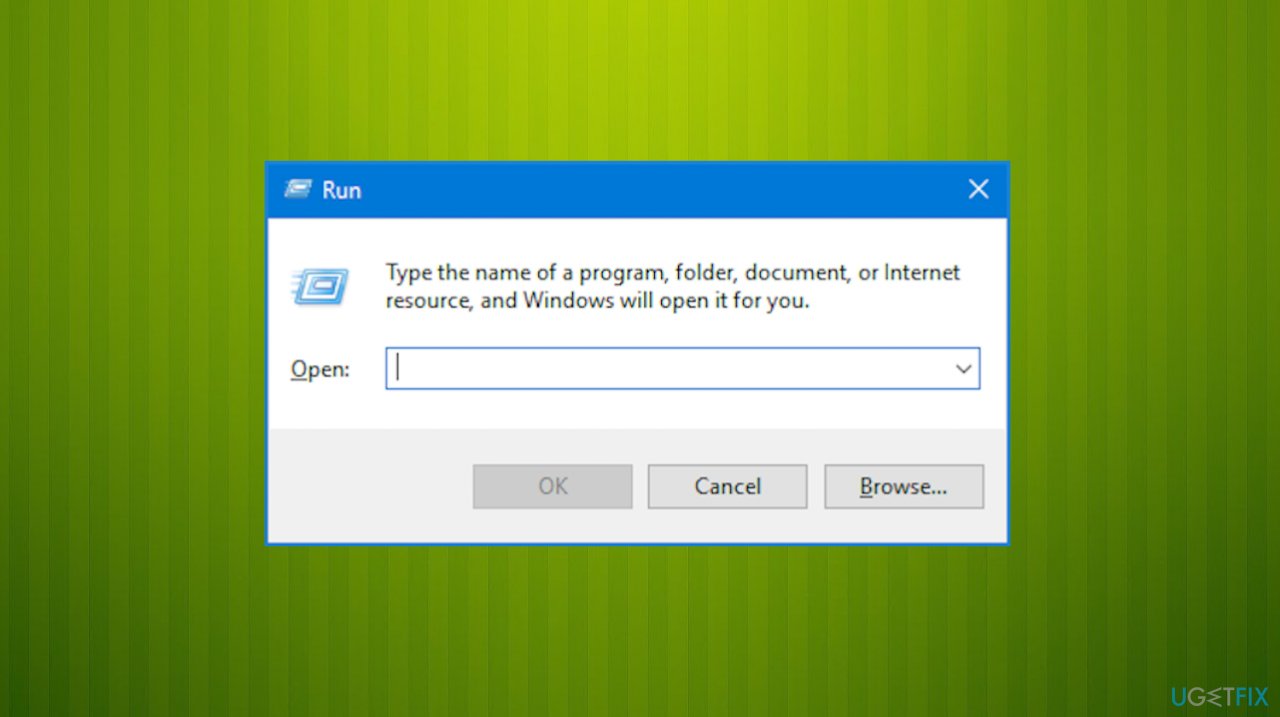
Driver portion must be nonpaged blue screen error run - Enter devmgmt.msc into the text box and press Ctrl + Shift + Enter to start Device Manager.
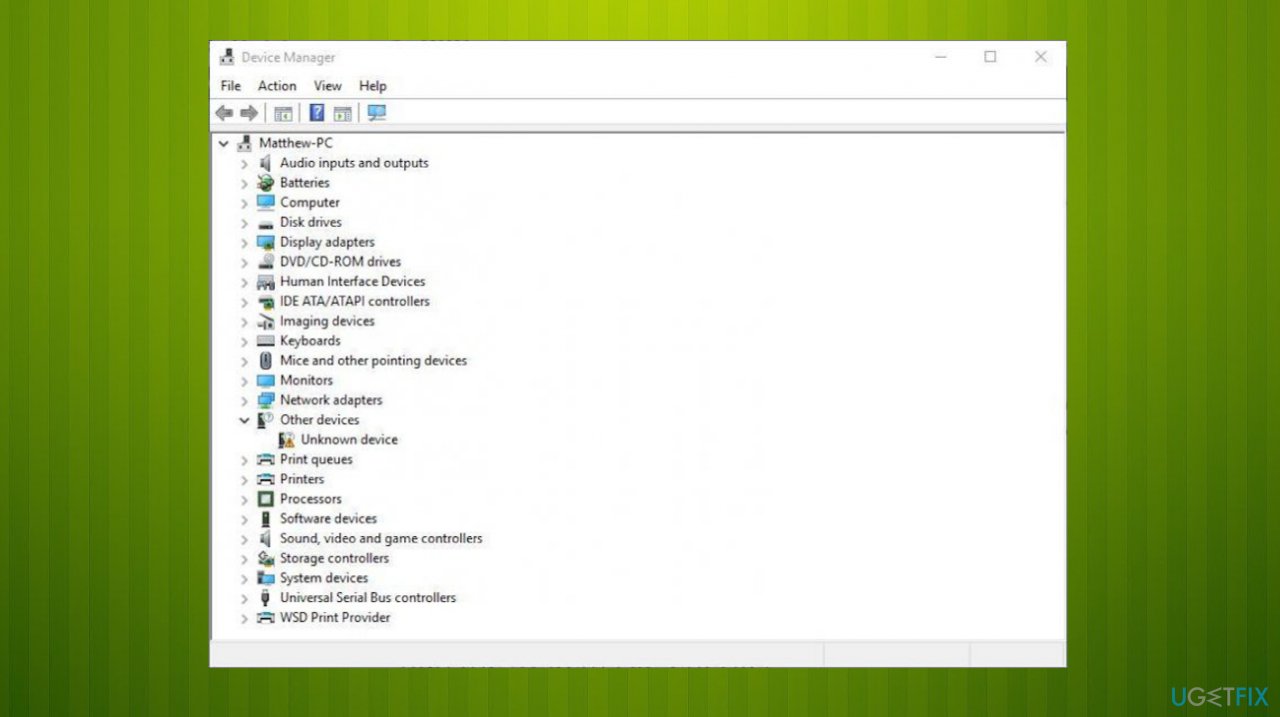
Driver portion must be nonpaged blue screen error device manager - In the User Account Control, choose Yes to grant admin access.
- Expand the Disk Drives drop-down menu.
- Next, pick Properties from the context menu by right-clicking the SSD or HDD disk in the Disk Drives section.
- Click the Details tab at the top.
- Choose Hardware IDs from the Properties menu.
- The upper portion of the drive has both the model number of the drive you are now using and the firmware version shown beneath its name.
- Search online to see if there is a new firmware version available for your SSD or HDD on the official site.
- If the updated version is available, download it and then install it by following the on-screen instructions.
3. Run SFC and DISM scans
- Type in cmd in Windows search.
- Right-click on Command Prompt and pick Run as administrator.
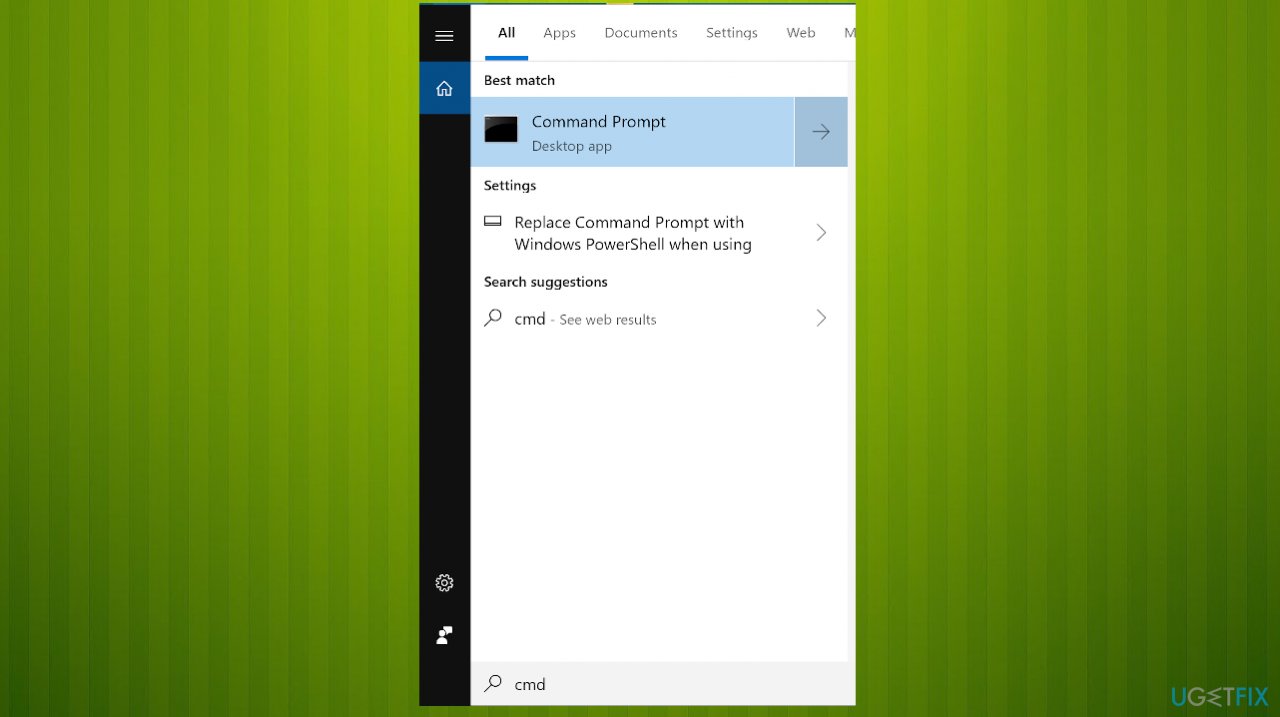
Driver portion must be nonpaged blue screen cmd - When the User Account Control window shows up, click Yes.
- In the new window, type in sfc /scannow and press Enter.
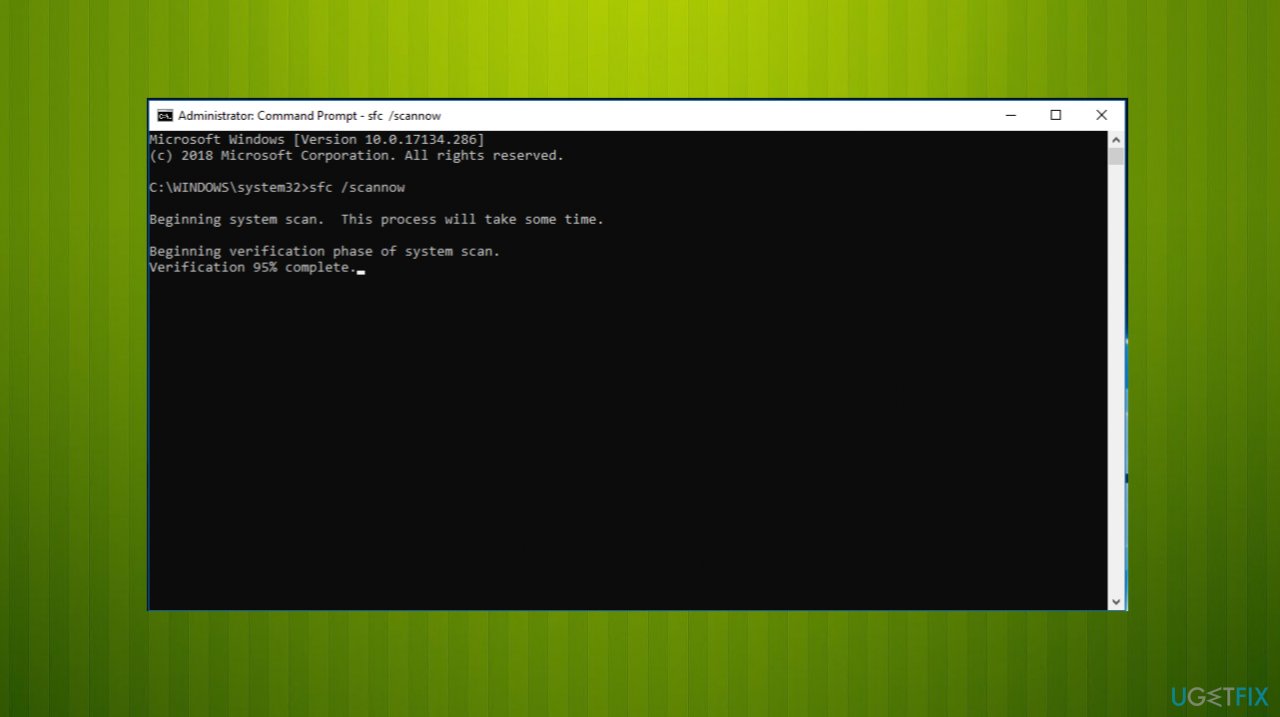
Driver portion must be nonpaged blue screen sfc - Wait till the scan is finished and follow up with these commands, pressing Enter after each:
Dism /Online /Cleanup-Image /CheckHealth
Dism /Online /Cleanup-Image /ScanHealth
Dism /Online /Cleanup-Image /RestoreHealth - Restart your PC.
4. Update the Windows OS
- Press Win + I together to open Windows Settings.
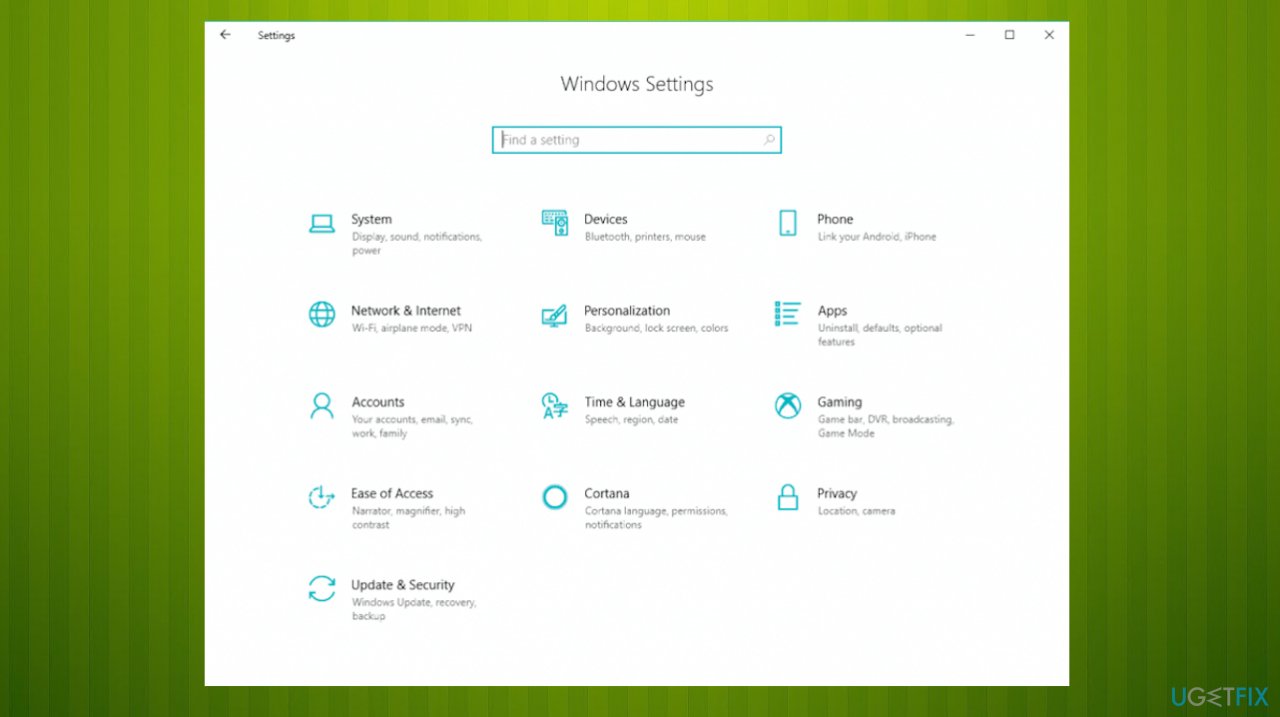
Driver portion must be nonpaged blue screen error settings - Scroll down and select Windows Update.
- Now click on Check for updates, and Windows will start checking for updates on your PC.
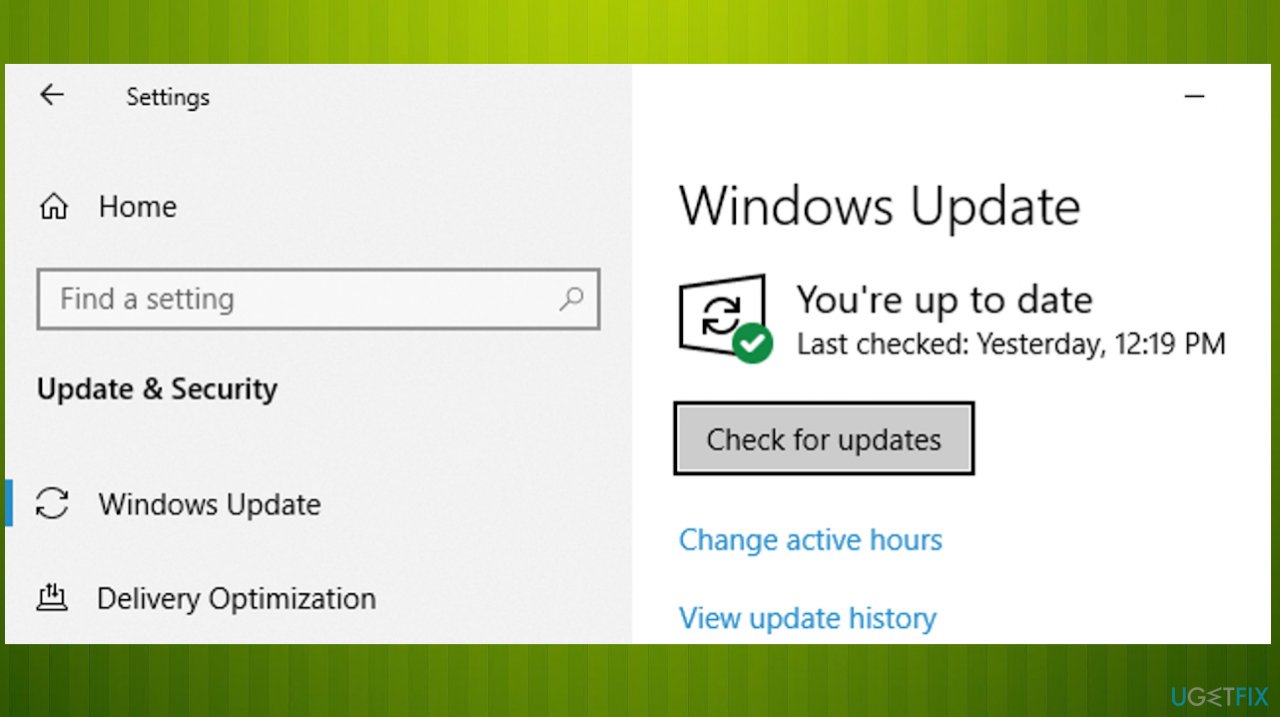
Driver portion must be nonpaged blue screen error update - Download and install if you see any available.
Bottom line
To fix the DRIVER_PORTION_MUST_BE_NONPAGED Blue Screen error, ensure that you install pending OS updates and update your drivers through Device Manager. If these solutions do not resolve the issue, further hardware troubleshooting may be necessary.
Frequently asked questions
This error typically occurs due to faulty drivers, corrupted system files, or hardware issues. It's essential to update your drivers and run a system scan to identify any problems.
You can troubleshoot this error by booting into Safe Mode, uninstalling recent driver updates, or using the Windows Memory Diagnostic tool to check for RAM issues. Additionally, ensure your Windows 11 is fully updated.
To prevent this error, regularly update your drivers and Windows operating system to the latest versions. Also, consider using reliable antivirus software to avoid malware that could corrupt system files.




Report an issue
What's wrong with this guide? We review every report and update or remove content.
Report received — thank you. We'll review and fix it.
You need a free account to submit a report.
Be the first to comment