Hello. I keep getting a DRIVER_VERIFIER_DETECTED_VIOLATION BSOD. I understand that the problem is related to a particular system driver, but I don’t know which one. I guess that either audio or video drivers are corrupted, but updating them did no fix the problem. What else can I do?
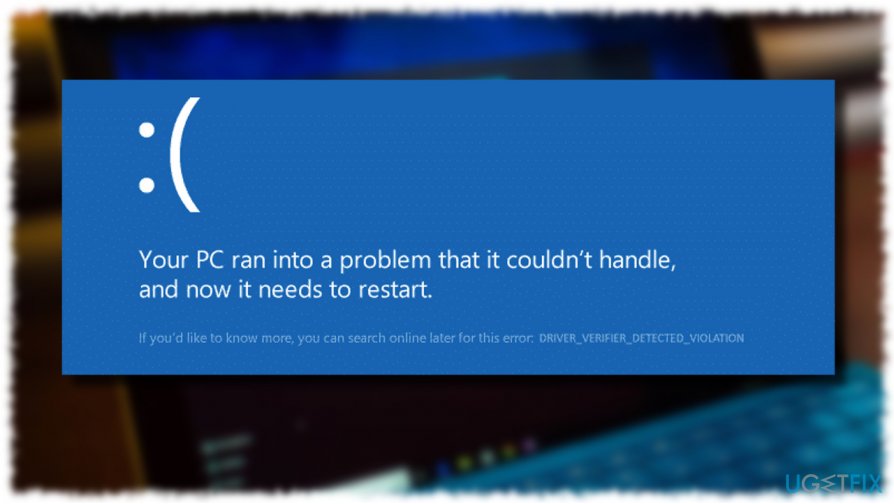
DRIVER_VERIFIER_DETECTED_VIOLATION is a Windows Blue Screen of Death (BSOD)[ref en-1] error, which is marked with an Error Code 0x000000C4. It’s a fatal error, which indicates a serious corruption of Windows device drivers.
The DRIVER_VERIFIER_DETECTED_VIOLATION error is found and generated by Driver Verifier.[ref en-2] It’s an inbuilt Windows utility, which is responsible for the control of Windows kernel-mode drivers and graphics drivers. The tool is supposed to detect illegal function calls or actions, which may result in system’s corruption.
Driver Verifier can be run using Command Prompt with administrative privileges. It allows verifying multiple drivers simultaneously or one driver a t a time. The verification process is executed while rebooting the system. If the verifier detects any problems, it may generate DRIVER_VERIFIER_DETECTED_VIOLATION error immediately after boot.
The problem may happen on any Microsoft Windows operating system’s version (XP, Vista, 7, 8, 8.1, 10) and the fix are more or less the same on all of them. Usually, the BSOD screen indicates the problematic device driver,[ref en-3] but if it’s not indicated, you may need to update most of the device drivers.Driver verifier detected violation
Usually, the problem stems from graphics or audio drivers, so try updating them in the first place. If you don’t want to waste your time updating all device drivers, try installing PC’s optimization tool [d1], which will do the trick for you automatically. The next solution would be to reinstall problematic driver or disable driver verifier.
Method 1. Update Device Drivers
Right-click on Windows key and select Device Manager.
Alternatively you can press Windows key + R, type devmgmt.msc in the Run, and hit Enter.
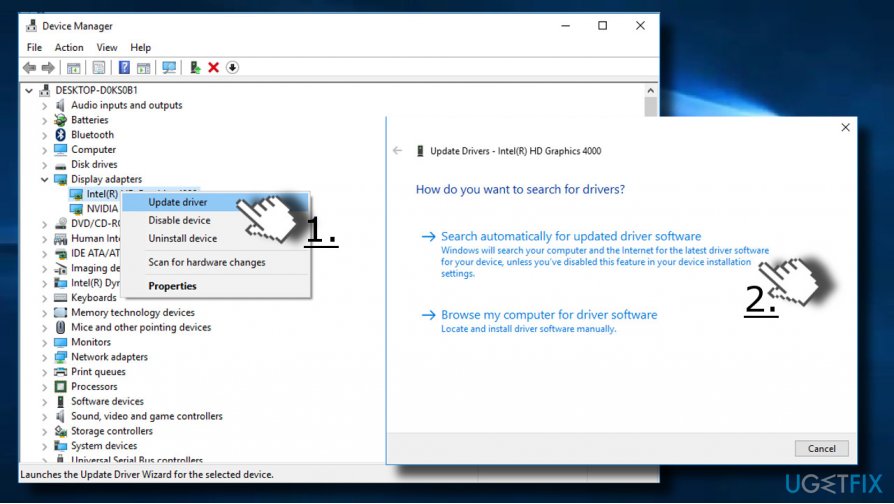
Click on the driver that needs to be updated and select Update device.
Select Search automatically for updated driver software.Update device drivers
If the system cannot install updates automatically, then you may need to download the update from the official manufacturer’s website.
Method 2. Reinstall Device Drivers
Right-click on Windows key and select Device Manager.
Alternatively you can press Windows key + R, type devmgmt.msc in the Run, and hit EnUninstall device driverster.
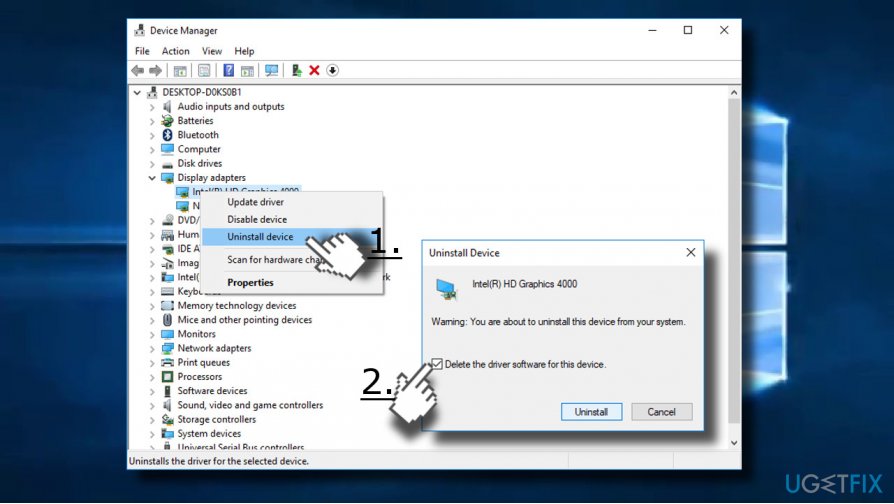
Click on the driver that needs to be updated and select Uninstall device.
Once done, navigate to the device manufacturer’s website and download the latest version of the driver.
Finally, install it and reboot your PC.
Method 3. Disable Driver Verifier
If device driver updates did not help to fix DRIVER_VERIFIER_DETECTED_VIOLATION BSOD, reset or disable the Driver Verifier tool:
Right-click on Windows key and select Command Prompt (Admin).
Alternatively you can type cmd in Windows search box, right-click on Command Prompt option, and select Run as administrator.
Click Yes on the UAC window.
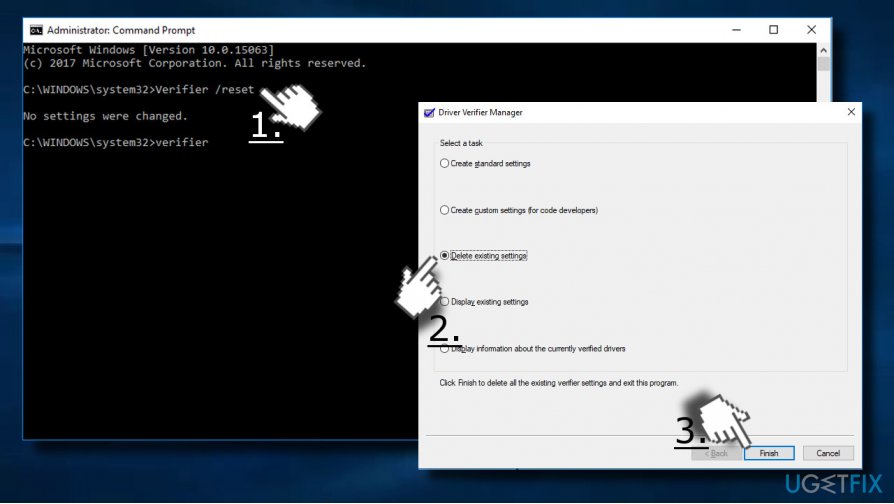
To reset the verifier, copy and paste the Verifier /reset command in the Command Prompt environment and press Enter.
Finally, reboot your PC.
In case verifier reset did not work, try another way. Type verifier and press Enter.
Select the Delete existing settings option and click Finish.
Finally, reboot your PC. This cay, you will disable the verifier completely.Disable driver verifier
Method 4. Install Windows Updates
Press Windows key + I and open Update & Security section.
Now press Check for Updates button.
After that, the system should automatically detect and install all available updates. Once done, reboot the system.
Method 5. Roll back to the older version of Nvidia driver
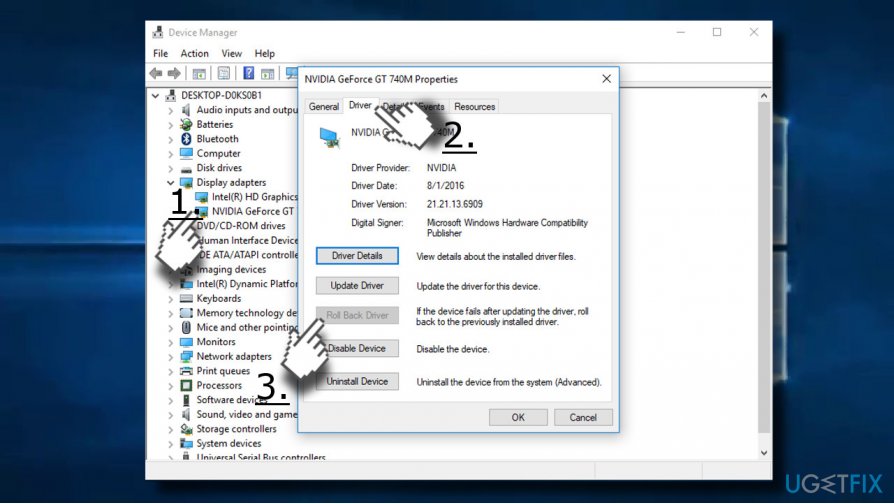
If the BSOD opened soon after the upgrading to Windows 10 or installation of graphics driver updates, please try to roll back to the older Nvidia driver’s version by following these steps:
Open Device Manager as explained in the Method 1.
Open your Graphics card driver and double click on it.
Open Driver tab and select Roll Back Driver.Roll back nvidia driver update
Once the process finishes, reboot your PC.
In case you cannot roll back the driver, uninstall it and install the older version from the official manufacturer’s website.
Bottom line
To fix the DRIVER_VERIFIER_DETECTED_VIOLATION BSOD, you can update your device drivers, specifically focusing on audio and video drivers. If updating does not resolve the issue, consider reinstalling the problematic driver or disabling Driver Verifier. If none of these solutions work, you may need to use a PC optimization tool or update all device drivers manually.
Frequently asked questions
This BSOD error is often triggered by faulty drivers or incompatible software that does not adhere to Windows kernel-mode requirements.
You can disable Driver Verifier by booting into Safe Mode and running the command 'verifier /reset' in the Command Prompt.
Yes, ensure that all your device drivers and Windows updates are current, as outdated drivers can lead to this BSOD error.
Windows repair toolsSFC and DISMStartup failure recoveryWindows Update errorsSystem Restore
Jake Doevan is a senior Windows technician with deep practical knowledge of Windows' built-in repair and recovery tools. He has written extensively about SFC, DISM, CHKDSK, System Restore, and Windows Recovery Environment — the tools that can salvage a failing Windows installation without data loss. Jake's guides are precise and sequenced: each step is ordered to avoid compounding the original problem, and he explains what each command does so readers understand the process rather than following it blindly. His work is particularly valuable for users dealing with corruption, startup failures, and update-induced regressions.






Report an issue
What's wrong with this guide? We review every report and update or remove content.
Report received — thank you. We'll review and fix it.
You need a free account to submit a report.
Be the first to comment