How to fix
Duplicate folders in left pane of File Explorer
on Windows
Resolve duplicate folders in the File Explorer left pane on Windows 10/11 easily. Expert-tested solutions ensure your file organization is flawless.

What causes How to fix duplicate folders in left pane of File Explorer?
- Incorrect folder settings
- Corrupted folder settings
- Issues with the Windows Registry
- System file errors
- Windows image corruption
Repairs Windows system files, removes malware, and restores a clean OS state — without reinstalling.
I am getting duplicate folders in the left pane of File Explorer. For example, I see double "Desktop" and "Libraries." Is there anything I can do to fix this?
File Explorer, the default file management application in Windows, is an integral tool for every user. This interface allows users to navigate through their data, encompassing a multitude of directories, files, and system locations. On the left pane of File Explorer, you will typically find quick access points like "Quick access," "This PC," and "Network," among others, which offer easy navigation to frequent or significant locations on your system.
However, some users have reported an anomaly wherein duplicate folders appear in the left pane of File Explorer. This issue not only causes confusion but can also clutter the interface, reducing the efficiency for which File Explorer is so relied upon.
These duplicate folders in the left pane may occur due to various reasons. More often than not, the issue lies in the folder settings of the Windows operating system. Incorrect or corrupted folder settings could lead the system to generate duplicate folders in the File Explorer's left pane. An issue with the Windows Registry could also be a potential reason.
To rectify this, users may need to correct the folder settings via the Folder Options or Command Prompt. In Folder Options, users can reset folders, clear the File Explorer history, or restore defaults. Command Prompt, meanwhile, offers a more advanced approach where users can use specific commands to resolve the issue.
However, in some cases, basic troubleshooting methods might also be required. These may include running System File Checker (SFC) or Deployment Image Servicing and Management (DISM) to check for system file errors and repair the Windows image, respectively.
Detailed instructions for these solutions will be provided in the sections following this article. It's important to note that these measures require some level of expertise. Therefore, always ensure you understand each step before proceeding and consider creating a restore point for your system beforehand.
In cases where the user is uncomfortable making these changes or if the problem persists, the use of a PC repair tool such as [d1] may be recommended. This tool can scan, detect, and correct common computer errors, thus potentially resolving the issue of duplicate folders in File Explorer's left pane.
Method 1. Change Folder options
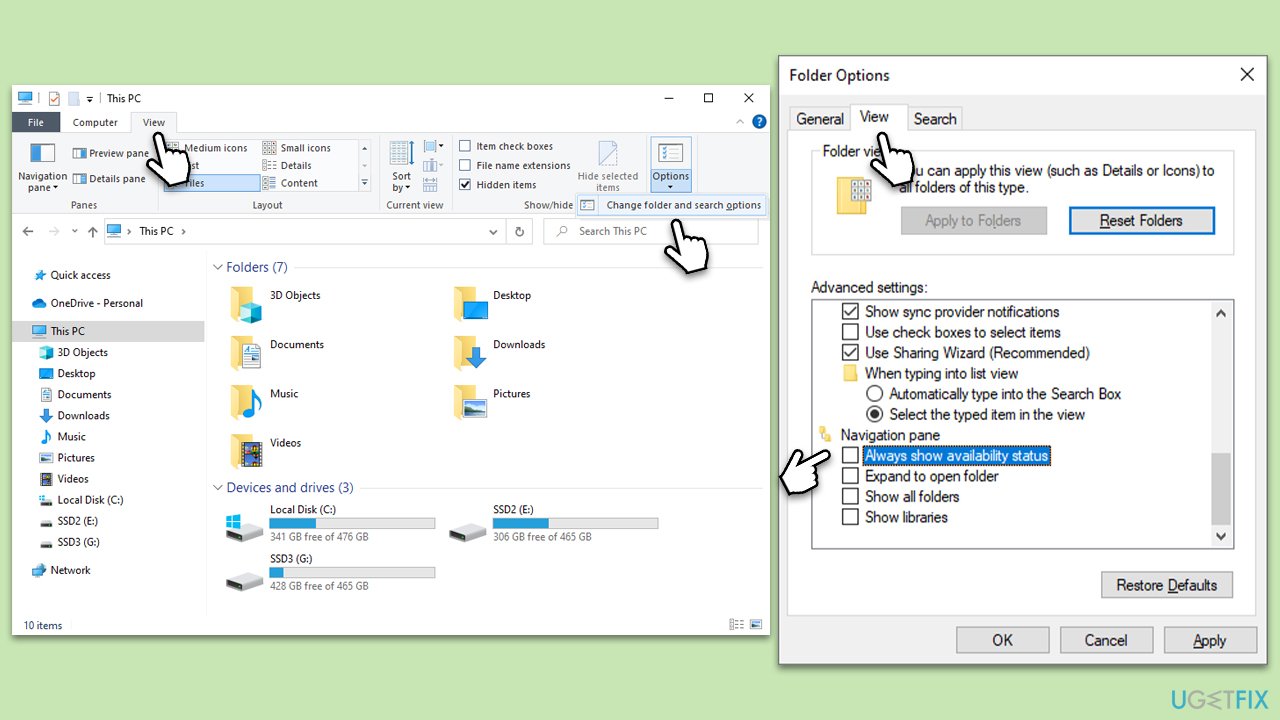
- Press Win + E to open File Explorer.
- Go to the View tab and select Options > Change folder and search options.
- Navigate to the View tab and scroll down to the Navigation pane section.
- Untick all the options here.
- Click Apply and OK.
Method 2. Reset Folder settings
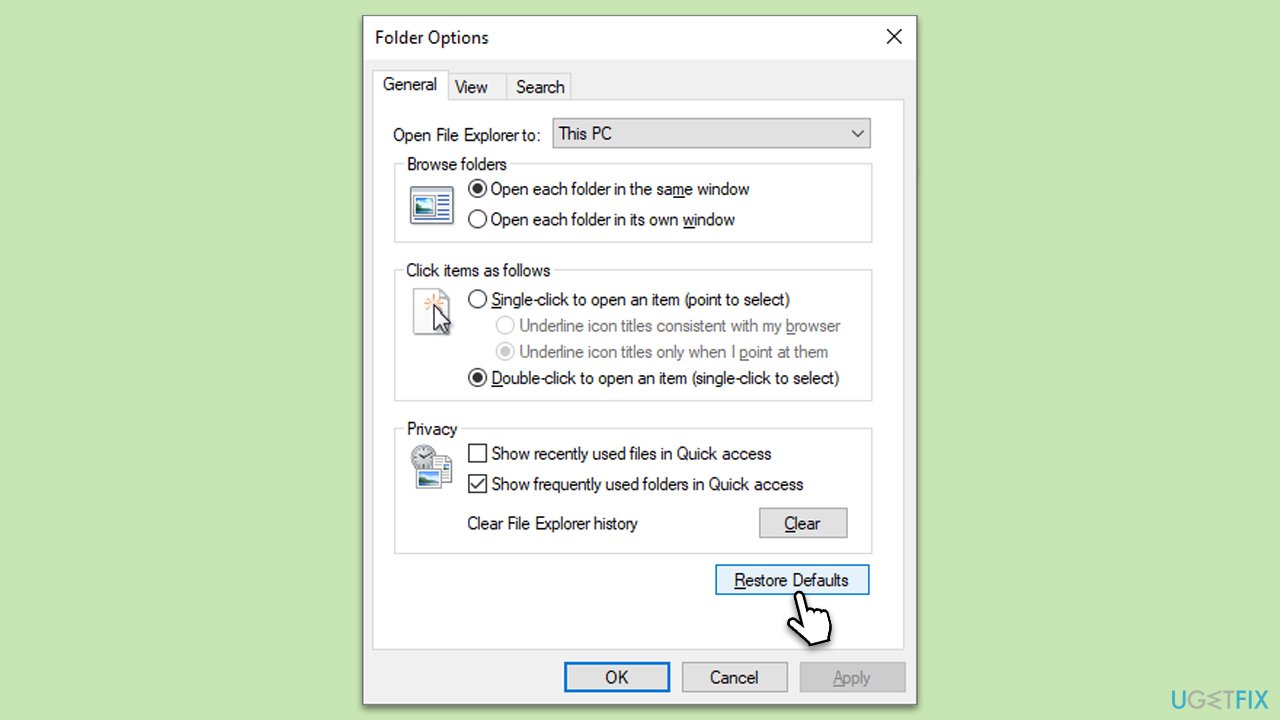
Resetting the folder settings can correct any incorrect configurations that might be causing the duplicate folders. This returns settings to their default state, resolving errors caused by customized settings.
- Open File Explorer.
- Click on View and then Options.
- In the Folder Options window, click Restore Defaults.
- Click Apply and then OK.
Method 3. Use Command Prompt
Executing specific commands in Command Prompt can correct underlying system issues that might be causing the duplicate folders.
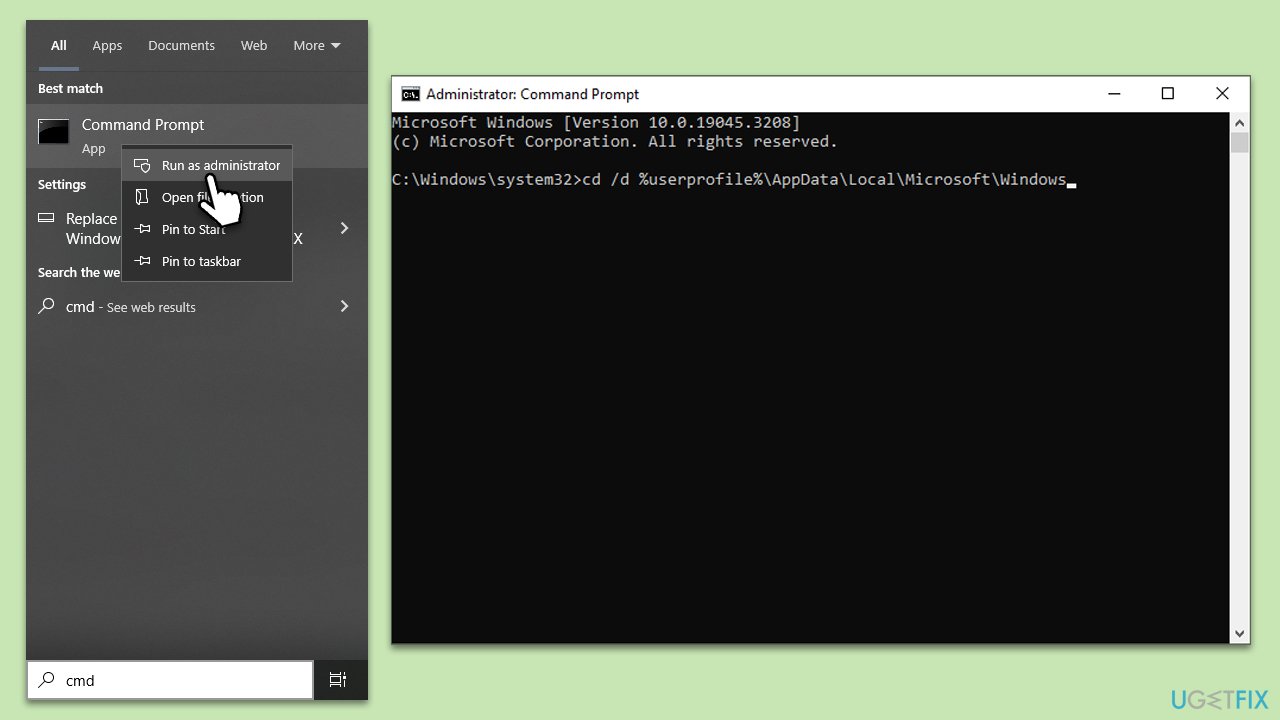
- Type in cmd in Windows search.
- Right-click on Command Prompt and select Run as administrator.
- In the User Account Control window, click Yes.
- Copy and paste the following commands, pressing Enter after each:
cd /d %userprofile%\AppData\Local\Microsoft\Windows
attrib -h IconCache.db
del IconCache.db - Restart your computer.
Method 4. Run SFC and DISM
Running System File Checker (SFC) and Deployment Image Servicing and Management (DISM) are standard troubleshooting techniques that can help in resolving various system issues, including the problem of duplicate folders in File Explorer. Here are the instructions for both:
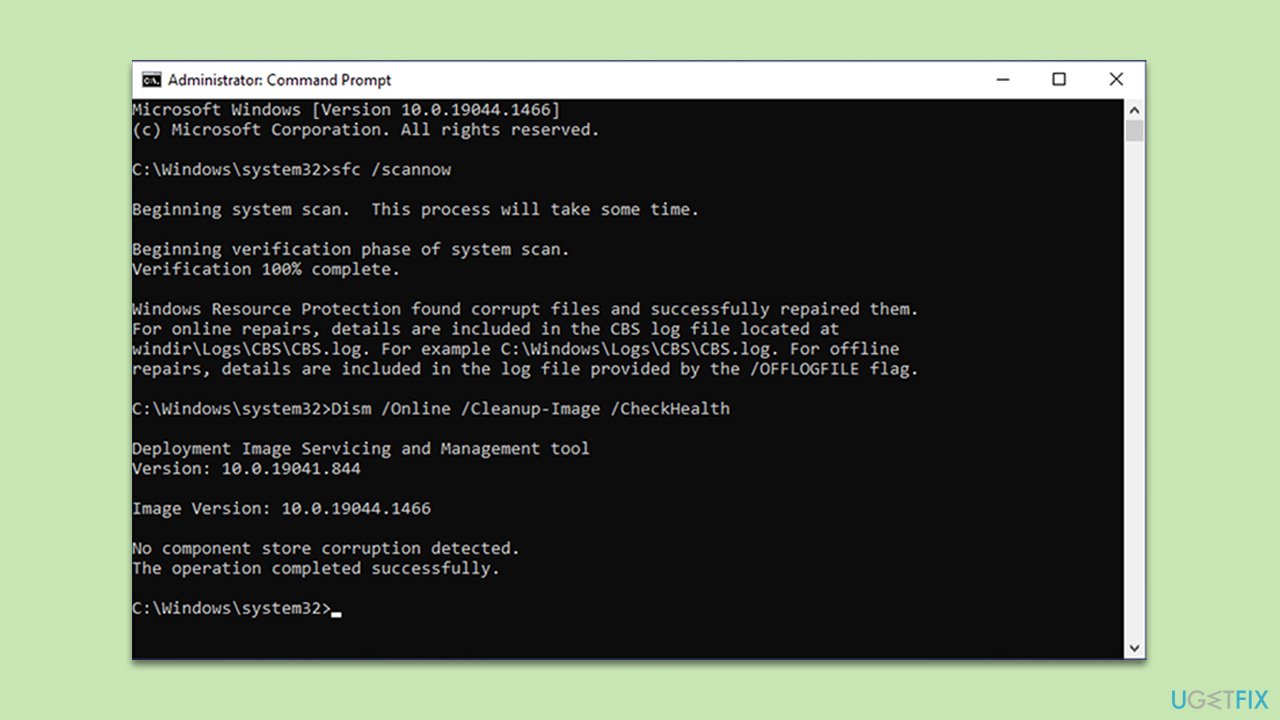
- Open Command Prompt as administrator.
- In the Command Prompt window, paste the following command and hit Enter:
sfc /scannow - Next, use the following commands, pressing Enter each time:
Dism /Online /Cleanup-Image /CheckHealth
Dism /Online /Cleanup-Image /ScanHealth
Dism /Online /Cleanup-Image /RestoreHealth
(Note: if you get an error executing this last command, add /Source:C:\RepairSource\Windows /LimitAccess to it and try again). - Reboot your PC.
Method 5. Take care of the issue in Quick Access menu
If the issue is present in Quick Access, then follow these steps:
- Close down File Explorer.
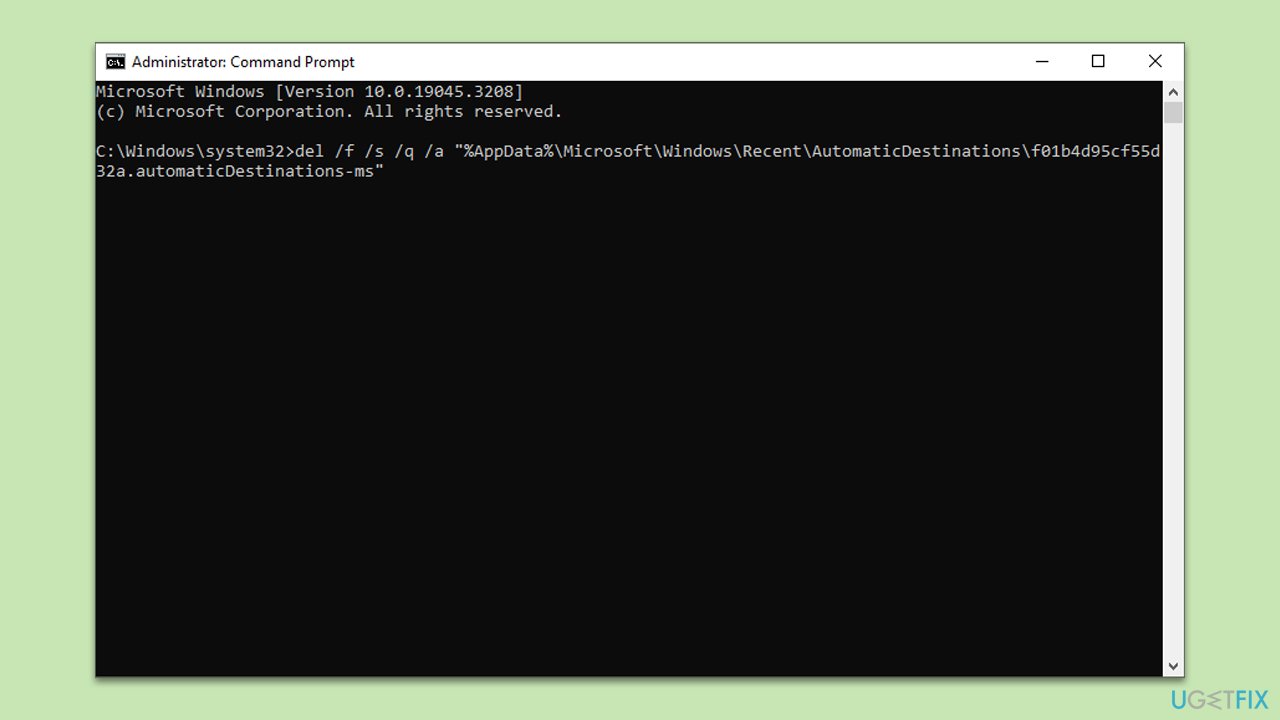
- Open Command Prompt as administrator.
- When UAC shows up, click Yes.
- Copy and paste the following command and press Enter:
del /f /s /q /a "%AppData%\Microsoft\Windows\Recent\AutomaticDestinations\f01b4d95cf55d32a.automaticDestinations-ms" - Close down Command Prompt and restart File Explorer.
Bottom line
To fix duplicate folders in the left pane of File Explorer, users can reset folder settings via Folder Options, use Command Prompt for advanced commands, or run System File Checker (SFC) and Deployment Image Servicing and Management (DISM) for repairs. If these solutions do not resolve the issue, further troubleshooting may be necessary.
Frequently asked questions
You can right-click on the duplicate folder in the left pane and select 'Remove' to delete it from the navigation pane without affecting the actual folder on your system.
Try resetting the navigation pane by opening File Explorer options, going to the 'View' tab, and clicking 'Reset Folders' to refresh the folder structure.
Yes, there are various third-party applications available that can help identify and remove duplicate folders, which can be especially useful if the issue persists in Windows 10 or Windows 11.




Report an issue
What's wrong with this guide? We review every report and update or remove content.
Report received — thank you. We'll review and fix it.
You need a free account to submit a report.
Be the first to comment