How to fix
DWM (Desktop Window Manager) crashes while gaming
on Windows
Resolve DWM crashes while gaming on Windows 10 and 11 with expert-tested solutions. Get back to smooth gameplay—fixed in minutes!

What causes How to fix DWM (Desktop Window Manager) crashes while gaming?
- Corrupted system files
- Outdated graphics card drivers
- Xbox Game Bar interference
- Registry issues
- DirectX problems
Repairs Windows system files, removes malware, and restores a clean OS state — without reinstalling.
Hello. Whenever I launch any game on my Windows computer, it crashes after a few minutes. There is evidence that the crashes are caused by the Desktop Window Manager. What should I do?
The Desktop Window Manager (DWM) is a Windows service that manages the operating system's graphical user interface. It is in charge of rendering the desktop and all open windows on the screen. DWM makes use of DirectX[ref en-1] to deliver advanced graphical effects like Aero Glass, taskbar thumbnails, and window animations.
Some gamers have reported DWM crashes while playing a variety of games, including popular titles like Fortnite and Modern Warfare 2. This can result in the game freezing, becoming unresponsive, or crashing on the desktop. The game may continue to run in the background in some cases while the screen remains black or flickers.
This problem can have a significant impact on gamers because it can disrupt their gameplay experience and cause frustration. DWM crashes can also result in the loss of game progress, unsaved data, or even system damage. To ensure a smooth and uninterrupted gaming experience, this issue must be resolved.
When the DWM crashes, users may also receive the "Faulting application name: XboxGameBarSpotify.exe" error. This error indicates that the Xbox Game Bar, a feature that allows users to capture game footage and listen to Spotify while gaming, might be to blame.
Users can try various troubleshooting steps to resolve the DWM crash issue, such as updating graphics card drivers, disabling the Xbox Game Bar, or performing a clean boot. This guide will walk you through eight steps that should help you fix DWM crashes while gaming in Windows.
However, the manual troubleshooting process can be lengthy. You can use a maintenance tool like [d1] that can fix most system errors, BSODs,[ref en-2] corrupted files, and registry[ref en-3] issues. Otherwise, follow the step-by-step instructions below.
Method 1. Fix Corrupted System Files
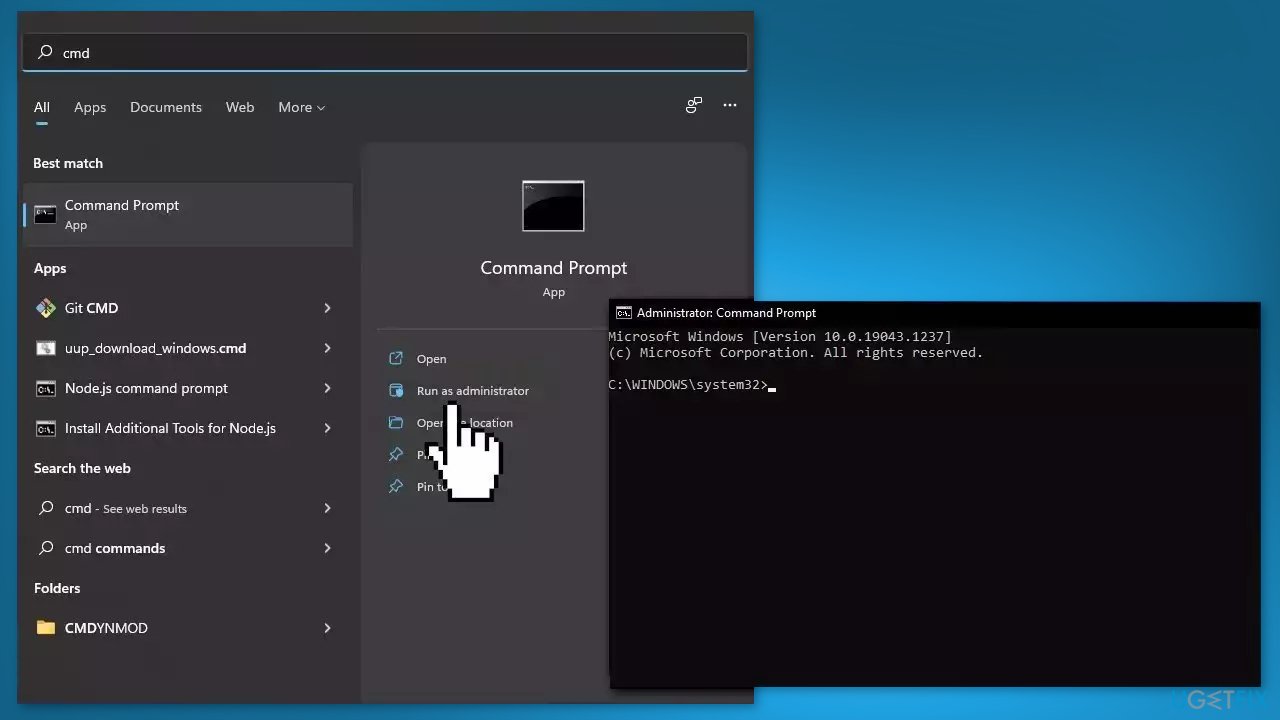
Use Command Prompt commands to repair system file corruption:
- Open Command Prompt as administrator
- Use the following command and press Enter:
sfc /scannow
- Reboot your system
- If SFC returned an error, then use the following command lines, pressing Enter after each:
DISM /Online /Cleanup-Image /CheckHealth
DISM /Online /Cleanup-Image /ScanHealth
DISM /Online /Cleanup-Image /RestoreHealth
Method 2. Install Windows Updates
- Press the Windows key + R to open the Run box
- Type ms-settings:windowsupdate in the text box and press Enter
- Click the Check for updates button
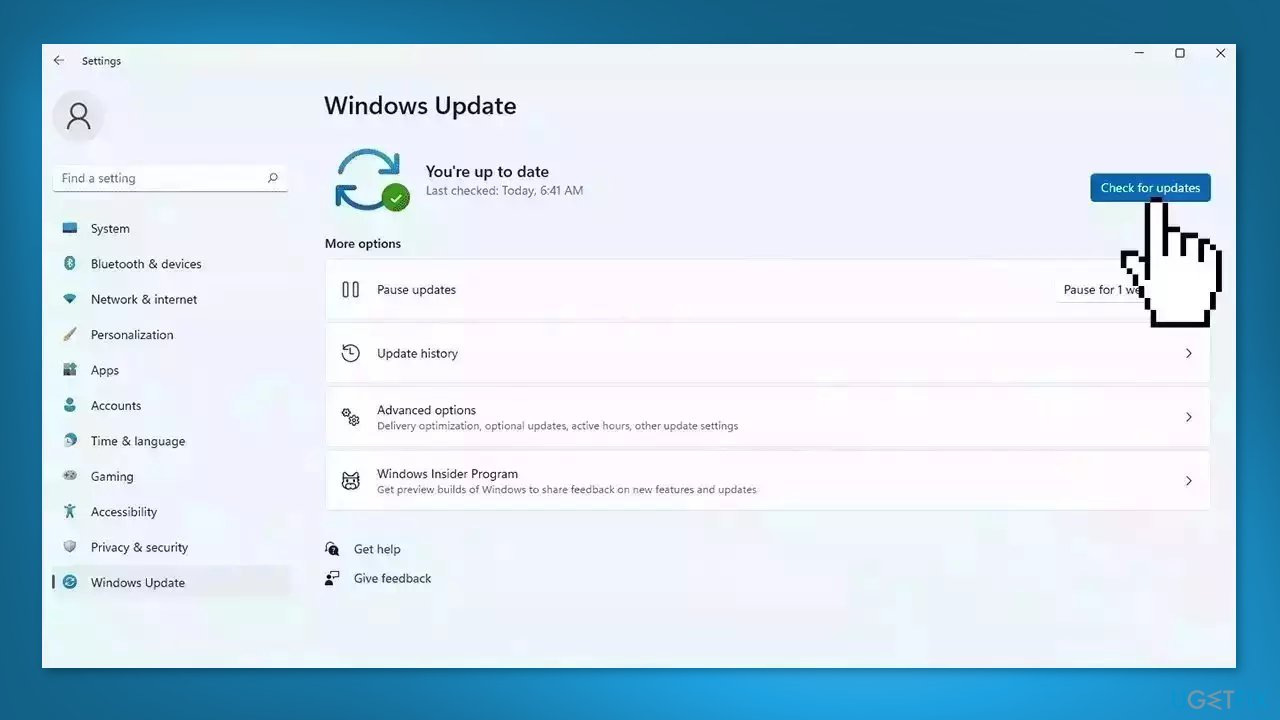
- If a new update is available, click the Download & Install all button.
- Restart your computer after the process is finished and check to see if the problem is fixed
Method 3. Update Drivers
Outdated drivers could be the cause of this issue. In this case, you can fix it automatically by using [rev id="DriverFix"], which will scan your PC for missing and out-of-date device drivers. Or you can update them manually:
- Open Settings
- Click on Update & Security
- Click on Windows Update
- Click the Check for updates button
- Click the View optional updates option
- Click the Driver updates tab
- Select the driver you want to update
- Click the Download and install button
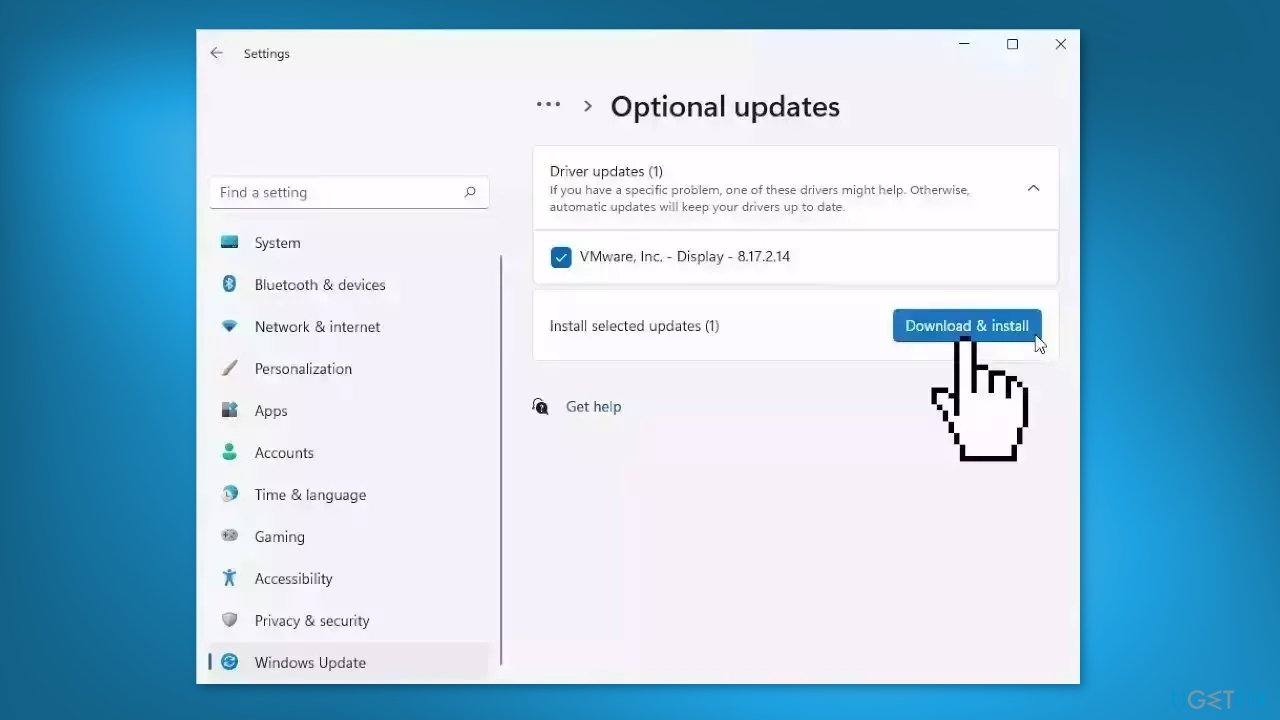
If the View optional updates link is not available after checking for updates, then Windows Update does not have any new drivers or any updates for other products at that particular time.
Method 4. Try Clean Boot
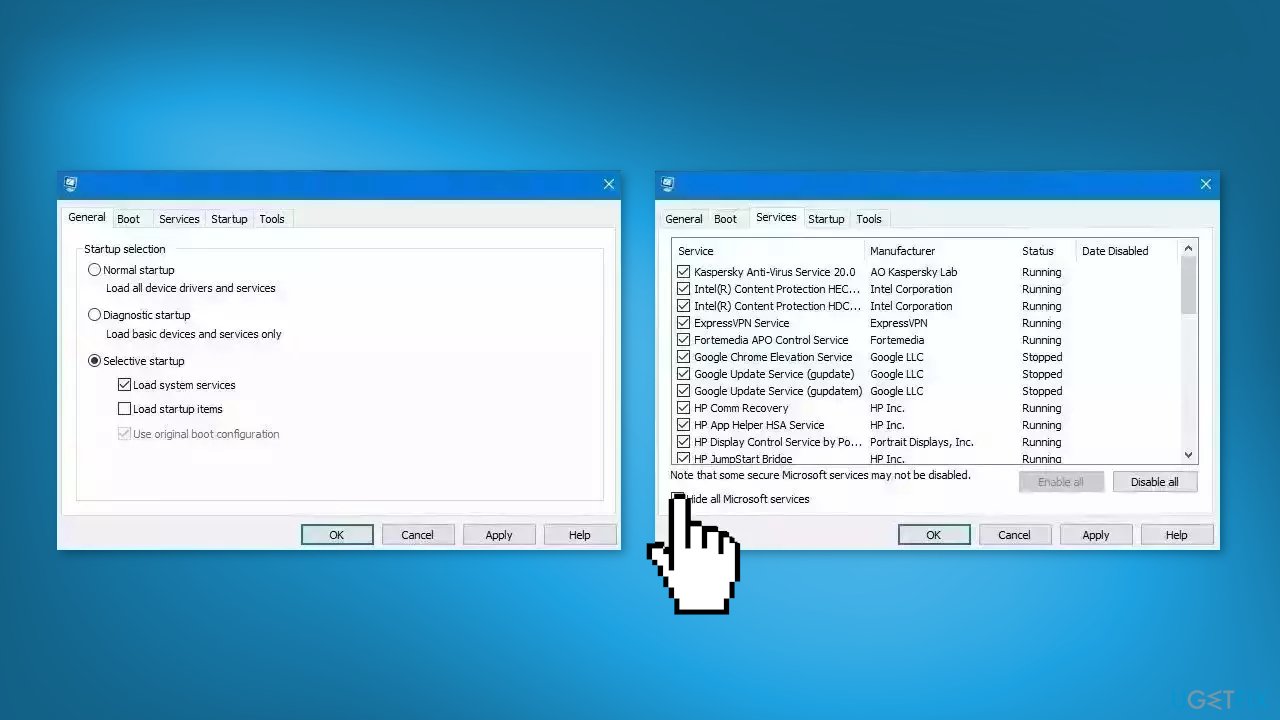
- Open the Search menu, type in system configuration, and press Enter
- Under the Services tab, tick the Hide all Microsoft services box
- Click on Disable all button
- Head over to the Startup tab and click on Open Task Manager
- Select a third-party program and click on Disable at the top
- Repeat this step to disable all third-party apps and programs
- Restart your PC to enter the clean boot state and see if the issue persists
- If the issue disappeared in the clean boot state, then you can be certain that a third-party app is causing it
- Go through all recently installed apps or programs and remove them one by one
Method 5. Disable G-Sync and V-Sync
Enabling G-Sync on a system that is not fully compatible with it may cause game crashes. This can happen if the system's hardware, particularly the graphics card or monitor, is not capable of supporting G-Sync or if the G-Sync settings are not configured correctly. When the graphics card and monitor are unable to synchronize properly, it may result in stability issues, including crashes or freezing during gameplay.
Disable G-Sync:
- Right-click on your desktop
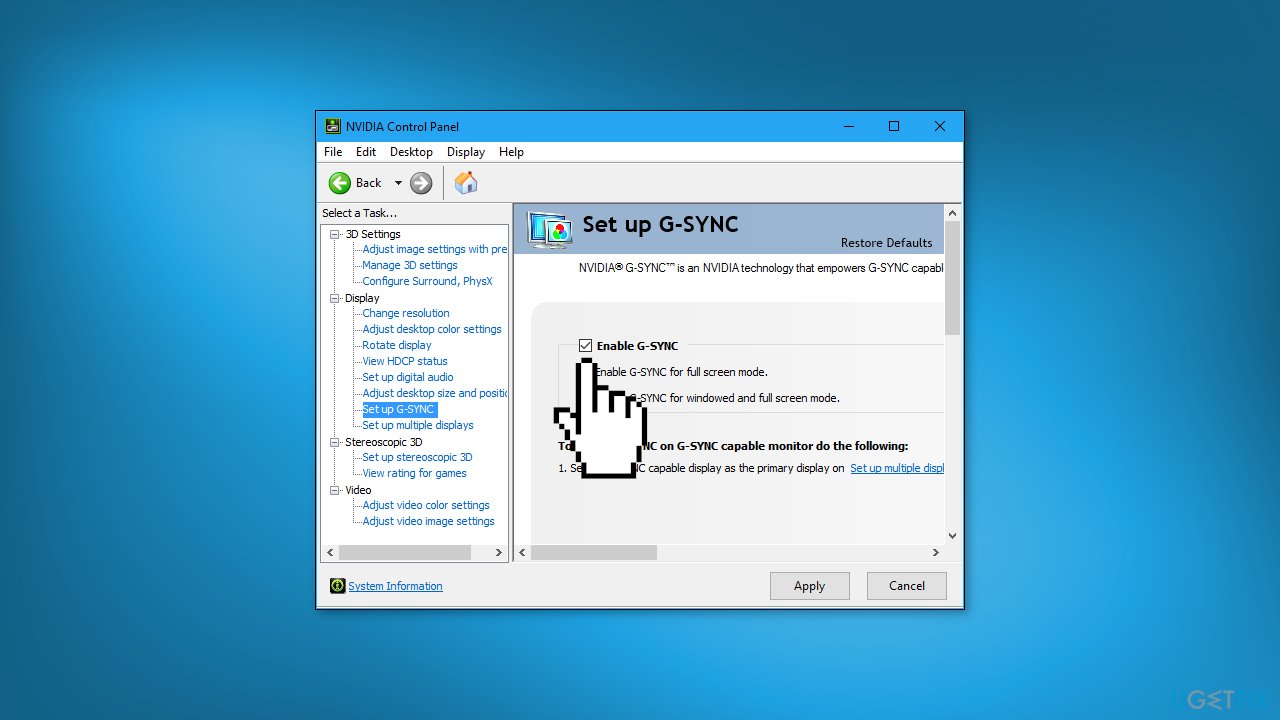
- Select Nvidia Control Panel from the menu that appears
- Click on the + sign next to Display to expand the options
- Select Set up G-Sync from the expanded options
- Uncheck the box next to Enable G-SYNC to disable it
- Click Apply to save the changes
Disable V-Sync:
- Open the game and go to the Settings
- Find the option to disable V-Sync
Method 6. Try Window Mode
If you've tried full screen and borderless full screen, you can try window mode, reducing the window size, and seeing if the problem goes away. You can use the in-game settings for this.
Method 7. Uninstall Microsoft Gaming Services
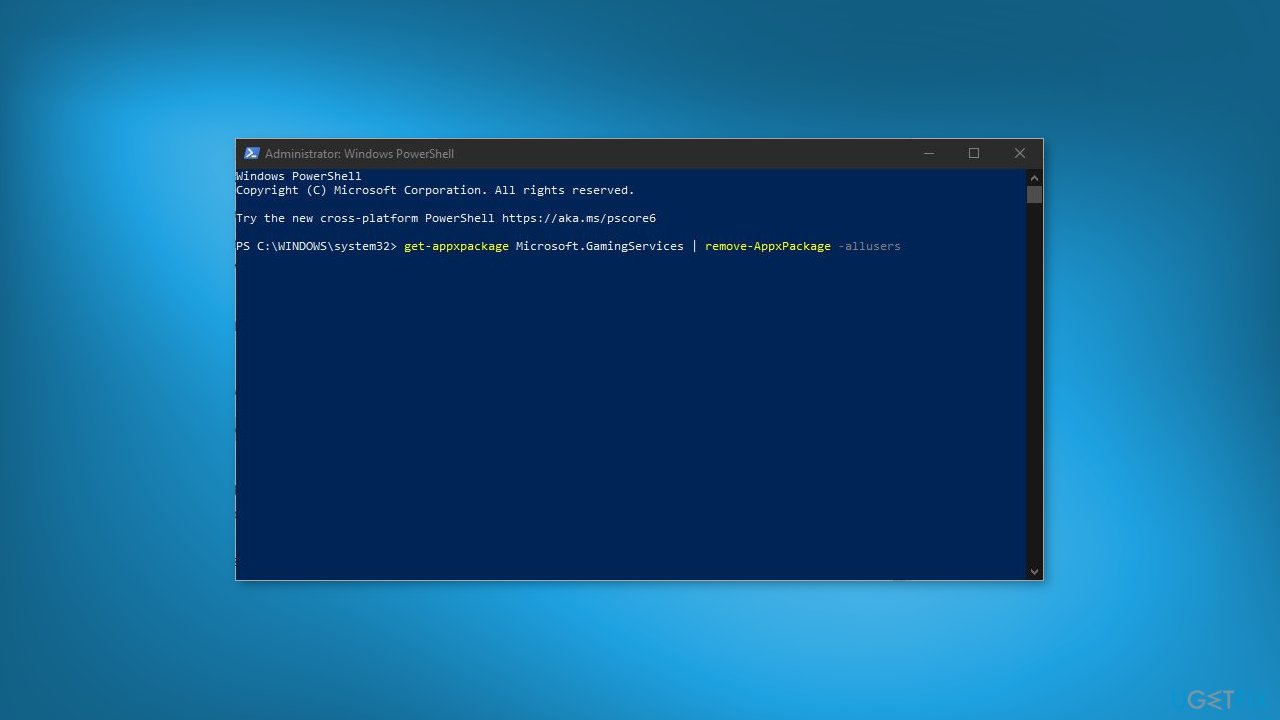
- Open PowerShell with administrator privileges
- Type the following command and press Enter:
get-appxpackage Microsoft.GamingServices | remove-AppxPackage -allusers
- Run the game and test if the DWM (Desktop Window Manager) crashes or not
- If the game still doesn't work, you can try reinstalling the Microsoft Game service from the Microsoft Store
- Open the Microsoft Store and navigate to the Microsoft Gaming Services page
- Click on the Install button to reinstall the Microsoft Game service
- Wait for the installation to complete, then run the game again and test if it works properly
Method 8. Disable Overclocking
Overclocking is the process of exceeding the factory-set clock speed of a computer's central processing unit (CPU) or graphics processing unit (GPU). This can be accomplished by modifying settings in the computer's BIOS or by using overclocking software.
Overclocking is used to improve a computer's performance by making it run faster and more efficiently. It can sometimes cause problems when gaming because the increased clock speeds put additional strain on the computer's components. This can cause overheating, causing the computer to shut down or crash.
Furthermore, overclocking can cause performance instability in the computer, resulting in stuttering, freezing, and other issues during gameplay. Not all games are optimized for overclocked hardware, which can cause graphical glitches, poor performance, and even crashes. Some games may also be incompatible with certain overclocking settings.
- Open the BIOS (basic input/output system) settings of your computer. This can typically be done by pressing a specific key during startup, such as Delete, F2, or Esc
- Navigate to the overclocking settings in the BIOS. This may be located in different places depending on your motherboard, but it is typically found under the Advanced or Overclocking tab
- Look for options such as CPU Ratio, CPU Clock, or CPU Frequency. Change the values to the default or normal settings, or set them to Auto
- Save the changes and exit the BIOS
- Restart your computer
Note: Some motherboards come with default overclocking settings, so you may need to check the manual or reach out to the manufacturer for more information on how to disable overclocking on your specific device.
Bottom line
To fix DWM crashes while gaming, you can update your graphics card drivers, disable the Xbox Game Bar, or repair corrupted system files using Command Prompt. If these steps do not resolve the issue, consider using a maintenance tool to fix system errors.
Frequently asked questions
Common causes include outdated graphics drivers, software conflicts, or issues with system resources. Ensuring your drivers are up to date and checking for software conflicts can help resolve these crashes.
You can update your graphics drivers by visiting the manufacturer's website or using Device Manager to search for updates automatically. Make sure to restart your computer after the update to apply changes.
Adjusting the graphics settings in your games to lower levels or enabling compatibility mode can help prevent DWM crashes. Additionally, disabling unnecessary background applications can free up system resources.




Report an issue
What's wrong with this guide? We review every report and update or remove content.
Report received — thank you. We'll review and fix it.
You need a free account to submit a report.
Be the first to comment