How to fix
DXGI_ERROR_DEVICE_HUNG error
on Windows
Resolve the DXGI_ERROR_DEVICE_HUNG error on Windows 10 and 11 easily with proven solutions. Get back to gaming smoothly—expert-tested!


What causes How to fix DXGI_ERROR_DEVICE_HUNG error?
- Direct X problems
- Incorrect game settings
- Outdated drivers
- RAM problems
- Overclocked CPU
Repairs Windows system files, removes malware, and restores a clean OS state — without reinstalling.
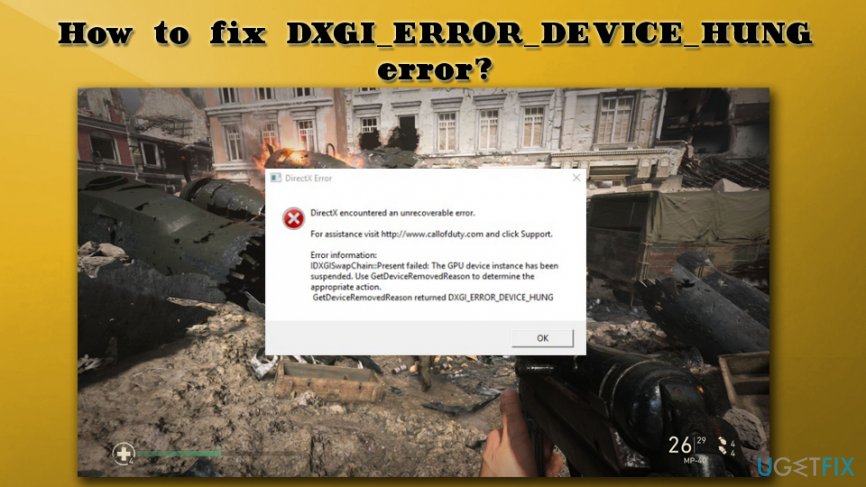
Hi guys. I rarely get any errors on my PC (maybe I'm just lucky haha), but recently I keep getting same error whenever I am playing Call of Duty World War II. I played countless hours of the game before, and I never experienced anything like this. Then, the error GetDeviceRemovedReason Failed with DXGI_ERROR_DEVICE_HUNG. Then the game crashes. I restart it, play it for a bit, and the problem returns. The error does not show up when I use my computer otherwise. Is there any solution for this?
The DXGI_ERROR_DEVICE_HUNG error is a common problem that is typically connected to DirectX[ref en-1] configuration. Nevertheless, many users are complaining about this all over the internet, and they can't find the solution. Therefore, we are here to help you find the way to fix a DXGI_ERROR_DEVICE_HUNG error.
The problem occurs on both, ATI and Geforce video cards, although some users reported crashes only during certain games. For example, one user said the following:
I am having the same issue. It only happens on CoD WW2, no other game. I can play BF1, BF4, PUBG, GTA V, The Division, Need For Speed etc without any issues.
Generally, the error could be related to several different issues, such as Direct X problems, incorrect game settings, outdated drivers,[ref en-2] RAM problems, overclocked CPU,[ref en-3] and others. Nevertheless, if there are no external clues apart from the error itself, users should merely try troubleshooting the problem and work the solutions one-by-one.
However, if you are continually experiencing error messages, as well as other symptoms on your machine (such as slowdowns or crashes, game lags or stuttering, BSoDs, high CPU or GPU usage, etc.) you should check your computer for malware,[ref en-4] as any type of trojan can cause all type of error messages. We recommend scanning your PC with [d1]. Besides, this program can fix certain issues with Windows systems itself.
Solution 1. Update your graphics card driver
Game and other graphics intense application crashes can signal troubles with graphics drivers. In DXGI_ERROR_DEVICE_HUNG case, the drivers may have become corrupted or, at certain times, the error shows which version of drivers do not work. Thus, update your drivers:
- Type Device Manager into the search box
- Expand your Display adapters and pick the graphics card you are using
- Right-click on it and pick Update Driver
- Pick Search automatically for updated driver software and let Windows install the newest driver version
- Reboot your computer
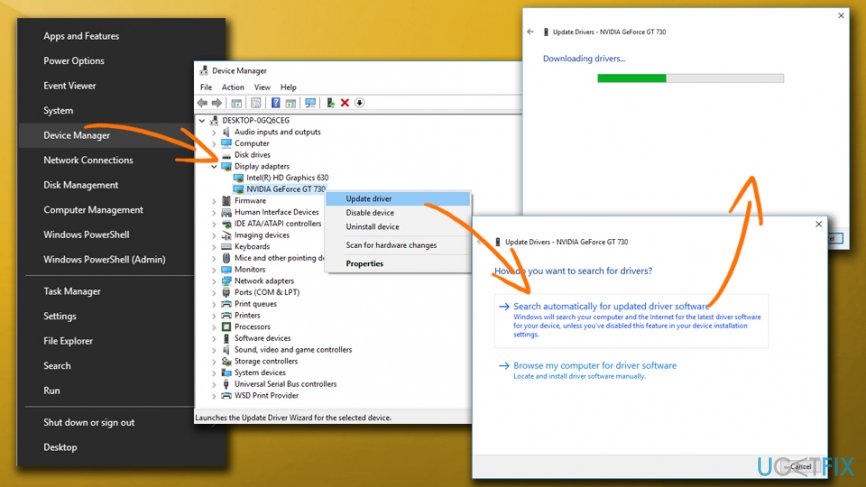
Dxgi error device hung update graphics drivers
Solution 2. Roll-back your drivers
If the current version of the driver is corrupt, you can roll-back to previous versions the following way:
- Type Device Manager into the search box
- Expand your Display adapters and pick the graphics card you are using
- Rick-click on it and select Properties
- Go to Driver tab
- Select Roll back driver, pick from the reason options provided and click Yes
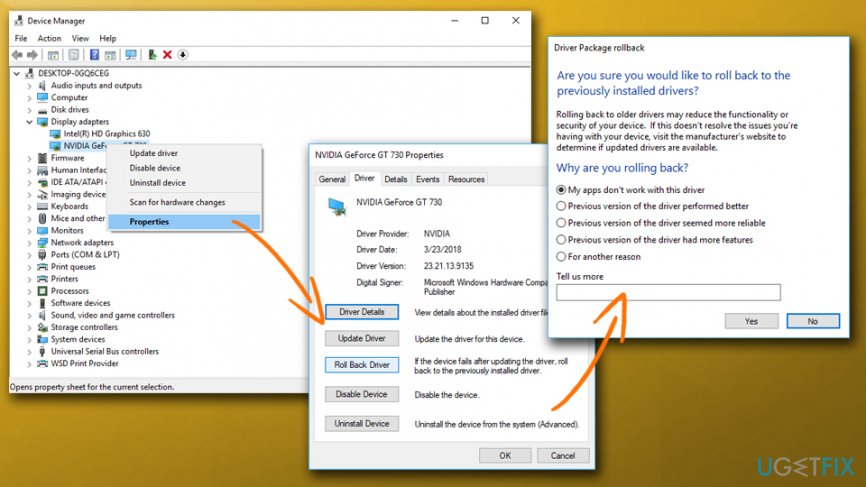
Dxgi error device hung roll back graphics drivers
Solution 3. Update the DirectX
Another most common issue can be outdated DirectX. Fix DXGI_ERROR_DEVICE_HUNG error by updating it:
- Go to Microsoft's DirectX End-User Runtime Web Installer page
- Choose the language you prefer and download the application
- Navigate the downloaded file location, double-click it, and proceed with the on-screen instructions
- Start the game and check if it fixed the issue
Solution 4. Disable the sound card
Users reported that disabling or removing the sound card helped them to fix DXGI_ERROR_DEVICE_HUNG error:
- Go to Device Manager and expand Sound, video and Audio Device
- Right-click on your sound card device, and press Disable
- See if the problem persists
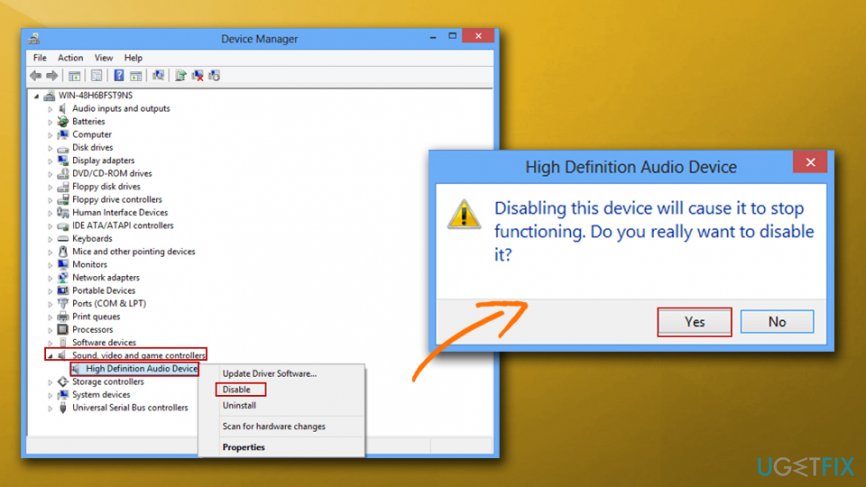
Dxgi error device hung disable sound card
Alternatively, you can physically unplug the sound card from your computer (you should do this instead of disabling it in the Device Manager - if it is possible to detach).
Solution 5. Remove pairs of RAM sticks
Since your computer cannot function without RAM, you need to take one of the sticks out, and check if it is a problem persists. Additionally, take both sticks out and switch their slot place.
Solution 6. Change the settings in the Nvidia Control panel
Sometimes the error might occur because of incorrect settings of Nvidia control panel. Open the program and perform the following changes:
- Click on 3D settings > Adjust image settings with Preview
- Under Preview, tick the Use advanced 3D image settings and press Apply
- Then, on the left pane, select Manage 3D settings
- Under the Program Settings tab, click Add and pick the executable of the game you are having troubles with (for example CallOdDuty WW2.exe)
- From the Select the preferred graphics processor for this program drop-down menu, pick High-performance NVIDIA processor
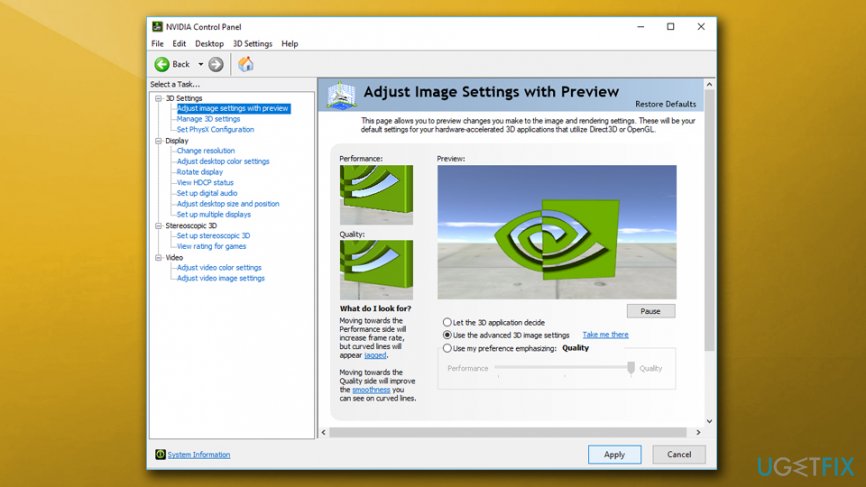
Dxgi error device hung change nvidia settings
Solution 7. Stop overclocking your graphics card
The DXGI_ERROR_DEVICE_HUNG error may appear because your GPU is working beyond its limits. Although overclocking is a neat tool to enhance your gaming experience and set your FPS to the highest settings, it may sometimes even harm your hardware. Therefore, if you are overclocking your graphics card and keep getting errors, go to the BIOS and set it back to normal speed.
If that does not help, go to the game settings and set all the parameters to low.
Bottom line
To fix the DXGI_ERROR_DEVICE_HUNG error, you should start by updating your graphics card driver, as issues with graphics drivers can lead to crashes. If the problem persists, consider checking for malware or other underlying issues. If none of these solutions work, further troubleshooting may be necessary.
Frequently asked questions
This error typically occurs due to graphics driver issues, instability in the GPU, or conflicts with the software running on your system.
You can update your graphics drivers by going to Device Manager, expanding the Display adapters section, right-clicking your graphics card, and selecting 'Update driver' to search automatically for updates.
Yes, lowering the graphics settings in games or applications, disabling hardware acceleration, or increasing the timeout detection and recovery settings can help mitigate this error on Windows 10 and Windows 11.




Report an issue
What's wrong with this guide? We review every report and update or remove content.
Report received — thank you. We'll review and fix it.
You need a free account to submit a report.
Be the first to comment