How to fix
Dynamic Lock not working
on Windows
Resolve Dynamic Lock issues on Windows 10 or 11 effortlessly. Follow our expert-tested guide for quick and effective solutions, fixed in minutes.

What causes How to fix Dynamic Lock not working in Windows?
- Bluetooth connectivity problems
- Improper configuration of the paired device
- Settings within Windows that impede functionality
- Outdated or incompatible drivers
Repairs Windows system files, removes malware, and restores a clean OS state — without reinstalling.
Hello. I've been trying to use Dynamic Lock in Windows to automatically lock my computer when I step away, but it's not working as expected. What could be causing Dynamic Lock to fail, and how can I fix this issue?
Dynamic Lock is a feature integrated into Windows designed to enhance computer system security. Its primary function is to automatically lock your PC when you're away, without the need for manual intervention. It achieves this by pairing your PC with your smartphone or another Bluetooth-enabled device.
When the paired device moves out of the Bluetooth range, Windows identifies the absence and secures the system, ensuring unauthorized access is prevented. This convenience provides an added layer of security, especially beneficial to those who occasionally forget to lock their computers when stepping away.
However, there have been reports of Dynamic Lock either failing to work or exhibiting inconsistencies for some individuals. Various reasons might contribute to these issues. One prevalent cause is Bluetooth connectivity problems. If there's a weak signal or intermittent connection between your paired device and your PC, Dynamic Lock might not operate effectively.
Another potential reason could be the configuration of the paired device itself. If the device isn't properly set to be detectable by other devices or has Bluetooth-related issues, it might result in Dynamic Lock not working.
Furthermore, specific settings within the Windows operating system could also impede Dynamic Lock's functionality. These settings might encompass those within the Bluetooth options or even power management features that could inadvertently affect Dynamic Lock's operations.

Lastly, driver issues might be at play. Outdated or incompatible drivers, especially those pertinent to Bluetooth, could hinder the seamless functioning of Dynamic Lock.
If you're encountering problems with Dynamic Lock, it's recommended to first ensure stable Bluetooth connectivity, verify the proper configuration of your paired device, examine relevant Windows settings, and update or reinstall necessary drivers. Further detailed instructions for addressing these issues will be provided below. For a holistic approach to system-related issues, you might also consider using the [d1] PC repair tool.
Fix 1. Check Bluetooth connectivity
Before Dynamic Lock can work, your PC and paired device must maintain a stable Bluetooth connection.
- Go to the taskbar and click on the Bluetooth icon.
- Ensure your Bluetooth is turned on.
- Confirm that your paired device, like your smartphone, is also Bluetooth-enabled and discoverable.
- Move the paired device closer to your PC to improve signal strength.
Fix 2. Pair the device properly
Sometimes, the device might not be paired correctly, affecting Dynamic Lock.
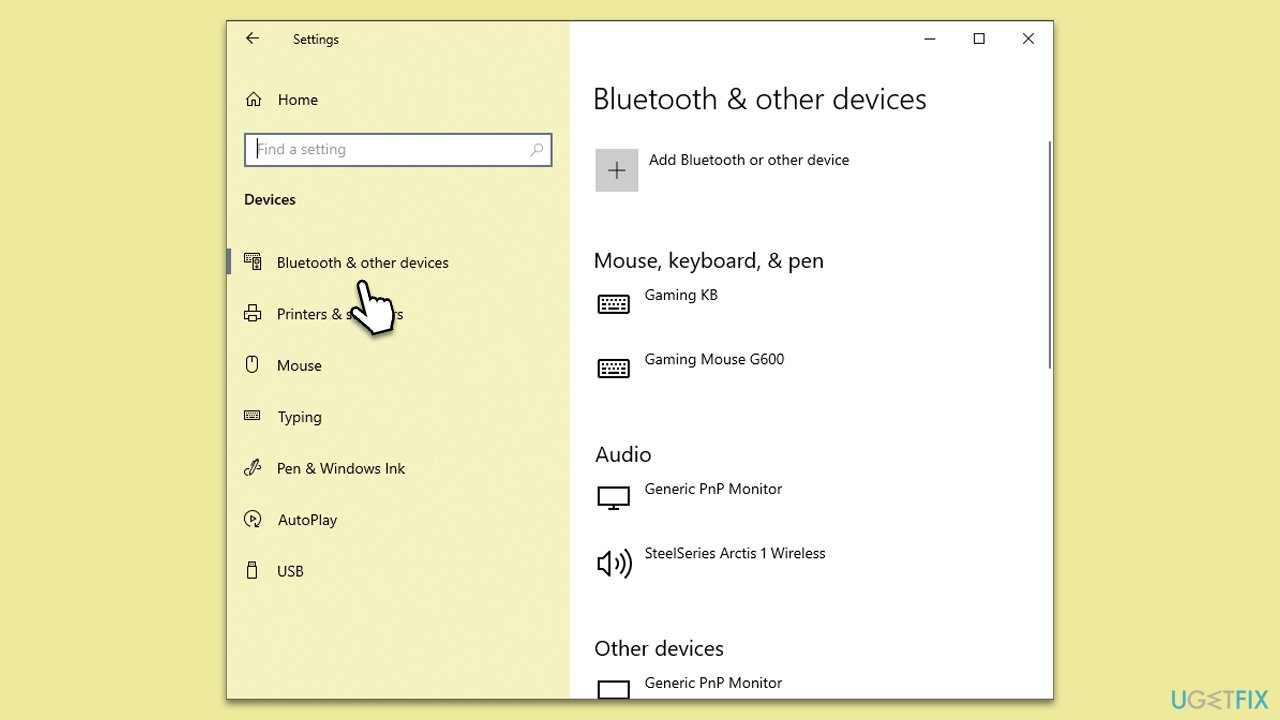
- Open Settings from the Start menu.
- Click on Devices.
- Choose Bluetooth & other devices.
- Make sure your device is listed under Paired Devices. If not, click on Add Bluetooth or other device and follow the prompts.
Fix 3. Review Windows Dynamic Lock settings
Dynamic Lock requires specific settings to be activated within the Windows operating system for it to function effectively. If it's not enabled or not set up correctly, it won't work as intended.
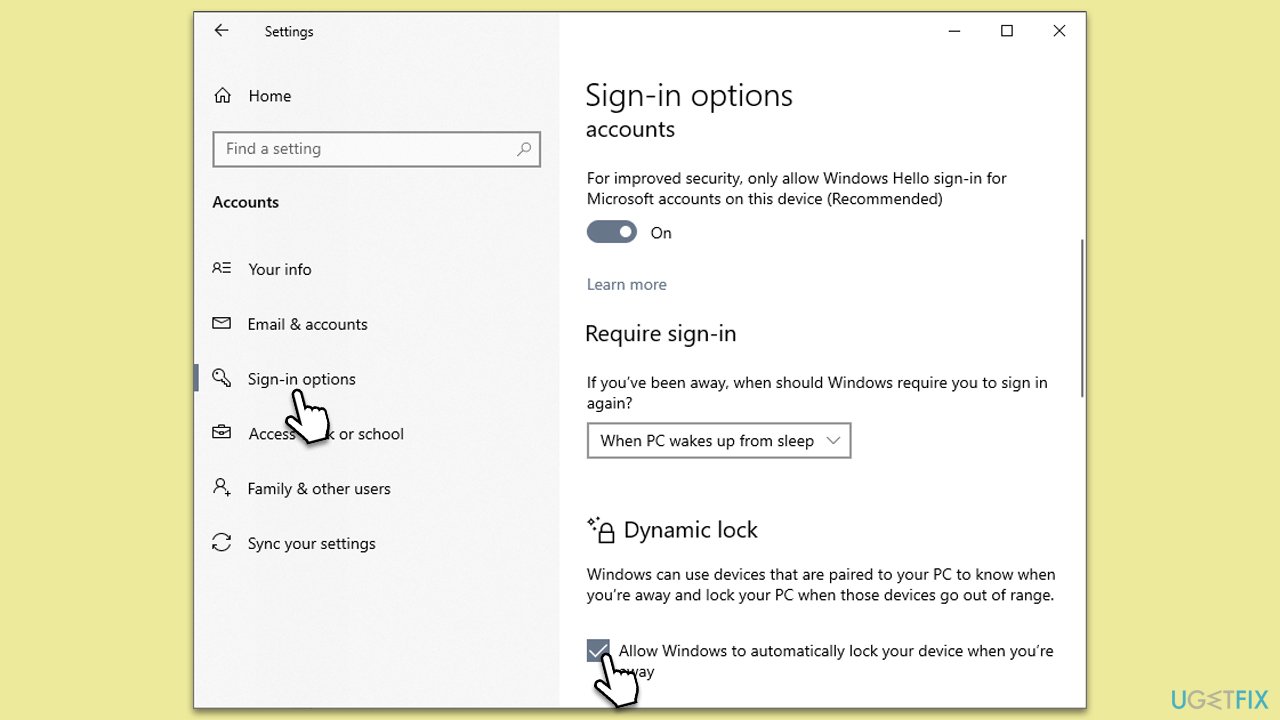
- Open Settings from the Start menu.
- Navigate to Accounts.
- Select Sign-in options.
- Scroll down to find the Dynamic Lock section and mark the Allow Windows to automatically lock your device when you’re away tickbox.
Fix 4. Update Bluetooth drivers
Outdated or incompatible drivers might cause Dynamic Lock to malfunction.
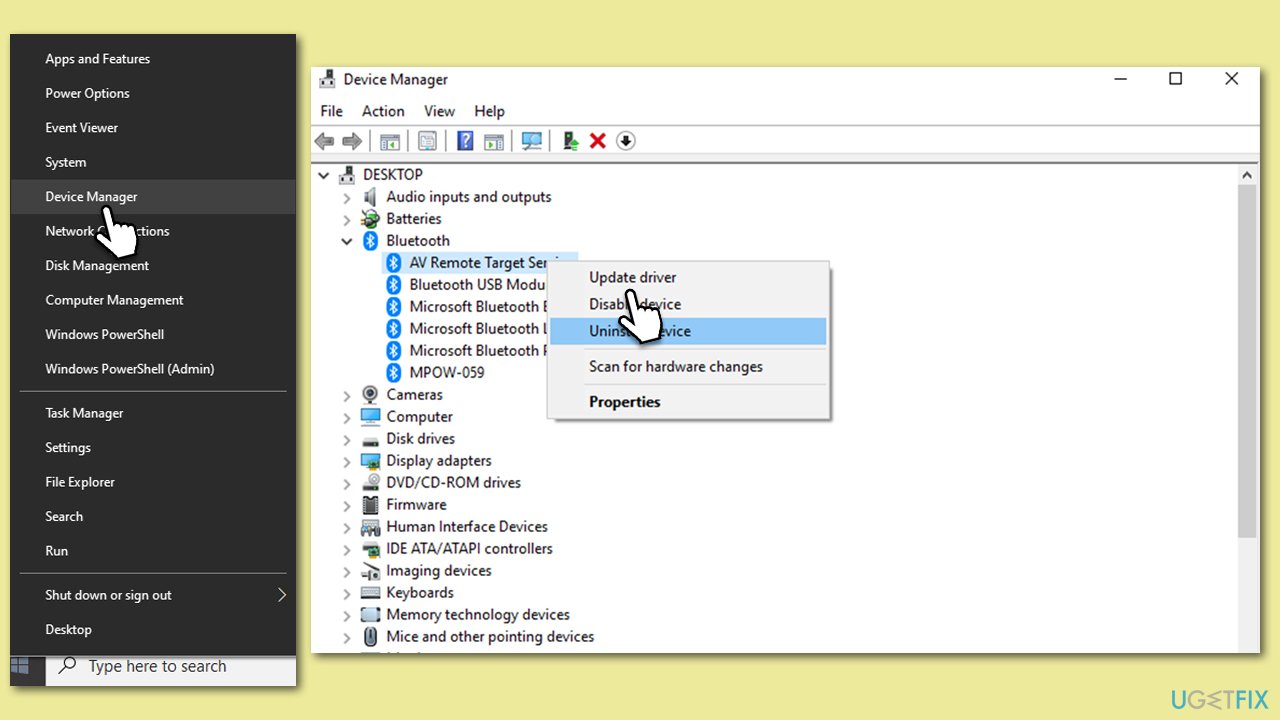
- Right-click on Start and select Device Manager.
- Expand the Bluetooth section.
- Right-click on your Bluetooth adapter and select Update driver.
- Choose Search automatically for drivers and follow any on-screen instructions, then reboot your device.
- After that, access the official website of your device manufacturer and download the latest drivers. For a more seamless approach, we recommend employing [rev id="DriverFix"].
Fix 5. Restart Bluetooth services
Occasionally, the services that run Bluetooth on your PC can encounter errors or become stagnant. Restarting these services can often refresh the connections and resolve minor glitches that interfere with Dynamic Lock's operation.
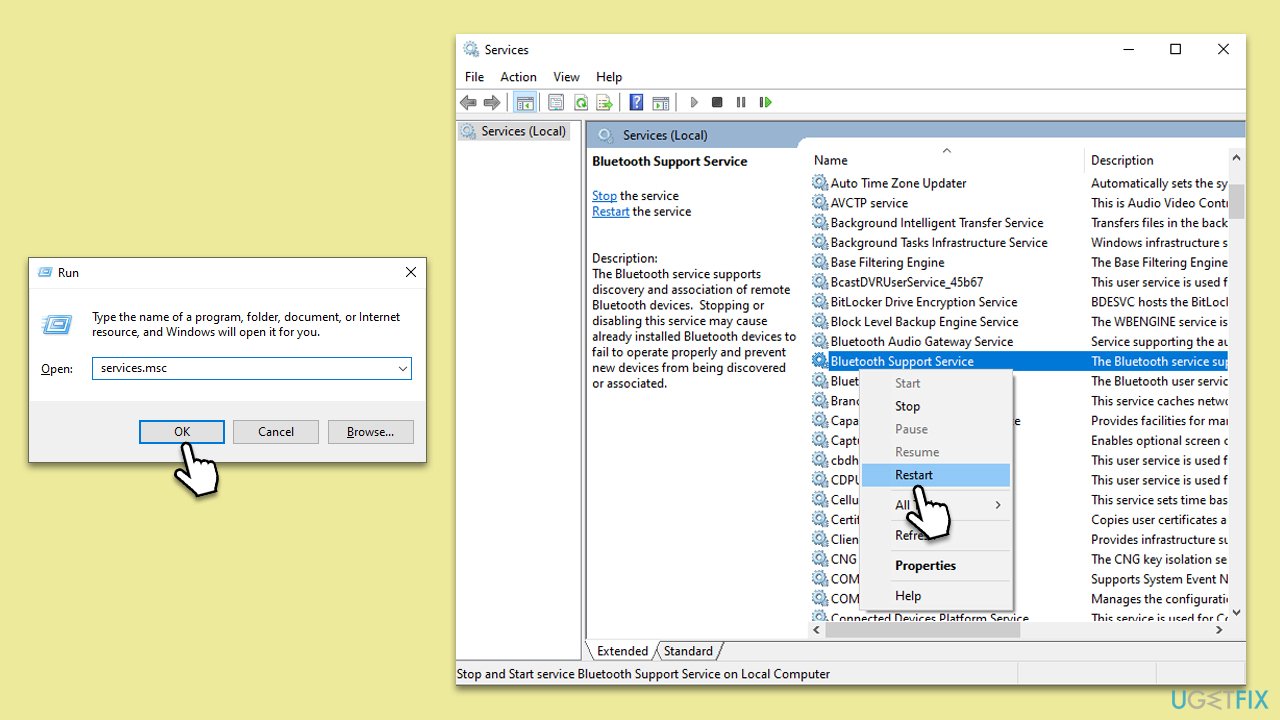
- Press Win + R on your keyboard. This will bring up the Run dialog box.
- Type services.msc into the box and then press Enter.
- In the Services list, scroll to find a service named Bluetooth Support Service.
- Right-click on Bluetooth Support Service and, from the dropdown menu, select Restart.
- Wait a moment for the service to restart. Once done, test your Dynamic Lock feature again to see if the issue is resolved.
Fix 6. Check power management settings
Some power settings might interfere with Bluetooth connections.
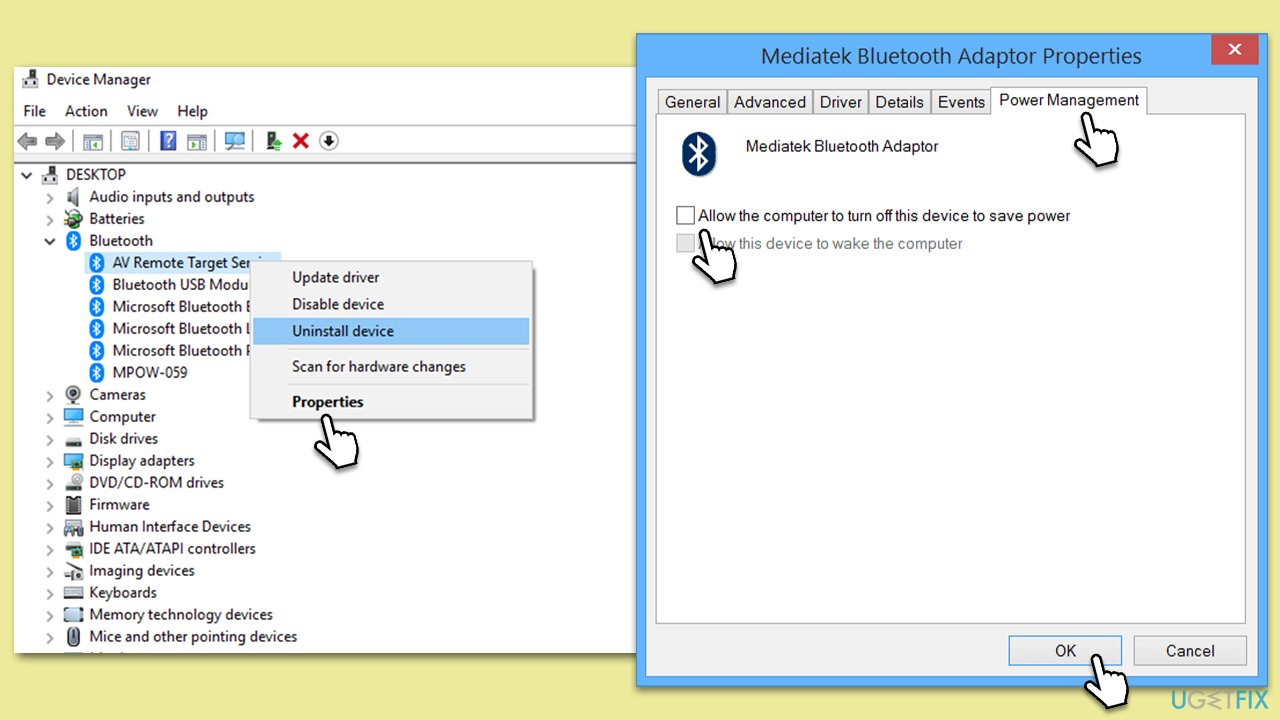
- Right-click on Start and select Device Manager.
- Expand the Bluetooth section.
- Right-click on your Bluetooth adapter and go to Properties.
- Navigate to the Power Management tab.
- Ensure Allow the computer to turn off this device to save power is unchecked.
Fix 7. Reset Bluetooth settings
As a last resort, resetting Bluetooth settings can sometimes resolve persistent issues.
- Open Settings from the Start menu.
- Go to Devices.
- Click on Bluetooth & other devices.
- Select More Bluetooth options.
- In the new window, click Restore Defaults and confirm your action.
Bottom line
To fix Dynamic Lock not working, ensure stable Bluetooth connectivity, verify the configuration of your paired device, examine relevant Windows settings, and update or reinstall necessary drivers. If these steps do not resolve the issue, consider using a PC repair tool for further assistance.
Frequently asked questions
Ensure that Bluetooth is enabled and that your smartphone is paired with your PC. Additionally, verify that the 'Allow Windows to automatically lock your device' option is checked in the Sign-in options settings.
You can reset the Bluetooth connection by removing the paired device from your PC and then re-pairing it. Go to Settings > Devices > Bluetooth & other devices to manage your connections.
Try updating your Windows to the latest version, as updates often fix bugs related to features like Dynamic Lock. If the issue persists, consider running the Windows Troubleshooter for Bluetooth devices.




Report an issue
What's wrong with this guide? We review every report and update or remove content.
Report received — thank you. We'll review and fix it.
You need a free account to submit a report.
Be the first to comment