How to fix
Dynasty Warriors: Origins keeps freezing
on Windows
Resolve Dynasty Warriors: Origins freezing issues on Windows 10/11 with expert-tested solutions. Get back to gaming without interruptions! Fixed in minu…

What causes How to fix Dynasty Warriors: Origins keeps freezing in Windows?
- Outdated graphics drivers
- Corrupted game files
- Conflicts with background applications
- Specific in-game actions triggering crashes
Repairs Windows system files, removes malware, and restores a clean OS state — without reinstalling.
Hello. I just purchased Dynasty Warriors: Origins and was excited to play it. Everything seems to be fine, there are no bad FPS or similar issues. However, after playing like 15-20 minutes, the game simply freezes and crashes. I then need to restart my PC and launch the game again. This happens all the time. I am running Ryzen 5 7600X, RTX 3060 Ti, 16GB RAM, Windows 11.
Dynasty Warriors: Origins is the latest in the popular hack-and-slash series to come from developer Omega Force and publisher Koei Tecmo. It launched on January 17, 2025, for PlayStation 5, Xbox Series X|S, and PC via Steam, throwing players into the chaotic Three Kingdoms period in China.
Players assume the role of the Wanderer, an entirely new hero whose memories gradually unlock and slowly reveal a whole new look and feel on one of the periods of history surrounding the Yellow Turban Rebellion and Battle of Chibi.
Despite its engaging gameplay, some players have reported that Dynasty Warriors: Origins keeps freezing during sessions. These freezes occur randomly, often every 5 to 15 minutes, usually during the combat encounters.
As a result, they are forced to shut down the game (often, the PC freezes as well) and restart it, only for the problem to repeat itself again. During the crash, some say that they continue to hear background music and task manager shows that the game is not responding.
Interestingly, many users experiencing Dynasty Warriors: Origins freezes do not report other performance problems, such as FPS drops, indicating that the freezing is not related to overall system performance.
The causes of Dynasty Warriors: Origins freezing on Windows can vary. Potential factors include outdated graphics drivers, corrupted game files, or conflicts with background applications. Some players have noted that specific in-game actions, like excessive parrying during battles, can trigger crashes or freezes.
There are several things you can try in order to fix Dynasty Warriors: Origins freezes and subsequent crashes. The first rule when having issues in games is to ensure that your graphics drivers are up to date. NVIDIA often releases game-ready drivers that are specifically designed to support the newest games.
As for other solutions, you could also try verifying game files to repair corrupted or missing game files, clear game cache files via Steam, use clean boot to address software conflicts, change in-game settings (such as limiting FPS, enabling/disabling V-Sync, using full-screen mode, etc.), and more.
If you need guidance to these solutions, you will find all the instructions on how to fix Dynasty Warriors: Origins freezes below. If these steps do not resolve the issue, try using the [d1] repair app for an automated solution to diagnose and fix underlying problems in Windows.
Fix 1. Update GPU drivers
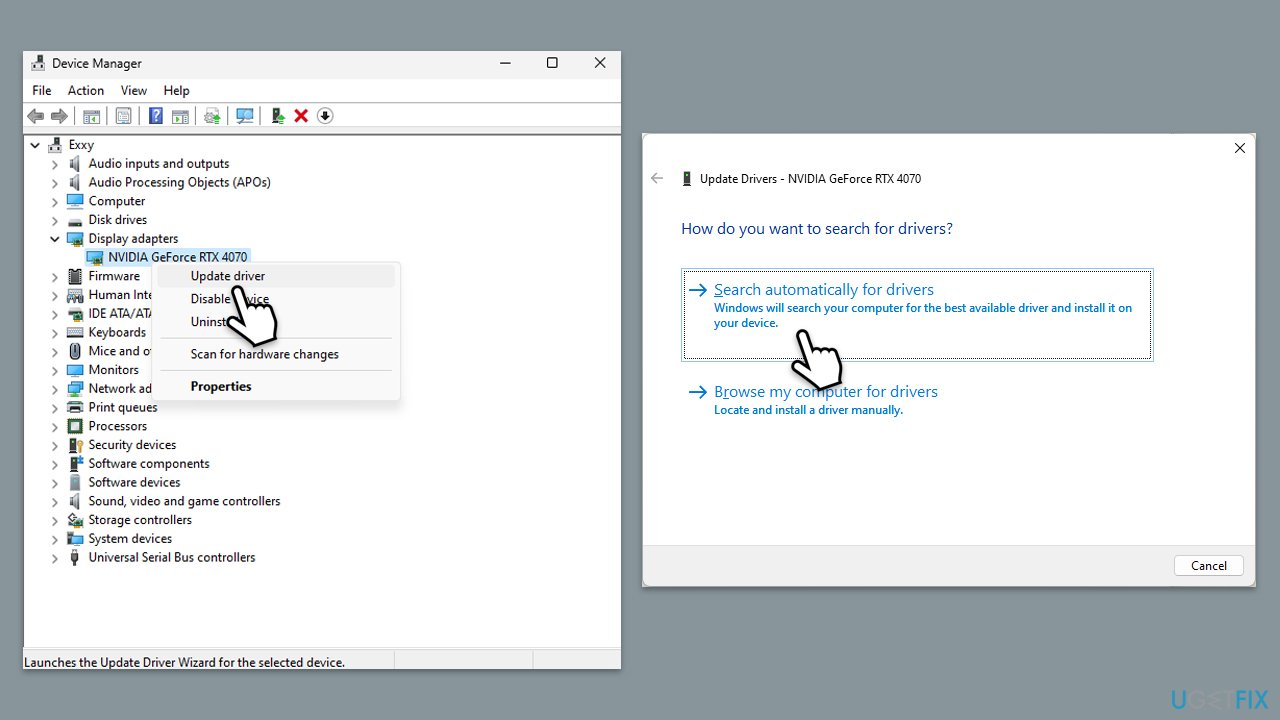
You can download drivers from the official NVIDIA/AMD website, use an automatic driver updater such as [rev id="DriverFix"] or employ the manual method:
- Right-click on Start and pick Device Manager.
- Expand Display Adapters section.
- Right-click on your GPU and select Update driver.
- Select Search automatically for drivers.
- After the installation is complete, restart your device.
Fix 2. Clear cache files
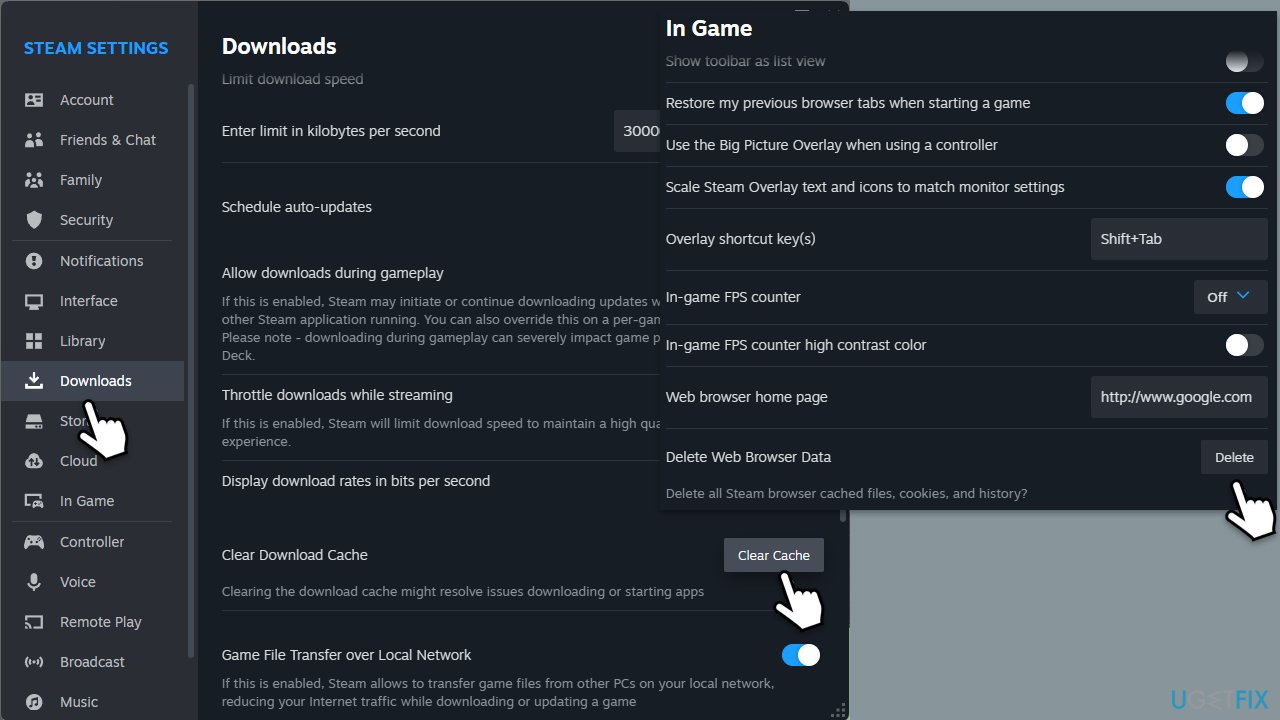
- Open the Steam app.
- Go to Steam > Settings.
- Select the Downloads section on the left.
- Scroll down to the Clear Download cache section.
- Click Clear Cache.
- Next, go to the In Game section on the left.
- Under Delete web browser data, click on Delete.
Fix 3. Change in-game settings
You should try adjusting in-game settings:
- Cap your FPS at 60.
- Enable or disable V-Sync.
- Set the game to fullscreen.
- Enable or disable dynamic resolution.
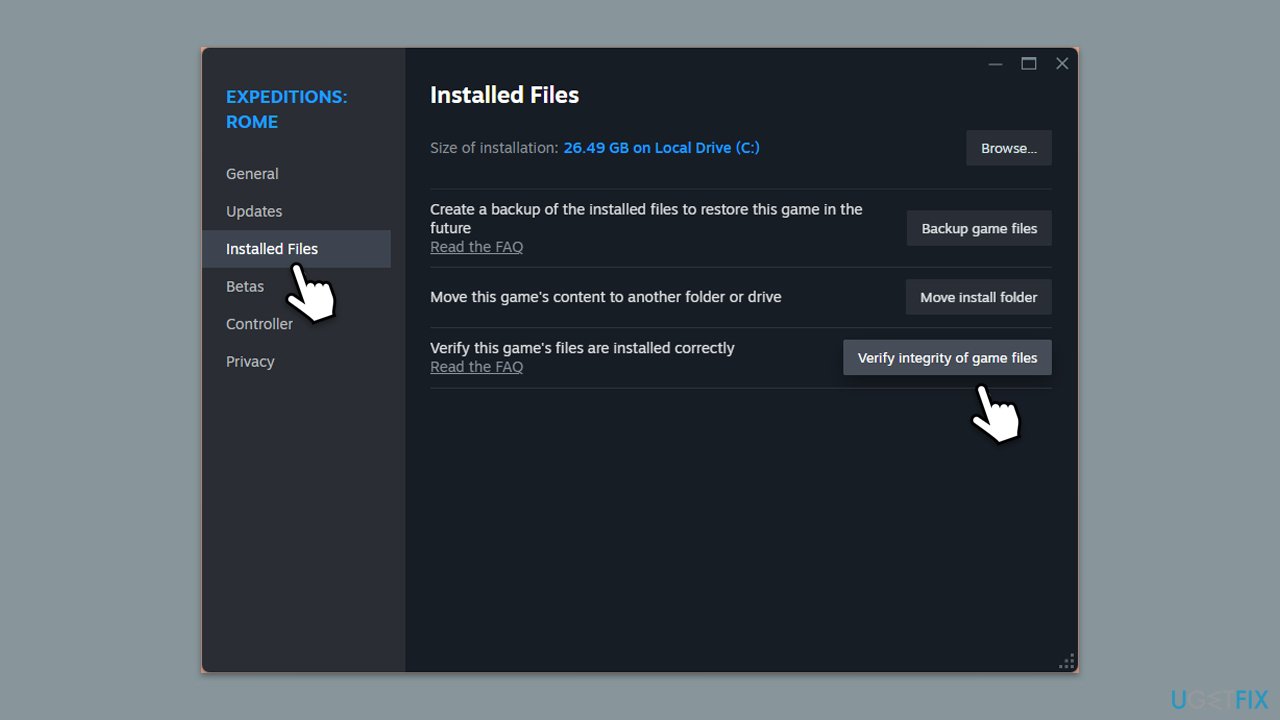
Fix 4. Verify integrity of game files
- Open Steam and go to your Library.
- Right-click on Dynasty Warriors: Origins and pick Properties.
- Go to Installed Files and click Verify integrity of game files.
- Wait till the scan is finished and attempt to launch the game again.
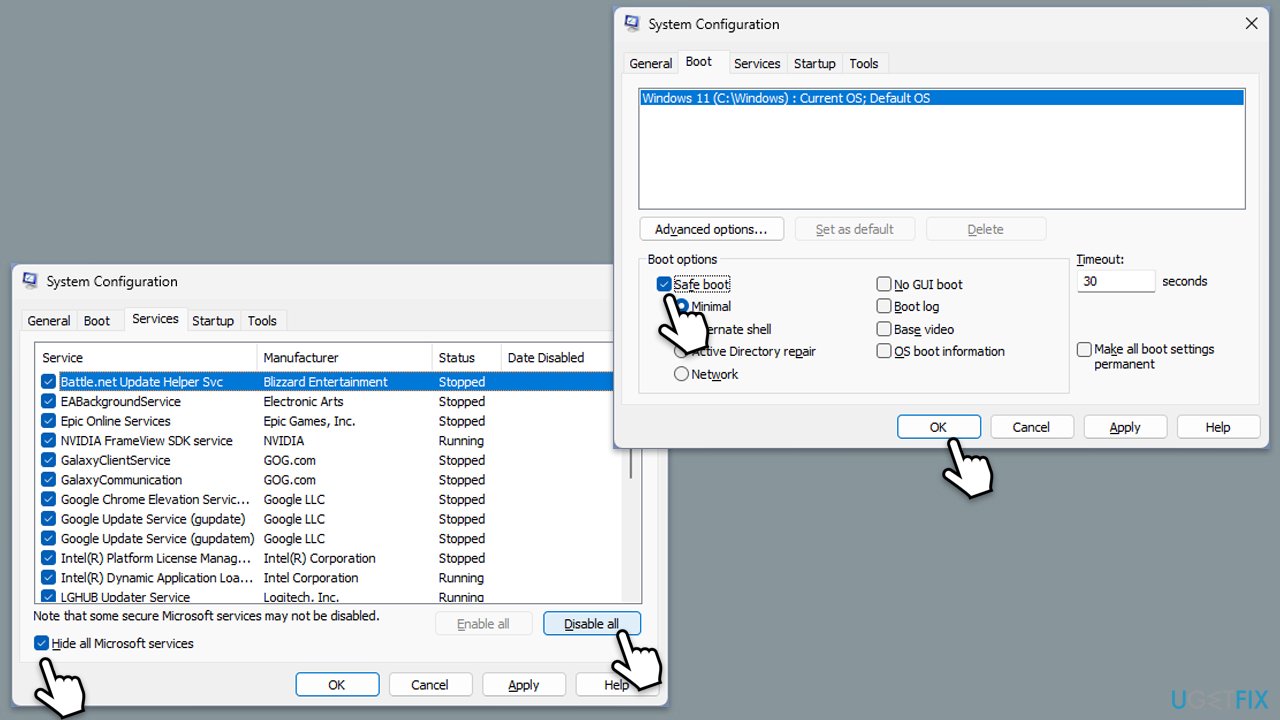
Fix 5. Try Clean Boot
- Press Win + R, type msconfig, and hit Enter.
- Go to the Services tab and tick the Hide all Microsoft services checkbox.
- Select Disable all.
- Go to the Startup tab and click Open Task Manager.
- Here, right-click on each of the non-Windows entries and select Disable.
- Close down the Task Manager.
- Go to the Boot tab and tick the Safe boot option.
- Click OK.
- Restart your computer to initiate the Clean Boot.
- Try launching the game now. If everything works fine, you should enable half of the processes and repeat the process. Keep doing this until you find the culprit. Update or uninstall conflicting software.
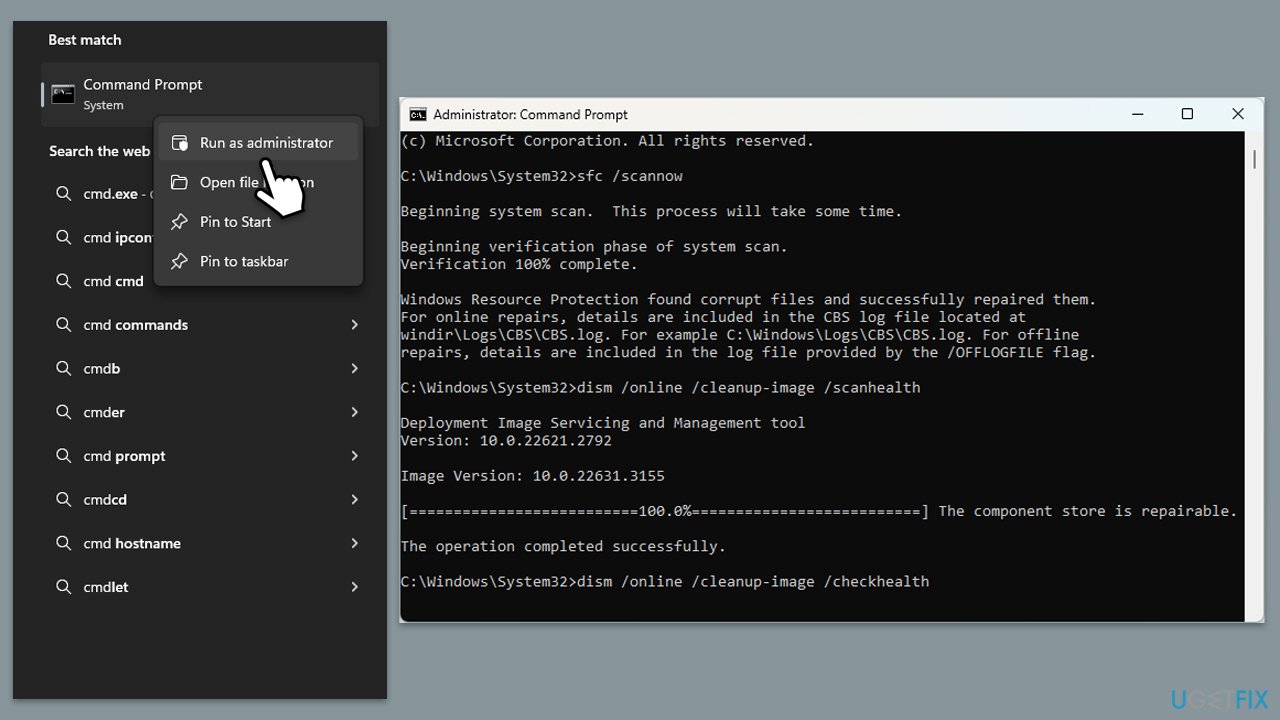
Fix 6. Repair corrupted system files
- Type in cmd in Windows search.
- Right-click on Command Prompt and select Run as administrator.
- In the User Account Control window, click Yes.
- Then, copy and paste the following command, pressing Enter after:
sfc /scannow - Wait till the scan is finished. If Windows finds system file integrity violations, it will attempt to fix them. After this, use the set of the following commands, pressing Enter each time:
DISM /Online /Cleanup-Image /CheckHealth
DISM /Online /Cleanup-Image /ScanHealth
DISM /Online /Cleanup-Image /RestoreHealth - (Note: if you get an error executing this last command, add /Source:C:\RepairSource\Windows /LimitAccess to it and try again).
- Close down the Command Prompt and restart your device.
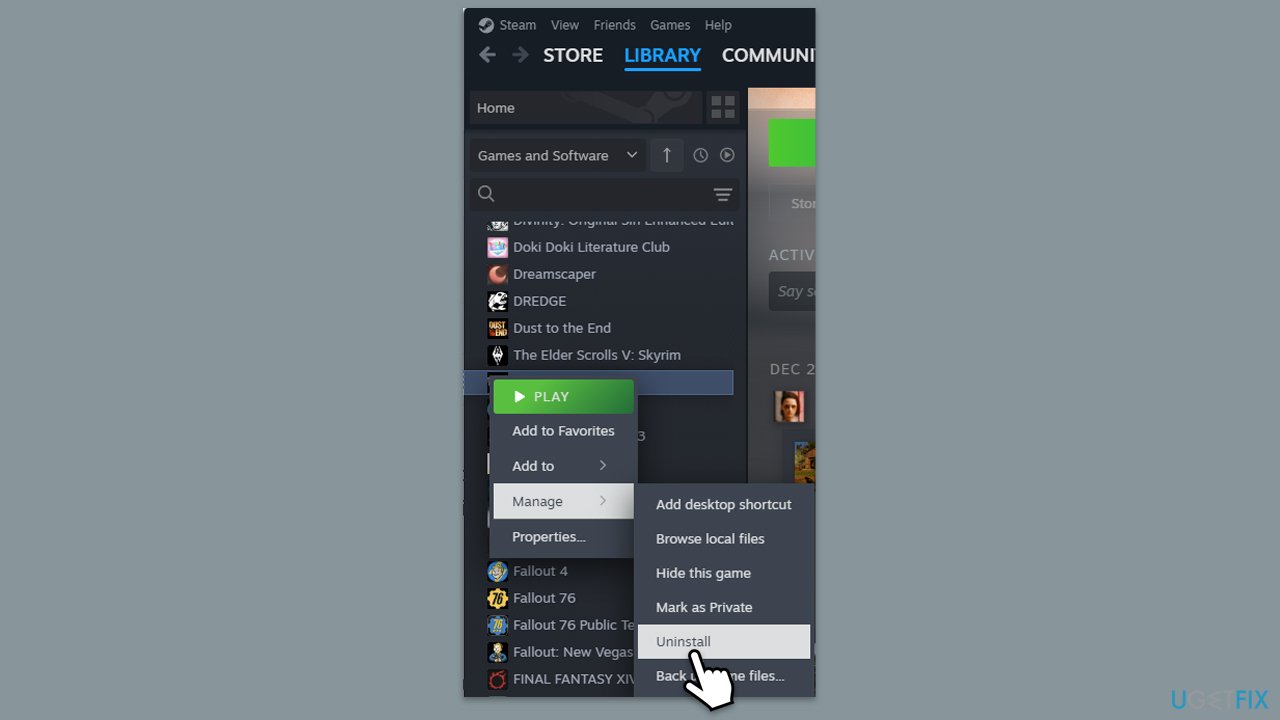
Fix 7. Reinstall the game
- Open the Steam client and go to your Library.
- Right-click on Dynasty Warriors: Origins and select Uninstall.
- Confirm the uninstallation and restart your system.
- Now redownload and install the game through Steam.
- Launch it and see if the issue is gone.
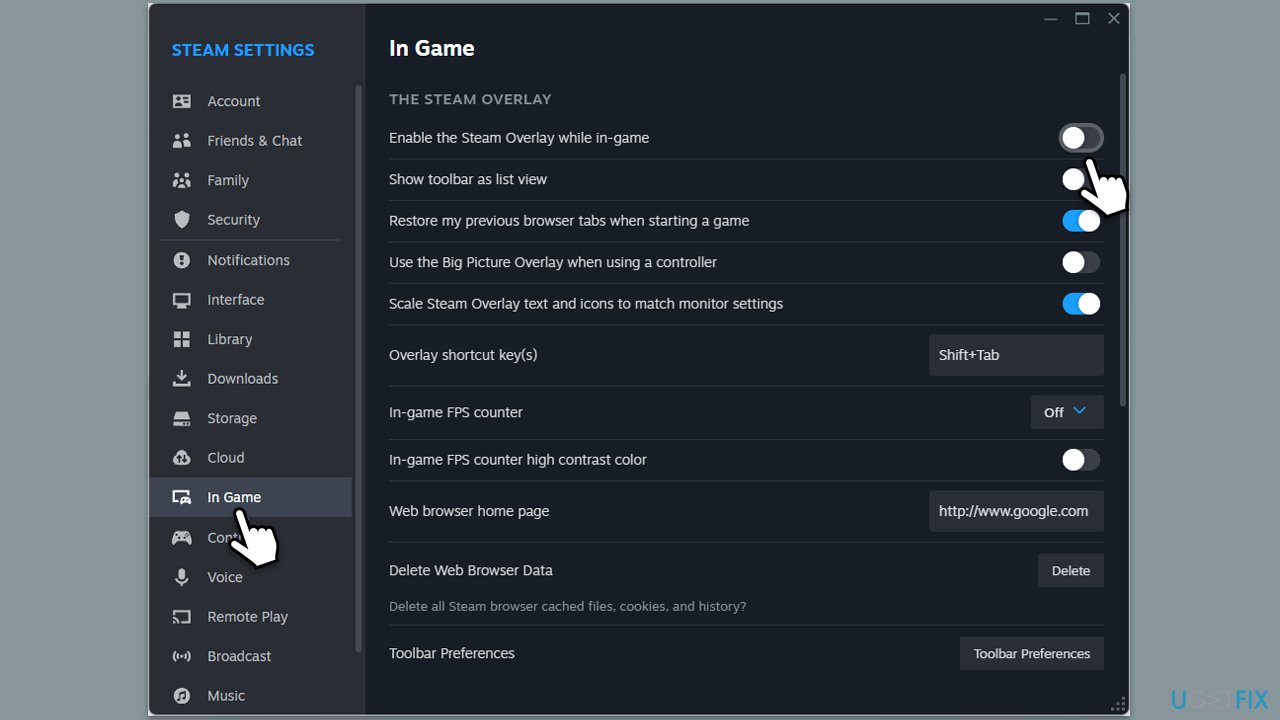
Fix 8. Disable overlays
Overlays, while often useful, can often mess up game performance and sometimes even cause crashes. Try disabling them and then checking the performance of the game again.
Steam
- Open your Steam client.
- Go to your game library and right-click on FF16.
- Select Properties.
- Disable the Enable the Steam Overlay while in-game option location in General settings.
Discord
- Open Discord and click on the gear icon next to your username.
- Scroll down to the Activity Settings section and click on Game Overlay.
- Toggle off the switch next to Enable in-game overlay.
- Restart Discord to ensure the changes take effect.
Game Bar
- Right-click on Start and select Settings.
- Go to Gaming.
- Under Xbox Game Bar, toggle off Enable Xbox Game Bar for things like recording game clips, chatting with friends, and receiving game invites.
- Restart your computer to ensure the overlay is completely disabled.
Bottom line
To fix the freezing issue in Dynasty Warriors: Origins, ensure your graphics drivers are up to date, verify the integrity of game files, and check for any conflicting background applications. If the problem persists, consider adjusting in-game settings or reinstalling the game.
Frequently asked questions
Try updating your graphics drivers and ensure that Windows 10 is fully updated to the latest version. Additionally, check if running the game in compatibility mode resolves the freezing issue.
Yes, you can try verifying the game files through the game launcher or reinstalling the game if the problem persists on Windows 11. Also, consider adjusting the in-game settings to lower graphics options.
Disabling fullscreen optimizations in the game's properties can help reduce freezing on both Windows 10 and Windows 11. Right-click the game's executable, select Properties, then the Compatibility tab to make this change.




Report an issue
What's wrong with this guide? We review every report and update or remove content.
Report received — thank you. We'll review and fix it.
You need a free account to submit a report.
Be the first to comment