How to fix
“ea.com unable to connect” in Origin
on Windows
Resolve the "ea.com unable to connect" issue in Origin on Windows 10 or 11 with our expert-tested solutions. Fixed in minutes!

What causes How to fix “ea.com unable to connect” in Origin?
- Overloaded servers
- Network issues
- Damaged system components
- BSODs
- Registry issues
- Cookies affecting performance
Repairs Windows system files, removes malware, and restores a clean OS state — without reinstalling.
Hello. I have been trying to launch Apex Legends in Origin but it has not worked because every time I receive an error saying "Connection to server timed out." What should I do?
Origin is a digital distribution platform developed by Electronic Arts (EA) for purchasing and playing video games. The platform's software client is available for personal computers and mobile platforms. Instead of receiving a box, disc, or even CD key, games purchased online are immediately attached to the user's Origin account and can be downloaded with the corresponding Origin client.
Origin guarantees download availability forever after purchase, and there is no limit to the number of times games can be downloaded. However, with services like this comes a variety of issues. Because users have to be connected to the Internet to communicate with EA servers, if something goes wrong, they can be left without the ability to play the games they purchased.
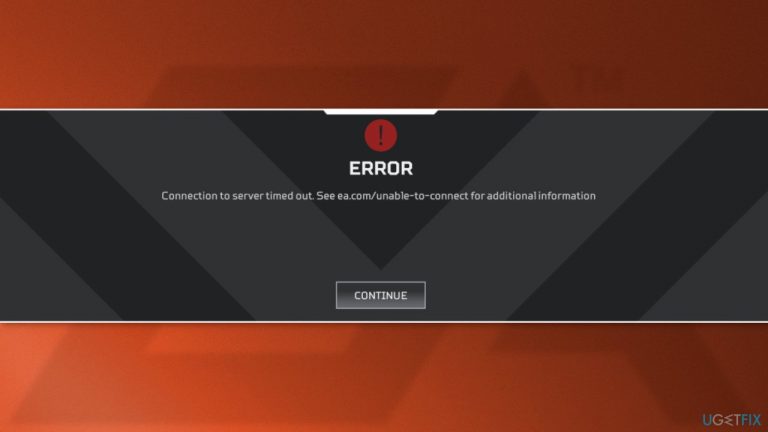
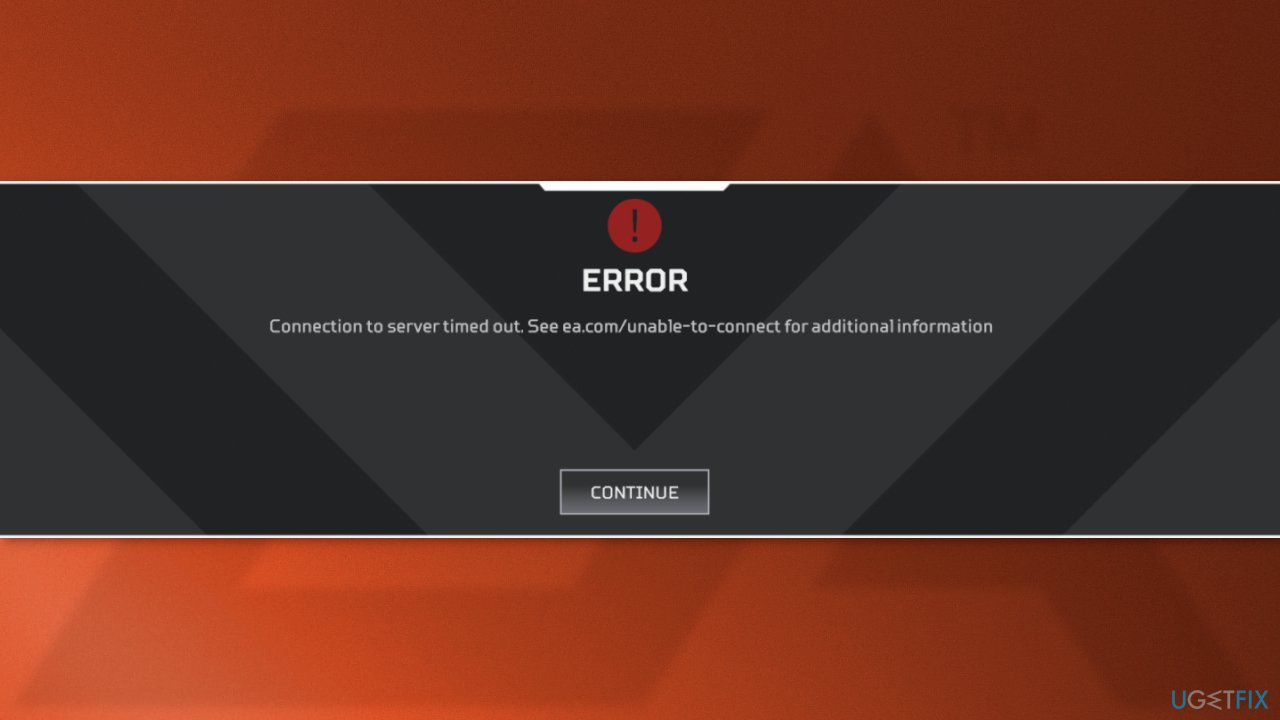
Recently, users started to encounter an error that says "Connection to server timed out. See ea.com/unable-to-connect for additional information." It seems like most of the time this error appears when players try to launch a game called Apex Legends.[ref en-1] There is a wide range of issues that can cause the game to be unable to launch. It could be caused by overloaded servers or the issue may be your network.
As there are many potential causes for this problem we suggest using a repair tool [d1] that can scan your system automatically to avoid going through all of the solutions. This software can identify the damaged system components, fix BSODs,[ref en-2] and registry issues, clear cookies[ref en-3], and boost the machine's performance, so you will be able to potentially get more out of your device while gaming.
If you want to start with manual solutions to fix "ea.com unable to connect" error in Origin you can start here. Make sure to go through all the steps carefully:
Solution 1. Change Local DNS to Google DNS
- Press and hold the Windows key and then press the R key
- Now type ncpa.cpl and then press Enter
- Right-click on your Network Adaptor and press properties
- Double-click on the option named Internet Protocol Version 4 (TCP/IPv4)
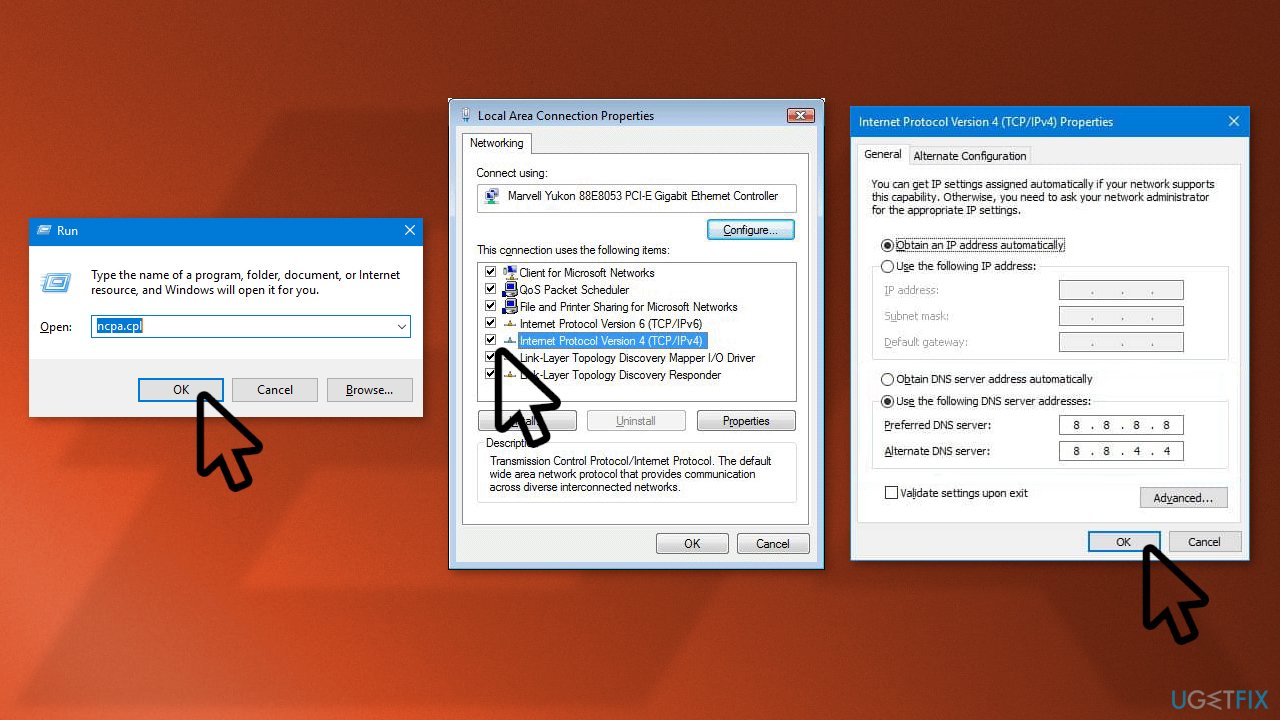
- Type 8.8.8.8 in Prefered DNS Server and 8.8.4.4 in Alternative DNS Server
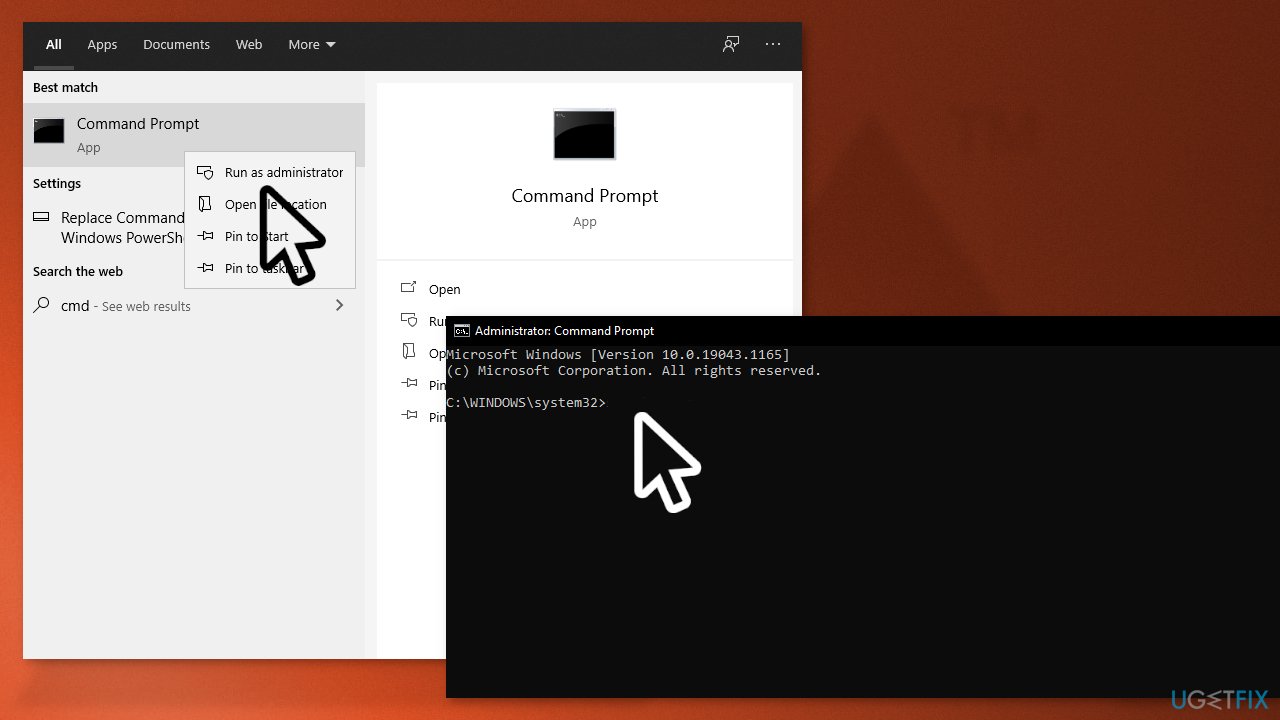
- Search for Command Prompt and run it as an administrator and type the following command to flush DNS cache and corrupted DNS data:
ipconfig/flushdns
- Restart your computer
Solution 2. Change your Network Profile
- Click on the Network Icon on the bottom right of your screen
- Click on the network that you are connected to and click Properties
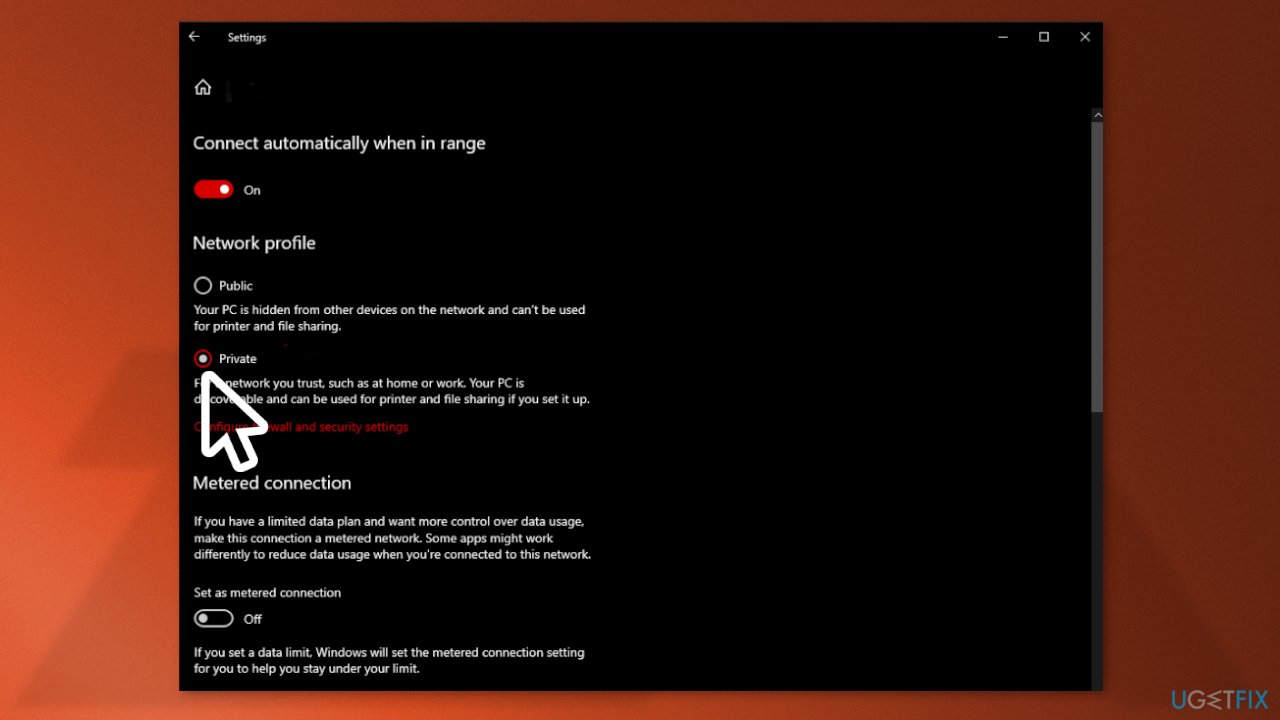
- In the section named Network Profile select Private
- Restart your computer
Solution 3. Reset your Network Configurations
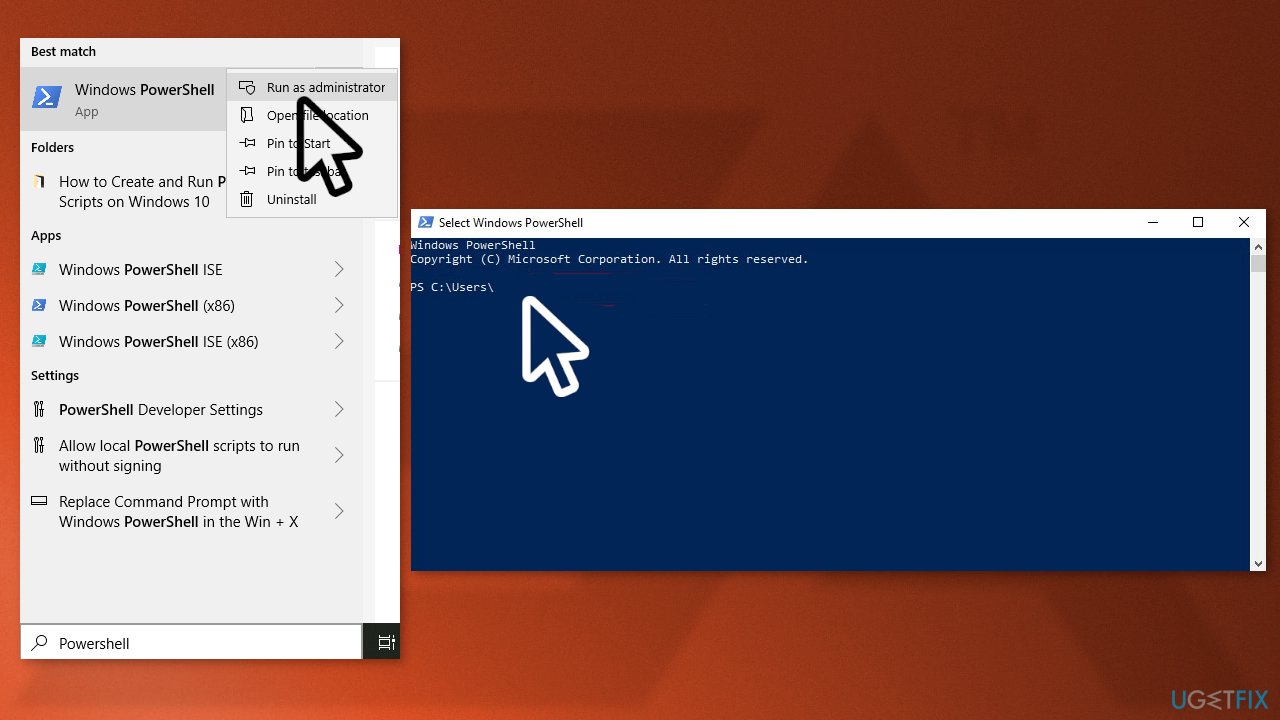
- Hold the Windows Key and Press X. Choose Command Prompt (Admin) or PowerShell (Admin)
- Once PowerShell or Command Prompt is opened type the following commands:
netsh winsock reset
netsh int ip reset
ipconfig /release
ipconfig /renew
ipconfig /flushdns
- Restart your computer
Solution 4. Forward the Required Ports
- Hold the Windows Key and Press X. Chose Command Prompt (Admin) or PowerShell (Admin).
- Now type the following set of commands one by one to allow Apex Legends through your Windows Firewall:
- netsh advfirewall firewall add rule name= "Apex Legends Appuals fix TCP Inbound" dir=in action=allow protocol=TCP localport=1024-1124,3216,9960-9969,18000,18060,18120,27900,28910,29900
- netsh advfirewall firewall add rule name= "Apex Legends Appuals fix UDP Inbound" dir=in action=allow protocol=UDP localport=1024-1124,18000,29900,37000-40000
- netsh advfirewall firewall add rule name= "Apex Legends Appuals fix TCP Outbound" dir=out action=allow protocol=TCP localport=1024-1124,3216,9960-9969,18000,18060,18120,27900,28910,29900
- netsh advfirewall firewall add rule name= "Apex Legends Appuals fix UDP Outbound" dir=out action=allow protocol=UDP localport=1024-1124,18000,29900,37000-40000
Solution 5. Change Proxy Settings
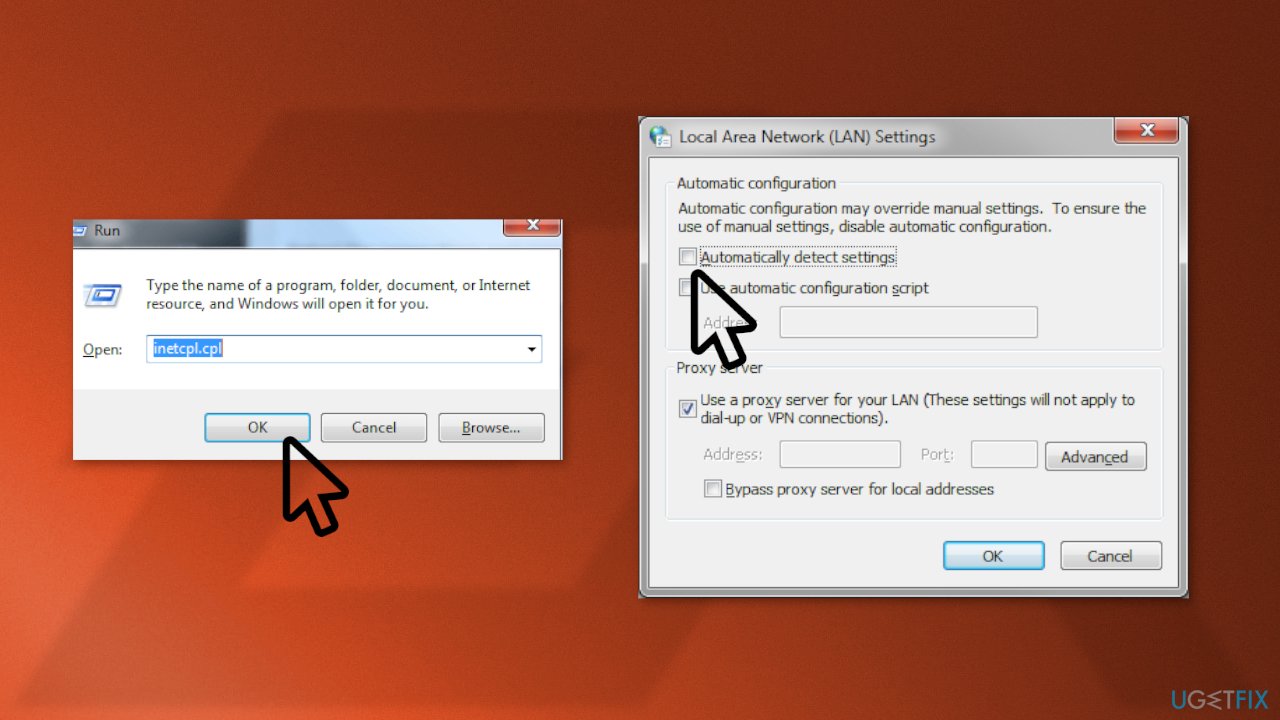
- Press and hold the Windows + R keys to open the Run program
- Now type inetcpl.cpl and press Enter
- Head over to the Connections tab and click on the option named LAN Settings
- Make sure the Automatically detect proxy settings option is unchecked
- Restart your PC
Bottom line
To fix the 'ea.com unable to connect' error in Origin, you can start by changing your Local DNS to Google DNS and using a repair tool to scan your system for issues. If these solutions do not resolve the problem, consider exploring additional troubleshooting steps or seeking further assistance.
Frequently asked questions
First, check your internet connection and ensure that Origin is allowed through your firewall. If the issue persists, try resetting your network settings in Windows 10.
You can start by clearing the Origin cache and then restarting the application. If that doesn't work, consider reinstalling Origin to fix any corrupted files.
Yes, you can try running Origin as an administrator and disabling any VPNs or proxies that might be interfering with the connection.




Report an issue
What's wrong with this guide? We review every report and update or remove content.
Report received — thank you. We'll review and fix it.
You need a free account to submit a report.
Be the first to comment