How to fix
“Easy Anti-Cheat is not installed” error
on Windows
Resolve the "Easy Anti-Cheat is not installed" error on Windows 10 and 11 effortlessly. Follow our expert-tested tips for a quick fix!

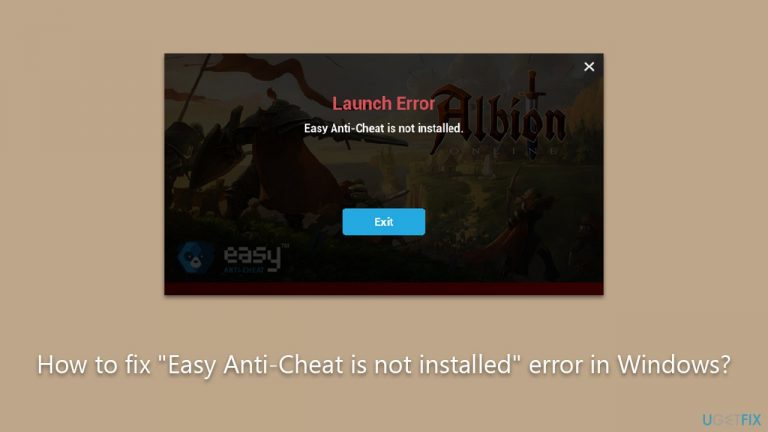
What causes How to fix “Easy Anti-Cheat is not installed” error in Windows?
- Absence of the Easy Anti-Cheat Service
- Accidental deletion of the EAC service
- Faulty update that removed the EAC service
- System restore that failed to preserve the EAC service
Repairs Windows system files, removes malware, and restores a clean OS state — without reinstalling.
I can't play Fortnite because of the "Easy Anti-Cheat is not installed" error. I tried launching it several times and it just doesn't start, resulting in an error every time. How do I fix this?
Easy Anti-Cheat, commonly known as EAC, is a pivotal tool designed to mitigate cheating and promote fair gameplay in various popular PC games. Developed by Epic Games, EAC acts as a vigilant watchdog, spotting and countering hacking or cheating software that players might use to gain unfair advantages. Notably, this tool is integrated into numerous well-known games, such as Fortnite, Apex Legends, Rust, and New World, to name a few.
Nonetheless, despite its merits, many players find themselves facing a frustrating roadblock - an error message stating, "Easy Anti-Cheat is not installed." This problem prevents users from launching and enjoying games that are protected by EAC. It's akin to having the keys to your entertainment locked away, rendering popular gaming titles inaccessible.
One of the most common culprits behind this error is the absence of the Easy Anti-Cheat Service on your system. This situation might arise due to various factors such as accidental deletion, a faulty update, or a system restore that failed to preserve the service. When the EAC service is missing, the software can't operate correctly, leading to the error message and the inability to play the associated games.
Fortunately, several solutions can help you fix the "Easy Anti-Cheat is not installed" error. For instance, users can force the installation of the EAC application or the service itself, effectively restoring the missing piece of the puzzle. Another practical approach involves repairing or reinstalling the Easy Anti-Cheat software. This method refreshes the software and can rectify any corruption or inconsistencies that may have led to the error.
Remember, dealing with the "Easy Anti-Cheat is not installed" error might seem daunting, but it's a problem that can be resolved with the right steps. Detailed instructions and guidelines to tackle this issue and restore access to your favorite games are available below. Before proceeding, we recommend running a comprehensive PC repair tool [d1] to resolve the issue.
Fix 1. Repair or reinstall Easy Anti-Cheat
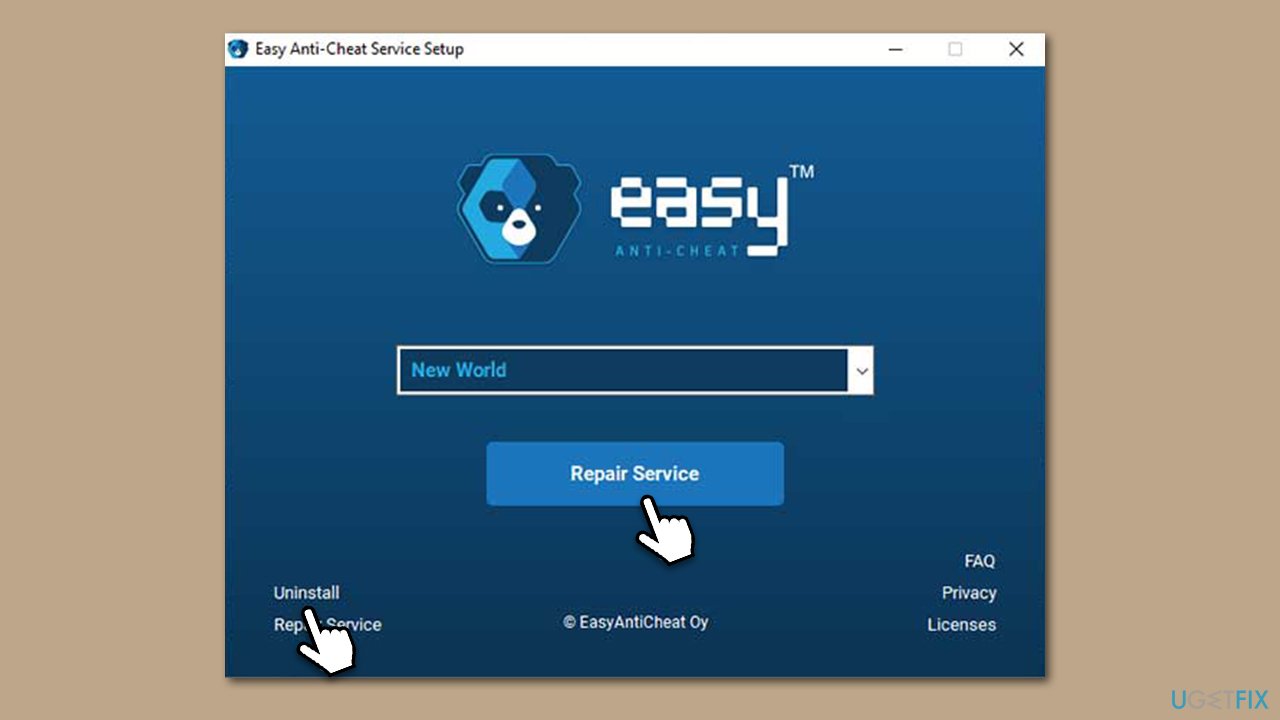
If you are sure that the application is installed on your system, you should try repairing it first. The reinstall option is also available as follows:
- Press Win+E to open File Explorer.
- Navigate to the following location:
C:\Program Files (x86)\EasyAntiCheat - Click on EasyAntiCheat.exe/EasyAntiCheat_Setup.exe.
- When User Account Control shows up, click Yes.
- From the drop-down menu, select the game you are having issues with.
- Click Repair Service and follow the prompts.
- If that does not help, choose the Uninstall option and then reinstall it again.
Fix 2. Install EAC via PowerShell
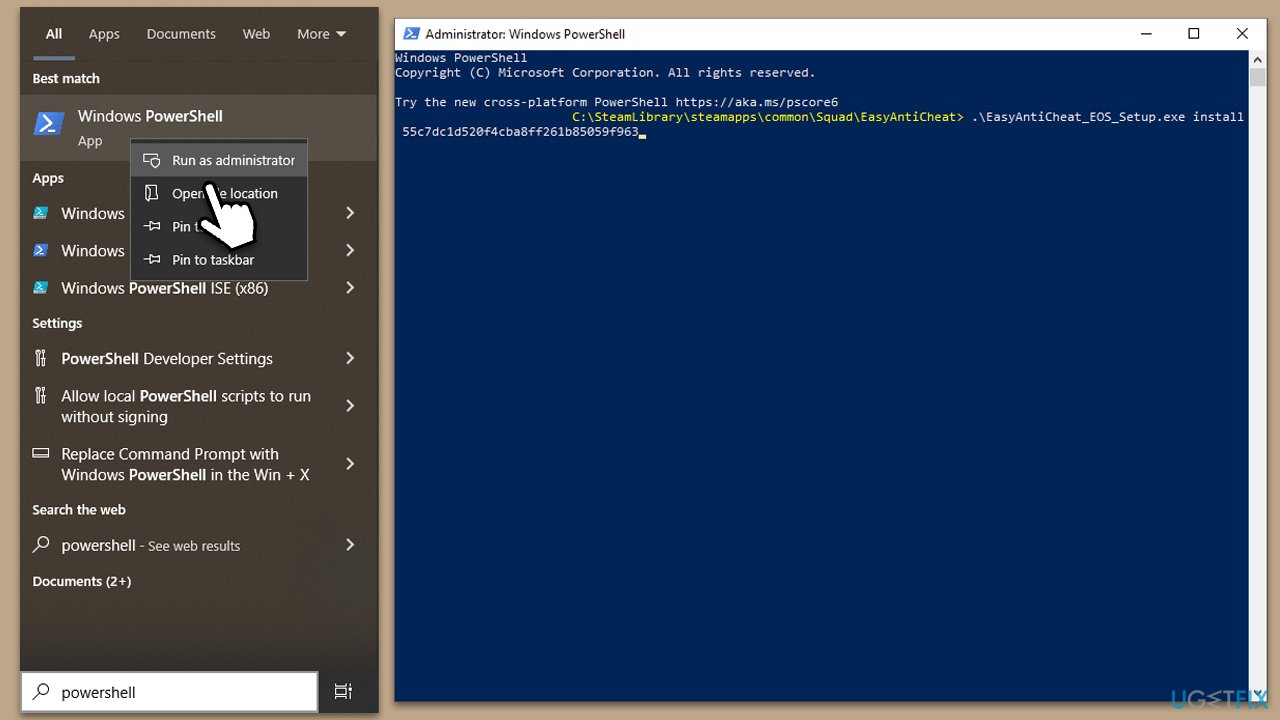
Whenever the user initiates a launch of the program, it seems like the setup action fails and is terminated. As a workaround, you can attempt to remediate this by using a command in PowerShell:
- Type PowerShell in Windows search.
- Right-click on PowerShell and select Run as administrator.
- Click Yes when the User Account Control window asks you whether you want to allow changes.
- In the new window, copy and paste the following command (important note - replace X: with your drive letter, for example, C:. Also, keep in mind that the location depends on the game you are having trouble with and whether it's installed on Epic or Steam - check fix number 4 to find the correct location. This example is for the game Squad):
X:\SteamLibrary\steamapps\common\Squad\EasyAntiCheat> .\EasyAntiCheat_EOS_Setup.exe install 55c7dc1d520f4cba8ff261b85059f963 - Press Enter and make sure the command is executed.
- Close down PowerShell and attempt to launch the game - the "Easy Anti-Cheat is not installed" error should be gone.
Fix 3. Verify game files
In some cases, verifying game files helped users. Here's how:
Epic Games Store
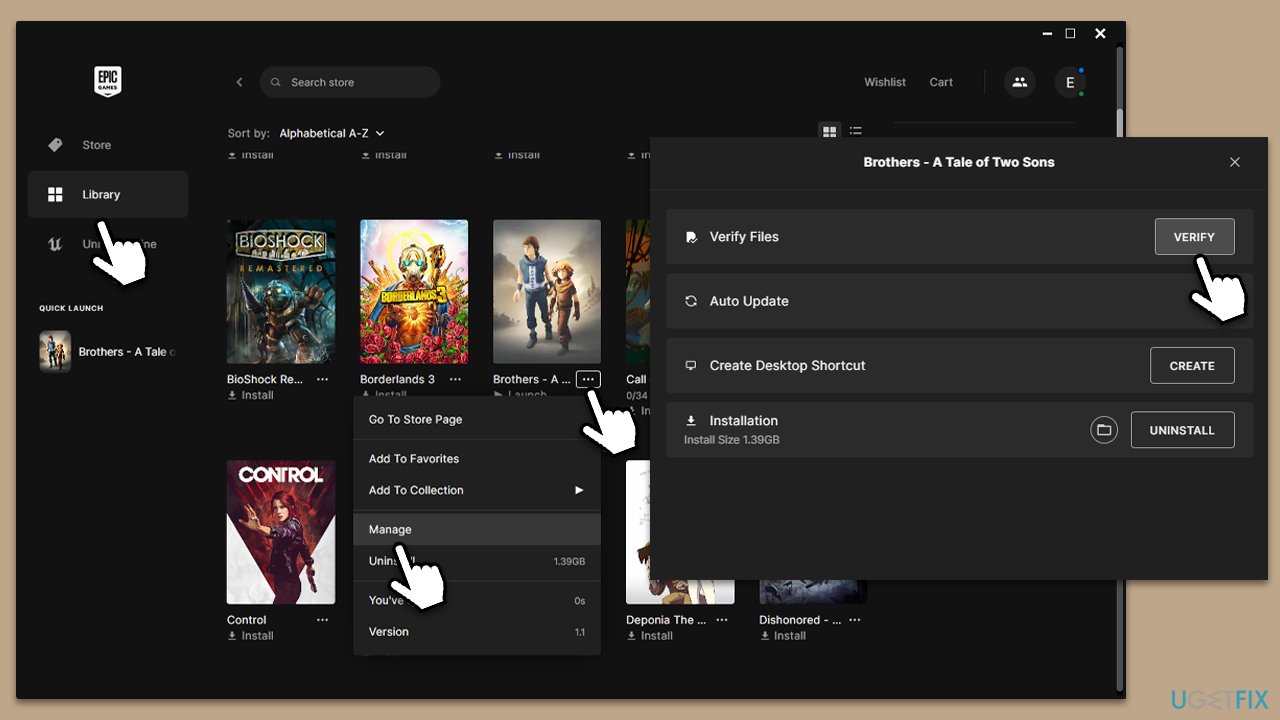
- Open Epic Games Store and go to your Library.
- Locate the game that's not launching because of the "Easy Anti-Cheat is not installed" error.
- Click on three horizontal dots (⋅⋅⋅) and pick Manage.
- Under Verify Files, click Verify.
- Wait for the process to finish.
Steam
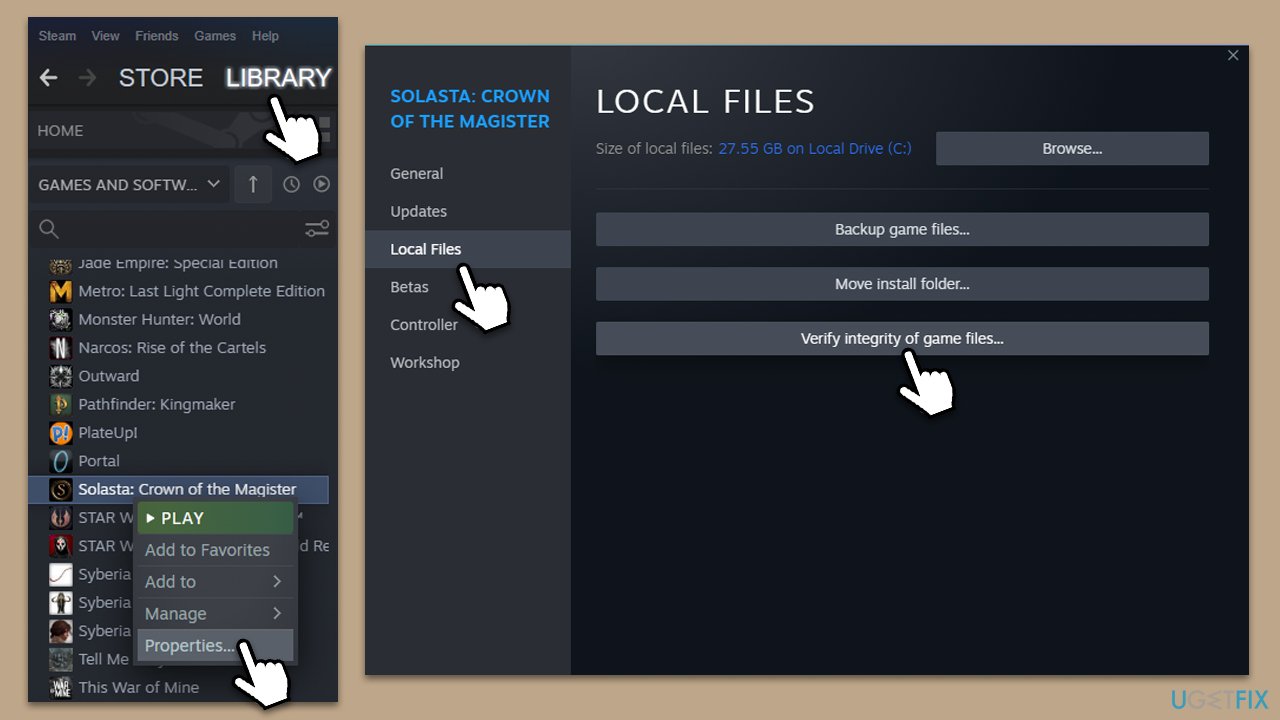
- Open Steam and go to your Library.
- Right-click on the game you are having issues with and select Properties.
- Go to the Local Files section.
- Click Verify integrity of game files.
- Wait for it to finish and launch the game.
Fix 4. Force the Epic Game Service to launch via a BAT file
Another solution would be to make the Epic Game Service launch by forcing it via the BAT file. First, you need to locate the folder where EAC is located. The easiest way of doing this is by checking the location of game files:
Epic Games Store
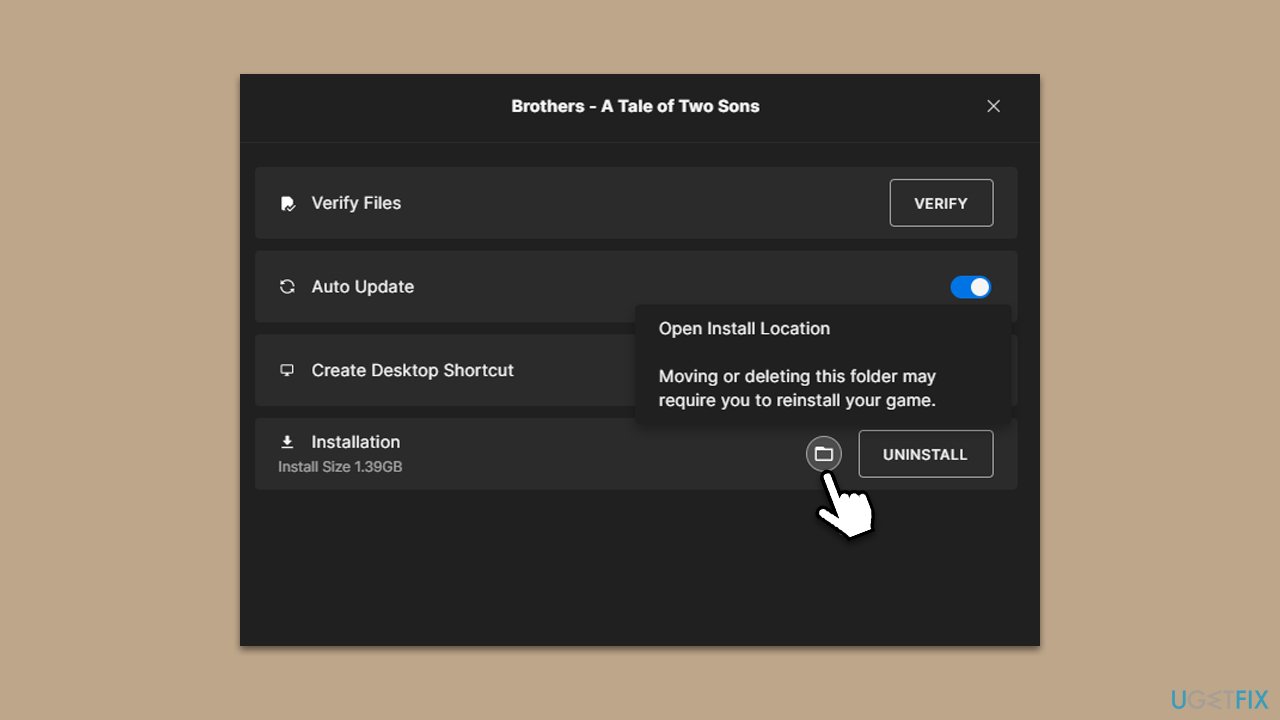
- Perform steps explained in the previous solution until you reach the Manage section.
- Here, you will see the Installation section.
- Click the folder icon (Open install location) to open the location of the game/EAC.
Steam
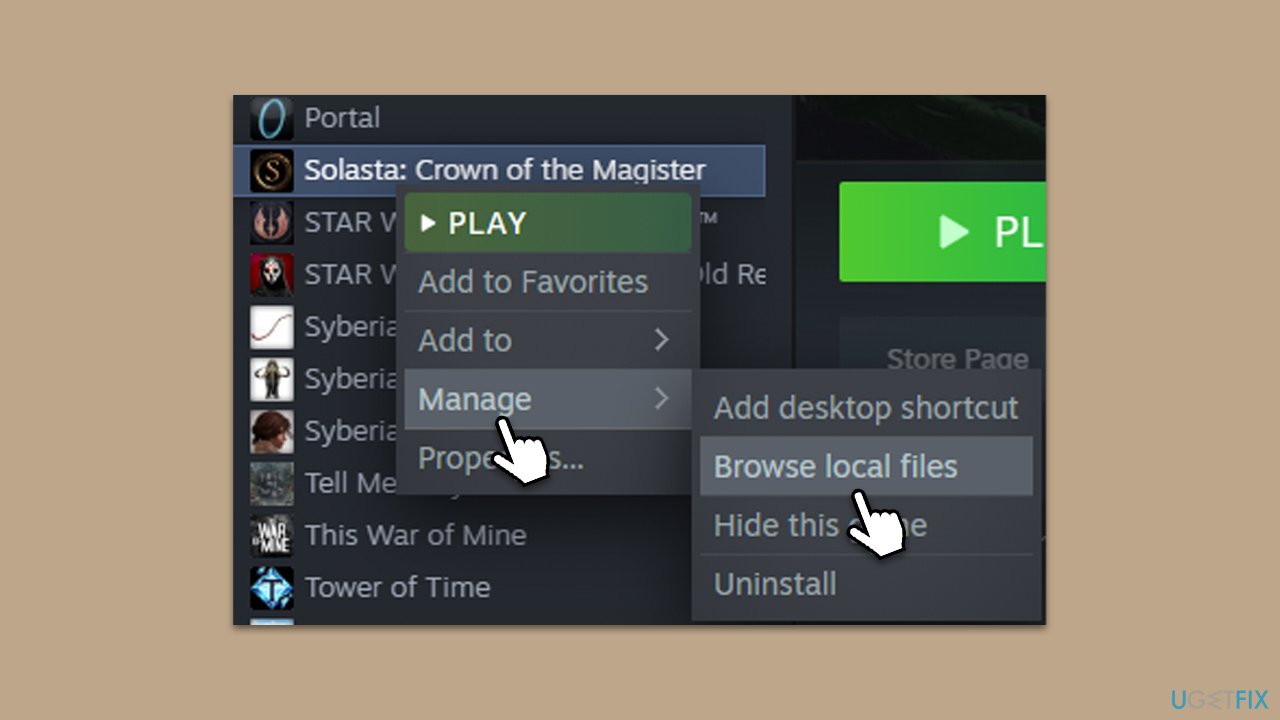
- Open Steam and go to Library.
- Right-click the game and select Manage > Browse local files.
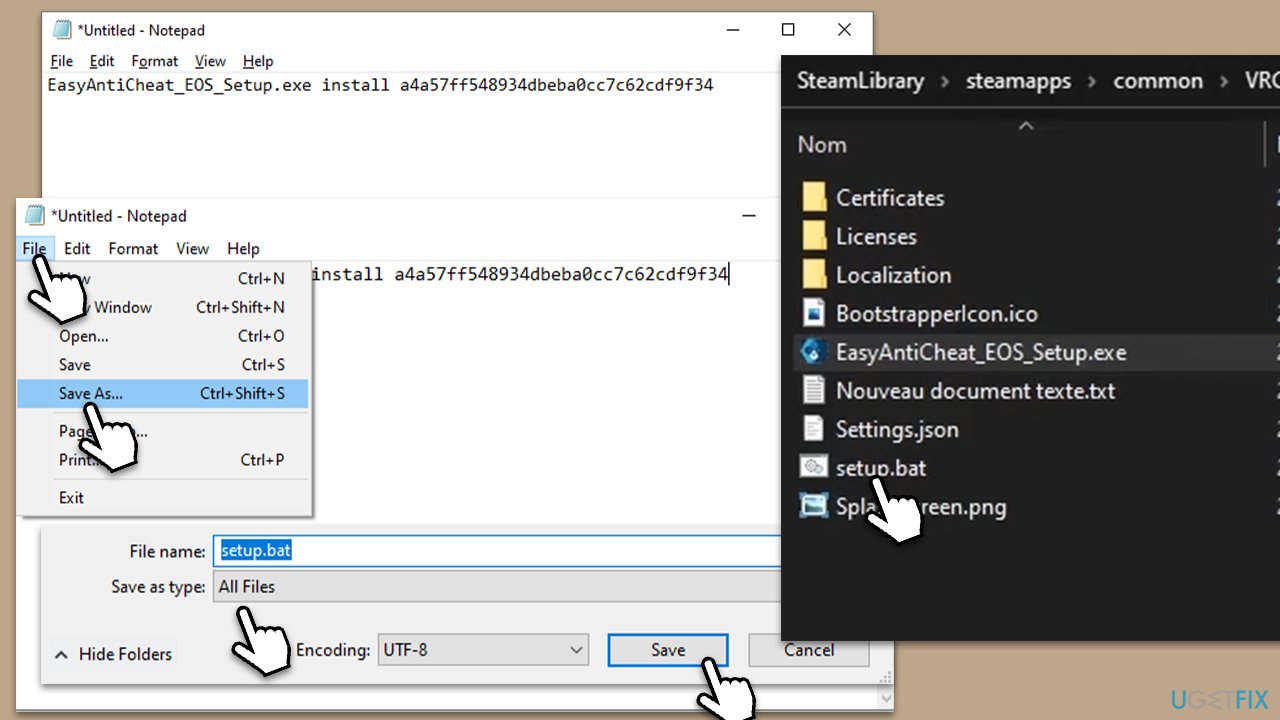
Once you've located where EAC is located on your system, you need to create a BAT file:
- Type Notepad in Windows search and press Enter.
- In the Notepad, copy and paste the following:
EasyAntiCheat_EOS_Setup.exe install a4a57ff548934dbeba0cc7c62cdf9f34 - Next, click File > Save As.
- For the location, find where your EAC/game files are.
- Under Save as type, click All files from the drop-down menu.
- Name the file setup.bat and hit Save.
- Finally, launch the setup.bat file by double-clicking it - this should initiate the installation of the missing Epic Games service.
Bottom line
To fix the 'Easy Anti-Cheat is not installed' error, you can force the installation of the EAC application, or repair and reinstall the Easy Anti-Cheat software. If these solutions do not resolve the issue, consider running a comprehensive PC repair tool.
Frequently asked questions
You can fix this error by navigating to the game's installation folder and running the Easy Anti-Cheat setup executable to reinstall it. After that, restart your computer and try launching the game again.
To ensure Easy Anti-Cheat is properly installed on Windows 11, verify the integrity of the game files through the game launcher, which will automatically reinstall any missing components. Additionally, check for any pending Windows updates that may affect game performance.
If reinstalling Easy Anti-Cheat doesn't resolve the issue, try disabling any third-party antivirus or firewall software temporarily, as they might be blocking the anti-cheat service. You can also consult the game's support page for further troubleshooting steps.




Report an issue
What's wrong with this guide? We review every report and update or remove content.
Report received — thank you. We'll review and fix it.
You need a free account to submit a report.
Be the first to comment