How to fix
Edge or Chrome hiding the taskbar when maximized
on Windows
Resolve the issue of Edge or Chrome hiding your taskbar in Windows 10 or 11 effortlessly. Get expert-tested solutions and regain full control!

What causes How to fix Edge or Chrome hiding the taskbar when maximized in Windows?
- Accidental activation of full-screen mode
- Incorrect lock screen settings leading to auto-hide taskbar
- Occasional glitches with Windows Explorer
- Browser interface nuances causing confusion
- Unfamiliarity with browser shortcut keys
Repairs Windows system files, removes malware, and restores a clean OS state — without reinstalling.
I came across a weird issue on my Windows laptop. Every time I maximize the window of Chrome, it hides my taskbar. Any clue what is going on and how to fix this?
Web browsers are essential tools in the modern digital era. They serve as the gateway to the internet, enabling users to access information, entertainment, and services with just a few clicks. Among the vast array of available browsers, Google Chrome and its Chromium-based counterparts, such as Microsoft Edge, stand out as some of the most popular choices.
However, for a segment of their user base, an unusual inconvenience arises. When they maximize their Chrome or Edge window, they find that their taskbar remains hidden in Windows, disrupting their usual workflow and causing confusion. But what leads to this peculiar behavior?
One primary reason is the accidental activation of the full-screen mode. In this mode, all Windows User Interface (UI) components, including the taskbar, become hidden to offer an unobstructed view of the content. It's easy to mistakenly enter this mode, especially if one is unfamiliar with the browser's shortcut keys or interface nuances.
Yet, the full-screen mode isn't the sole culprit. Some might find their taskbar disappearing due to incorrect lock screen settings within Windows. In these scenarios, the taskbar settings have been inadvertently adjusted to auto-hide, which can lead to its absence when a browser window is maximized. Furthermore, occasional glitches with Windows Explorer can also result in the taskbar not displaying as expected.
If you're facing this issue, there's no need to fret. Detailed solutions are available right below this article, guiding you through the steps to rectify the problem. Whether it's toggling off the full-screen mode, adjusting taskbar settings, or resolving Windows Explorer hiccups, you'll find the necessary guidance to restore your taskbar's visibility.
Lastly, to tackle broader system issues or anomalies, consider using the [d1] PC repair tool. This tool is designed to diagnose and resolve common computer challenges, ensuring your system runs smoothly.

Fix 1. Exit full-screen mode
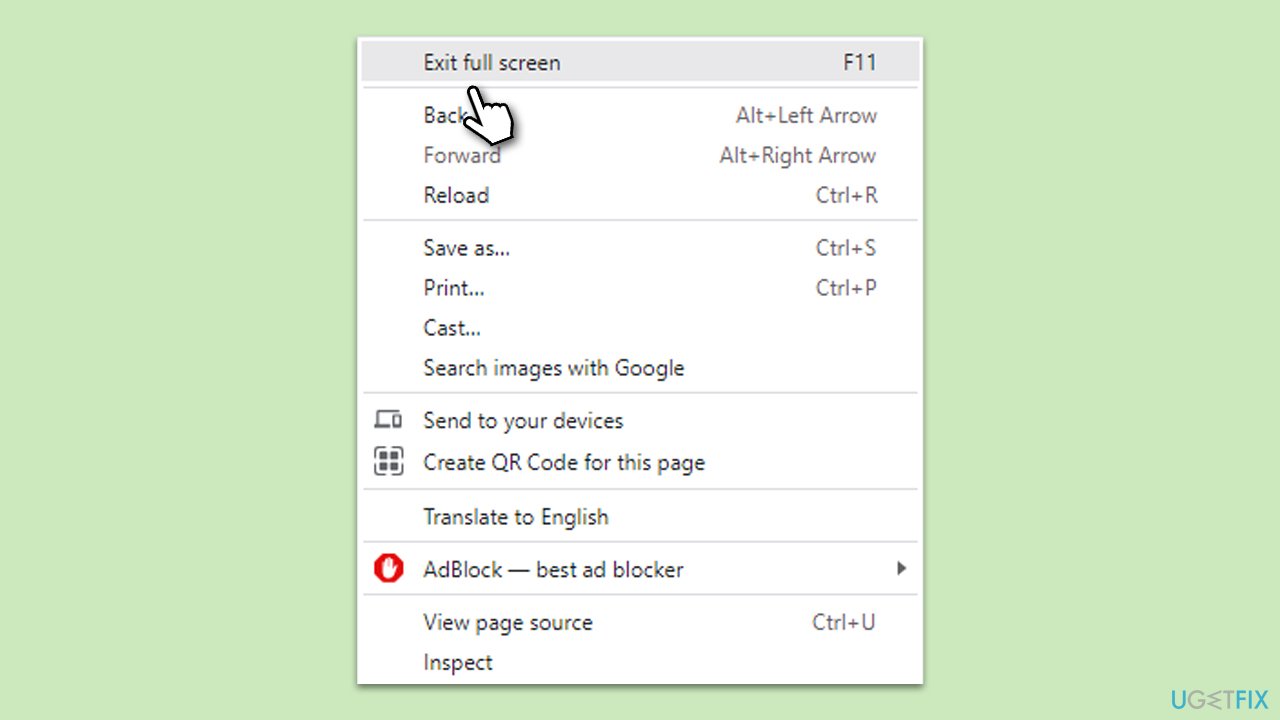
Sometimes, the browser may be unknowingly set to full-screen mode, which hides the Windows taskbar. Exiting this mode will typically bring back the taskbar.
- Press F11 on your keyboard. This key toggles the full-screen mode on and off in most browsers.
- Alternatively, move your mouse to the top of the screen to reveal the browser’s menu.
- Click on the three vertical dots (for Chrome) or three horizontal dots (for Edge).
- From the drop-down menu, uncheck the option that says Fullscreen.
Fix 2. Check taskbar settings
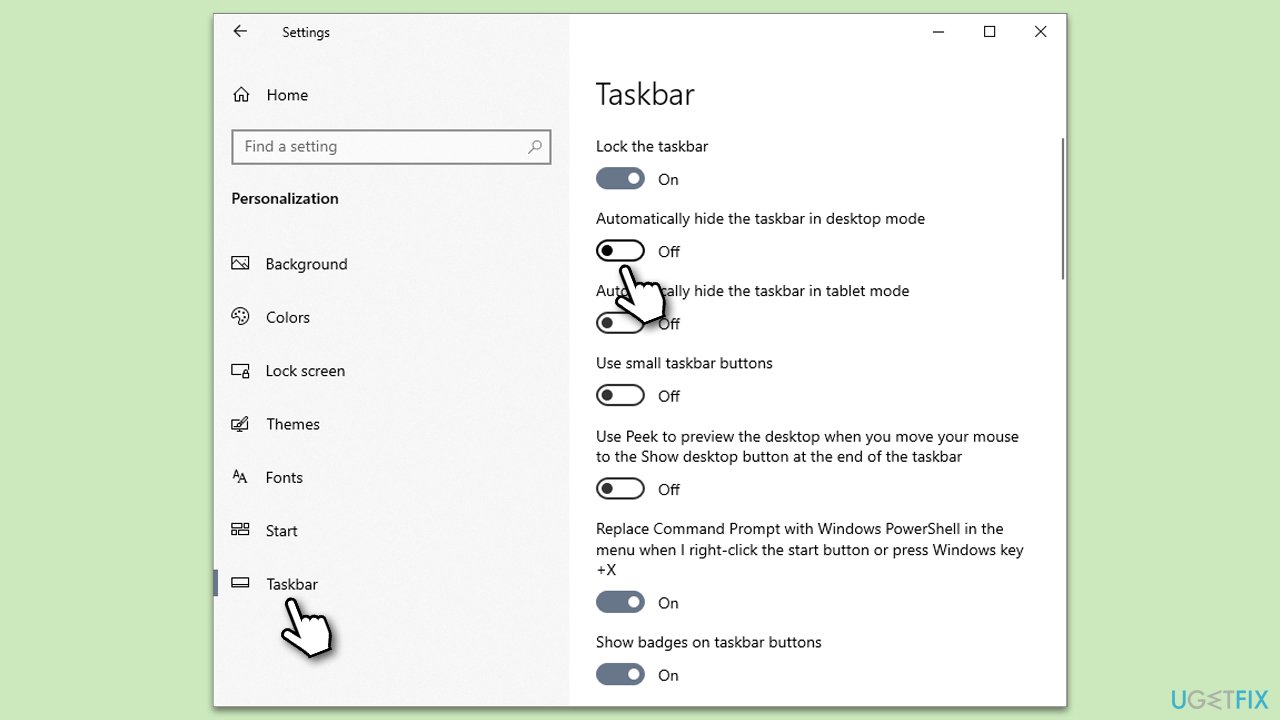
Windows provides settings to auto-hide the taskbar. If enabled, your taskbar will hide when not in use.
- Right-click on Start and select Settings.
- Go to the Personalization section.
- Select Taskbar on the left side.
- Toggle off the Automatically hide the taskbar in desktop mode option.
Fix 3. Restart Windows Explorer
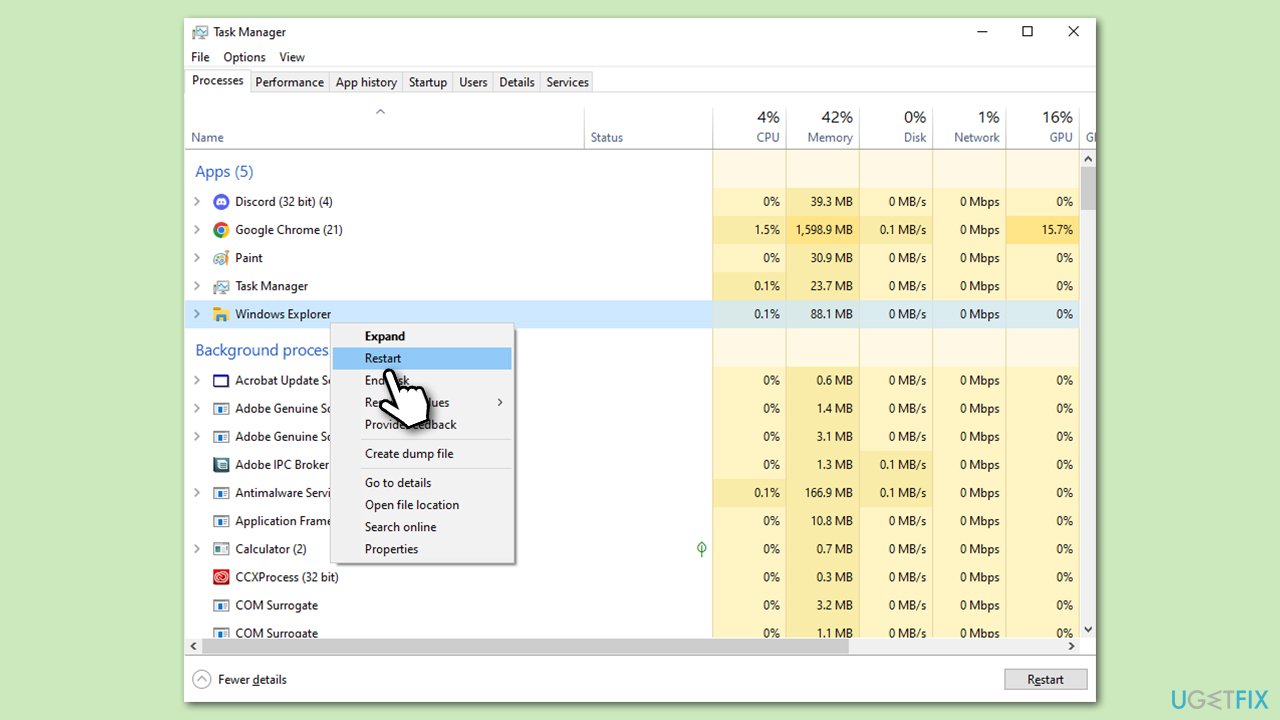
Windows Explorer controls various UI components, including the taskbar. Restarting it can resolve any glitches.
- Press Ctrl + Shift + Esc to open Task Manager.
- Click More details if needed.
- Look for Windows Explorer.
- Right-click and select Restart.
- Several UI elements will disappear for a few moments and reappear soon thereafter.
Fix 4. Update your browser
An outdated browser might have bugs or issues. Keeping it updated ensures smoother functioning.
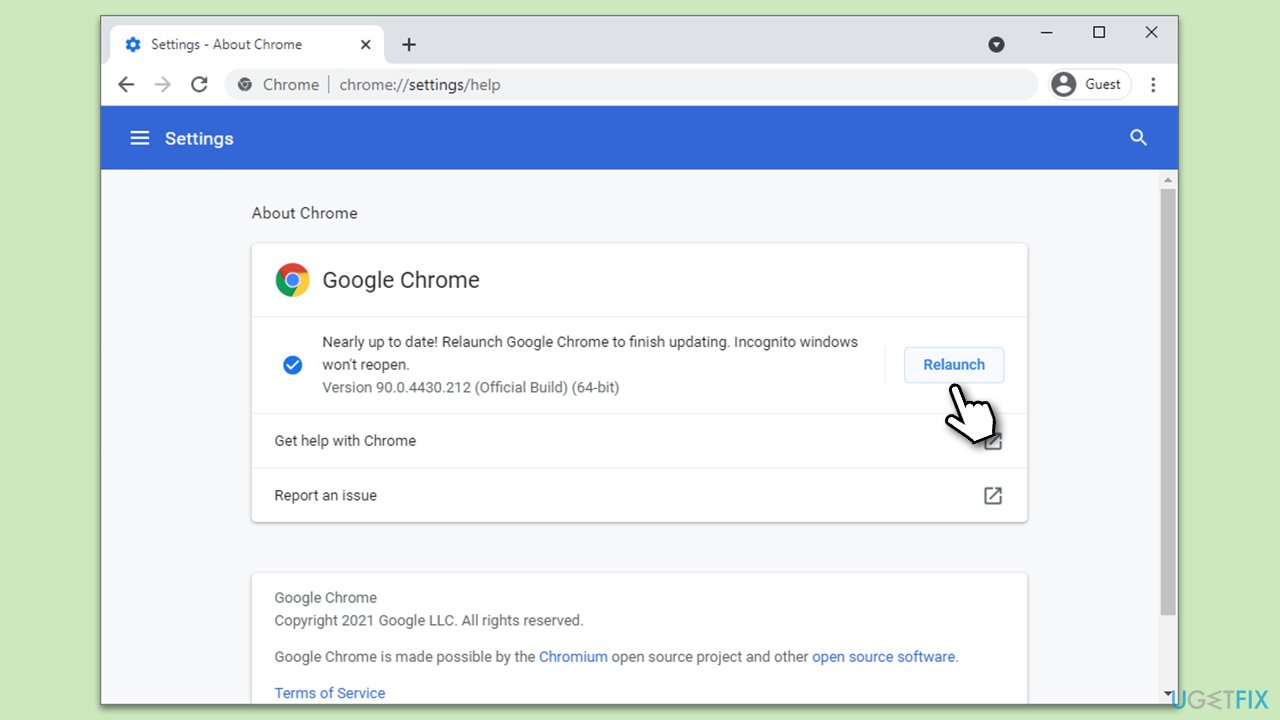
Google Chrome
- Click on the menu (three vertical dots in the top-right corner of the browser).
- Select Help > About Google Chrome.
- Wait till the browser is updated and click Relaunch.
Microsoft Edge:
- Click on Settings and more (three horizontal dots).
- Select Help and feedback > About Microsoft Edge.
- Your browser should be updated, then restart it.
Fix 5. Create a new user profile
A corrupted user profile in your browser might cause the taskbar issue.
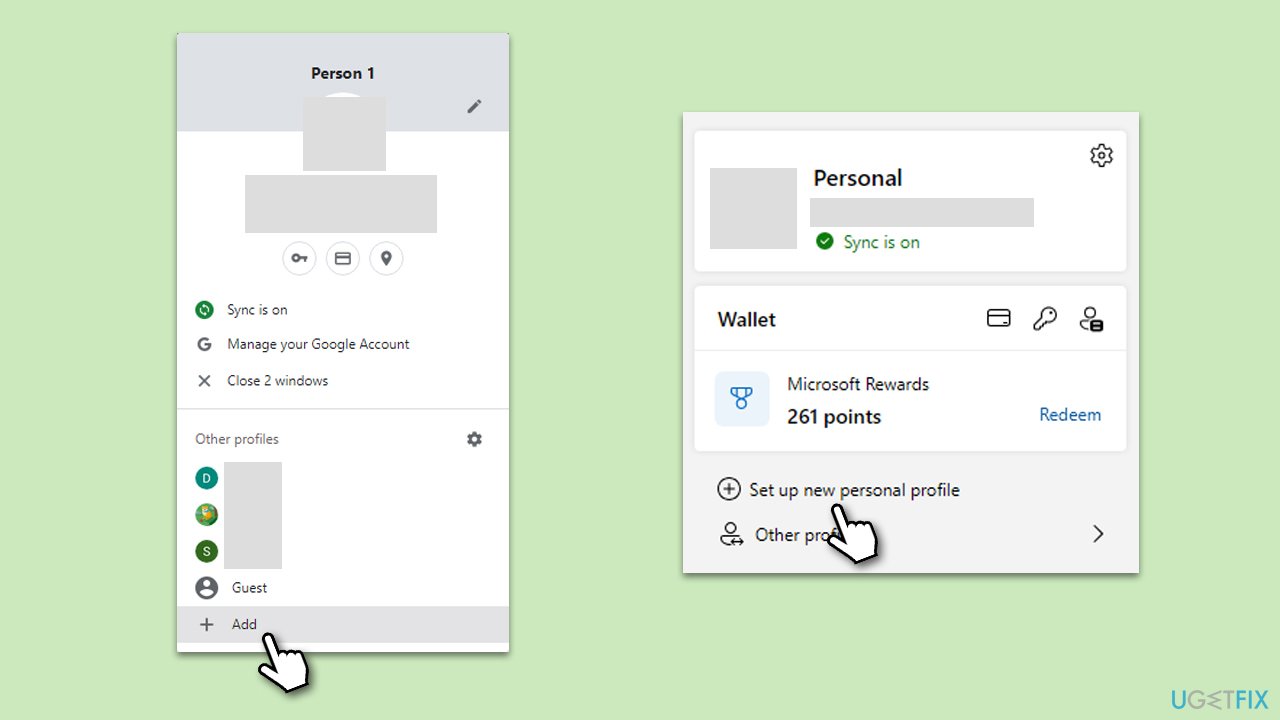
- Open your browser.
- Click on the profile icon at the top right corner.
- On Edge, choose Set up a new personal profile. On Chrome, click Add.
- Follow the on-screen instructions and create a new profile.
- Check if the issue persists.
Fix 6. Adjust display resolution
Incorrect display settings can sometimes interfere with the taskbar's visibility.
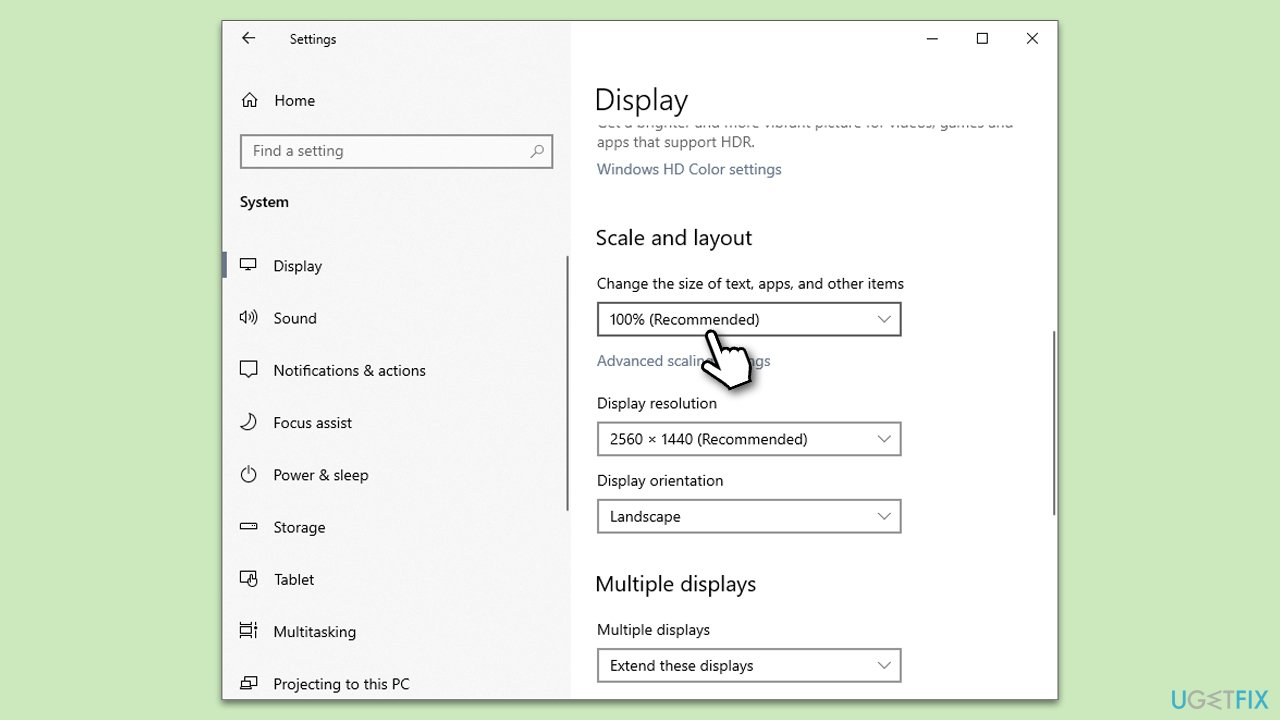
- Right-click on an empty space on your desktop.
- Choose Display settings.
- Under Scale and layout, ensure the display resolution matches your monitor's native resolution.
Fix 7. Use the Windows Store apps troubleshooter
Windows comes with built-in troubleshooters for various issues.
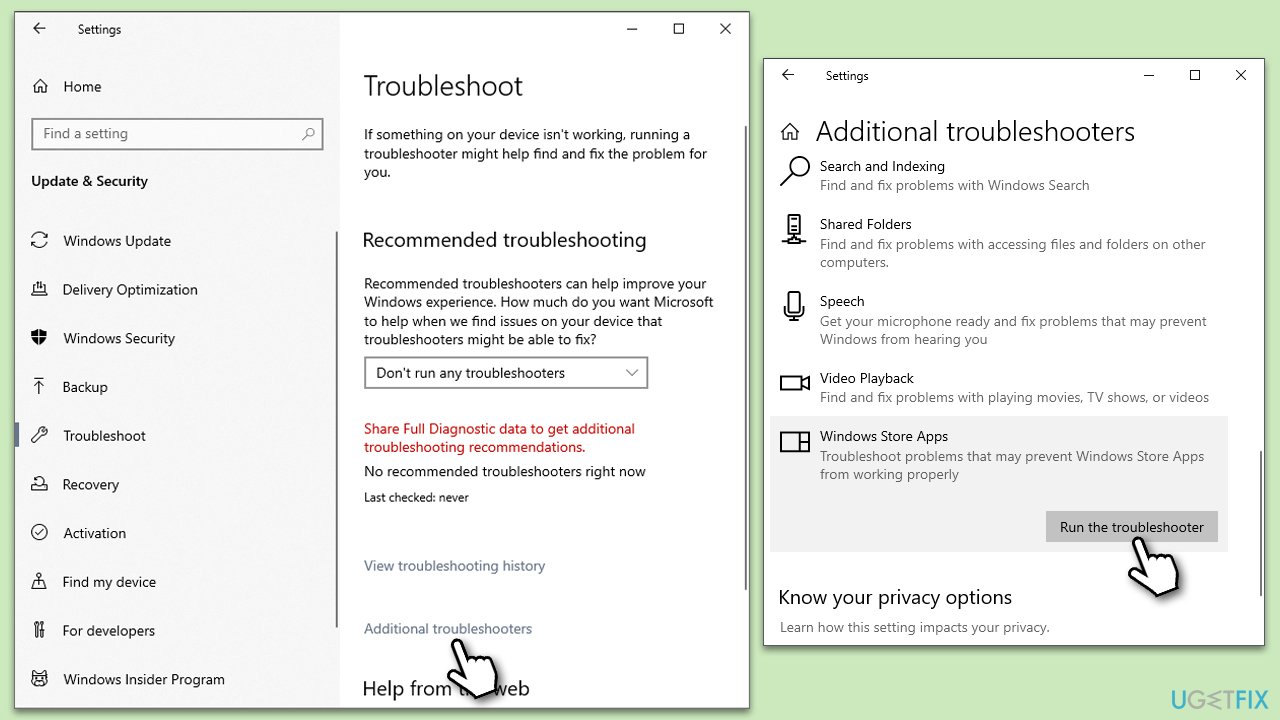
- Type Troubleshoot in Windows search and press Enter.
- Select Additional troubleshooters/Other troubleshooters.
- Find Windows Store Apps from the list and select Run the troubleshooter/Run.
- Wait till the process is finished and apply the offered fixes.
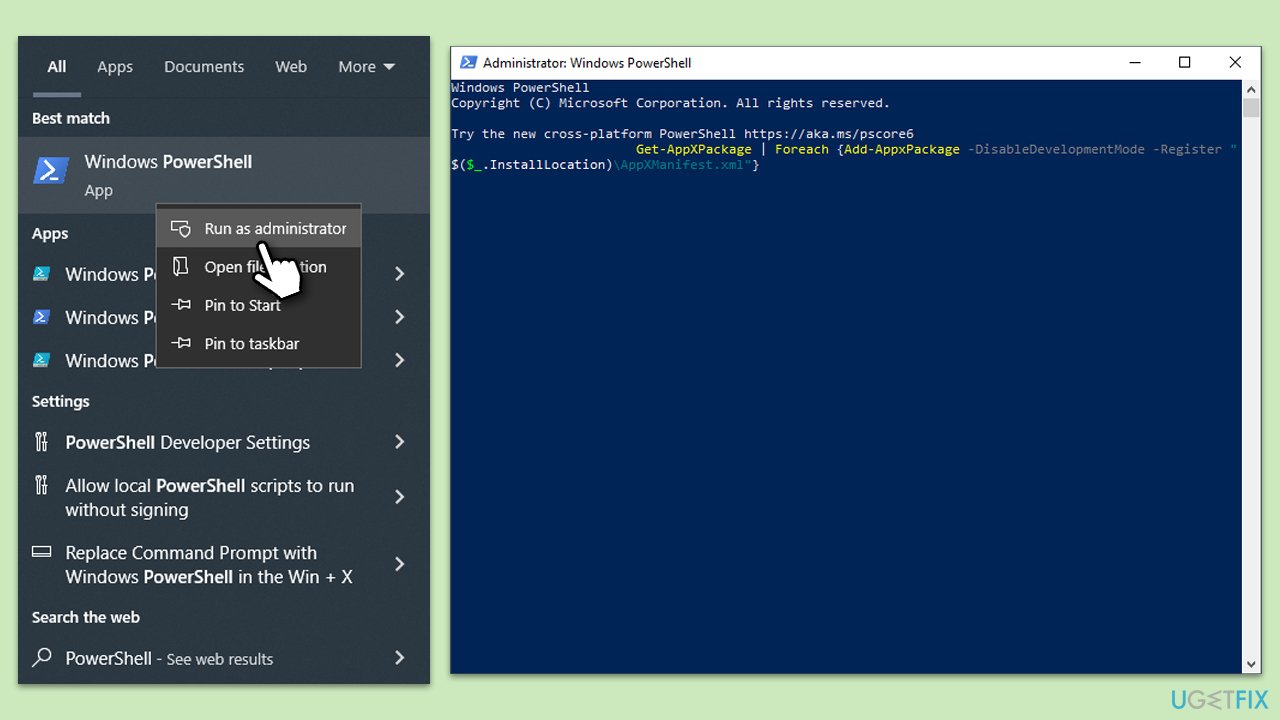
Fix 8. Re-register Microsoft apps
At times, the taskbar behavior might be influenced by errors or malfunctions in Microsoft’s default apps. Re-registering all Microsoft apps can reset them to their original state, potentially resolving any underlying conflicts causing the taskbar to hide.
- Press the Win + X to open the Power User menu.
- Select Windows PowerShell (Admin) or Command Prompt (Admin) from the list. If you see only one of these options, that's fine - choose it.
- Once the PowerShell or Command Prompt window is open, type in the following command:
Get-AppXPackage -AllUsers | Foreach {Add-AppxPackage -DisableDevelopmentMode -Register "$($_.InstallLocation)\AppXManifest.xml"} - Press Enter.
- Wait for the process to complete. It might take a few minutes, and you might see some red text appear during the process. This is generally normal and often indicates that certain apps are already registered.
- Once done, close the PowerShell or Command Prompt window.
- Restart your computer to ensure all changes take effect.
Bottom line
To fix the issue of the taskbar hiding when maximizing Chrome or Edge, you can exit full-screen mode, adjust the taskbar settings, or resolve any glitches with Windows Explorer. If these solutions do not work, consider using a PC repair tool to diagnose and resolve broader system issues.
Frequently asked questions
This issue may occur due to a bug in the browser or Windows settings. Try updating your browser and ensuring that the taskbar is set to 'Always show' in taskbar settings.
You can resolve this by checking the taskbar settings for 'Automatically hide the taskbar' and disabling it if it's enabled. Additionally, ensure your graphics drivers are up to date.
If the problem persists, consider restarting Windows Explorer via the Task Manager or resetting your browser settings to default.




Report an issue
What's wrong with this guide? We review every report and update or remove content.
Report received — thank you. We'll review and fix it.
You need a free account to submit a report.
Be the first to comment