How to fix
Elden Ring error “Inappropriate activity detected”
on Windows
Resolve the "Inappropriate activity detected" error in Elden Ring on Windows 10 or 11 quickly and easily. Expert-tested solutions await!

What causes How to fix Elden Ring error “Inappropriate activity detected” in Windows?
- Problems with the game files
- Anti-cheat software issues
- System locale problems
- Corrupted files
- Outdated game version
Repairs Windows system files, removes malware, and restores a clean OS state — without reinstalling.
Hello. I was playing Elden Ring when the "Inappropriate activity detected" message popped up. I am not using any cheats, so I don't understand why I am seeing this. Is there any way I can fix this?
The "Inappropriate activity detected. Unable to start in online mode." error in Elden Ring is a common issue faced by players on the Windows platform. Elden Ring is a highly anticipated action role-playing game developed by FromSoftware, the popular Dark Souls series' creators. The game has received a lot of attention because of its captivating world, challenging gameplay, and involvement of legendary game creator Hidetaka Miyazaki.
This error message can have an effect on players because it prevents them from accessing the game, effectively interfering with their gaming experience. The "Inappropriate activity detected" error can be caused by a number of factors, including problems with the game files, anti-cheat software, or the system locale.[ref en-1]
Verifying game files through the Steam client, repairing the EasyAntiCheat software, changing the system locale, uninstalling and reinstalling the game, or checking for updates are all possible solutions to this problem. Some players have reported success with these solutions, while others have required additional help from technical support.
In this guide, you will find 5 steps that should help you fix Elden Ring error "Inappropriate activity detected" in Windows. Keep in mind that the manual troubleshooting process may be lengthy. You can use a maintenance tool like [d1] that can fix most system errors, BSODs,[ref en-2] corrupted files, and registry[ref en-3] issues. Otherwise, follow the step-by-step instructions below.
Solution 1. Restart your PC
To resolve the "inappropriate activity detected Elden Ring error" or any other bug or glitch while playing a game, it's advisable to restart your gaming device. This often fixes most game issues.
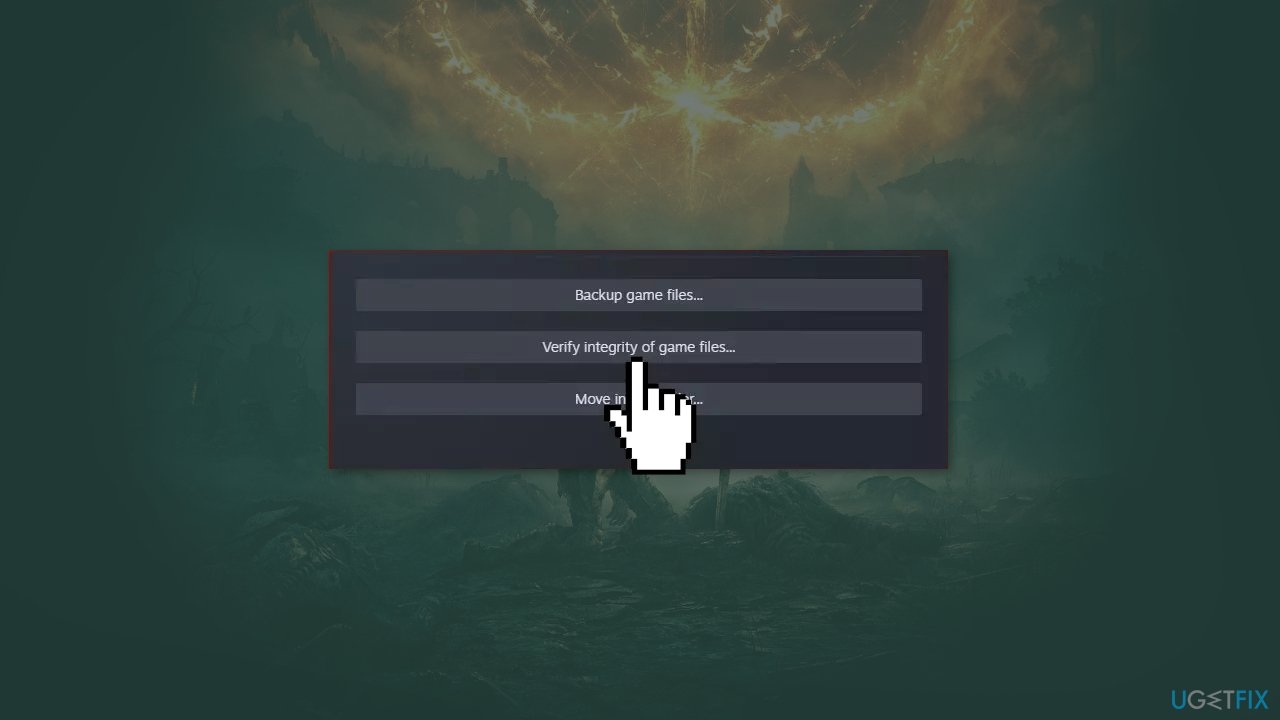
Solution 2. Verify Integrity of Game Files
The "Verify Integrity of Game Files" feature in Steam is a tool that compares the game files on your computer to the original files stored on Steam's servers. This function is used to repair game files that have become corrupted or missing, resulting in issues such as crashes, bugs, or errors.
- Launch the Steam client and go to the Library
- Find Elden Ring and right-click on the game
- Choose Properties
- Under the Local Files tab, hit Verify Integrity of Game Files
- Wait for the verification process to complete
- Relaunch Elden Ring
- Check if the "inappropriate activity detected Elden Ring" error still persists
Solution 3. Repair Easy Anti Cheat
EasyAntiCheat (EAC) is a piece of anti-cheat software designed to keep cheating out of online multiplayer games. It's used in games like Elden Ring to make sure players aren't using any third-party tools or mods that might give them an unfair advantage over other players.
While the game is being played, EAC operates in the background, monitoring various aspects of the game and player behavior. It will sound an alarm if it detects any suspicious activity, such as the use of cheat software, and will prevent the player from continuing to play.
Repairing EAC can help solve the "Inappropriate activity detected" error in Elden Ring because this error message is often caused by issues with the anti-cheat software.
- Open Steam and find Elden Ring in the game library
- Right-click on the game
- Choose Properties and go to Local Files
- Select EasyAntiCheat
- Right-click on EasyAntiCheat_Setup.exe
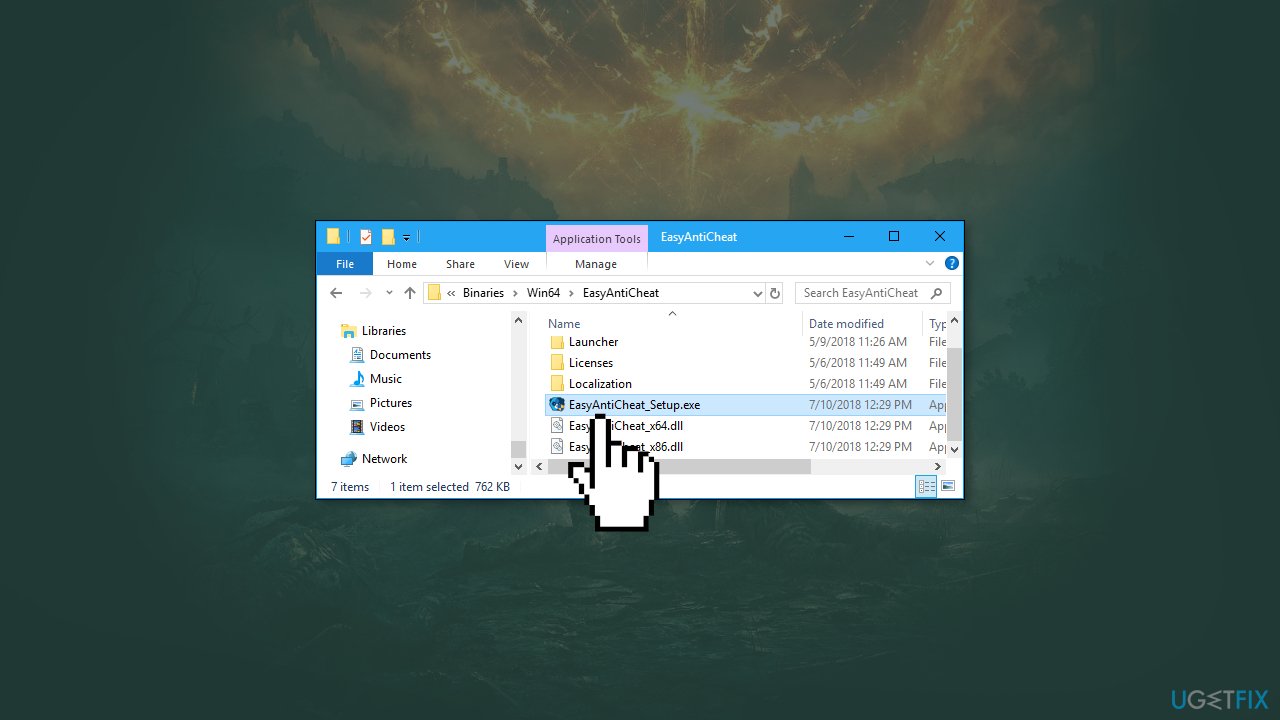
- Run it as an administrator
- On the setup screen, select Elden Ring
- Press Repair
- After the repair process is complete, reboot your computer
- Relaunch the game
Solution 4. Change Language Settings
Changing the language settings in Windows can aid in the resolution of the Elden Ring error, as some players have reported that the error is caused by a compatibility issue between the game and the computer's system locale (i.e. the language and regional settings).
The system locale controls the computer's language and regional settings, such as the format of dates, times, and numbers, keyboard layout, and text sorting order. If the game is not compatible with the system locale, it may cause problems such as the "Inappropriate activity detected" error.
- Click on Start and go to Settings
- Select Time & Language
- Under the Language tab, scroll down to Administrative Language Settings
- Click Change system locale
- Check the option Beta: Use Unicode UTF-8 for worldwide language support
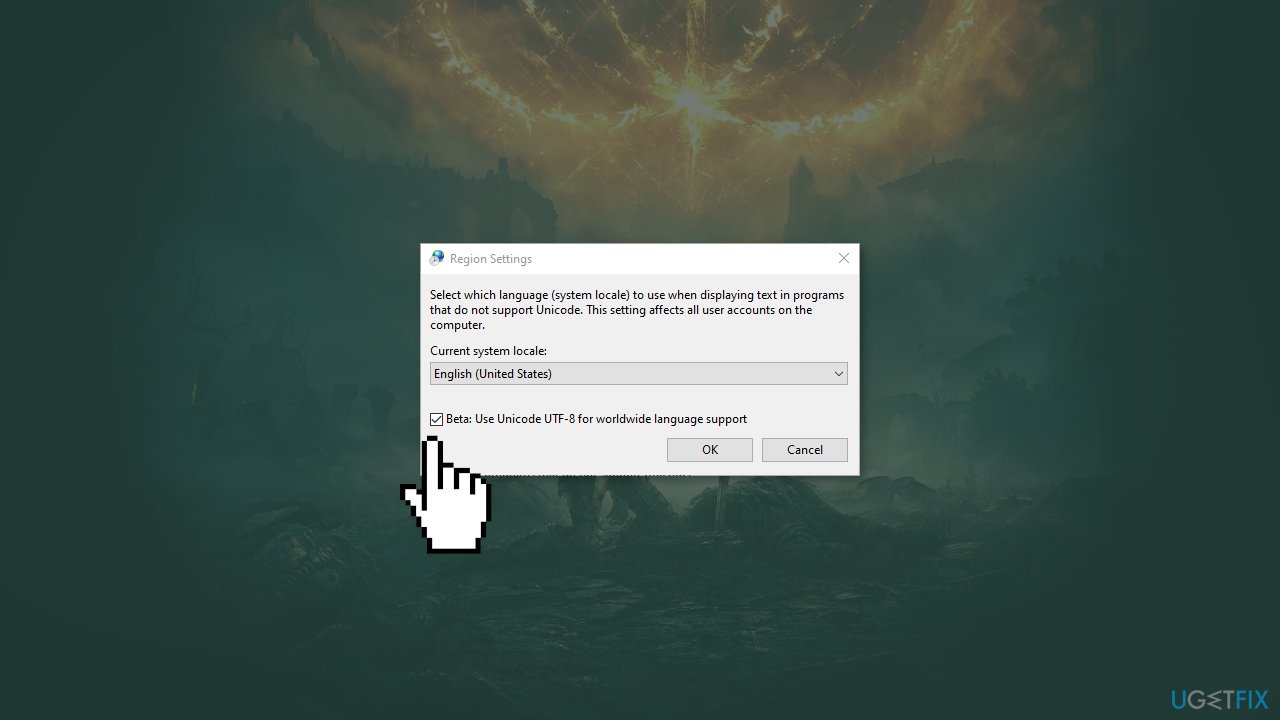
- Hit OK to save changes and restart your computer
- Reconnect to the game server
- Check for improvements
Solution 5. Reinstall Elden Ring
- Launch Steam and go to Library
- Scroll down to find the game
- Right-click on it and choose Manage
- Select Uninstall
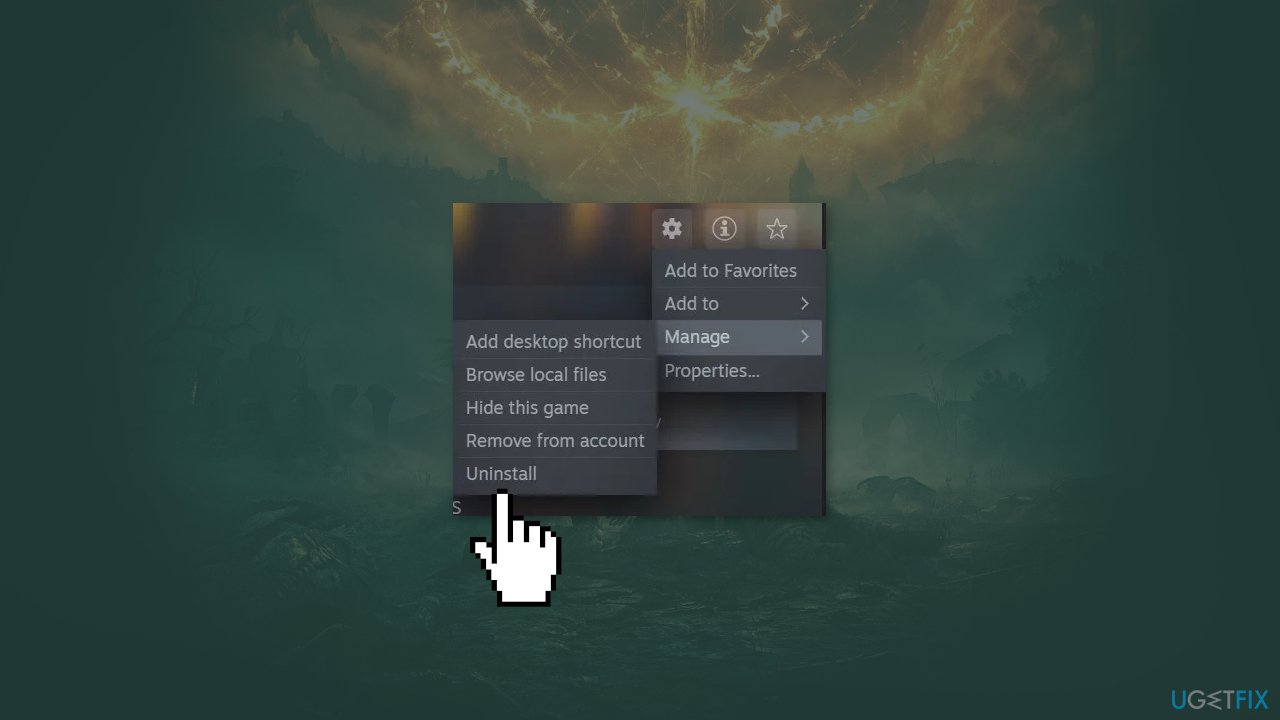
- Wait for the game to be removed
- Reboot your computer
- Install Elden Ring in the Steam client
Bottom line
To fix the 'Inappropriate activity detected' error in Elden Ring, you can try restarting your PC, verifying the integrity of game files, repairing the EasyAntiCheat software, changing the system locale, or uninstalling and reinstalling the game. If these solutions do not resolve the issue, consider seeking additional help from technical support.
Frequently asked questions
This error typically occurs due to third-party software interference, such as overlays or cheats, that the game detects as inappropriate activity. Additionally, corrupted game files or outdated drivers can also trigger this issue.
To resolve this error, try disabling any overlays from applications like Discord or Steam, verify the integrity of the game files through Steam, and ensure your graphics drivers are up to date.
Reinstalling Elden Ring should be a last resort if other troubleshooting steps fail, as it can help resolve any corrupted game files causing the error.




Report an issue
What's wrong with this guide? We review every report and update or remove content.
Report received — thank you. We'll review and fix it.
You need a free account to submit a report.
Be the first to comment