How to fix
“Element Not Found” error
on Windows
Resolve the “Element Not Found” error on Windows 10 effortlessly. Get expert-tested solutions to restore functionality in minutes.

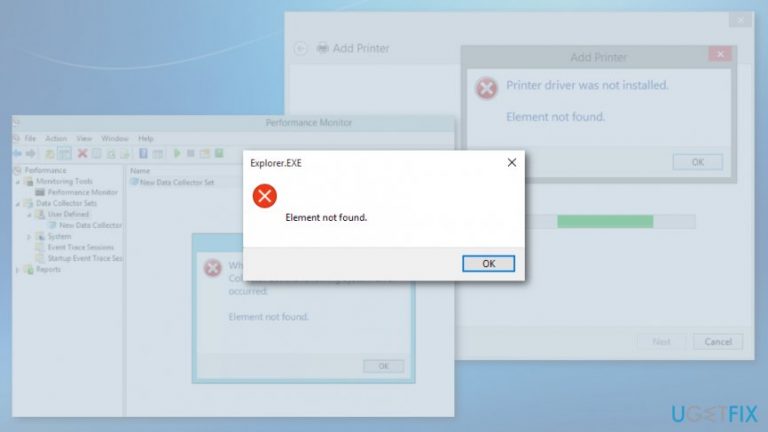
What causes How to fix “Element Not Found” error on Windows 10?
- Default image viewer app issue
- Problems with explorer.exe
- Corrupted files in Microsoft Edge
- Windows 10 update issues
- Accessing Settings or Universal apps
Repairs Windows system files, removes malware, and restores a clean OS state — without reinstalling.
When I try to open pictures on Windows 10, I receive “Element Not Found” error. How can I get rid of the error in order to access images?
“Element Not Found” is a Windows error[ref en-1] message that might show up when using picture viewing app, Microsoft Edge, File Explorer or other services. Due to the error, users might be unable to access Settings, Universal apps or open images. However, the problem can be fixed.
If “Element Not Found” error occurs when opening pictures, the problem seems to be related to the default image viewer app. Therefore, setting another default photo viewer can help to solve the problem.
Problems with explorer.exe might be another reason for “Element Not Found” error. If the error pops up when using File Explorer, you should consider restarting the explorer.exe process to solve the problem.
Corrupted files might be the reason why Microsoft Edge[ref en-2] delivers the same error message. Moreover, the source of an error might be related to Windows 10. Unfortunately, some updated gives more problems instead of fixing previous problems.
This Windows error prevents from accessing needed programs and using the computer normally. Fortunately, you can fix “Element Not Found” error in Windows quite easily. Below you will find instructions that will help you to eliminate the source of the problem.
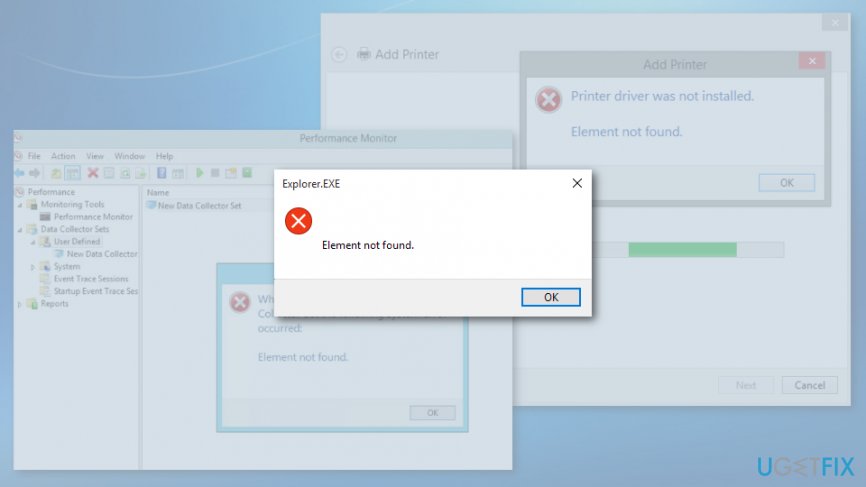
Possible ways to fix “Element Not Found” error in Windows
As we have already explained, the error might be triggered by various programs, meaning that there is more than one source of the problem. For this reason, we suggest trying a couple of methods to fix “Element Not Found” error.
This video will provide you with information about elimination of this issue:
[youtube uzdgEqtE2OU]
Option 1. Choose another default picture viewer
The majority of Windows users who encounter an “Element Not Found” pop-up reported that it happened when they tried to open pictures. However, the problem can be fixed very easily. All you need to do is to choose another picture viewer app:
- Open Settings app.
- Go to Apps section.
- Click on Default apps in the left pane.
- Click on Photo viewer app in the right pane.
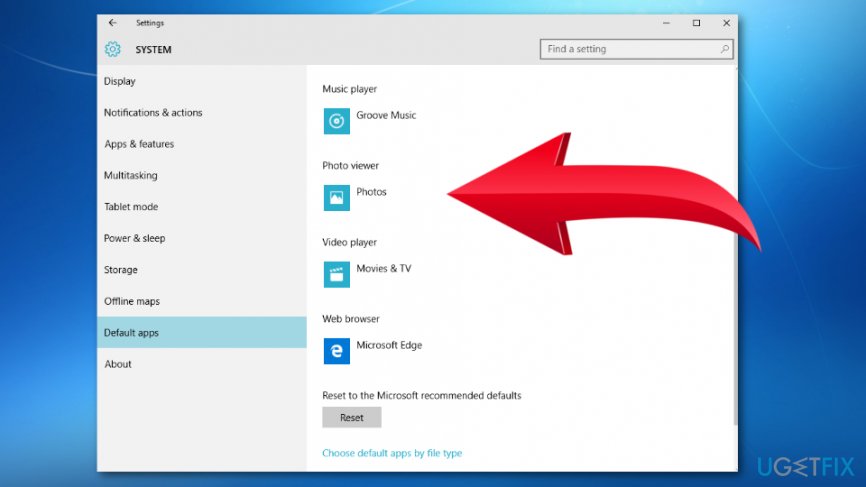
Change photo viewer app - From the appeared list of applications, choose Windows Picture Viewer[ref en-3] or another app as your default Photo viewer.
Option 2. Uninstall recently installed Windows update
Nevertheless, updates are supposed to improve Windows; sometimes they give an opposite result. In some cases, uninstalling recent updates[ref en-4] helps to get rid of Element Not Found error.
- Open Settings app.
- Go to Update & Security.
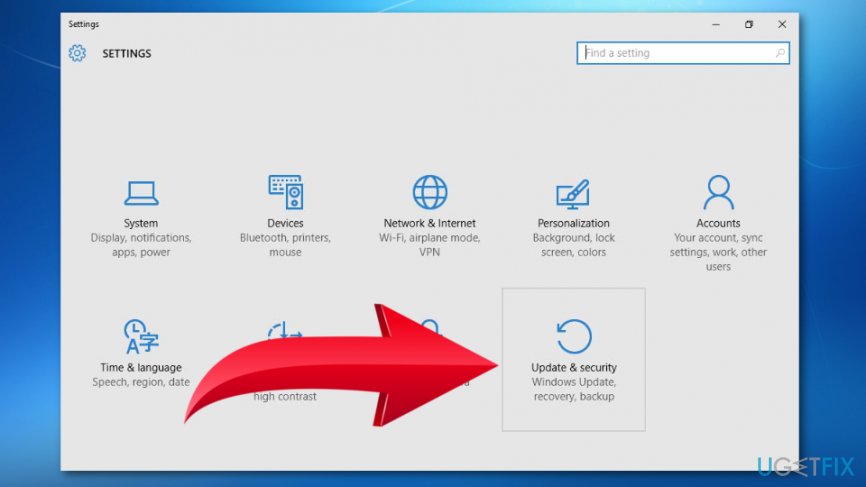
Open update and security - Click on View installed update history option.
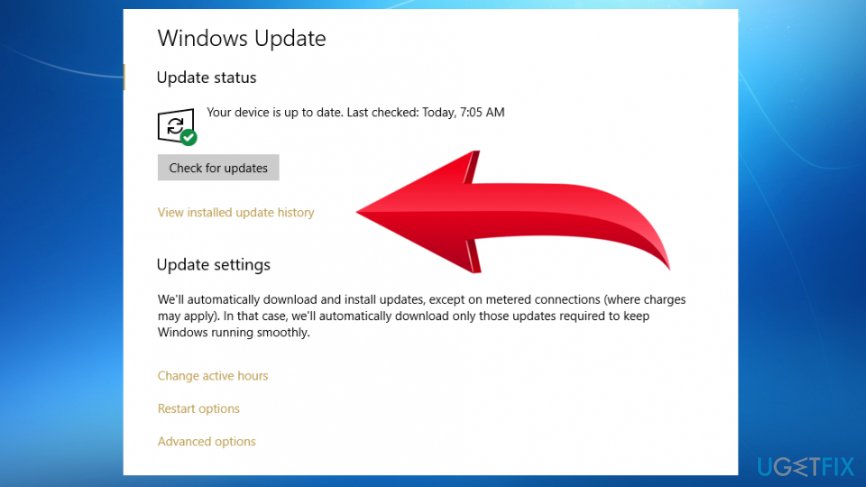
View installed update history - Click Uninstall updates.
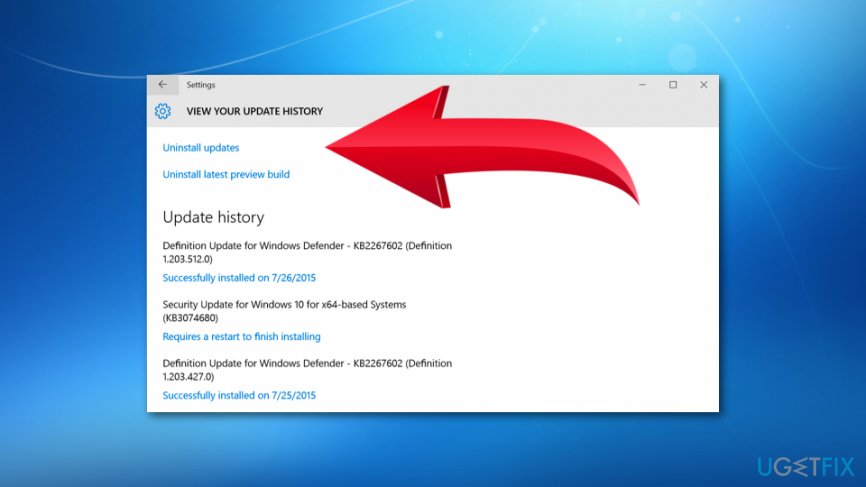
Uninstall windows updates - From the list of updates, choose the ones that you suspect may have caused the error, or you can uninstall them all.
Option 3. Restart explorer.exe process
This method should help to fix “Element Not Found” error if it popped up when using File Explorer:
- Open Task Manager by clicking Ctrl + Shift + Esc.
- In the appeared list of processes, find explorer.exe (Windows Explorer). Right-click this entry and choose End task option from the menu.
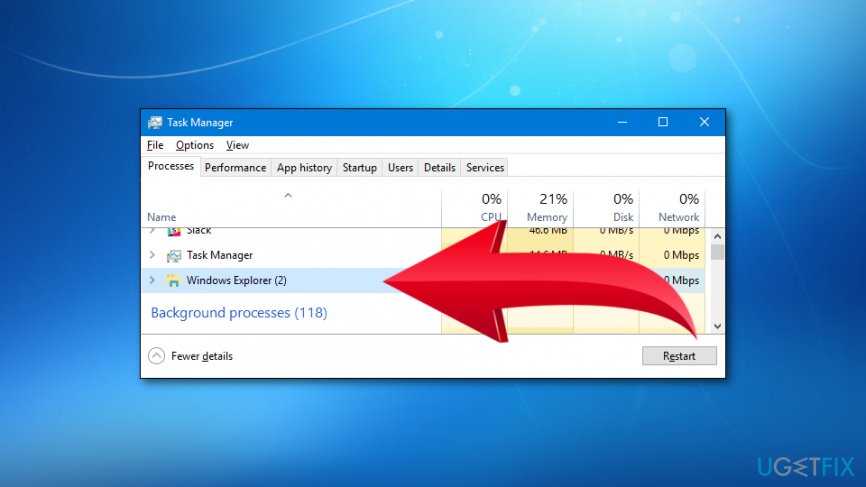
Windows explorer end task - Open File and choose Run new task option.
- In the Run box, enter explorer.exe and click Enter to restart Windows Explorer.
Option 4. Run SFC scan
Corrupted system files might also be causing the error. Hence, you should run SFC scan to check for corrupted files and fix them if needed.
- Click Windows key + X and choose Command Prompt (Admin) from the appeared menu.
- Type sfc /scannow in the Command Prompt and click Enter.
- Wait until the scan is over. If there were any issues with system files, you would be informed about fixed items.
Option 5. Run DISM scan
If you were unable to run SFC scan or you want to double-check scan results, you can run DISM scan by following these steps:
- Run Command Prompt as Administrator like it was explained in the previous method.
- Type this command DISM /Online /Cleanup-Image /RestoreHealth and click Enter.
- Wait until the scan is finished and check if it helped to solve “Element Not Found” error.
Bottom line
To fix the 'Element Not Found' error, you can choose another default picture viewer, restart the explorer.exe process, or address corrupted files in Microsoft Edge. If these methods do not resolve the issue, consider further troubleshooting or seeking additional support.
Frequently asked questions
The 'Element Not Found' error typically occurs due to corrupted system files, incorrect registry entries, or issues with Windows updates. It may also happen when trying to access a specific feature that is not properly installed or configured.
To fix this error, you can run the System File Checker tool by executing 'sfc /scannow' in the Command Prompt as an administrator. Additionally, consider performing a Windows Update to ensure all features and components are current.
Yes, Windows 11 users can also encounter the 'Element Not Found' error, often due to similar issues with system files or settings. The same troubleshooting steps can be applied to resolve the error on both Windows 10 and Windows 11.




Report an issue
What's wrong with this guide? We review every report and update or remove content.
Report received — thank you. We'll review and fix it.
You need a free account to submit a report.
Be the first to comment