How to fix
Empty Search Bar
on Windows
Resolve the empty search bar issue in Windows 10 or Windows 11 effortlessly. Follow our expert-tested solutions for a quick fix!


What causes How to fix empty Search Bar in Windows?
- Corruption of system files
- Windows search service disabled or malfunctioning
- Conflicts with updates
- Incompatible software
- Abrupt shutdown or critical failure
Repairs Windows system files, removes malware, and restores a clean OS state — without reinstalling.
I had a random PC crash yesterday, and after I booted back to Windows, I noticed that the Windows search bar is empty regardless of what I type there - it is simply showing a blank box instead. Any idea how to fix this?
The Windows search bar is an essential feature that enables users to quickly locate files, applications, and settings on their computers. By simply typing a keyword or phrase, the relevant results are displayed, streamlining the user experience. This functionality is integral to efficient computer navigation, particularly in operating systems where vast quantities of information are stored. However, a recurring problem that some users encounter is that the search bar becomes empty. When they type anything into the Windows search bar, instead of seeing the expected results, they are met with a blank box.
This issue may arise due to various underlying reasons. One common cause is the corruption of system files, especially following system crashes or unexpected errors. When the computer undergoes an abrupt shutdown or experiences a critical failure, some of the indexing files that the search function relies on may become damaged or corrupted. As a result, the search function fails to retrieve the required information, leading to an empty Windows search bar.
Additionally, issues related to the Windows search service, such as it being disabled or malfunctioning, can contribute to this problem. Sometimes, conflicts with updates or incompatible software may also lead to the search bar showing no results.
While this problem is indeed frustrating, there are potential solutions. Running a system file check, installing all Windows updates, or using a Windows troubleshooter are some of the approaches that could rectify the issue. Furthermore, ensuring that the Windows search service is enabled and properly configured, as well as keeping the operating system up-to-date, may prevent the issue from occurring in the first place.

In cases where standard troubleshooting fails to resolve the problem, utilizing a specialized PC repair tool, such as [d1], can be an effective way to restore the search bar's functionality. This approach offers a comprehensive solution, targeting underlying issues that may be causing the empty search bar, thus enhancing the overall system performance.
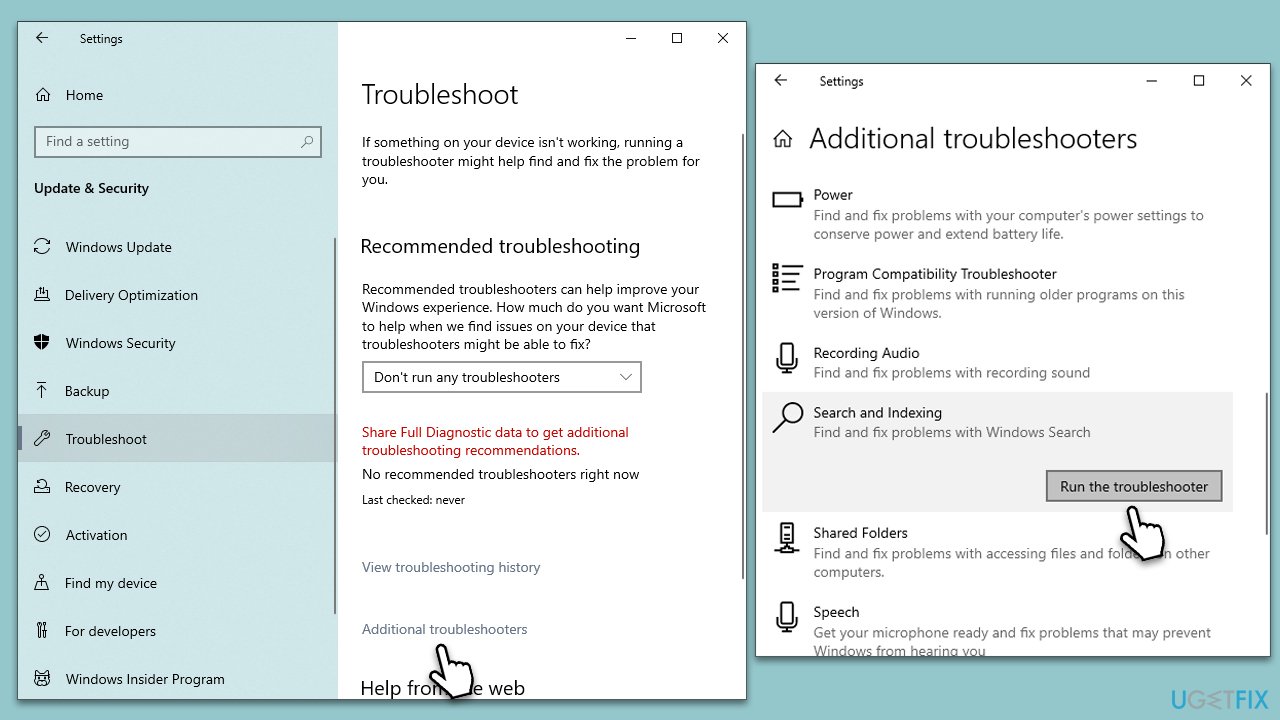
Fix 1. Use Search and Indexing troubleshooter
The Search and Indexing troubleshooter is a built-in tool that diagnoses and fixes problems related to search and indexing. By running this troubleshooter, Windows will automatically identify and correct any issues causing the search bar to be unresponsive.
- Right-click on Start and select Settings.
- Go to the Update and Security section.
- Select Troubleshoot, and then pick Additional troubleshooters/Other troubleshooters.
- Pick Search and Indexing from the list and click Run the troubleshooter/Run.
- Follow the on-screen instructions to diagnose and repair the issue.
Fix 2. Run SFC and DISM
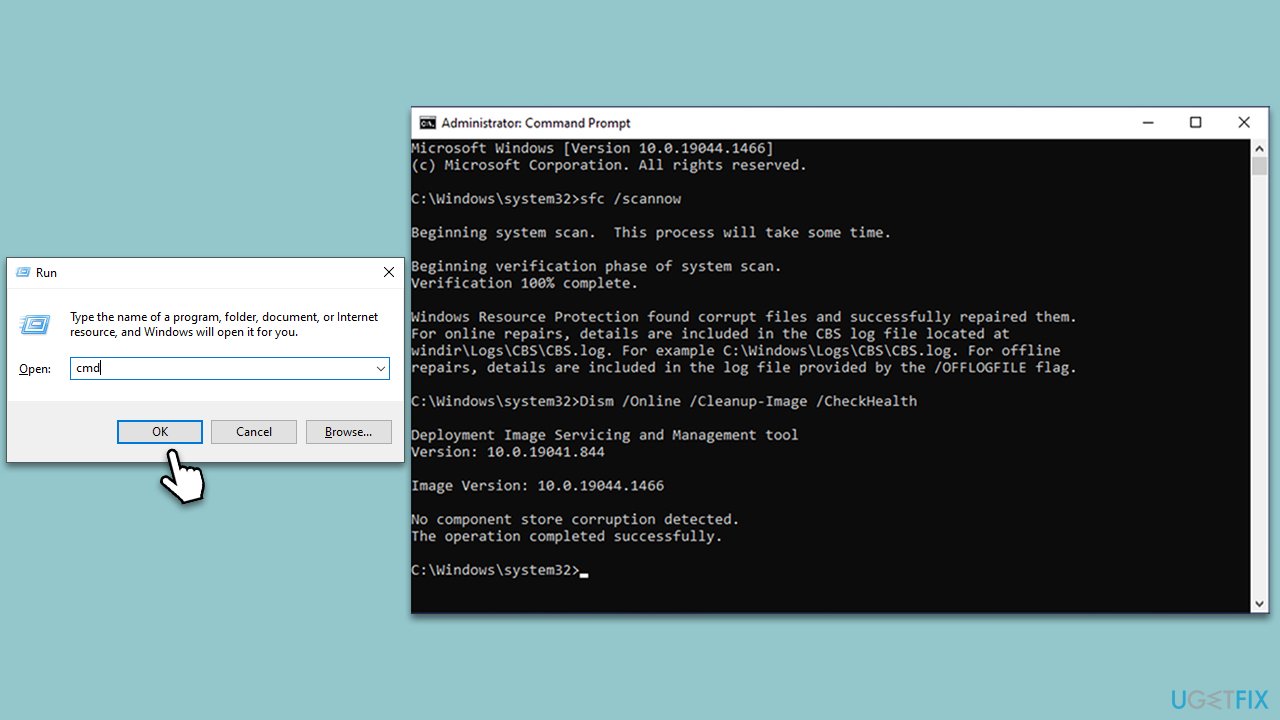
System File Checker (SFC) and Deployment Image Service and Management Tool (DISM) can scan and repair corrupted or missing system files. If such corruption is causing the search bar to appear empty, running these tools can help.
- Press Win + R, type
cmd, then press Ctrl + Shift + Enter to open Command Prompt as an administrator. - Type this command and press Enter:
sfc /scannow - Wait for the scan to finish.
- Then, use the following commands, pressing Enter after each:
Dism /Online /Cleanup-Image /CheckHealth
Dism /Online /Cleanup-Image /ScanHealth
Dism /Online /Cleanup-Image /RestoreHealth - Reboot your system.
Fix 3. Install all Windows updates
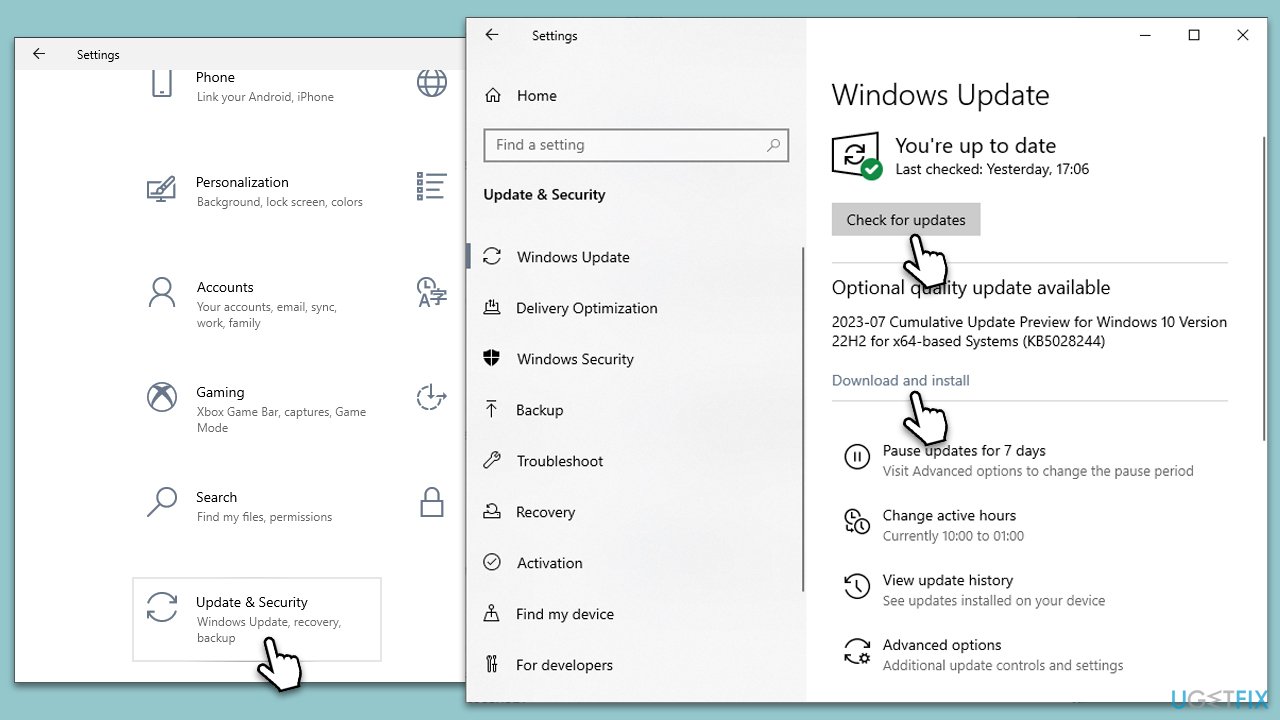
Windows updates may contain fixes for known issues, including those related to the search bar. Keeping your system up to date ensures that it runs smoothly.
- Open Settings by clicking on the Start button and selecting the gear icon.
- Click on Update & Security.
- Click Check for updates.
- Wait till all the files and download and installed.
- If optional updates are available, install them as well.
- Restart your system to implement these changes.
Fix 4. Run ctfmon.exe command
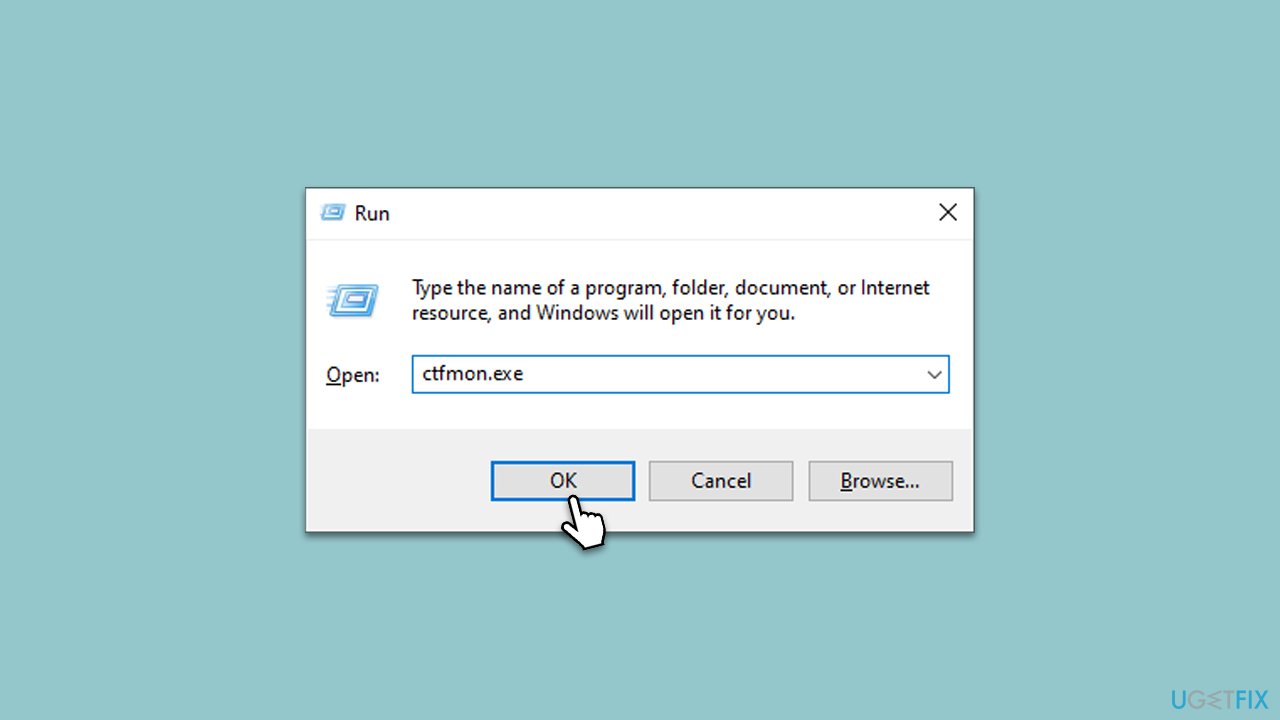
The ctfmon.exe command is essential for managing text input services. Running this command can restore the functionality of the Windows search bar.
- Press Win + R.
- Type
ctfmon.exeand press Enter or click OK. - Wait a few moments to allow the process to complete.
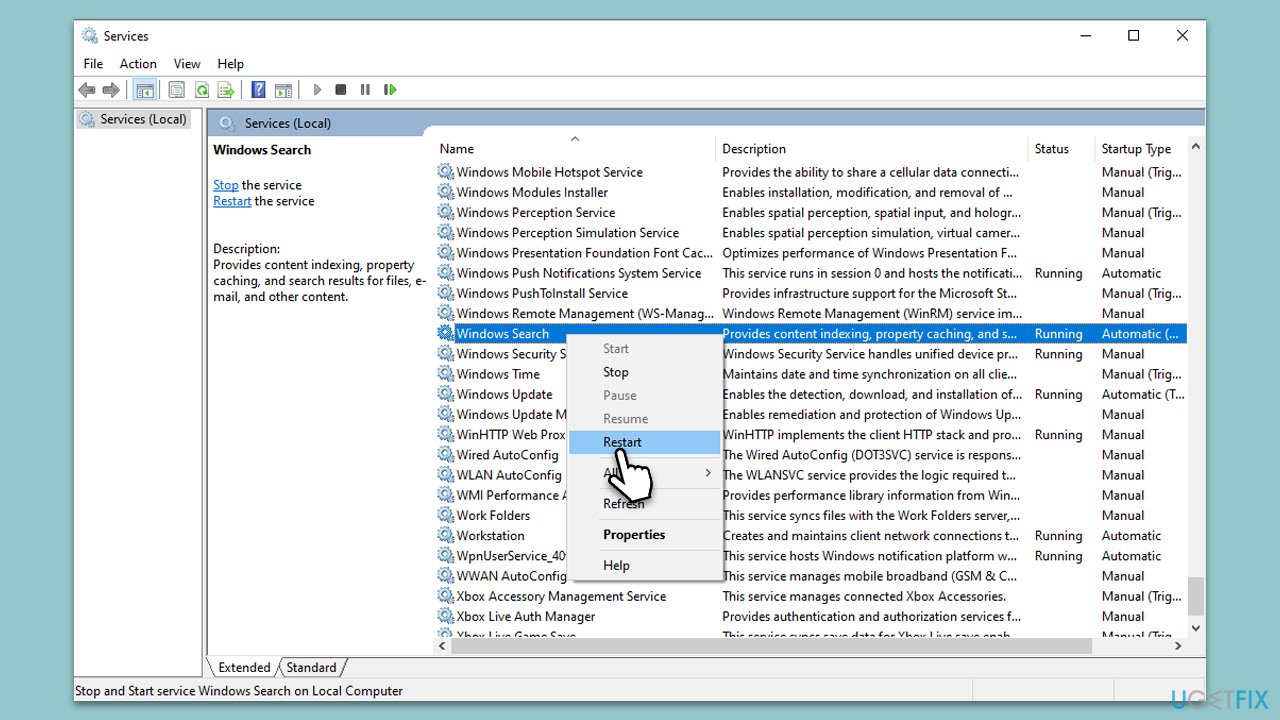
Fix 5. Restart the Windows Search service
Search Restarting the Windows Search service can clear any temporary glitches, reinitializing the service and resolving the empty search bar issue.
- Press Win + R.
- Type
services.mscand press Enter to open the Services application. - Scroll down and find Windows Search.
- Right-click on Windows Search and select Restart.
Fix 6. Re-register all Windows apps
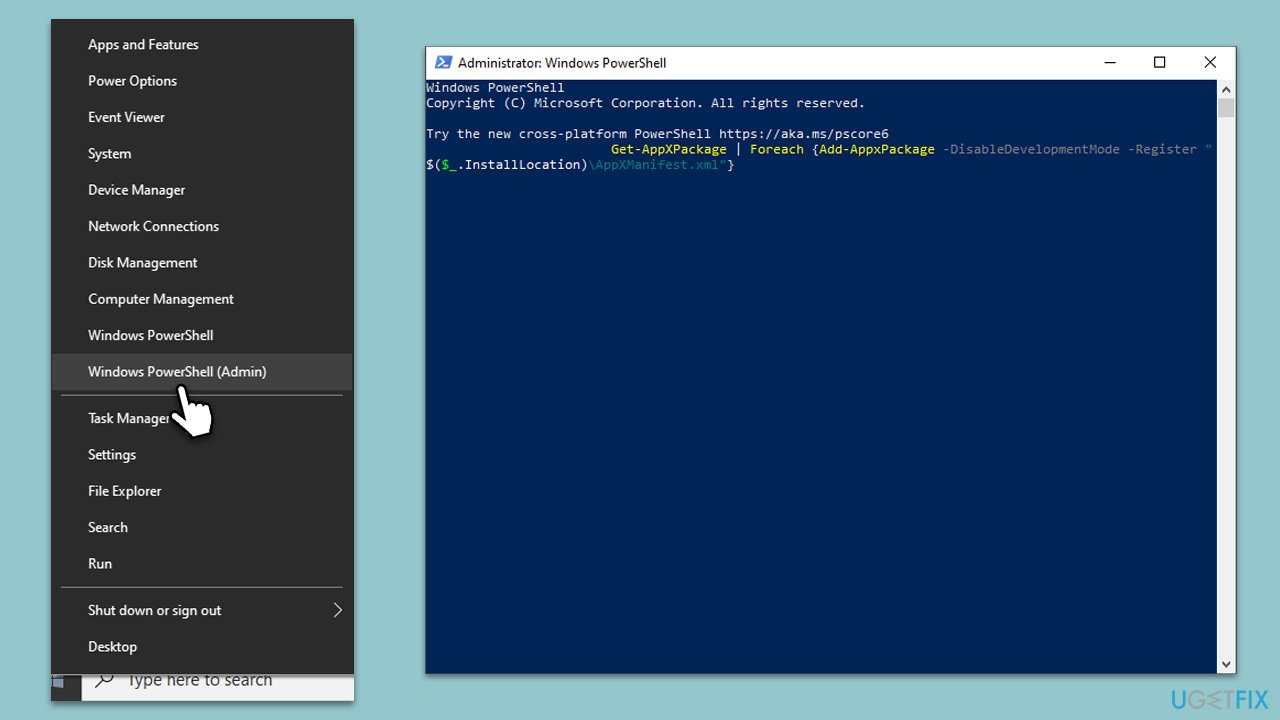
Re-registering Windows apps can reset the built-in applications to their default settings, potentially fixing issues with the search bar.
- Right-click on the Start button and select Windows PowerShell (Admin) or Command Prompt (Admin).
- When UAC shows up, click Yes.
- Copy and paste the following command, pressing Enter after each:
Get-AppXPackage | Foreach {Add-AppxPackage -DisableDevelopmentMode -Register "$($_.InstallLocation)\AppXManifest.xml"} - Close down PowerShell and restart your system.
Bottom line
To fix the empty search bar in Windows, you can run a system file check, install all Windows updates, or use the Windows troubleshooter. Additionally, ensure that the Windows search service is enabled and properly configured. If these solutions do not work, consider utilizing a specialized PC repair tool.
Frequently asked questions
Try restarting the Windows Search service by typing 'services.msc' in the Run dialog, locating 'Windows Search', and clicking 'Restart'. If that doesn't work, consider rebuilding the search index in the Indexing Options settings.
Ensure that your Windows 11 is updated to the latest version, as updates often fix bugs. Additionally, check if the Search app is enabled in the Settings under 'Apps & features'.
You can run the Search and Indexing troubleshooter by going to Settings > Update & Security > Troubleshoot > Additional troubleshooters. This tool can automatically detect and fix issues related to the search functionality.




Report an issue
What's wrong with this guide? We review every report and update or remove content.
Report received — thank you. We'll review and fix it.
You need a free account to submit a report.
Be the first to comment