How to fix
Empty Start menu
on Windows
Resolve the empty Start menu issue in Windows 10 or Windows 11 with our expert-tested solutions. Get your menu back, fixed in minutes!

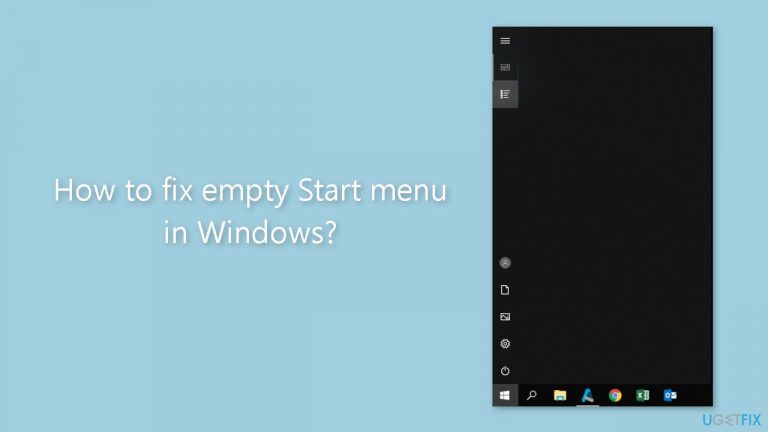
What causes How to fix empty Start menu in Windows?
- Corrupt system files
- Outdated drivers
- Faulty Windows update
- Issues with StartMenuExperienceHost.exe
- Corrupted registry
Repairs Windows system files, removes malware, and restores a clean OS state — without reinstalling.
Hello. I powered on my Windows PC and noticed that the Start menu is empty. What should I do?
The Windows operating system's Start menu is a key feature that provides quick access to applications, settings, and other system functions. It is typically found in the bottom-left corner of the desktop and is accessed by clicking on the Windows icon or pressing the Windows key on the keyboard.
An empty Start menu is a common problem that Windows users may encounter. As a result, the Start menu may be devoid of icons or shortcuts, making it difficult to access applications and other system functions. This problem can occur for a number of reasons, including corrupt system files, outdated drivers,[ref en-1] or a faulty Windows update.
An empty Start menu can be extremely frustrating for users, especially those who rely heavily on the Start menu to access applications and files. It can cause frustration and decreased productivity because users must spend more time searching for the applications they require.
Updating drivers, performing a system restore, or running Windows troubleshooting tools are all possible solutions for an empty Start menu. However, the best solution will be determined by the underlying cause of the problem. As a result, users may need to try several different solutions before finding one that works.
In this guide, you will find 6 steps that should help you fix empty Start menu in Windows. You can also try using a maintenance tool like [d1] that can fix most system errors, BSODs,[ref en-2] corrupted files, and registry[ref en-3] issues automatically. Otherwise, follow the step-by-step instructions below.
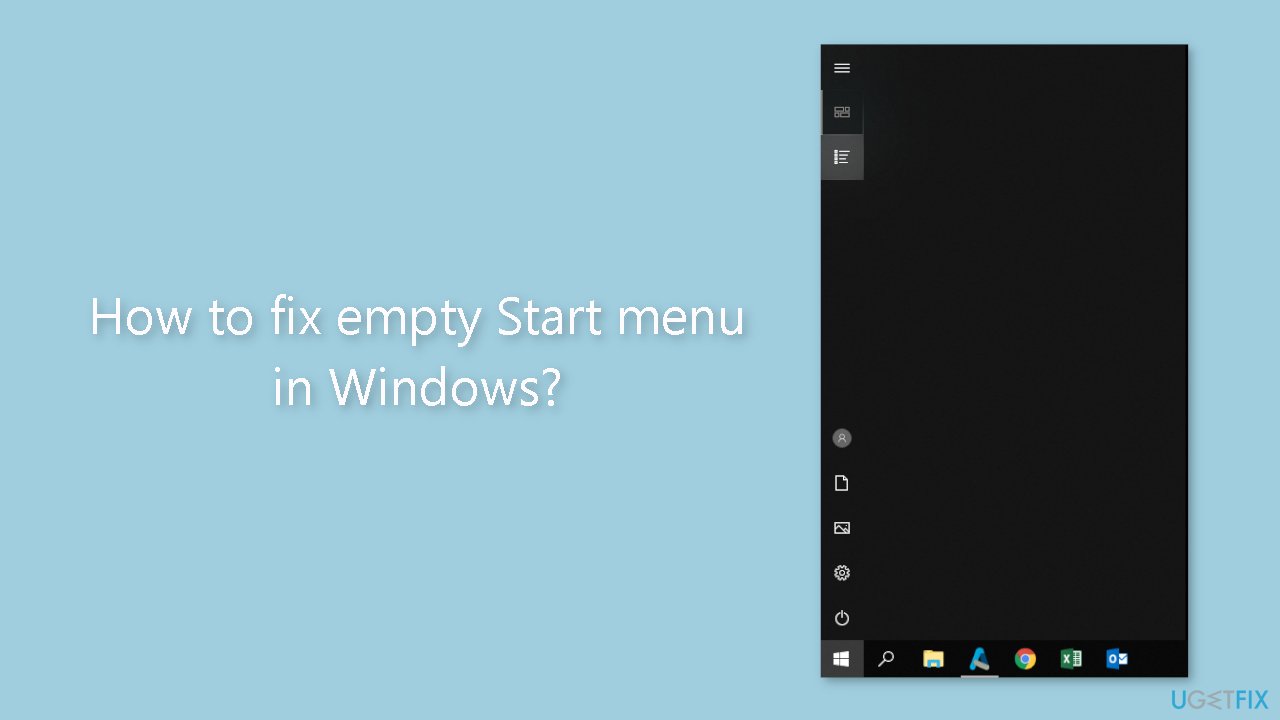
Method 1. Fix Corrupted System Files
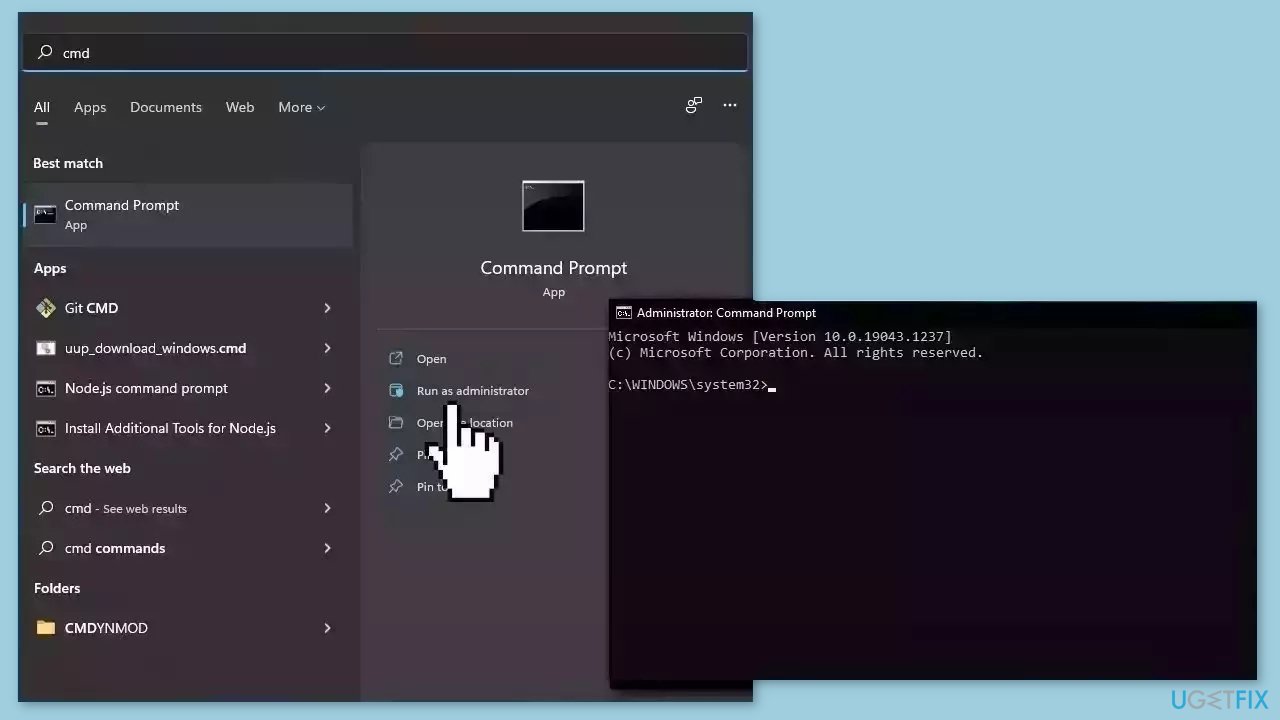
Use Command Prompt commands to repair system file corruption:
- Open Command Prompt as administrator
- Use the following command and press Enter:
sfc /scannow
- Reboot your system
- If SFC returned an error, then use the following command lines, pressing Enter after each:
DISM /Online /Cleanup-Image /CheckHealth
DISM /Online /Cleanup-Image /ScanHealth
DISM /Online /Cleanup-Image /RestoreHealth
Method 2. Restart StartMenuExperienceHost.exe
- Press Ctrl + Shift + Esc to open Task Manager.
- If the Details tab is not visible, click on More details first at the bottom of the Task Manager window.
- Switch to the Details tab.
- Locate the StartMenuExperienceHost.exe process.
- Right-click on the StartMenuExperienceHost.exe process.
- Select End task.
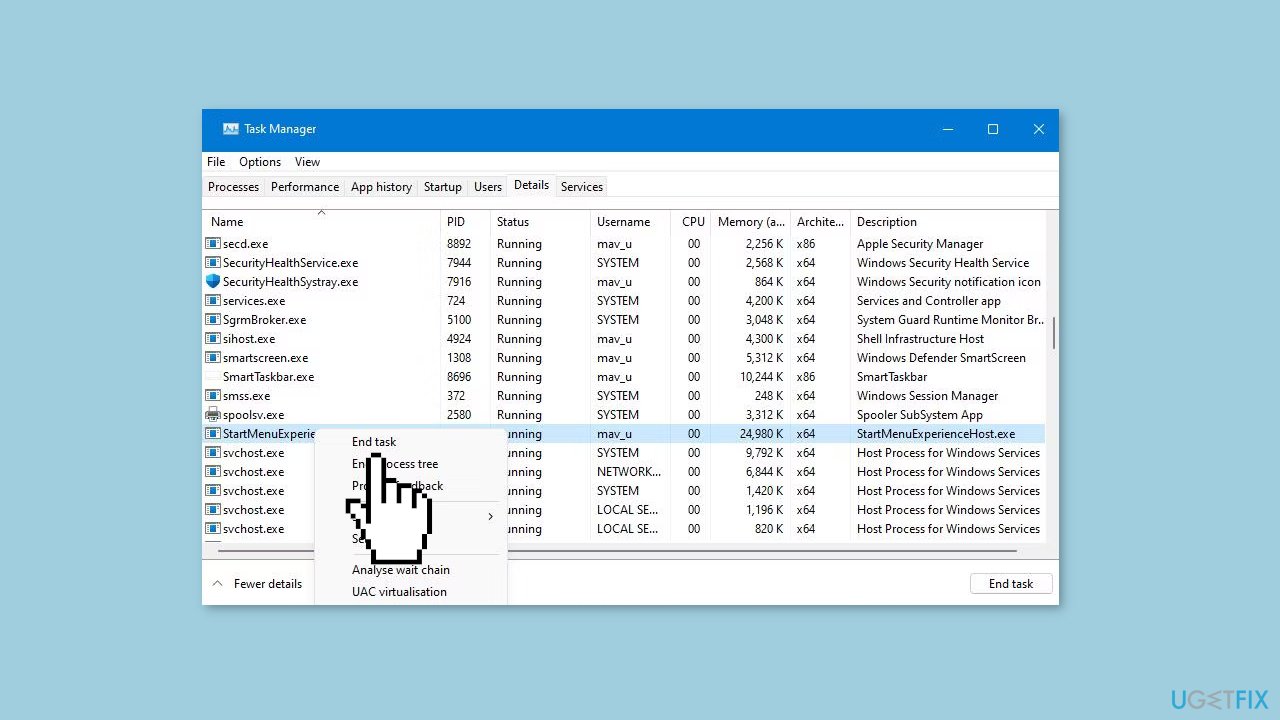
- Confirm the action by selecting the End process option.
- Right-click on the taskbar's Start icon.
- Select Task Manager.
- Click on Windows Explorer on the Processes tab.
- Press the Restart button to restart the process.
- Check if the issue is resolved.
Method 3. Update Graphics Driver
Outdated drivers could be the cause of this issue. In this case, you can fix it automatically by using [rev id="DriverFix"], which will scan your PC for missing and out-of-date device drivers. Or you can update them manually:
- Open Settings.
- Click on Update & Security.
- Click on Windows Update.
- Click the Check for updates button.
- Click the View optional updates option.
- Click the Driver updates tab.
- Select the driver you want to update.
- Click the Download and install button.
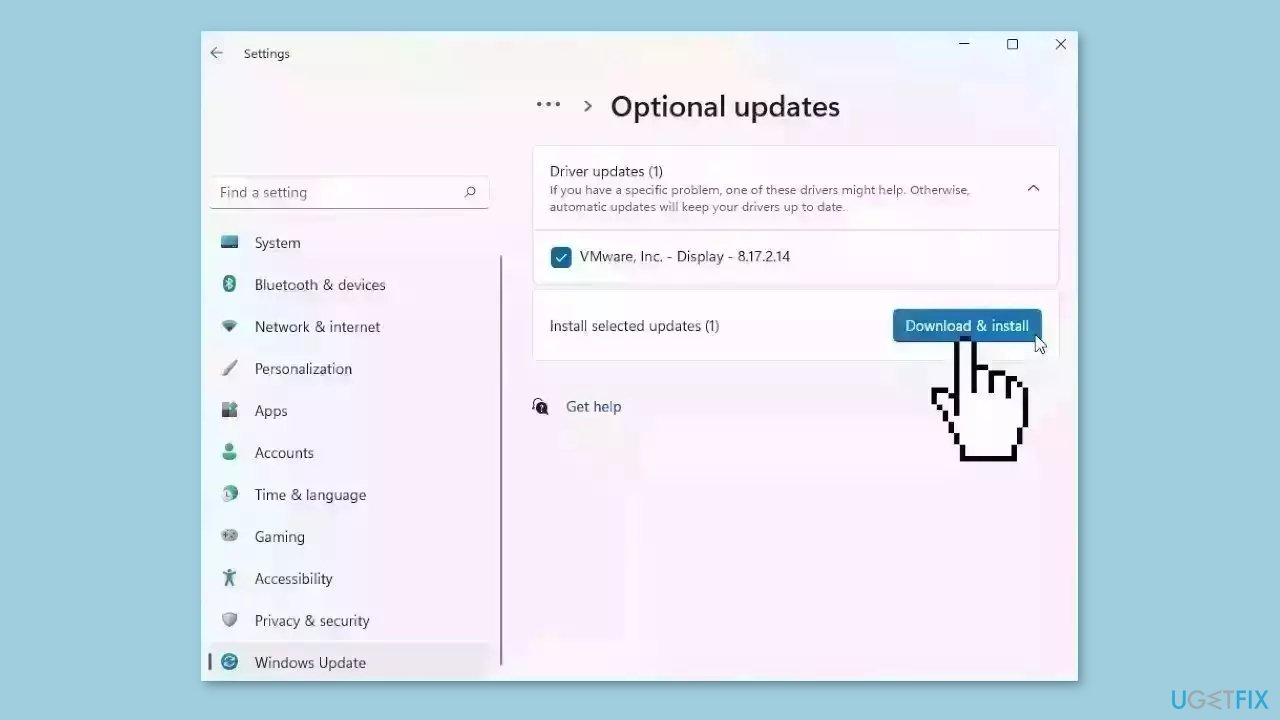
If the View optional updates link is not available after checking for updates, then Windows Update does not have any new drivers or any updates for other products at that particular time.
Method 4. Refresh the Icon Cache
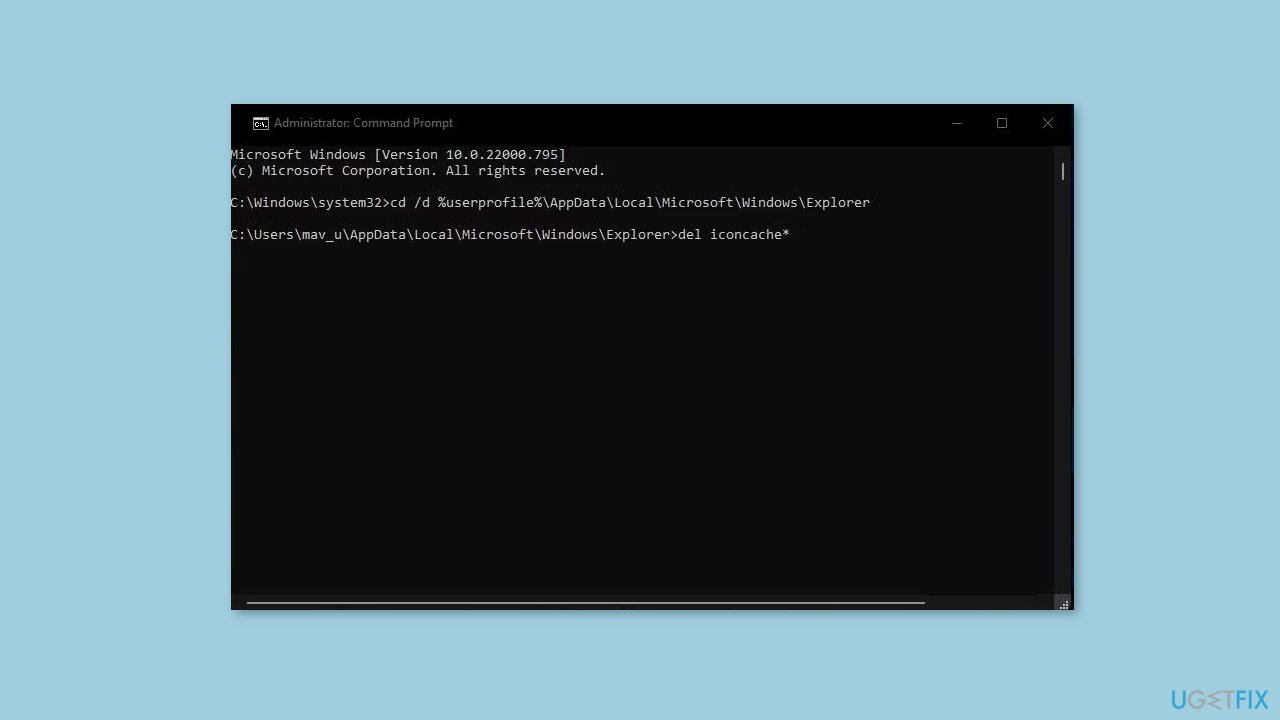
- Start Command Prompt with administrator rights.
- Change the directory by typing the following command and pressing Enter:
cd /d %userprofile%\AppData\Local\Microsoft\Windows\Explorer
- Terminate File Explorer by typing the following command and pressing Enter:
taskkill /f /im explorer.exe
- Erase iconcache DB files by typing the following command and pressing Enter:
del iconcache*
- Restart Explorer by typing the following command and pressing Enter:
explorer.exe
- Restart your Windows computer.
- Check if the issue is resolved.
Method 5. Reregister the Start Menu
- Click on the Start menu and type PowerShell.
- Right-click on the Windows PowerShell app in the search results.
- Select Run as administrator from the options.
- Copy the following command by pressing the Ctrl + C keys simultaneously:
Get-AppxPackage -AllUsers Microsoft.Windows.ShellExperienceHost | Foreach {Add-AppxPackage -DisableDevelopmentMode -Register "$($_.InstallLocation)\AppXManifest.xml"}
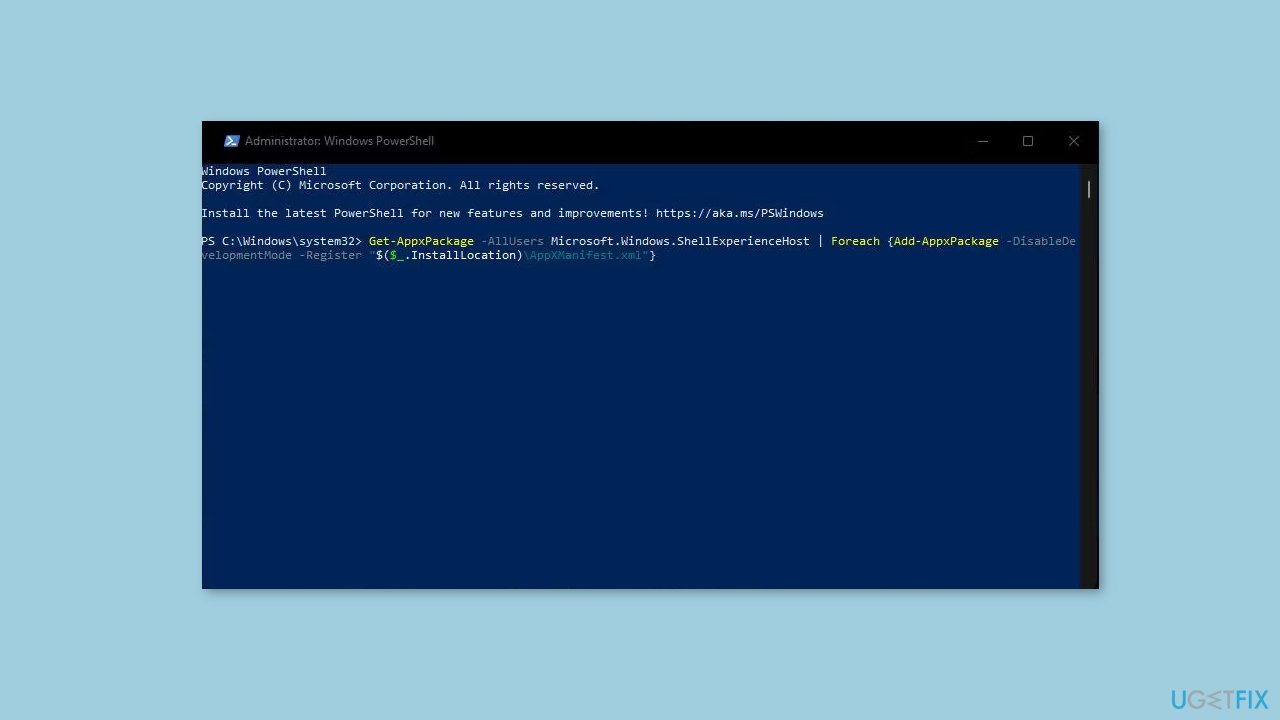
- Paste the command into the PowerShell window by pressing the Ctrl + V keys simultaneously.
- Press the Enter key to run the command and re-register the Start menu.
- Wait for the process to complete.
- Check if the issue is resolved.
Method 6. Use System Restore
System Restore is a feature in Microsoft Windows that allows users to revert their computer's state to a previous point in time. This can be helpful if you have made changes to your system that are causing problems.
- Press the Windows key + R on your keyboard to open the Run box.
- Type SystemPropertiesProtection and press Enter.
- Go to the System Protection tab.
- You will see the System Restore… button. Click it to run System Restore.
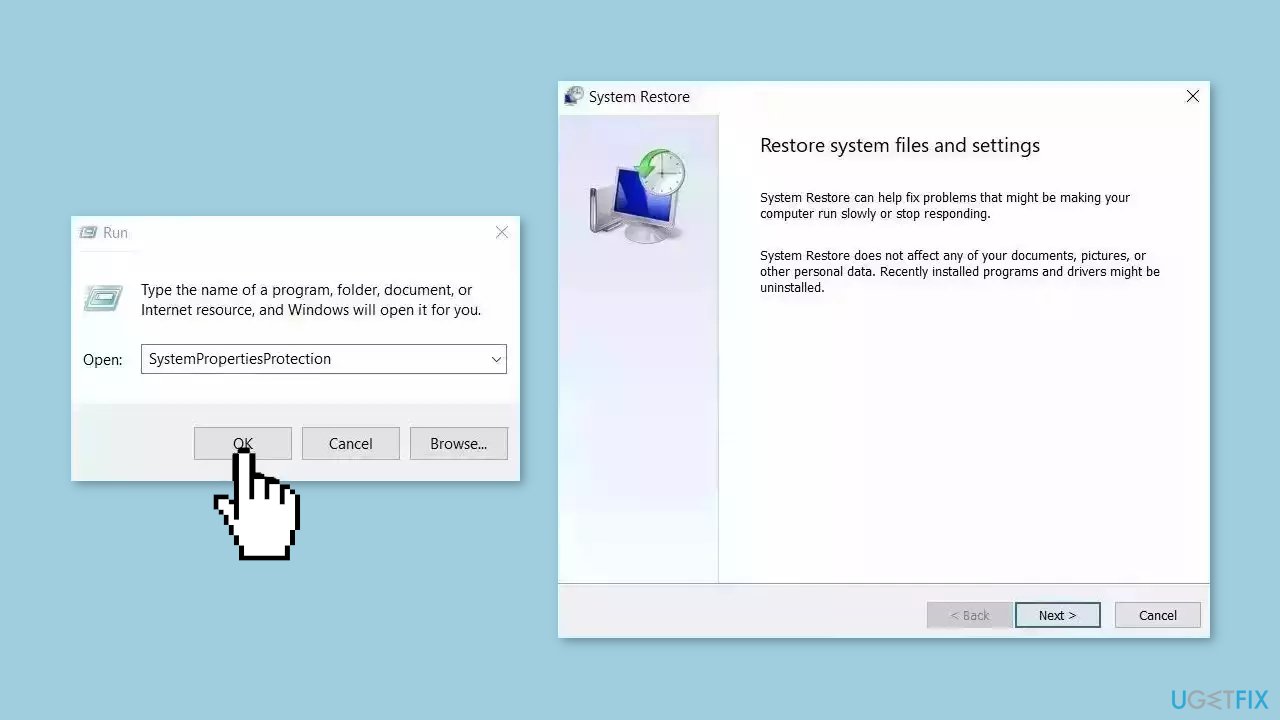
- Follow the prompts until you can select a restore point.
- Select the one you want (ideally before the issue started occurring) and go ahead with the process.
Bottom line
To fix an empty Start menu in Windows, you can repair corrupted system files using Command Prompt, restart the StartMenuExperienceHost.exe process, or update drivers. If these solutions do not resolve the issue, consider performing a system restore or using a maintenance tool to address system errors.
Frequently asked questions
You can try restarting the Windows Explorer process via Task Manager or running the System File Checker tool to repair any corrupted files.
Resetting the Start menu layout using PowerShell or performing a system update can help restore the missing apps.
Ensure that your Windows 10 is up to date and check the privacy settings to make sure that the apps are allowed to appear in the Start menu.




Report an issue
What's wrong with this guide? We review every report and update or remove content.
Report received — thank you. We'll review and fix it.
You need a free account to submit a report.
Be the first to comment