How to fix
Empty window
on Windows
Resolve the empty window issue in Windows Security effortlessly. Get back to protecting your PC today with expert-tested solutions. Fixed in minutes!


What causes How to fix empty window in Windows Security?
- Corrupted system files
- Outdated Windows version
- Conflicts with third-party antivirus software
- Issues with the Security Center service
- Corrupted Windows Security app
Repairs Windows system files, removes malware, and restores a clean OS state — without reinstalling.
Hello. I tried to access Windows Security but when it opens, the window is empty. What should I do?
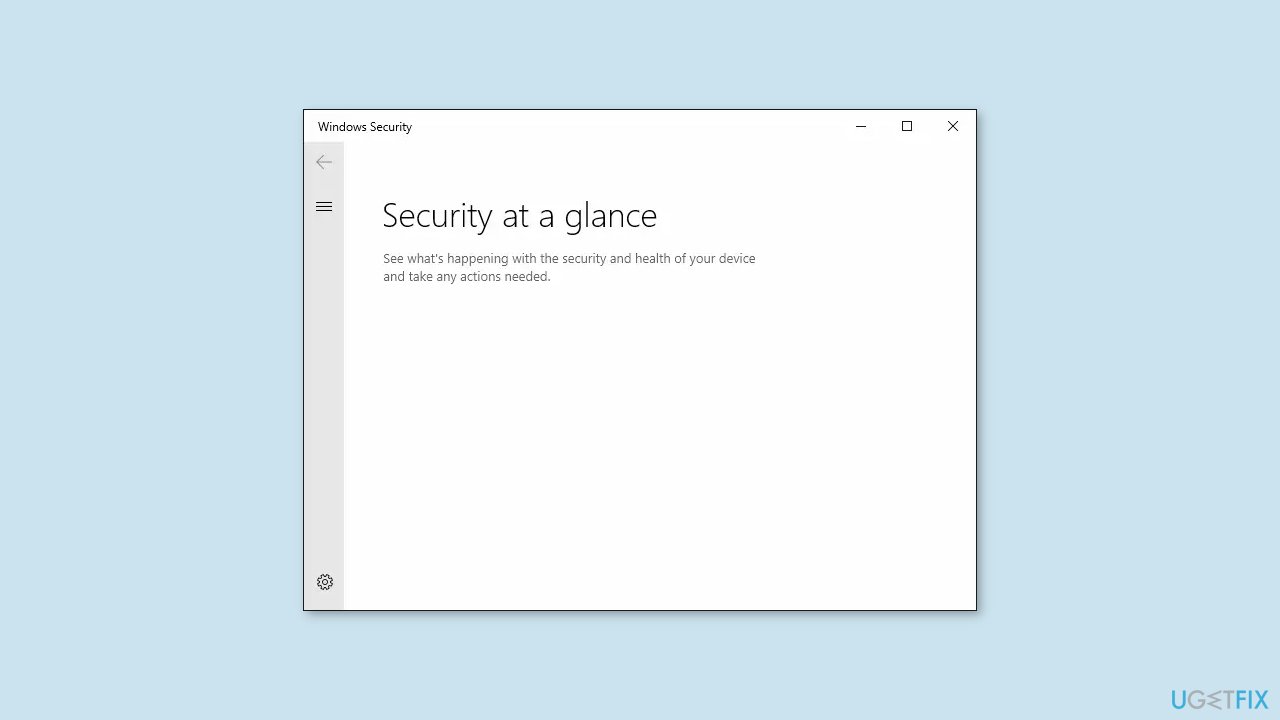
The issue of the Windows Security window being empty can occur when users go to the "Security at a glance" page and find that it shows up empty. This problem may prevent users from accessing critical security settings and features such as Windows Defender Firewall, Device security, App and browser control, and others.
Users may be unable to check their security status or manage security settings, exposing their devices to malware and other security threats. The empty window in Windows Security may also display error messages such as:
Page not available
Your IT administrator has limited access to some areas of this app, and the item you tried to access is not available. Contact IT helpdesk for more information.
or:
Threat protection has stopped. Restart it now.
Depending on the cause of the problem, there may be several possible solutions. To resolve the issue, some users may need to restart their devices or update Windows. Others may need to restart the Security Center service or reset the Windows Security app. Third-party antivirus software or other security programs may conflict with Windows Security in some cases, requiring users to uninstall or disable these programs to resolve the issue.
In this guide, you will find 7 steps that should help you fix the empty window in Windows Security. However, you can also consider using a system repair tool like [d1]. It can fix most system errors, BSODs,[ref en-1] corrupted files, registry[ref en-2] issues, or clear cookies and cache[ref en-3] automatically. Otherwise, follow the step-by-step instructions below.
Method 1. Fix Corrupted System Files
Use Command Prompt commands to repair system file corruption:
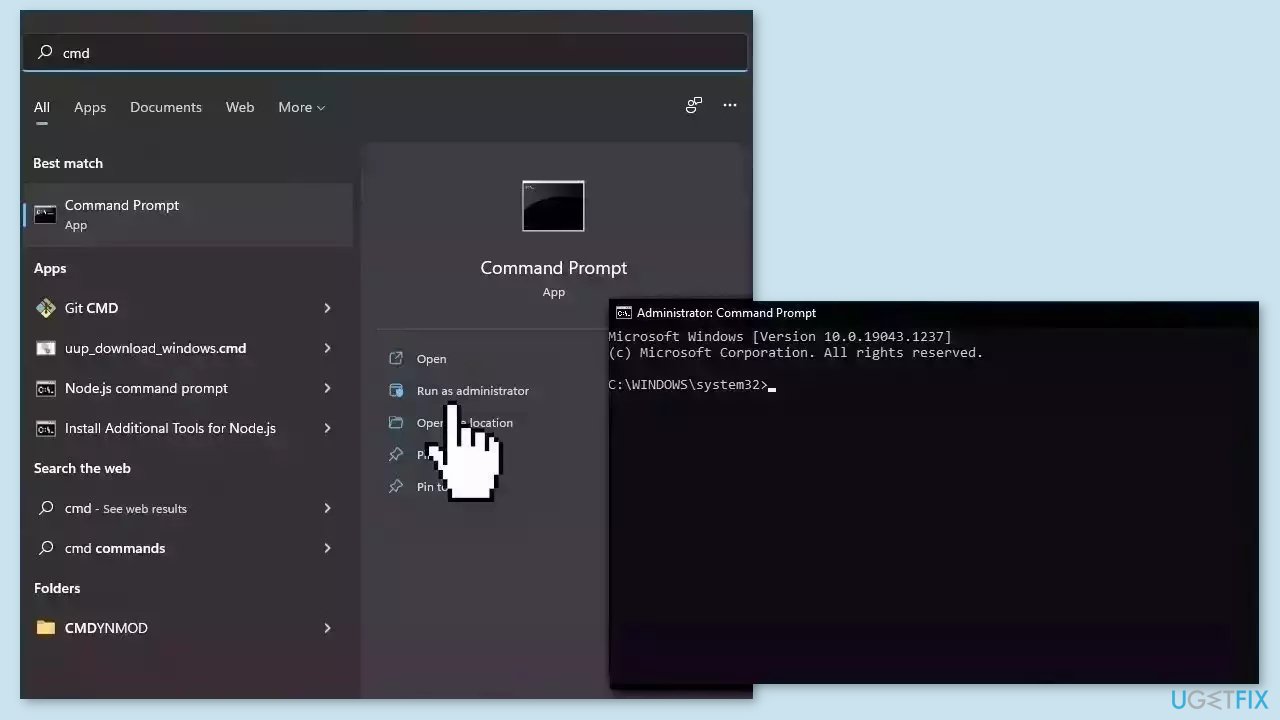
- Open Command Prompt as administrator
- Use the following command and press Enter:
sfc /scannow
- Reboot your system
- If SFC returned an error, then use the following command lines, pressing Enter after each:
DISM /Online /Cleanup-Image /CheckHealth
DISM /Online /Cleanup-Image /ScanHealth
DISM /Online /Cleanup-Image /RestoreHealth
Method 2. Install Windows Updates
- Press the Windows key + R to open the Run box
- Type ms-settings:windowsupdate in the text box and press Enter
- Click the Check for updates button
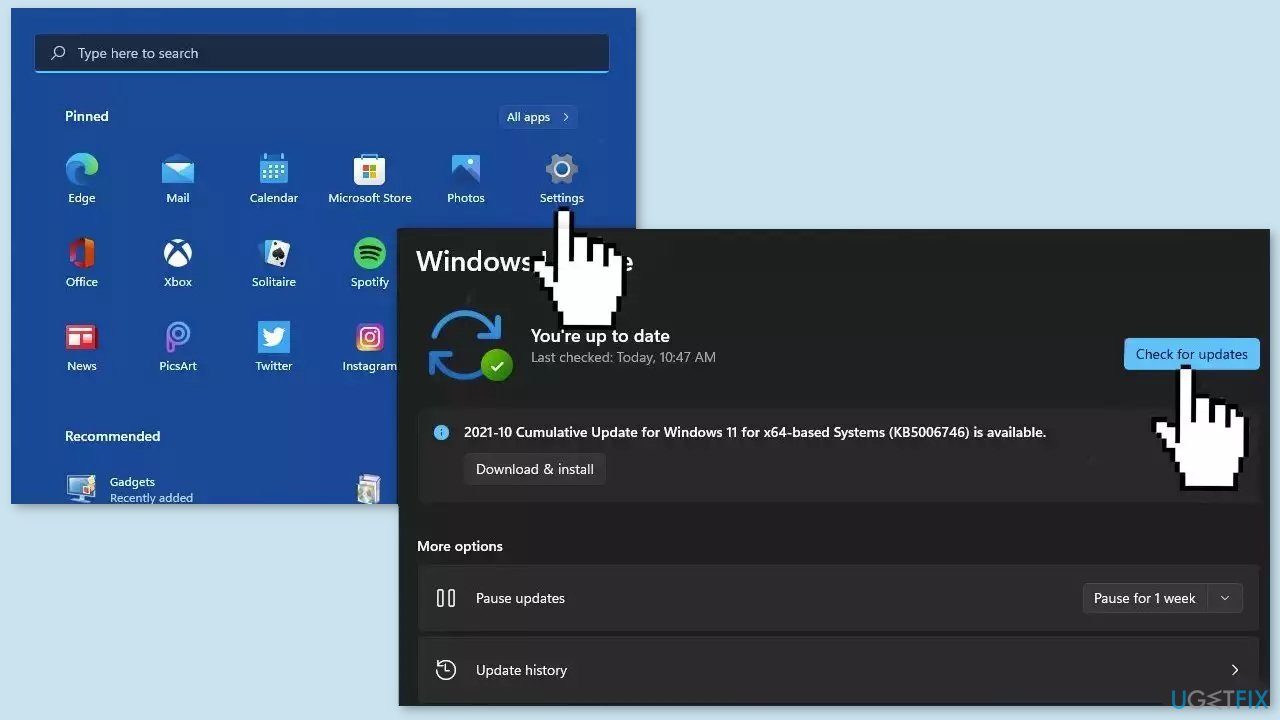
- If a new update is available, click the Download & Install all button.
- Restart your computer after the process is finished and check to see if the problem is fixed
Method 3. Restart Windows Security Center Service
- Press the Windows key + R on your keyboard to open the Run dialog box.
- Type services.msc in the text box and click OK or press Enter.
- In the Services window, scroll down and locate the Security Center service.
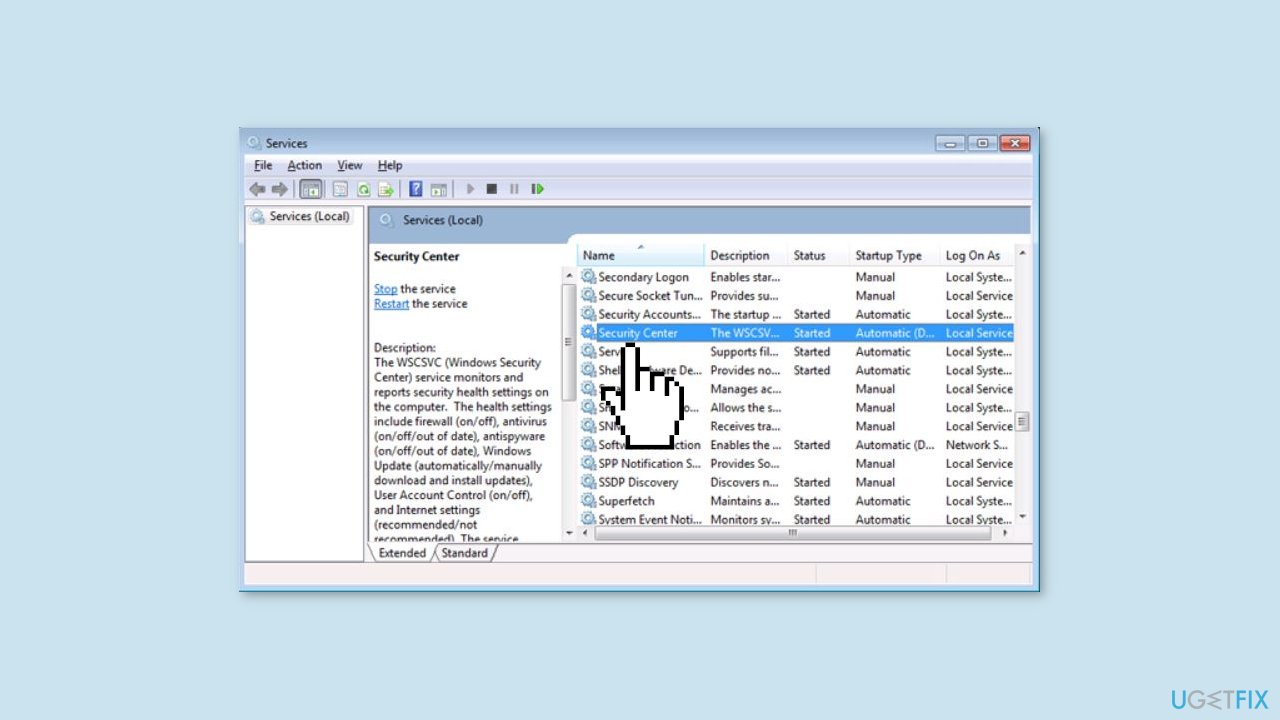
- Check the status of the service. If it is not running, right-click on it and select Restart.
- Wait for the service to restart.
- Close the Services window.
Method 4. Run a Malware Scan
It is possible that a malware infection may be the cause of an empty Windows Security window. It is important to run a comprehensive security scan to rule out this possibility and ensure that the computer is not infected. This can help to prevent further issues with the Windows operating system and ensure that it is functioning properly. Since you have no access to Windows Security, you should use a third-party security tool to scan your system.
Method 5. Run a PowerShell Command
- Click on the Start button on your Windows computer.
- Type Powershell in the search box.
- Right-click on the Windows PowerShell app and select Run as administrator.
- Copy the following command: Get-AppxPackage Microsoft.SecHealthUI -AllUsers | Reset-AppxPackage
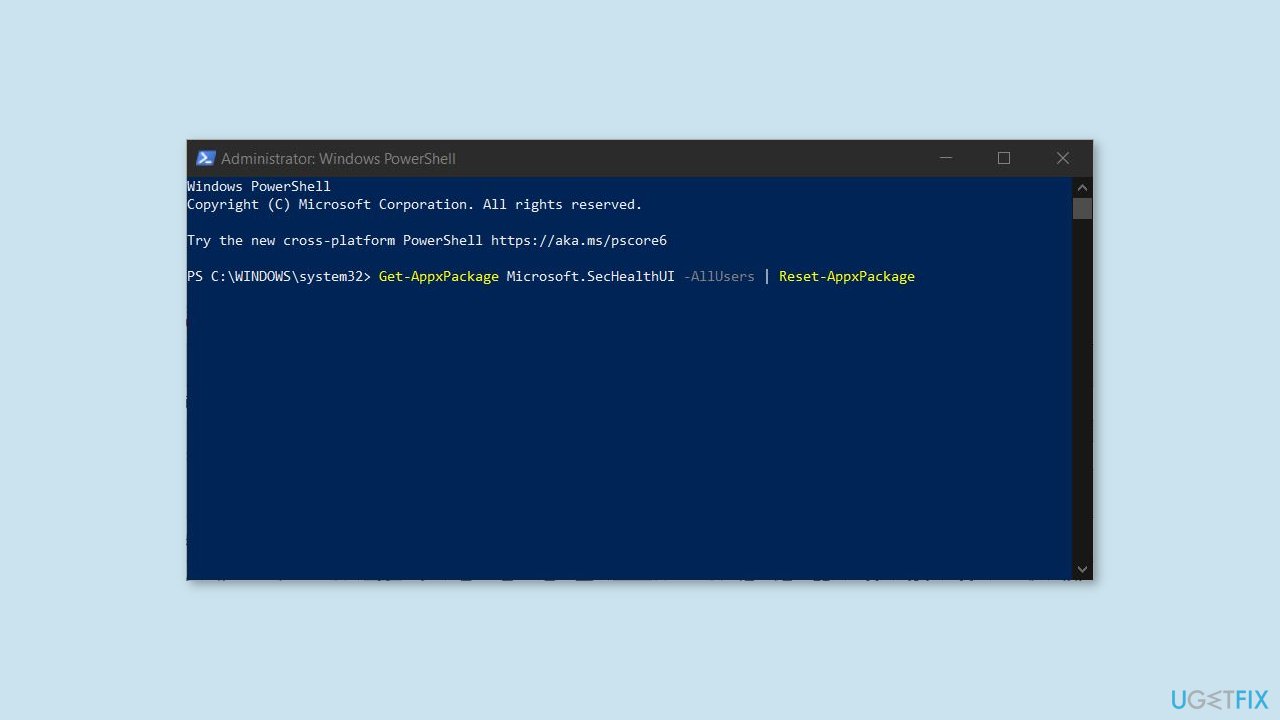
- Paste the command into the PowerShell window.
- Press Enter on your keyboard to run the command.
- Wait for the command to finish executing.
- Restart your computer.
- After your computer has restarted, try to open the Windows Security app to see if it has been reset successfully.
Method 6. Restore the Windows Defender Service
- Download windefend_service.zip and save it to your desktop.
- Extract the contents of the zip file to a location on your computer.
- Open the Registry Editor by pressing the Windows key + R and typing regedit.exe in the Run dialog box. Then, press Enter.
- Click Yes when prompted by the User Account Control (UAC) window.
- In the Registry Editor window, navigate to the TrustedInstaller account by clicking HKEY_USERS, then DEFAULT, and finally SOFTWARE\Microsoft\Windows\CurrentVersion\AppModel\TrustedInstaller.
- Right-click TrustedInstaller and select Permissions.
- Click Add and type Everyone in the text box, then click OK.
- Check the box next to Full Control for the Everyone group, then click OK to close the Permissions window.
- In the Registry Editor window, click File, select Import, and pick the windefend-service.reg file.
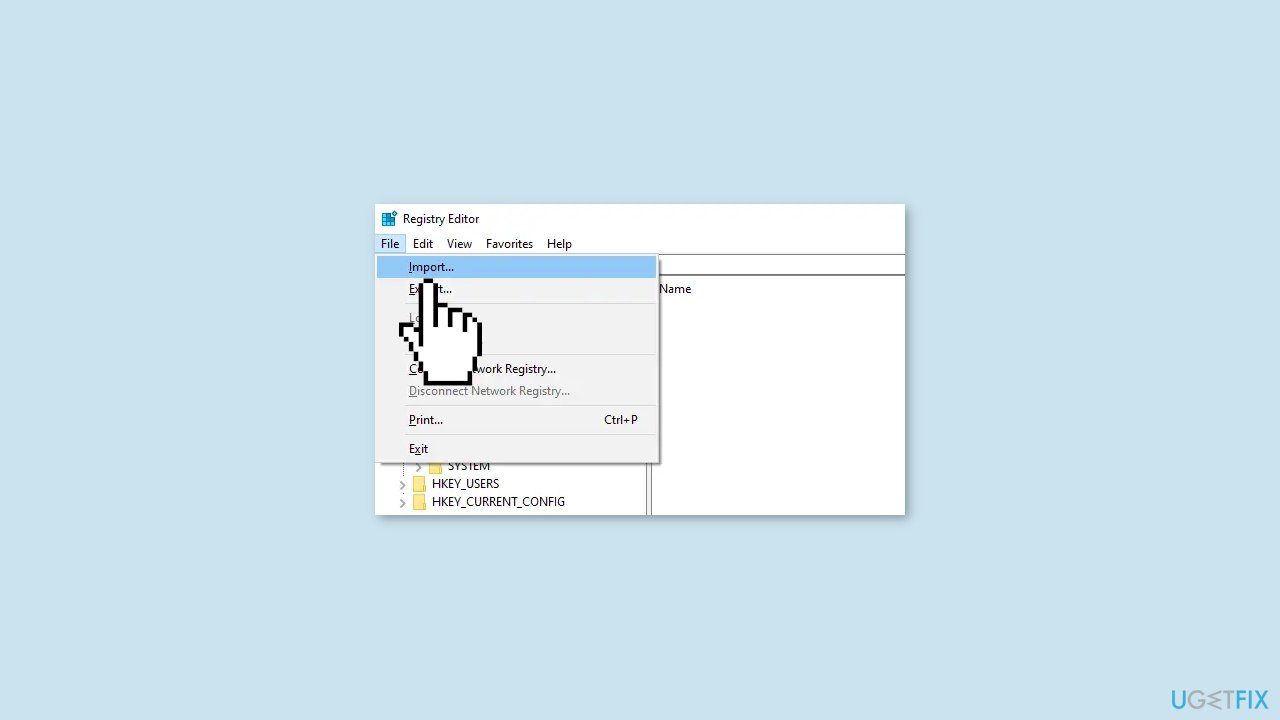
- Close the Registry Editor and restart your computer.
- After the computer has restarted, open the Windows Update page and install any available updates, including the Windows Defender Platform update.
Method 7. Reset Windows
If none of the previous solutions resolve the issue, consider resetting Windows. Keep in mind that this is a time-consuming process, as the Windows reset will remove all your apps and require reinstallation.
- Press the Windows key + I to open Windows Settings.
- Press on Update & security.
- Click on Recovery in the left pane.
- In the right pane, click on Reset PC next to Reset this PC.
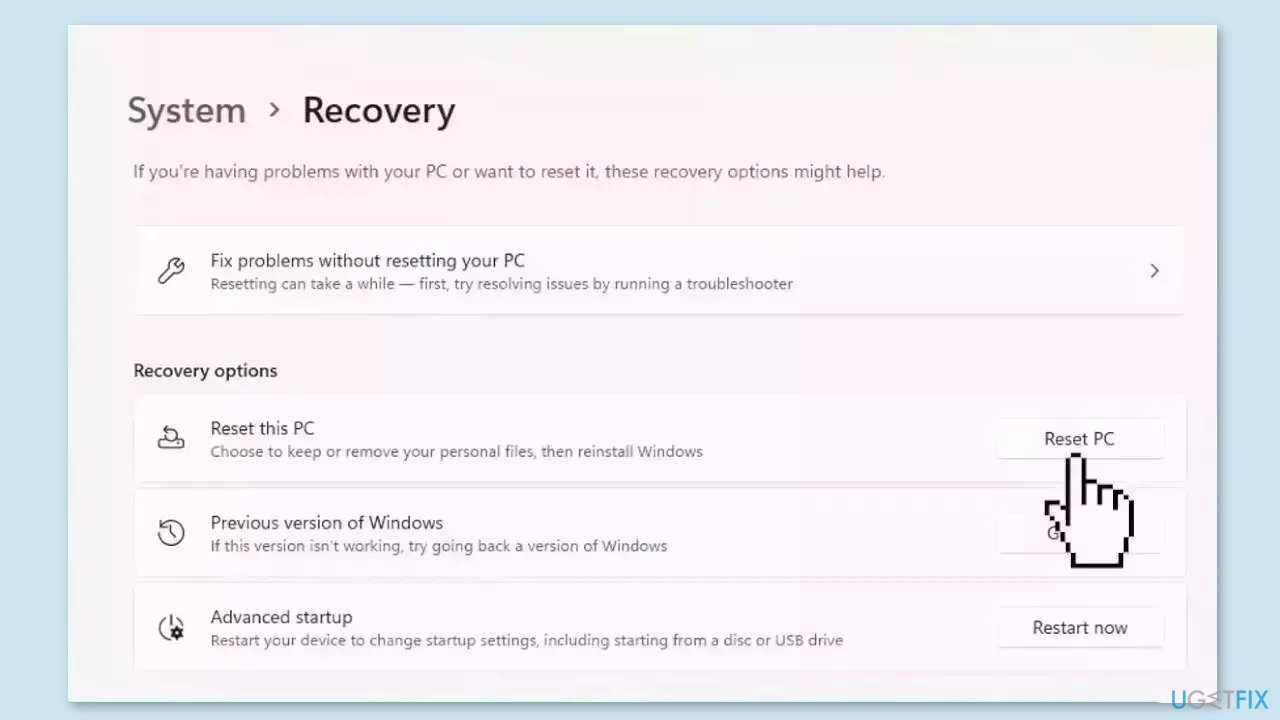
- Click on either Keep my files (if you want the computer to be reset without losing any of the user data stored on it) or Remove everything (if you want the computer to be reset and any and all user data stored on it to be deleted.
- If presented with a warning, simply click on Next.
- When prompted to do so, click on Reset.
Bottom line
To fix the empty window in Windows Security, you can repair corrupted system files using Command Prompt, install the latest Windows updates, or restart the Security Center service. If these solutions do not resolve the issue, consider uninstalling or disabling conflicting third-party security programs.
Frequently asked questions
You can try resetting the Windows Security app by going to Settings > Apps > Apps & features, selecting Windows Security, and clicking on 'Advanced options' to reset it.
In Windows 11, ensure that your system is updated by checking for updates in Settings > Windows Update, as updates can often resolve issues with built-in apps like Windows Security.
Yes, you can run the System File Checker tool by opening Command Prompt as an administrator and typing 'sfc /scannow' to repair any corrupted files that may be affecting Windows Security.




Report an issue
What's wrong with this guide? We review every report and update or remove content.
Report received — thank you. We'll review and fix it.
You need a free account to submit a report.
Be the first to comment