How to fix
EMPTY_THREAD_REAPER_LIST BSOD error
on Windows
Resolve the EMPTY_THREAD_REAPER_LIST BSOD error on Windows 10 and 11 with our expert-tested solutions. Get your system running smoothly again, fixed in …

What causes How to fix EMPTY_THREAD_REAPER_LIST BSOD error in Windows?
- Outdated drivers
- Corrupt drivers
- Malware or viruses
- Faulty hardware
- Issues with system files
Repairs Windows system files, removes malware, and restores a clean OS state — without reinstalling.
Hi, my PC has been crashing relatively frequently for a few days now. The error code is always EMPTY_THREAD_REAPER_LIST, and I am not sure where to even start with this.
Blue Screen of Death (BSOD) is a notorious yet integral part of the Windows operating system. It represents a critical system crash, occurring when the OS reaches a state where it can no longer operate safely. This blue screen, though unsettling for many users, plays a crucial role in the Windows ecosystem. It acts as a safeguard, halting the system to prevent further damage or data loss. Typically, when a BSOD occurs, it displays a stop code or error message, providing clues to the underlying issue. One such stop code is the EMPTY_THREAD_REAPER_LIST.
The EMPTY_THREAD_REAPER_LIST error, specific to Windows, indicates a problem deeply rooted in the system's functioning. This error often arises due to issues with system files, drivers, or hardware conflicts. It suggests that there's a serious problem with how the operating system is managing its processes or memory.
The error's name itself points towards a malfunction in the management of thread reaping – a process where the system cleans up threads that have finished their execution. Such a malfunction can lead to system instability, causing the dreaded blue screen.
To fix the EMPTY_THREAD_REAPER_LIST BSOD error, a careful approach must be taken. Since the causes can vary, you might consider checking for outdated or corrupt drivers, as these are common culprits. Additionally, scanning your system for any malware or viruses is advisable, as these can often interfere with system processes.
Ensuring your Windows is updated is also crucial, as updates often include fixes for known bugs and issues. Furthermore, checking the health of your hardware, especially memory (RAM) and hard drive, could provide insights, as faulty hardware is a potential cause of such errors.
While troubleshooting the EMPTY_THREAD_REAPER_LIST error requires patience and a methodical approach, it's essential to remember that tools are available to assist in resolving such issues. One such tool is the [d1] PC repair tool, designed to automatically fix underlying Windows problems, potentially simplifying the process of getting your system back to optimal functioning.
Fix 1. Install all Windows updates
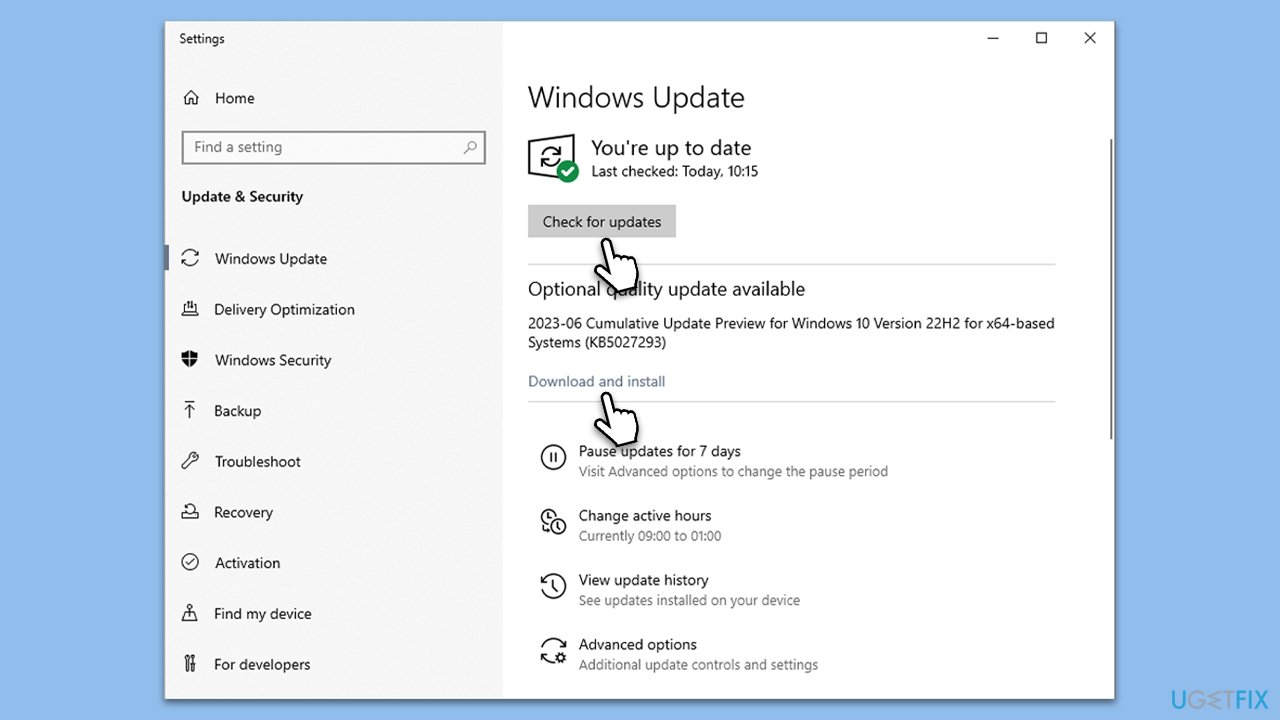
Windows updates often include patches for security vulnerabilities, enhancements, and fixes for known bugs that could be causing the BSOD. Installing these updates can resolve underlying issues contributing to the EMPTY_THREAD_REAPER_LIST error.
- Open the Start menu and go to Settings.
- Click on Update & Security.
- Select Windows Update.
- Click on Check for updates.
- If updates are available, click Install now (make sure you also install optional updates).
- After installation, restart your computer.
Fix 2. Update drivers
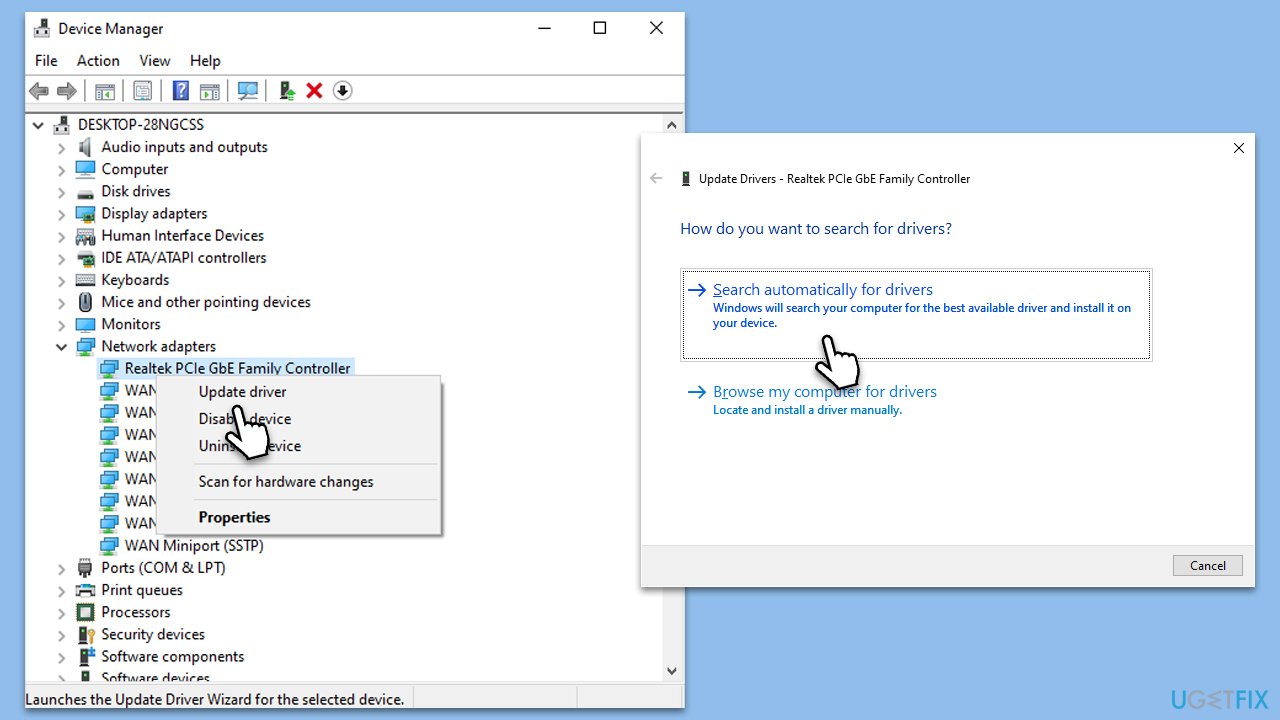
Outdated or corrupt drivers can cause compatibility issues leading to BSOD errors. Updating them ensures that all hardware components communicate effectively with the Windows operating system.
- Right-click on Start and select Device Manager.
- Expand each category and right-click on each device.
- Select Update driver.
- Choose Search automatically for drivers.
- Repeat for all devices.
- Restart your computer after updating.
This process might be tedious and Windows might not even be capable of finding the latest drivers for you. Thus, you should either get them from your device maker website or leave all your driver troubles to [rev id="DriverFix"].
Fix 3. Reinstall drivers
If updating drivers does not resolve the issue, reinstalling them might help. This process removes the current driver and installs a fresh version, which can fix conflicts.
- Open Device Manager.
- Right-click on the problematic driver and select Uninstall device.
- Confirm any prompts to uninstall.
- Restart your computer.
- Windows will attempt to reinstall the driver during the restart.
Fix 4. Check for corrupted files
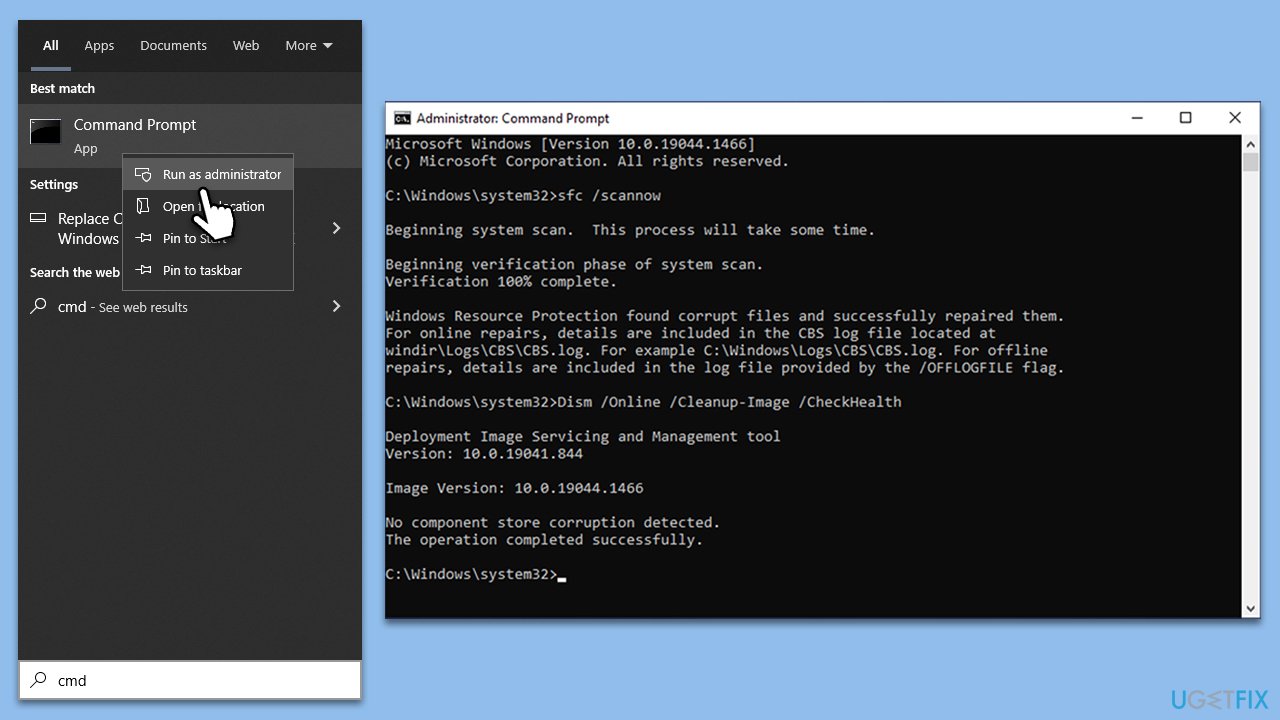
System File Checker (SFC) and Deployment Image Servicing and Management (DISM) are utilities in Windows that can repair corrupted system files, potentially resolving BSOD issues.
- Type in cmd in Windows search.
- Right-click on Command Prompt and select Run as administrator.
- In the User Account Control window, click Yes.
- In the Command Prompt window, paste the following command and hit Enter:
sfc /scannow - Next, use the following commands, pressing Enter each time:
Dism /Online /Cleanup-Image /CheckHealth
Dism /Online /Cleanup-Image /ScanHealth
Dism /Online /Cleanup-Image /RestoreHealth
(Note: if you get an error executing this last command, add /Source:C:\RepairSource\Windows /LimitAccess to it and try again). - Reboot your system.
Fix 5. Run Check Disk
Check Disk can find and fix errors on your hard drive, which might be causing the BSOD.
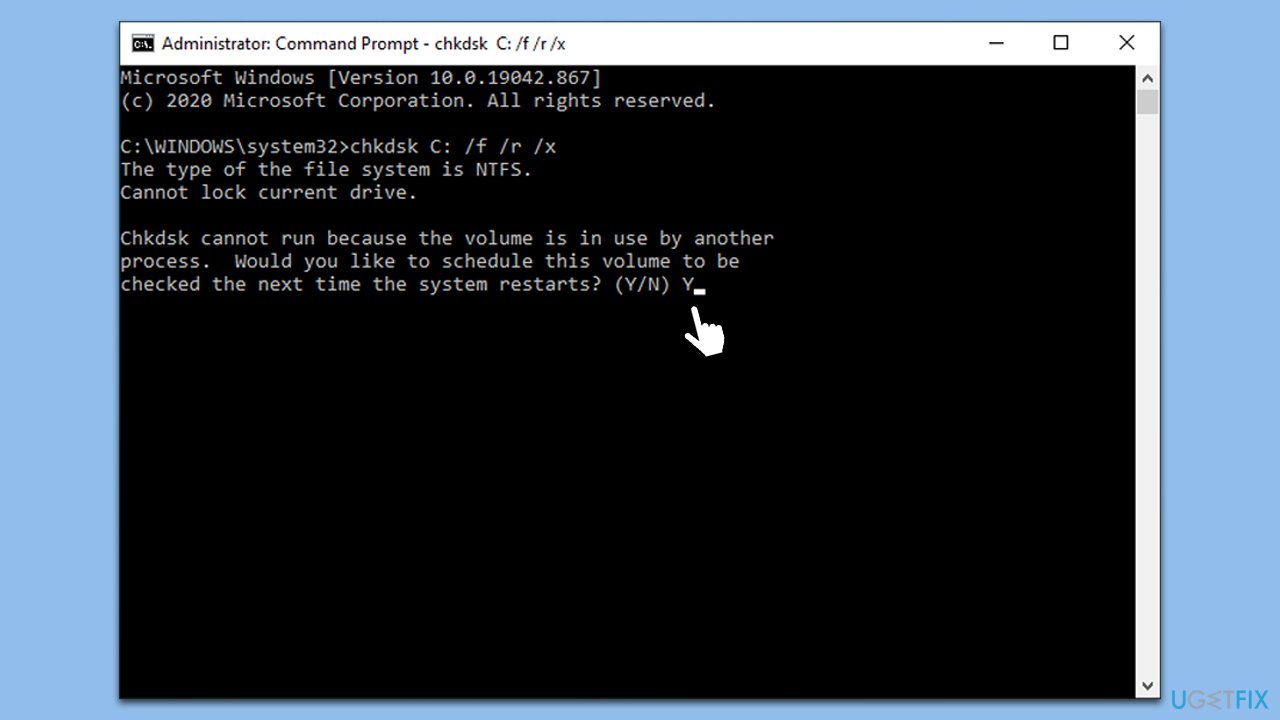
- Open Command Prompt as administrator.
- In the new window, type in the following command and press Enter after:
chkdsk c: /f
(Note: use chkdsk c: /f /r /x command if you are using SSD as your primary partition) - If you receive an error, type in Y, close down Command Prompt and restart your system.
- Wait until the scan is finished - you can find the results in the Event Viewer.
Fix 6. Check the health of your RAM with the built-in diagnostic tool
Faulty RAM can cause various system errors, including BSODs. Windows Memory Diagnostic is a tool that can check your RAM for errors.
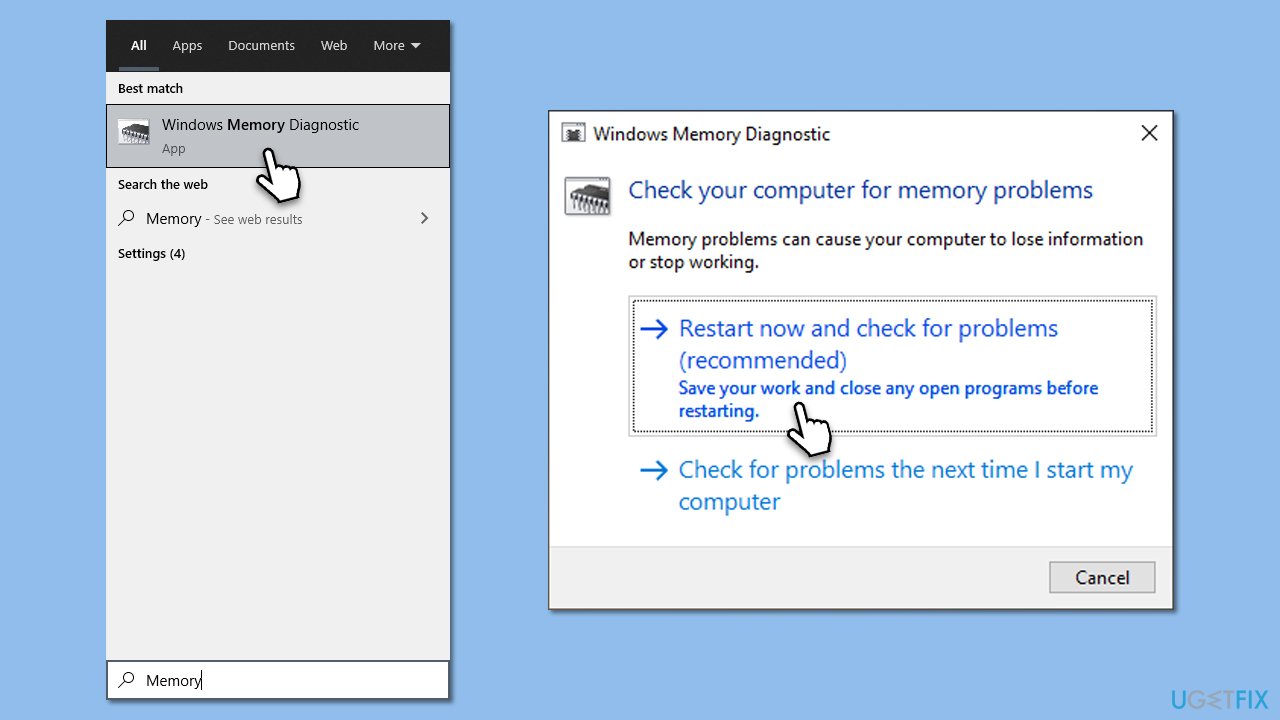
- Type Memory in Windows search and press Enter.
- Select Windows Memory Diagnostics result.
- Click Restart now and check for problems (recommended) (note that your PC will restart immediately).The
- A memory test will run during startup and display any detected errors - this might take a while.
- Replace or repair faulty RAM module(s) if errors are found.
Fix 7. Uninstall the faulty Windows update
Sometimes a recent Windows update can cause system instability. Uninstalling this update can help.
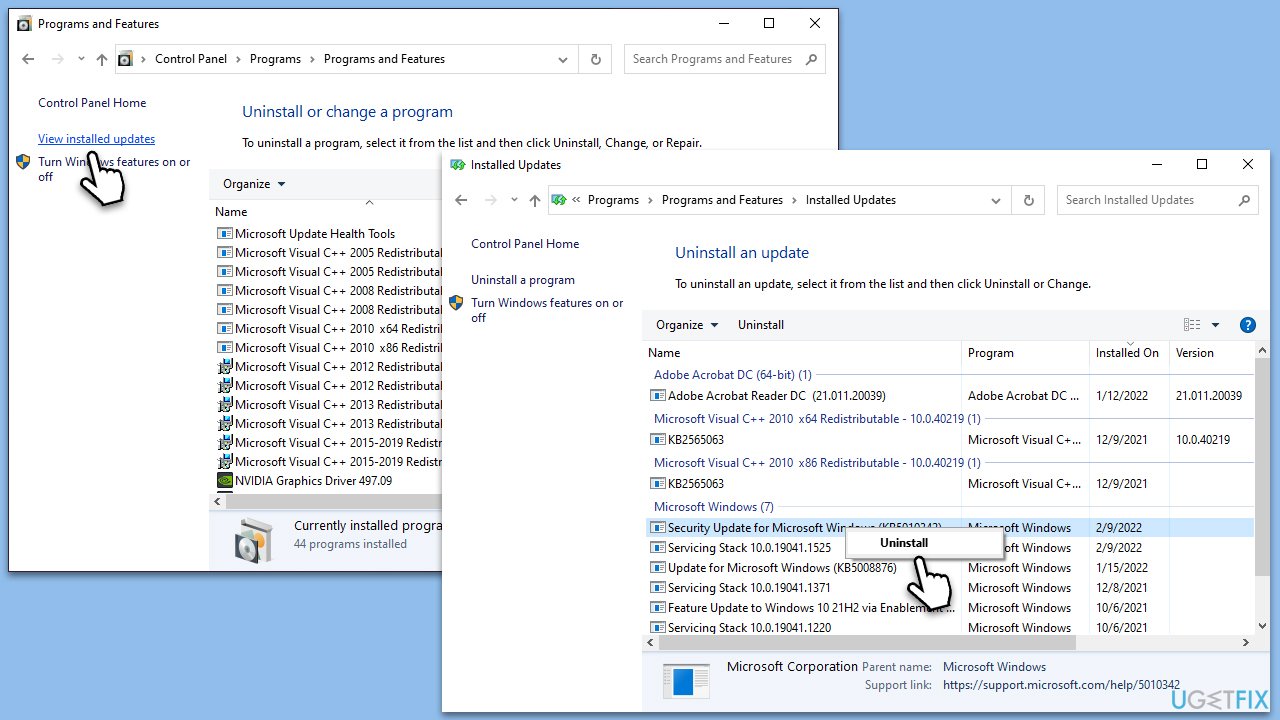
- Type Control Panel in Windows search and press Enter.
- Select Programs > Uninstall a program.
- Click on View installed updates on the left side of the window.
- Sort all the updates by date.
- Right-click on the most recent update and select Uninstall.
- Proceed with on-screen instructions.
- Then, type Updates in Windows search and press Enter.
- Click Pause the updates for 7 days (in Windows 11, you can pick a different time period).
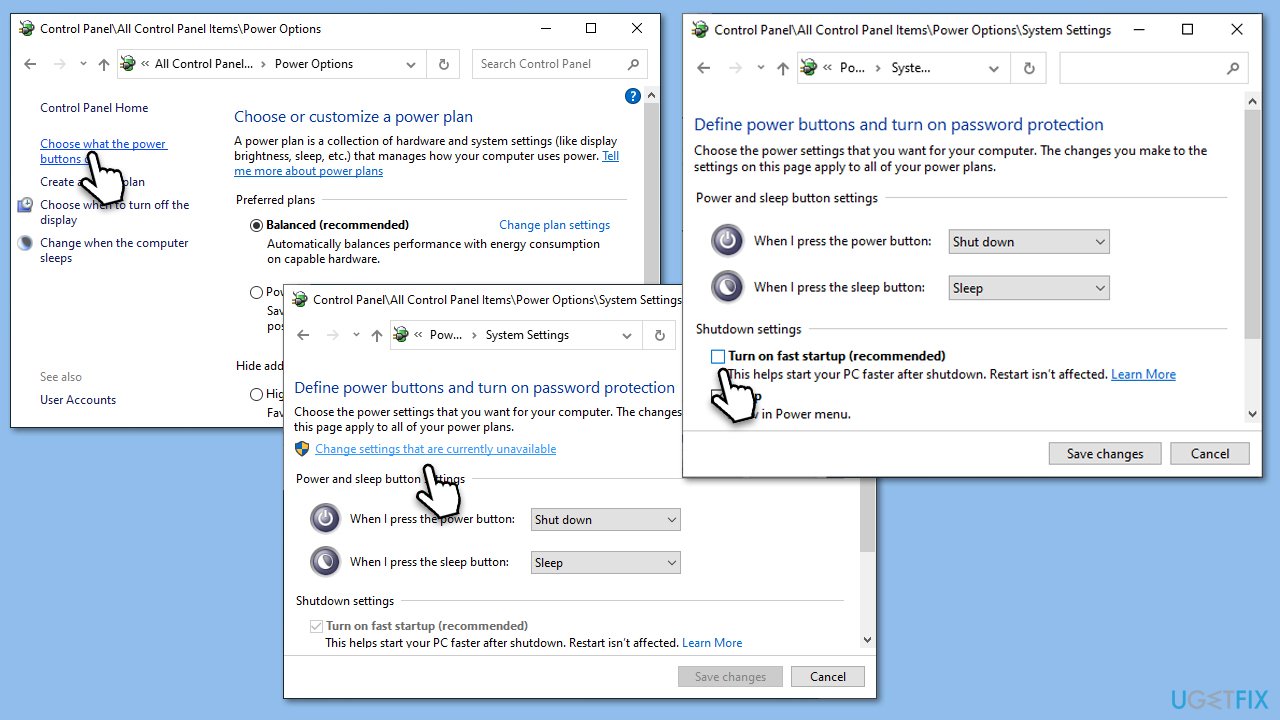
Fix 8. Turn off Fast Startup
Fast Startup is a feature that can cause compatibility issues. Disabling it might resolve the BSOD.
- Type Control Panel in Windows search and hit Enter.
- Select Small icons view and pick Power options.
- On the left side of the window, select Choose what the power buttons do
- Pick the Change settings that are currently unavailable option at the top
- Remove the tick from the Turn on fast startup (recommended) option and select Save changes.
Fix 9. Run System Restore
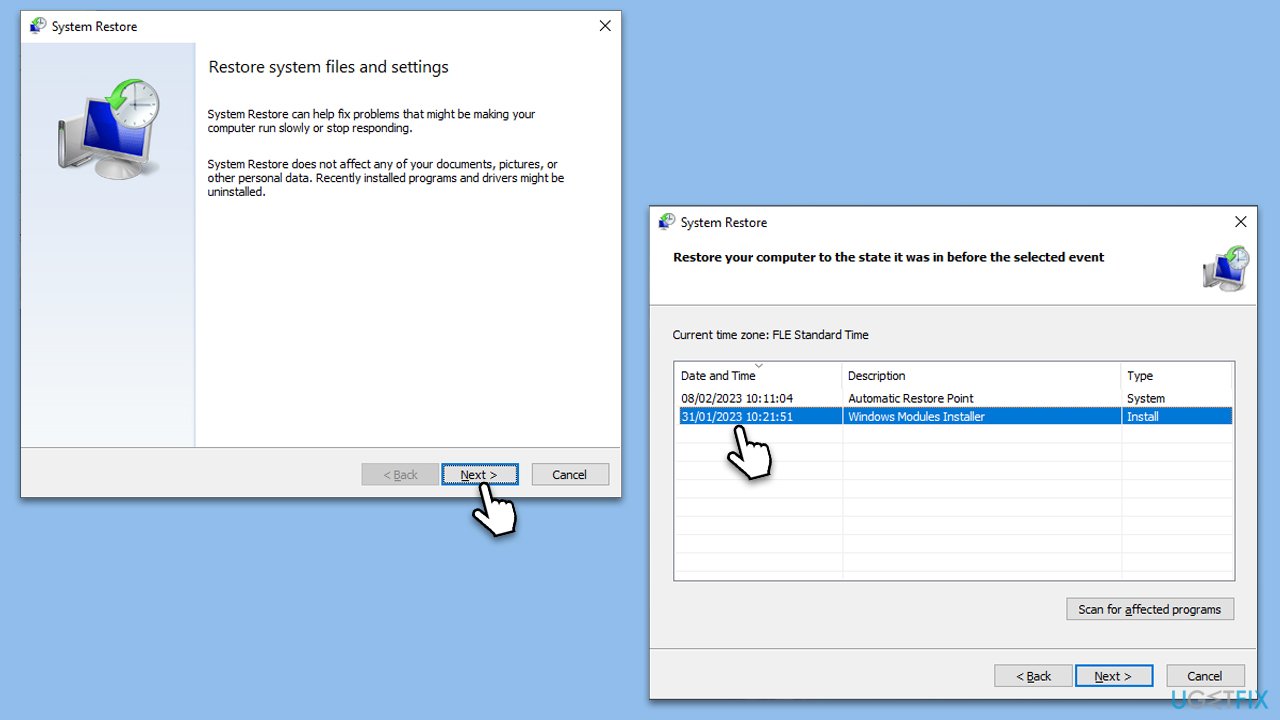
System Restore can revert your system back to a previous state where the error did not exist.
- Type in Create a Restore point in Windows search and hit Enter.
- In the System Protection tab, pick System restore.
- Click Next.
- Click Show more restore points (if available).
- Pick the time before the problem occurred and click Next.
- Your computer will restart.
Bottom line
To fix the EMPTY_THREAD_REAPER_LIST BSOD error, check for outdated or corrupt drivers, scan for malware, ensure Windows is updated, and check the health of your hardware. If these steps do not resolve the issue, consider using a PC repair tool to assist in fixing underlying Windows problems.
Frequently asked questions
The EMPTY_THREAD_REAPER_LIST BSOD error is often caused by corrupted system files, outdated drivers, or memory issues. Identifying the root cause typically requires checking system logs and running diagnostic tools.
To fix the EMPTY_THREAD_REAPER_LIST error, you can run the System File Checker (SFC) and DISM commands to repair corrupted files, and ensure that all drivers are updated. Additionally, performing a memory diagnostic can help identify any RAM issues.
Yes, updating Windows 10 or Windows 11 to the latest version can help resolve the EMPTY_THREAD_REAPER_LIST BSOD error by installing important patches and driver updates. Always back up your data before performing major updates.




Report an issue
What's wrong with this guide? We review every report and update or remove content.
Report received — thank you. We'll review and fix it.
You need a free account to submit a report.
Be the first to comment