How to fix
Enter key not working
on Windows
Resolve the Enter key issue on Windows 10 or Windows 11 with our expert-tested solutions. Get your keyboard working perfectly in minutes!


What causes How to fix Enter key not working in Windows?
- Software malfunctions
- Physical damage to the key
- Outdated drivers
- Incorrect keyboard settings
- Corrupted files
Repairs Windows system files, removes malware, and restores a clean OS state — without reinstalling.
Hello. The Enter key has stopped responding on my Windows PC. Is there a way to fix this?
When the Enter key in Windows stops working, it can be a very frustrating experience for users. This seemingly minor issue can wreak havoc on productivity, impede effective communication, and make even the simplest tasks excruciatingly tedious.
Consider the following scenarios: typing an email and being unable to begin a new paragraph, completing forms and being unable to move to the next field, or attempting to execute commands in a command prompt only to find that nothing happens. These are just a few examples of how the Enter key is important, and its absence can lead to a chain reaction of annoyance and inefficiency.
Fortunately, there are solutions to this problem. Troubleshooting a faulty Enter key may necessitate both software and hardware considerations. It may be necessary to check keyboard settings, update drivers, or even clean the physical key itself. Seeking professional assistance or consulting relevant resources can help users solve the problem.
Users can restore the functionality of the Enter key with some troubleshooting and patience, alleviating the frustration caused by its temporary absence. This guide will walk you through 8 steps that should help you fix the Enter key not working in Windows.
You can also try a maintenance key like [d1] that can fix most system errors, BSODs,[ref en-1] corrupted files, registry[ref en-2] issues, or clear cookies and cache.[ref en-3] Otherwise, follow the step-by-step instructions below.
Solution 1. Restart your PC
If your Enter key is not functioning, restarting your computer is typically the easiest and initial troubleshooting step to take. This can frequently address small software malfunctions that could be causing the problem. Prior to restarting, ensure that you save any ongoing work or projects to avoid losing your progress.
Solution 2. Check for Damage
If your Enter key suddenly stops functioning, it may indicate physical damage. Follow these steps to troubleshoot the issue:
- Inspect the Enter key to ensure it is intact.
- Check for any broken pieces or debris underneath the key.
- If there is debris, gently clean the area using compressed air or a soft brush.
- Ensure there is no liquid or moisture present on the keyboard.
- Verify that the keyboard's cable is securely connected to your PC.
Solution 3. Disable Filter and Sticky Keys
- Click on Start.
- Type Control Panel in the search bar.
- Select Control Panel from the search results.
- Click on Ease of Access.
- Click on Ease of Access Centre.
- Select Change how your keyboard works.
- Go to the Make it easier to type section.
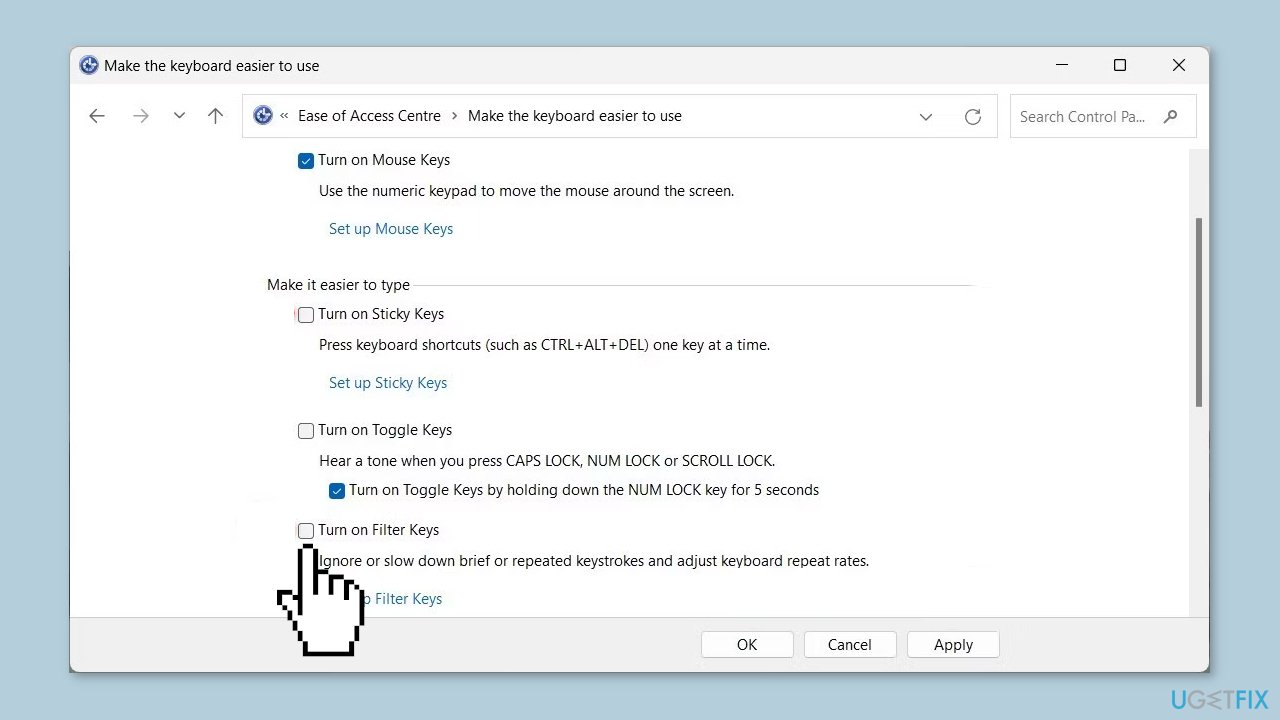
- Uncheck the box next to Turn on Filter Keys and Turn on Sticky Keys.
- Click on Apply.
- Click on OK to save the changes.
Solution 4. Update the Keyboard Driver
- Right-click on the Start menu icon.
- Select Device Manager from the list of options.
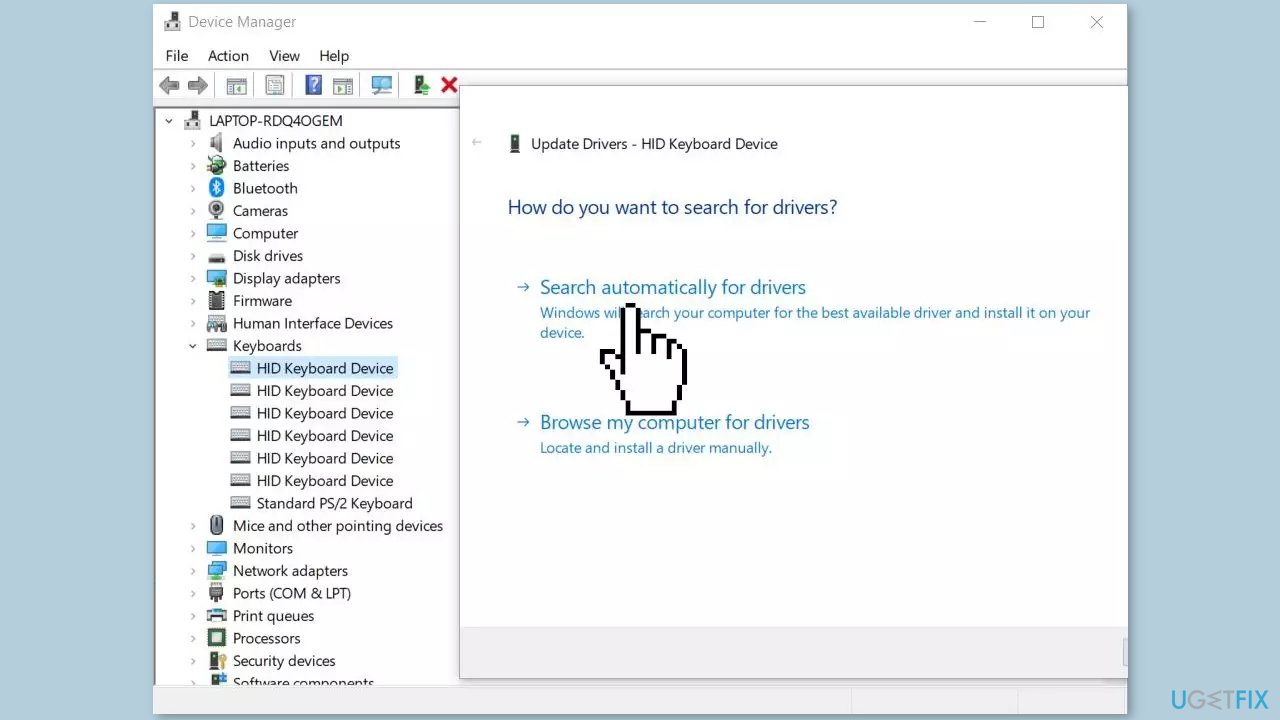
- Navigate to the Keyboard section.
- Right-click on the keyboard device.
- Select Update driver from the context menu.
- Let Device Manager search for the required driver online.
- Wait for the process to finish and restart your device.
You can also use a dedicated utility like [rev id="DriverFix"] that can find the best drivers for your machine and install them automatically.
Solution 5. Run the Keyboard Troubleshooter
Running the keyboard troubleshooter can be a helpful tool in resolving issues with keyboard malfunctions, such as Enter key problems. The troubleshooter is intended to automatically diagnose and resolve various keyboard-related issues.
When a user runs the keyboard troubleshooter, it checks for issues with the keyboard driver and settings, scans for hardware malfunctions, and attempts to resolve any issues that are discovered. If the troubleshooter detects any errors or discrepancies, it can offer solutions or apply automatic fixes to the system.
- Open the Settings window.
- In the Settings menu, select System > Troubleshoot > Other troubleshooters.
- Scroll down to the Keyboard section and click Run.
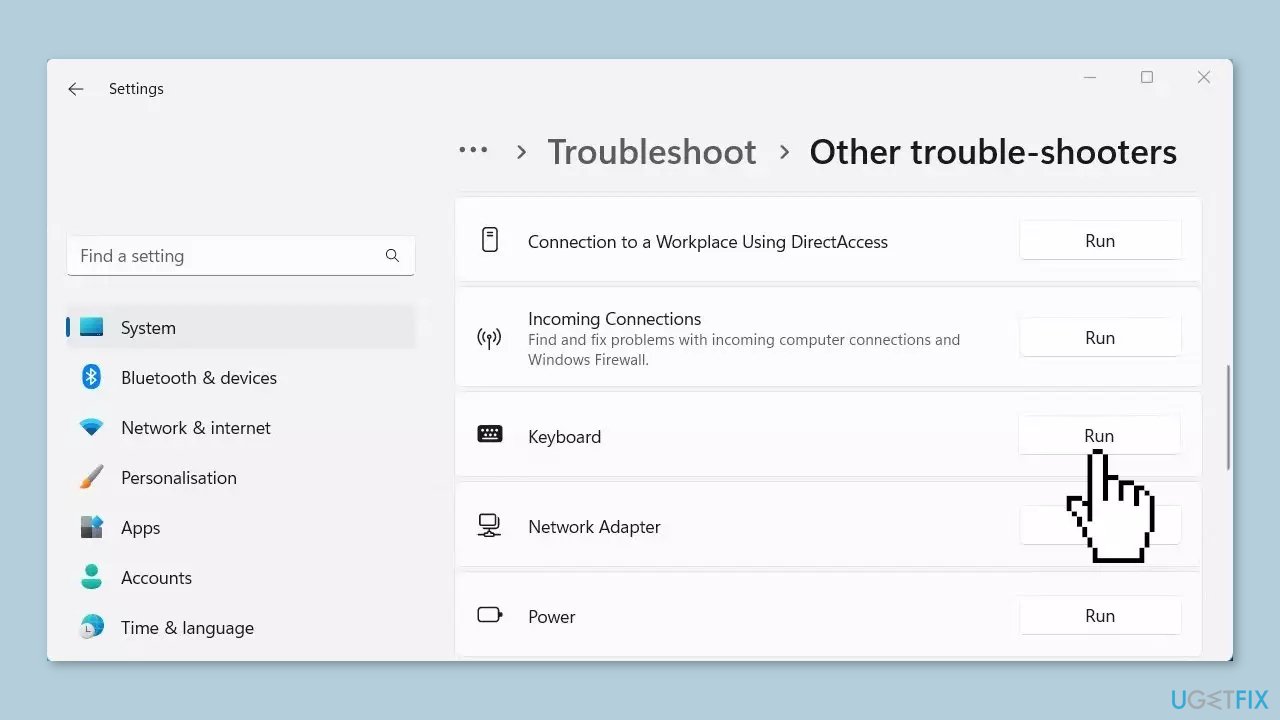
- Follow the on-screen instructions to finish the process.
- Check if the problem has been resolved.
Solution 6. Run the Hardware and Devices Troubleshooter
- Run Command Prompt as an administrator.
- Type the following command in the elevated command prompt window and press Enter:
msdt.exe -id DeviceDiagnostic
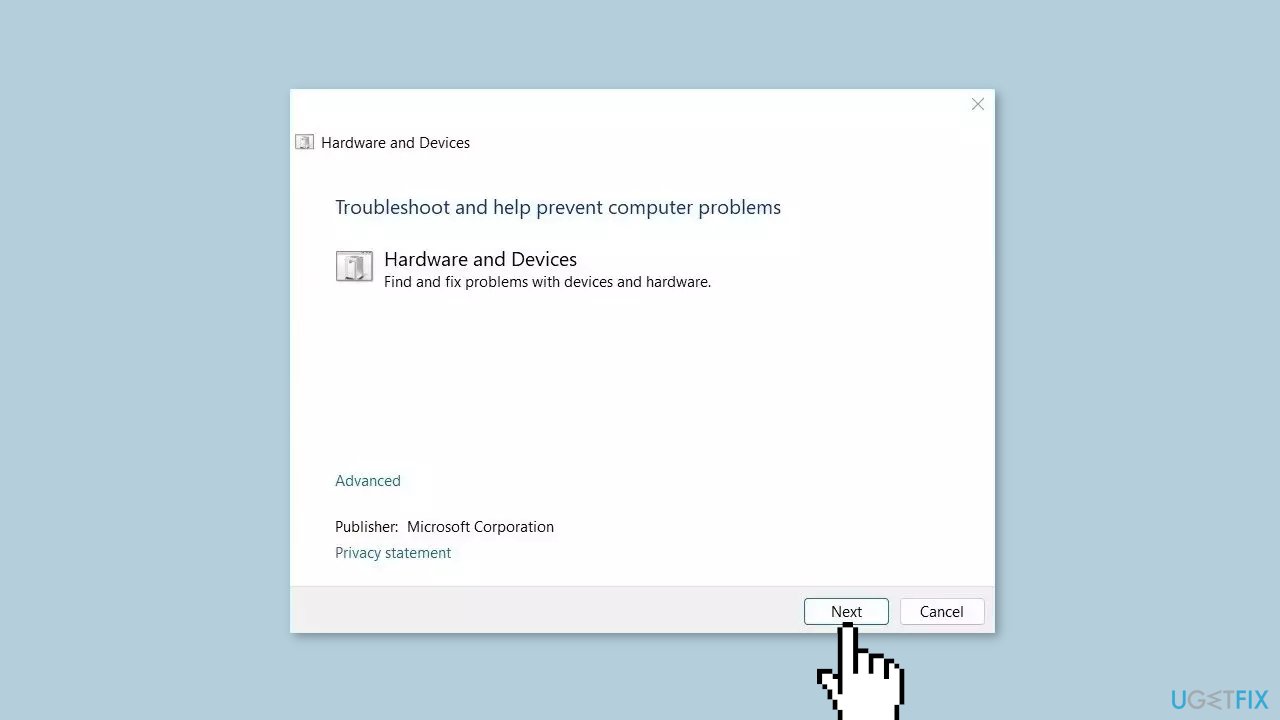
- The Hardware and Devices Troubleshooter will open.
- Click Next to initiate the scan process.
- Follow the on-screen instructions.
- After completing the above steps, restart your computer.
- Check whether the arrow keys are now functioning properly.
Solution 7. Scan for Malware
Regrettably, keyboard problems on Windows computers are often caused by malware. It is likely that this is the case for you, which means it's time to scan your system for any potential threats.
- Click on the Windows Start menu or press the Windows key on your keyboard.
- Type Microsoft Defender in the search bar and click on Microsoft Defender Antivirus to open the application.
- Click on the Virus & threat protection option in the left-hand menu.
- Click on the Quick scan or Full scan option, depending on your preference.
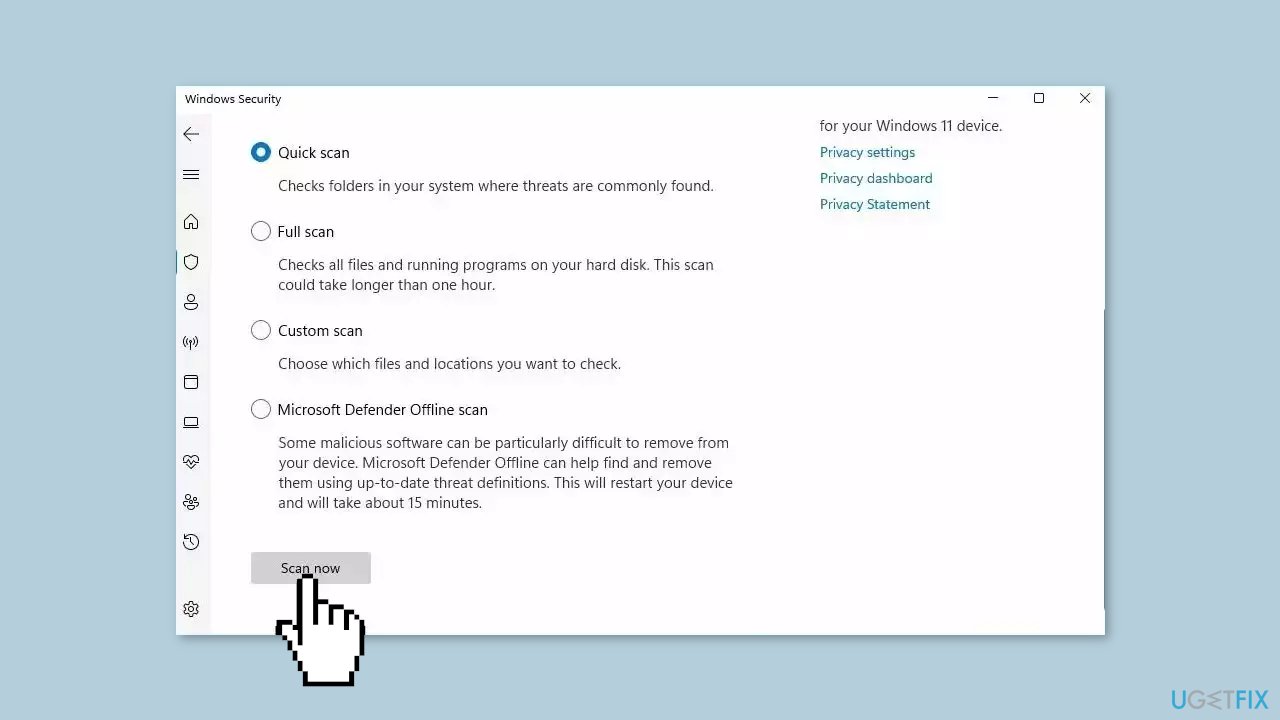
- If you choose Quick scan, Microsoft Defender Antivirus will scan the most vulnerable and commonly infected areas of your computer.
- If you choose Full scan, Microsoft Defender Antivirus will scan your entire computer, including all files, folders, and programs.
- Click on the Scan now button to start the selected scan type and wait for the scan to complete.
- The time it takes will depend on the size of your hard drive and the number of files being scanned.
- Once the scan is complete, you will be informed of any detected threats, and you can choose to quarantine or remove them.
- If no threats are found, Microsoft Defender Antivirus will inform you that your device is secure.
Solution 8. Use the On-Screen Keyboard
If none of the previously mentioned solutions have resolved the issue, you can try using the On-Screen Keyboard as an alternative.
- To access the On-Screen Keyboard, use the search function on your computer and search for on-screen keyboard.
- Click on the individual search result to launch the On-Screen Keyboard.
Bottom line
To fix the Enter key not working in Windows, you can restart your PC, check for physical damage, update drivers, and inspect keyboard settings. If these steps do not resolve the issue, consider seeking professional assistance or consulting relevant resources.
Frequently asked questions
First, check for any stuck keys or debris under the Enter key. If the problem persists, try updating your keyboard drivers through Device Manager.
You can use the built-in Keyboard troubleshooter by navigating to Settings > Update & Security > Troubleshoot > Additional troubleshooters and selecting Keyboard.
Yes, conflicting software or background applications may interfere with keyboard functionality; try performing a clean boot to identify any potential conflicts.




Report an issue
What's wrong with this guide? We review every report and update or remove content.
Report received — thank you. We'll review and fix it.
You need a free account to submit a report.
Be the first to comment