How to fix
Epic Games error 502
on Windows
Resolve Epic Games error 502 on Windows 10 and 11 quickly with expert-tested fixes. Get back to gaming in no time—zero traces left!

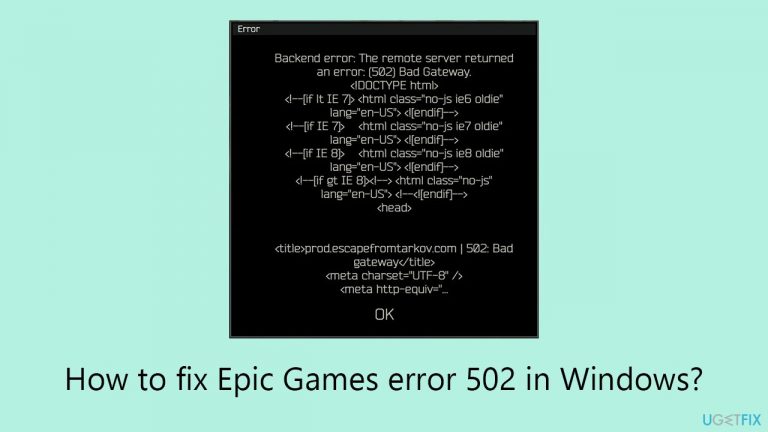
What causes How to fix Epic Games error 502 in Windows?
- Mismatch in language settings
- Unstable internet connection
- Recent changes in system language settings
- Network interruptions
- Communication problems with Epic Games servers
Repairs Windows system files, removes malware, and restores a clean OS state — without reinstalling.
I keep receiving error 502 in the Epic Games launcher. This started happening just a few days ago and I'm not sure what is causing it, so I'd be grateful for any advice.
Epic Games has established itself as a popular digital storefront for video games, attracting users with its frequent discounts, giveaways of free games, and a variety of other incentives. The platform has grown in popularity among PC gamers, particularly those who use Windows, due to its competitive pricing and exclusive titles.
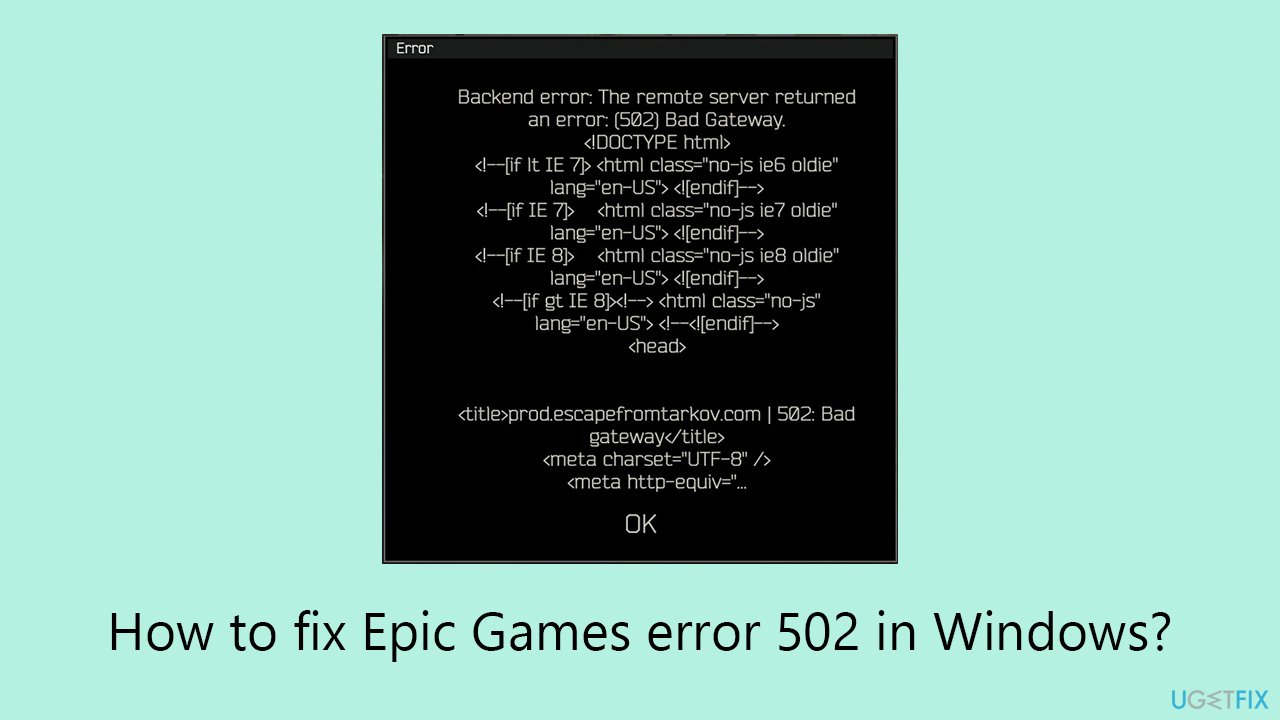
However, even the most robust platforms can experience technical difficulties, and Epic Games is no exception. One such issue that you might encounter while using Epic Games on Windows is error 502, which displays the message "Bad Gateway."
The error 502 in the Epic Games Store typically indicates a communication problem between your computer and the Epic Games servers. This issue can arise due to various reasons, and understanding these can be beneficial for a smoother experience. One common cause of this error could be a mismatch in language settings.
If the language of your Windows operating system does not align with the language set in the Epic Games Store, it can lead to conflicts that trigger this error. This is particularly relevant if you're using a version of Windows in a language different from your preferred gaming language or if there have been recent changes in your system’s language settings.
Another potential cause for encountering error 502 is related to your internet connection. Problems with your network, such as unstable connections or interruptions, can prevent your computer from communicating effectively with Epic Games servers. This can result in an error message appearing when you try to access the store or specific features within the platform.
If you're experiencing persistent problems or if the Epic Games error 502 seems to be indicative of deeper issues with your Windows system, utilizing a PC repair tool like [d1] can be an effective way to address any underlying issues automatically, ensuring a more stable and enjoyable gaming experience.
Fix 1. Set Epic Games Launcher's language to the system's default
By setting the Epic Games Launcher's language to match your system's default language, you can resolve potential language-related conflicts that lead to error 502.
- Launch the Epic Games Launcher.
- Click on your profile name in the upper-right corner of the launcher.
- Select Settings from the dropdown menu.
- In the Settings menu, locate the Language section.
- Click on the drop-down menu and ensure that the language is set to the System Default option. This will automatically set the launcher's language to match your Windows system's language.

Fix 2. Run Network troubleshooter
Running the Network troubleshooter can help identify and resolve network-related issues that might be causing error 502.
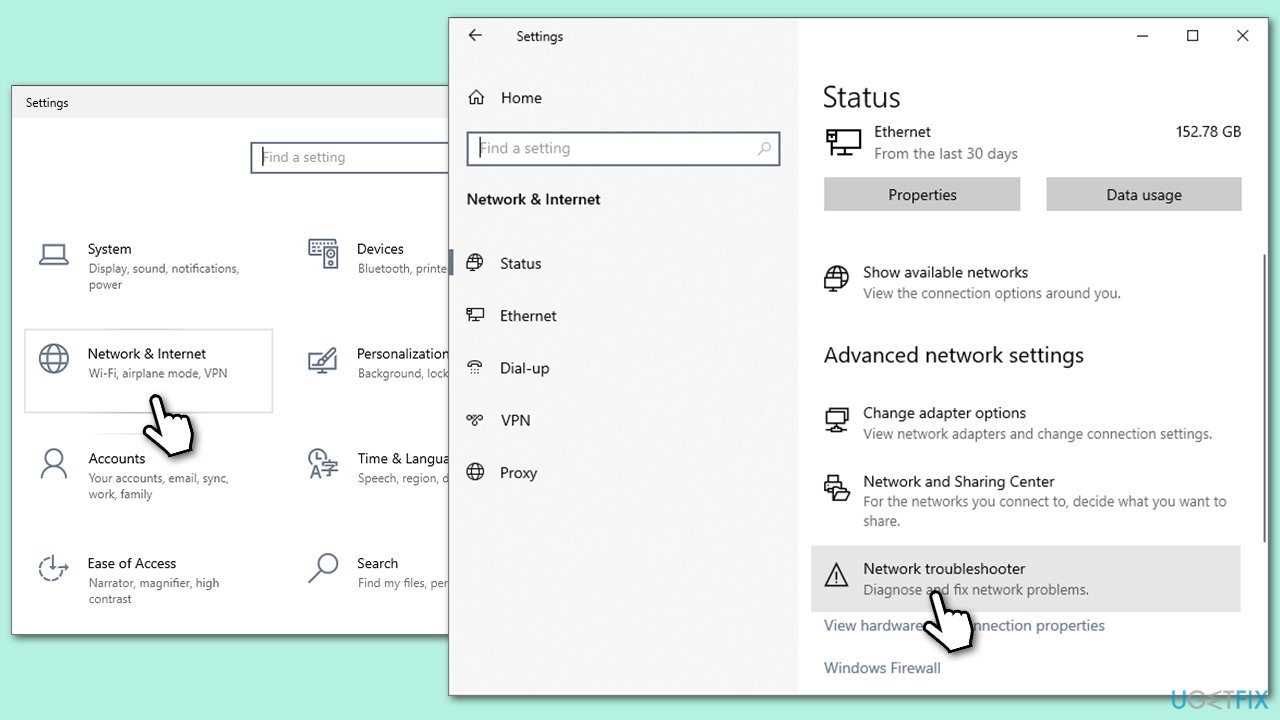
- Right-click on Start and pick Settings.
- Go to Network & Internet section.
- On the right side, find the Advanced network settings section.
- Click Network troubleshooter and wait.
- Apply the recommendations.
Fix 3. Use Google's DNS
Switching to Google's DNS servers can improve the stability and reliability of your internet connection, potentially resolving error 502.
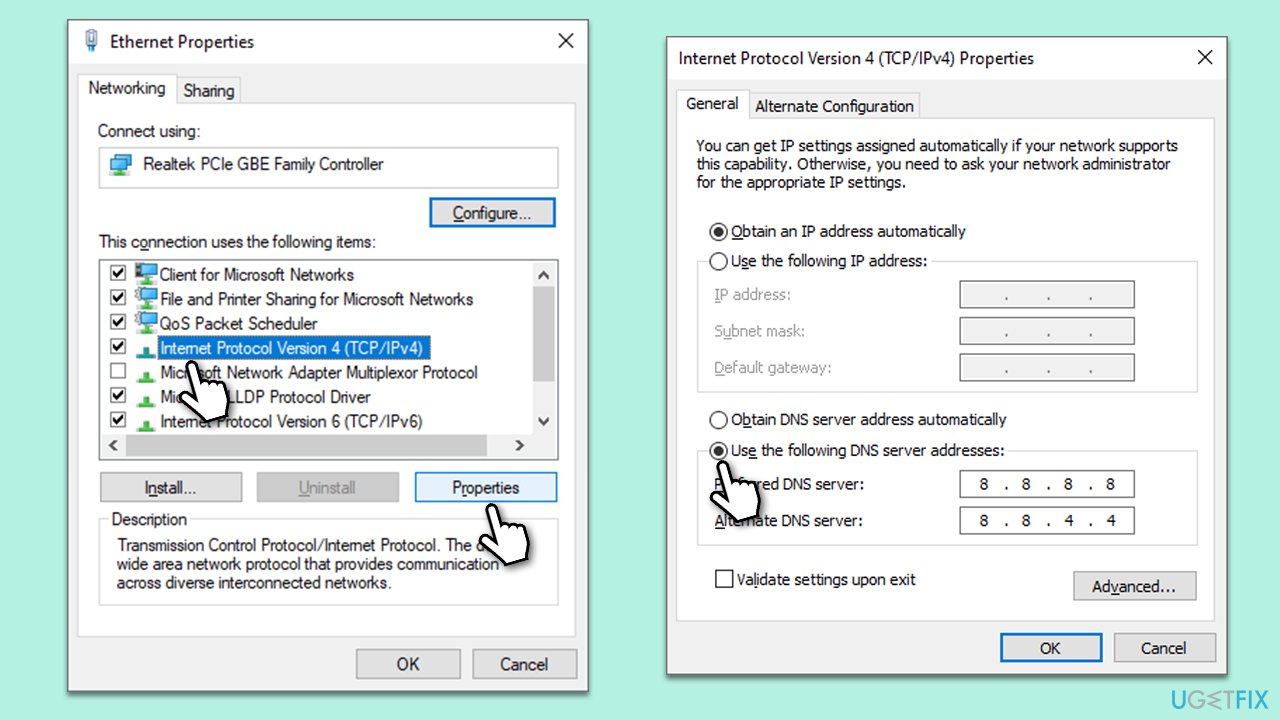
- Right-click on the network icon in your taskbar (bottom-right corner) and select Open Network & Internet settings.
- Under Advanced network settings, click on Change adapter options.
- Right-click on your active network connection (e.g., Ethernet or Wi-Fi) and select Properties.
- Scroll down and select Internet Protocol Version 4 (TCP/IPv4).
- Click Properties.
- Choose Use the following DNS server addresses and enter the following:
- Preferred DNS server: 8.8.8.8
- Alternate DNS server: 8.8.4.4
- Click OK to save the settings.
Fix 4. Temporarily disable Windows Firewall
Disabling the Windows Firewall temporarily can help determine if it's causing the error 502. Be cautious when doing this, and re-enable the firewall when troubleshooting is complete.
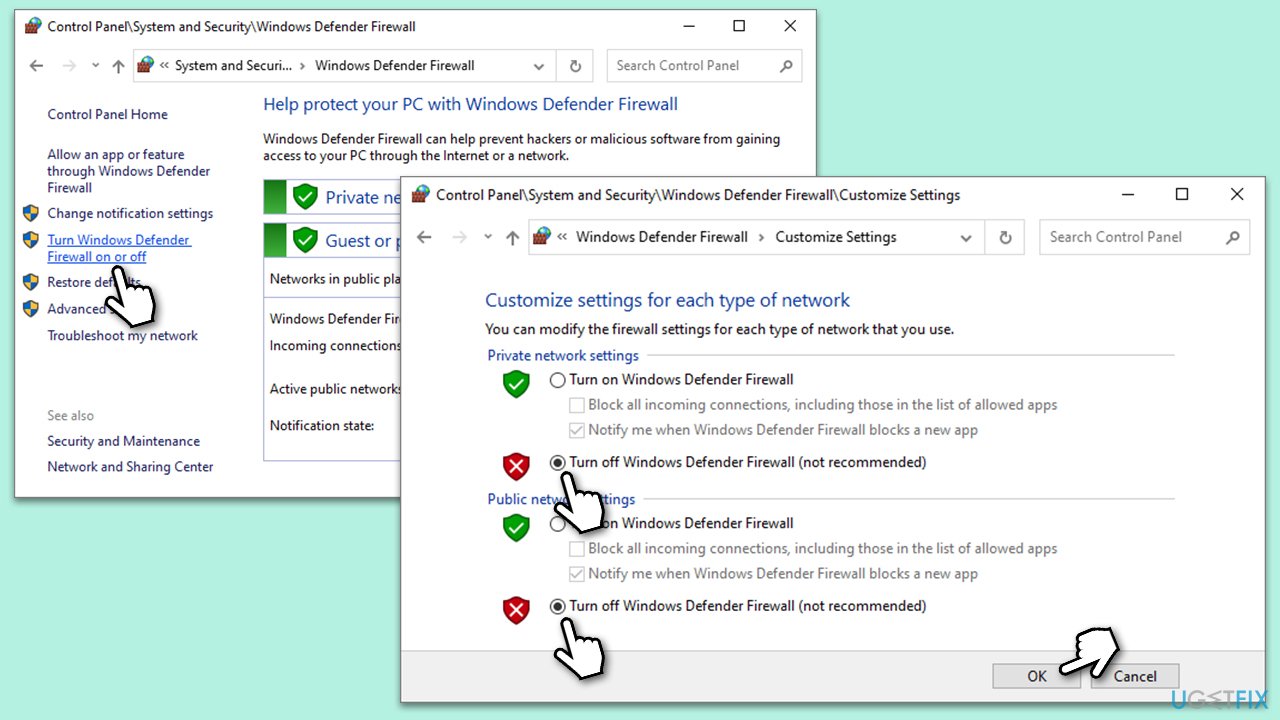
- Type in Control Panel in Windows search and press Enter.
- Go to System and Security > Windows Defender Firewall.
- Press the Turn Windows Firewall On or Off option.
- If required, enter your administrator password and press OK.
- Then, set the Windows Firewall off of both private and public network.
- Click OK to save the changes and close everything.
Fix 5. Edit the Engine.ini file
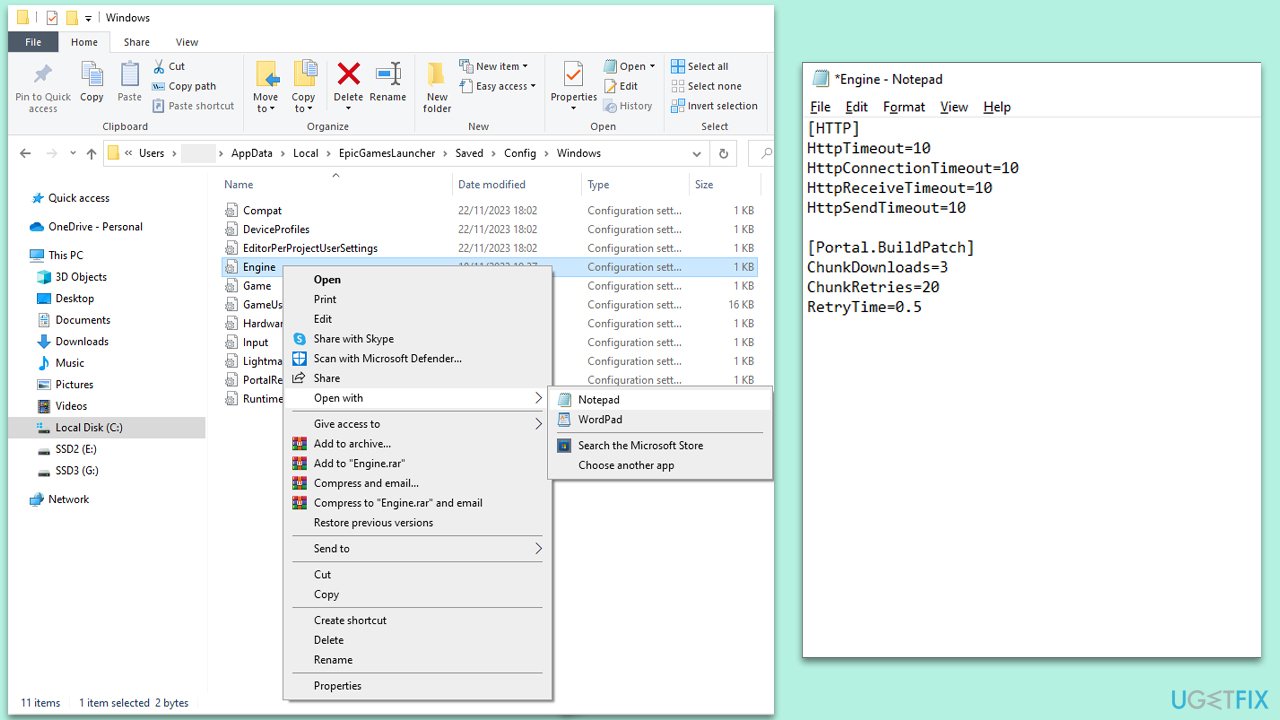
- Press the Windows key, type %localappdata% and press Enter.
- Navigate to EpicGamesLauncher/Saved/Config/Windows.
- Locate the Engine.ini file and right-click on it.
- Select Open with and choose a text editor like Notepad.
- Add the following lines at the end of the file:
[HTTP]
HttpTimeout=10
HttpConnectionTimeout=10
HttpReceiveTimeout=10
HttpSendTimeout=10
[Portal.BuildPatch]
ChunkDownloads=3
ChunkRetries=20
RetryTime=0.5 - Save the file and exit the text editor.
Fix 6. Clear Epic Games Launcher cache
Just like any other program, Epic Games creates cached files, which might sometimes become bugged. To address this, you can clean caches as follows:
- Close the Epic Games Launcher if it's open.
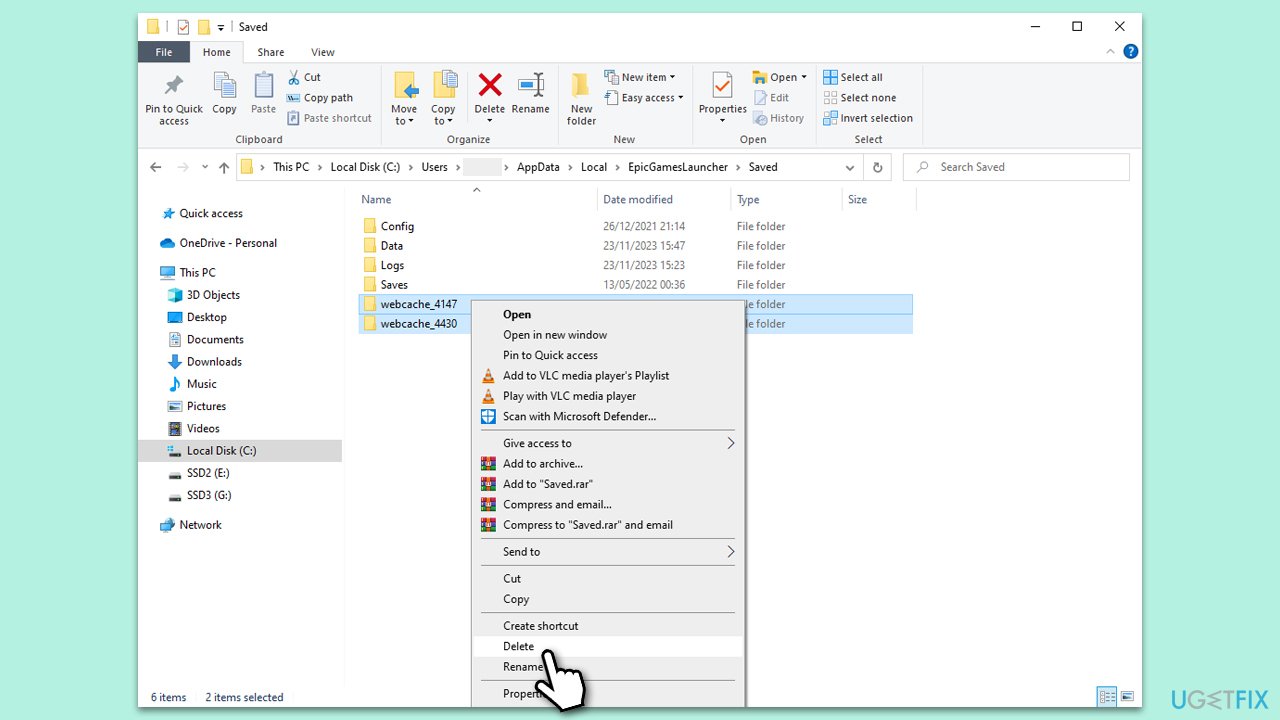
- Press the Windows key and type %localappdata% and press Enter.
- Locate the Epic Games Launcher folder and open it.
- Go to the Saved folder.
- Here, delete the following:
webcache_4147
webcache_4430 - Restart the Epic Games Launcher.
Bottom line
To fix Epic Games error 502, ensure that your Windows language settings align with those of the Epic Games Store and check your internet connection for stability. If issues persist, consider using a PC repair tool to address underlying system problems. If none of these solutions work, further troubleshooting may be necessary.
Frequently asked questions
Epic Games error 502 typically occurs due to server issues, network connectivity problems, or corrupted game files on your Windows system.
To troubleshoot error 502, check your internet connection, restart the Epic Games Launcher, and ensure that your Windows firewall or antivirus is not blocking the application.
Yes, clearing the cache of the Epic Games Launcher can often resolve error 502 by removing corrupted data that may be causing the issue on Windows 10 or Windows 11.




Report an issue
What's wrong with this guide? We review every report and update or remove content.
Report received — thank you. We'll review and fix it.
You need a free account to submit a report.
Be the first to comment