How to fix
Epic Games installer “Invalid Drive” error
on Windows
Resolve the "Invalid Drive" error in the Epic Games installer on Windows 10 and 11. Get quick solutions and expert-tested fixes for smooth gameplay!

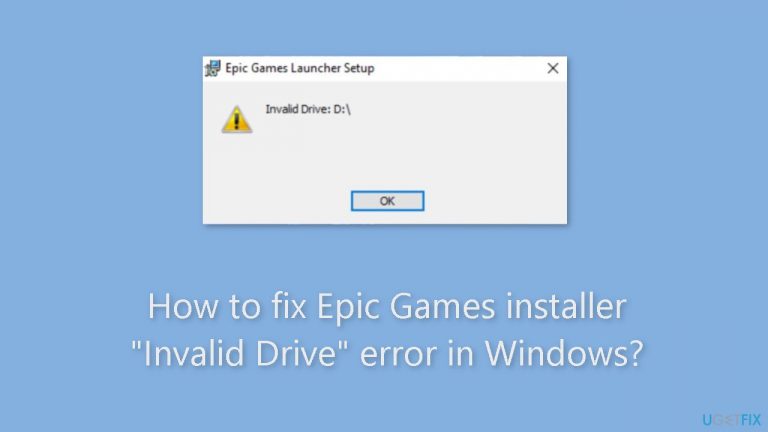
What causes How to fix Epic Games installer “Invalid Drive” error in Windows?
- Registry key issues
- Insufficient administrative rights
- Driver letter mismatch
- Erroneous or missing Windows Registry entries
Repairs Windows system files, removes malware, and restores a clean OS state — without reinstalling.
Hello. I tried installing the Epic Games launcher on my Windows PC but I received the "Invalid Drive" error. What does it mean? Any way to fix it?
The Epic Games installer "Invalid Drive" error is an issue encountered by Windows users during the installation process of Epic Games Launcher. When the installer is unable to locate or access the given drive, an installation error message is often displayed. The underlying causes of this error frequently involve difficulties with registry keys, insufficient administrative rights, or mismatched driver letters.
Driver letter mismatch is one of the main causes of this problem. Windows distributes drive letters to storage devices and partitions, and this error may appear if the installer receives a different drive letter than what Windows really assigns. The installation procedure might be hampered by erroneous or missing Windows Registry entries, therefore registry key issues may also be at play. Furthermore, the installer may be unable to access and change the required system files and folders if it lacks adequate administrative permissions.
Users trying to install Epic Games Launcher may get the "Invalid Drive" issue on the Epic Games installer. It may be annoying and time-consuming, resulting in installation delays or failure altogether. Users might have trouble playing their favorite games or getting to the Epic Games Store, which would limit their gaming experience. Furthermore, it can be a difficult challenge to tackle for those who are not accustomed to troubleshooting technical problems.
To resolve this issue, potential solutions include correcting the drive letter mismatch, editing the Windows Registry to rectify any problematic entries, and ensuring that the user account has sufficient administrative privileges. In this guide, you will find 6 steps that should help you fix Epic Games installer "Invalid Drive" error in Windows.
You can also use a system repair tool like [d1] that can fix most system errors, BSODs,[ref en-1] corrupted files, and registry[ref en-2] issues. Otherwise, follow the step-by-step instructions below.

Solution 1. Recover Space on the Drive
- Press the Windows key + R to open the Run dialog box.
- Type cleanmgr and click OK to open Disk Cleanup.
- In the Disk Cleanup: Drive Selection window, select Windows (C:) or the system drive and click OK.
- Click Clean up system files.
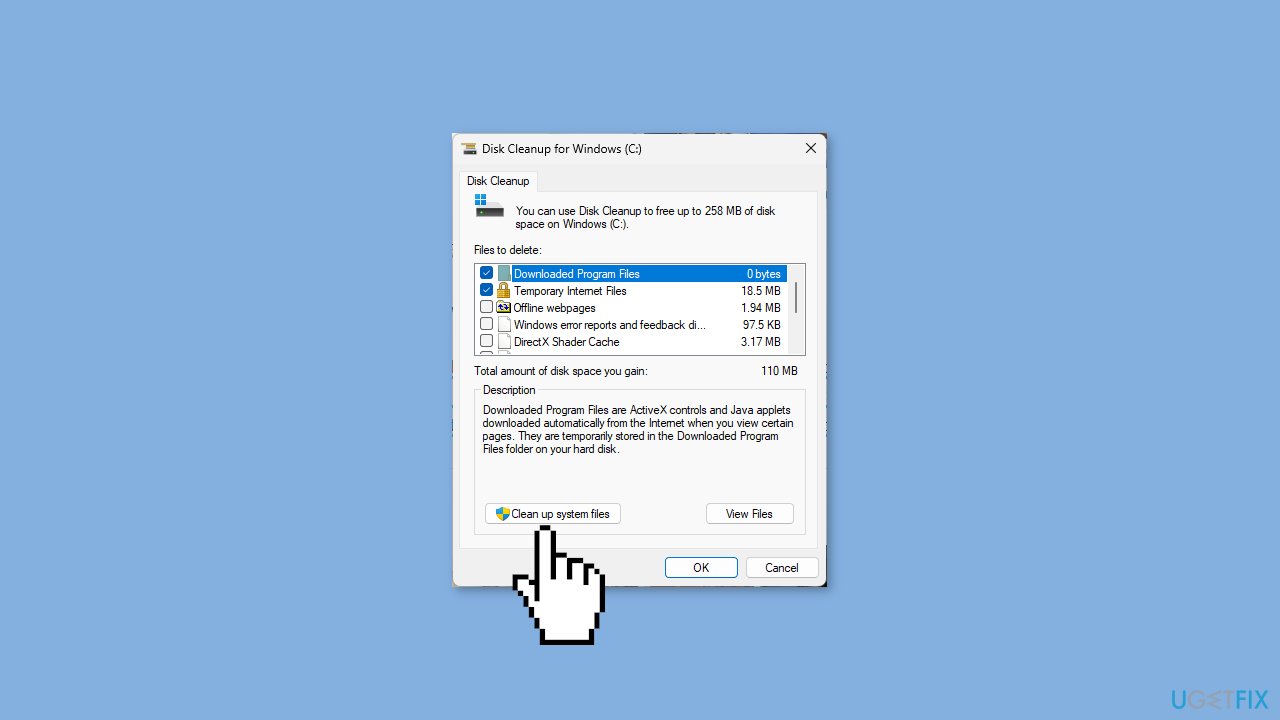
- In the Disk Cleanup: Drive Selection window, select the system drive again and click OK.
- Select all the items under Files to delete and click OK.
- Choose Delete Files from the following window.
Solution 2. Run the Install and Uninstall Troubleshooter
- Download the troubleshooter from the official Microsoft website.
- Double-click the file to run or open it.
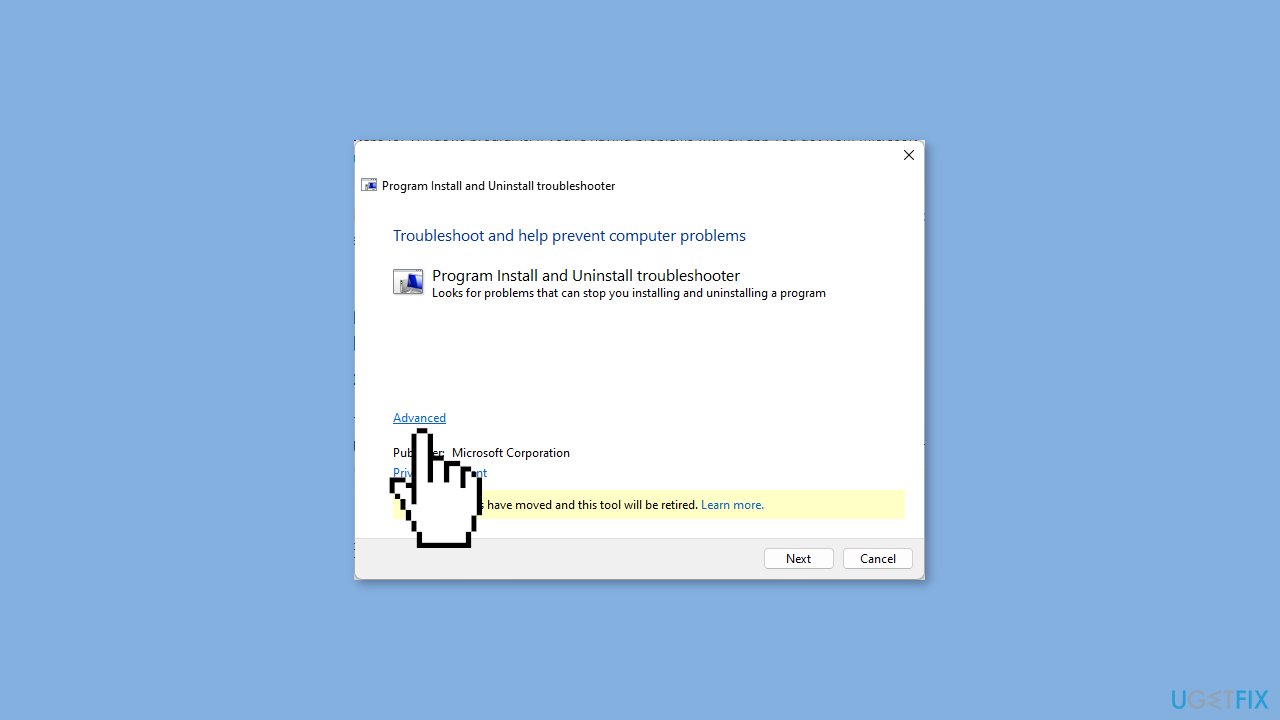
- On the Programs Uninstall and Install troubleshooter window, select Advanced.
- Now, click Apply repairs automatically and click Next.
- Choose Installing, as we are facing issues while installing.
- Select the program from the list and click Next.
- Follow the onscreen instructions, and the tool will attempt to fix the problem.
Solution 3. Change the Drive Letter
- Press the Windows key + R to open the Run dialog box.
- Type diskmgmt.msc and click OK to open the Disk Management window.
- Right-click the drive you don’t use much.
- Click Change drive letter and paths.
- On the Change Drive Letter and Paths window, select Change.
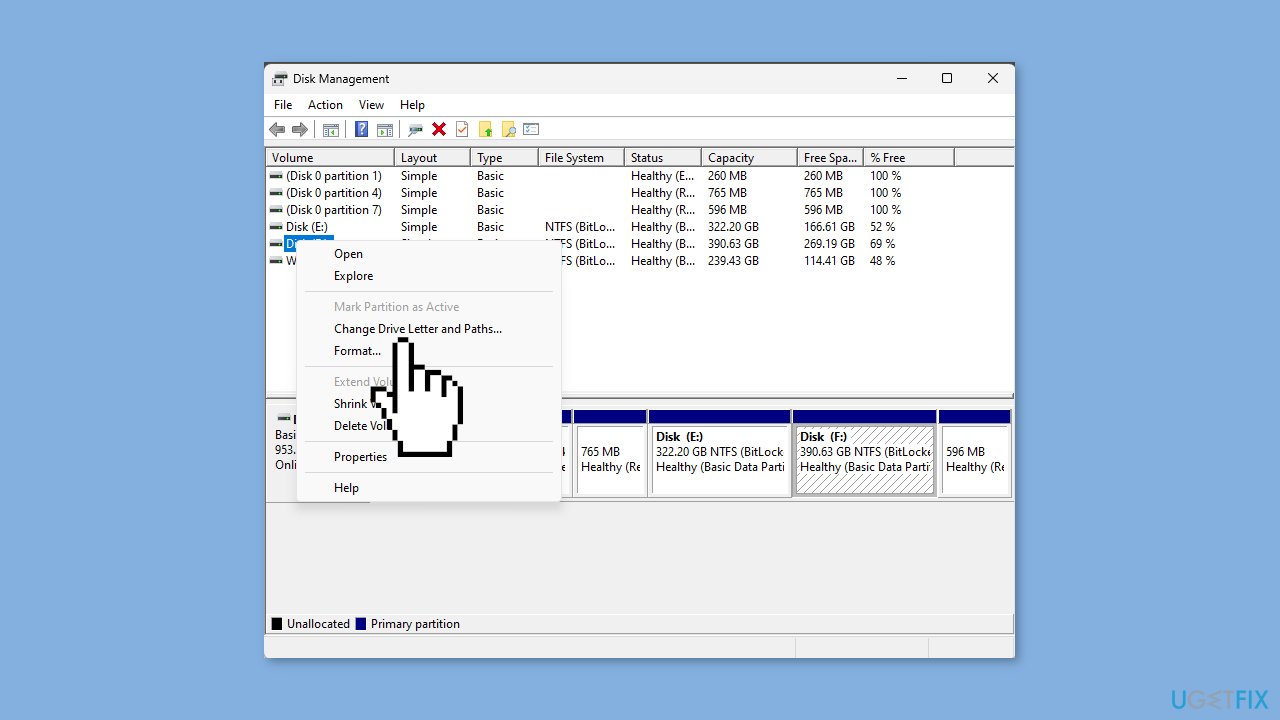
- On the following page, from the drop-down list, select the drive letter that appeared on the error (e.g., Invalid Drive D:).
- Click OK. You will receive a warning prompt; click Yes to proceed.
- Click OK to confirm the changes.
- Go to the Epic Games Launcher website and click Download Epic Games Launcher.
- Double-click the installer file, then click Next.
- Click Install to initiate the process.
- Follow the onscreen instructions to complete the installation.
- Press the Windows key + R to open the Run dialog box.
- Type appwiz.cpl and click OK to open the Programs and Features window.
- Locate Epic Games Launcher and click Uninstall.
- Follow the onscreen instructions to complete the uninstallation process.
- Next, press Windows + E to open File Explorer.
- Go to C:\Program Files (x86)\Epic Games and delete the game folder.
Solution 4. Fix the Corrupt Registry Entries
- Press the Windows key + I to open Settings.
- Navigate to System, and click Recovery.
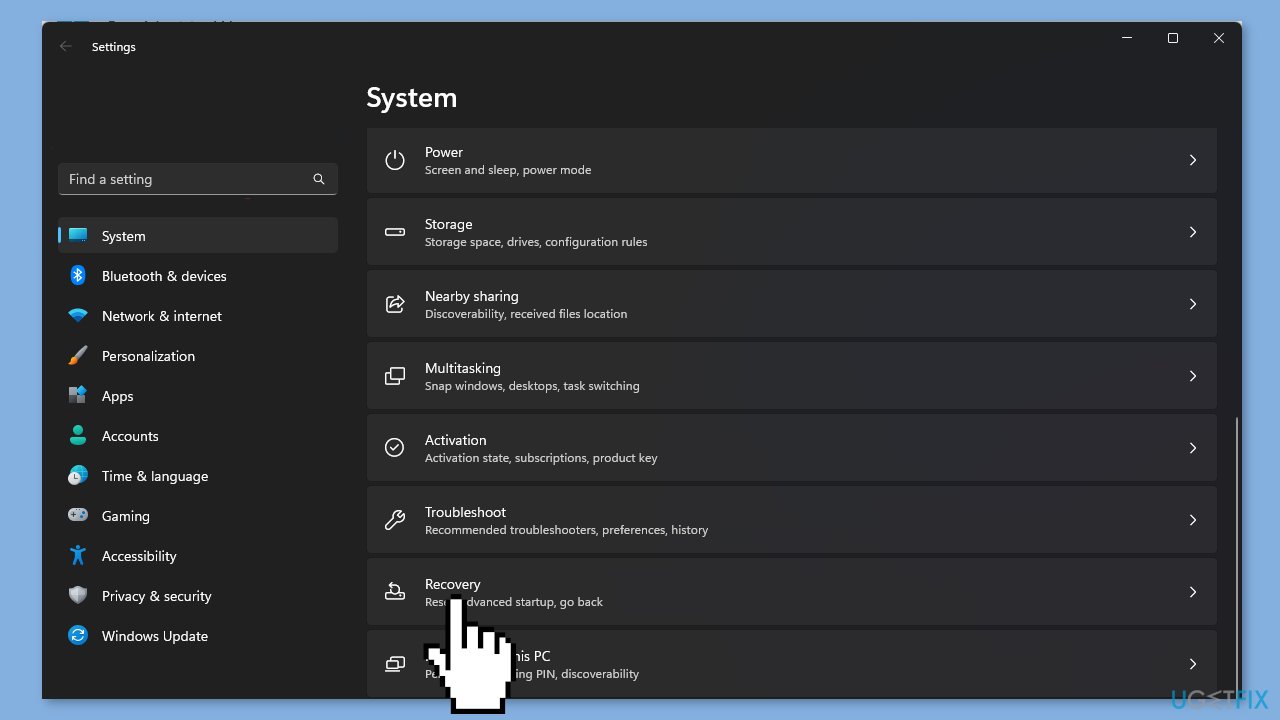
- Locate Advanced startup, and click Restart now.
- On the Choose an option page, click Troubleshoot.
- Next, click Advanced options.
- On the Advanced Options page, click Startup Repair.
Solution 5. Substitute the Drive
- Press the Windows key.
- Type cmd and click Run as administrator.
- In the Command Prompt window, type the following command to trick your Windows into thinking that your C drive is the D drive:
subst C:D:\
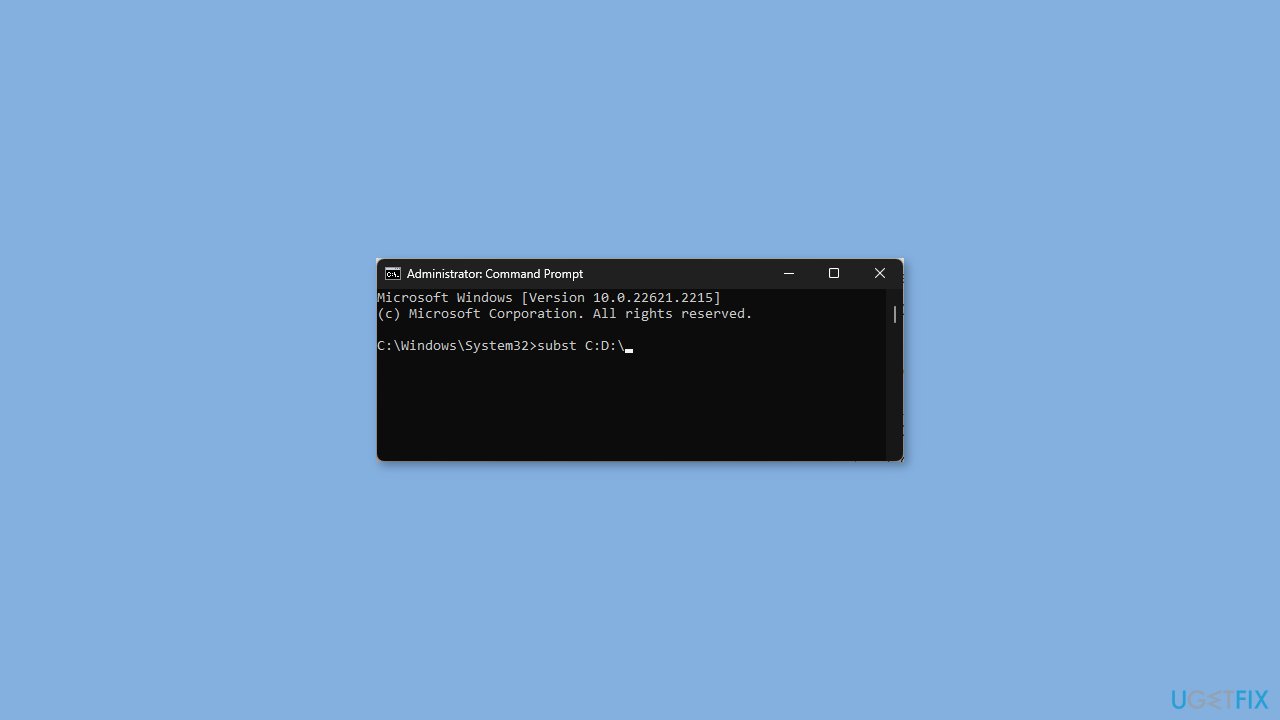
- You need to replace the drive letter as per your computer; in this example, C is changed to D.
- Press Enter.
- This step is necessary to address the "Epic Games installer Invalid drive D" issue.
solution 6. Delete the Registry Entry
- Press the Windows key + E to open Windows Explorer.
- Navigate to the drive where you want to install Epic Games Launcher.
- Click New and select Folder.
- Name the folder as Epic Games.
- Right-click the Epic Games folder, select Copy as path.
- Paste it at an accessible location, removing the quotes.
- Press the Windows key + R to open the Run dialog box.
- Type regedit and click OK to open Registry Editor.
- Go to the following path: Computer\HKEY_LOCAL_MACHINE\SOFTWARE\WOW6432Node\Microsoft\Windows\CurrentVersion\Uninstall
- Double-click Uninstall to expand the entries.
- Locate the folder for Epic Launcher in the entries.
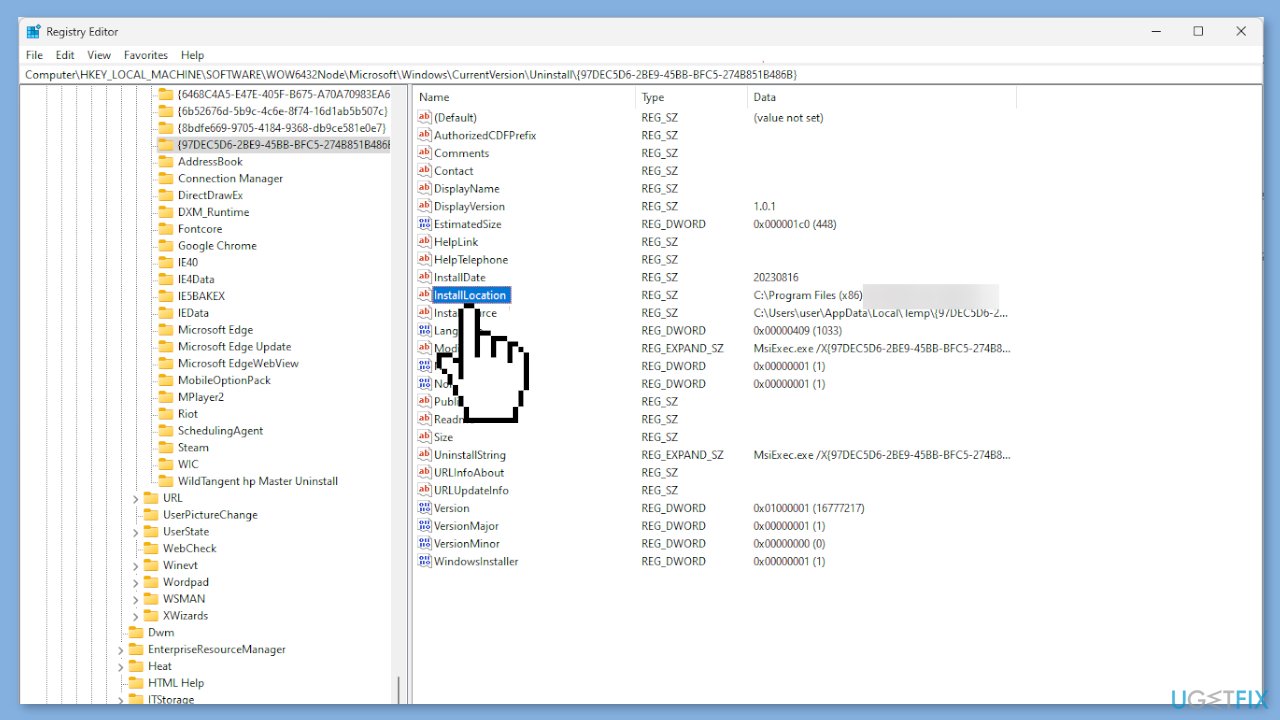
- On the right pane, find InstallLocation and double-click it.
- Change the Value data to the path you copied and click OK.
- Restart your computer to save the changes.
Bottom line
To fix the Epic Games installer 'Invalid Drive' error, you can correct the drive letter mismatch, edit the Windows Registry to fix problematic entries, and ensure your user account has sufficient administrative privileges. If these solutions do not resolve the issue, consider using a system repair tool to address potential system errors.
Frequently asked questions
The 'Invalid Drive' error typically occurs when the installation path set in the Epic Games Launcher points to a drive that is not accessible or does not exist. This can happen if the drive was removed, unmounted, or if the system configuration has changed.
To change the installation drive, open the Epic Games Launcher, go to Settings, and find the 'Install Location' section where you can set a new valid drive path. Make sure the selected drive is connected and accessible.
If changing the installation drive doesn't help, try uninstalling and reinstalling the Epic Games Launcher, or check for any pending Windows updates that might resolve compatibility issues.




Report an issue
What's wrong with this guide? We review every report and update or remove content.
Report received — thank you. We'll review and fix it.
You need a free account to submit a report.
Be the first to comment