How to fix
Epic Games library not showing games
on Windows
Resolve the Epic Games library issue on Windows 10 and 11 quickly. Get your games back on track with expert-tested solutions for seamless playing.


What causes How to fix Epic Games library not showing games in Windows?
- Minor bugs in the Epic Games Launcher
- Brief system blips in the Epic Games Launcher
- Authentication-related problems
- Cache issues
- Library filter settings
Repairs Windows system files, removes malware, and restores a clean OS state — without reinstalling.
Hello. When I go to my Library on Epic Games, my games are not shown. How do I access them? Any way to fix this?
Users of the platform regularly experience problems with the Epic Games library not showing up on Windows. Most of the time, it can be blamed on minor bugs or brief blips in the Epic Games Launcher system. Although it usually isn't a big deal, it can be upsetting for gamers who depend on the launcher to access and play their games.
User annoyance is this problem's main effect. Users are unable to access and play their games as usual when the game library doesn't display the list of purchased titles. When someone is ready to start a recently purchased game or is just looking through their library for games to play, this might cause confusion and aggravation. This problem may have a substantial negative impact on gamers who primarily rely on the Epic Games platform.
Fortunately, users can try a few potential solutions to this issue. Restarting the Epic Games Launcher is a popular solution because it frequently takes care of minor glitches. Re-authenticating their account is an additional choice that can restore their access to the library and possibly fix any authentication-related problems. The games can also be made visible again by deleting the cache or resetting the library's filters.
In this guide, you will find 6 steps that should help you fix Epic Games library not showing games in Windows. You can also run a maintenance tool like [d1] that can fix most system errors, BSODs,[ref en-1] corrupted files, registry[ref en-2] issues, or clear cookies and cache.[ref en-3] Otherwise, follow the step-by-step instructions below.

Method 1. Refresh the Library
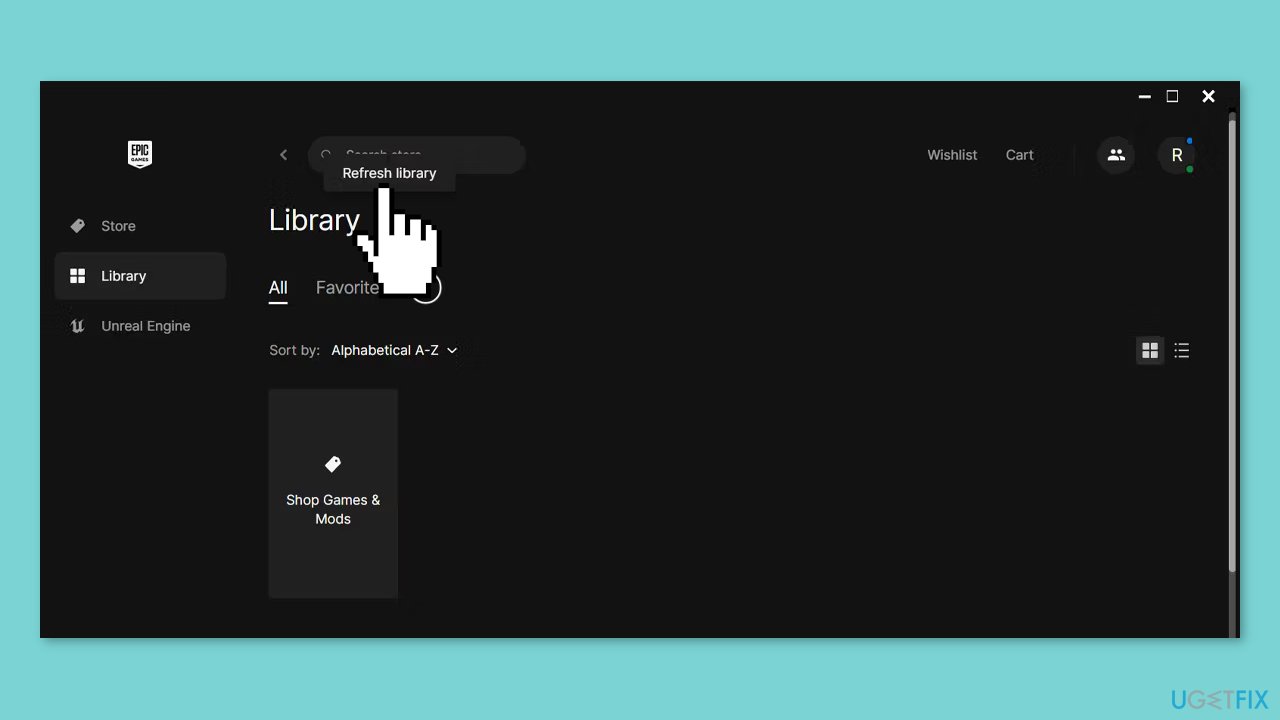
Occasionally, Epic Games Launcher may encounter a synchronization problem, causing newly purchased games not to appear. To resolve this, simply refresh the library.
- In the desktop app, go to the Library.
- Click on the Refresh icon.
Method 2. Restart the Epic Games Launcher
- Close the app.
- Press Ctrl + Shift + Esc to bring up the Task Manager.
- Open the Processes tab.
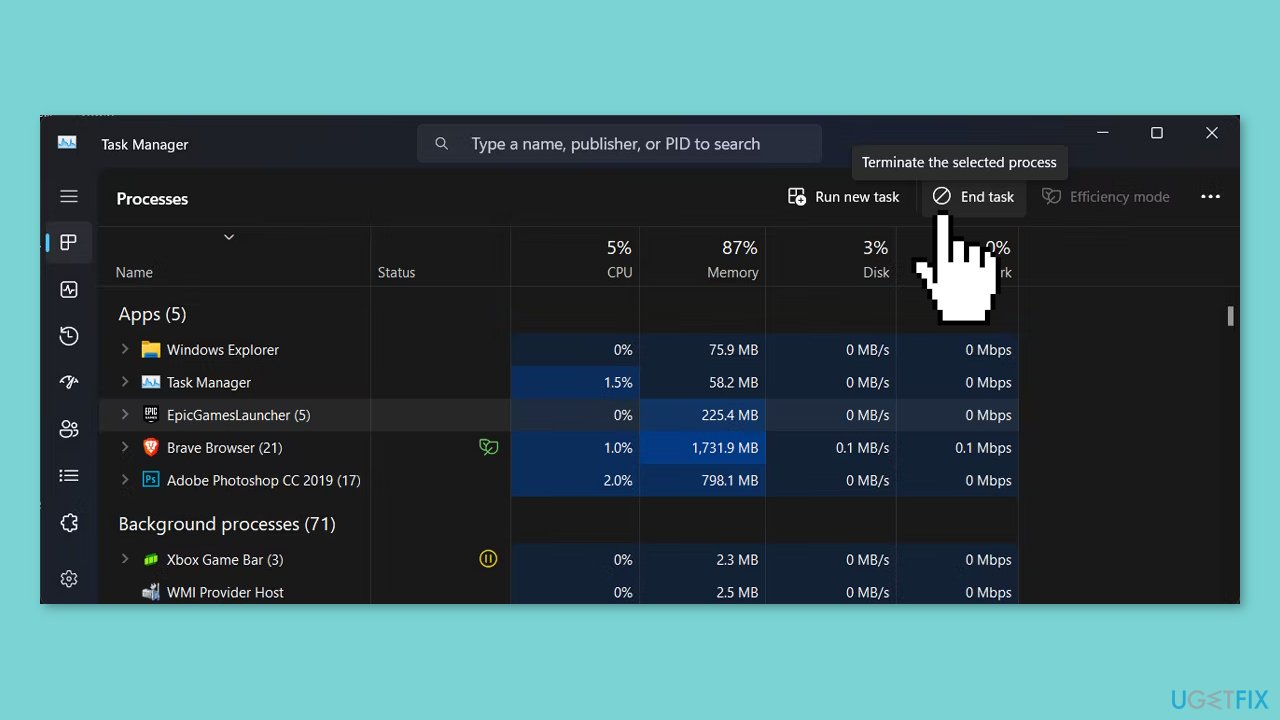
- Stop any Epic Games-related process from running.
- Relaunch the app.
- Check if all your games are now showing within the library.
Method 3. Log Out and Log In to Epic Game
An alternative solution to consider is logging out and then logging back into your account. By doing this, you prompt Epic Games Launcher to verify your account details and showcase your entire game library. Ensure that you've correctly signed in with the appropriate account.
If someone else shares a device with an Epic Games account, keep in mind that you will only see games purchased under their account.
Method 4. Unhide the Game Library
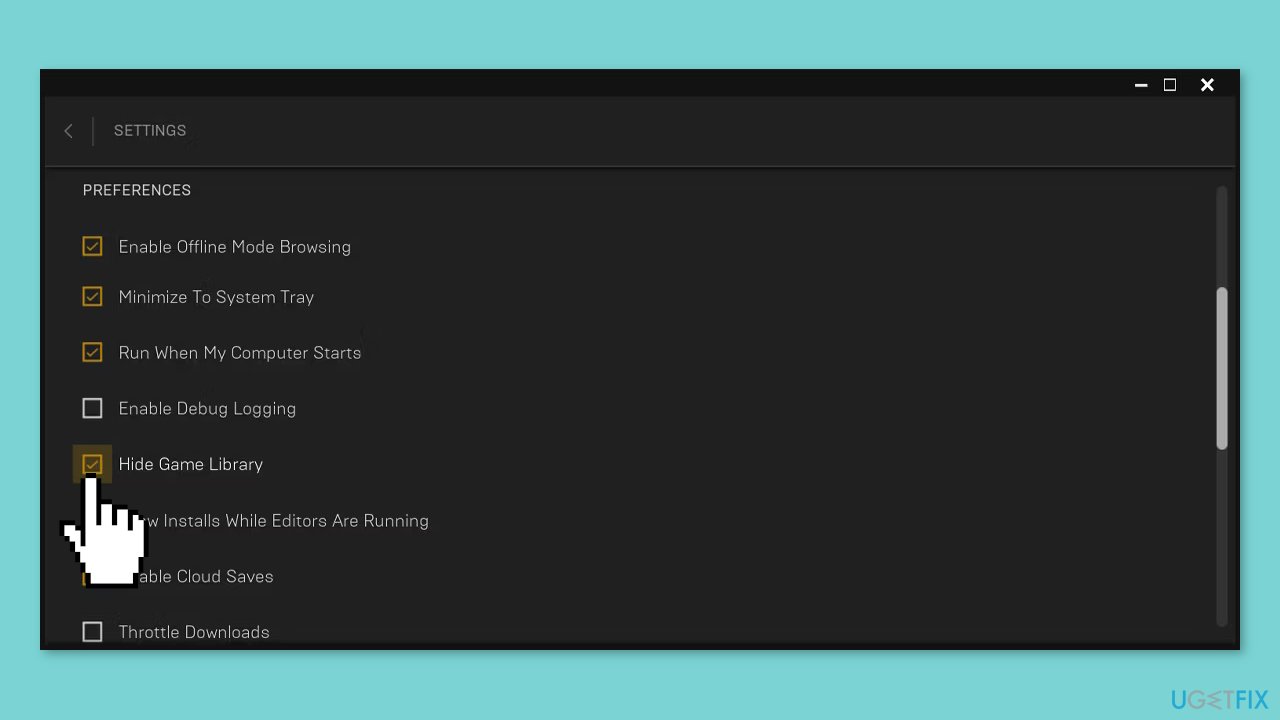
- In the Epic Games app, click on your profile icon and navigate to Settings.
- Within the Preferences section, uncheck the Hide Game Library option.
- Return to your library, and your games list should be visible.
Method 5. Remove Library Filters
- In the Library tab, select Filters.
- Uncheck any options present.
- If there are multiple filters, click Reset.
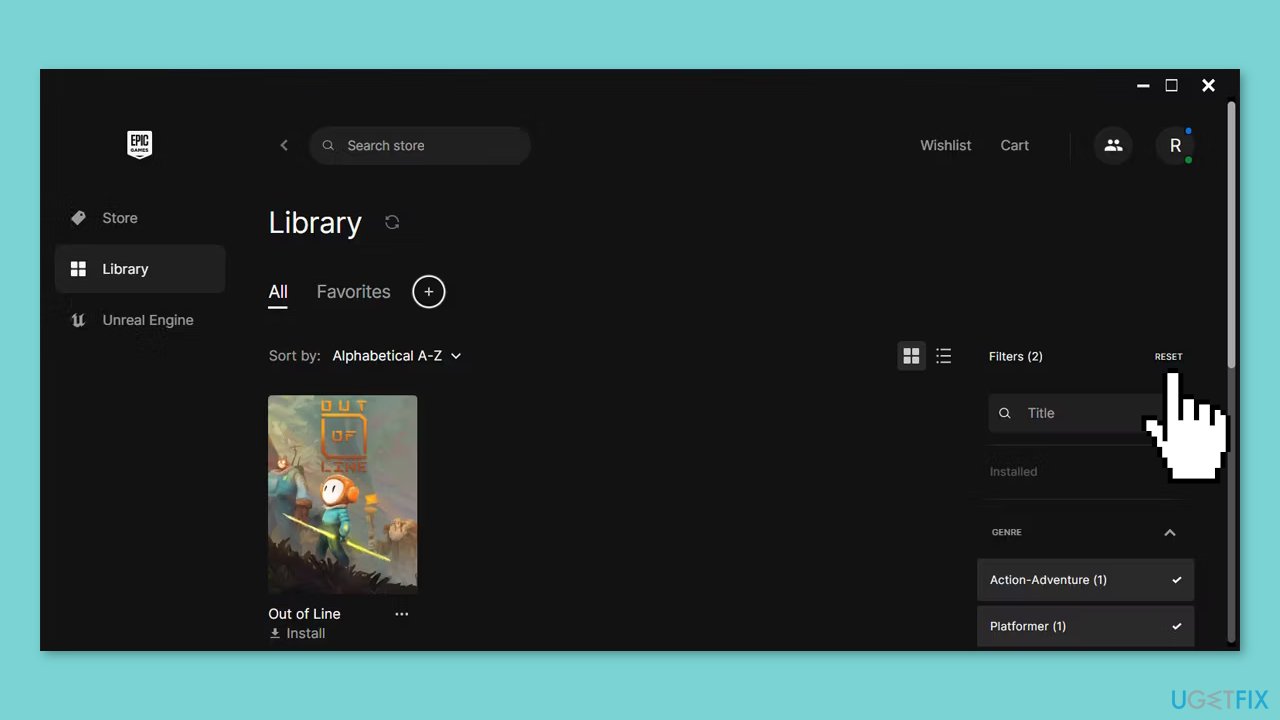
- Afterward, refresh the library.
- Check if all your games are now visible.
Method 6. Delete the Epic Games Launcher Cache
- Press the Windows key + R to open a Run dialog.
- Type %localappdata% and press Enter.
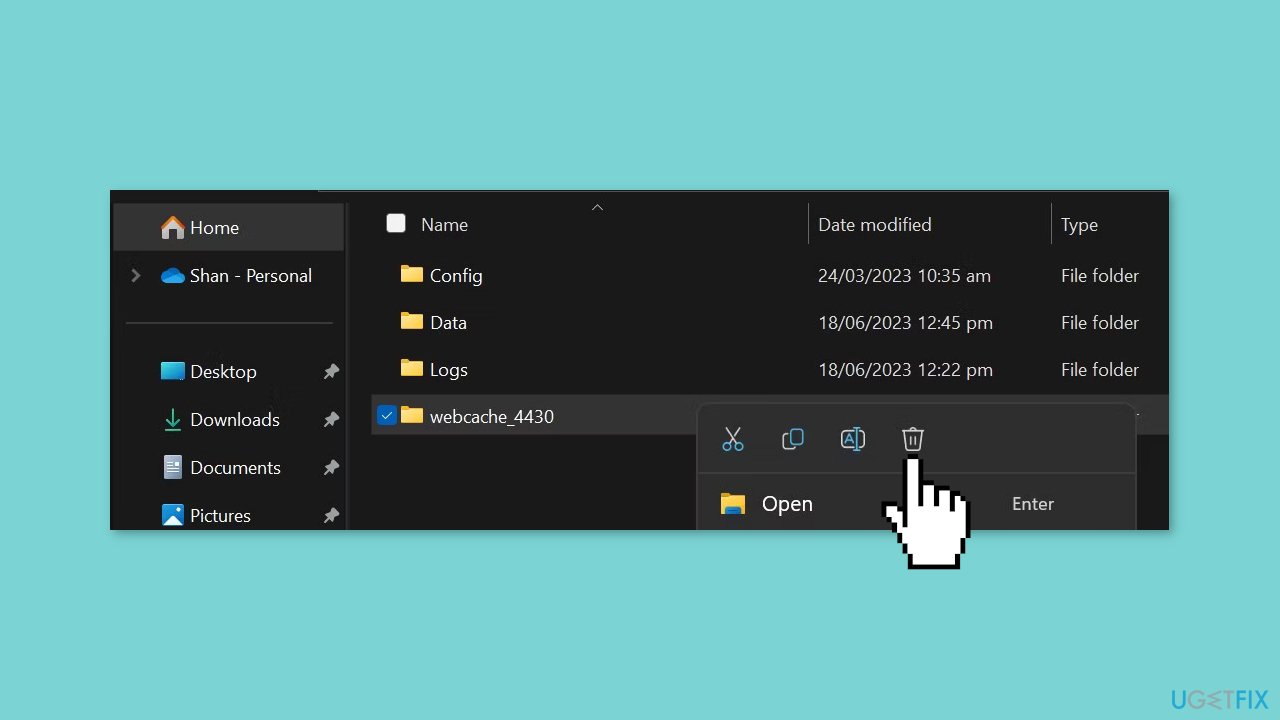
- In the File Explorer window, navigate to Local > EpicGamesLauncher > Saved.
- Locate and permanently delete the webcache folder.
- Relaunch Epic Games and verify if the issue is resolved.
Bottom line
To fix the issue of the Epic Games library not showing games, users can try refreshing the library, restarting the Epic Games Launcher, re-authenticating their account, deleting the cache, or resetting the library's filters. If none of these solutions work, consider running a maintenance tool to address system errors.
Frequently asked questions
This issue may occur due to a corrupted installation or a problem with your Epic Games Launcher. Try clearing the cache or reinstalling the launcher to resolve the problem.
If your library is empty, ensure that you are logged into the correct Epic Games account and check for any ongoing server issues. Restarting your PC or the Epic Games Launcher may also help refresh the library.
Verify the integrity of your game files through the Epic Games Launcher settings, and ensure that your Windows 10 or Windows 11 is up to date to avoid compatibility issues.




Report an issue
What's wrong with this guide? We review every report and update or remove content.
Report received — thank you. We'll review and fix it.
You need a free account to submit a report.
Be the first to comment