How to fix
Epic Games stuck on “Loading your order” screen
on Windows
Resolve the frustrating "Loading your order" issue in Epic Games on Windows 10 or 11 effortlessly. Troubleshoot with expert-tested solutions!

What causes How to fix Epic Games stuck on “Loading your order” screen in Windows?
- Corrupt cache within the Epic Games webstore
- Underlying technical issues
- Inability to finish game purchases
- Difficulties accessing new games or updates
- Missing out on special offers or in-game products
Repairs Windows system files, removes malware, and restores a clean OS state — without reinstalling.
Hello. When I try to buy a game through Epic Games, the app gets stuck on the "Loading your order" screen. How do I fix this?
The Epic Games launcher being stuck on the "Loading your order" page on Windows is a bothersome problem for users who want to play video games. They don't seem to be able to make purchases from the Epic Games Store because of this problem. The root cause of this problem can often be attributed to a corrupt cache within the Epic Games webstore or underlying technical issues.
The inability to finish their game purchases is the main worry for affected players. The seamless gaming experience that the Epic Games Store promises to give is hampered when the "Loading your order" prompt keeps appearing and transactions cannot be completed. Users might experience difficulties accessing new games, updates, or other content, which would limit their ability to fully enjoy the platform and the games they want to play.
Users who have been excitedly awaiting a game release, a special promotion, or time-sensitive offerings may find this problem to be very upsetting. In addition to having an impact on their gaming plans, not being able to make purchases may result in them missing out on possibilities to receive special offers or in-game products.
Potential fixes for the Epic Games launcher becoming stuck on the "Loading your order" page include troubleshooting procedures including clearing the cache, checking the game files' integrity, or updating the launcher. It's crucial to remember that these solutions can change depending on the precise problem and the user's system settings.
In this guide, you will find 4 steps that should help you fix Epic Games stuck on "Loading your order" screen in Windows. You can also use a maintenance tool like [d1] that can fix most system errors, BSODs,[ref en-1] corrupted files, registry[ref en-2] issues, or clear cookies and cache[ref en-3] automatically. Otherwise, follow the step-by-step instructions below.
Method 1. Clear the Web Store Cache
- Press the Windows key + R to open the Run dialog box.
- Type %localappdata% and press Enter.
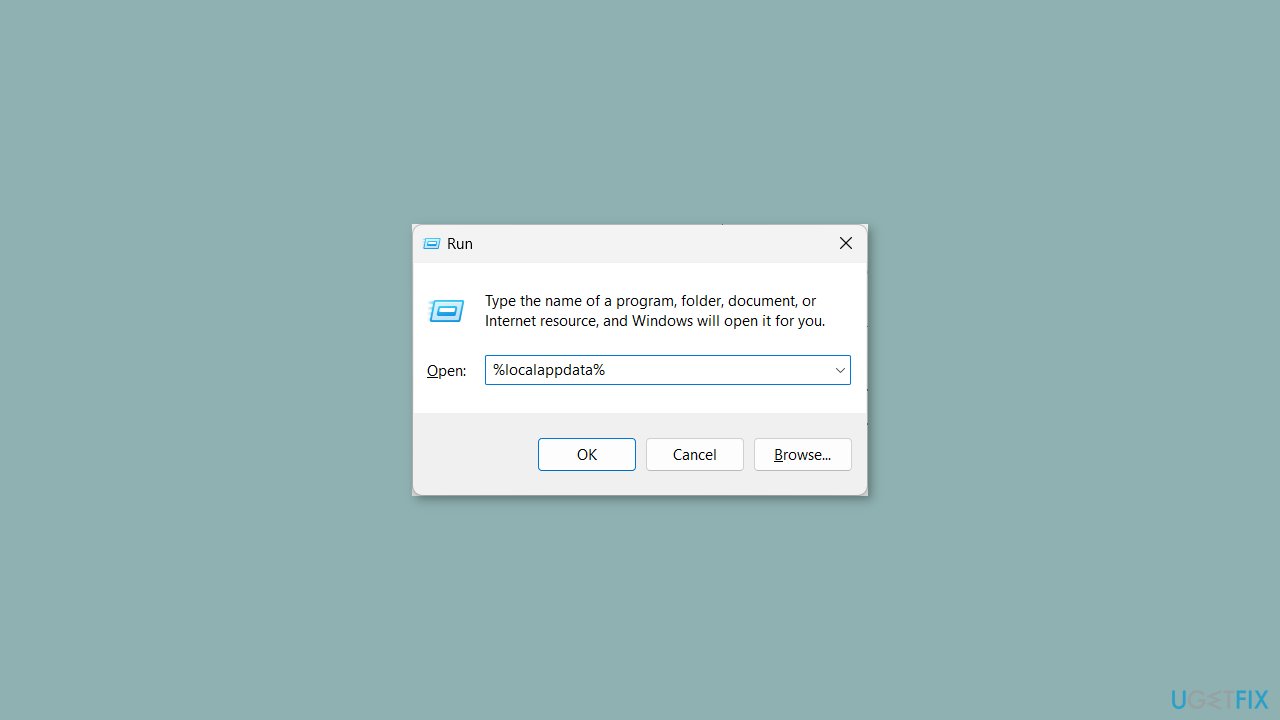
- Open the Epic Games Launcher folder.
- Double-click on the Saved folder to open it.
- Delete the webcache folder.
- You can also delete the webcache_4147 and webcache_4430 folders if found.
- Relaunch the Epic Games launcher.
Method 2. Update the Launcher
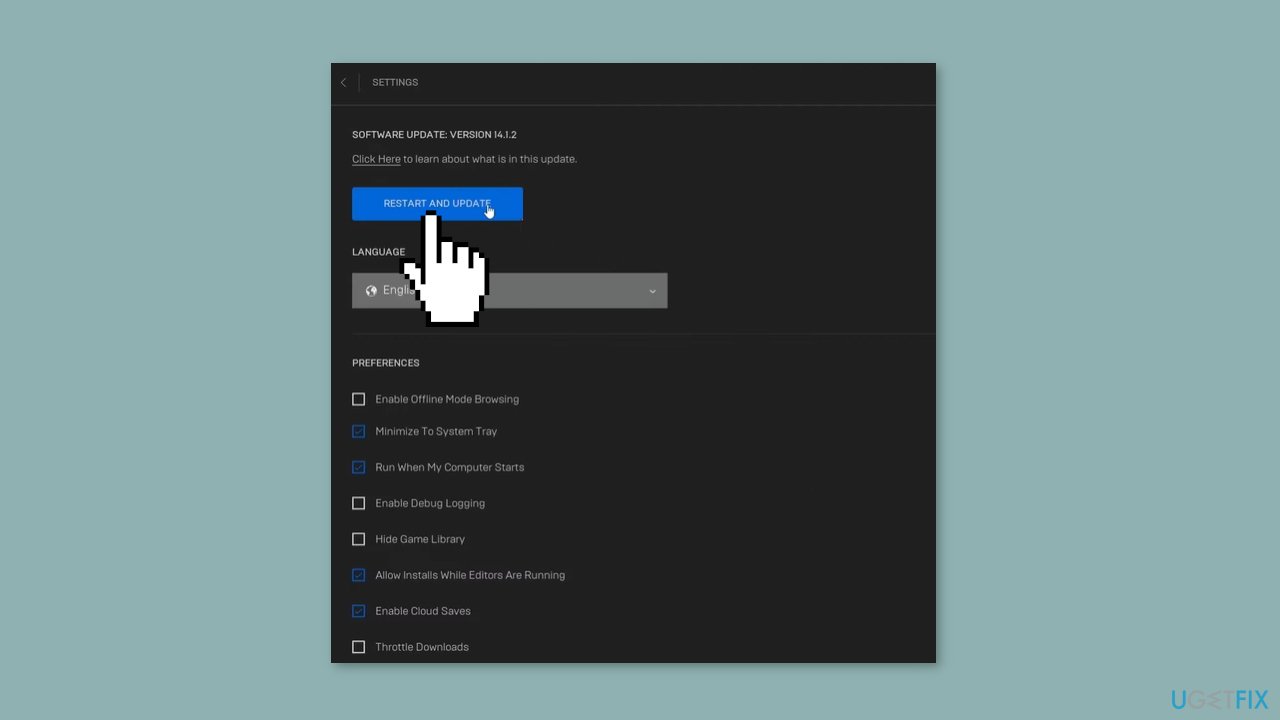
- Open the Epic Games launcher.
- Click on your profile icon at the top-right corner and select Settings.
- If you see a Restart and Update button, click on it to install the pending update.
Method 3. Flush DNS Cache
- Open the Start menu by pressing the Windows key.
- Type command prompt and run it as an administrator.
- Type the below command and press Enter:
ipconfig /flushdns
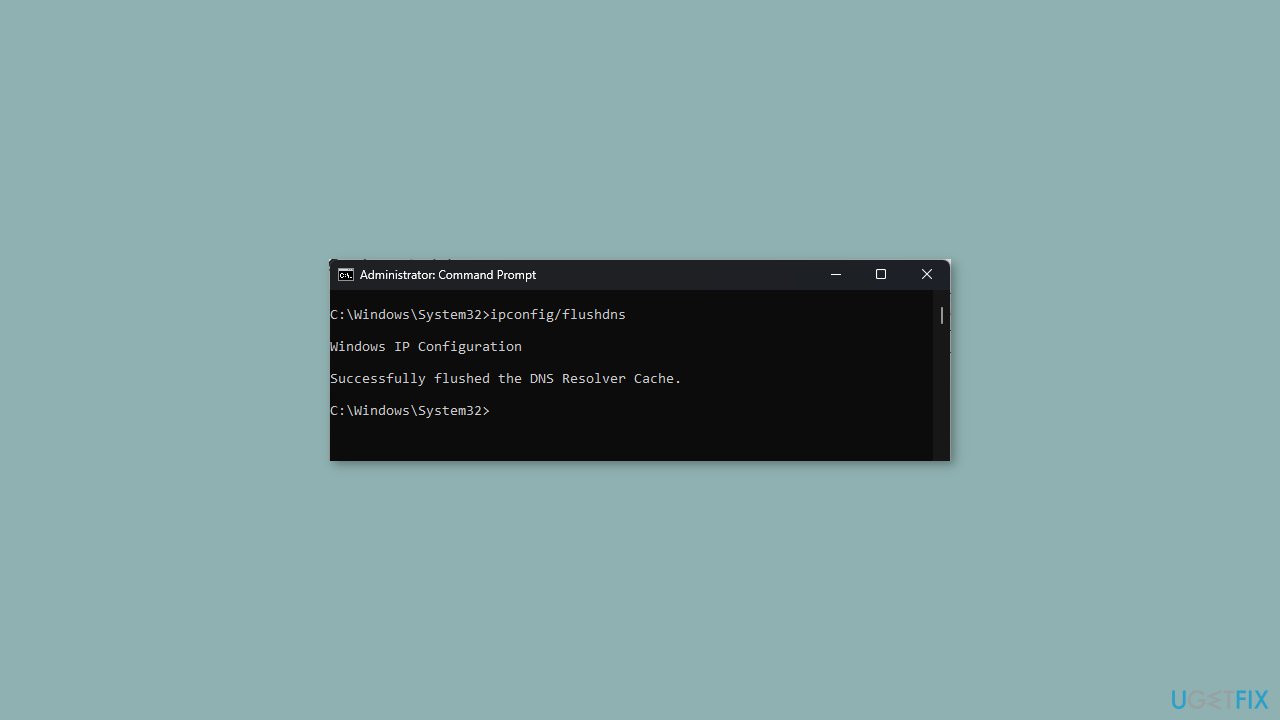
- Wait for some time until the process is complete.
- Reboot your PC.
Method 4. Change the DNS Servers
- Launch the Start menu by pressing the Windows key.
- Open Control Panel.
- Select Network and Sharing Center.
- Click Change Adapter Settings.
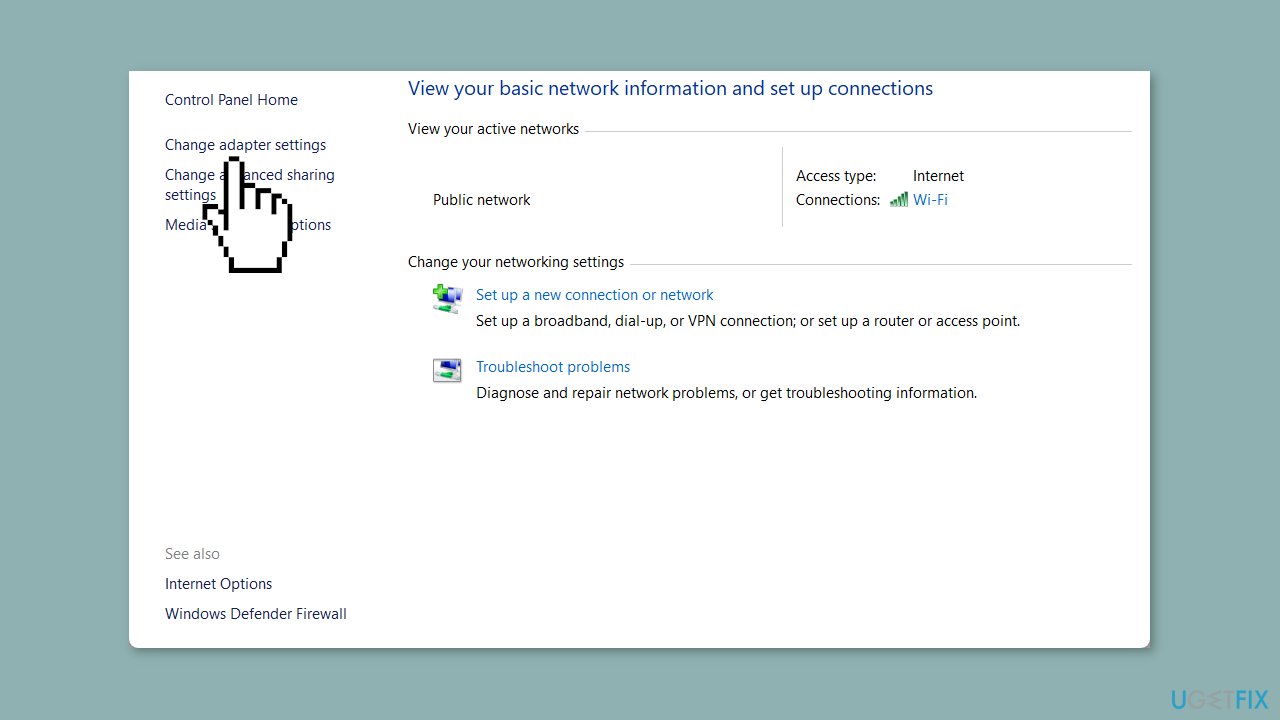
- Right-click on your connection and select Properties.
- Select Internet Protocol 4 (TCP/IPv4) and click on the Properties button.
- Check the radio button for Use the following DNS server addresses and enter the below details:
Preferred DNS server: 8.8.8.8
Alternate DNS server: 8.8.4.4
- Click OK to apply the changes.
Bottom line
To fix the Epic Games launcher being stuck on the 'Loading your order' screen, you can try clearing the web store cache, checking the integrity of game files, or updating the launcher. If these solutions do not resolve the issue, consider using a maintenance tool to fix system errors or clear cookies and cache automatically.
Frequently asked questions
Try clearing the Epic Games Launcher cache by closing the launcher, navigating to the Epic Games folder, and deleting the 'webcache' folder. Restart the launcher and check if the issue persists.
Make sure your Windows 11 is up to date by checking for updates in Settings, and also try disabling any VPN or firewall that might be interfering with the connection.
Yes, uninstall the Epic Games Launcher through the Control Panel, restart your computer, and then download and install the latest version from the official Epic Games website.




Report an issue
What's wrong with this guide? We review every report and update or remove content.
Report received — thank you. We'll review and fix it.
You need a free account to submit a report.
Be the first to comment