How to fix
“Epic online services has failed to install” Error Code: EOS-ERR-1603
on Windows
Resolve the EOS-ERR-1603 error in Windows 10 or 11 quickly and easily. Get expert-tested solutions to fix installation issues in minutes.

What causes How to fix “Epic online services has failed to install” Error Code: EOS-ERR-1603 in Windows?
- Missing sub-folder in the Epic Games main directory
- Windows Registry pointing to a non-existent folder
- Corrupted files
- Issues with system updates
- Dependency on Epic's online services for games
Repairs Windows system files, removes malware, and restores a clean OS state — without reinstalling.
Hello. When I tried to install the Epic Games Launcher I received the following message: "Epic online services has failed to install Error Code: EOS-ERR-1603". Is there any way to fix this?
When attempting to start or install the Epic Games Launcher, users may see the annoying error message "Epic online services has failed to install" with Error Code EOS-ERR-1603. Numerous gamers have reported this problem, and it appears that a missing sub-folder in the Epic Games main directory is the root of this issue. When users noticed that the Windows Registry was pointing to a folder that plainly didn't exist, they came to this conclusion.
The effects of this problem may be very serious for users. The Epic Games Launcher cannot be successfully installed or used as a result, and gamers are unable to access their favorite games or the Epic Games Store. For gamers who depend on the platform for their gaming library, updates, and community services, this can be very unpleasant. It interferes with their entire gaming experience and may require lengthy debugging.
Moreover, any games or applications that depend on Epic's online services may become unstable or unresponsive if the required sub-folder isn't there. This includes any online components of games that make them unplayable or cause them to break, such as multiplayer functionality, social features, and any social elements.
Users often need to construct the missing sub-folder in the Epic Games main directory in order to fix this problem, aligning it with the position specified in the Windows Registry. However, depending on the person's system and configuration, the precise steps to fix the issue may differ.
In this guide, you will find 8 steps that should help you fix "Epic online services has failed to install" Error Code: EOS-ERR-1603. You can also run a system repair tool like [d1] that can fix most system errors, BSODs,[ref en-1] corrupted files, and registry[ref en-2] issues. Otherwise, follow the step-by-step instructions below.

Solution 1. Install Windows Updates
- Click Start and select Settings.
- Go to the Windows Update section.
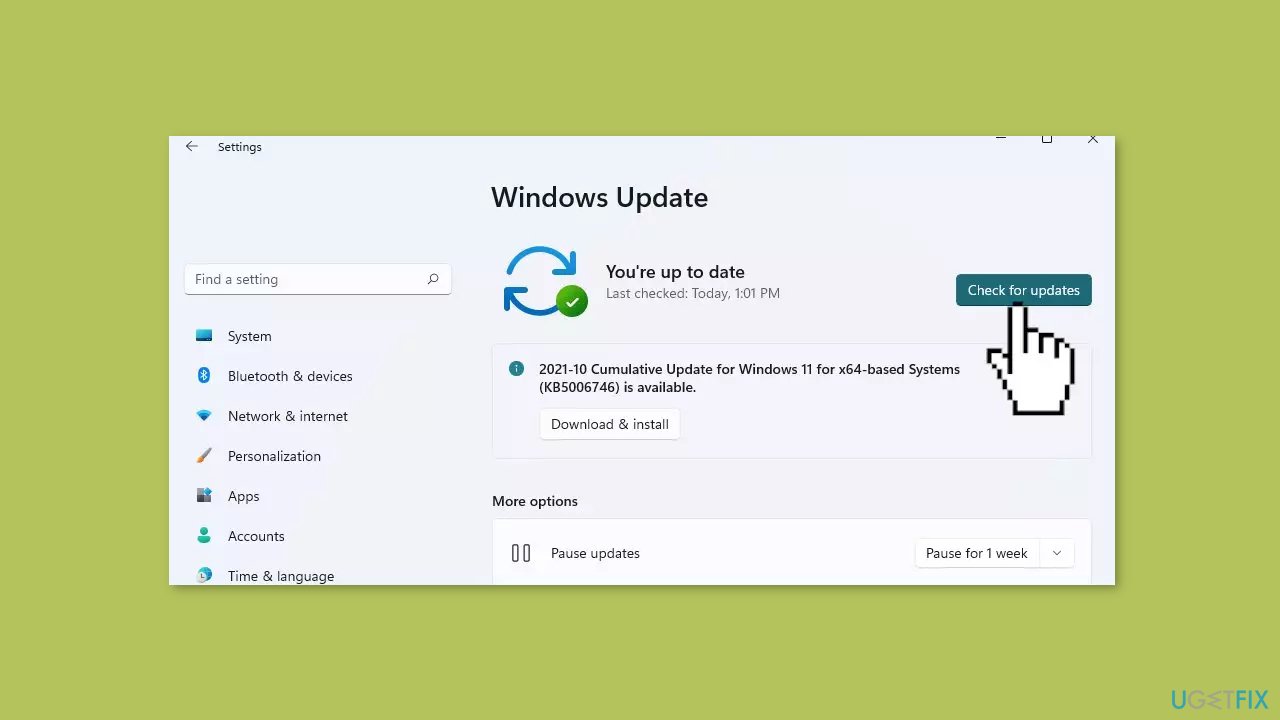
- Click Check for updates and wait.
- Go to the Advanced options and install optional updates.
- Reboot your system.
Solution 2. Run the Epic Games Launcher as an Administrator
- Search for Epic Games in the Windows Search bar.
- When the option appears, right-click on it and select Run as administrator.
- With the Epic Games launcher now open in Administrator mode, you can proceed to download and install your game.
Solution 3. Create a Missing Sub-folder
- Open the File Explorer window and navigate to the following path: C:\Program Files (x86)\Epic Games
- Right-click on the free space and select New > Folder.
- Name the new folder Epic Online Services.
- Hit Enter to save the path and reboot your system.
- Now that the Epic Online Services folder has been created, the Registry path will be complete, and the error will be resolved.
Solution 4. Install the Launcher in another Directory
- Go to C: drive and open Program Files (x86).
- Create a new folder named Epic Games.
- Install the launcher in this folder. The location will be C:\Program Files (x86)\Epic Games.
Solution 5. Use Program Install and Uninstall Troubleshooter
- Download the Program Install and Uninstall troubleshooter and unzip the file.
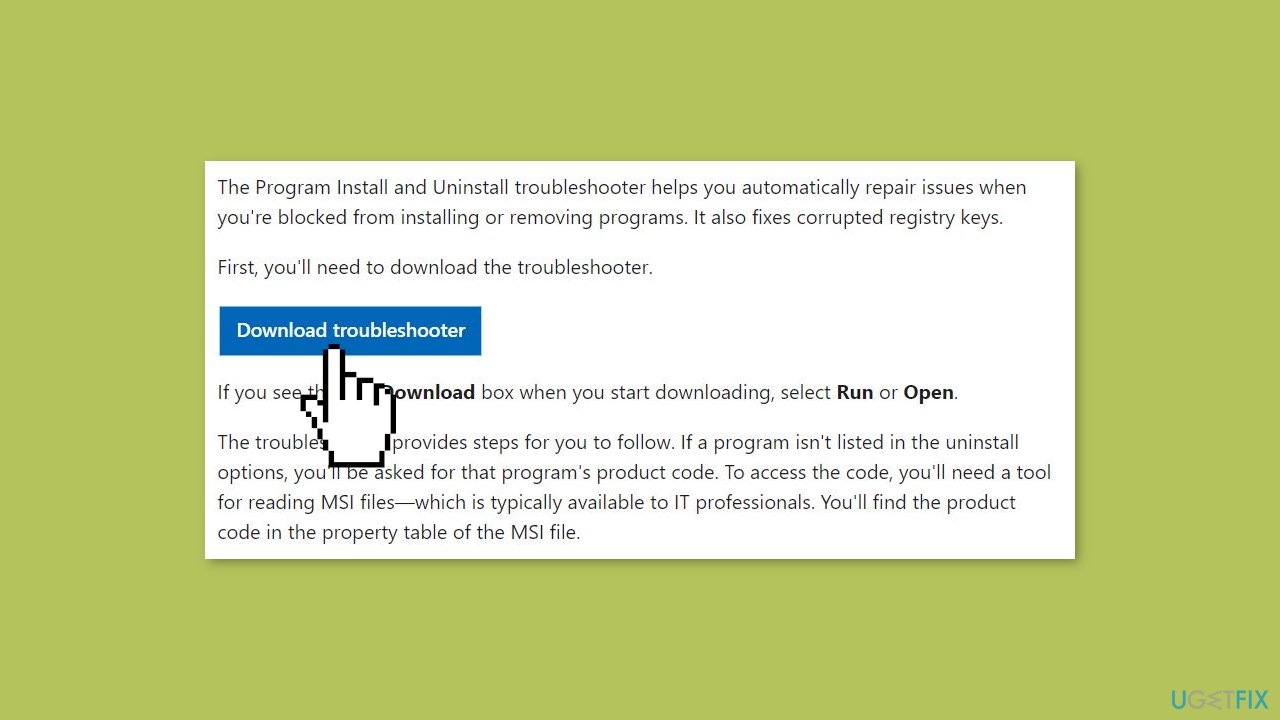
- Double click on MicrosoftProgram_Install_and_Uninstall.meta.diagcab.
- Click Next on the troubleshooter.
- Select Installing.
- The tool will detect the problems and display a list of programs.
- Select Epic Games Launcher from the list and click Next. Follow the on-screen options accordingly.
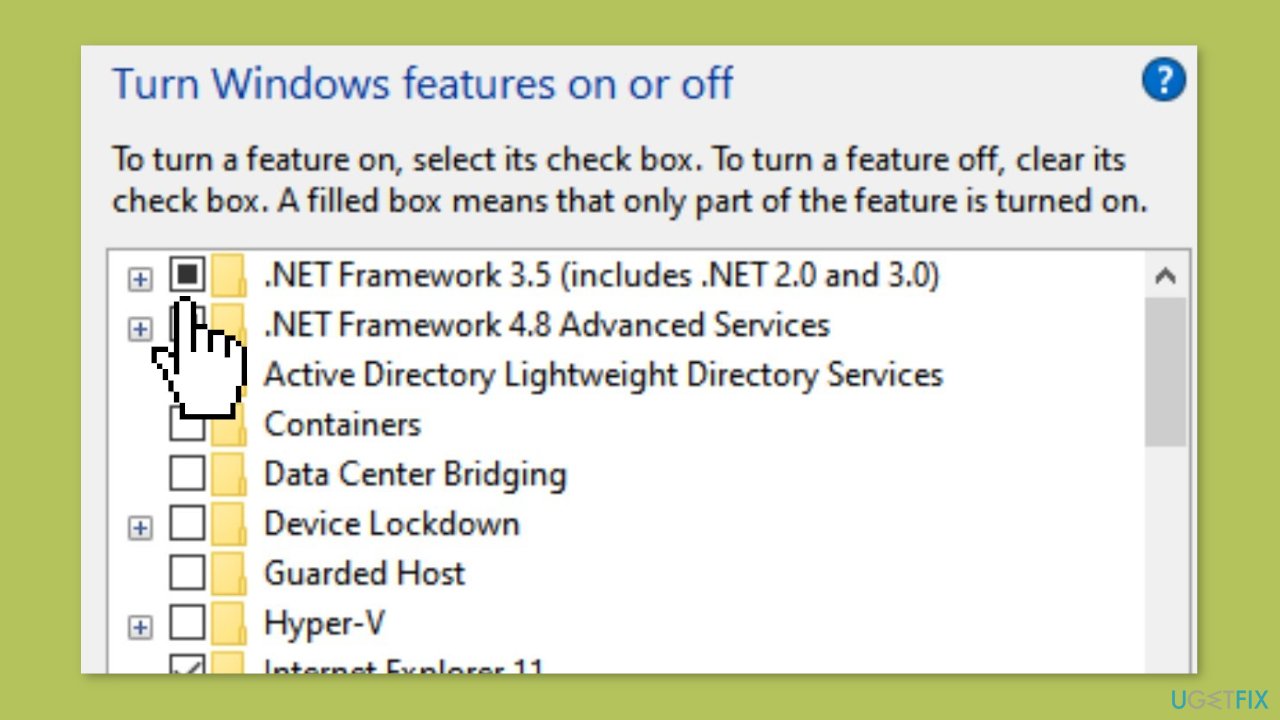
Solution 6. Install .NET Framework
- Press the Windows key + R, then type apppwiz.cpl and hit Enter.
- In the Programs and Features window, click on Turn Windows features on or off from the left pane.
- In the new window, check .Net Framework 3.5 and click on OK. Once the application is installed, restart your computer.
Solution 7. Reset the Epic Games Launcher Cache
- Press the Windows key + R.
- When the Run dialog box opens, type %localappdata% and hit Enter.
- File Explorer will appear with the concerned folder.
- Locate the EpicGamesLauncher folder and open it by double-clicking.
- Search for the folders webcache, webcache_4147, and webcache_4430, and delete them.
Solution 8. Uninstall and Reinstall the Launcher
- Right-click on Start and select Settings.
- Select Apps from the left pane.
- In the right pane, click on Installed apps.
- Scroll through the list of all the programs to find Epic Games.
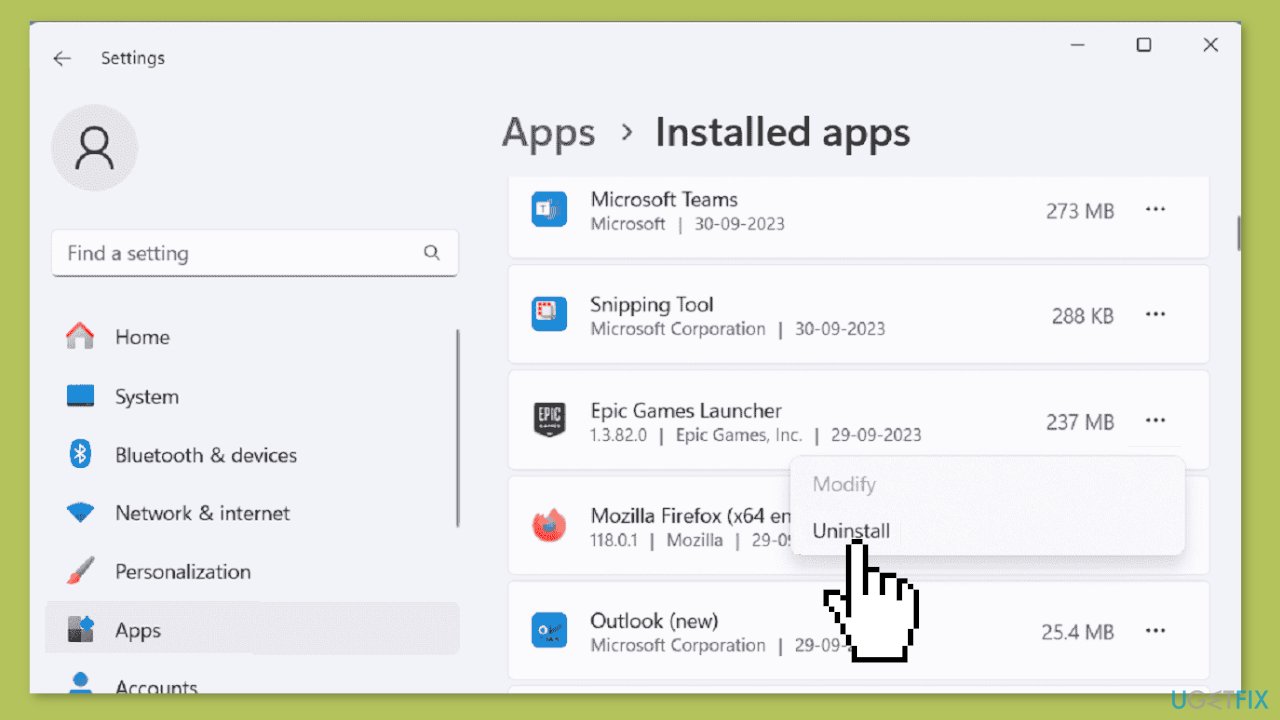
- Click on the three dots and select Uninstall. Follow the onscreen instructions, and finally, restart the system.
- After restarting, open the Epic Games setup and proceed to install the launcher.
Bottom line
To fix the "Epic online services has failed to install" Error Code: EOS-ERR-1603, users can install Windows updates, create the missing sub-folder in the Epic Games main directory, or run a system repair tool. If these solutions do not resolve the issue, further troubleshooting may be necessary.
Frequently asked questions
This error is typically caused by corrupted installation files, conflicts with antivirus software, or insufficient permissions during the installation process.
You can resolve this error by ensuring that your Windows 11 system is up to date, running the installer as an administrator, and temporarily disabling any antivirus software.
Yes, it's generally safe to temporarily disable your antivirus to fix the error, but remember to re-enable it immediately after the installation process is complete to maintain your system's security.




Report an issue
What's wrong with this guide? We review every report and update or remove content.
Report received — thank you. We'll review and fix it.
You need a free account to submit a report.
Be the first to comment