How to fix
Epson printer error 1131
on Windows
Resolve Epson printer error 1131 on Windows 10 or Windows 11 effortlessly. Follow our expert-tested tips for quick fixes today!


What causes How to fix Epson printer error 1131 in Windows?
- Outdated printer drivers
- Corrupted printer drivers
- Faulty Windows updates
- Conflicting third-party software
- Recent system changes
Repairs Windows system files, removes malware, and restores a clean OS state — without reinstalling.
I have noticed that my Epson printer is offline, so I decided to check the device utility app. I've noticed that there's a new driver is available, so I attempted to install it but got an error 1131 instead. Any tips on how to resolve this would be appreciated. I'm running Windows 10 version 22H2.
Printers are a staple in many households and businesses today, allowing users to produce physical copies of documents, images, and other materials with ease. They are often essential tools in creating hard copies of important paperwork, such as contracts, forms, and reports. Among the popular brands of printers available on the market, Epson stands out as a reliable and widely-used option.
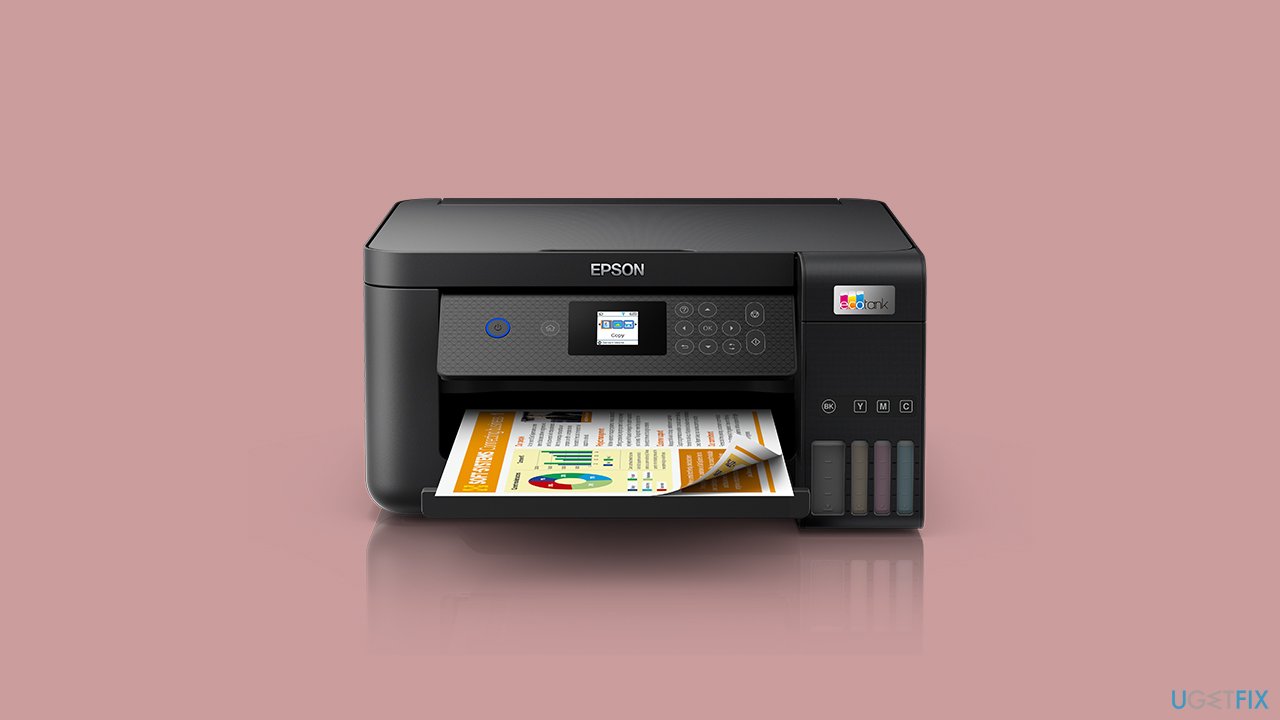
However, despite their convenience, printers can sometimes present issues that can hamper their functionality. One of these is the Epson printer error 1131. This problem can occur across various models of Epson printers, such as the Workforce WF-3540, Workforce Pro WP-4540, and Stylus NX420, to name a few.
Many users have reported encountering this error after installing Windows updates. While this may not always be the case, it is a common occurrence. Several factors can contribute to the issue, including outdated or corrupted printer drivers, faulty Windows updates, or problems with the printer software.
If you are experiencing Epson printer error 1131, there are several troubleshooting steps you can take. For example, if the issue occurred right after Windows updates were applied, you can uninstall them and wait till Microsoft fixes the problem. A troubleshooter can point you in the right direction too. Additionally, you can try uninstalling and reinstalling the printer software to fix any corrupted files.
Another solution is to perform a system restore to undo any recent system changes that may have caused the issue. Alternatively, you can try disabling any third-party software that may be conflicting with your printer, such as antivirus programs. You can also run a scan with a powerful PC repair tool [d1], which can easily identify corrupted sectors of Windows and fix them automatically for you.
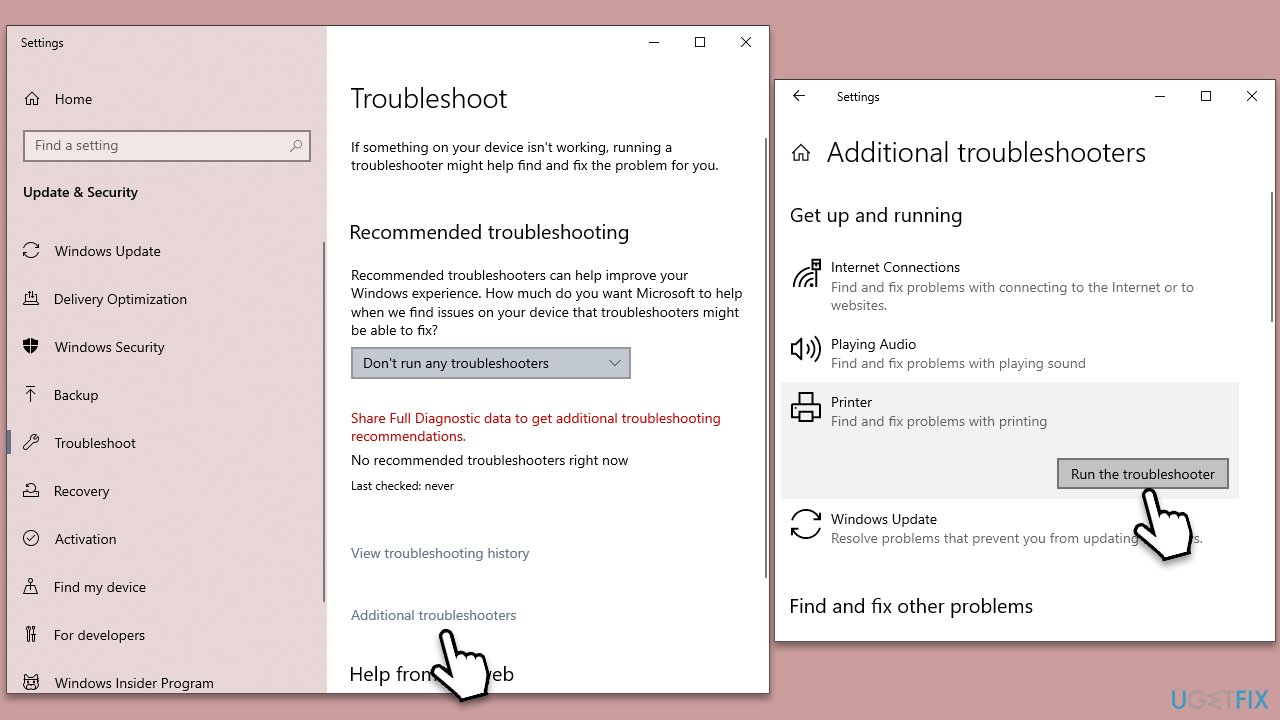
Fix 1. Run the troubleshooter
We recommend starting with the troubleshooter.
- Type in Troubleshoot in Windows search and hit Enter.
- Go to Additional Troubleshooters/Other troubleshooters.
- Pick Printer and click Run the troubleshooter/Run.
- Wait till the scan is finished, and then apply the suggested fixes.
- Restart your computer.
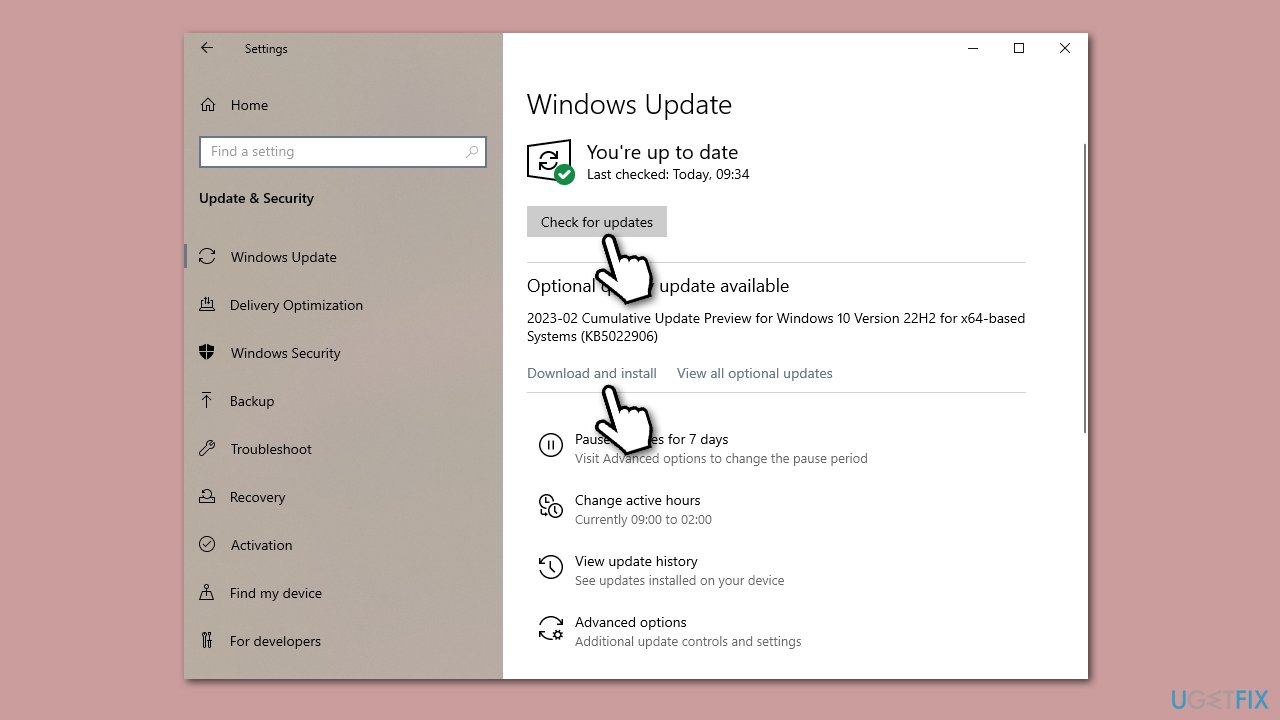
Fix 2. Install all available Windows updates (and drivers)
- Type Updates in Windows search and press Enter.
- Click Check for updates and wait until all the necessary files are downloaded.
- If optional updates are available, install them as well.
- Restart your computer when this task is fully complete.
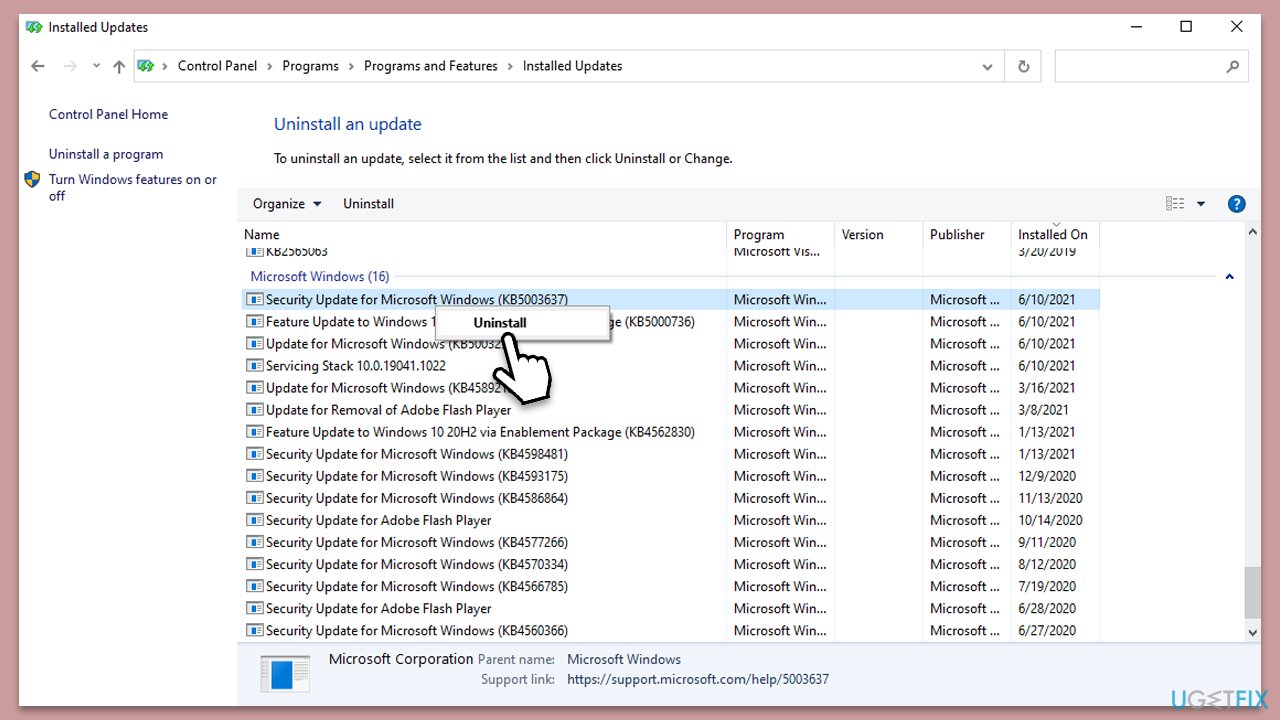
Fix 3. Uninstall the most recent update [workaround]
If the error started after updating your Windows system, uninstalling the most recent update could tackle the problem. After uninstalling, you can pause the update until fixes are shipped by either Epson or Microsoft.
- Type Control Panel in Windows search and press Enter.
- Select Programs > Uninstall a program.
- Click on View installed updates on the left side of the window.
- Sort all the updates by date.
- Right-click on the most recent update and select Uninstall.
- Proceed with on-screen instructions.
- Then, type Updates in Windows search and press Enter.
- Click Pause the updates for 7 days (in Windows 11, you can pick a different time period).
- Install updates only once the issue is addressed by Microsoft.
Fix 4. Reinstall printer driver
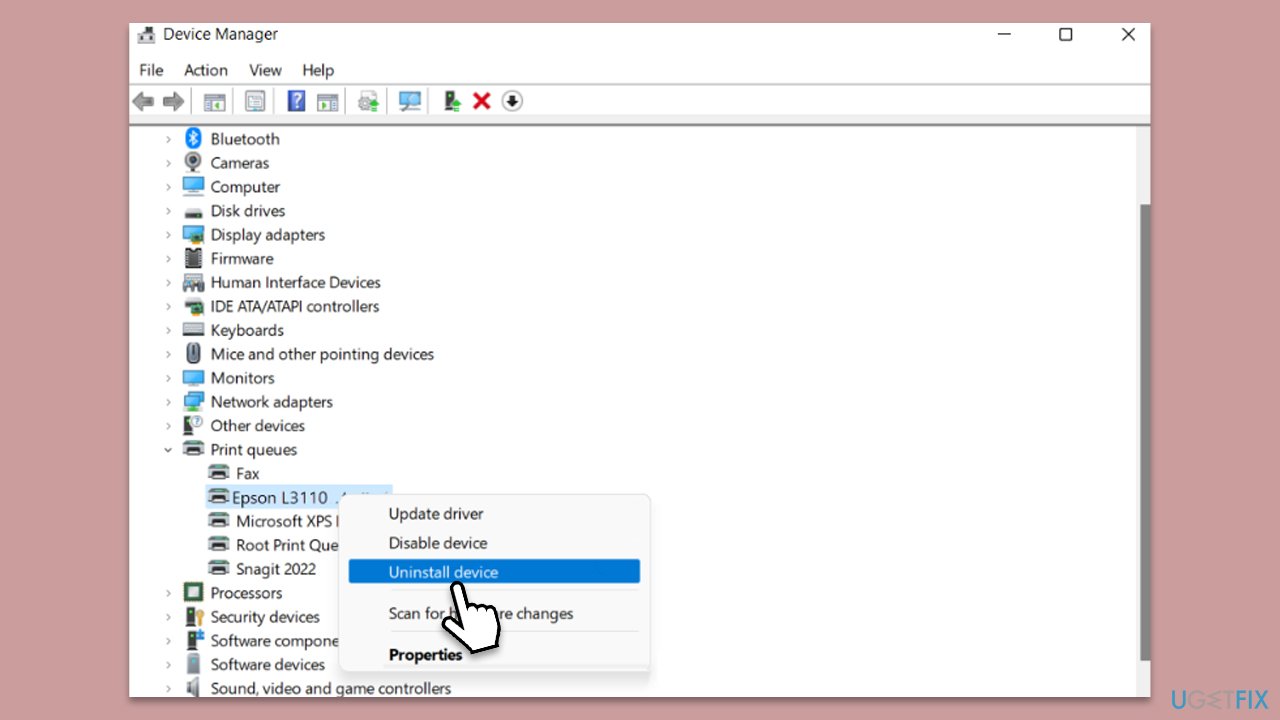
- Type Device Manager in Windows search and press Enter.
- Expand Printers section.
- Right-click on your printer and pick Uninstall device.
- Mark the Delete the driver software for this device tickbox and click Uninstall.
- Follow the on-screen instructions and restart your PC.
After a restart, you should either visit the official Epson website to install the latest driver or rely on an automatic driver updater such as [rev id="DriverFix"].
Fix 5. Restart Print Spooler and fix corrupted files
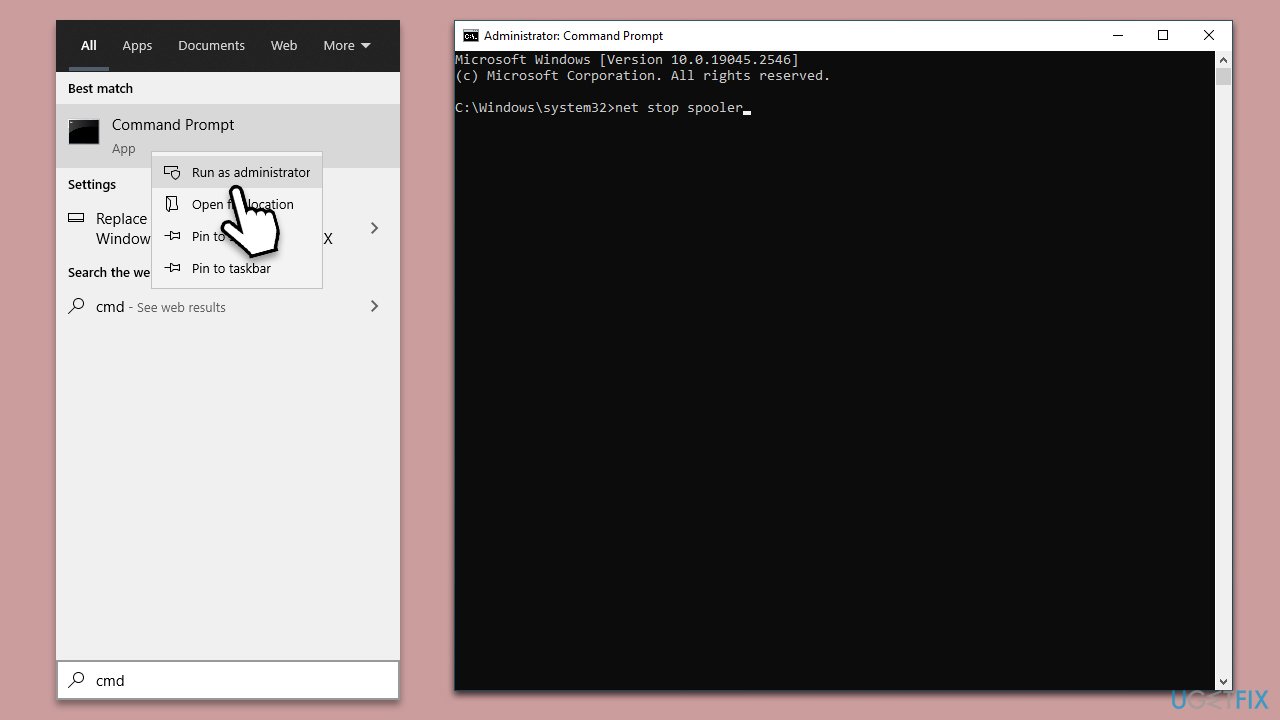
- Type cmd in Windows search.
- Right-click the Command Prompt result and pick Run as administrator.
- When UAC shows up, click Yes.
- Copy and paste the following commands - press Enter after each and let them all be executed before proceeding to the next one:
net stop spooler
del %systemroot%\System32\spool\printers* /Q”
net start spooler
sfc /scannow
DISM /Online /Cleanup-Image /CheckHealth
DISM /Online /Cleanup-Image /ScanHealth
DISM /Online /Cleanup-Image /RestoreHealth - Restart your system.
Fix 6. Use System Restore
If the above-mentioned solutions are ineffective, you may attempt to revert your computer to a previous state. It will not affect your personal files, although some recently installed apps may be removed.
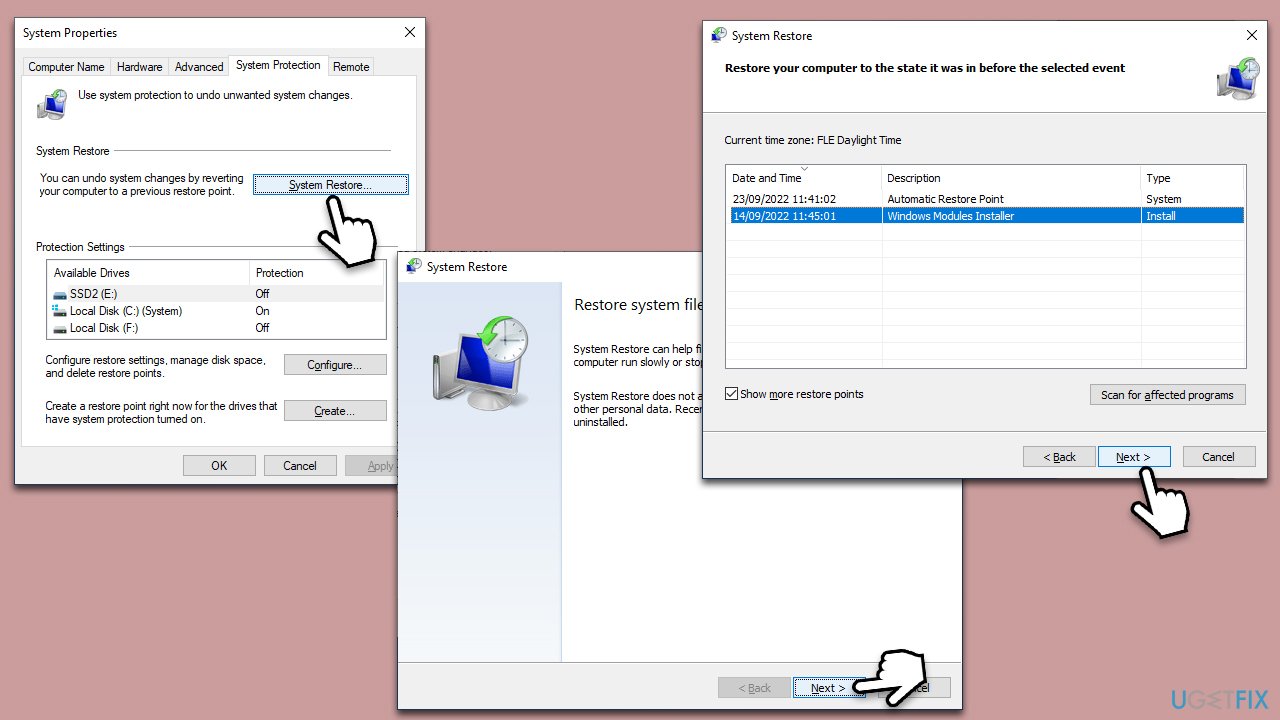
- Type in Create a restore point in Windows search and hit Enter.
- Go to System Restore and click Next.
- Mark the Show more restore points option.
- Pick the time when the problem did not exist and click Next.
- Finalize the process - your computer will restart.
Bottom line
To fix Epson printer error 1131, you can uninstall recent Windows updates, use a troubleshooter, or uninstall and reinstall the printer software. Additionally, performing a system restore or disabling conflicting software may help. If none of these solutions work, consider running a scan with a PC repair tool.
Frequently asked questions
Epson printer error 1131 typically indicates a communication issue between the printer and the computer, often due to a network or driver problem.
To fix the Epson error 1131 on Windows 11, try updating your printer drivers, ensuring the printer is connected to the same network, and restarting both the printer and your computer.
To prevent Epson printer error 1131 in Windows 10, keep your printer drivers updated and regularly check your network connection to ensure stable communication.




Report an issue
What's wrong with this guide? We review every report and update or remove content.
Report received — thank you. We'll review and fix it.
You need a free account to submit a report.
Be the first to comment