How to fix
ERR_ADDRESS_UNREACHABLE error in Chrome
on Windows
Resolve the ERR_ADDRESS_UNREACHABLE error in Chrome on Windows 10 or 11 effortlessly. Our expert-tested solutions ensure your browsing is back on track!

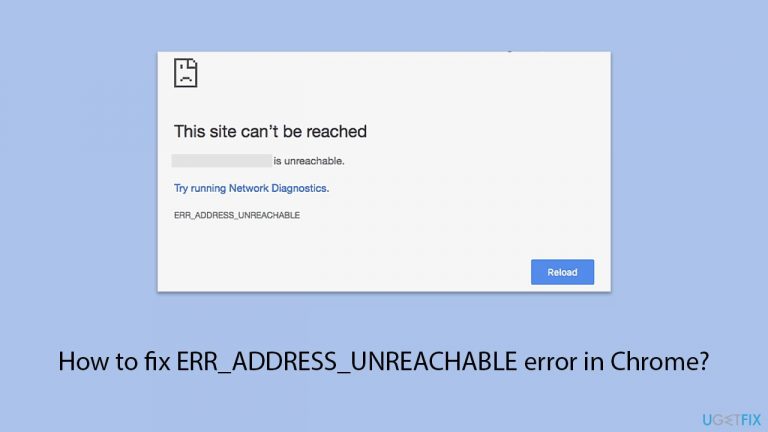
What causes How to fix ERR_ADDRESS_UNREACHABLE error in Chrome?
- Network issues
- Third-party software
- Cookies and other site data
- DNS problems
- Router or modem issues
Repairs Windows system files, removes malware, and restores a clean OS state — without reinstalling.
For the past few days, I have been experiencing a problem with my Chrome browser (I guess). I can access some websites (such as YouTube) but others remain out of reach due to the ERR_ADDRESS_UNREACHABLE error. To be fair, I can't access most of the sites.
Despite being one of the most widely used browsers, Google Chrome's dependability isn't always the best. Chrome users may occasionally have issues, just like with any other software. Errors like ERR_ADDRESS_UNREACHABLE are one type of such error. It prevents people from going to some or all of the websites on the internet. This article will explain this error, several possible reasons why it happened, and a solution.
What is ERR_ADDRESS_UNREACHABLE?
The error code ERR_ADDRESS_UNREACHABLE in Google Chrome indicates that the webpage you are attempting to visit is not reachable by the browser. Put otherwise, this indicates that either the website's server is not responding or Chrome is unable to locate it. The webpage cannot load in the browser as a result.
Possible causes
Just like with any other computer issue, the ERR_ADDRESS_UNREACHABLE error may be caused by a variety of issues, for example:
- Network issues.
- Third-party software.
- Cookies and other site data.
- DNS problems.
- Router or modem issues.
To fix the ERR_ADDRESS_UNREACHABLE error in Chrome, you can try several methods we describe in detail below. As its most common cause is internet connection issues, you can start by troubleshooting that area and running an adequate troubleshooter. Resetting your network connection can work as well - this can be done manually or automatically.
Because the error might also be caused by incorrect DNS and other configuration settings, adjusting them can help. Finally, ensuring that there are no suspicious extensions that might be interfering with the connection might also provide good results. Clean boot is a perfect environment to exclude software that might be the root cause of the error.
For more novice users or those who prefer a simpler solution, we recommend using a PC repair tool like [d1]. It can perform numerous troubleshooting steps for you in just a few minutes, ultimately resolving whatever you are dealing with.

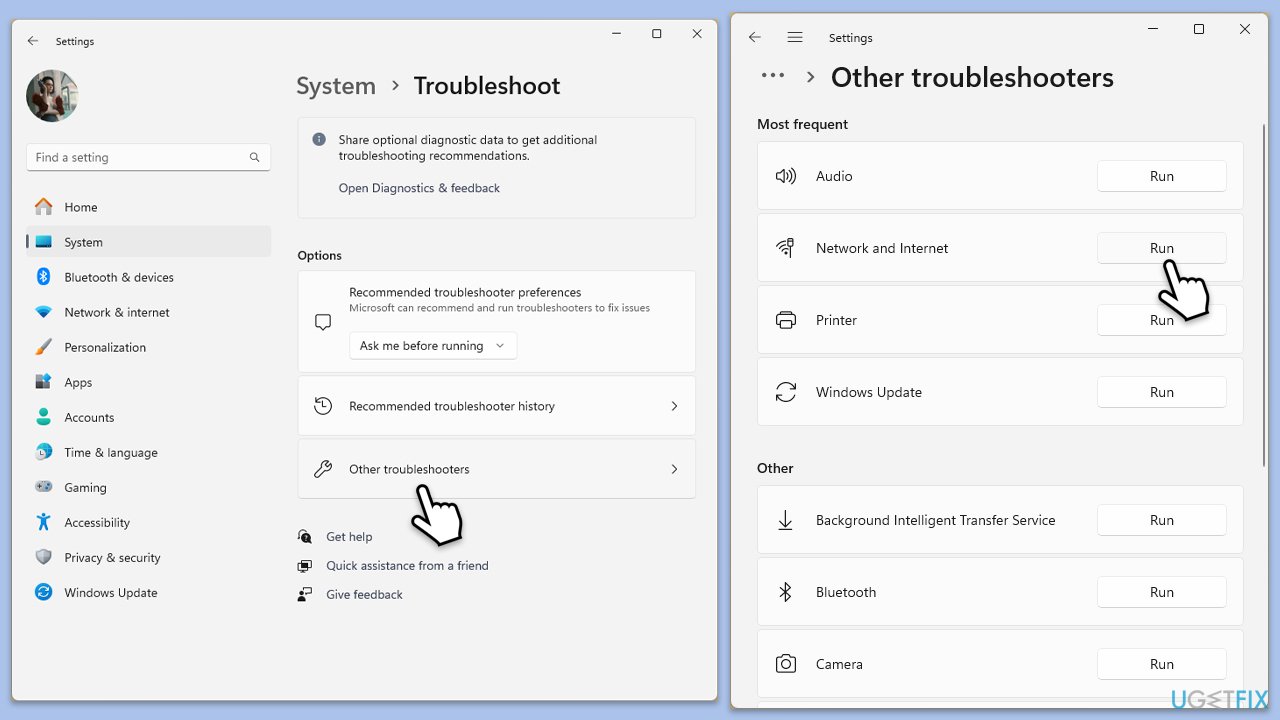
Fix 1. Run Network troubleshooter
Windows 11
- In the Windows search bar, type Troubleshoot and press Enter.
- Select Other troubleshooters.
- Locate Network & internet, and then click Run.
- Follow the on-screen instructions to diagnose and fix issues.
Windows 10
- Right-click on Start and pick Settings.
- Go to Network & Internet section.
- On the right side, find the Advanced network settings section.
- Click Network troubleshooter, specify the problem, and wait till the scan is finished.
- When done, apply all the recommendations.
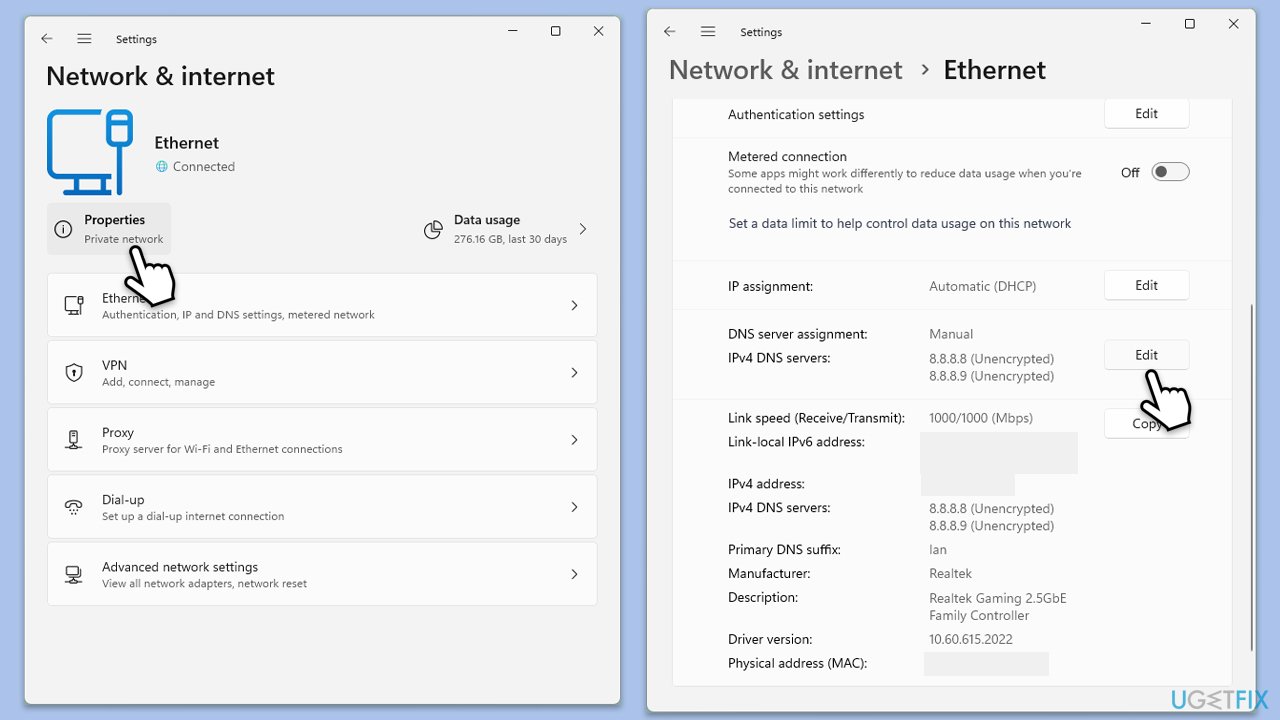
Fix 2. Change your DNS settings
Windows 11
- Right-click on Start and select Network connections.
- Under your connection, click Properties.
- Find the DNS server assignment section and click Edit.
- Set your DNS to Google's:
Preferred DNS: 8.8.8.8
Alternate DNS: 8.8.4.4 - Click Save.
Windows 10
- Right-click on Start and select Settings.
- Go to Network and Internet section.
- Click on Change adapter options.
- Right-click on your internet connection and pick Properties.
- Click Internet Protocol Version 4 (TCP/IPv4) once and go to Properties
- Select Use the following DNS server addresses option and set your DNS to Google's:
Preferred DNS server: 8.8.8.8
Alternate DNS server: 8.8.4.4 - Click OK.
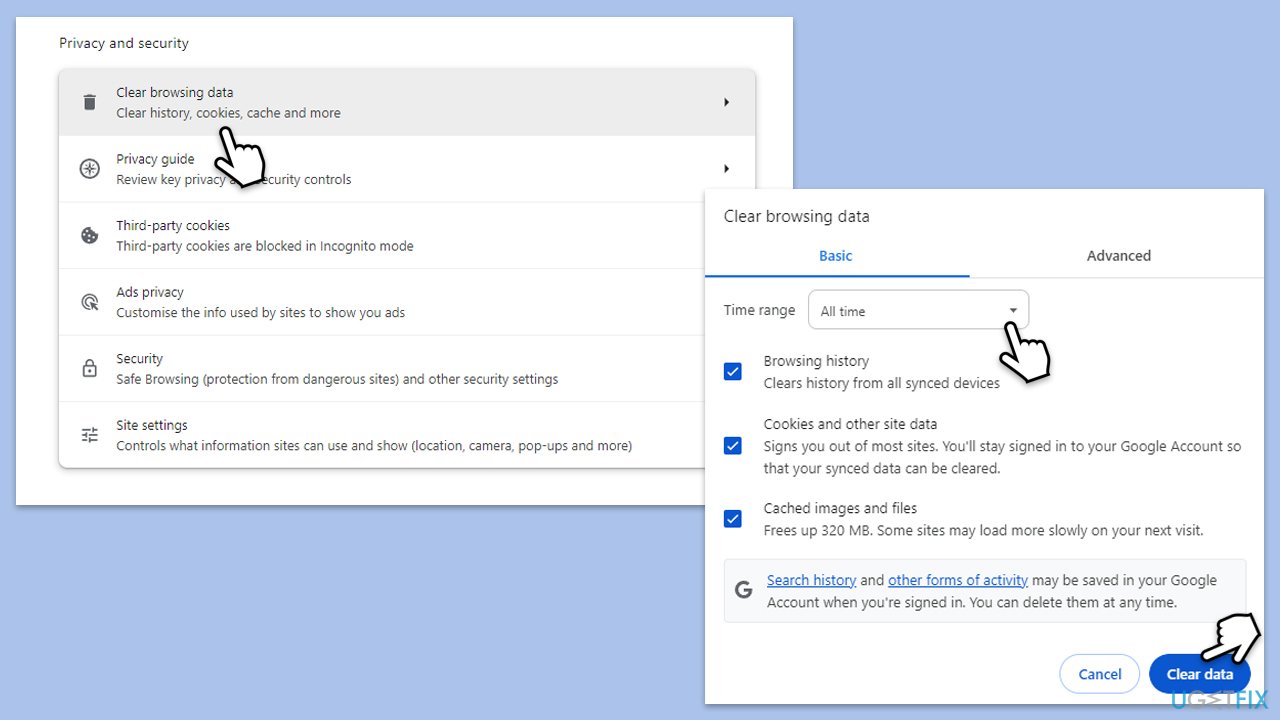
Fix 3. Clear browser cache files
- Open Chrome.
- Click on Menu and select Settings.
- Under Privacy and security, pick Clear browsing data.
- Select All time under the time range.
- Select Browsing history, Cookies and other site data, as well as Cached images and files.
- Click Clear data.
Fix 4. Disable extensions
- Access your browser's extensions menu.
- Locate the extensions list and identify any that might interfere with connections, like ad blockers.
- Alternatively, Disable all extensions temporarily.
- Restart your browser and check if Chrome is working properly.
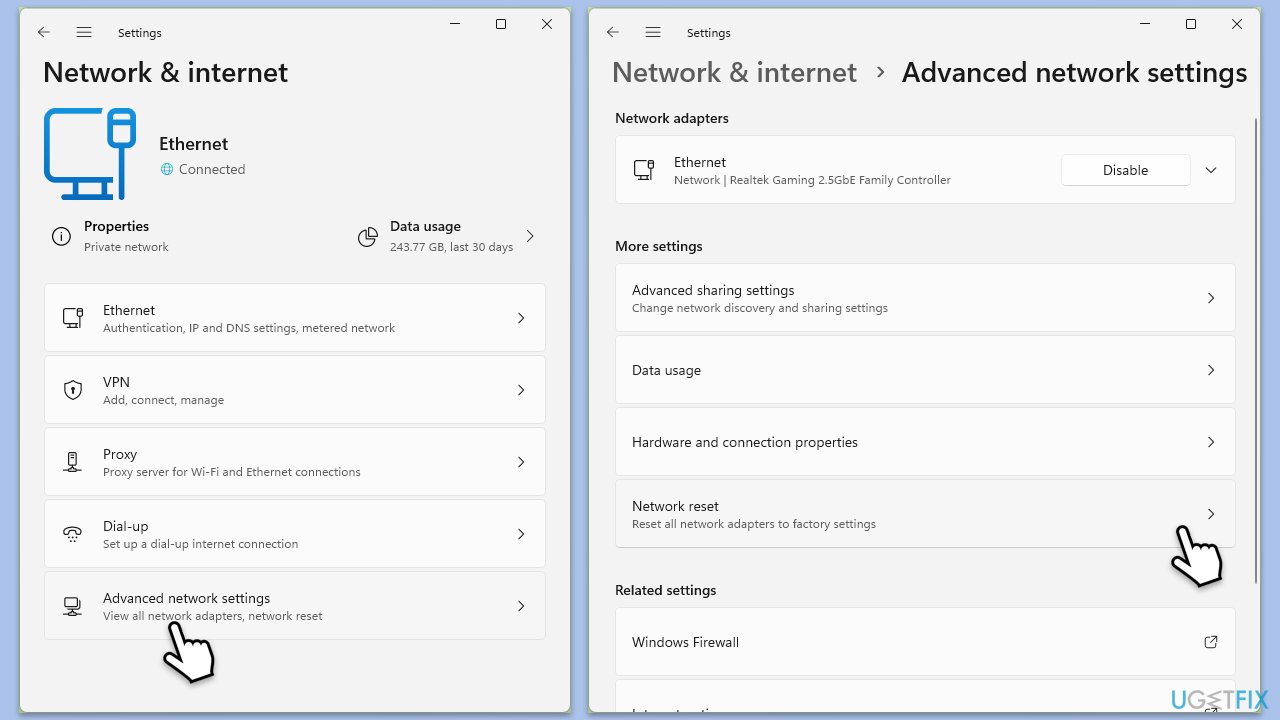
Fix 5. Reset your internet connection
- Right-click on Start and pick Settings.
- Go to Network & Internet.
- Under Advanced network settings, click Network reset.
- Click Reset Now.
- Confirm the action and then restart your computer.
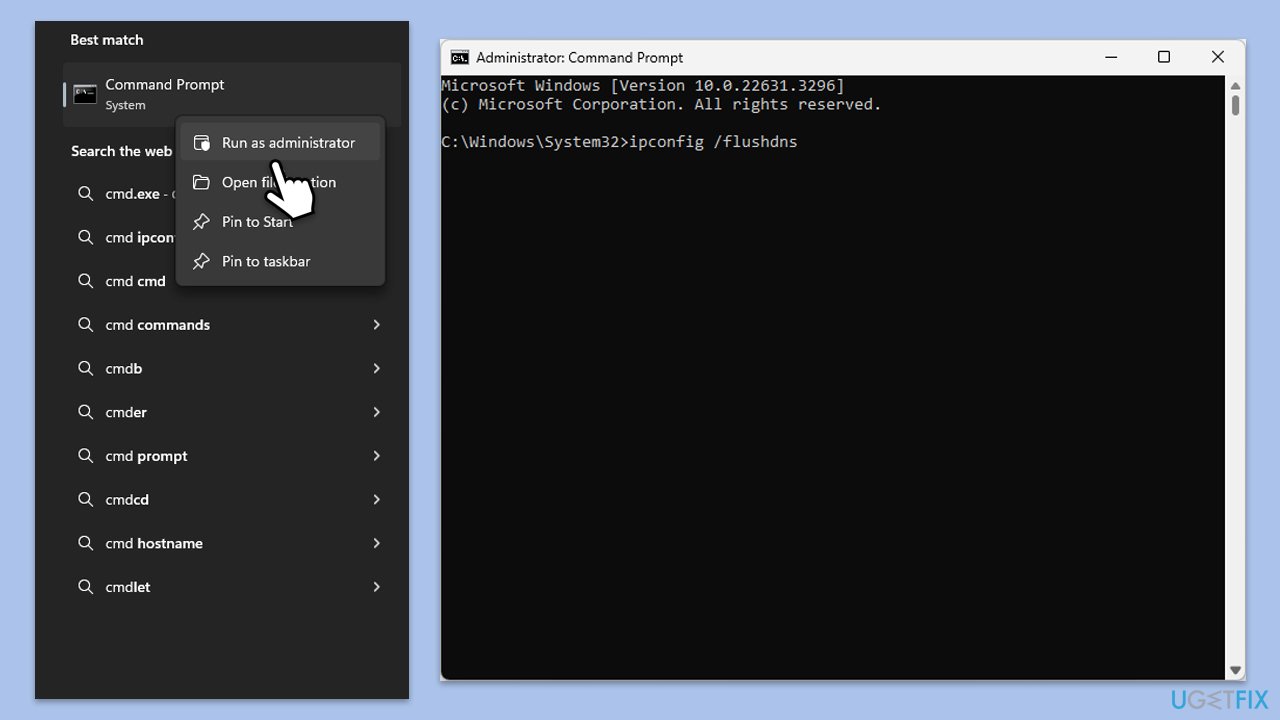
Fix 6. Reset TCP/IP, flush DNS cache, and reset Windows sockets
- Type cmd in Windows search.
- Right-click on the Command Prompt result and select Run as administrator.
- Copy and paste each of the following commands, pressing Enter every time:
ipconfig /flushdns
ipconfig /registerdns
ipconfig /release
ipconfig /renew
netsh winsock reset - Reboot your computer.
Fix 7. Reset firewall settings
- Type Control Panel in Windows search and press Enter.
- Go to System and Security.
- Click on Windows Defender Firewall.
- Select Restore defaults on the left side.
- Click on Restore defaults and confirm your choice.
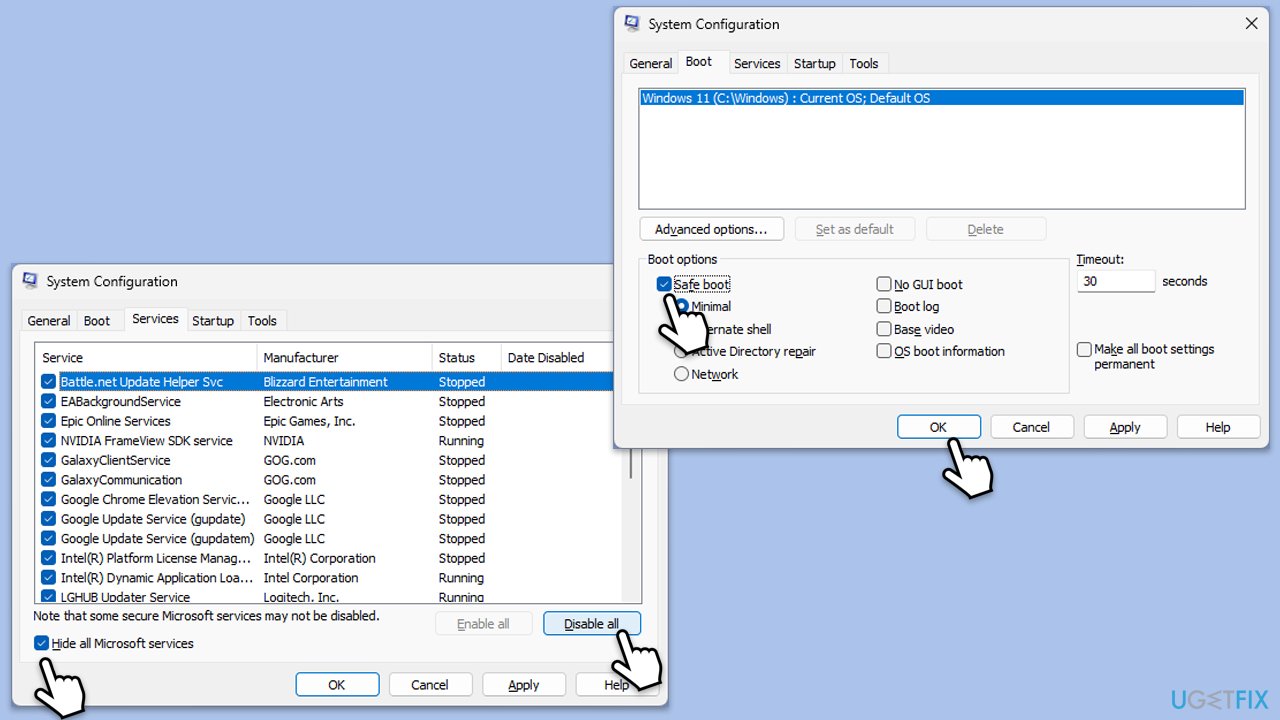
Fix 8. Try Clean Boot
- Type msconfig in Windows search and press Enter.
- In the System Configuration window, go to the Services tab and check the box next to Hide all Microsoft services.
- Click Disable all to disable all non-Microsoft services.
- Go to the Startup tab and click Open Task Manager.
- In Task Manager, disable all startup items.
- Close Task Manager and click OK in the System Configuration window.
- Go to the Boot tab and select Safe Boot.
- Click OK, and restart your computer.
- To find out which app(s) is causing conflicts, enable each of the processes (or you can do it in groups), restart, and see if the problem persists. Repeat until you find the faulty app, then either update or uninstall it.
Bottom line
To fix the ERR_ADDRESS_UNREACHABLE error in Chrome, you can troubleshoot your internet connection, reset your network connection, adjust DNS settings, and check for suspicious extensions. If these methods do not resolve the issue, consider using a PC repair tool for further assistance.
Frequently asked questions
This error typically occurs when the Chrome browser cannot reach the specified IP address due to network issues or incorrect URL entry. Ensure that your internet connection is stable and the website URL is correct.
You can fix this error by resetting your network settings or flushing your DNS cache. Open Command Prompt as an administrator and run 'ipconfig /flushdns' to clear any outdated DNS records.
Yes, clearing your browser cache and cookies can help resolve this issue. Go to Chrome settings, select 'Privacy and security', and then choose 'Clear browsing data' to remove cached files.




Report an issue
What's wrong with this guide? We review every report and update or remove content.
Report received — thank you. We'll review and fix it.
You need a free account to submit a report.
Be the first to comment