How to fix
ERR_BAD_SSL_CLIENT_AUTH_CERT error in Google Chrome
on Windows
Resolve the ERR_BAD_SSL_CLIENT_AUTH_CERT error in Google Chrome on Windows 10 and 11. Quick fixes guaranteed, expert-tested solutions await!


What causes How to fix ERR_BAD_SSL_CLIENT_AUTH_CERT error in Google Chrome?
- Protocol filtering issues
- Incorrect time and date settings
- Compatibility issues with antivirus tools
- Outdated Windows operating system
- Corrupted data or altered settings
- Cached data in the browser
Repairs Windows system files, removes malware, and restores a clean OS state — without reinstalling.
Hello, I cannot enter my email, and the browser error code ERR_BAD_SSL_CLIENT_AUTH_CERT keeps me from accessing the account. I noticed it happening with other sites. This all happens on Google Chrome browsers, so I think the application is the issue. How to fix this SSL certificate issue? Help!
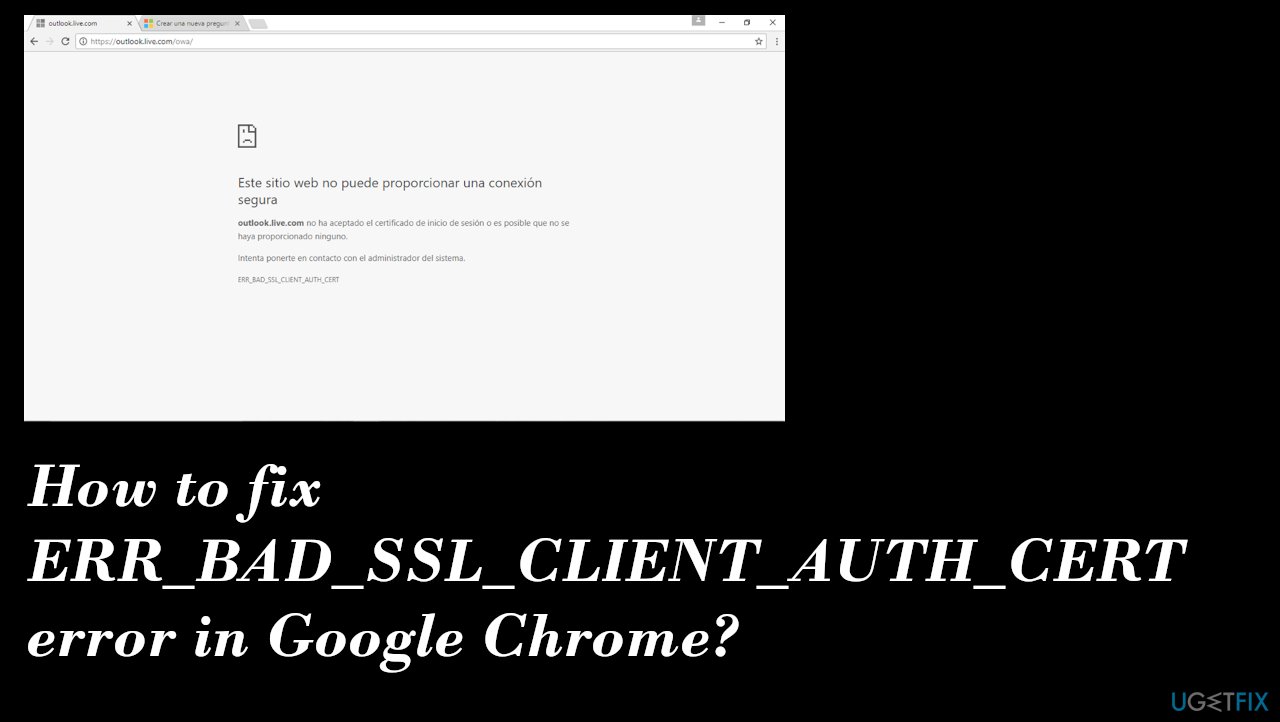
ERR_BAD_SSL_CLIENT_AUTH_CERT error is the issue that often annoys users online.[ref en-1] This is the problem occurring in the Google Chrome browser when the browser is not accepting the security certificates from particular sites. This error code can sometimes be triggered by known and common sites like google.com, gmai.com, outlook.com, facebook.com, and others.
The particular code is particular for the Google Chrome web browser. Causes for the problem can be related to the protocol filtering or the time & date settings, other features that are out of sync. Certain antivirus tools and programs can cause issues with the machine because of the compatibility issues with other apps or protocols and settings.
There are various triggers and different solutions for the separate issues leading to the particular certificate error on the browser. ERR_BAD_SSL_CLIENT_AUTH_CERT error can be caused by the Windows operating system or programs that are out of date. it is common for OS updates themselves[ref en-2] to cause problems on the computer.
Corrupted data or altered settings, files on the machine can often lead to Windows issues and trigger problems with websites, web browsers, other applications. These problems can occur due to malware[ref en-3] infections and leftovers of these cyber threats. It is possible that the browser holds some cached data and this is what interrupts the functioning.
Google Chrome has also suffered from various bugs related to the SSL certificates, so updating the web browser might help. Nevertheless, the solution for fixing the ERR_BAD_SSL_CLIENT_AUTH_CERT error in Google Chrome might be repairing these issues with files and corrupted data on the machine. [d1] can be the program helping with that directly. Other methods are listed for you below, so try to rely on these instructions and check what works for you.
Option 1. Setting the correct time & date
- Press Windows key + R to open up a Run dialog box.
- Type ms-settings:dateandtime and press Enter to open up the Date & Time tab of the Settings app.
- Or search for the setting in search box.
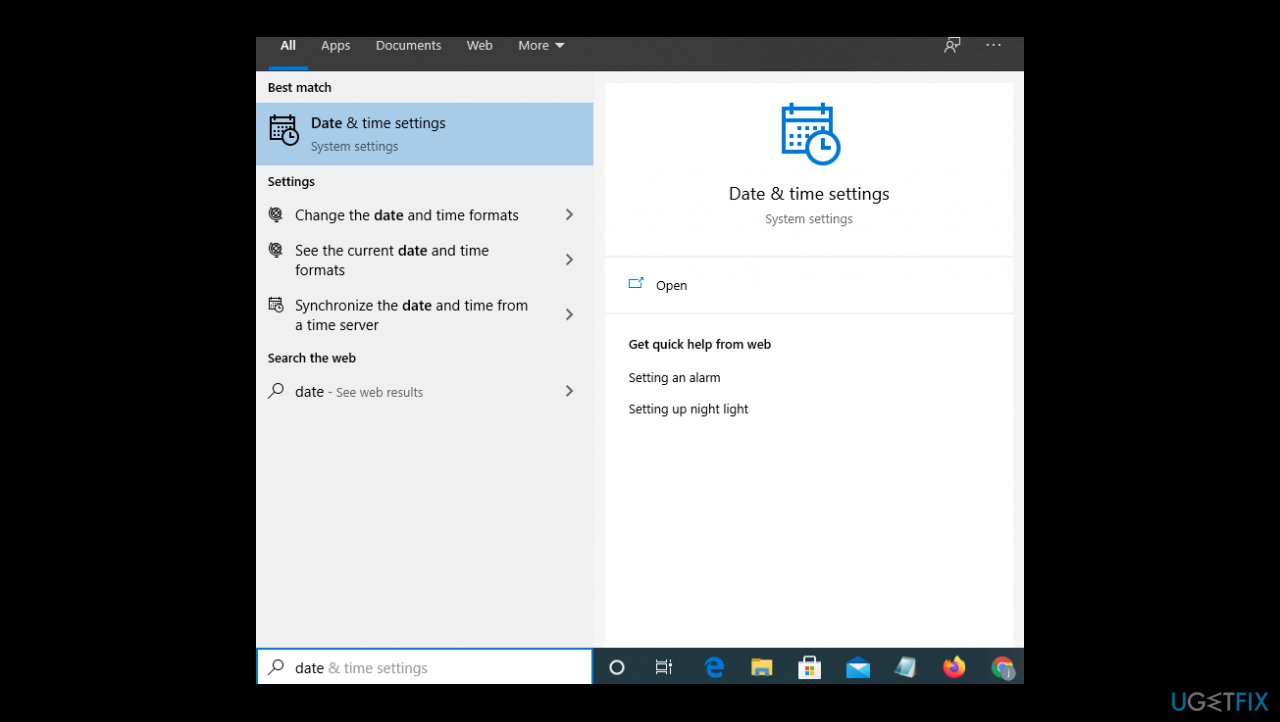
Err bad ssl client auth cert date time - Under Date & time, make sure that the toggles associated with Set time automatically and Set time zone automatically are enabled.
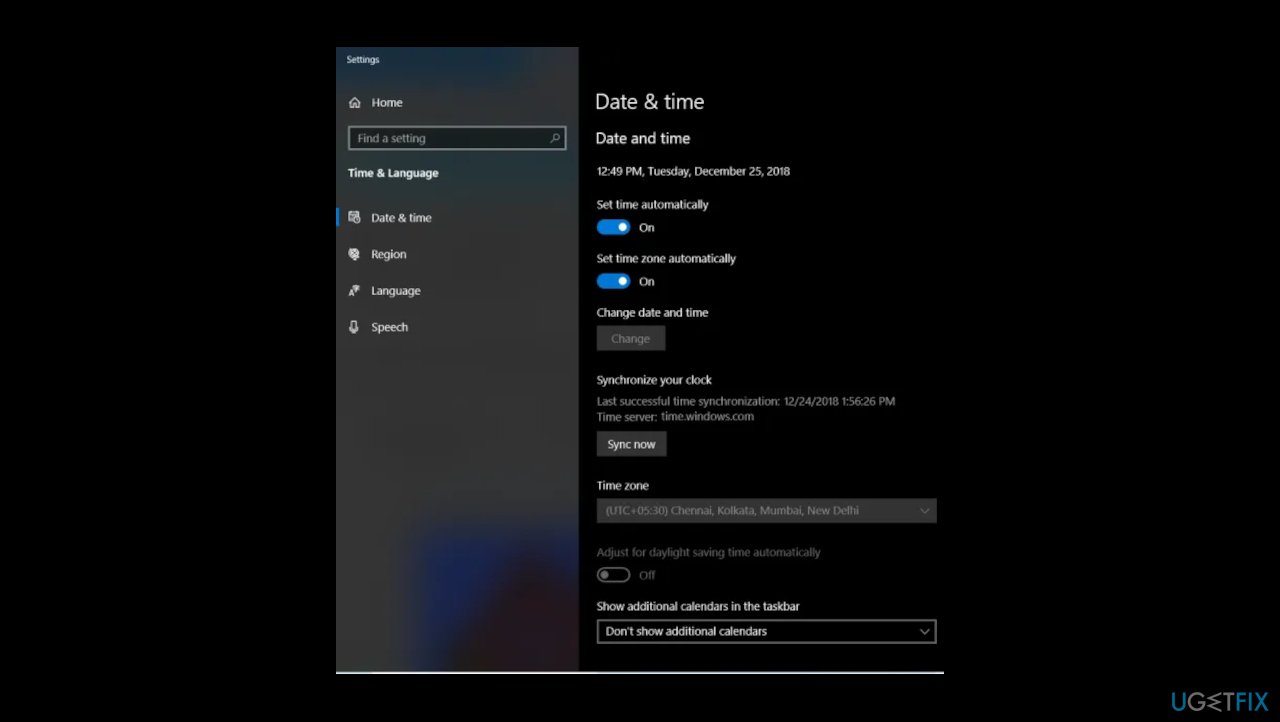
Err bad ssl client auth cert date time settings - Once the time & date have been put up to date, restart your computer.
Option 2. Check and apply updates
- Press Windows key + R to open up a Run dialog box.
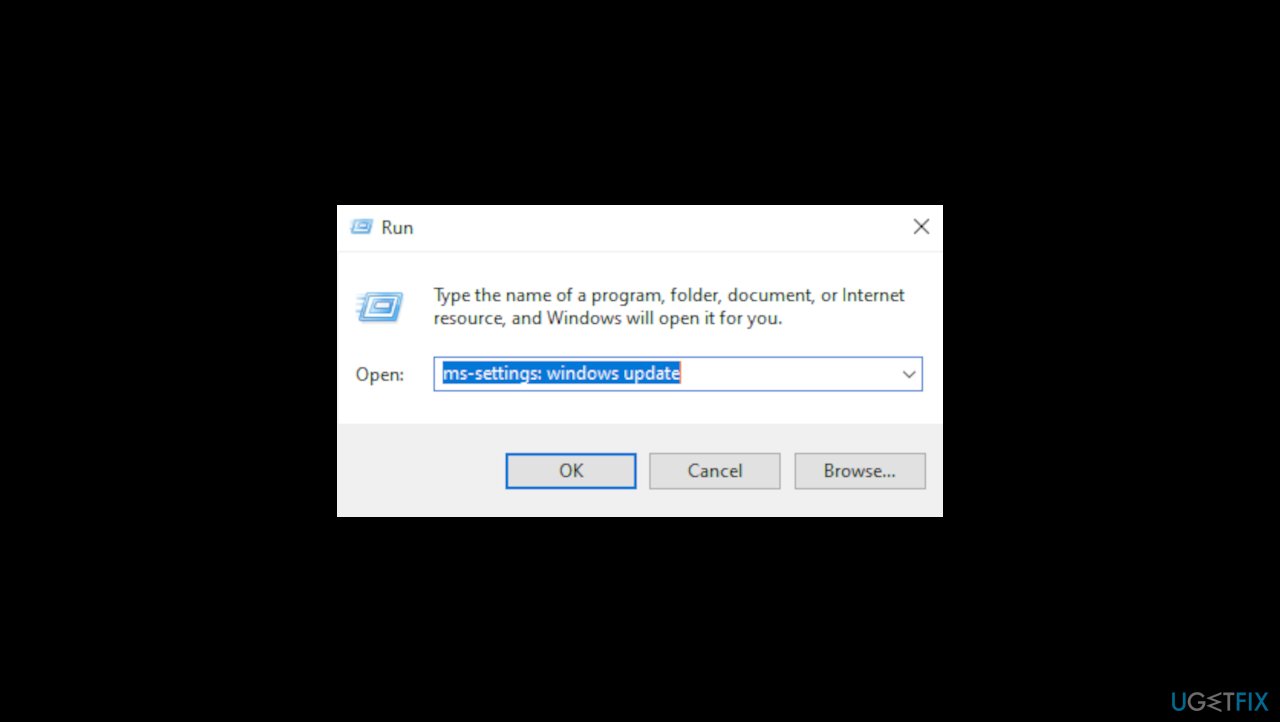
Err bad ssl client auth cert os update - Type ms-settings:windowsupdate and press Enter.
- You can also open the Windows Update screen from the Settings app.
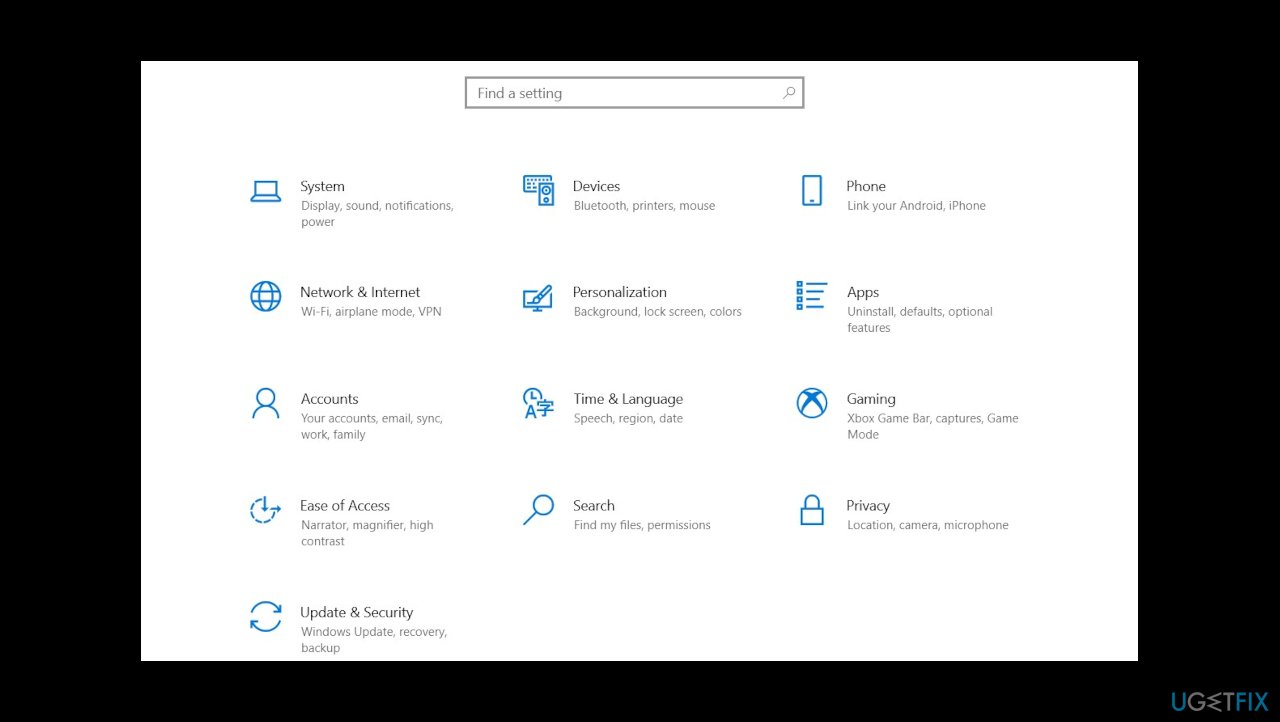
Err bad ssl client auth cert settings - Click on Check for updates and follow the on-screen instructions to install every pending security update.
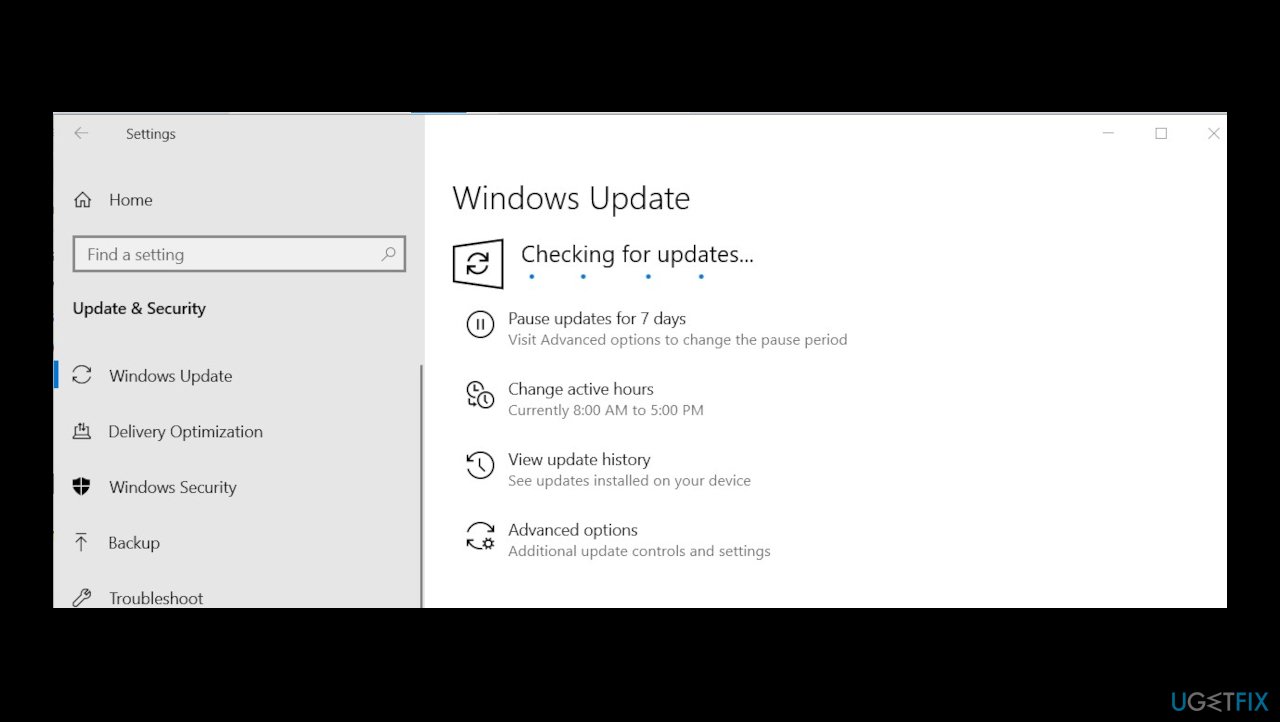
Err bad ssl client auth cert os updates - Restart.
Option 3. Update Chrome
- Open Google Chrome, click the action button (three-dot icon) and go to Help.
- Then find About Google Chrome.
- Wait until Google checks for updates, then follow the on-screen prompts to install the latest builds if a new version is available.
- Restart your Chrome browser.
Option 4. Clear browsing data
- Open Google Chrome and go to Settings.
- Scroll all the way down to the bottom of the screen and click on Advanced.
- Go to the Privacy and security tab.
- Scroll down to the bottom of the list and click on Clear browsing data.
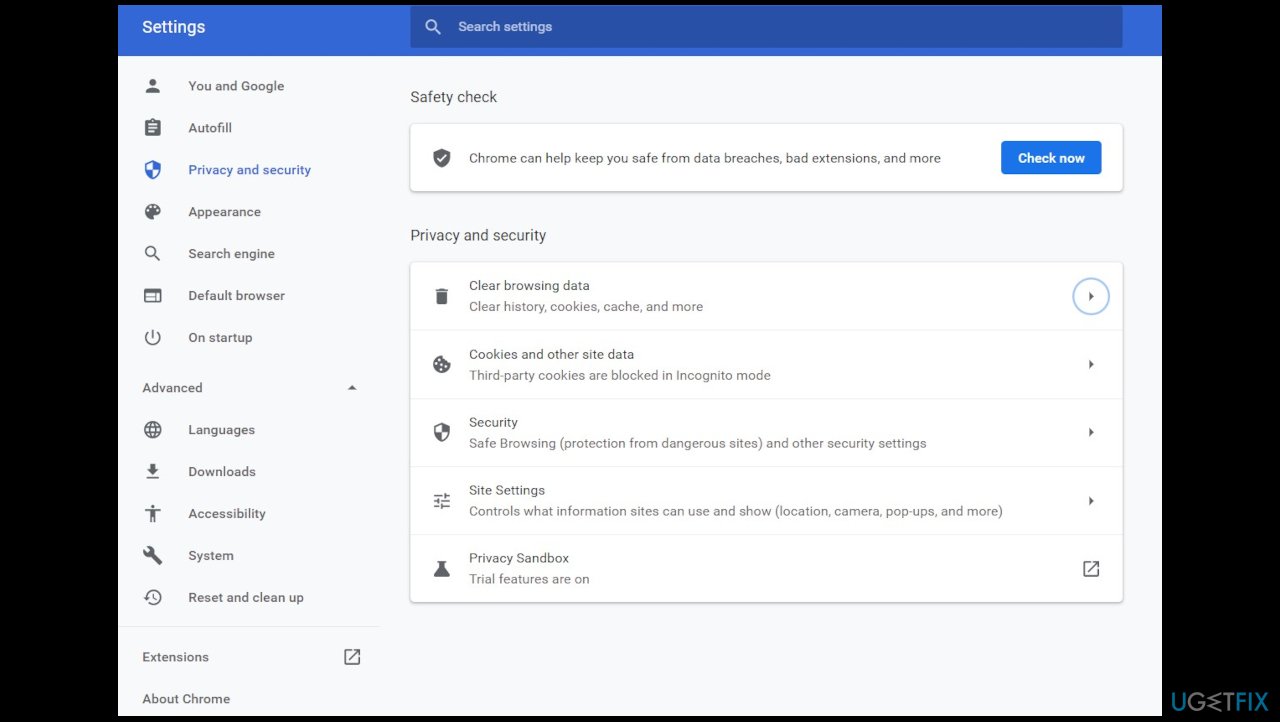
Err bad ssl client auth cert settings chrome - Select the Advanced tab, set the Time range to All time, and check every box below aside from Passwords and other sign-in data and Media licenses.
- Hit Clear data and wait for the process to complete.
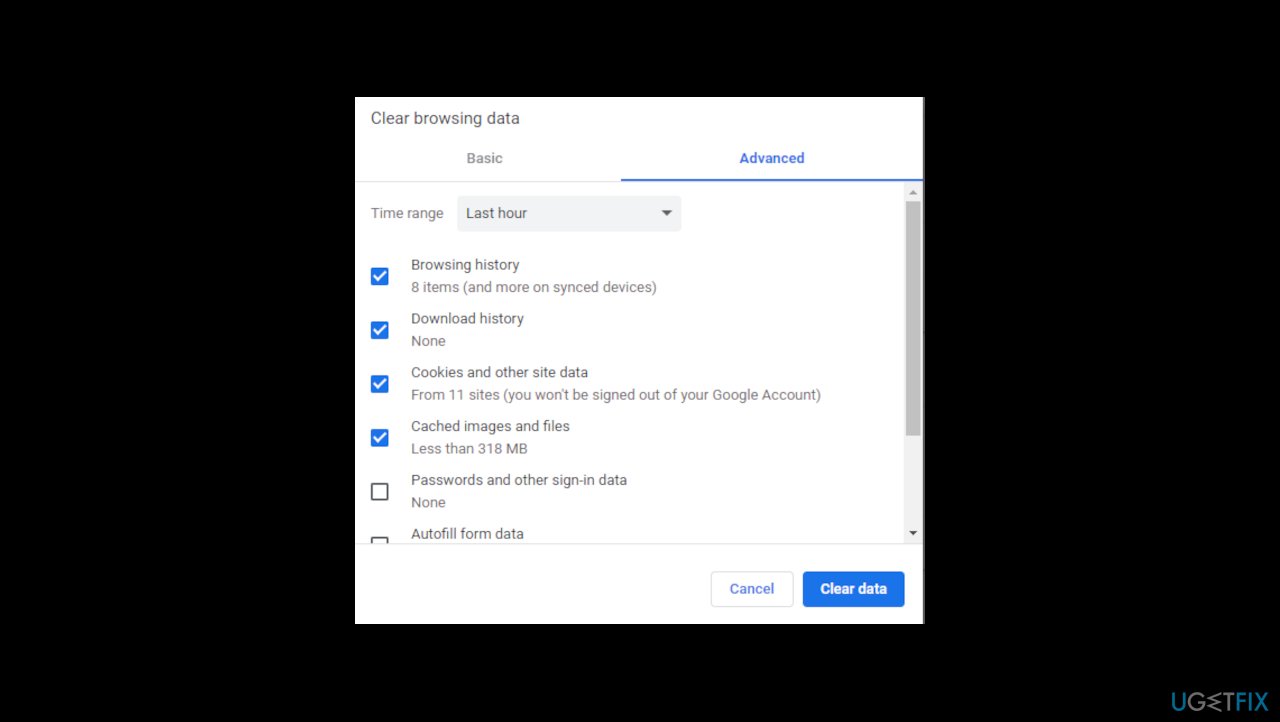
Err bad ssl client auth cert clearing data - Restart your computer and see if the issue has been resolved.
Bottom line
To fix the ERR_BAD_SSL_CLIENT_AUTH_CERT error in Google Chrome, you can try setting the correct time and date, updating your browser, and repairing corrupted files. If these solutions do not resolve the issue, consider checking for malware infections or further troubleshooting steps.
Frequently asked questions
You can try clearing the SSL state in Chrome by going to Settings > Privacy and security > Security, and then clicking on 'Manage certificates'. After clearing the SSL state, restart Chrome to see if the issue is resolved.
Ensure that your date and time settings are correct by right-clicking the clock on the taskbar, selecting 'Adjust date/time', and then enabling 'Set time automatically'.
Yes, keeping your Windows 11 system updated can help resolve various compatibility issues, including SSL certificate errors, by ensuring you have the latest security updates and features.




Report an issue
What's wrong with this guide? We review every report and update or remove content.
Report received — thank you. We'll review and fix it.
You need a free account to submit a report.
Be the first to comment