How to fix
ERR_CONNECTION_TIMED_OUT error on Google Chrome
on Windows
Resolve the ERR_CONNECTION_TIMED_OUT error on Windows 10 and 11 easily. Follow our expert-tested solutions for a smooth browsing experience!

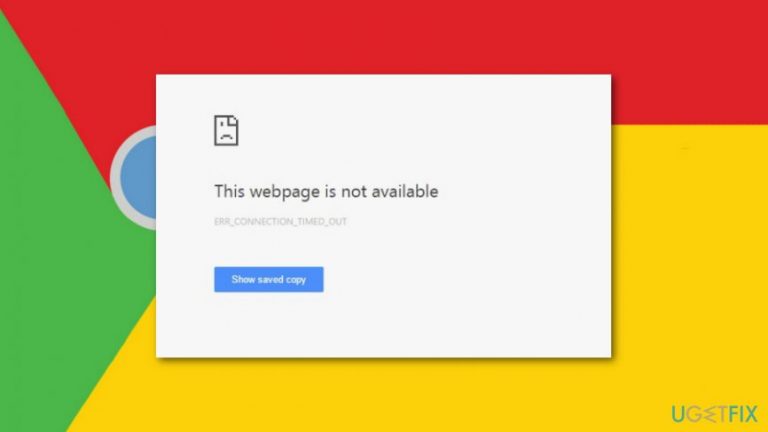
What causes How to fix ERR_CONNECTION_TIMED_OUT error on Google Chrome?
- Cached browser
- Misconfiguration of LAN settings
- Issues with DNS
- Outdated Network adapters driver
Repairs Windows system files, removes malware, and restores a clean OS state — without reinstalling.
I cannot open a few websites with Chrome. It tells that webpage is not available and gives ERR_CONNECTION_TIMED_OUT error code. What should I do? I do not want to use another browser.
ERR_CONNECTION_TIMED_OUT is one of many Google Chrome errors that prevents from accessing wanted websites. The problem might occur on any version of the browser on any version of Windows OS, including Windows 10, 8, 7 or XP. However, reasons and solutions to the problem remain the same.
Most of the time ERR_CONNECTION_TIMED_OUT error appears due to:
- cached browser;
- misconfiguration of LAN[ref en-1] settings;
- issues with DNS;[ref en-2]
- outdated Network adapters driver.
Therefore, all these problems can be fixed easily. However, before you try our suggested methods to fix ERR_CONNECTION_TIMED_OUT error on Google Chrome, you should simply try to refresh the page. In some cases, it is a one time error that does not require clearing browsing history, configuring various settings or updating network driver.
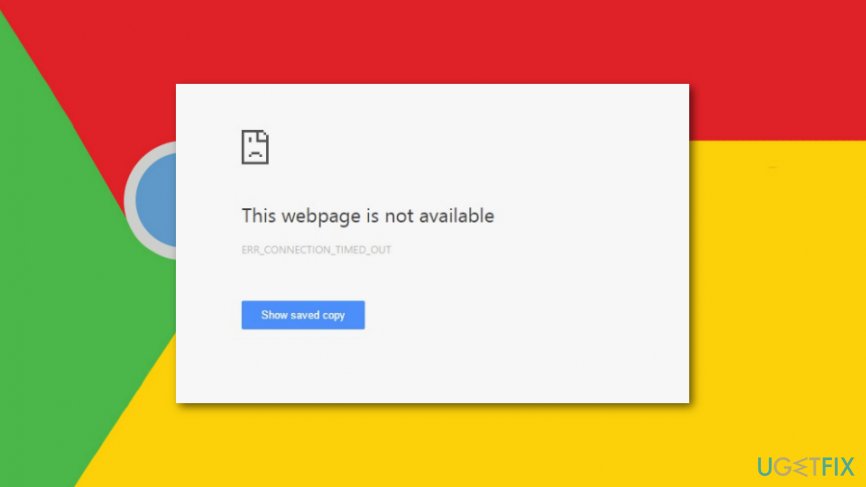
Four ways to fix ERR_CONNECTION_TIMED_OUT error on Google Chrome
Just like we have just mentioned, this Chrome error might be a one-time problem. However, if you refreshed your browser numerous times and still cannot access your favorite website, you should try the following methods to fix the issue.
This video will help you:
[youtube hbpGNJr1gbU]
Solution 1. Clear browsing information
The simplest method to fix ERR_CONNECTION_TIMED_OUT error is to clear Chrome browsing data[ref en-3]. Follow these steps:
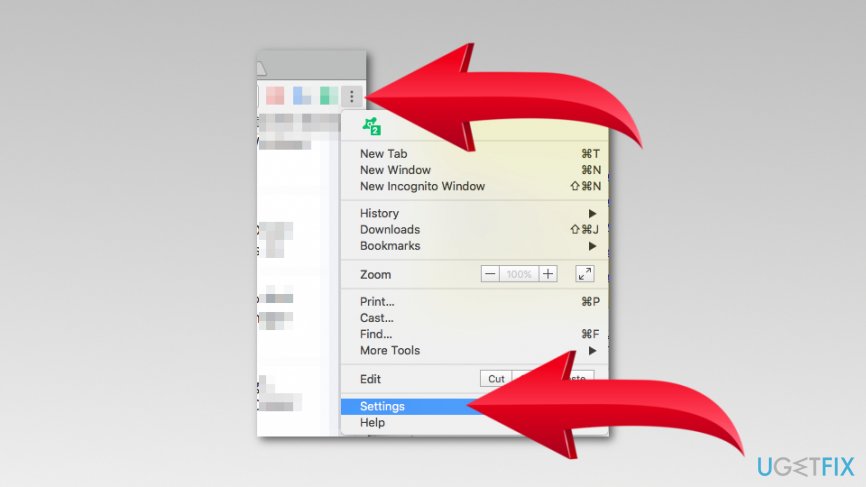
- Open Chrome’s Settings by clicking three vertical dots in the top right corner.
- Click Settings.
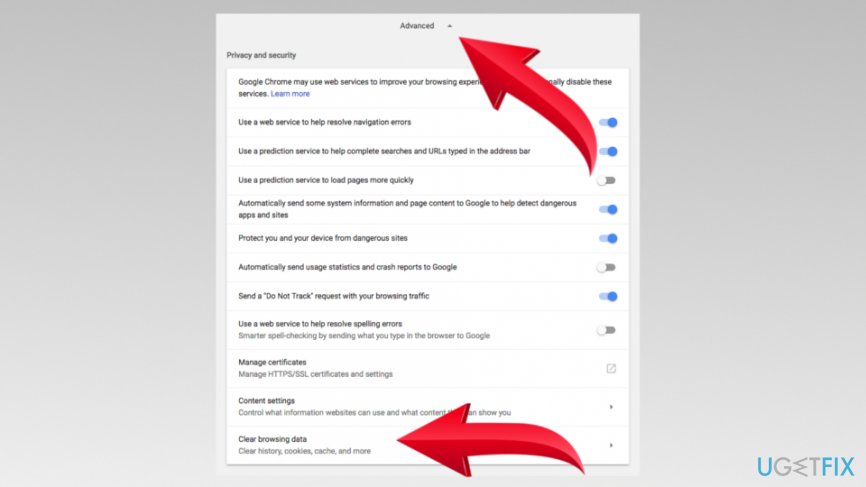
Open chrome settings - Scroll down to Advanced and expand this option.
- Click Clear browsing data option.
Choose clear browsing data option - Set Time range to All time.
- Mark all checkboxes to clear all browsing-related information that was saved on Chrome.
- Click Clear data button.
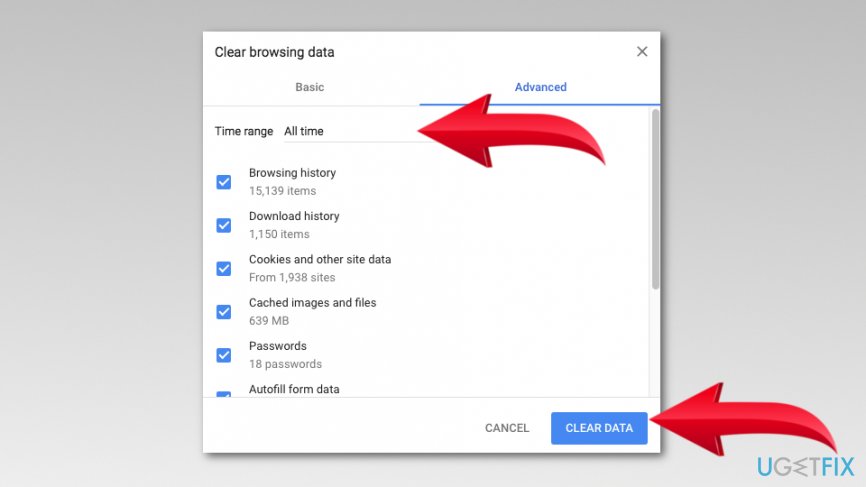
Clear chrome data
Solution 2. Configure LAN settings
- Click Windows key + R to open Run dialog box.
- Type inetcpl.cpl and click OK.
- In the appeared Internet Options window, navigate to Connections tab.
- Click LAN settings button.
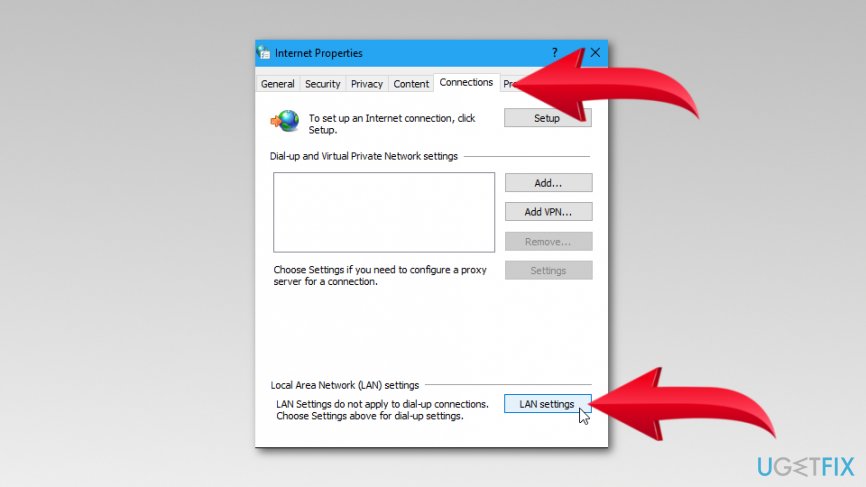
Open lan settings - Make sure that all three checkboxes are selected:
Automatically detect settings;
Use automatic configuration script
Use a proxy server for your LAN (These settings will not apply to dial-up or VPN connections)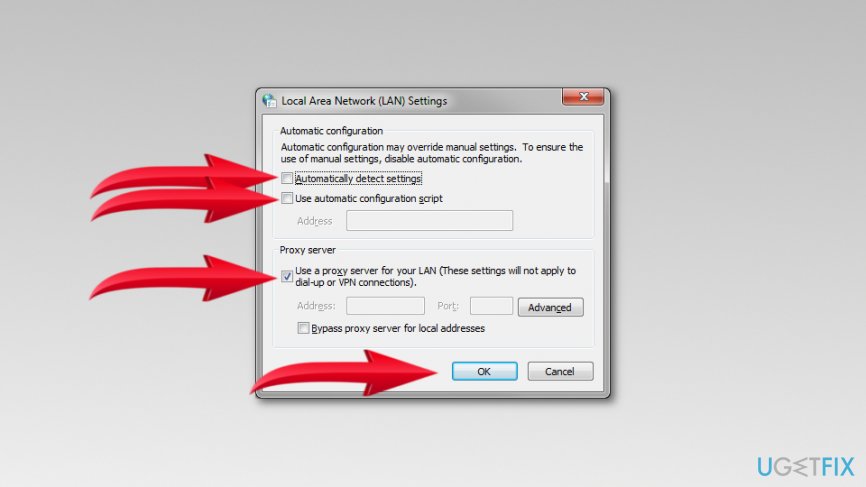
Configure lan settings - Click OK to save changes.
Open Google Chrome and check if the ERR_CONNECTION_TIMED_OUT error still exists. If you still cannot browse due to this issue, try the third method.
Solution 3. Flush DNS and renew IP address
DNS (Domain Name System) flushing allows cleaning all the DNS information and records, a.k.a cache. Once you flush DNS, the website-related information is deleted, so you might not see the ERR_CONNECTION_TIMED_OUT error.
- Enter Command Prompt in the Windows search box.
- Right-click Command Prompt entry and choose Run as administrator option.
- Click Yes in the appeared User Account Control prompt asking to allow Command Prompt making changes to the computer.
- When in Command Prompt, type the following commands and click Enter after each of them:
ipconfig /release
ipconfig /flushdns
ipconfig /renew
netsh winsock reset - Restart your computer.
Solution 4. Update or reinstall Network adapters driver
The ERR_CONNECTION_TIMED_OUT error might be triggered by outdated Network adapters driver. Therefore, updating or reinstalling it can help to solve the problem. Start with update procedure:
- In the Windows search box, type device manager.
- Open Device Manager from the results page.
- Navigate to Network adapters section and expand it.
- Find your networking device, right-click it and choose Update driver.
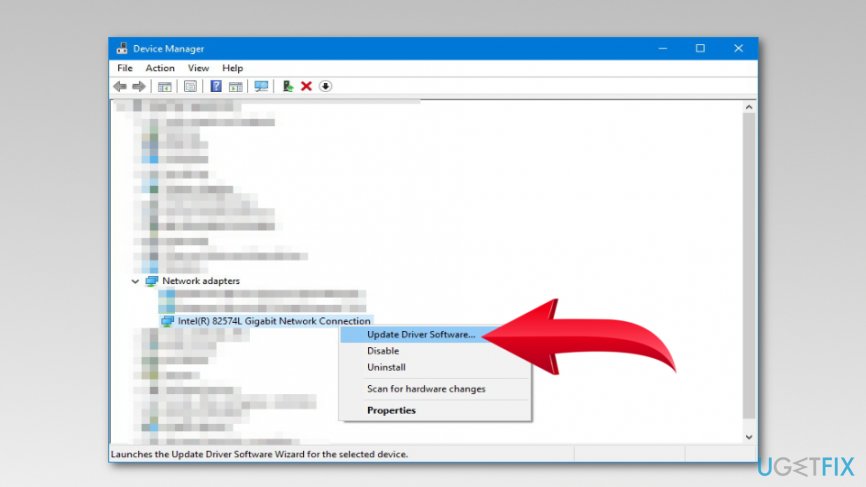
Update driver - You will receive a prompt asking How do you want to search for drivers? Choose Search automatically for updated driver software to complete this procedure automatically.
- Windows should scan for updates and suggest to install them.
- Restart the computer.
If Windows cannot find any available updates, you should check for them on the official manufacturer’s website and install them manually (the last step should be choosing Browse my computer for driver software).
Another way to fix ERR_CONNECTION_TIMED_OUT error is to uninstall the driver. In order to do that, you need to follow the same steps, but instead of Update driver option, you have to choose Uninstall device option and restart the computer.
Bottom line
To fix the ERR_CONNECTION_TIMED_OUT error on Google Chrome, you can try clearing your browsing data, configuring your LAN settings, and refreshing the page. If these methods do not resolve the issue, consider checking your network connection or updating your network drivers.
Frequently asked questions
This error typically occurs due to network connectivity issues, server problems, or incorrect browser settings. It can also be caused by firewall or antivirus software blocking the connection.
You can start by checking your internet connection, clearing your browser cache, and disabling any VPNs or proxies. Additionally, resetting your network settings can help resolve the issue.
Yes, you can try allowing Google Chrome through the Windows Firewall by navigating to the firewall settings and adding Chrome as an allowed app. This may resolve the error if the firewall is blocking the connection.




Report an issue
What's wrong with this guide? We review every report and update or remove content.
Report received — thank you. We'll review and fix it.
You need a free account to submit a report.
Be the first to comment