How to fix
ERR_CONTENT_DECODING_FAILED error in Chrome and other browsers
on Windows
Fix the ERR_CONTENT_DECODING_FAILED error in Chrome on Windows 10 or 11 with expert-tested solutions. Get back to browsing smoothly in minutes!


What causes How to fix ERR_CONTENT_DECODING_FAILED error in Chrome and other browsers?
- Incorrect content encoding on the server
- Server misconfiguration
- Problem with the compression method used for content delivery
- Misconfigurations of the network or proxy server
Repairs Windows system files, removes malware, and restores a clean OS state — without reinstalling.
Hello. My browser is not loading any websites and I get an ERR_CONTENT_DECODING_FAILED error. Is there a way to fix this?
ERR_CONTENT_DECODING_FAILED is a common browser error that occurs when there is a problem with content encoding during website loading or when switching to a new server. When this error occurs, users are unable to access the webpage's contents, and refreshing the page does not solve the problem.
This problem can have a significant impact on users, particularly those who rely on the affected website for critical information, services, or transactions. It may interfere with their browsing experience and prevent them from accessing desired content or completing tasks. The error can cause frustration and inconvenience, lowering user productivity and satisfaction.
There are several possible causes for the ERR_CONTENT_DECODING_FAILED error. One possible explanation is that the server's content encoding is incorrect or incompatible. It could be due to a server misconfiguration or a problem with the compression method used for content delivery. Misconfigurations of the network or proxy server may also interfere with the decoding process.
There are a few possible solutions to the ERR_CONTENT_DECODING_FAILED error. Users can attempt to clear their browser cache and cookies, as well as disable browser extensions that may interfere with content decoding. Additionally, checking the proxy settings or accessing the website in incognito mode may aid in determining whether the problem is related to network or proxy server configurations.
In this guide, you will find 7 steps that should help you fix ERR_CONTENT_DECODING_FAILED error in Chrome and other browsers. you can also run a maintenance tool like [d1] that can fix most system errors, BSODs,[ref en-1] corrupted files, registry[ref en-2] issues, or clear cookies and cache.[ref en-3] Otherwise, follow the step-by-step instructions below.

Solution 1. Disable G-Zip Encoding
- Press the Windows key.
- Type Chrome in the search bar.
- Hit Enter.
- In the browser window, navigate to the page on the Chrome Web Store.
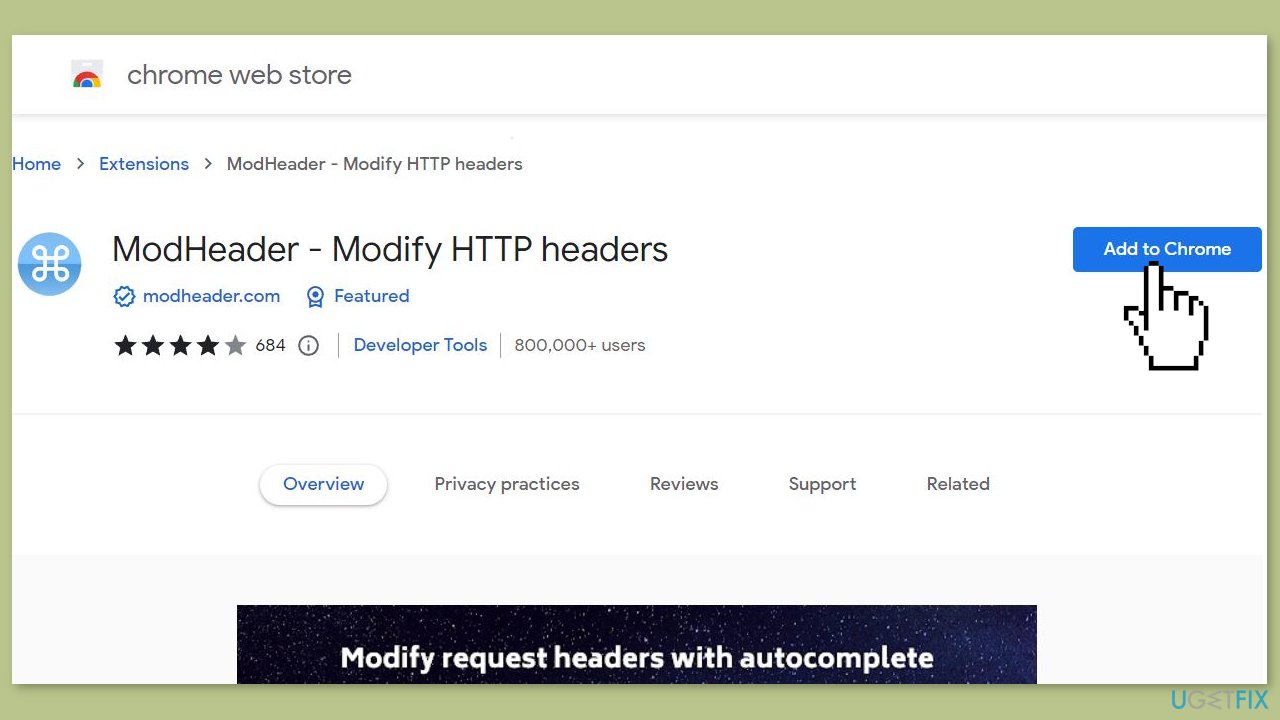
- Click the Add to Chrome button.
- Select Add Extension when prompted.
- Press Ctrl + T to open a new tab.
- Click the Extension icon located at the top right corner of the window.
- Click on the blank space under the Request Header section.
- Type the following command:
accept-encoding
- Move to the Value section.
- Type the following command:
gzip;q=0,deflate;q=0
- This will disable G-zip encoding.
- Refresh the page to apply the changes.
- Check if the error still persists.
Solution 2. Clear Browser Cookies and Cache
Chrome:
- Launch the Chrome browser.
- Click on the three vertical dots located at the top-right corner of the window.
- Select Settings from the dropdown menu.
- In the next window, click on Privacy and Security on the left pane.
- On the right pane, select Clear Browsing Data.
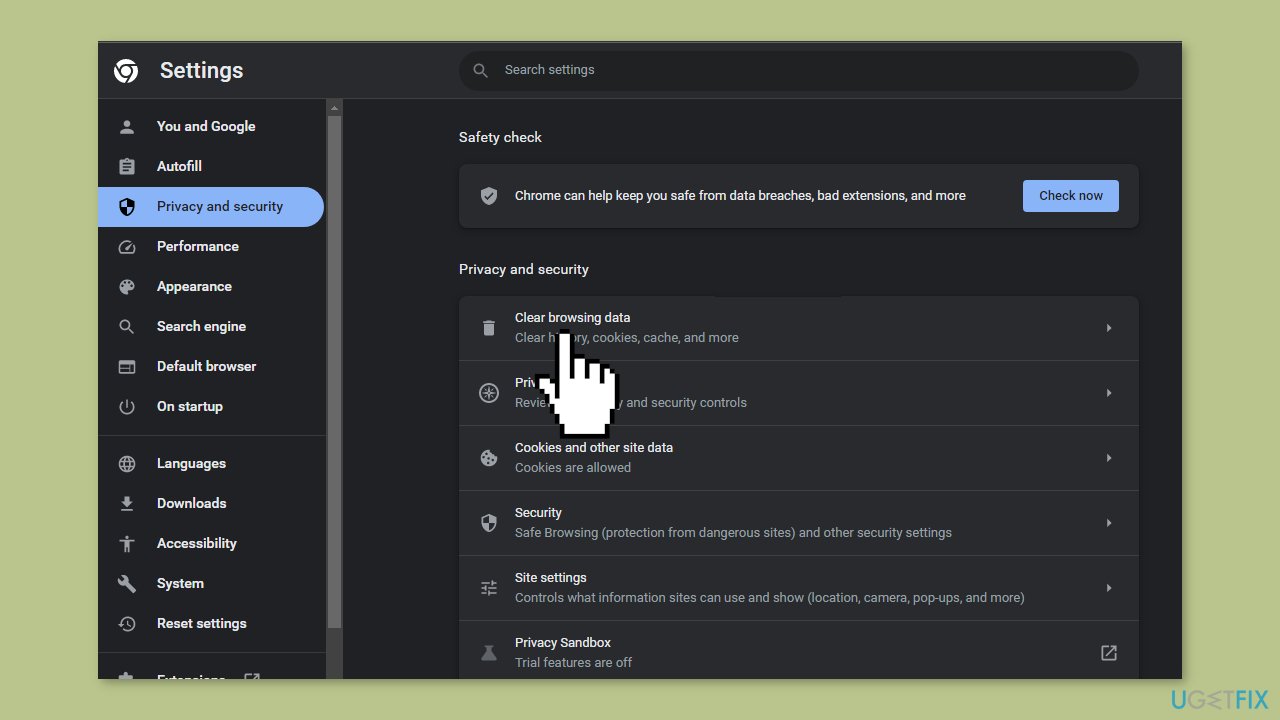
- In the popup window that appears, check the boxes next to Browsing History, Cookies, and Cache data.
- Click on the Clear Data button.
- Wait until the browsing data is cleared.
- Exit the browser by closing the window.
- Check if the error is fixed.
Firefox:
- Launch Firefox and open a new tab.
- Click on the Library icon located on the top right side.
- From the dropdown menu, select the History option.
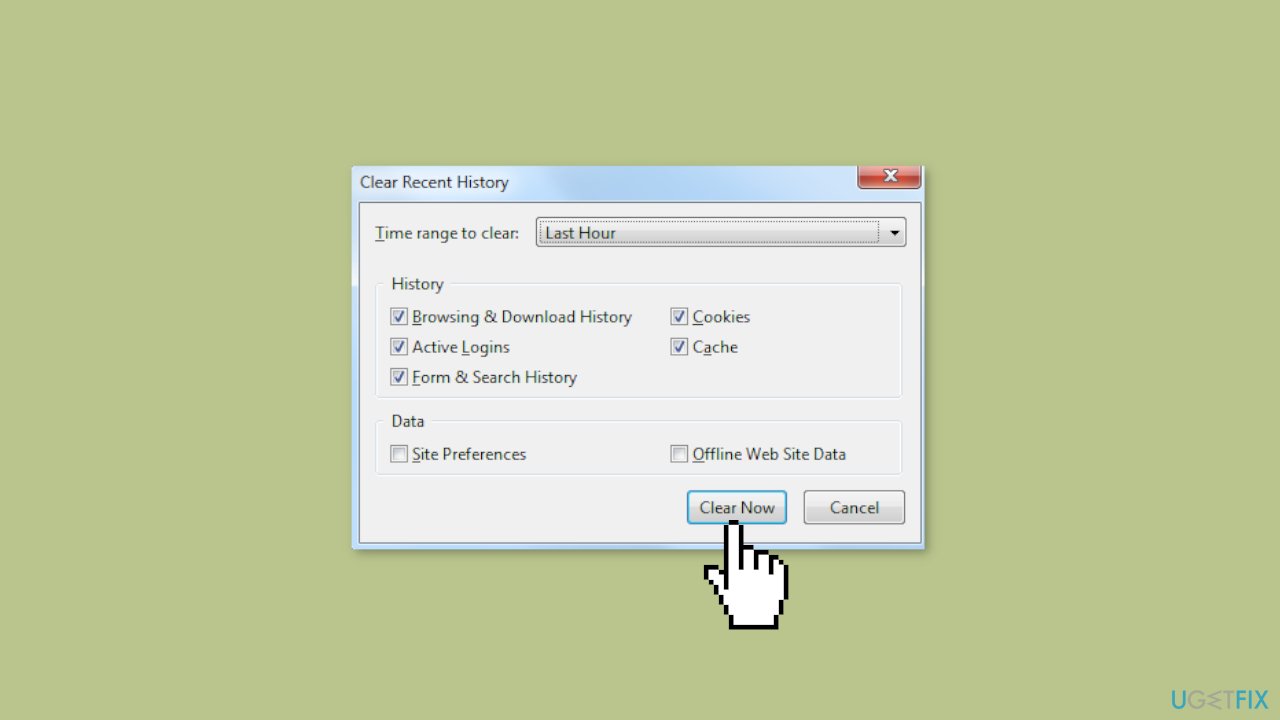
- In the History window that opens, click on the Clear Recent History button.
- Next to the Time range to Clear option, click on the dropdown.
- Select All time from the options provided.
- Under the History heading, check all the boxes related to the items you want to clear.
- Click on the Clear Now option.
- If prompted, select yes to confirm the action.
- The cookies and history for your browser have now been cleared.
- Check to see if the issue persists.
Microsoft Edge:
- Launch the browser and open a new tab.
- Click on the three vertical dots located on the top right corner.
- From the dropdown menu, click on the History option.
- In the History menu, locate and click on the Clear History button.
- Check the first four options or checkboxes related to the items you want to clear.
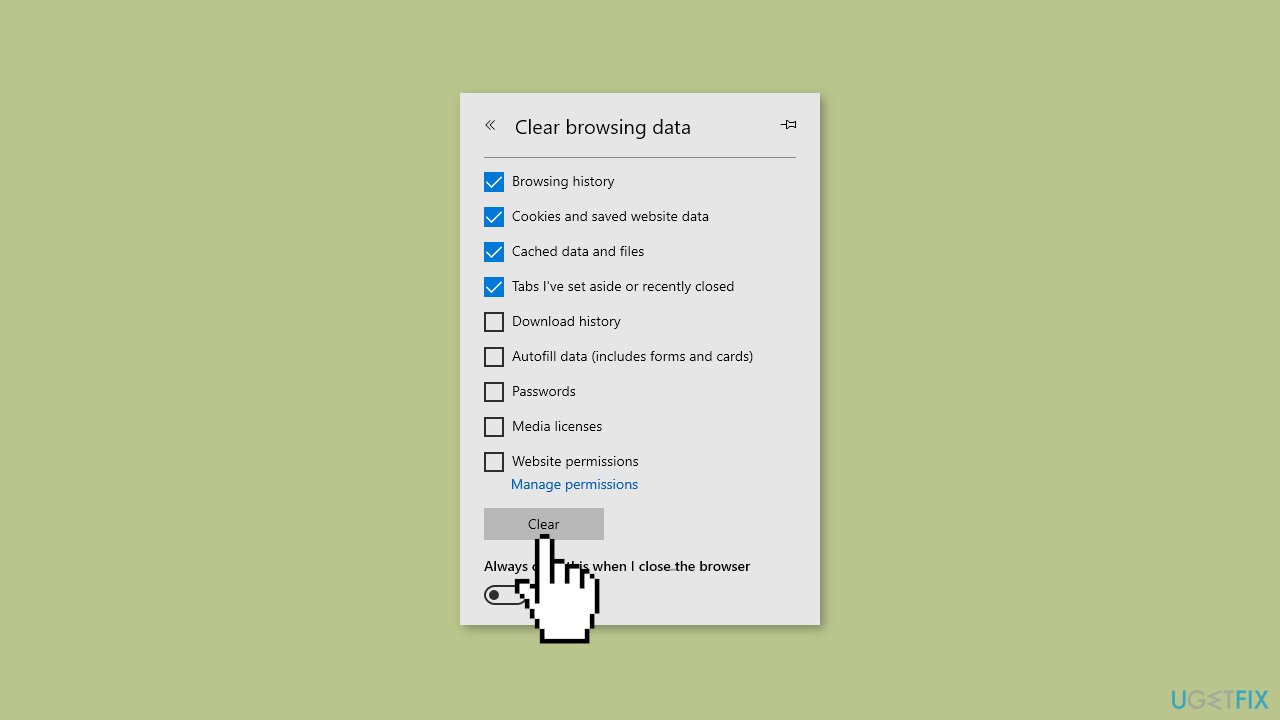
- Click on the Clear option to proceed with clearing the selected history.
- After the clearing process is complete, check to see if the issue persists.
Solution 3. Disable Proxy or VPN
- Press the Windows key + I to open the Settings app.
- Click on the Network & Internet option.
- From the left pane, select Proxy.
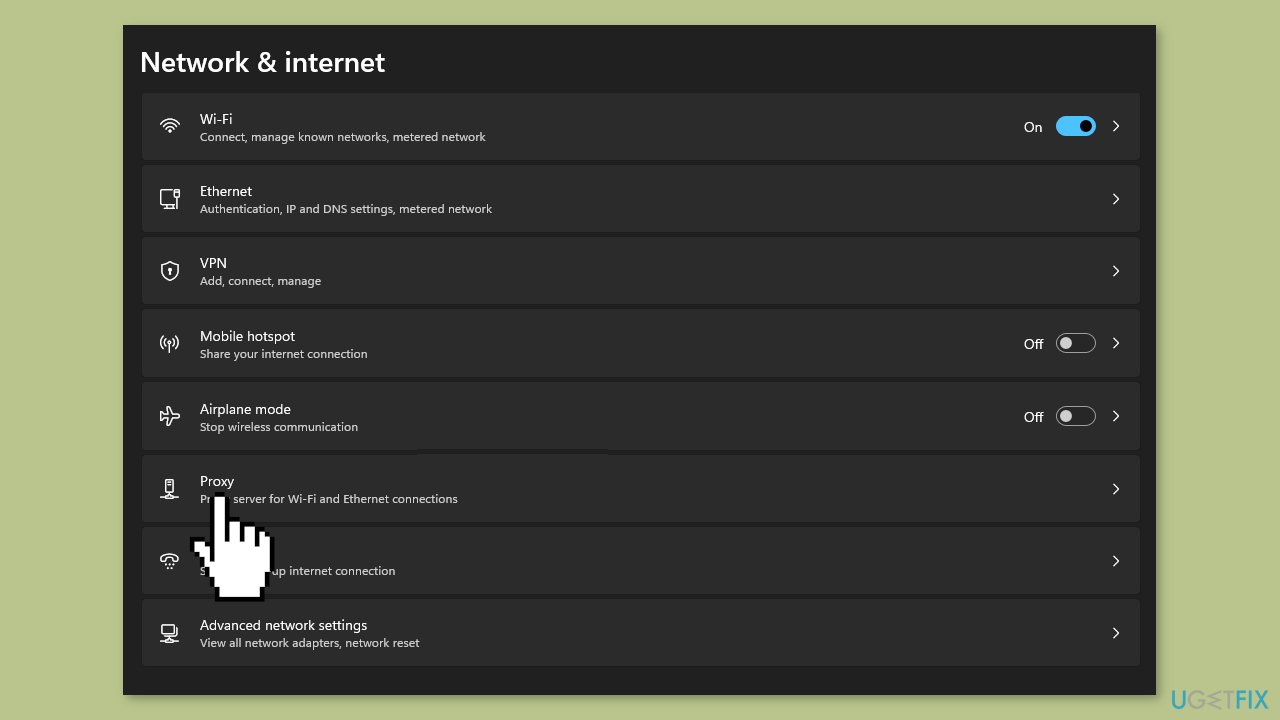
- Locate the Use a Proxy toggle button.
- Click on the toggle button to turn off the feature.
- Close the Settings app.
- Check if the error still persists.
Solution 4. Flush the Socket Pools
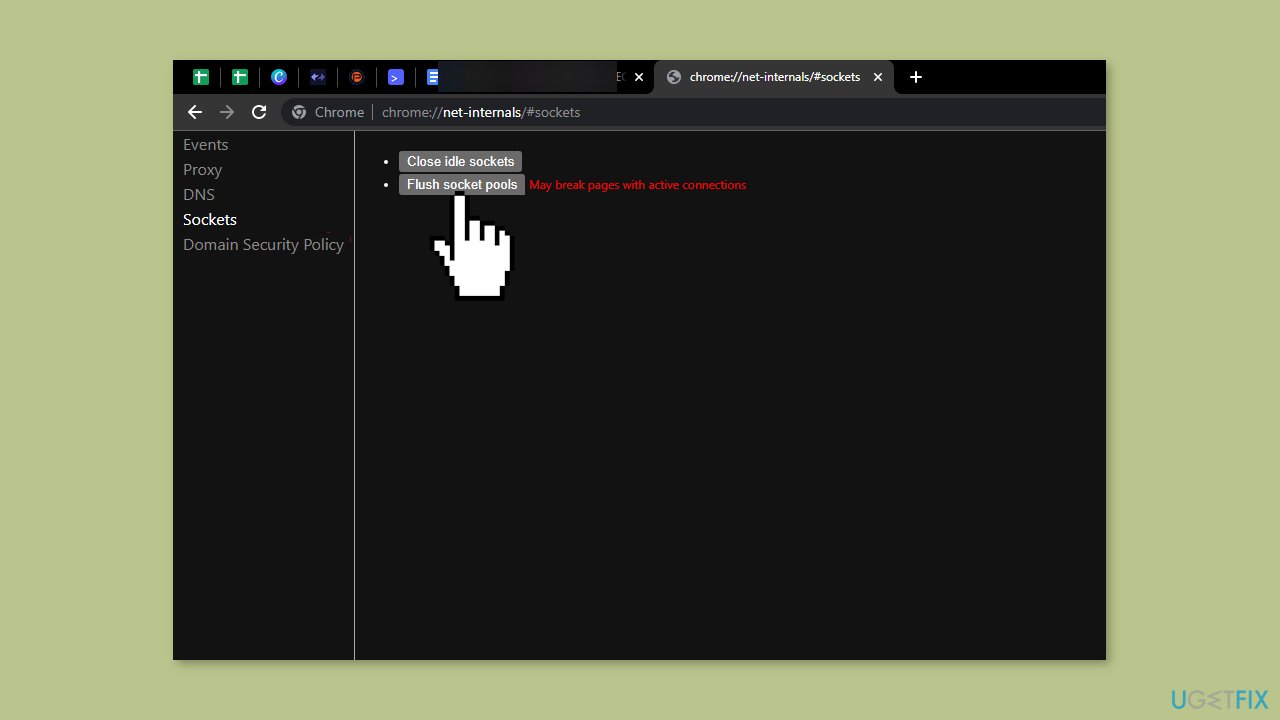
- Launch the Chrome browser using the steps appropriate for your device.
- In the search bar, enter the following command:
chrome://net-internals
- Press Enter to proceed.
- In the next window that opens, locate and click on the Sockets option in the left pane.
- From the options available, select Flush Socket Pools.
- Check to see if the error still persists after performing the socket flush.
Solution 5. Reset Winsock
- Press the Windows key.
- Type cmd in the search bar.
- Right-click on Command Prompt and select Run as Administrator.
- In the command prompt window that appears, type the following command:
netsh Winsock reset
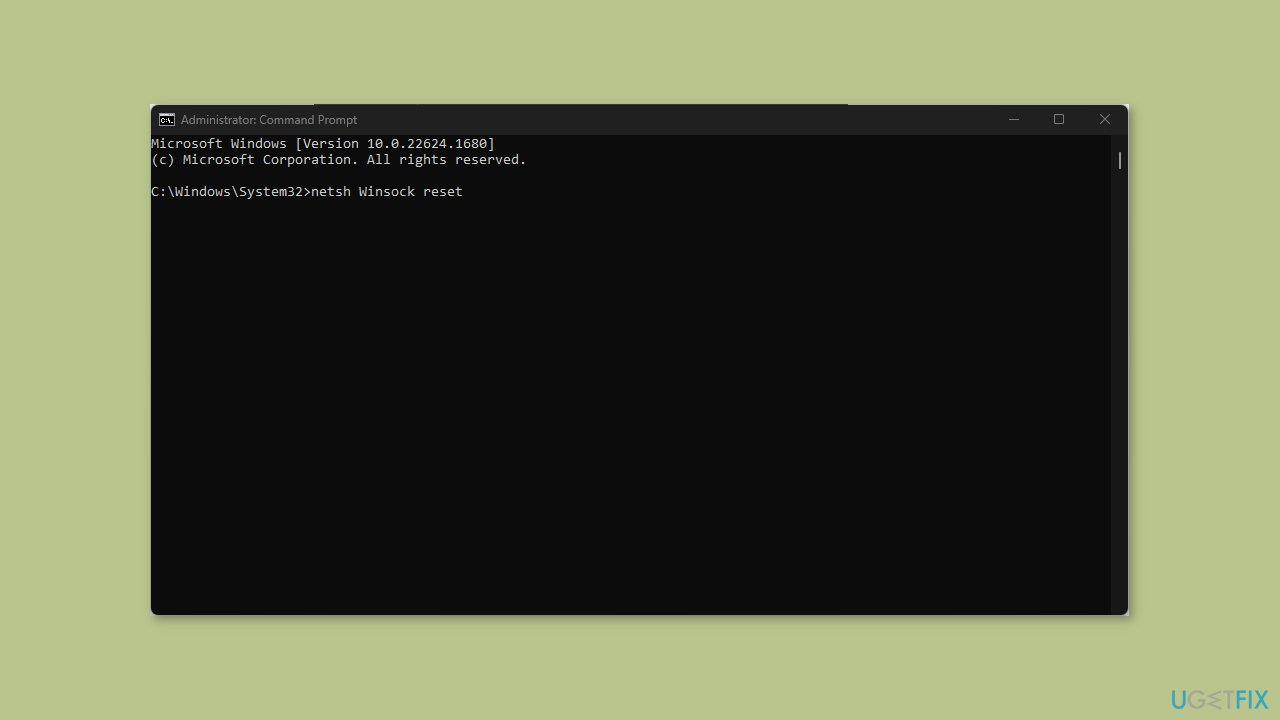
- Press Enter to execute the command.
- Close the command prompt.
- Restart your PC to apply the changes.
Solution 6. Flush your DNS
- Press the Windows key.
- Type cmd in the search bar.
- Right-click on Command Prompt and select Run as Administrator.
- In the Command Prompt window that appears, type the following command:
ipconfig /flushdns
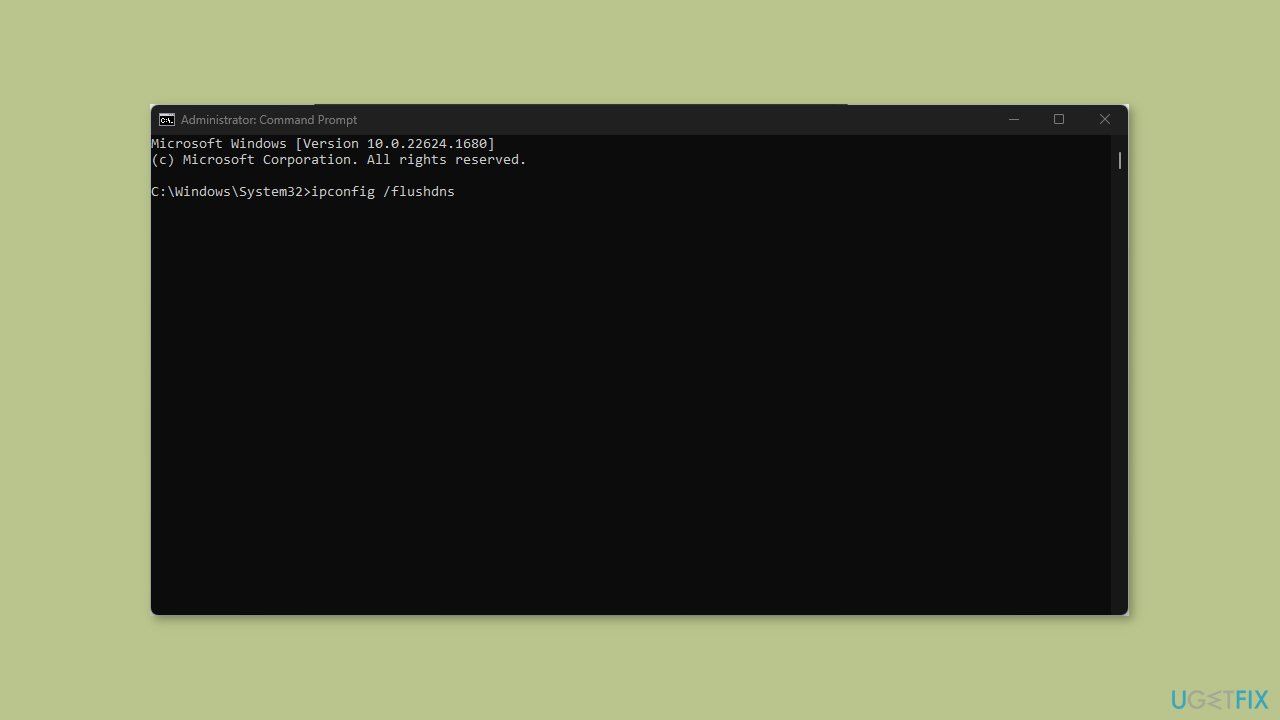
- Press Enter to execute the command.
- Wait for the process to be completed.
- Check if the error still persists.
Solution 7. Disable Windows Firewall
- Press the Windows key.
- Type Control Panel in the search bar.
- Hit Enter to open the Control Panel.
- In the Control Panel window, click on the System and Security tab.
- Select Windows Defender Firewall.
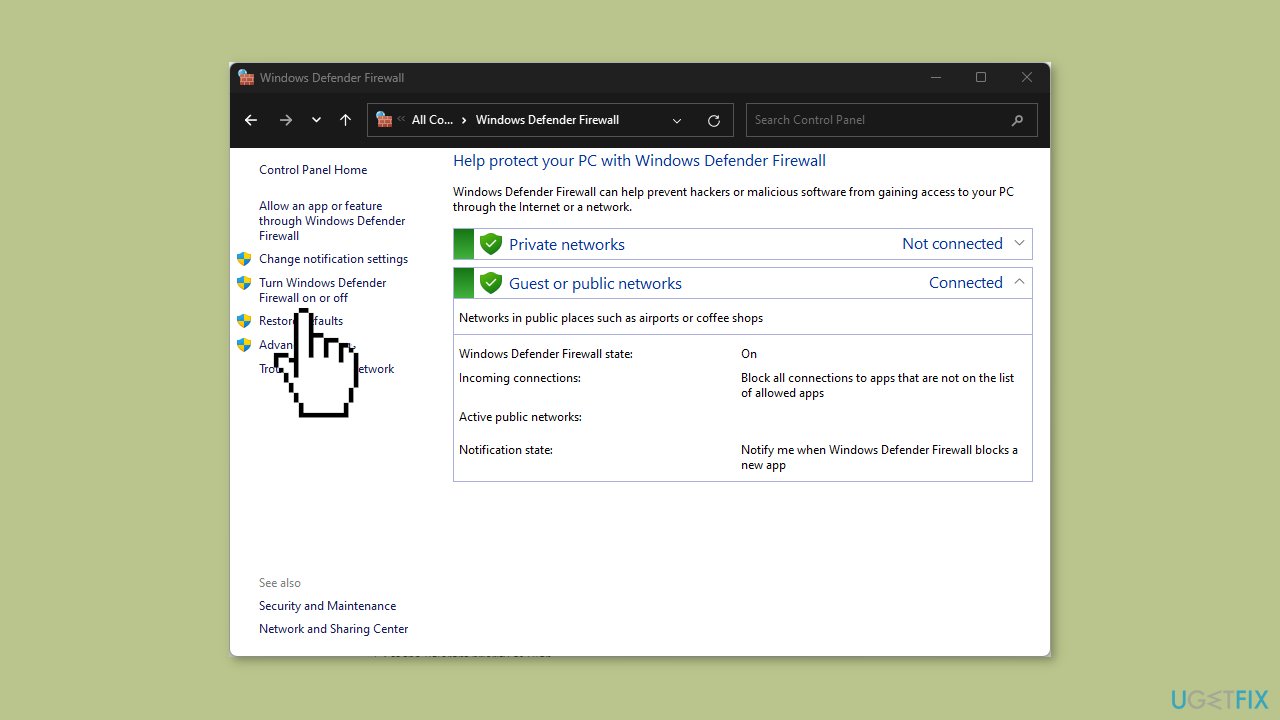
- In the next window that opens, click on Turn Windows Firewall On or Off in the left pane.
- Under the Public Network Settings section, click on Turn off Windows Firewall (not recommended).
- Click OK to confirm the changes.
- Exit the Control Panel.
Bottom line
To fix the ERR_CONTENT_DECODING_FAILED error, users can clear their browser cache and cookies, disable browser extensions, check proxy settings, or access the website in incognito mode. If these solutions do not resolve the issue, consider running a maintenance tool to address system errors.
Frequently asked questions
Try clearing the browser cache and cookies, then restart Chrome. If the issue persists, disabling any extensions might also help.
You can resolve this by resetting Edge settings to default or clearing the browsing data. Additionally, check for any pending updates for Edge.
Yes, you can troubleshoot this by clearing the cache and cookies or by disabling any conflicting add-ons in Firefox.




Report an issue
What's wrong with this guide? We review every report and update or remove content.
Report received — thank you. We'll review and fix it.
You need a free account to submit a report.
Be the first to comment