How to fix
ERR_EMPTY_RESPONSE error
on Windows
Resolve the ERR_EMPTY_RESPONSE error on Windows 10 and 11 effortlessly with our expert-tested solutions. Get back online in minutes!


What causes How to fix ERR_EMPTY_RESPONSE error on Windows?
- Browser's cache and cookies
- Shortened or insecure protocol used
- Outdated web browser
- Malicious or incompatible browser's add-ons or extensions
- Antivirus conflict and Firewall block
Repairs Windows system files, removes malware, and restores a clean OS state — without reinstalling.
How do I fix ERR_EMPTY_REPONSE error on Chrome? Blocks random websites from time to time. Thanks in advance.
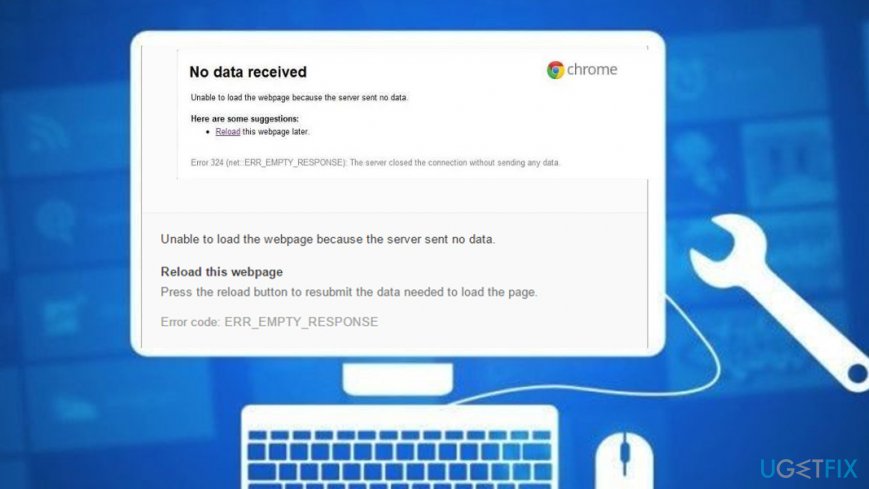
ERR_EMPTY_REPONSE is a browser-specific error message that affects Google Chrome for the most part. The error says "No data received" and indicates the fact that the web browser is unable to load the web page because the server sent no data. Many users have been encountering this problem as Chrome is the top used browser app.
Although this error is not fatal, it may sometimes be difficult to address since it may be triggered by many aspects, but a few are caused on the PC user's end. In most of the cases, the No data received. Error code: ERR_EMPTY_RESPONSE problem is generated when trying to access Youtube, WordPress,[ref en-1] Facebook, the Verge, Blik, Amazon, or any other regular website.
The ERR_EMPTY_RESPONSE error window provides PC user with two options - to reload the website by hitting the F5 button on their keyboard or clicking the Chrome's reload button. In some cases, it might be sufficient to reload the website to get its content. Below you will see the messages that are provided by the error:
Error 324 (net::ERR_EMPTY_RESPONSE): The server closed the connection without sending any data.
ERR_EMPTY_RESPONSE - no data received.
Error 324 (net:: ERR_EMPTY_REPONSE): The server closed the connection without sending any data.
Nevertheless, experts claim that more often than not, the reason why Chrome and other web browsers end up with No data received. Error code: ERR_EMPTY_RESPONSE is one of the following:
- Browser's cache[ref en-4] and cookies;
- Shortened of insecure protocol[ref en-2] used (e.g. http:// or http://bit.ly);
- Outdated web browser;
- Malicious, incompatible web browser's add-ons or extensions;
- Antivirus conflict and Firewall block;
- Virus infection, etc.
How to fix ERR_EMPTY_RESPONSE error on Windows?
Since there are many diverse reasons why you may encounter this error, you should try as various No data received. Error code: ERR_EMPTY_RESPONSE fixes starting from the most basic ones. Thus, before you proceed with the more advanced methods, try these basic troubleshooting steps:
- Clear browser's cache and cookies.[ref en-3] Open Google Chrome -> More tools -> Clear browsing data -> Expand "Time range" drop-down menu and select All time. Then click Clear data.
- Reload the website that ran into the ERR_EMPTY_REPONSE error.
- Reset/power cycle your modem or router (or both).
- Disable web browser's add-ons. Open Chrome and type http://chrome://extensions/ to the address bar. Disable unknown/suspicious extensions.
- Disable your anti-virus and firewall.
- Check the system with [d1] to eliminate the virus and fix system-related issues.
If none of these steps worked, try out the following methods applicable for ERR_EMPTY_REPONSE error fix.
Fix 1. Reset Winsock
- Right-click on Windows key and select Command Prompt (Admin).
- Alternatively, you can open Windows search and type cmd.
- Right-click on the Command Prompt option and select Run as Administrator.
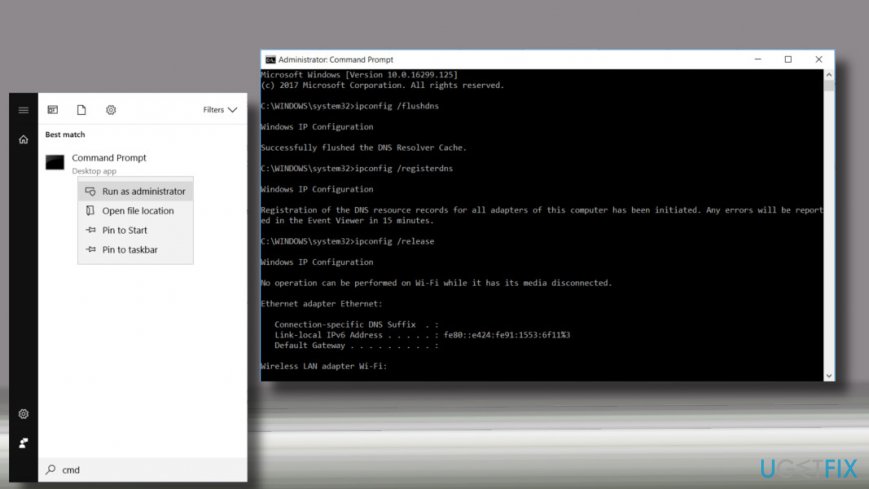
Reset winsock - When the Command Prompt environment opens, copy and paste the following commands in it one-by-one. Click Enter after each of them:
ipconfig /flushdns
ipconfig /registerdns
ipconfig /release
ipconfig /renew
netsh winsock reset catalog
netsh int ipv4 reset reset.log
netsh int ipv6 reset reset.log
pause
shutdown /r - Once done, reboot your PC and try to open the website that has previously been inaccessible.
Fix 2. Change TCP/IP4 proxy settings
- Open Network and Sharing Centre and select Change adapter settings.
- Locate your Network Connection provider under Local Area Connection or Wireless Connection.
- Right-click on the connection icon and select Properties.
- In the newly opened window, opt for the Internet Protocol (4 TCP/IPv4) and click Properties.
- In the new window, mark the Use the following DNS server addresses option.
Reset winsock - Then, type in 8.8.8.8 and 8.8.4.4
- Click Apply and OK to save the changes.
This method should have helped you with the No data received. Error code: ERR_EMPTY_RESPONSE issue. However, if the problem still keeps occurring on your computer screen, you should continue with the following fix.
Fix 3. Eliminate all .temp files
- Press the Windows key and R button together and wait for the run box to launch.
- Once it appears, type "temp" and hit OK.
- Choose all files by clicking CTRL and A button at the same time.
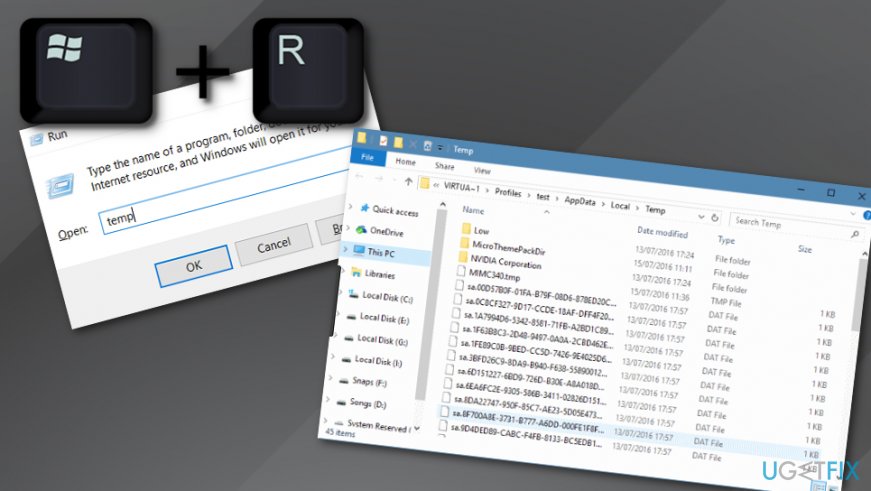
Fixing error on windows by deleting temp files - Right-click on the selected components and opt for the Delete function.
- Go to Google Chrome and check if ERR_EMPTY_RESPONSE still resides there.
Bottom line
To fix the ERR_EMPTY_RESPONSE error on Windows, start by clearing your browser's cache and cookies. If the issue persists, consider updating your web browser or checking for any conflicting extensions. If none of these solutions work, further troubleshooting may be necessary.
Frequently asked questions
The ERR_EMPTY_RESPONSE error typically occurs due to network connectivity issues, incorrect browser settings, or problems with the website's server. It can also be triggered by a corrupted cache or conflicting browser extensions.
To clear your browser cache in Windows 10 or Windows 11, go to your browser settings, find the privacy or history section, and select the option to clear browsing data, making sure to include cached images and files.
Yes, you can reset your network settings by opening the Command Prompt as an administrator and running the commands 'netsh int ip reset' and 'netsh winsock reset', followed by restarting your computer.




Report an issue
What's wrong with this guide? We review every report and update or remove content.
Report received — thank you. We'll review and fix it.
You need a free account to submit a report.
Be the first to comment