How to fix
ERR_NETWORK_CHANGED Error on Chrome
on Windows
Resolve the ERR_NETWORK_CHANGED error on Chrome for Windows 10 and 11 effortlessly. Get expert-tested tips and fixes in minutes.

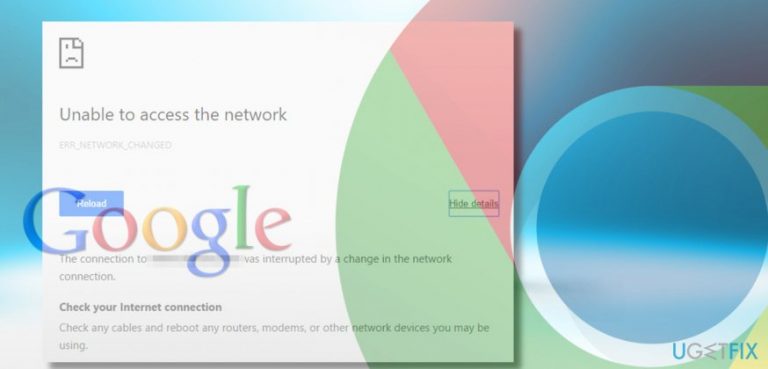
What causes How to Fix ERR_NETWORK_CHANGED Error on Chrome?
- Network connection problems
- Incorrect modem configuration
- Issues with DNS server
- Corrupted DNS cache
- TCP/IP stack issues
Repairs Windows system files, removes malware, and restores a clean OS state — without reinstalling.
A week ago, Chrome started acting super spotty – half the time the pages the pages won’t load and the screen would get stuck with the “Unable to access the network ERR_NETWORK_CHANGED” error. The error freezes Chrome from several seconds to several minutes, but the unusual behavior – slowdowns, freezes, unresponsiveness, pictures not loading, etc. is obvious. This started happening without making any significant changes. What should I do?
Although the “Unable to access the network” error is a known issue for quite a while, there is still not much information about its technical features and causes. In short, the “Unable to access the network” is a comprehensive name of the bug and the more technical name for it is ERR_NETWORK_CHANGED. Typically, it strikes Google Chrome[ref en-1] when the PC user is web browsing like usually.
The error freezes the screen for several seconds or sometimes even several minutes, then disappears, and the required website is loaded. Before the emergence of the “Unable to access the network” error, one might also notice web browser’s slowdowns, unresponsiveness or other atypical behavior.
The message itself indicates the culprit of the ERR_NETWORK_CHANGED error, which is related to the network connection problems. Therefore, we would recommend power cycling or simply restarting your modem.[ref en-2] That would fix ERR_NETWORK_CHANGED error in case the modem’s configuration was incorrect. In addition to that, we would recommend clearing Google Chrome’s web browsing data.
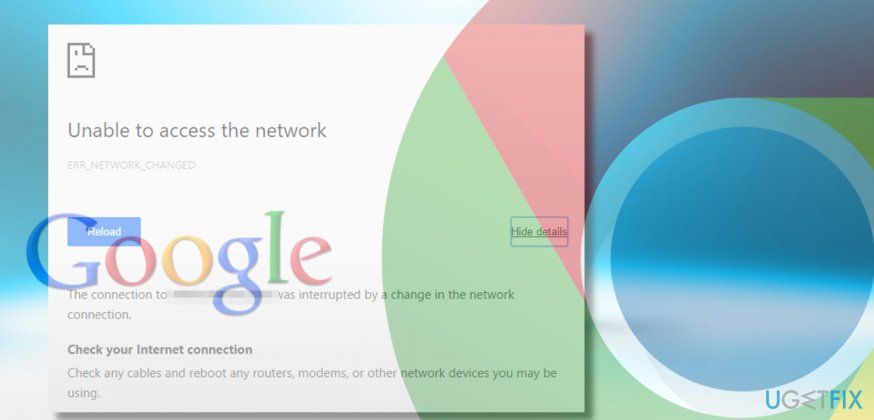
How to Fix ERR_NETWORK_CHANGED Error on Chrome?
Fix 1. Execute flushdns command
- Right-click on Windows key and select Command Prompt (Admin).
- Copy and paste the ipconfig /flushdns command.
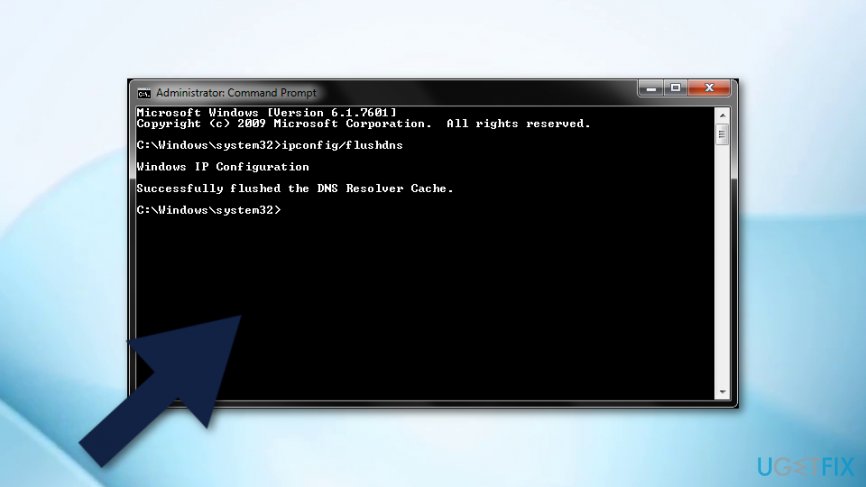
Method - Press Enter to execute the command.
- Close Command Prompt and reopen Chrome to check if the issue has been resolved.
Fix 2. Reset IP/TCP
- wiRight-click on Windows key and select Command Prompt (Admin).
- Copy and paste the following commands in the Command Prompt dialog.[ref en-4] Press Enter after each:
netsh int ip set dns
netsh winsock reset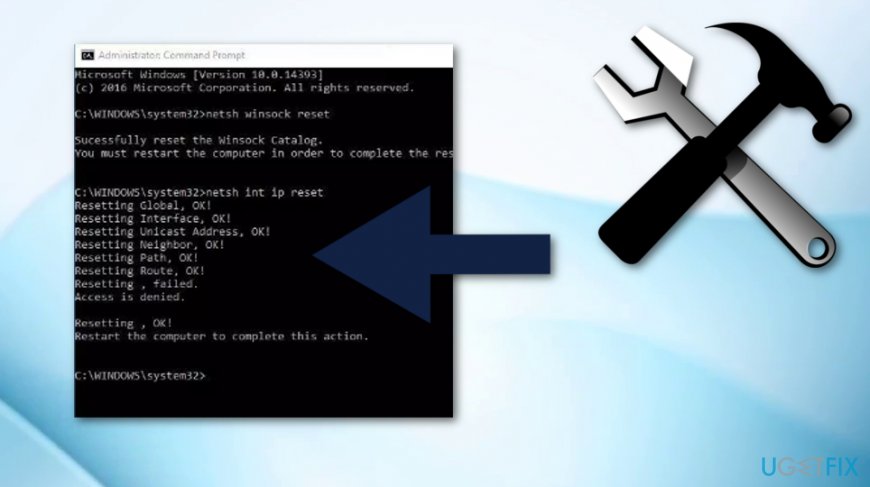
Method - Close Command Prompt and reopen Google Chrome.
Fix 3. Change your default DNS server
The ERR_NETWORK_CHANGED error might have been triggered by the problems related to the default DNS server.[ref en-3] To check that, we would recommend changing your default DNS server to the public on the Google Chrome web browser.
- Right-click on Windows key and select Network Connections.
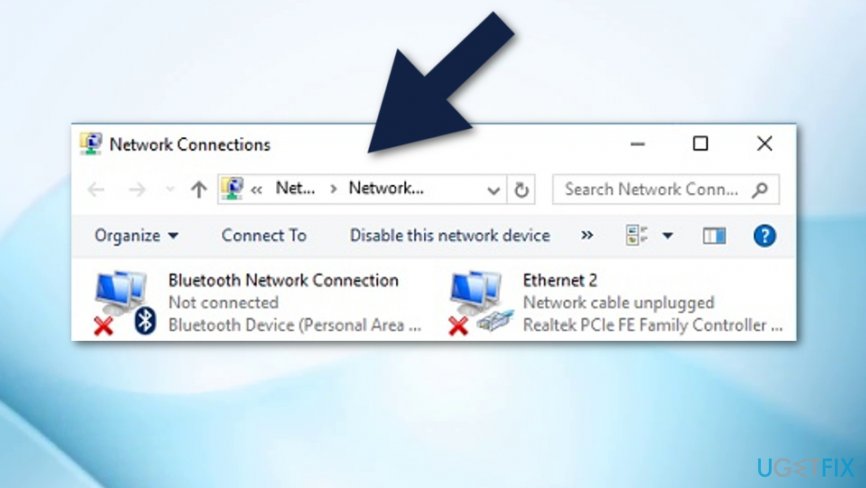
Method - Find the current network connection and right-click on it.
- Select Properties.
- Select the Internet Protocol Version 4 (TCP/IPv4) and click Properties.
- Mark the Use the following DNS server addresses option and paste these values:
Preferred DNS server - 8.8.8.8
Alternate DNS server - 8.8.4.4 - Click OK to save the changes and reopen Google Chrome to check if DNS server changes helped to remove ERR_NETWORK_CHANGED pop-up.
Fix 4. Reinstall the network adapter app
- Press Windows key and the X button on your keyboard at the same time.
- Find Device Manager in the menu.
- Double-click on Network adapters.
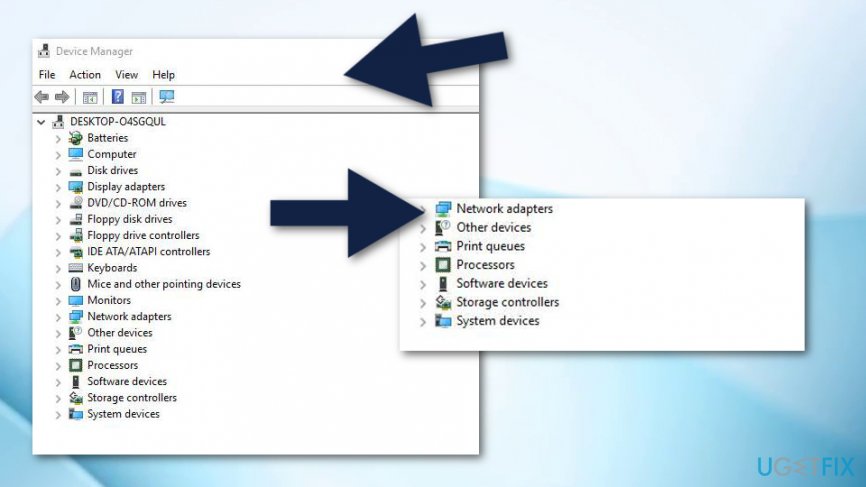
Method - After that, select Uninstall device.
- Restart your computer.
Fix 5. Deactivate the Proxy servers
- Click on the Windows Start icon and find Settings.
- Select Network & Internet;
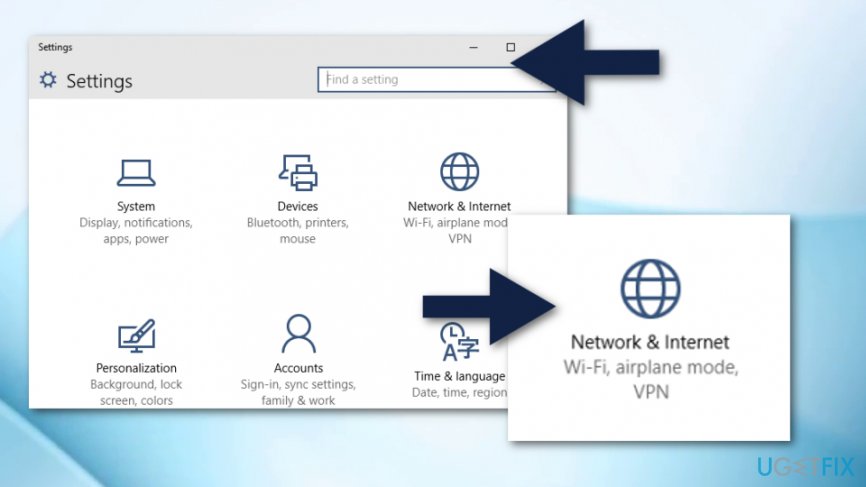
Method - Make sure that all options for automatic and manual proxy setup are opt-out.
Fix 6. Delete browsing history in your Chrome web browser
- Open Google Chrome and got to the History section.
- After that select Clear browsing data.
- Ensure that you clean the history from the beginning of time.
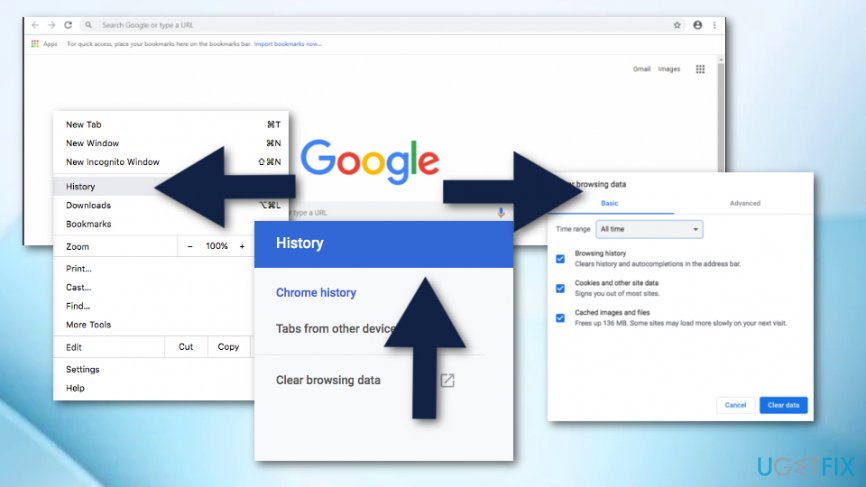
Method - Also, select these options: browsing history, download history, cookies, and other sire and plugin data, cached images and files, autofill from data, passwords.
- Click Clear browsing data.
- Restart your computer system.
Bottom line
To fix the ERR_NETWORK_CHANGED error on Chrome, you can execute the flushdns command, reset the IP/TCP settings, or change your default DNS server. If these solutions do not resolve the issue, consider power cycling your modem or clearing your browsing data.
Frequently asked questions
The ERR_NETWORK_CHANGED error often occurs due to changes in your network configuration or connection, such as switching Wi-Fi networks or improper DNS settings.
To fix the ERR_NETWORK_CHANGED error on Windows 11, try resetting your network settings by going to Settings > Network & Internet > Status, and then click on 'Network reset'.
Yes, clearing the browser cache can help resolve the ERR_NETWORK_CHANGED error on Windows 10; you can do this by going to Chrome's settings, selecting 'Privacy and security', and then 'Clear browsing data'.




Report an issue
What's wrong with this guide? We review every report and update or remove content.
Report received — thank you. We'll review and fix it.
You need a free account to submit a report.
Be the first to comment