How to fix
ERR_TOO_MANY_REDIRECTS error on Google Chrome
on Windows
Resolve the ERR_TOO_MANY_REDIRECTS error on Google Chrome in Windows 10 or 11 with expert tips. Fix it swiftly and surf smoothly—zero traces left.


What causes How to fix ERR_TOO_MANY_REDIRECTS error on Google Chrome?
- URL redirection problems
- Browser-related issues
- Incorrect computer date and time
- Extensions causing conflicts
- Corrupted browsing data
Repairs Windows system files, removes malware, and restores a clean OS state — without reinstalling.
I receive ERR_TOO_MANY_REDIRECTS error on Google Chrome quite often. It bothers me a lot. What is wrong with the browser?
ERR_TOO_MANY_REDIRECTS is one of many errors that any Google Chrome[ref en-1] user might encounter. This browsing problem might occur when trying to access a website that has some issues with URL redirection problems. However, the issue might be related to the browser too.
When something goes wrong, and a browser cannot open a desired website, it displays a grey page that provides the following information:
This webpage has a redirect loop. ERR_TOO_MANY_REDIRECTS
If the problem persists only if you try one specific website, you should not blame the browser and wait while webmasters fix the issue. However, if this message appears when you try to access different sites, you should look up for the problems with Google Chrome.
In order to fix ERR_TOO_MANY_REDIRECTS error, you should clear browsing data,[ref en-2] disable or uninstall extensions, correct computer’s date and time. However, before that, you should try to access the website using another web browser to check if it’s actually Chrome’s fault.

Fix ERR_TOO_MANY_REDIRECTS error on Chrome
We have no doubts that you have a few browsers installed on your computer. Instead of using Google Chrome, open Safari, Firefox or Internet Explorer and access the website that delivered ERR TOO MANY REDIRECTS error. If it loads, you have to take care of Chrome.
If other browsers also display the same error, it means that the source of the problem is a website. In this case, there’s not much what you can do about it. You will need to wait until webmasters fix the problem and the site is available again.
This video contains information needed to fix this problem:
[youtube Ssz0SQeKcKk]
Option 1. Clear Chrome browsing data
One of the ways to fix ERR_TOO_MANY_REDIRECTS error is to clear browsing history, cache,[ref en-3] cookies, and other stored information. Follow these steps:
- Click three vertical dots in the top right corner of the browser’s menu and choose Settings from the menu.
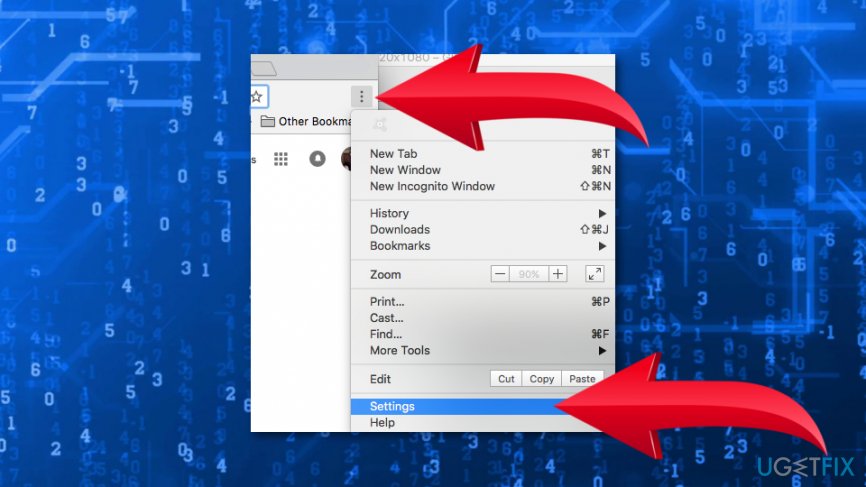
Open chrome settings - Click Advanced option to expand the settings.
- Under Privacy and security section there’s Clear browsing data option. Click on it.
- In the appeared Clear browsing data window, check all entries and set Time range to All time.
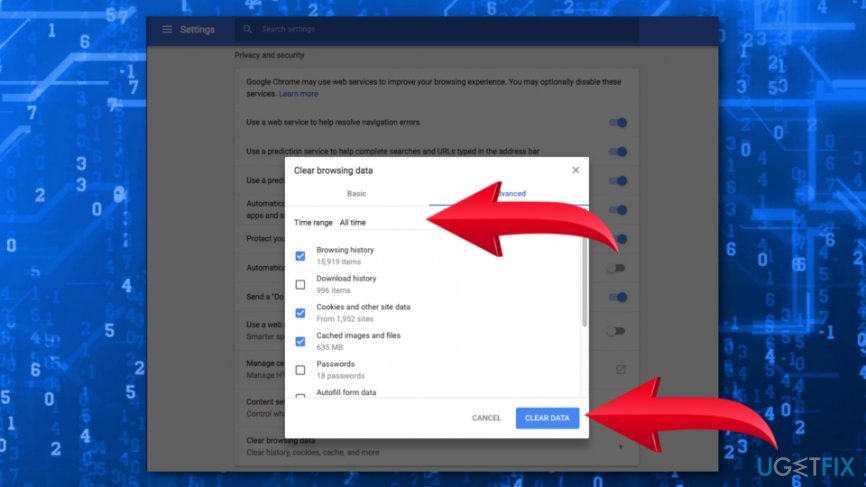
Clear browsing data - Click Clear Data button.
Option 2. Disable browser extensions
Browser extensions should enhance or simplify browsing the web. However, they often cause plenty of problems. Hence, you should disable them in order to check if it helps to fix ERR_TOO_MANY_REDIRECTS error.
- Open Chrome and access its menu.
- Navigate to More tools > Extensions.
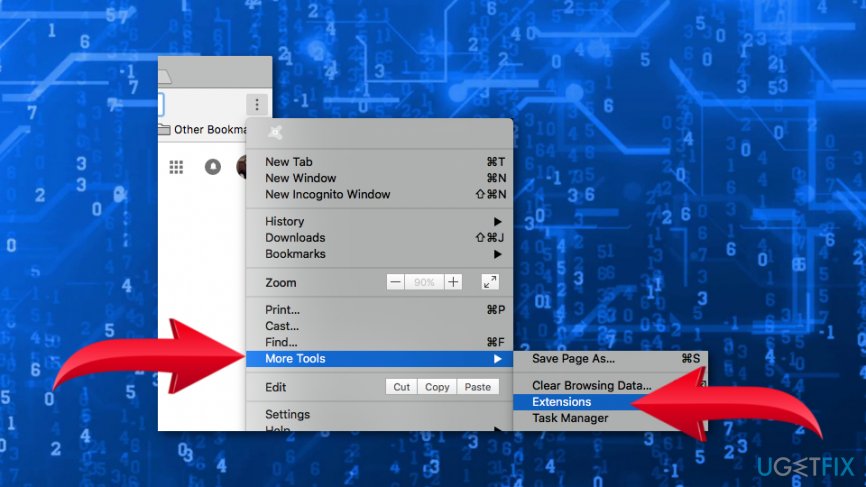
Check chrome extensions - Disable extensions one after another to check if any of them causes the error.
If you found that one of them is the sources of the problem, you should keep it disabled or uninstall it entirely.
Option 3. Change computer’s date and time
Outdated date or time settings might be another reason for ERR_TOO_MANY_REDIRECTS Chrome error appear. Follow these steps to set proper date/time on your PC:
- Click Win+R keys to open Run dialog.
- Type control in the Run box and click OK.
- Once you end up on Control Panel, choose Date and Time option.
- Open Internet Time tab and click Change settings button.
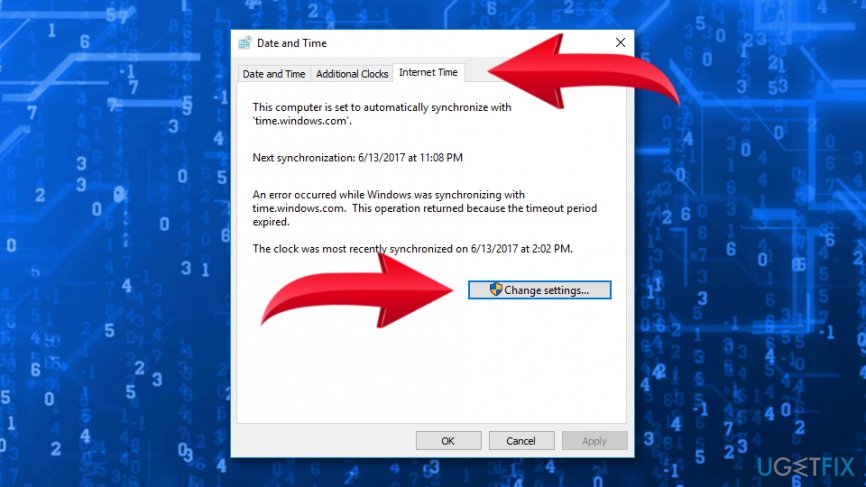
Change date and time - In the newly appeared window, mark the checkbox next to Synchronize with an Internet time server option and select time server.
- Click Update now button and then OK.
Try accessing the website again. Hopefully, this has helped to get rid of the Chrome redirect error.
Bottom line
To fix the ERR_TOO_MANY_REDIRECTS error, you should clear your browsing data, disable or uninstall extensions, and ensure your computer's date and time are correct. If the problem persists, try accessing the website using a different browser to determine if the issue lies with Chrome or the website itself.
Frequently asked questions
This error typically occurs due to incorrect URL settings, cookie issues, or a misconfigured website. It can also be triggered by browser extensions that interfere with page loading.
To clear the cache in Google Chrome on Windows 10 or 11, go to 'Settings', then 'Privacy and security', and select 'Clear browsing data'. Make sure to check 'Cached images and files' before confirming.
Yes, resetting Chrome settings can help resolve the ERR_TOO_MANY_REDIRECTS error by restoring default configurations and disabling problematic extensions. You can do this by navigating to 'Settings', then 'Advanced', and selecting 'Reset and clean up'.




Report an issue
What's wrong with this guide? We review every report and update or remove content.
Report received — thank you. We'll review and fix it.
You need a free account to submit a report.
Be the first to comment