How to fix
“Error 0x80007005. Access is denied”
on Windows
Resolve the "Error 0x80007005. Access is denied" issue on Windows 10 effortlessly. Solutions to get you back on track in minutes, expert-tested!

What causes How to Fix “Error 0x80007005. Access is denied” on Windows 10?
- Problems with Windows Updates
- System restore failures
- Software incompatibilities
- Insufficient permissions to rename folders
- Need for administrative rights
Repairs Windows system files, removes malware, and restores a clean OS state — without reinstalling.
For some reason, I’m forbidden to rename folders on my PC. Each attempt ends up with an error message "Error 0x80007005. Access is denied.” I’m using Windows 10 with a Creators Update installed a month ago. Please advice.
Error 0x80007005. Access is denied is an error message that can occur on any computer, which runs Windows 10 or older version. While this referral number indicated problems with Windows Updates, system restore failures, software incompatibilities, and similar issues, on Windows 10 the error code 0x80007005 may be referred to as a folder or folder renaming error. That’s because people may encounter this bug check when trying to rename random system folders. This message means that the PC user does not have a permission to rename certain folders. If the same happens when trying to copy, delete or move the required folder, probably you are trying to modify one of the root folders and for that you have to have the administrative rights. Therefore, you should log in as an administrator and then try to rename the folder. Did you receive the following message anyway?
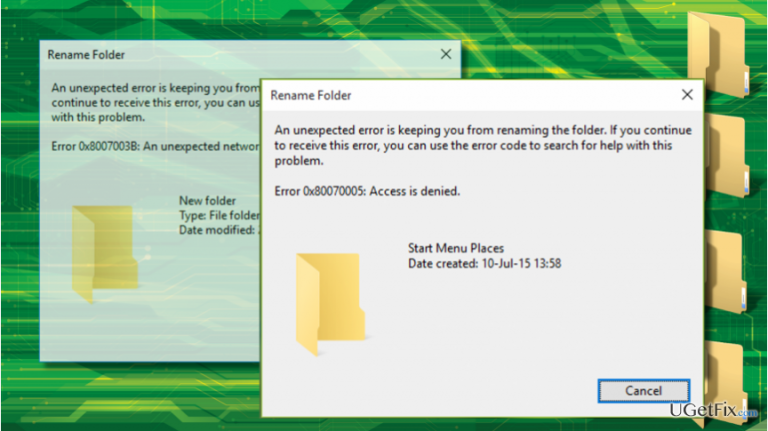
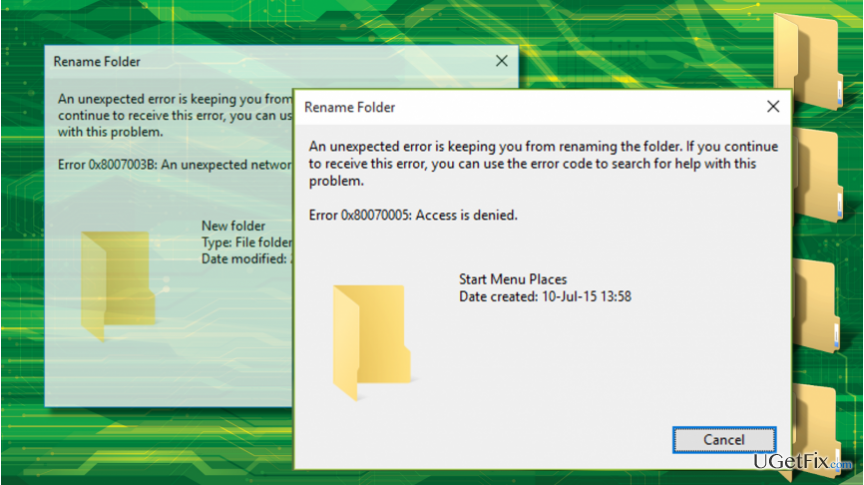
An unexpected error is keeping you from renaming the folder. If you continue to receive this error, you can use the error code to search for help with this problem.
Error 0x80007005: Access is denied.
It means that there may be some issues related to the Windows OS rights or permissions. If you are looking for a quick solution, we would recommend you to run File And Folder Troubleshooter firsts and see what it reports. Additionally, Windows team members recommend running SFC and DISM tool and only then perform manual 0x80007005 fixes.
NOTE: the same error message may occur with a bug check value 0x8000703B.
Method 1. Run File And Folder Troubleshooter
Microsoft offers a wide variety of troubleshooters for Windows users. File And Folder Troubleshooter is one of them. This tool is supposed to analyze and fix problems related to system files and folders automatically. Therefore, click this link and download the File And Folder Troubleshooter from the official Microsoft’s website. Then run its scanner and wait for the results. If it detects any issues, select to fix them all and then reboot your PC.
Method 2. Change the Ownership
If you are using a computer with multiple user accounts, probably the user of the Administrator Account is the only one who can modify the root (not necessarily) folder. Therefore, to fix Error 0x80007005 error, you should take the ownership if the folder that you attempt modifying.
- Right-click on the folder that you want to rename and select "Properties."
- Open "Security" tab and find the "group or user section."
- If you don’t have the ownership of that folder, select "Advanced" button.
- Check the "Owner" section at the top of the "Advanced Security Settings" window and select "Change."
- When the "User or Group" window opens, select "Advanced."
- Enter the name of your User Account and click "Check Names" or you can do the same by clicking on "Find Now" button.
- When the list of available accounts is delivered, select your account and click "OK."
- Check the "Replace owner on sub containers and objects" and click "OK" to save the changes.
Finally, don’t forget to scan the system with [d1]. It’s a PC optimization utility with an in-built anti-virus engine. Therefore, it will ensure that your PC is virus and error free.
Bottom line
To fix the 'Error 0x80007005. Access is denied' issue, you should first run the File And Folder Troubleshooter, followed by the SFC and DISM tools. If these solutions do not resolve the problem, consider searching for help using the error code.
Frequently asked questions
This error typically occurs due to permission issues or when trying to access files or folders without adequate rights in Windows 10.
You can resolve this by running the program as an administrator or adjusting the folder permissions to ensure your user account has the necessary rights.
Yes, temporarily disabling UAC can help, but it is recommended to re-enable it afterward for security reasons.




Report an issue
What's wrong with this guide? We review every report and update or remove content.
Report received — thank you. We'll review and fix it.
You need a free account to submit a report.
Be the first to comment