How to fix
Error 0x80043103 (No error description available)
on Windows
Resolve error 0x80043103 on Windows 10 and 11 effortlessly. Our expert-tested guide offers quick solutions and tips to get your system running smoothly.…


What causes How to fix error 0x80043103 (No error description available) in Windows?
- Bug or glitch in the system
- Windows Firewall blocking file deletion
- Third-party application interference
- File in use by another process
Repairs Windows system files, removes malware, and restores a clean OS state — without reinstalling.
Hello. I tried to delete a file on my Windows PC but I receive an error 0x80043103 (No error description available). How do I get rid of it?
Error 0x80043103 is a common error in Windows that can occur for a variety of reasons. It prevents users from deleting files. The error message itself does not provide much information, as it simply states that "No error description is available." This can make it difficult to determine the cause of the error and how to fix it. The full message reads as follows:
An unexpected error is keeping you from deleting the file. If you continue to receive this error, you can use the error code to search for help with this problem. Error 0x80043103: No error description available.
One possible reason for this error is a bug or a glitch, in which case, it would be worth a try to simply restart the system. Another reason could be the Windows Firewall. It could be stopping the user from deleting the file as a security precaution. People could also try to delete the file in Clean Boot mode which prevents non-Windows apps from running. If the error is caused by a third-party application you should probably delete it.
In this guide, you will find 6 steps that should help you fix error 0x80043103 (No error description available) in Windows. Keep in mind that the manual troubleshooting process can be lengthy. If you want to avoid it, try using a maintenance tool like [d1]. It can fix most system errors, BSODs,[ref en-1] corrupted files, registry[ref en-2] issues, or clear cookies and cache.[ref en-3] Otherwise, follow the step-by-step instructions below.
Solution 1. Restart the Computer
Sometimes, you just need to restart your system and try deleting the files again. A reboot could fix the issue if it's nothing more than a glitch. To do this, click on the Windows logo and choose the Restart option. After the system boots up, try to delete the problematic file again.
Solution 2. Move the File to Another Location
If you're struggling to delete a file, try moving it to another location and then deleting it from there. This workaround doesn't always work, but it's worth a shot. The most likely explanation for why this would work is either that the user doesn't have permission to delete files in the first location or that there's a bug causing the issue.
Solution 3. Disable Windows Search Service
- Open the Services window from the Start Menu
- Look for the Windows Search service
- Right-click on it, select Properties, select Disabled from the Startup option
- Click on the Stop button
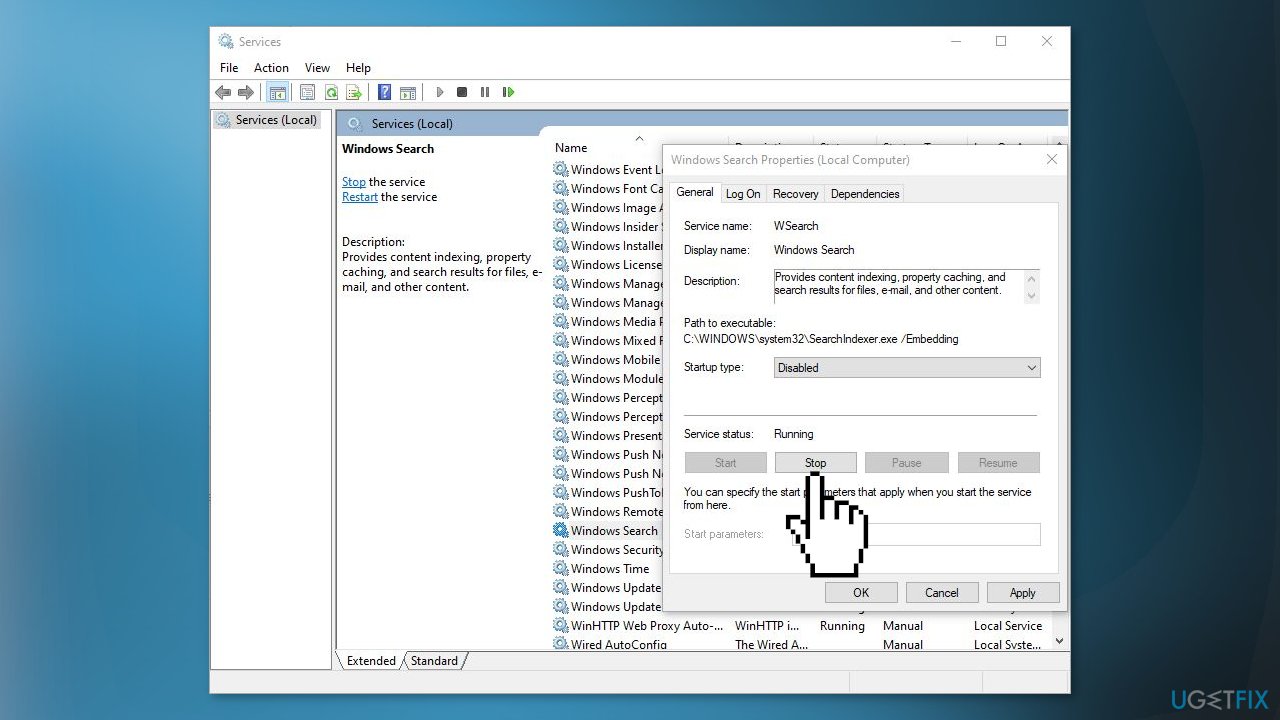
- Restart your computer and then try to delete the file again
Solution 4. Delete Files using the PowerShell
- Open PowerShell as an administrator from the Start Menu
- Execute the following command by changing it depending on your circumstances and pressing Enter:
Remove-Item <path of the folder or file> -Recurse -Force
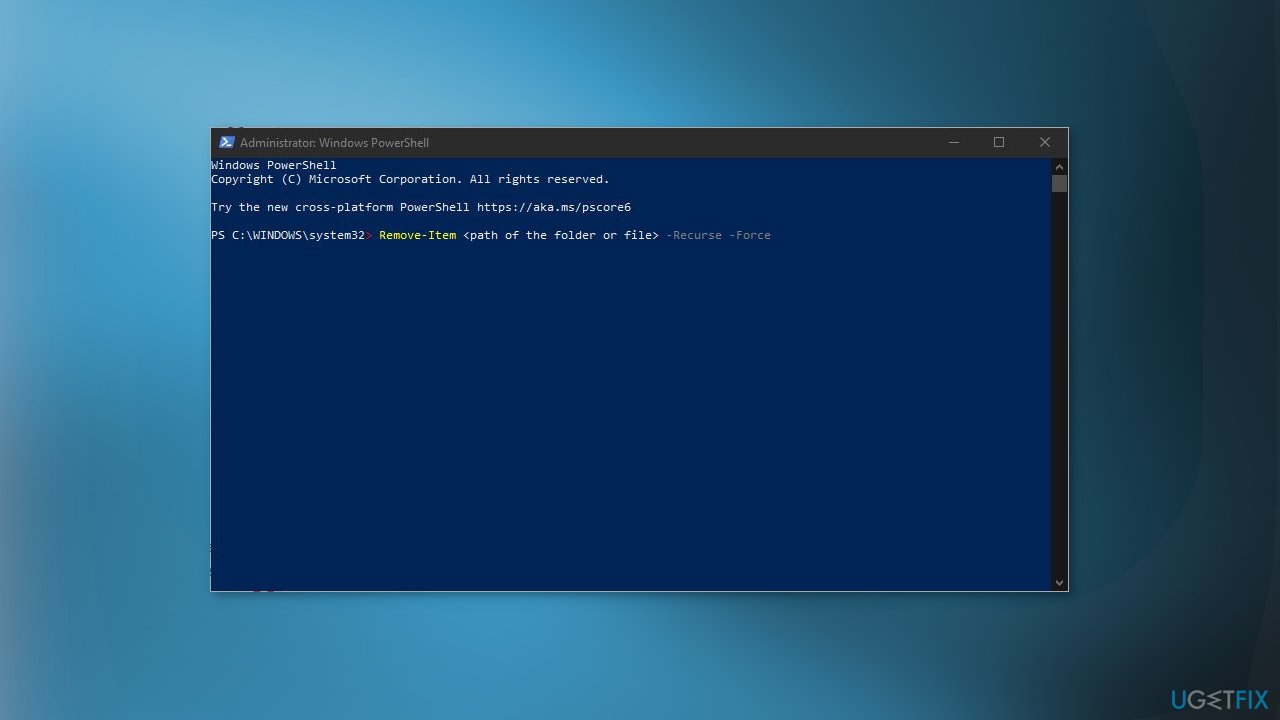
- This might not delete the files, in that case, restart your system and then run the command again
- See if the file was deleted successfully
Solution 5. Disable Windows Firewall
If the firewall is too protective and not letting you delete certain files, you can disable it temporarily. If you have a third-party antivirus, disabled its corresponding firewall. If you are only using Windows Defender Firewall, follow these next steps to disable it.
- Open the Control Panel
- Go to Security & System and click on Windows Defender Firewall
- Click on Turn Windows Defender Firewall on or off
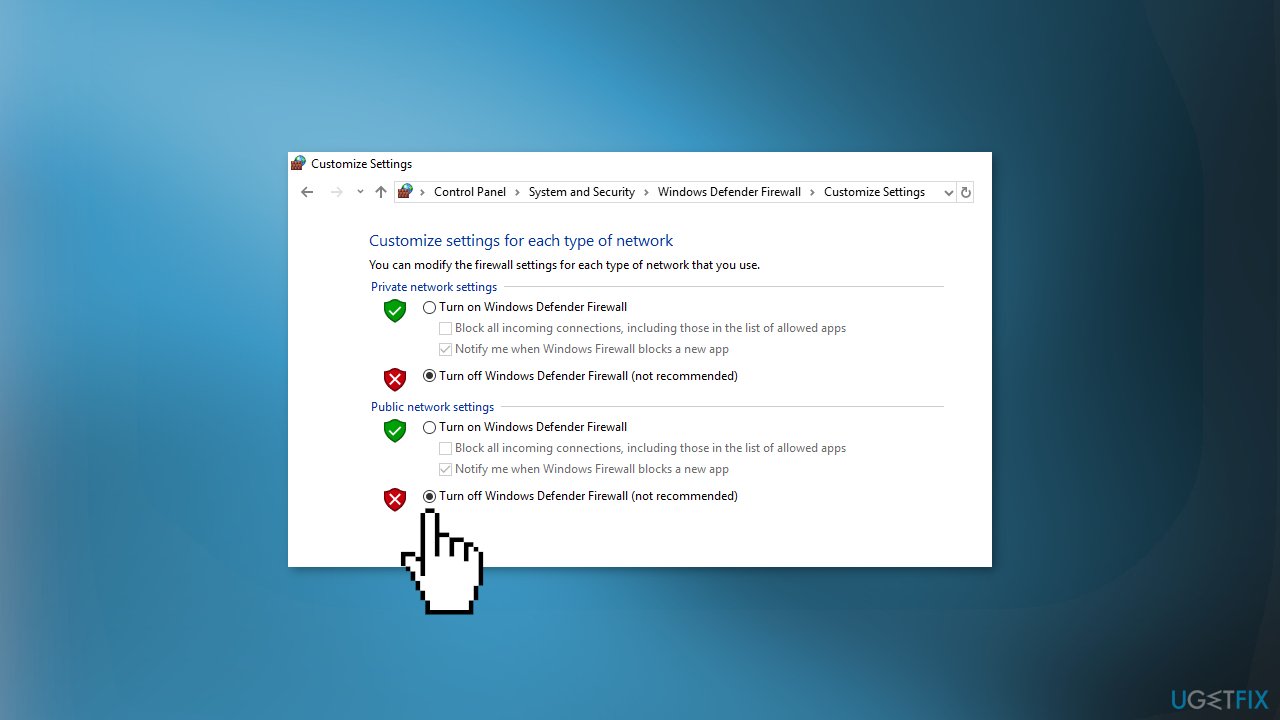
- Select Turn off Windows Defender Firewall for both Public and Private network settings
Solution 6. Try Clean Boot
A third-party app might be interfering with Windows services and not allowing you to delete a file. In that scenario, try doing a Clean Boot and then deleting the file. If successful in deletion, and to track down the cause, enable services one by one until you locate which app is creating the issue. Once discovered, either remove the app or disable its corresponding service.
- Type MSConfig in the Start Menu and hit Enter to open the System Configuration Utility
- Click on the General tab, and then click Selective Startup
- Clear the Load Startup Items checkbox, and ensure that Load System Services and Use Original boot configuration are checked
- Next, go to the Services tab
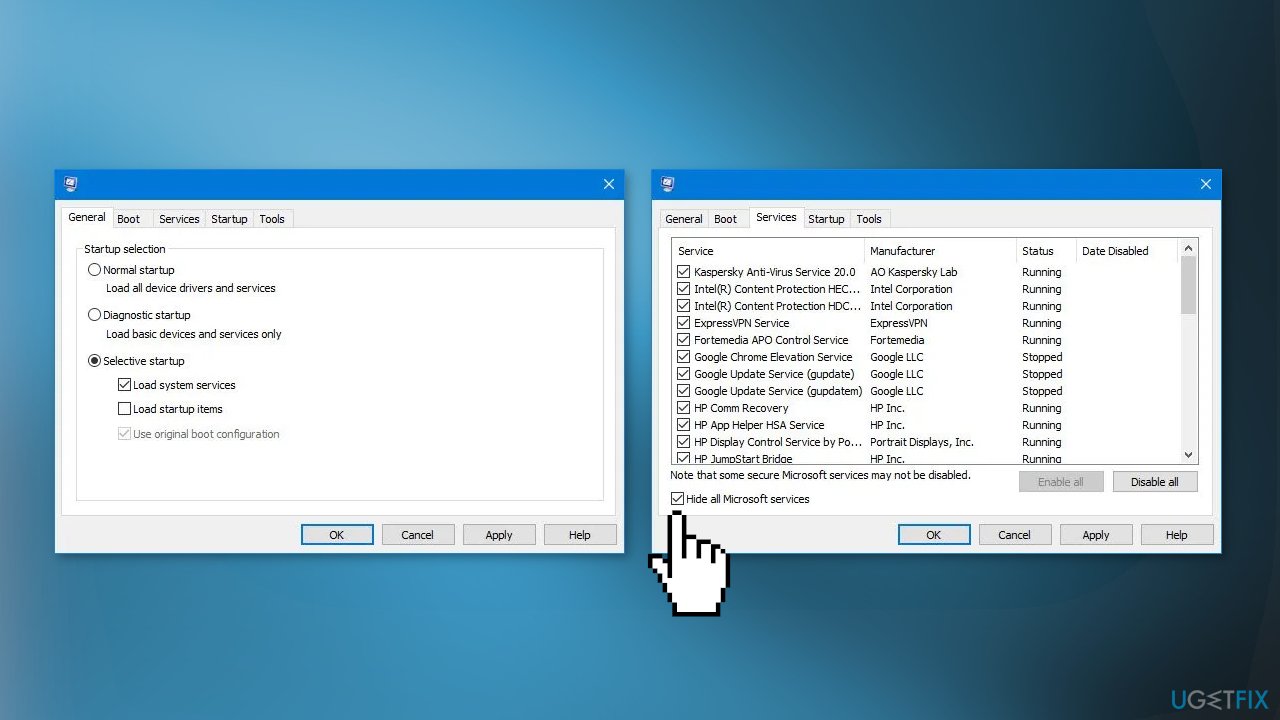
- Select the Hide All Microsoft Services checkbox
- Now click Disable all
- Click Apply and OK and restart the computer
Bottom line
To fix error 0x80043103, you can try restarting your computer, moving the file to a different location, or deleting it in Clean Boot mode. If these solutions do not resolve the issue, consider using a maintenance tool or further troubleshooting steps.
Frequently asked questions
Error 0x80043103 typically indicates a problem with Windows Update or system files, but it may not provide a specific error description. This can lead to difficulties in diagnosing the underlying issue.
To troubleshoot error 0x80043103 on Windows 11, try running the Windows Update Troubleshooter and performing a System File Check using the 'sfc /scannow' command in Command Prompt.
Yes, ensure that your Windows Update settings are correctly configured and check for any pending updates or corrupted system files that might be causing the error 0x80043103.




Report an issue
What's wrong with this guide? We review every report and update or remove content.
Report received — thank you. We'll review and fix it.
You need a free account to submit a report.
Be the first to comment