How to fix
Error 0x800700cb: Windows Sandbox failed to initialize
on Windows
Resolve error 0x800700cb and get Windows Sandbox running smoothly again. Quick solutions to fix this issue with expert-tested methods.

What causes How to fix error 0x800700cb: Windows Sandbox failed to initialize?
- Certain essential services not running or improperly configured
- Corrupted or missing system files related to Windows Sandbox
- Registry problems affecting Windows Sandbox configurations
- Issues with system updates or configurations
Repairs Windows system files, removes malware, and restores a clean OS state — without reinstalling.
Whenever I attempt to launch Windows Sandbox on Windows 11, I receive the following error: "Windows Sandbox failed to initialize. Error 0x800700cb. The system could not find the environment option that was entered." This is strange because it was working fine not too long ago, and I don't remember changing anything on my PC. Any advice?
Windows Sandbox is a lightweight virtual machine that allows users to run applications in isolation from the host system. It acts as a temporary environment, enabling the testing of unknown or suspicious software without risking the integrity of the primary operating system. Since it's a part of Windows, it integrates well with the OS, providing ease of access and convenience.
However, some users have reported encountering the error code 0x800700cb when attempting to launch Windows Sandbox. This error message signifies that the Windows Sandbox failed to initialize, preventing the user from accessing this useful feature. Several underlying causes could lead to this error, and understanding them is crucial for proper resolution.
-
Services. Certain essential services might not be running or could be improperly configured, leading to this error. These services are vital for Windows Sandbox to operate correctly, and any issue with them can prevent the initialization of the Sandbox environment.
-
Corrupted System Files. Sometimes, corrupted or missing system files related to Windows Sandbox can result in the error 0x800700cb. These files are necessary for the proper functioning of the feature, and any discrepancies can cause it to fail.
-
Registry Issues. Windows registry problems can also lead to this error. The registry contains essential configurations for Windows Sandbox, and any mistakes or corruption within these entries may lead to failure in initializing the feature.
Though these issues may seem complex, solutions are available for each of them. By carefully diagnosing the exact cause of the problem and following the appropriate resolution steps, you can fix the 0x800700cb error and successfully utilize Windows Sandbox. Comprehensive instructions for resolving the issue can be found below.
In addition to the specific solutions mentioned, you may also consider utilizing the [d1] PC repair tool. This application can fix corrupted system files, resolve registry issues, clean junk, and perform other system optimizations, contributing to the overall health and stability of the computer.
Fix 1. Re-enable Sandbox-related components (Hyper-V, Windows Sandbox)
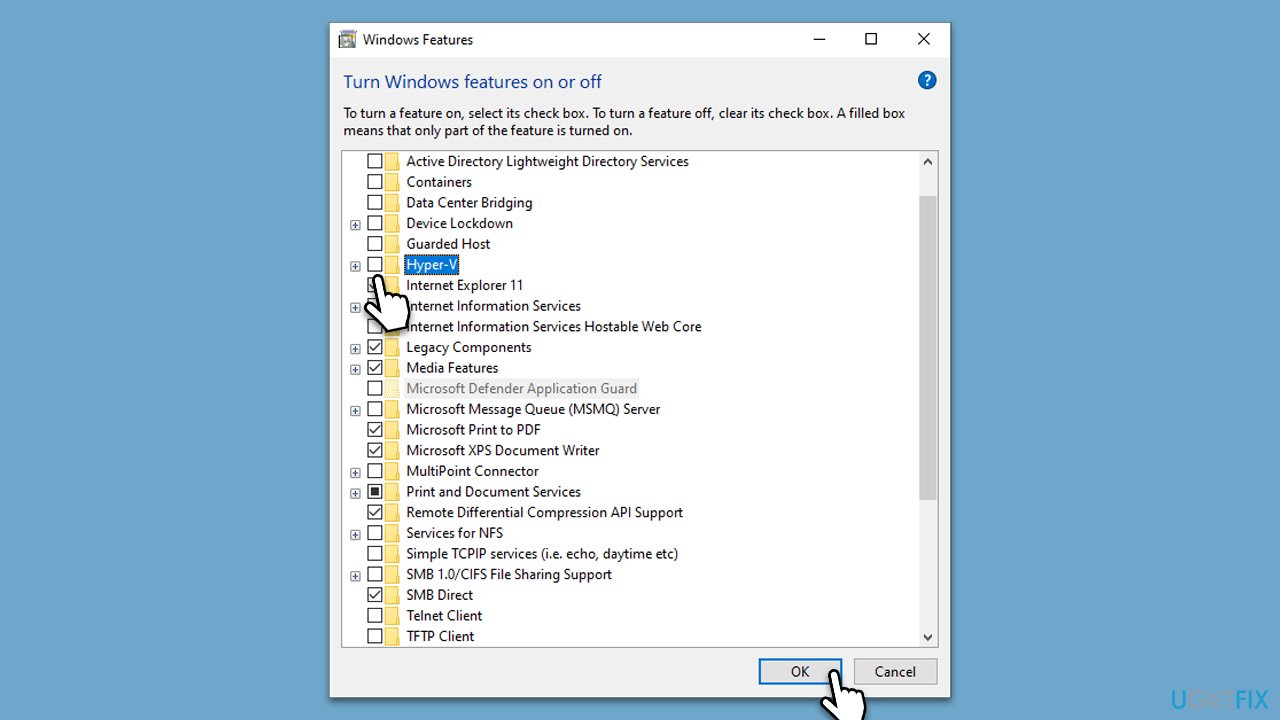
Windows Sandbox relies on specific virtualization components, such as Hyper-V. If these components are disabled, the Sandbox will not function properly. Re-enabling them ensures that Windows has the necessary tools to run the Sandbox environment, restoring its functionality.
- Type Control Panel in Windows search and select Programs.
- Select Turn Windows features on or off.
- Find Hyper-V from the list and unmark the checkbox.
- Next, scroll down to find Windows Sandbox and unmark the checkbox.
- Click OK and restart your computer.
- After a reboot, open Windows Features again and enable these components once more.
Fix 2. Use Hardware and Devices troubleshooter
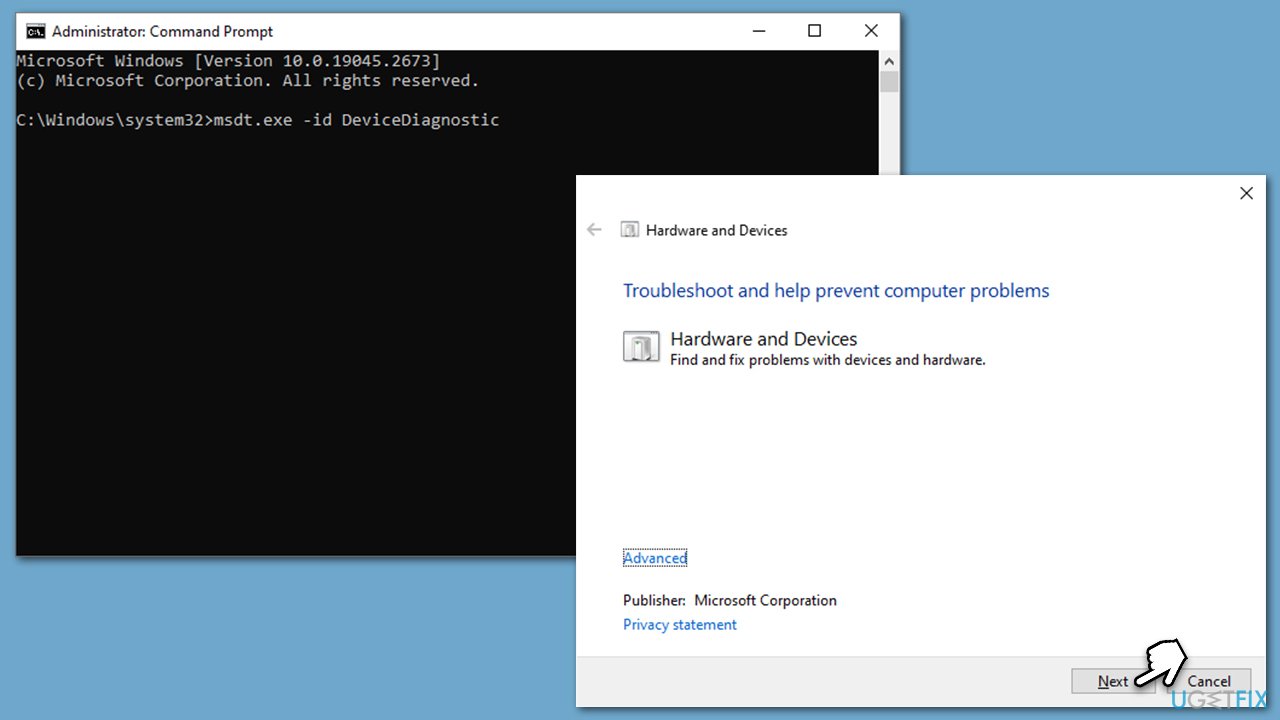
Windows provides built-in troubleshooters to detect and fix common problems. Try the following:
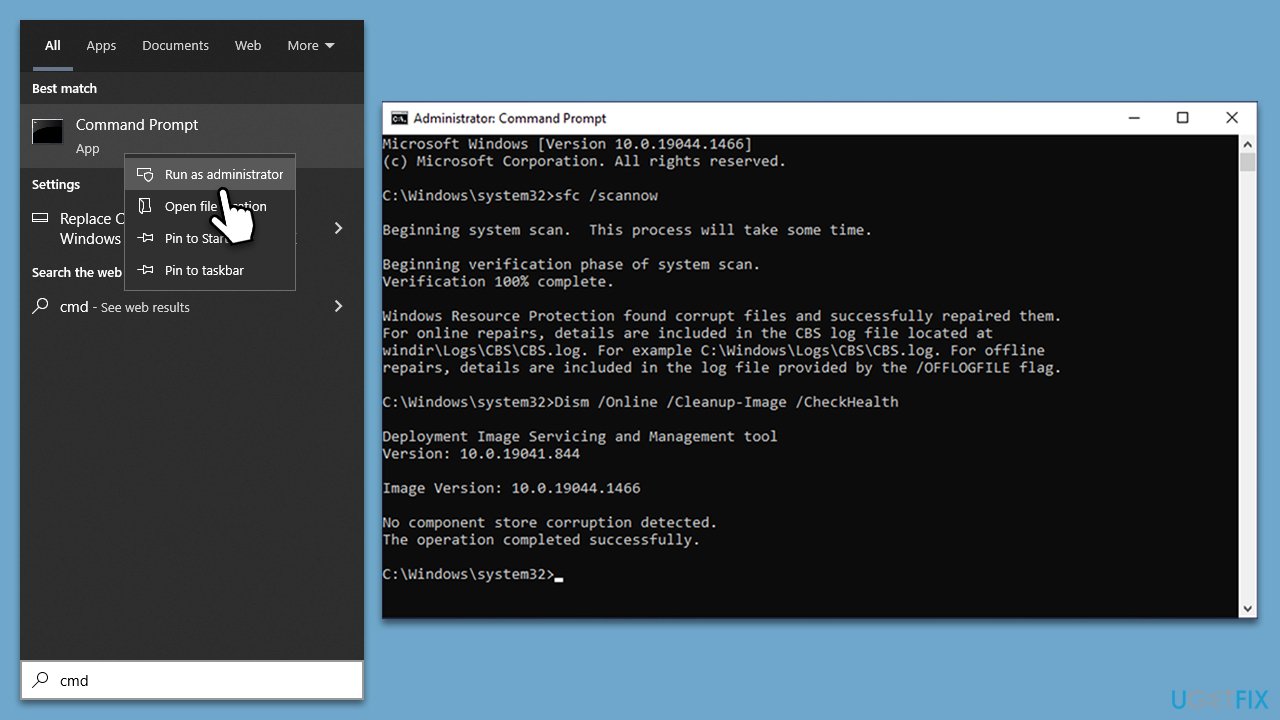
- Type cmd in Windows search.
- Right-click on the Command Prompt result and pick Run as administrator.
- When User Account Control shows up, click Yes.
- Copy and paste the following command, pressing Enter after:
msdt.exe -id DeviceDiagnostic - Follow on-screen instructions to run the troubleshooter and apply the suggested fixes.
- Restart your device.
Fix 3. Run SFC and DISM
These tools can repair corrupted or missing system files:
- Open Command Prompt as administrator.
- Copy and paste the following command and press Enter:
sfc /scannow - Next, use the following commands, pressing Enter each time:
Dism /Online /Cleanup-Image /CheckHealth
Dism /Online /Cleanup-Image /ScanHealth
Dism /Online /Cleanup-Image /RestoreHealth
(Note: if you get an error executing this last command, add /Source:C:\RepairSource\Windows /LimitAccess to it and try again). - Reboot your device.
Fix 4. Enable relevant services
Services are background processes that Windows relies on for various functionalities. Some services are specifically related to Windows Sandbox and must be running for it to function. If these services are stopped or disabled, enabling them again ensures that Windows Sandbox has the necessary support to run.
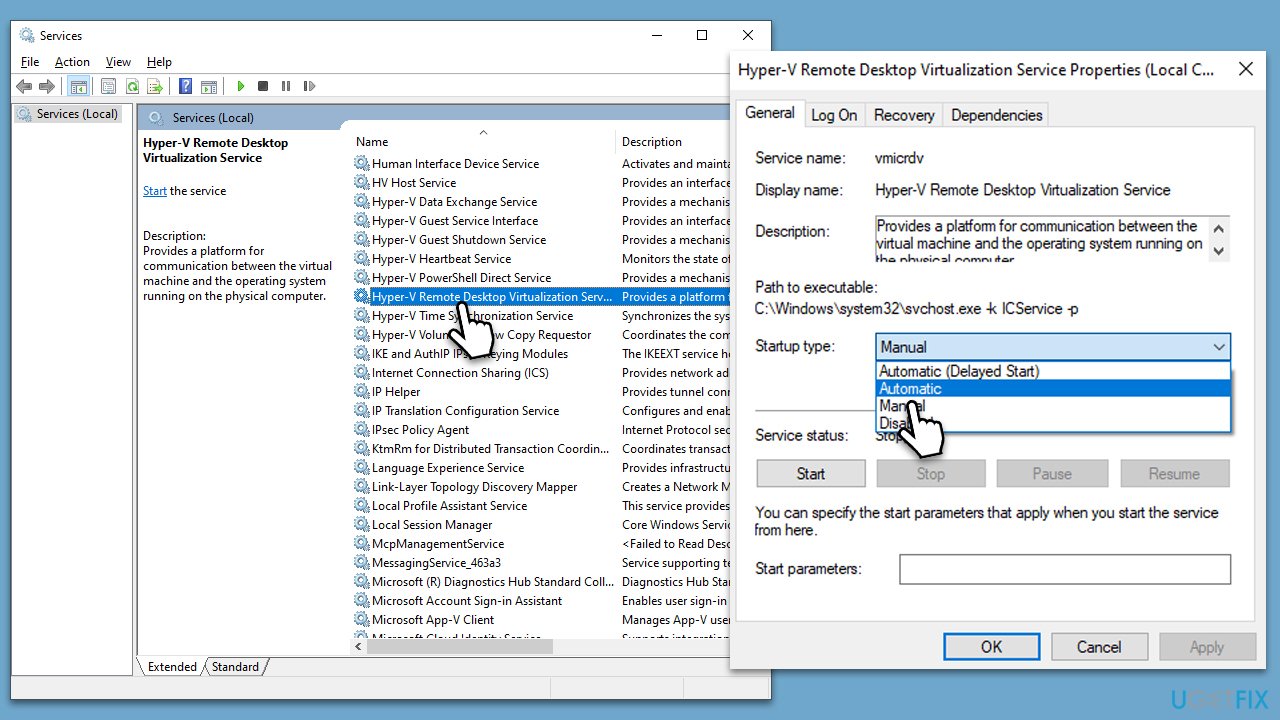
- Type Services in Windows search and press Enter.
- Scroll down to find Hyper-V Remote Desktop Virtualization Service and double-click it.
- Under the Startup type, select Automatic in the drop-down menu.
- Click Start, Apply, and OK.
Fix 5. Add a missing variable (windir)
Environment variables are used by the system to manage the way Windows and other programs run. If a required variable like windir is missing, it might hinder Windows Sandbox from operating.
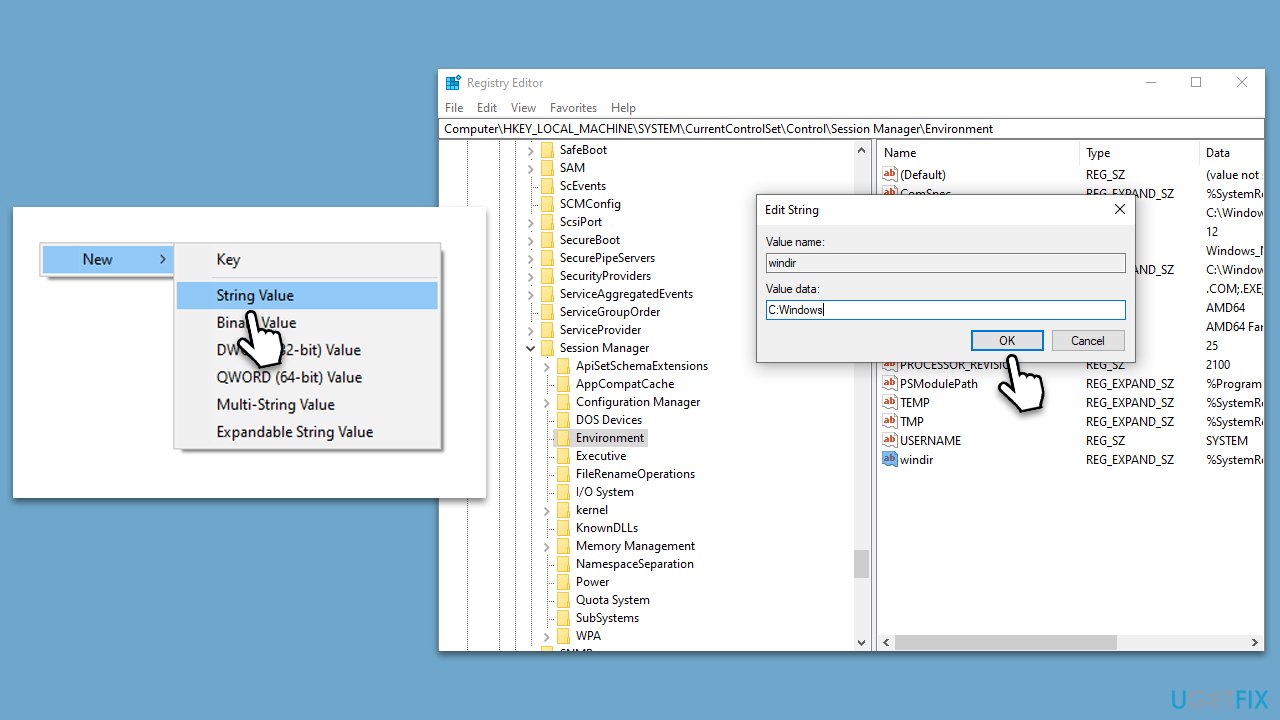
- Type regedit in Windows search and press Enter.
- When UAC shows up, click Yes.
- When Registry Editor shows up, navigate to the following location:
Computer\HKEY_LOCAL_MACHINE\SYSTEM\CurrentControlSet\Control\Session Manager\Environment - Check the right pane - the windir value should be there. If it isn't, follow these steps:
- Right-click on an empty space and select New > String Value.
- Name it windir and click OK.
- Double-click the new value and enter C:Windows as Value data, and click OK.
- Restart your system and see if the 0x800700cb error is fixed.
Fix 6. Install the missing Visual C++ Redistributables
Visual C++ Redistributables are libraries required by many applications, including Windows Sandbox. If they are missing or improperly installed, this can prevent the Sandbox from initializing. Reinstalling them ensures that the necessary code libraries are available for Windows Sandbox to run.
- Open Control Panel and go to Programs > Uninstall a program.
- Here, scroll down and check the list of the installed Visual C++ versions.
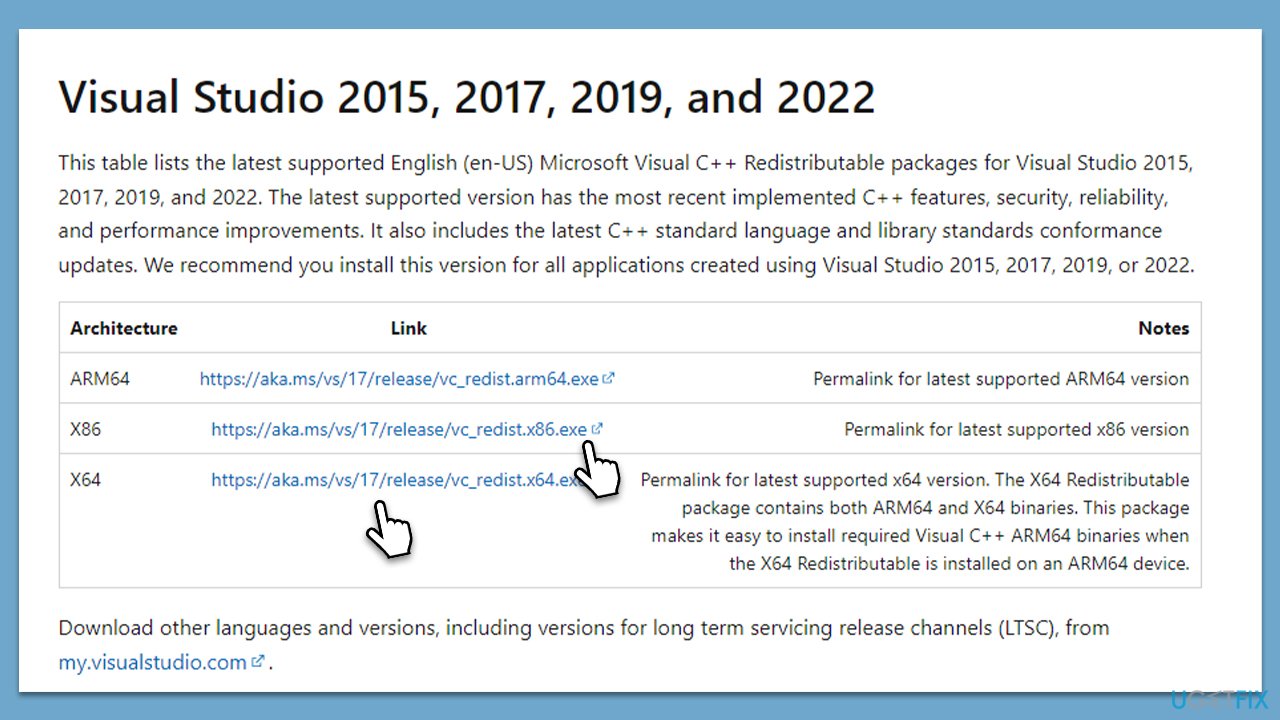
- Open your browser and navigate to the official Microsoft Visual C++ download page.
- Download and install all the missing versions (including the x84 and x64 versions) of Visual Studio.
- Once done, restart your system.
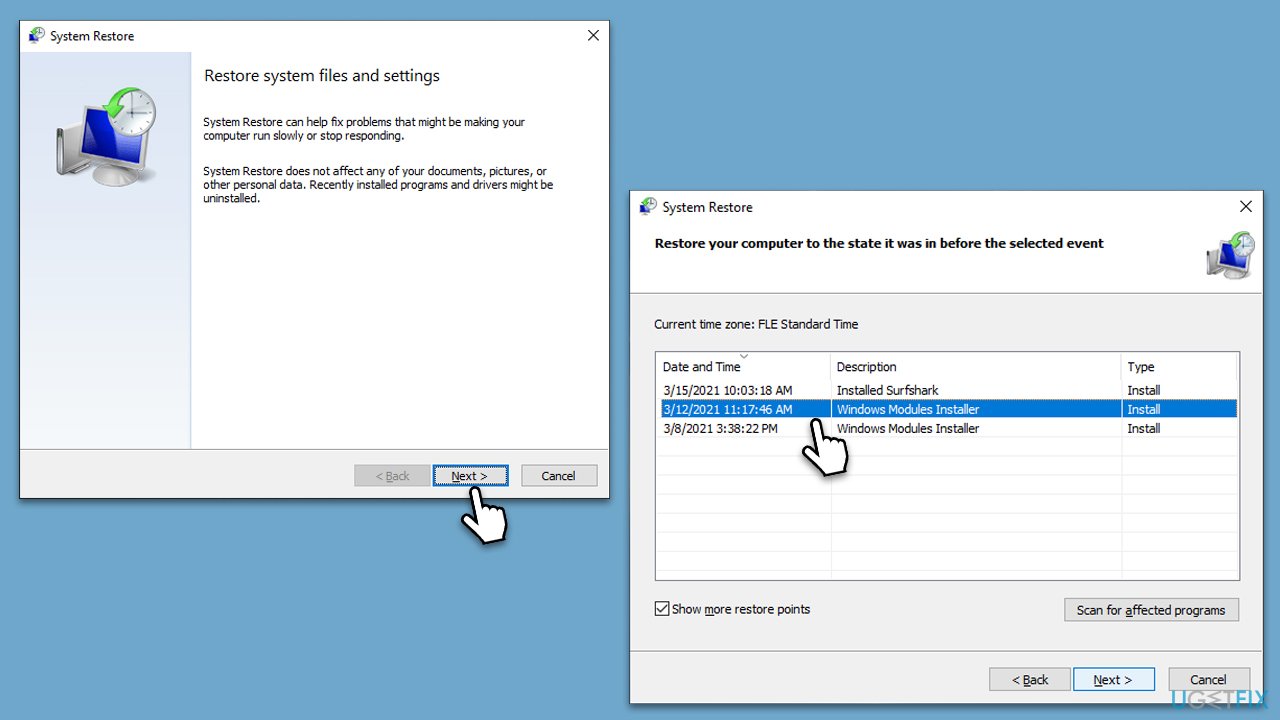
Fix 7. Try System Restore
Sometimes, recent changes to the system, like updates or installations, may inadvertently cause the error with Windows Sandbox. System Restore allows the computer to revert to an earlier state, undoing those changes.
- Type in Create a Restore point in Windows search and hit Enter.
- In the System Protection tab, pick System restore.
- Click Next.
- Click Show more restore points (if available).
- Pick the time before the problem occurred and click Next.
- Your computer will reboot.
Fix 8. Reset Windows
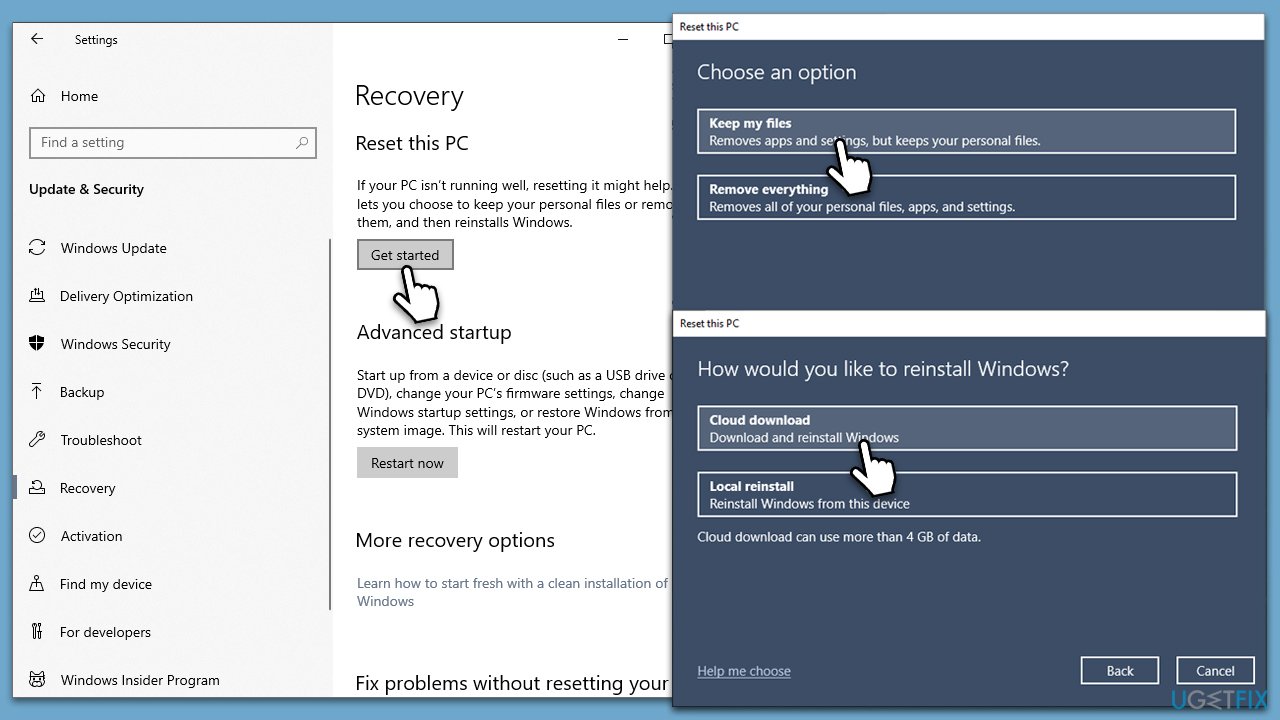
If all else fails, resetting Windows can be a last resort. This option restores Windows to its original state, essentially starting fresh.
- Right-click on Start and then select Settings.
- Go to Update & Security and pick Recovery on the left side of the window.
- Find Reset this PC section and click Get Started.
- Select Keep my files and Cloud download.
- Next, pick whether you want to reinstall the apps.
- Click Reset.
- Your system will restart, and the process of Windows reset will begin.
Bottom line
To fix the error 0x800700cb, ensure that all essential services are running, check for corrupted system files, and address any registry issues. If these solutions do not resolve the problem, consider further diagnosing the system or seeking additional support.
Frequently asked questions
The error 0x800700cb typically occurs due to corrupted system files or issues with Windows features that are essential for running Windows Sandbox in Windows 10 or Windows 11.
You can use the System File Checker tool by running 'sfc /scannow' in Command Prompt as an administrator to repair corrupted system files that may be causing the error.
Yes, ensuring that virtualization is enabled in your BIOS/UEFI settings is crucial for Windows Sandbox to function correctly and can help resolve the error 0x800700cb.




Report an issue
What's wrong with this guide? We review every report and update or remove content.
Report received — thank you. We'll review and fix it.
You need a free account to submit a report.
Be the first to comment