How to fix
Error 0x800700CE: The filename or extension is too long
on Windows
Resolve the error 0x800700CE on Windows 10 or 11 effortlessly. Get expert-tested solutions and fix your filename issues in minutes!

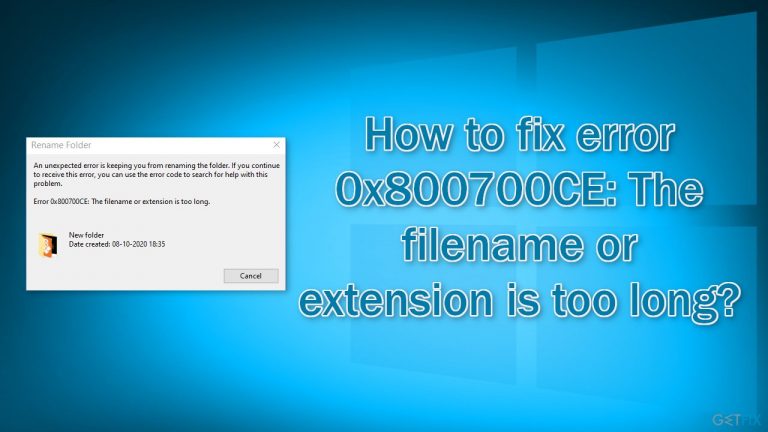
What causes How to fix error 0x800700CE: The filename or extension is too long?
- Third-party security programs installed recently
- Issues with file and folder permissions
- Corrupted system files
- Registry issues
- Browser activity tracking
- Inaccessible files or folders
Repairs Windows system files, removes malware, and restores a clean OS state — without reinstalling.
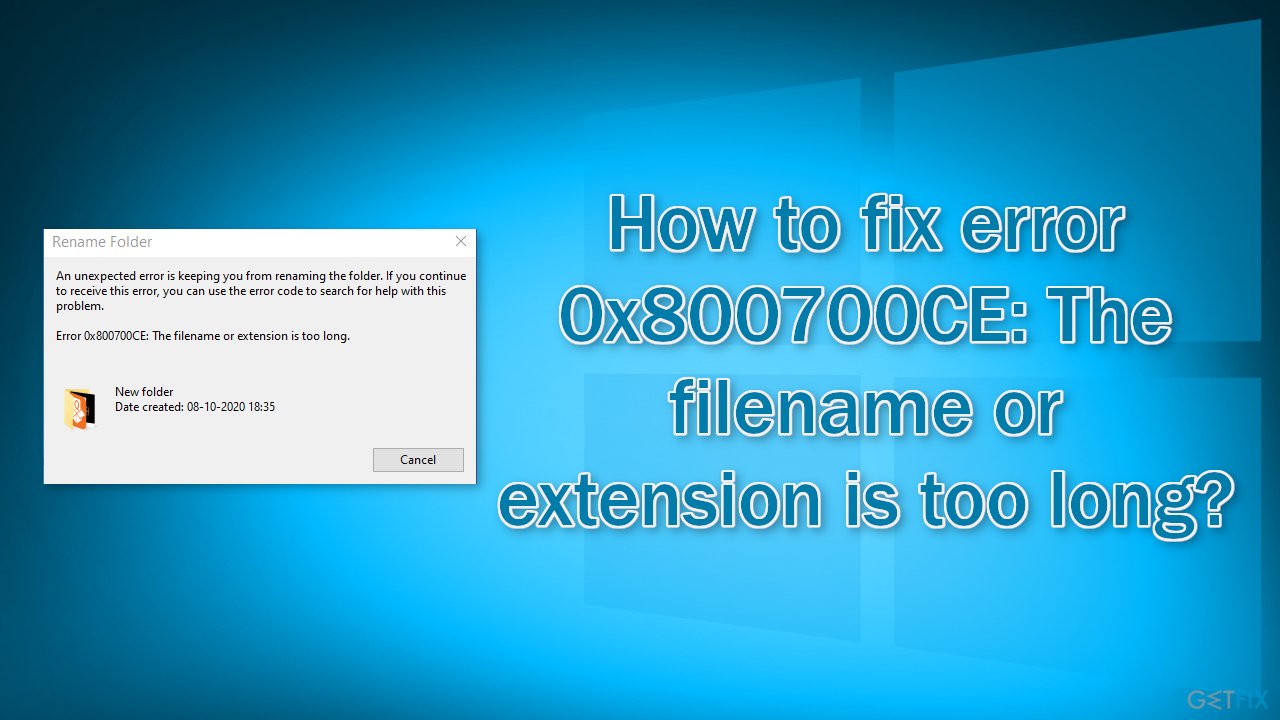
Hello. I am unable to rename folders on my Windows 10 computer. I receive the error "0x800700CE: The filename or extension is too long." Renaming files worked perfectly fine, what could be the issue?
Windows is dependent on thousands of processes working in the background to keep it running smoothly. People can start experiencing bugs, crashes, freezes, and errors if something goes wrong. This can seriously disrupt the workflow and prevent people from completing important tasks. Some users have encountered an error "0x800700CE: The filename or extension is too long."
This error seems to prevent users from renaming certain files, folders, or both. It can also make files and folders inaccessible, impossible to open or view because the error prevents it. It is unknown what could be causing such an issue, but some users reported that the behavior started after installing third-party security programs. If you have downloaded any antivirus tools recently, it is worth trying to uninstall them first, and seeing if that helps.
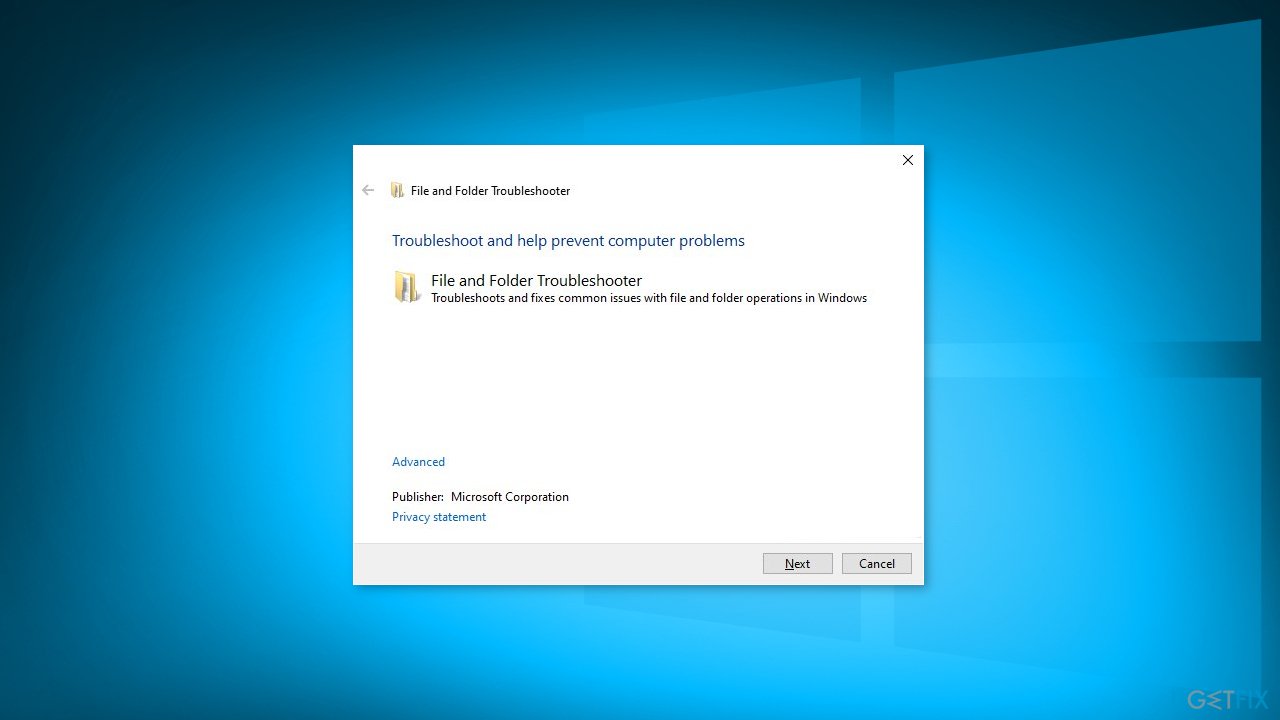
Some users said that simply running a File and Folder Troubleshooter has helped to fix the issue as well, so we included this step in our guide. Unfortunately, not all people were so lucky. Some said that they tried everything and nothing worked. The 0x800700CE error only stopped appearing after they performed a clean install. So keep in mind that this might be something you have to do if the issue will persist.
Troubleshooting can be a lengthy process so you can try running a maintenance tool like [d1] that can fix most system errors, BSODs,[ref en-1] corrupted files, registry[ref en-2] issues, and so on. The software can also clear cookies and cache[ref en-3] automatically, so you would not have to worry about browser activity tracking. Otherwise, proceed with the steps below if you are ready to begin the process that could fix the "0x800700CE: The filename or extension is too long" error.
Method 1. Run File and Folder Troubleshooter
- Go to the Windows Support page and download the utility
- In the File Download dialog box, click Run or Open
- Follow the instructions in the File and Folder Troubleshooter
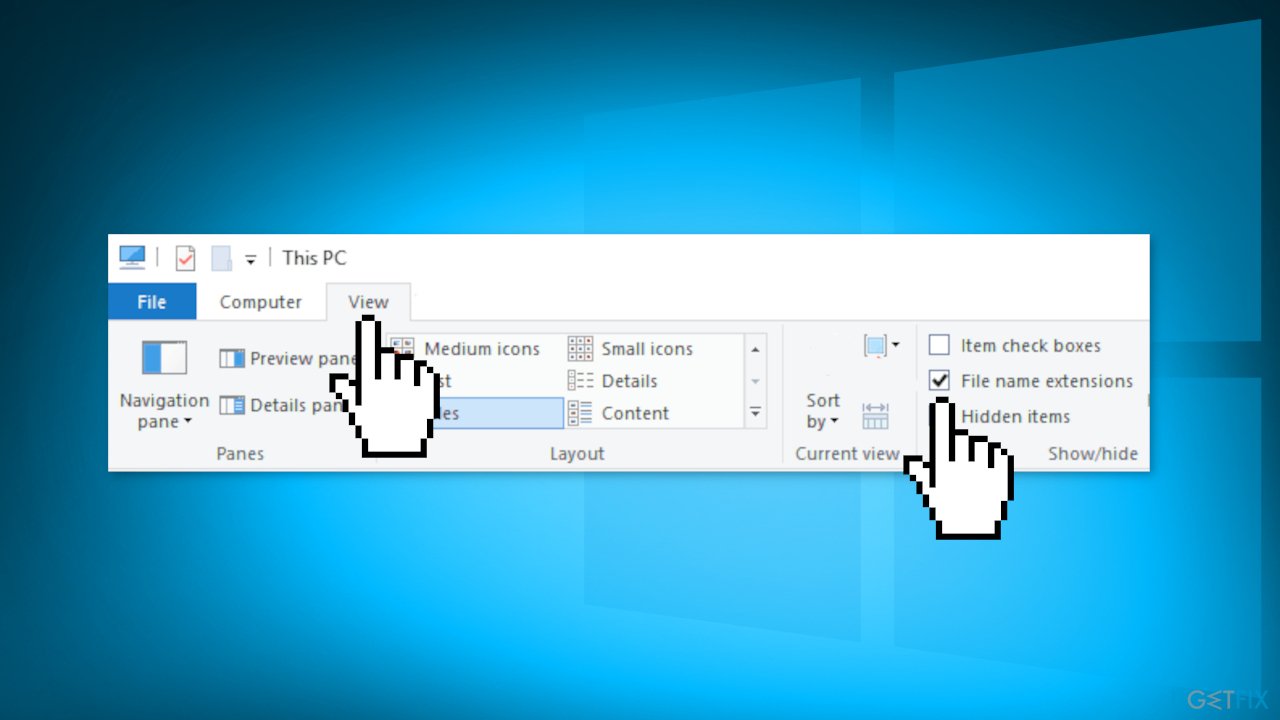
Method 2. Rename Files via Command Prompt
- Open File Explorer
- Click the View tab and check File name extensions and Hidden items
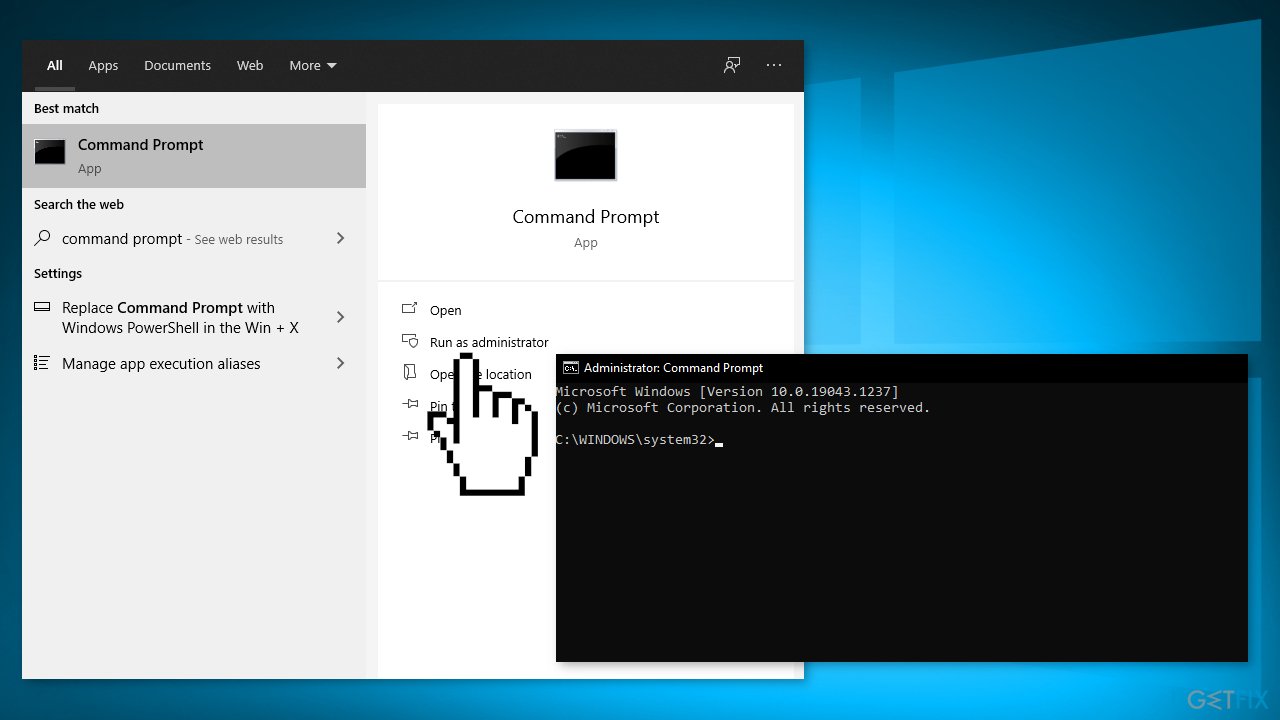
- Start Command Prompt as administrator
- Enter REN "C:\\Path_to_the_problematic_file\\ProblematicFile.txt” “File2.txt"
Keep in mind that you need to enter the correct path to the problematic file as well as the file extension. We used ProblematicFile.txt as an example, so be sure to replace it with the actual file name.
If you have multiple files that you can’t access, you might want to try changing the name of the folder:
- Open Command Prompt as administrator
- Enter REN “C:\\Path_to_the_problematic_folder” “New Folder Name”
- You should be able to access the problematic files now
Method 3. Create a Network Drive
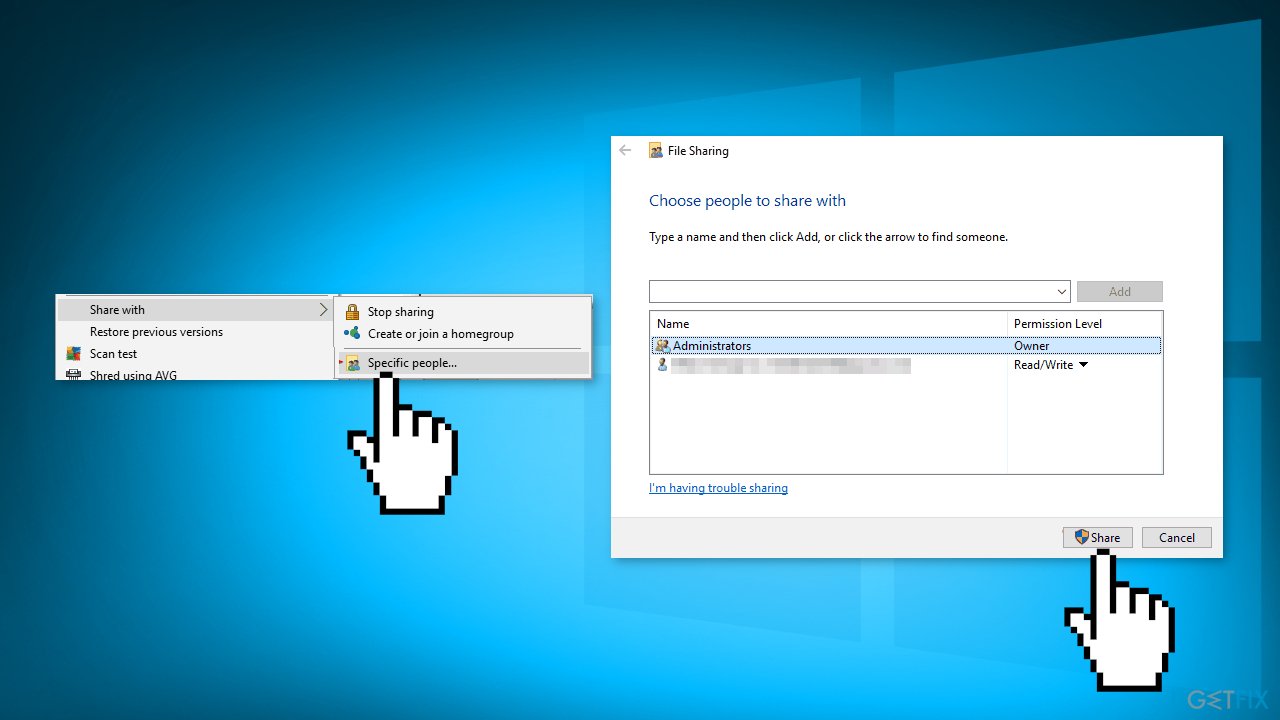
- Locate the folder that contains the problematic file and right-click it
- Choose Share with > Specific people from the menu
- Select the user or a group that you want to share your file with and click on the Share button
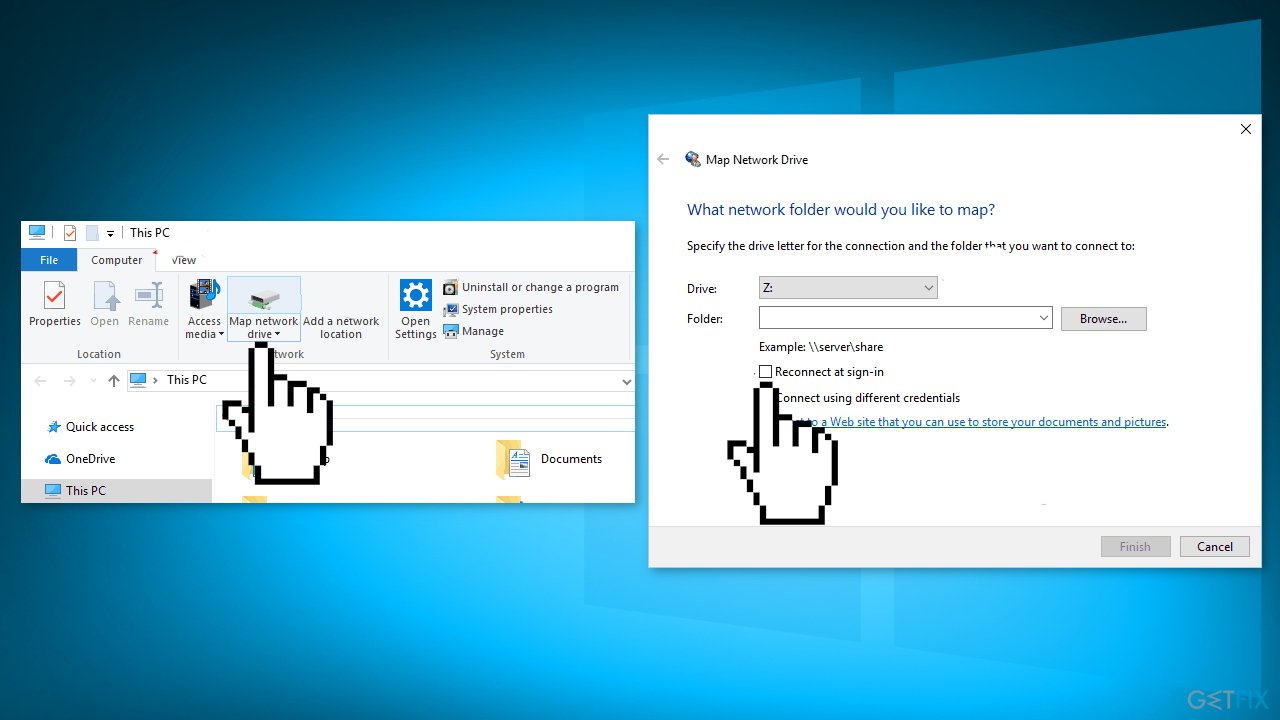
- Open This PC
- Click the Computer tab and choose Map network drive
- Select the desired drive and folder path. Be sure to uncheck Reconnect at sign-in option and click the Finish button
- Now you can use the new drive to access files
Method 4. Clean Install Windows
Performing a clean install wipes out data from the PC, so please create backups before you proceed.
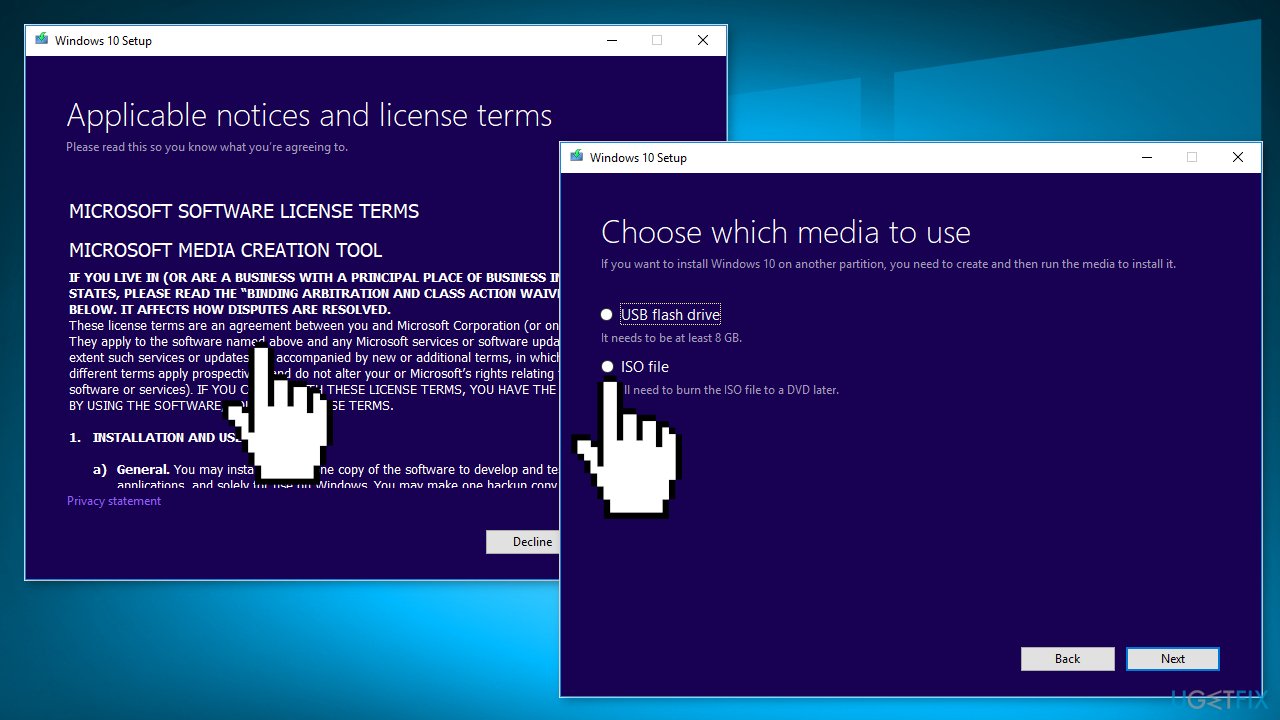
- Download the ISO file
- Select Create installation media for another PC and click Next
- Select ISO file and click Next
- Click Finish
- Open the Windows ISO file you downloaded
- Open Setup and click Next
- Click Accept (Be prepared to wait; this next part may take a while)
- Click Install
- Wait for your system to restart and install Windows
Bottom line
To fix the error 0x800700CE, you can try uninstalling any recently installed antivirus tools, running the File and Folder Troubleshooter, or using a maintenance tool to address system errors. If these methods do not resolve the issue, a clean install of Windows may be necessary.
Frequently asked questions
Error 0x800700CE indicates that the filename or extension exceeds the system's maximum character limit, preventing file operations. This can occur when trying to copy, move, or delete files with overly long paths.
You can shorten file paths by renaming files or folders to simpler names, or by moving them to a directory closer to the root. Using the command prompt with the 'subst' command can also help create a virtual drive with a shorter path.
Yes, there are third-party tools like Long Path Tool that can help manage and delete files with long paths. Additionally, using Windows' built-in tools like PowerShell can also assist in handling such file path issues.




Report an issue
What's wrong with this guide? We review every report and update or remove content.
Report received — thank you. We'll review and fix it.
You need a free account to submit a report.
Be the first to comment