How to fix
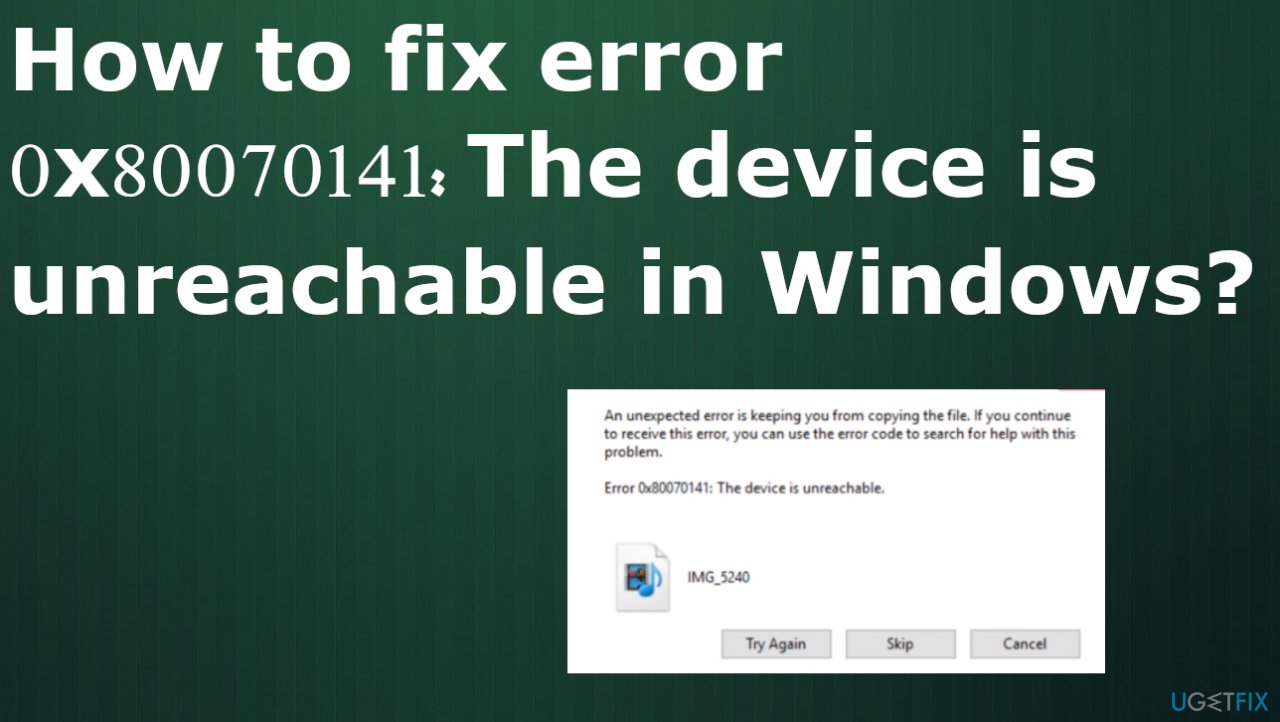
Error 0x80070141: The device is unreachable
on Windows
Resolve error 0x80070141 on Windows 10 and 11 with simple solutions that restore device accessibility. Expert-tested fixes await you!


What causes How to fix error 0x80070141: The device is unreachable in Windows?
- Outdated operating system
- Faulty cables
- Faulty USB ports
- Glitch in File Explorer
- Outdated iTunes version
Repairs Windows system files, removes malware, and restores a clean OS state — without reinstalling.
Hello. I try to transfer my files from the iPhone to the Windows computer. I use the USB port to connect and then copy the files. The Error 0x80070141 pop-up occurs and states that the device is unreachable. I have no idea why this is triggering the error because I managed to do this before. Can you help?
"The device is unreachable" error in Windows mainly is related to the file transferring from Android, iOS to the Windows computer. Users state that the issue is tiresome[ref en-1] because it takes the ability to transfer files from one device to another. In most cases, the pop-up appears when the file is copied or moved from the camera folder on the mobile device to the PC. The problem restricts from transferring the file and from opening the image, for example.
Unfortunately, this is the known problem that appears on Windows 7, 8, or 10 machines, so the issue is not related to a particular version of the operating system or the update, as other common errors.[ref en-2] The error can be fixed, but since there are a few potential reasons why the problem occurs, solutions may also vary.
Error 0x80070141: The device is unreachable in Windows is the one that users commonly report. This is not a particular or Windows 10 exclusive error, so various machines and versions of the OS can encounter the pop-up. Causes for the issue varies from the outdated operating system, faulty cables, ports, or installations to glitch in file explorer.
If the error code appears when the File Explorer glitched, the external storage device connection is not properly maintained. You may fix this by running a troubleshooter for hardware and device issues. A faulty USB port can trigger the error, so you may use a different port to connect the external device and the computer.
When it comes to iPhones and the error 0x80070141: The device is unreachable, the outdated iTunes version can be responsible for the problem in the first place. Some users may fix the problem by updating the iTunes version on the iPhone. The problem can sometimes be related to a particular Windows 10 bug,[ref en-3] so there is a fix for the issue - updating the OS build to the latest one. This is the hotfix.
The problem with file transfers can also be related to a filename or path that is too long. An unusual file name or path can take the system out of order and lead to the failure of the transfer. This can be solved when the path is shortened to meet the standard without exceeding the 256 character limit.
Other system files can be out of proper state due to infection damage to virus leftovers, so the Error 0x80070141: The device is unreachable in Windows can be solved by restoring system files using a program like [d1]. This is a possible quick fix for the Windows issues. other steps below can take a bit more time and require some knowledge, so follow each guide thoroughly.
Fix 1. Run the hardware and device troubleshooter
- Open up a Run dialog box by pressing Windows key + R.
- Once you’re inside the Run window, type ms-settings:troubleshoot and hit Enter to open up the Troubleshooting tab.
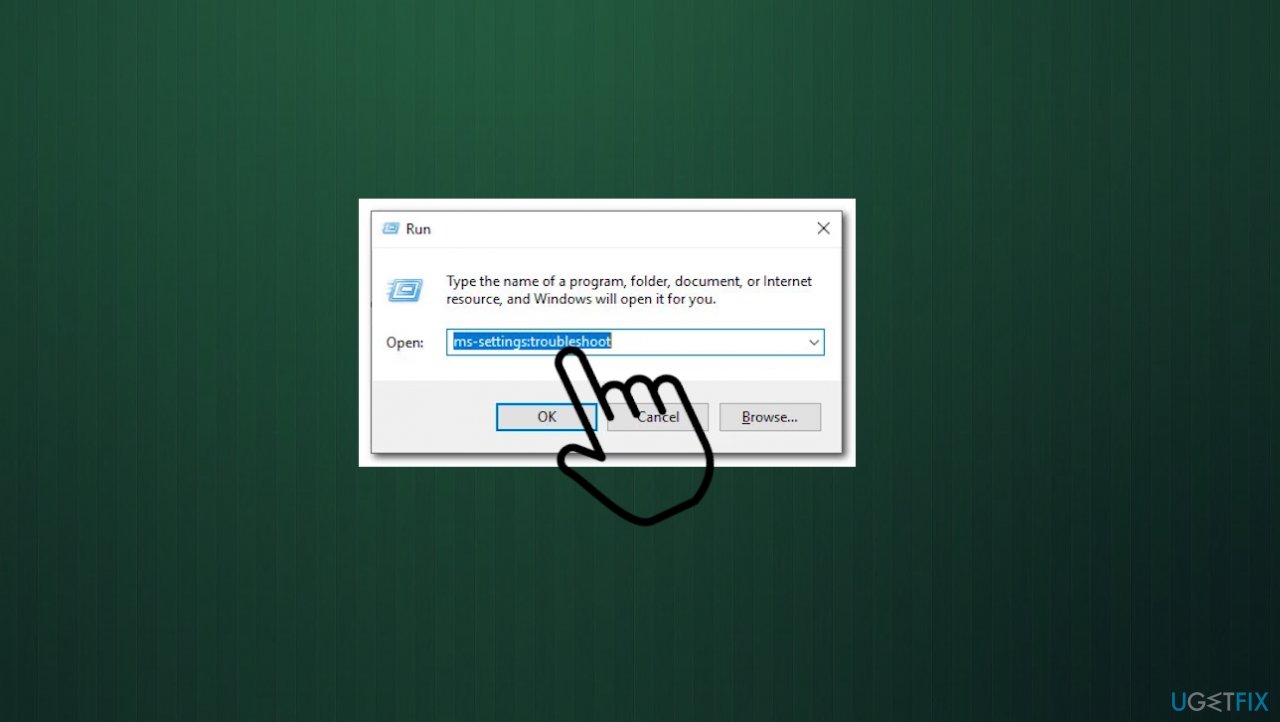
Error 0x80070141 the device is unreachable in windows ms troubleshoot - In the Troubleshooting tab, scroll down to the Find and Fix other problems section.
- Click on Hardware and Devices.
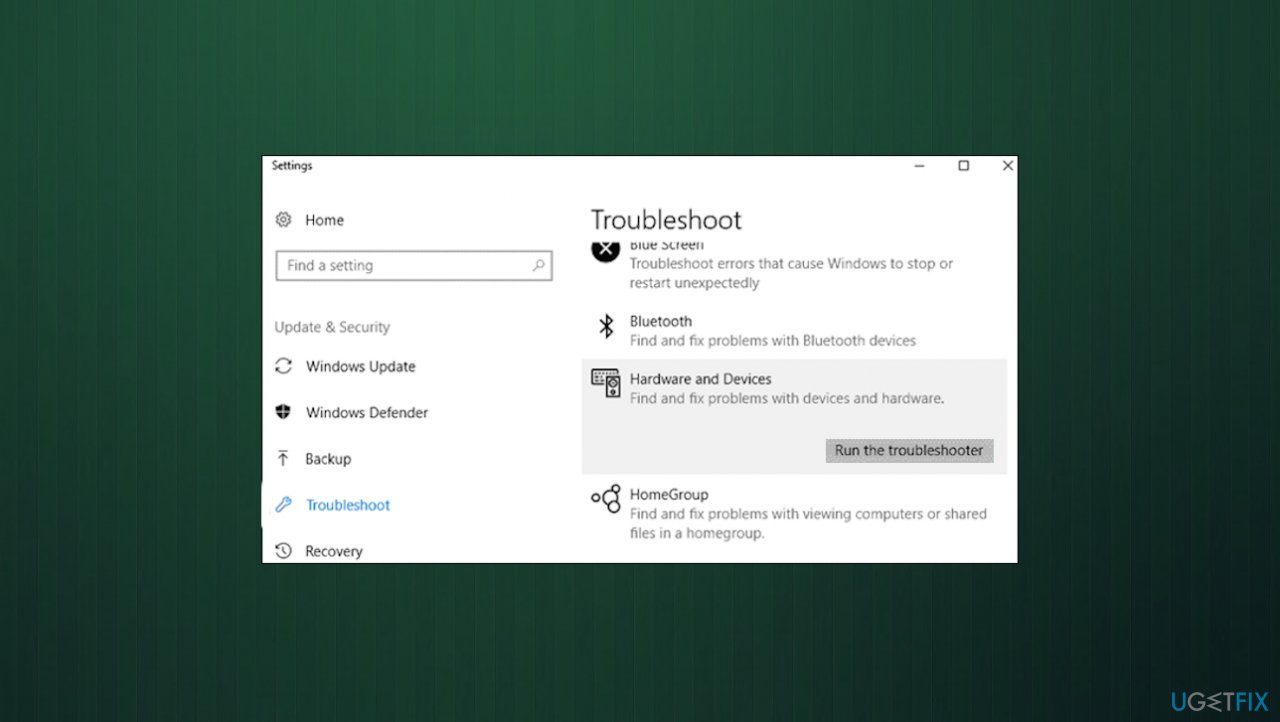
Error 0x80070141 the device is unreachable in windows troubleshooting - Hit the Run the troubleshooter button.
- Once the troubleshooter is started, wait for the process.
- If any solutions get offered, click on Apply this fix to enforce it.
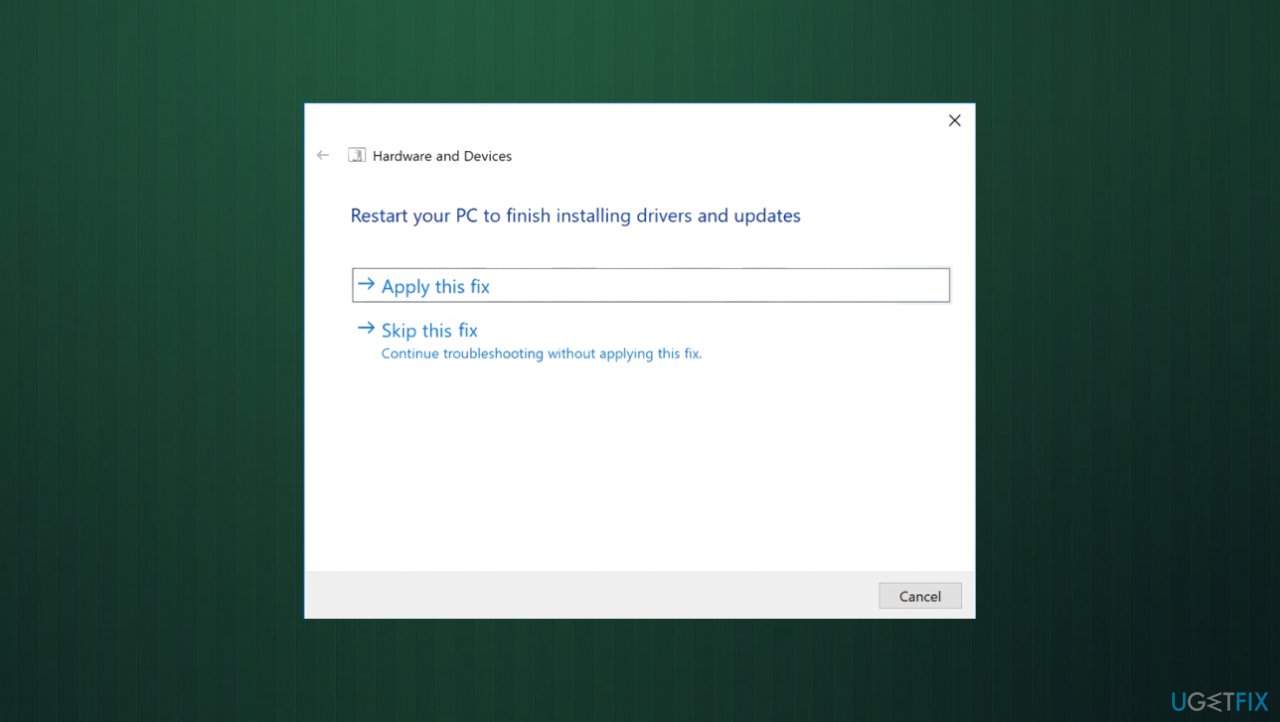
Error 0x80070141 the device is unreachable in windows apply fix - After the fix is applied, restart your computer.
Fix 2. update iTunes to the latest
- Open the application and click the Help button from the ribbon bar at the top.
- Click on Check for updates.
- Follow the on-screen instructions to complete the update.
- Restart your computer and see if you can copy the files.
Fix 3. Install available Windows updates
- Press Windows key + R to open up a Run dialog box.
- Type ms-settings:windowsupdate and press Enter.
- You can open the Windows Update section via the Settings app too.
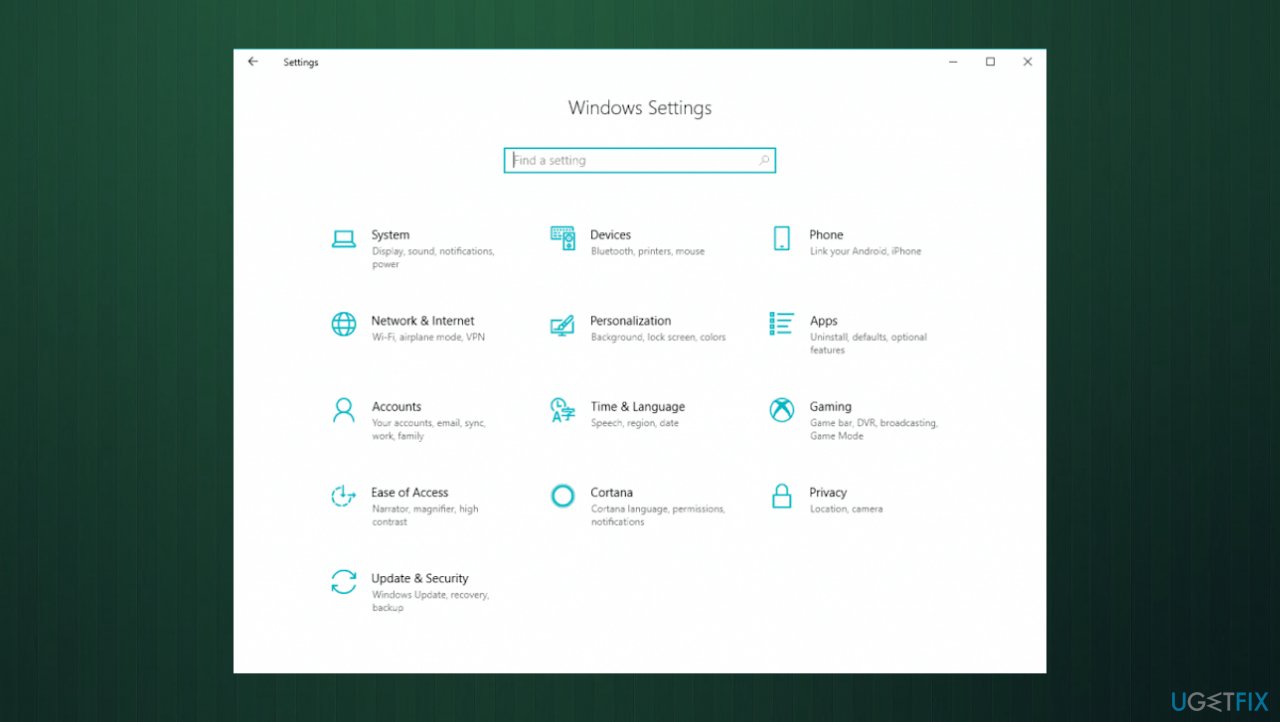
Error 0x80070141 the device is unreachable in windows settings - Click on Check for updates and wait for the scan.
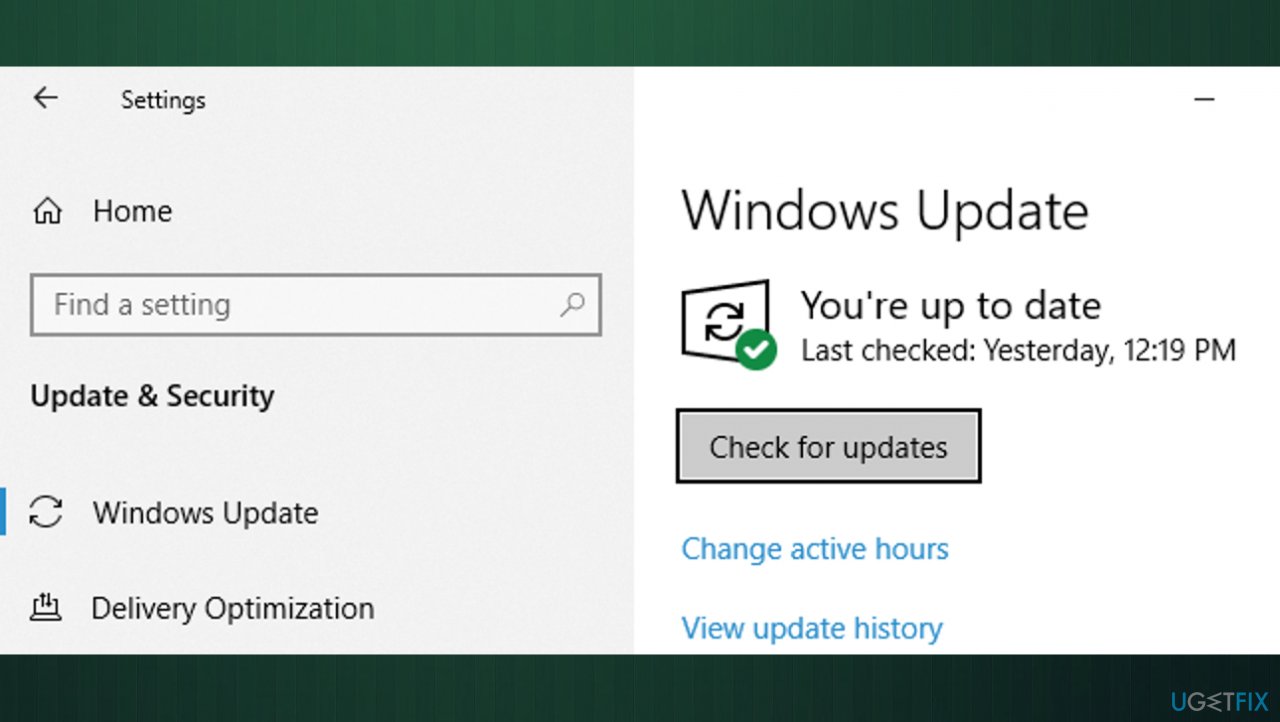
Error 0x80070141 the device is unreachable in windows updates - Follow the on-screen instructions to install every pending update until your Windows version is up to date.
- Restart your computer.
Fix 4. Connect the device via MTP
- Connect your Android device to your computer using a USB cable.
- When the Use USB for on-screen notification appears on the device tap it to reveal more options.
- Choose File transfer/ Media device (MTP).
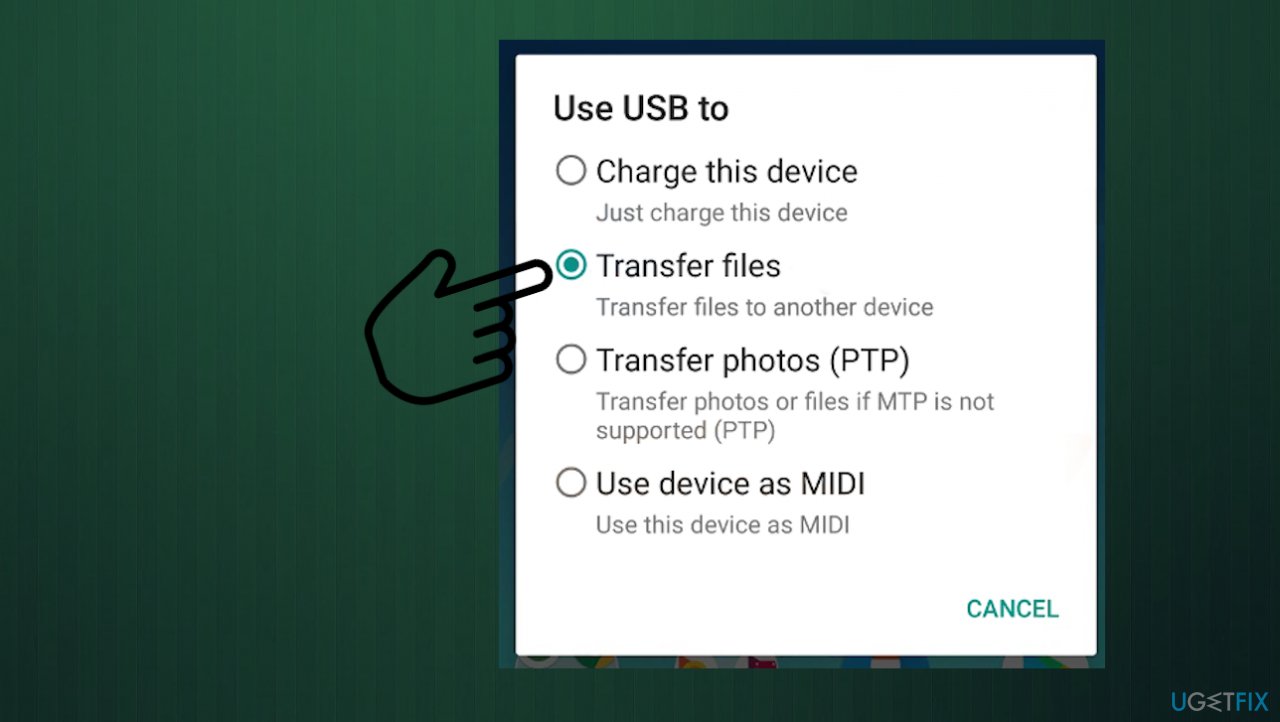
Error 0x80070141 the device is unreachable in windows media - Then, you can try transferring your files.
- Navigate to your connected devices.
- Right-click the files you want to transfer and click Copy.
- Paste to the desired location.
Fix 5. Change Transfer settings
- Unlock your iOS device and navigate to settings.
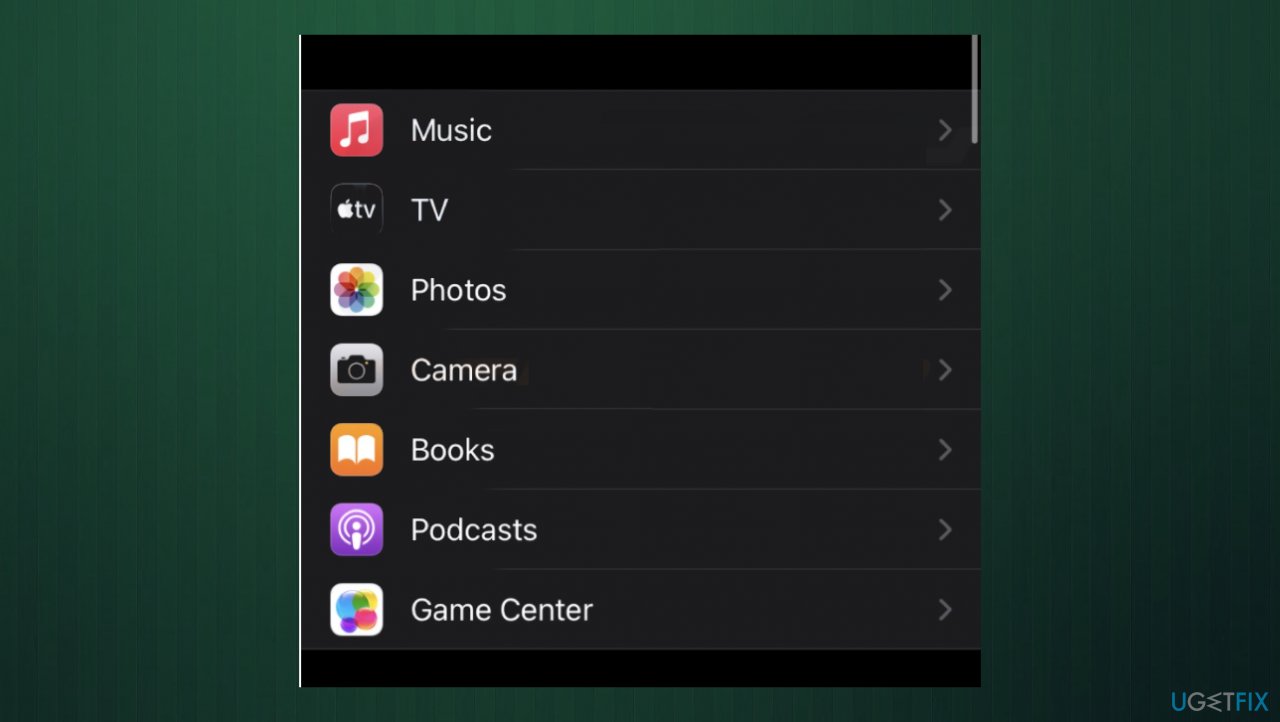
Error 0x80070141 the device is unreachable in windows phone settings - Go into Photos and scroll down until you see the Transfer to Mac or PC option.
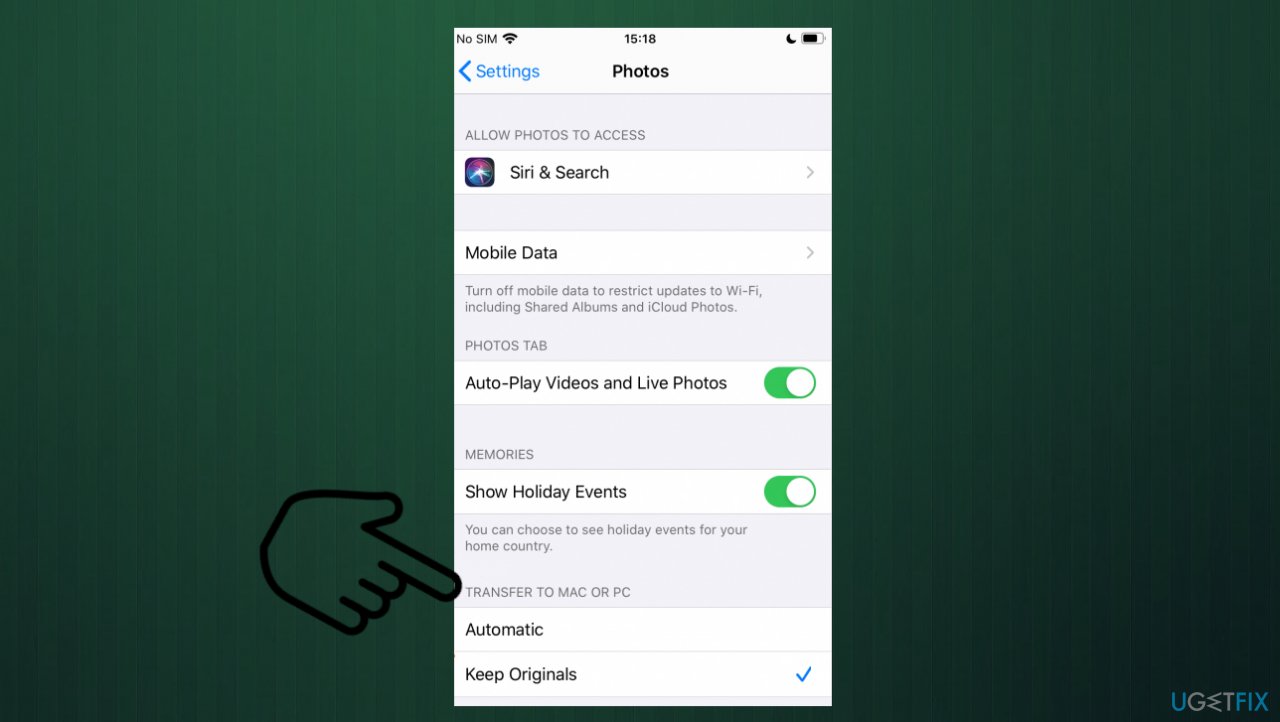
Error 0x80070141 the device is unreachable in windowstransfer - Click on it and select the Keep Originals option instead of the automatic one.
- Check to see if the issue persists.
Bottom line
To fix error 0x80070141, you can run a troubleshooter for hardware and device issues, try using a different USB port, or update the iTunes version on your iPhone. If these solutions do not resolve the issue, consider checking for further updates or consulting additional support resources.
Frequently asked questions
Error 0x80070141 indicates that the device is unreachable, often due to connection issues or hardware problems with external drives or network locations.
To fix this error, try reconnecting the USB drive, using a different USB port, or checking the drive for errors via the 'Error Checking' tool in Windows 10 or Windows 11.
To prevent this error, ensure that all your device drivers are up to date and that your external devices are properly connected and powered.




Report an issue
What's wrong with this guide? We review every report and update or remove content.
Report received — thank you. We'll review and fix it.
You need a free account to submit a report.
Be the first to comment