
How to fix "Error 0x800701AA: The cloud operation was not completed" in Windows?

Prefer to fix it yourself? The manual steps follow.
- 8methods
- 2 to 30 minutes
- Easy
Applies to Windows 11 and Windows 10 22H2 with OneDrive (personal, work or school, SharePoint and Teams libraries), iCloud for Windows, Nextcloud and other sync apps that show online-only files in File Explorer
8 methods in this guide
- What the error means
- Causes, ranked
- The fixes
- 1. Download first, then copy
- 2. Copy in smaller batches
- 3. Check the sync app and network
- 4. Free up disk space
- 5. Download from the web
- 6. Restart or reset OneDrive
- 7. Update the sync app and Windows
- 8. Check other file filters
- Related codes
- Still broken
- Prevent it
- FAQ
Hello. I wanted to download some folders from my work OneDrive account to an external hard disk. However, when I tried, I received the "Error 0x800701AA: The cloud operation was not completed before the time-out period expired" message. Is there a way to fix this issue?
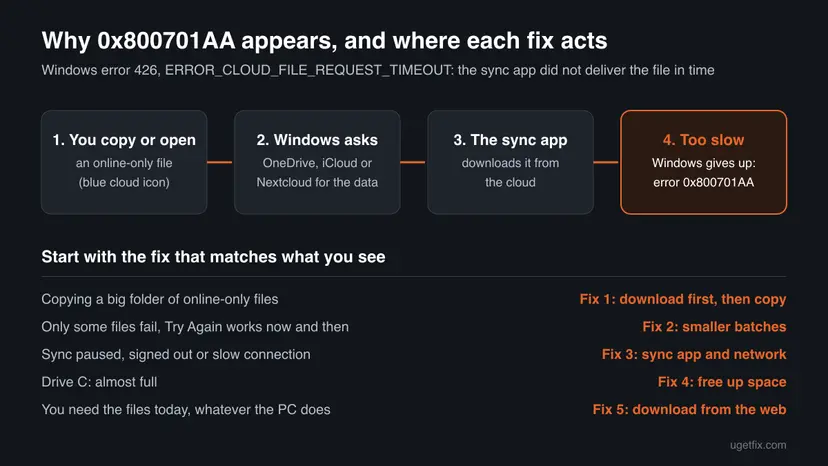
Error 0x800701AA, "The cloud operation was not completed before the time-out period expired", appears when Windows asks OneDrive, iCloud or another sync app for an online-only file and the file does not arrive in time. Your files are safe. Download them to the PC first, then copy them.
The file you copy or open is online-only, and the sync app (OneDrive, iCloud or Nextcloud) did not download it before Windows stopped waiting. Right-click the folder, choose Always keep on this device, wait until every file shows a green check mark, then copy (Fix 1). If only some files fail, copy in smaller batches (Fix 2). Nothing is lost.
| Error | 0x800701AA: "The cloud operation was not completed before the time-out period expired." Windows error 426 (hex 0x1AA), named ERROR_CLOUD_FILE_REQUEST_TIMEOUT in the Windows SDK header winerror.h. |
|---|---|
| Where it appears | An Interrupted Action box in File Explorer when you copy, move or open a file from OneDrive, iCloud Drive or another synced cloud folder, most often while copying to an external drive. |
| Main cause | The file is online-only, so Windows must ask the sync app to download it, and the download takes longer than Windows waits. |
| Fastest fix | Mark the folder Always keep on this device, wait for the download to finish, then copy (Fix 1). |
| Also written as | 0x800701aa, error code 0x800701aa, "The cloud operation was not completed", and the mistyped 0x80071aa. On non English Windows the text is translated (ошибка, Fehler, erreur, errore). |
| Affects | Windows 11 and Windows 10 with any sync app built on the Windows cloud files layer: OneDrive, iCloud for Windows, Nextcloud and others. |
| Vendor status | We did not find 0x800701AA on Microsoft's OneDrive error code page (checked 15 October 2026). It is a Windows time-out code, not a bug with a fixing update. |
| Your files | Safe. The copy stopped; the files stay in the cloud and in your OneDrive or iCloud folder. |
| Time to fix | 2 minutes for a retry; 10 to 30 minutes when a large folder has to download first. |
Facts checked on 15 October 2026. Steps written for Windows 11 (25H2 and 26H2) and Windows 10 22H2 with the OneDrive sync app.
What "Error 0x800701AA: The cloud operation was not completed" means
The code has two halves. 0x8007 marks an ordinary Windows error in the longer HRESULT format, and 01AA is that error: number 426. The Windows SDK header winerror.h names 426 ERROR_CLOUD_FILE_REQUEST_TIMEOUT, which matches the text in the dialog: "The cloud operation was not completed before the time-out period expired."
So the error is a time-out, not damage. Files with a blue cloud icon are only placeholders on your PC. When you copy one, Windows asks the sync app to download its content first. If the content does not arrive in time, Windows stops and shows 0x800701AA.
| What you see | When | What it tells you |
|---|---|---|
Interrupted Action with "An unexpected error is keeping you from copying the file." and Error 0x800701AA: The cloud operation was not completed before the time-out period expired. | Copying a OneDrive or iCloud folder to an external drive, a USB stick or another folder | Some files were online-only and did not download in time. |
| The same text when you open a file | Double-clicking a large online-only file, often a video or a big archive | The download of that one file was too slow. |
| The code with iCloud Drive in File Explorer | iCloud for Windows with online-only files | Same cause: iCloud did not deliver the file in time. |
| The code in a Nextcloud or another sync client folder | Virtual files in other sync apps | Same Windows code; that app's download stalled. |
It is not a damaged disk, a virus or a lost file. The files that failed are still in the cloud. Select Skip or Cancel, fix the cause, and copy them again.
What causes error 0x800701AA, most common first
The code itself only says that a cloud request took too long. The table splits that into the situations you can check on your PC and ties each to a fix.
| How often | Cause | Signs | Fix |
|---|---|---|---|
| Most often | Many online-only files are copied at once | A big folder with blue cloud icons; the copy fails part way | Fix 1 |
| Often | One large file or too many files in one request | Some files copy, some fail; Try Again works now and then | Fix 2 |
| Often | The sync app is paused, signed out, not running, or the connection is slow | No cloud icon in the taskbar, a paused or sign-in message, a slow or metered network | Fix 3 |
| Less often | Drive C: has too little free space for the downloaded files | Drive C: shown red in File Explorer | Fix 4 |
| Less often | The sync app's local state is stuck | Every download fails, even of small files | Fixes 5 and 6 |
| Rarely | An old sync app, or antivirus or backup software that slows the downloads | The error started after such a tool was installed or updated | Fixes 7 and 8 |
How to fix error 0x800701AA "The cloud operation was not completed"
Fixes 1 and 2 solve most copies to an external drive. Fixes 3 and 4 remove what slows the download. Fix 5 gets the files today, whatever the PC does. Fixes 6 to 8 are for errors that keep coming back.
| What you see or have | Start with |
|---|---|
| You copy a big OneDrive or iCloud folder to an external drive | Fix 1 |
| Only some files fail, and Try Again sometimes works | Fix 2 |
| No cloud icon in the taskbar, sync paused, or a slow connection | Fix 3 |
| Drive C: is almost full | Fix 4 |
| You need the files now | Fix 5 |
| Even small files fail to open | Fix 6 |
| The error started after antivirus or backup software was installed | Fix 8 |
Fix 1. Download the files to the PC first, then copy them
5 to 30 minutes, depending on the sizeNo riskEveryone who copies a OneDrive, iCloud or SharePoint folder to an external drive or another folder.
The error is a time-out on downloads that start during the copy. When the files are already on the PC, the copy reads them from the disk and never has to wait for the cloud.
- Select Cancel in the Interrupted Action box. The files already copied stay where they are.
- In File Explorer, open your OneDrive or iCloud Drive folder and find the folder you want to copy.
- Right-click the folder and select Always keep on this device. On Windows 11, the item may be under Show more options in some sync apps.
- Wait while the sync app downloads. The OneDrive or iCloud icon in the taskbar shows the progress.
- Open the folder and check the status column: every file must show a green check mark, not a blue cloud.
- Now copy the folder to the external drive again.
After the copy, right-click the folder and select Free up space. The files go back to online-only and the space on drive C: is free again. Nothing is deleted from the cloud.
It worked if: All files show a green check mark, and the copy runs to the end without an error.
If not: If the download itself stalls or some files never get a green check mark, go to Fix 2 and Fix 3.
Fix 2. Copy in smaller batches and use Try Again
5 minutesNo riskOnly some files fail, or you copy a folder with thousands of files or a few very large ones.
Each online-only file needs its own download, and many at once share the same connection. Fewer files per copy give each download a better chance to finish before Windows stops waiting.
- When the error box appears, select Try Again once. A short delay is often enough.
- If it fails again, select Skip so the rest of the copy can continue, and note the file names that failed.
- Copy one subfolder at a time instead of the whole top folder.
- Copy very large files (videos, disk images, archives) on their own.
- At the end, copy the files you skipped again, one by one.
It worked if: The smaller copies finish, and the skipped files copy on the second try.
If not: If even single files fail, the sync app or the connection is the problem: go to Fix 3.
Fix 3. Make sure the sync app is running, signed in and not paused
5 minutesNo riskThere is no OneDrive or iCloud icon in the taskbar, the app shows a paused or sign-in message, or the connection is slow.
Only the sync app can download an online-only file. If it is closed, paused or signed out, or the network is slow, every request waits until Windows gives up with 0x800701AA.
- Look for the OneDrive cloud or the iCloud icon at the right end of the taskbar. Select the Show hidden icons arrow if you do not see it.
- If the icon is missing, select Start, type OneDrive (or iCloud) and open the app.
- Select the icon. If the panel says syncing is paused, select the gear icon and resume syncing.
- If the panel asks you to sign in, sign in with the same account that owns the files.
- Check that the internet connection works and is fast enough: How to check your internet connection in Windows.
- Try the copy again with one folder.

On a company network, a VPN or a proxy can slow downloads from SharePoint. If the copy works at home and fails at the office, tell your IT department.
It worked if: The sync app shows that it is up to date, and new downloads finish within seconds for small files.
If not: If the app runs and the connection is fine, check the free space on drive C: (Fix 4).
Fix 4. Free up space on the drive that holds your OneDrive folder
10 minutesLow riskDrive C: (or the drive with your OneDrive or iCloud folder) is almost full.
Copying an online-only file first downloads it into your OneDrive or iCloud folder on the PC. If that drive has no room, the download cannot finish and the copy times out.
- Open File Explorer and select This PC. A red bar under drive C: means it is almost full.
- Compare the free space with the size of the folder you want to copy: right-click the folder in OneDrive and select Properties.
- If the space is too small, free some up with Windows' own tools: Free up disk space and delete temporary files.
- Or copy the folder in parts (Fix 2) and select Free up space on each part after it is copied.
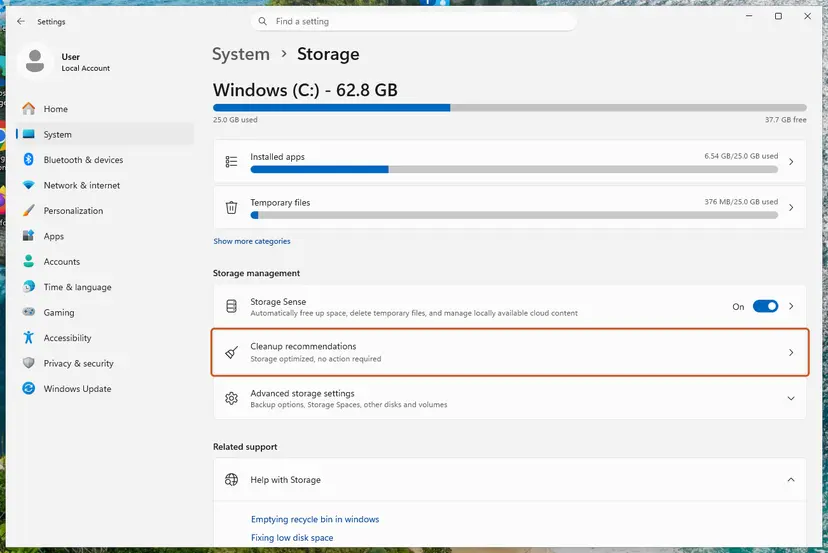
It worked if: Drive C: has more free space than the folder needs, and the download and the copy finish.
If not: If space is not the problem, download the files from the web (Fix 5).
Fix 5. Download the files from onedrive.com or iCloud.com instead
10 minutesNo riskYou need the files today, or Fixes 1 to 4 did not help.
A browser download does not use the Windows cloud files layer, where the time-out happens. You get the files straight from the cloud and can save them to any drive.
- Open onedrive.com in a browser and sign in with the same account. For a work library, open the SharePoint site or the Files tab of the Teams channel. For iCloud, open icloud.com and iCloud Drive.
- Select the files or the folder with their round check boxes.
- Select Download. OneDrive puts a folder or several files into one ZIP file.
- When the browser asks where to save, choose the external drive, or move the file there later.
- Open the ZIP file on the external drive and select Extract all.
Downloading a very large folder as one ZIP takes a long time and can fail on a slow connection too. Download it in several parts, one subfolder at a time.
It worked if: The ZIP file or the files are on the external drive, without any 0x800701AA error.
If not: If the web download works and the PC copy keeps failing even for small files, reset the sync app (Fix 6).
Fix 6. Restart or reset OneDrive
5 minutes, then a full syncLow riskEven small files fail to download or open, or OneDrive shows other errors too.
When the sync app's local state is stuck, it no longer answers Windows' download requests in time. A restart clears a stuck session; a reset rebuilds OneDrive's local records and its connections.
First quit and restart the app: select the OneDrive cloud, the gear icon, Quit OneDrive, then open OneDrive from Start. For iCloud for Windows, restart the PC. If downloads still fail, reset OneDrive. Microsoft says you won't lose files or data by resetting it; if you synced only some folders, choose them again afterwards.
- Open the Run box. Press the Windows key and R at the same time.
- Reset the Microsoft Store cache. Type the command below and select OK. A blank Command Prompt window opens and closes, then the Microsoft Store opens. Close it. This is the first step in Microsoft's instructions. If OneDrive still does not sync, continue.
wsreset.exe - Run the OneDrive reset command. Press the Windows key and R again. Copy the command below, paste it into the box and select OK.
%localappdata%\Microsoft\OneDrive\onedrive.exe /reset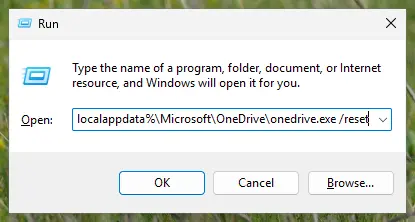
Type the reset command in the Run box and select OK. Screenshot: Windows 11 26H2. - If Windows cannot find it, try the second path. If you see a message that starts with Windows cannot find, open the Run box again and use this command instead.
C:\Program Files\Microsoft OneDrive\onedrive.exe /reset - If that fails too, try the third path. If you still see Windows cannot find, use this command. If none of the three works, the OneDrive sync app is not installed on this PC.
C:\Program Files (x86)\Microsoft OneDrive\onedrive.exe /reset - Start OneDrive again. Select Start, type OneDrive in the search box and select the OneDrive desktop app. OneDrive then starts a full sync.
These steps were written for Windows 11 25H2 and 26H2, Windows 10 22H2. The full page with the other versions and what each result means: How to reset OneDrive in Windows
It worked if: The OneDrive cloud comes back, syncs, and online-only files open and copy again.
If not: If the error is back after the sync has finished, update the sync app and Windows (Fix 7).
Fix 7. Update OneDrive or iCloud for Windows, and Windows
10 minutesLow riskYour sync app is an old build, or Windows has pending updates.
The download request passes from Windows to the sync app and back, so both sides should be current. Older builds of sync apps handle large downloads of online-only files less well.
- OneDrive: select the cloud, the gear icon, Settings, then About, and note the OneDrive version. OneDrive updates itself; restart the app to pick up a waiting update.
- iCloud for Windows: open Microsoft Store, select Library and Get updates.
- Open Settings > Windows Update and select Check for updates. Install what is offered and restart the PC.
- Copy the files again.
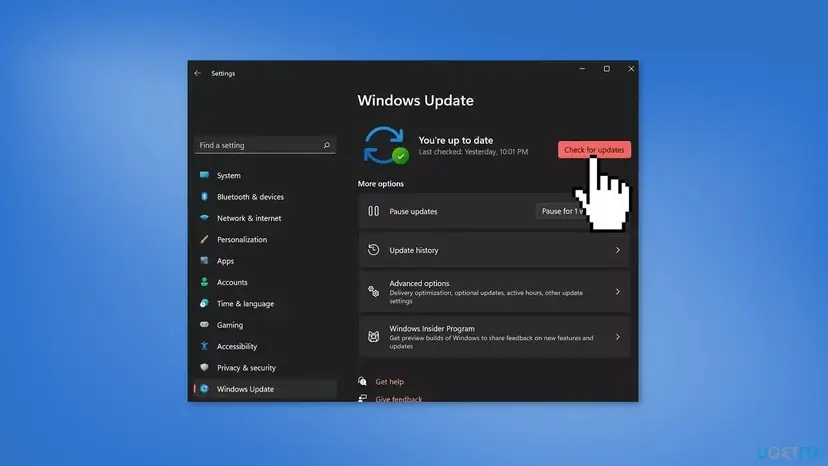
Windows 10 reached the end of support on 14 October 2025. Keep it on version 22H2 so OneDrive and iCloud can still update, or move to Windows 11.
It worked if: The sync app and Windows are current, and the copy finishes.
If not: If everything is current and the error stays, check other software that watches your files (Fix 8).
Fix 8. Rule out antivirus, backup and other file filters
15 minutesLow riskThe error began after you installed or updated antivirus, backup, encryption or another sync app.
Such tools scan or copy every file the moment it is downloaded. On a large copy that extra work can push the download past Windows' time-out.
- Open Settings > Apps > Installed apps and note every antivirus, backup, encryption and sync app.
- Update each of them, then restart the PC.
- If the error stays, pause protection for one test only, try the copy, then turn protection back on: Turn off Microsoft Defender protection for a moment.
- To test all other apps at once, start Windows in a clean boot: How to perform a clean boot in Windows.
- If the copy works in the clean boot, turn apps back on in small groups until the error returns, then update or reconfigure that app.
Pausing the antivirus is a test, not a fix. Turn it on again right after the test, and solve the conflict with an update or the publisher's support.
It worked if: You find the app that slows the downloads, and the error stops once it is updated or set to skip the sync folder.
If not: If the error happens even in a clean boot, read "If error 0x800701AA is still there".
0x800700AA, 0x80070185 and other cloud file codes
Some readers arrive here with a code that looks almost the same. Check the last three or four digits before you pick a fix.
| Code | Name or text | What to do |
|---|---|---|
0x800701AA | ERROR_CLOUD_FILE_REQUEST_TIMEOUT (426), "The cloud operation was not completed before the time-out period expired" | This page. |
0x800700AA | ERROR_BUSY (170), "The requested resource is in use" | Not a cloud code: see our guide on error 0x800700AA. |
0x8007017C | "The cloud operation is invalid" | See our guide on OneDrive error 0x8007017C. |
0x80070185 | ERROR_CLOUD_FILE_UNSUCCESSFUL (389), "The cloud operation was unsuccessful" | A general failure of a cloud request; Fixes 3, 6 and 7 apply. |
0x8007018B | ERROR_CLOUD_FILE_ACCESS_DENIED (395), "Access to the cloud file is denied" | See our guide on OneDrive error 0x8007018B. |
0x80071aa and 0x80070aa are usually mistyped versions of 0x800701AA or 0x800700AA: compare them with the code on your screen. We could not confirm which code carries the text "The cloud provider failed to acknowledge a message before the time-out expired"; it is a related time-out, and Fixes 3 and 6 are the place to start.
If error 0x800701AA is still there
We found no Microsoft documentation of a log entry for this code, so the useful evidence is what you can check yourself. Collect these facts before you contact Microsoft, Apple or your IT department:
- Does the web download work (Fix 5)? If it does, the cloud and the account are fine and the problem is on the PC.
- Which files fail: all, only large ones, or only one folder.
- Your sync app version from its Settings > About, and your Windows version from
winver. - What changed just before: a new PC, a Windows update, a new antivirus, backup or sync app, a new network or VPN.
- Home users with OneDrive: select the gear icon and Get help to reach Microsoft support from inside the app.
- iCloud for Windows: contact Apple Support; the error comes from iCloud's download, not from Windows itself.
- Work or school PC: contact your IT department, especially for a SharePoint or Teams library or a company VPN.
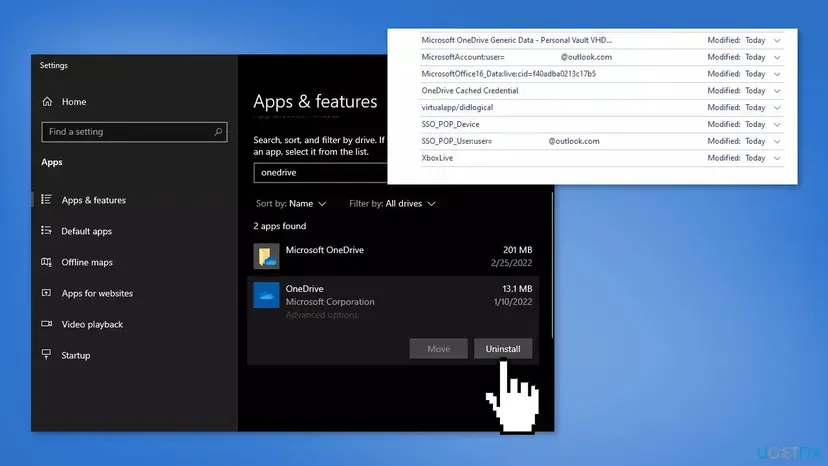
- Reinstall as a last step: uninstall the sync app (Uninstall a program or app in Windows), restart, and install it again from Microsoft or the Microsoft Store.
How to keep 0x800701AA from coming back
- Mark a folder Always keep on this device before you copy it out of OneDrive or iCloud.
- Copy big folders in parts, and large files on their own.
- Keep drive C: with more free space than the largest folder you copy.
- Keep the sync app, Windows and your antivirus up to date.
- Use the web download for one-off exports of very large folders.
- Do not copy thousands of online-only files at once over a slow connection.
- Do not delete the OneDrive or iCloud folder to get rid of the error.
- Do not leave real-time protection off after a test.
- Do not start a big copy while the sync app is paused or signed out.
Most cases are simply a download that is too big for one step. Bringing the files onto the PC first, then copying them, removes the time-out from the copy.
Frequently asked questions
What is error 0x800701AA?
It is a Windows time-out on a cloud file. The full text is "The cloud operation was not completed before the time-out period expired." 0x8007 marks a Windows error, and 01AA is error 426, ERROR_CLOUD_FILE_REQUEST_TIMEOUT in the Windows SDK. It appears when you copy or open an online-only file and OneDrive, iCloud or another sync app does not download it in time. Start with Fix 1: download the files first, then copy.
Why do I get 0x800701AA when copying OneDrive files to an external drive?
Because most files in your OneDrive folder are online-only by default. The external drive needs real content, so Windows asks OneDrive to download every file during the copy. With a big folder or a slow connection, some downloads take too long and Windows stops. Mark the folder Always keep on this device, wait for the green check marks, and copy again. Afterwards you can select Free up space.
How do I fix iCloud error 0x800701AA?
The same way as for OneDrive, because iCloud for Windows uses the same Windows cloud files layer. Make sure iCloud for Windows is running and signed in, right-click the iCloud Drive folder and keep it on the device, wait for the download, then copy or open the files. If the download stalls, get the files from icloud.com in a browser (Fix 5). Update iCloud for Windows from the Microsoft Store if it is old.
Will I lose files because of error 0x800701AA?
No. The error stops the copy or the opening of a file, nothing more. The files stay in the cloud and in your OneDrive or iCloud folder. Files that were copied before the error are complete; the ones that failed are simply missing from the target. Copy them again after a fix. Microsoft also says you won't lose files or data by resetting OneDrive.
Can I make Windows wait longer before the cloud time-out?
We found no supported setting for that. The time-out belongs to the Windows cloud files layer, and Microsoft documents no switch to change it. You get the same result in a safe way by removing the wait: download the files to the PC first (Fix 1), copy in smaller parts (Fix 2), or download them from the web (Fix 5). Avoid registry tweaks offered for this code on other sites.
What does "The cloud operation is invalid" mean?
That is a different message with a different code, 0x8007017C. It is not a time-out; Windows refused the cloud operation itself. The fixes on this page about downloading first and checking the sync app often help, but it has its own causes. See our guide on OneDrive error 0x8007017C, linked in the related codes table above.
What does "The cloud operation was unsuccessful" mean?
That message belongs to code 0x80070185, ERROR_CLOUD_FILE_UNSUCCESSFUL (389) in the Windows SDK. It is a general failure of a cloud request rather than a time-out. Users report it with OneDrive and Dropbox. Start by checking that the sync app is running and signed in (Fix 3), then restart or reset it (Fix 6) and update it (Fix 7).
Does error 0x800701AA happen with Dropbox or Nextcloud too?
It can, because the code comes from Windows, not from one app. Any sync app that shows online-only files in File Explorer through the Windows cloud files layer can hit the same time-out. Users report it with Nextcloud's desktop client on Windows 11. The fixes are the same: make the files available offline in that app, copy in smaller parts, and keep the app up to date.
Does SFC or DISM fix error 0x800701AA?
We found no source that ties this code to damaged system files, so SFC and DISM are not on our list. The error is a download time-out between Windows and the sync app. Run them only if Windows shows other signs of damage, such as crashing system apps. The steps are in Run DISM and SFC to repair Windows system files. For this error, Fixes 1 to 5 help far more often.
Is this page about other languages of the same error?
Yes. On Windows in other languages the code is the same and only the text is translated, so searches such as "ошибка 0x800701aa", "Fehler 0x800701aa", "erreur 0x800701aa" or "errore 0x800701aa" mean this exact error. Look for the code 0x800701AA in the dialog and follow the fixes on this page in order.
Sources
- Microsoft Support: What do the OneDrive error codes mean? (0x800701AA not listed) (support.microsoft.com)
- Microsoft Learn: System Error Codes (0-499) (ERROR_BUSY = 170) (learn.microsoft.com)
- Wine copy of the Windows SDK header winerror.h (ERROR_CLOUD_FILE_REQUEST_TIMEOUT = 426) (fossies.org)
Did this fix work?
One click, no account. It tells the next reader which guides are worth their time.
Questions and experiences: fix "Error 0x800701AA: The cloud operation was not completed" in Windows
Still broken, or found a fix we did not cover? Ask here: members and our editors answer. Reading is open; writing needs a free account.
…