How to fix
Error 0x80072ee7
on Windows
Resolve Error 0x80072ee7 on Windows 10 quickly and easily with our expert-tested solutions. Get back to smooth performance in minutes!


What causes How to fix Error 0x80072ee7 on Windows 10?
- Windows updates triggering issues
- Buggy versions of Windows 10 OS
- Potentially unwanted programs or malware
- Scam notifications appearing in the browser
- Critical system errors requiring in-depth fixes
Repairs Windows system files, removes malware, and restores a clean OS state — without reinstalling.
Hey. I’m sorry, but I’ll get straight to my problem because it is quite urgent. How do I fix Error 0x80072ee7? I think it started to occur after the update on my operating system. My Microsoft Store is not working now and the error appears with a code. Can you offer me a solution?
Error 0x80072ee7 is the issue that annoys users[ref en-1] and can trigger more problems with the machine when the root cause of the problem is not fixed. Various Windows updates tend to trigger issues and buggy versions of the Windows 10 OS can lead to errors and performance problems.
The particular Windows 0x80072ee7 error appears in different situations, so the reason behind it and the solution varies. However, the more common reports from users state that the error occurs when trying to install a major Windows update. the bug causes different frustration and problems with the general performance of the machine.
First of all, we should remind you that system errors or security notifications do not randomly show up while browsing the web. If you see such pop-ups, there is a great possibility that your device is infected with a potentially unwanted program, most likely malware, which is causing the Error 0x80072ee7 notifications to appear. Some people in the past have stated that the error code appears on the browser. That is a scam.[ref en-2]
Once in the target of scammers, the users are being subjected to intense scare tactics and social engineering techniques[ref en-3] that are all focused on making the user contact the supposed support technicians and fix their computers remotely. In the case of the Error 0x80072ee7 scam, you might want to run an anti-malware tool and clear any threats.
When the scam is the reason why you got here, you need to clear the machine with anti-malware tools, the system,m in most cases, has no issues. However, there are critical system errors that people deal with that need in-depth fixes. The serious Windows Update Error 0x80072ee7 is the one that can create such issues:
- Windows Store Error 0x80072ee7: the issue that appears when trying to run Windows Store that is mainly caused by some corrupted files or applications that can be easily repaired.
- Windows Update Error 0x80072ee7 is the problem that might be triggered by improper services and issues with the Windows Update services.
- Windows 10 upgrade Error 0x80072ee7 is the problem that appears with the latest Windows OS versions and can be caused by the AV tool other programs' interference.
How to fix Error 0x80072ee7 on Windows OS
There might be a few reasons and versions of the Error 0x80072ee7. We even mentioned those scam notifications that spread around. You can remove a scam from your computer and your web browser in minutes if you apply automatic malware removal tools like for the job. After the virus elimination, you should check whether your web browsers do not contain any unfamiliar toolbars, add-ons, or extensions and remove the suspicious components without hesitation.
However, this Error 0x80072ee7 is an issue with serious parts of the system. It can appear due to Windows Store or Windows Update services. You need to repair files and processes of the system, so we recommend relying on a tool like [d1], so the registry entries, system files, data in other crucial folders, and directories can get checked and restored if needed. Then follow with the manual guide and fixes listed below.
Fix 1. Change DNS server address
- Press Windows key and type Control Panel in search.
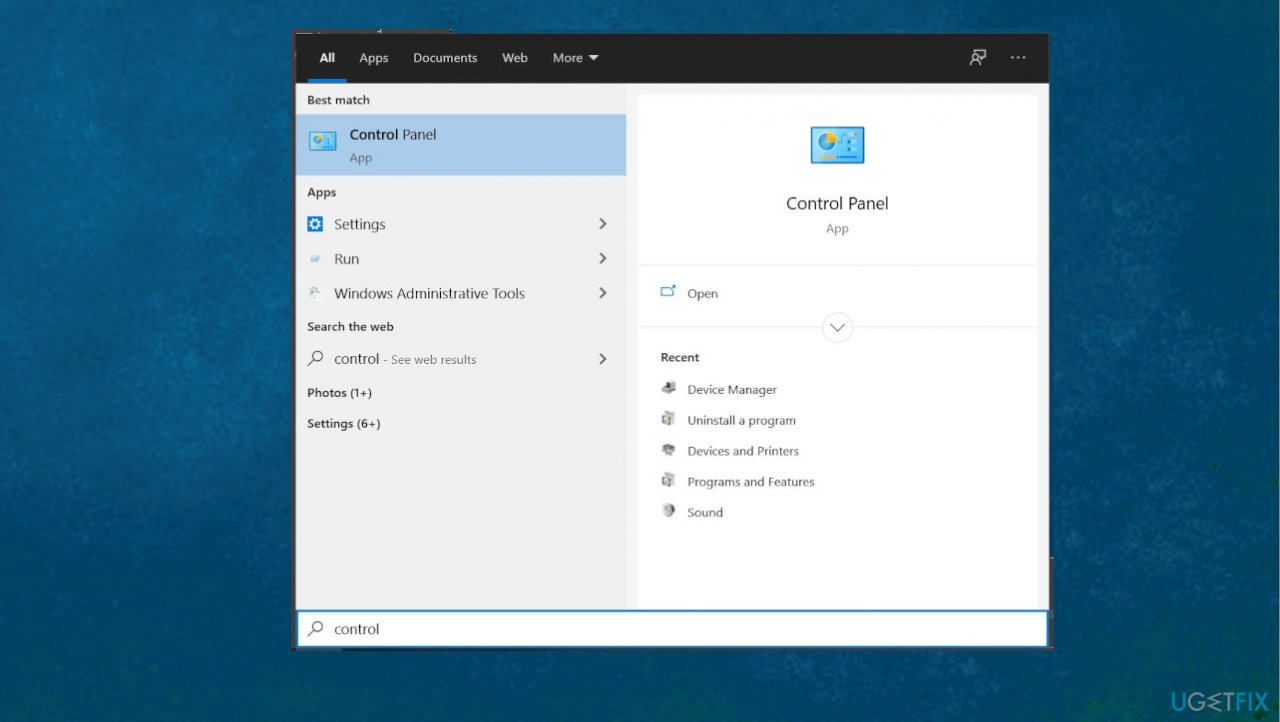
How to fix windows update error 0x80072ee7 control panel search - Select Control Panel option and the click on Network and Sharing Center.
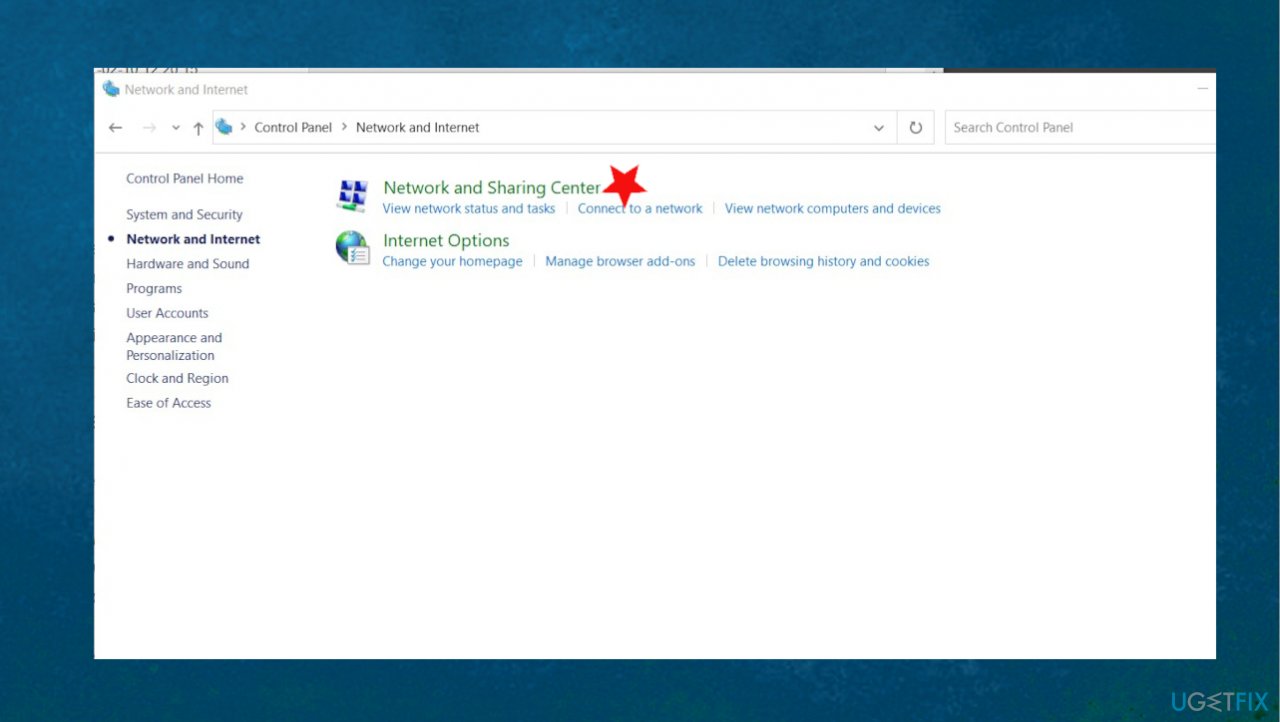
How to fix windows update error 0x80072ee7 network sharing center - Select Change adapter settings and right-click on the connection icon (Local Area Connection or Wireless Network Connection).
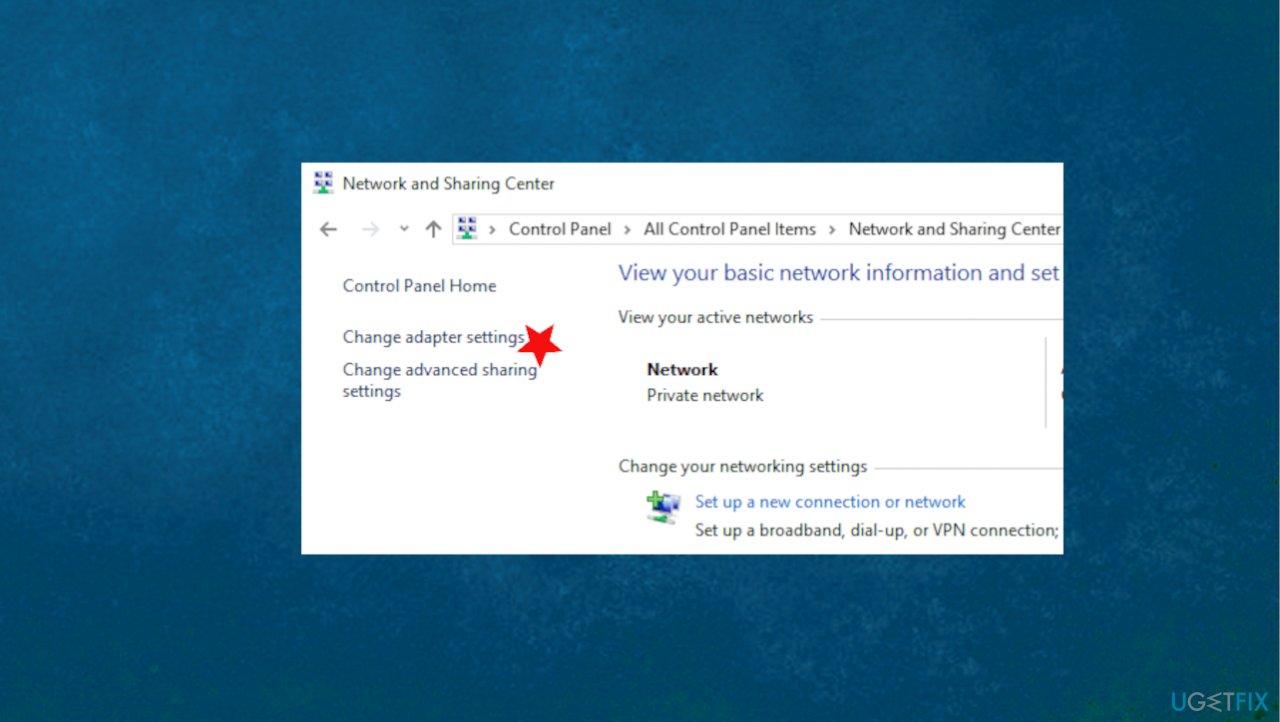
How to fix windows update error 0x80072ee7 change - Select Properties and mark the Internet Protocol Version 4 (TCP /IPv4).
- Select Properties again and open General tab.
- Select Obtain DNS server address automatically and click OK.
- In case the Obtain DNS server address automatically has already been marked, select the Use the following DNS server address instead option.
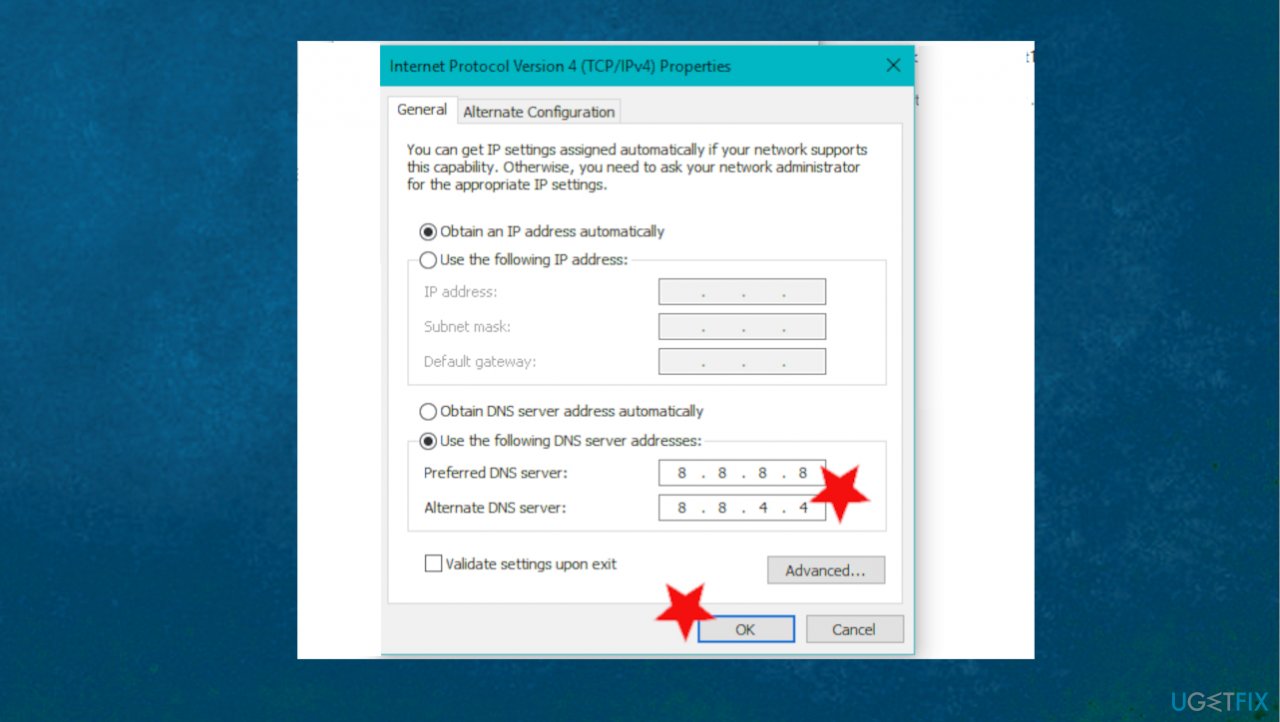
How to fix windows update error 0x80072ee7 dns value - Now enter the following server addresses and click OK afterward:
Preferred DNS server: 8.8.8.8
Alternate DNS server: 8.8.4.4 - Save changes and restart the PC.
Fix 2. Run a SFC scan to fix Error 0x80072ee7
- Type in cmd in Windows search.
- Right-click on Command Prompt result and select Run as administrator.
- Type sfc /scannow and press Enter.
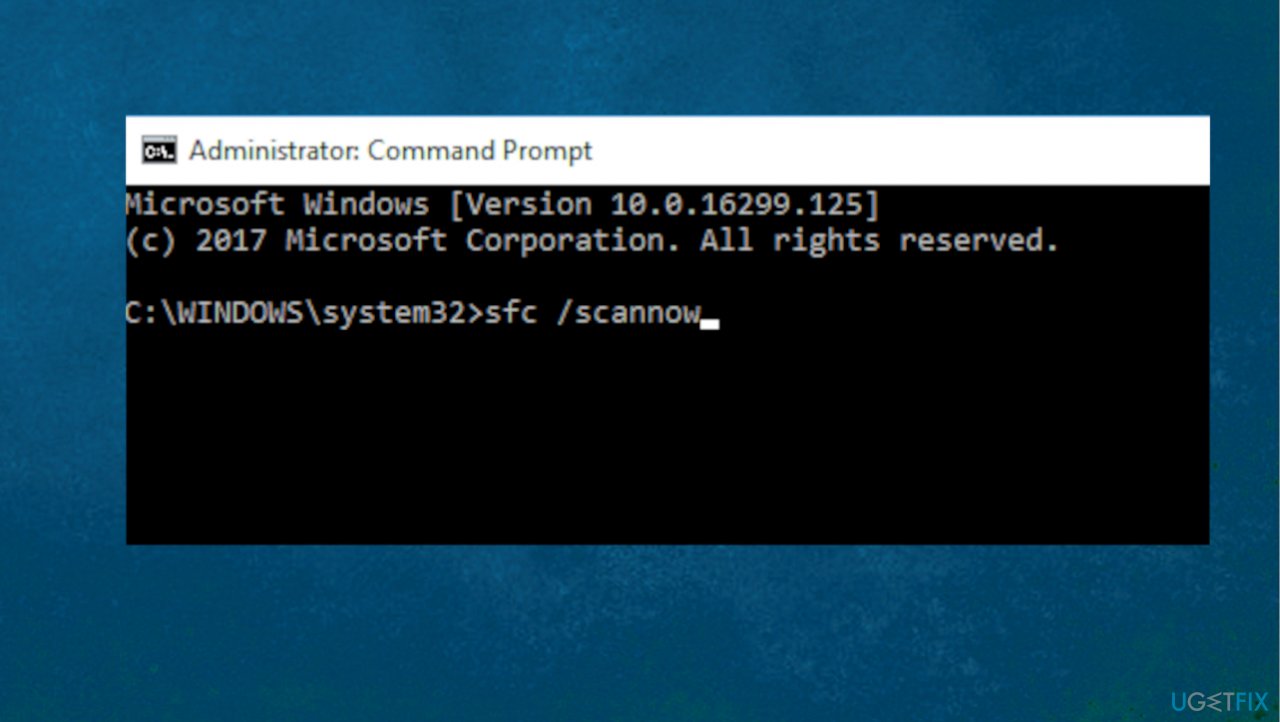
How to fix windows update error 0x80072ee7 sfc - Wait till windows scans and repairs all the damaged system files.
Fix 3. Make sure Windows Update service is running
- Open Run box.
- Type services.msc and hit OK.
- Once there, right-click Windows Update and choose Properties.
- Under the General tab, set the Startup type to Manual.
- Click on Apply and OK to save changes.
Fix 4. Uninstall problematic apps to fix Error 0x80072ee7
- Right-click on the Start button and choose Apps.
- Apps and Features menu appears.
- Scroll down to locate the app.
- Select Uninstall.
- Reboot your PC and reinstall the application if needed.
or
- Right-click on Windows key.
- Select Control Panel and open Programs and Features.
- Locate the particular app, click on it, and select Uninstall.
Fix 5. Check for the Latest Update
- Right-click on Start and select Settings.
- Go to Update & Security.
- On the right side, click Check for updates.
- Install update if there is any newer versions.
- Wait till Windows downloads and installs updates.
- Reboot your system.
Bottom line
To fix Error 0x80072ee7, you may need to run an anti-malware tool to clear any threats or check for critical system errors. If the issue persists after these steps, further troubleshooting may be necessary.
Frequently asked questions
Error 0x80072ee7 typically indicates that there is a problem with the network connection or DNS settings that prevents Windows 10 from accessing the Windows Update servers.
To troubleshoot this error, you can flush the DNS cache by running 'ipconfig /flushdns' in Command Prompt and check your internet connection settings.
Yes, resetting network settings can often resolve Error 0x80072ee7 by restoring default configurations and fixing any connectivity issues in Windows 10.




Report an issue
What's wrong with this guide? We review every report and update or remove content.
Report received — thank you. We'll review and fix it.
You need a free account to submit a report.
Be the first to comment