How to fix
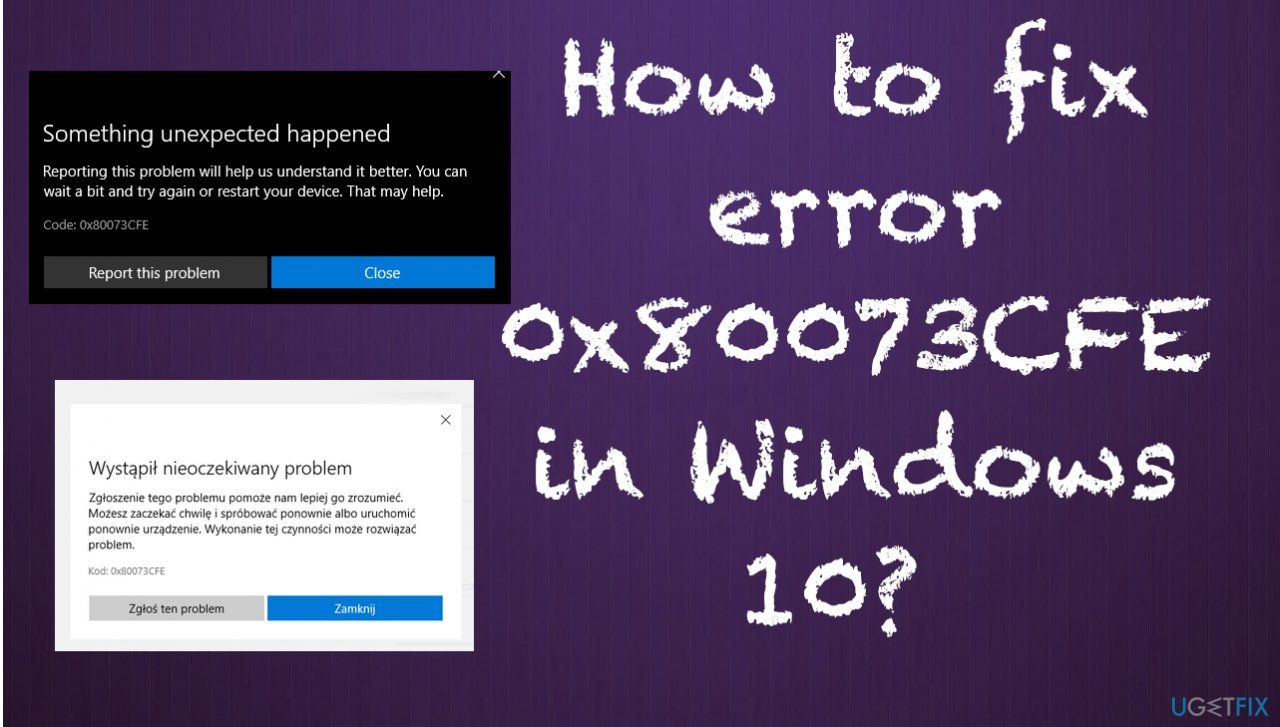
Error 0x80073CFE
on Windows
Solve error 0x80073CFE in Windows 10 effortlessly with our proven methods. Enjoy a seamless experience with expert-tested solutions today!


What causes How to fix error 0x80073CFE in Windows 10?
- Package repository corruption
- Buggy or old versions of Windows
- A particular application causing the error
- Leftovers of previously active virus or PUP causing file corruption
Repairs Windows system files, removes malware, and restores a clean OS state — without reinstalling.
Hello, I cannot update any applications via Microsoft Store, and the error code 0x80073CFE appears. It was all okay a week ago, but now I cannot update or install any programs from the store. The process starts, but then the unsuspected error message pops up, and the code is displayed on the window. I have no idea what happened or what caused this issue. Can you help me somehow?
The error 0x80073CFE in Windows is pretty common, and based on reports online,[ref en-1] users encounter this problem pretty often and for a while. The main reason why the error appears is the package repository corruption. The error keeps the Store from functioning normally, so you cannot download, install, or update the needed programs.
Windows users encounter various errors related to Microsoft Store and applications. We have covered another issue, error 0x80070005. This issue is more associated with the outdated operating system. However, this particular error can also be related to buggy or old versions of Windows.[ref en-2]
There are instances when a particular application causes this error, so moving the problematic program can solve the issue. Also, a quick reset of the Microsoft Store could fix error 0x80073CFE in Windows 10. Unfortunately, people try such solutions before they complain online, so users need more advanced solutions.
This particular issue is not caused by malware[ref en-3] or any security issue. Still, there might be some leftovers of the previously active virus or a PUP that cause corruption in some system files and functions of common programs and features. You can check for file damage using a tool like [d1] and see if the repair on the machine helped with the Microsoft Store error code 0x80073CFE in Windows. If not, you should follow the guide below that lists all the more in-depth fixes for you.
Fix.1 Move the problematic application
- Press Windows logo and I keys.
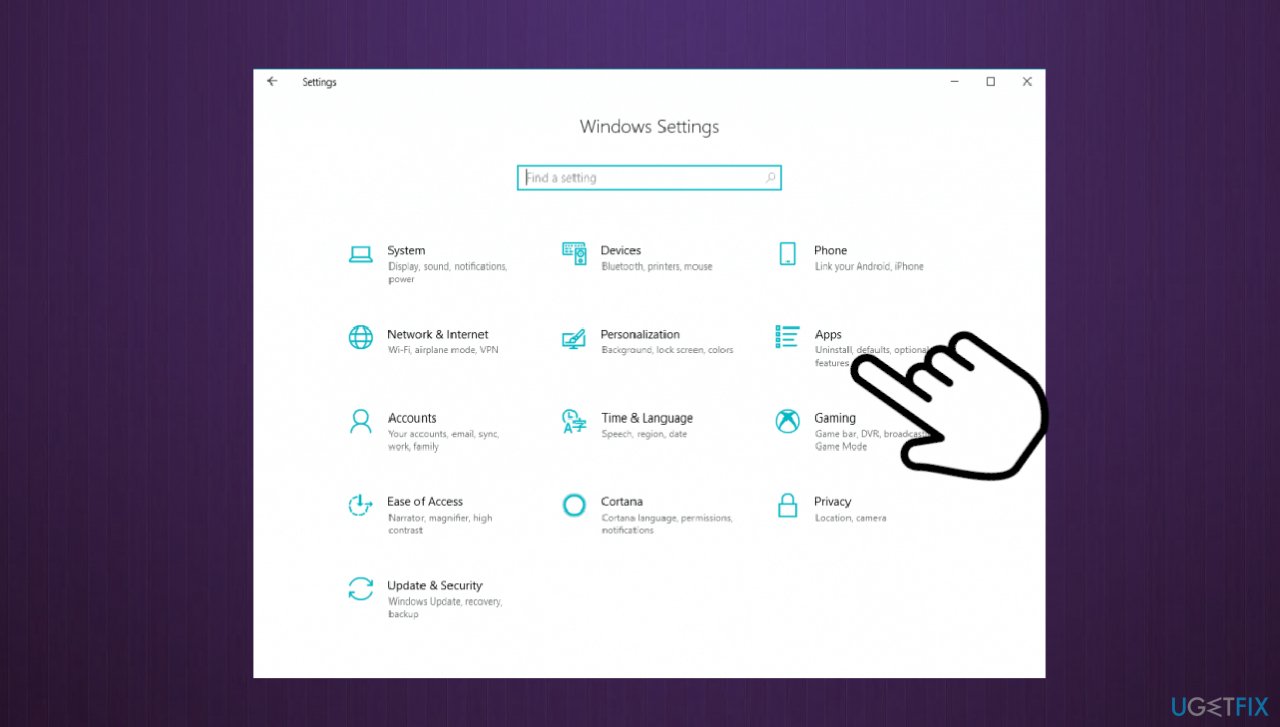
Fix error 0x80073cfe in windows apps - Choose Apps category in settings.
- Click Apps & features, find the problematic application on the right.
- Choose it and click Move.
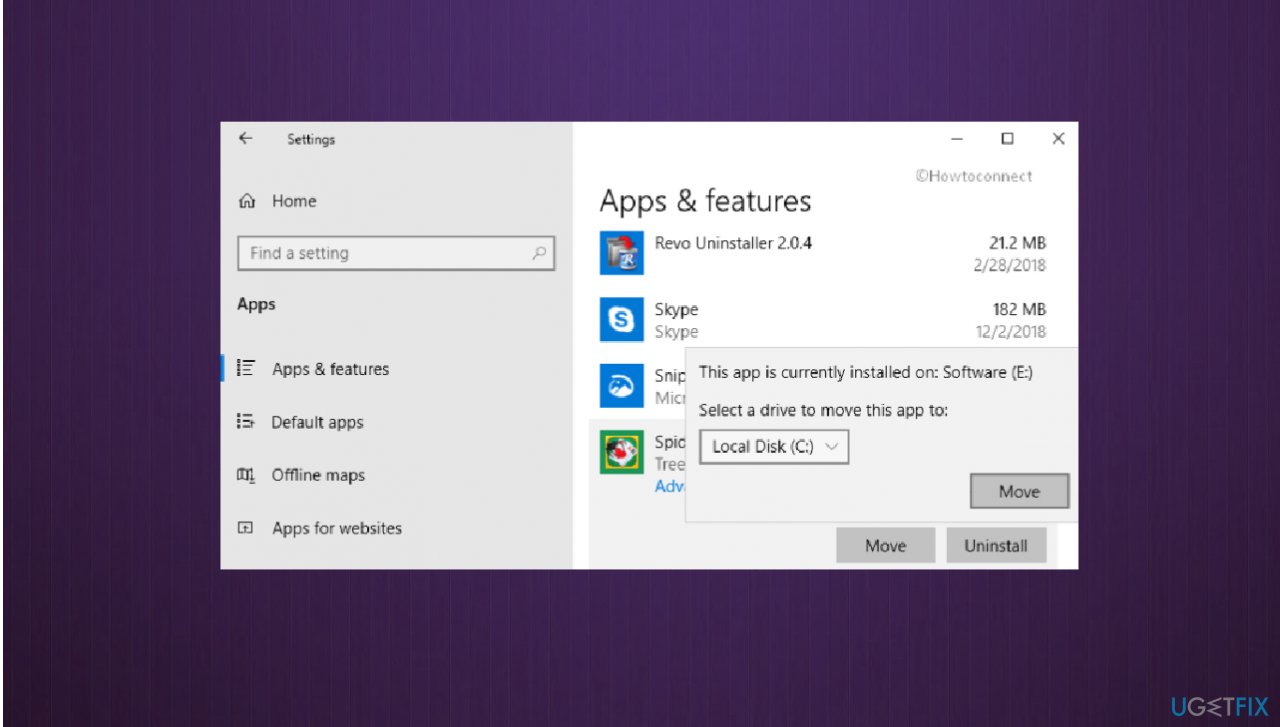
Fix error 0x80073cfe in windows move app - Choose the hard drive from the drop-down.
- Select the Move button and confirm.
- Check if the issue persists.
Fix.2 Reset Microsoft Store
- Open Run box with Win and R keys.
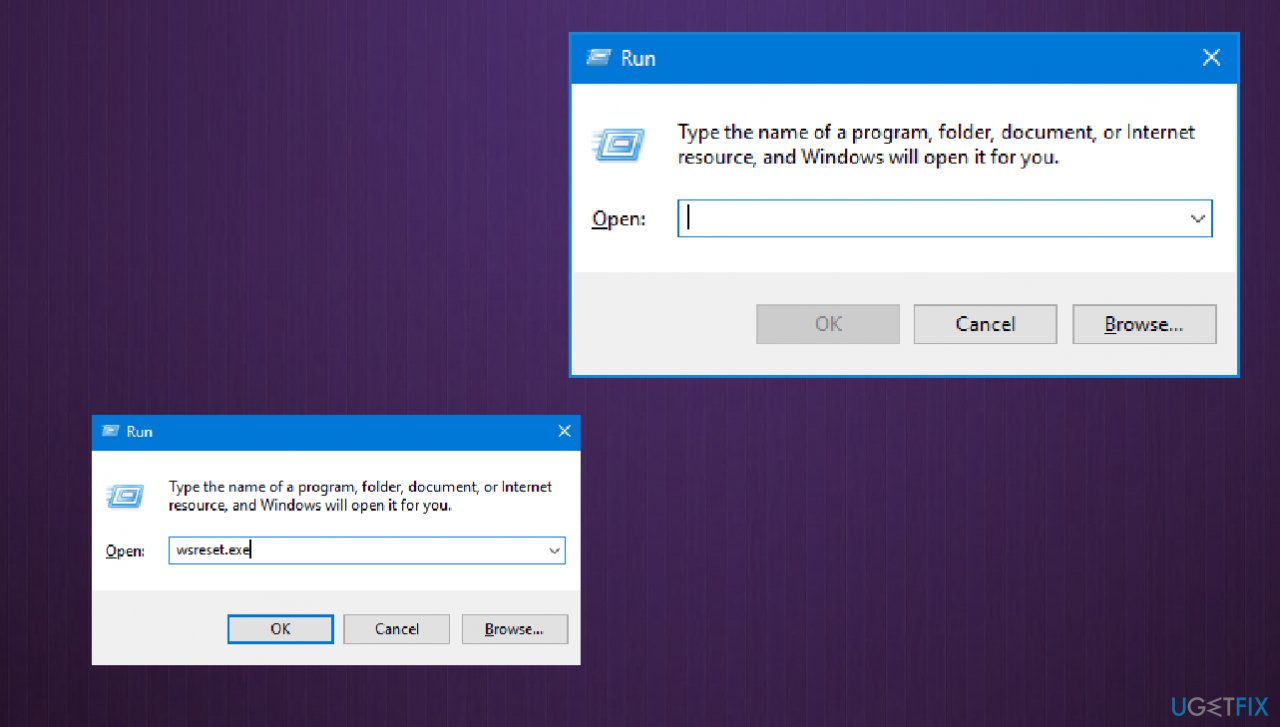
Fix error 0x80073cfe in windows run box - Type wsreset.exe and hit OK.
- You should get the Command Prompt window and the window closes when the reset is done.
- or
- Find the Microsoft Store in the Apps category on Settings.
- Choose Advanced options.
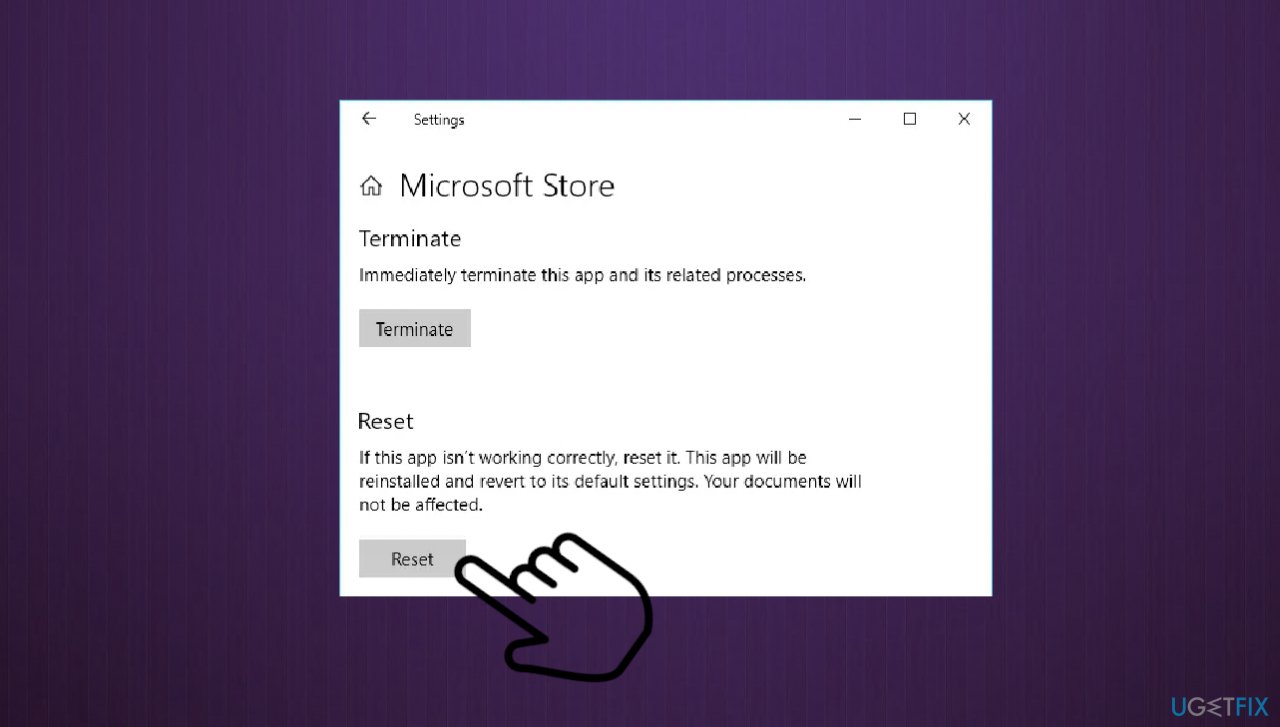
Fix error 0x80073cfe in windows reset microsoft store - ClickWait till the scan is complete. button.
Fix.3 Check for affected files
- Type in cmd in Windows search
- Right-click on the Command Prompt search result and pick Run as administrator
- Paste the following command link and hit Enter:
sfc /scannow - Wait till the scan is complete.
Fix.4 Reset the PC
- Go to the Settings menu.
- Select Update & security.
- Click Recovery.
- Look for Reset this PC.
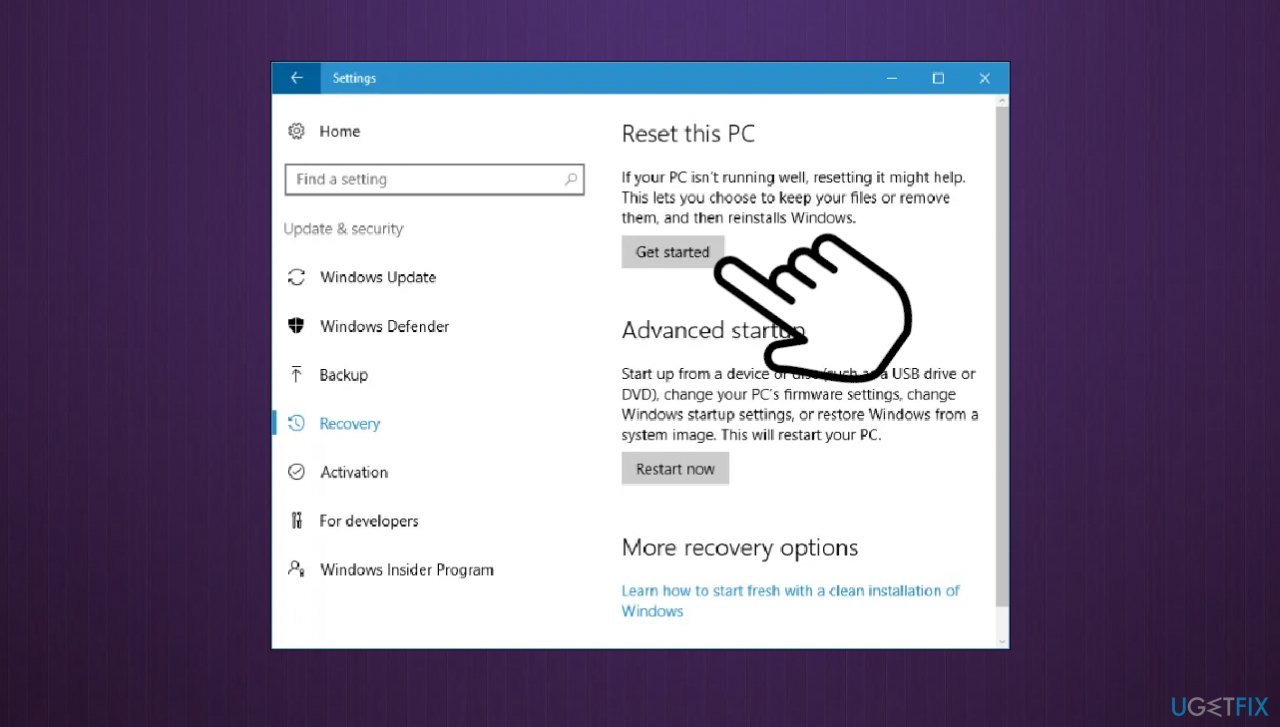
Fix error 0x80073cfe in windows reset the pc - Click Get Started.
- Make sure to select Keep my files to save a backup.
- After the scan, you will see the list of apps that Windows 10 will delete from your PC.
- If you do not wish to delete the apps, click Cancel.
- If you want to proceed, click Next.
- To agree click the Reset button.
Bottom line
To fix error 0x80073CFE, users can try moving the problematic application or resetting the Microsoft Store. If these solutions do not resolve the issue, users should follow the guide for more in-depth fixes.
Frequently asked questions
Error 0x80073CFE typically occurs due to issues with the Microsoft Store or corrupted app files. It can also happen when there are problems with Windows Update or system files.
To fix this error, open the Microsoft Store, go to the Library, and click on 'Get Updates' to update all apps. If the issue persists, try resetting the Microsoft Store cache by running 'wsreset.exe' in the Run dialog.
Yes, you can resolve this error by going to Settings > Apps, selecting the problematic app, and clicking on 'Advanced options' to repair or reset it. Additionally, ensure that your Windows 10 is up to date to avoid compatibility issues.




Report an issue
What's wrong with this guide? We review every report and update or remove content.
Report received — thank you. We'll review and fix it.
You need a free account to submit a report.
Be the first to comment