How to fix
Error 0x800c0002 while updating Windows 10
on Windows
Resolve Error 0x800c0002 in Windows 10 effortlessly with our expert tips. Get your updates running smoothly again, fixed in minutes!

What causes How to Fix Error 0x800c0002 while updating Windows 10?
- Corrupted Windows Update components
- Virus or malware attack
- Corrupted system files
- Disk damages
- Issues with Windows services
Repairs Windows system files, removes malware, and restores a clean OS state — without reinstalling.
My Windows 10 triggers the 0x800c0002 error when updating. As a result, I cannot install updates. How to solve this problem?
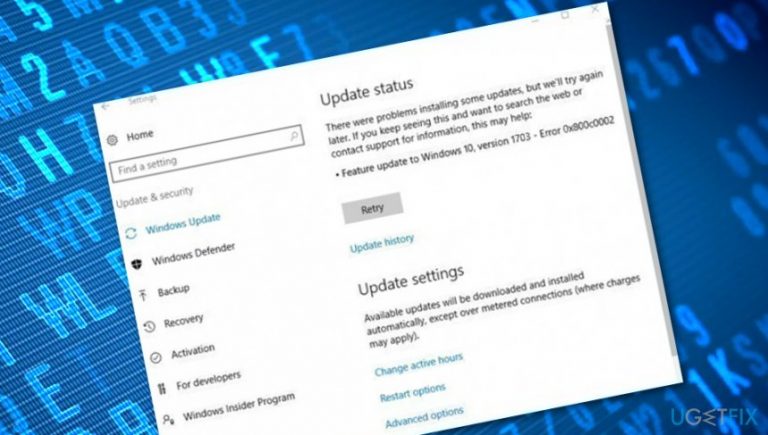
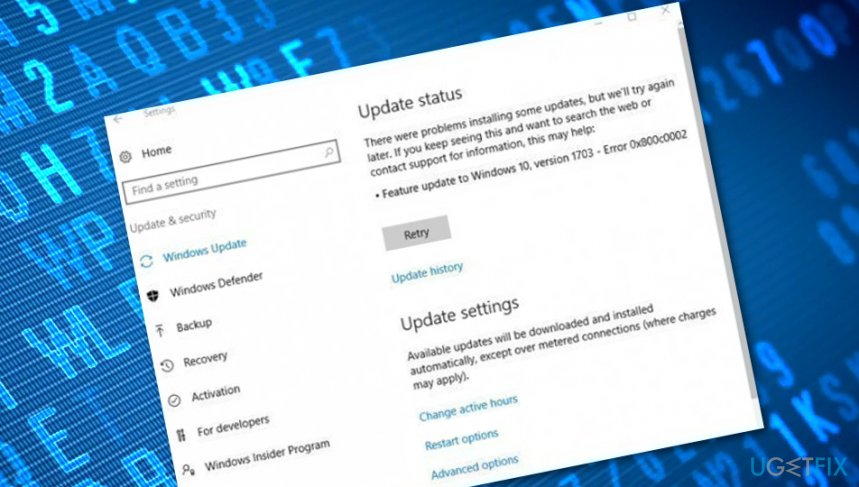
Error Code 0x800c0002 is one of Windows 10 update errors. The error is triggered when some problems occur with update installation. The message states:
“There were problems installing some updates, but we’ll try again later. If you keep seeing this and want to search the web or contact support for information, this may help:
- Feature update to Windows 10, version 1703 - Error 0x800c0002”
The text of the Error Code 0x800c0002message might vary based on Windows 10 version.[ref en-1] However, above this update status message, there’s a “Retry” button. Clicking it should solve the problem, but it does not always happen. If hitting this button gives no positive results, the issue might be related to the corrupted Windows Update components. Therefore, you may need to reset them.
However, Error Code 0x800c0002 might also be related to a virus or malware attack. Various cyber infections are capable of disabling various Windows services and processes. Although malware usually blocks security services, it might also disable Windows Updates as well.
Therefore, if you suspect that your PC might be infected with a virus, you should run a full system scan with antivirus or anti-malware tools.[ref en-2] If you noticed computer slowdowns, receive strange security alerts or pop-ups, you should employ some type of malware removal software and clean your PC.
Furthermore, if the software finds any damaged objects, you can try fixing them with a tool such as [d1]. When everything is completed, check your computer system for problems again and see if the Error Code 0x800c0002 still persists or if it had been successfully eliminated.
However, there might be no malware attack at all. In some cases, Error Code 0x800c0002 might be caused due to some corrupted system files or disk[ref en-3] damages that you might have missed. If you want to check all the possibilities manually, scroll down and complete the following methods exactly as required.
How to Fix Error 0x800c0002 while updating Windows 10?
Method 1. Run Windows Update Troubleshooter
The easiest way to deal with Update Errors is to run the Troubleshooter. You can download this tool from here.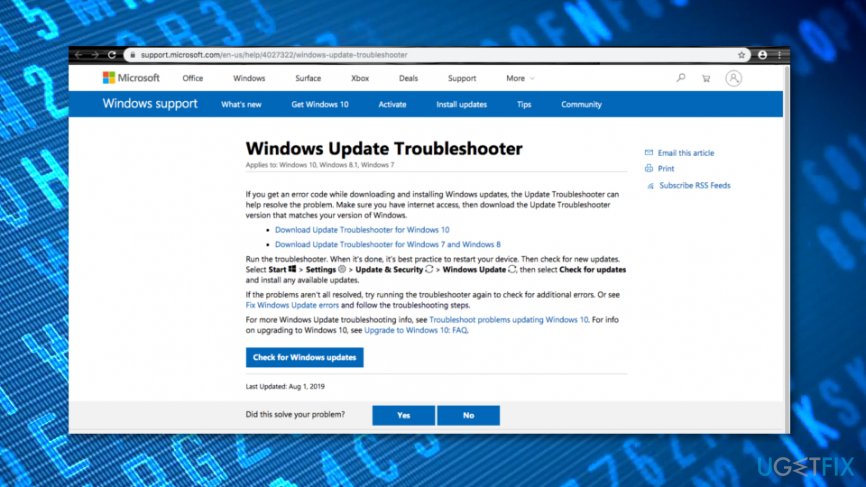
Once you run it after the installation, it should detect the problem and fix it. However, not all problems can be solved using this software. If it does not help, you should go for the second method.
Method 2. Reset Windows Update components
The reason behind Error 0x800c0002 might be corrupted Windows Updates Components. Therefore, resetting them and reinitiating Windows Updates might help to solve the error.
1. Click Windows Key + X. From the appeared menu choose Command Prompt (Admin).
2. You have to stop the BITS, Cryptographic, MSI Installer, and the Windows Update Services by entering these commands to the command prompt. Do not forget to hit Enter after each command:
net stop wuauserv
net stop cryptSvc
net stop bits
net stop msiserver
3. The next requires renaming SoftwareDistribution and Catroot2 folders using the command prompt. Enter these commands and hit Enter after each of them:
ren C:\\Windows\\SoftwareDistribution SoftwareDistribution.old
ren C:\\Windows\\System32\\catroot2 Catroot2.old
4. Now the BITS, Cryptographic, MSI Installer, and the Windows Update Services are disabled. Thus, you need to restart them by entering these commands and hitting enter after each of them:
net start wuauserv
net start cryptSvc
net start bits
net start msiserver
5. Enter Exit in the Command Prompt in order to close it.
6. Restart the computer.
When your computer reboots, try to install Windows Updates again. The 0x800c0002 error should no longer appear.
Method 3. Perform a full disk checkup process
In some cases, Error 0x800c0002 might appear because of some type of disk corruption on your Windows computer system. Check if this is the cause of your problems by applying the following guiding steps:
- Go to Windows search.
- Type "cmd".
- Launch Command Prompt and choose to run as an administrator.
- Afterward, type the chkdsk /r command and hit Enter.
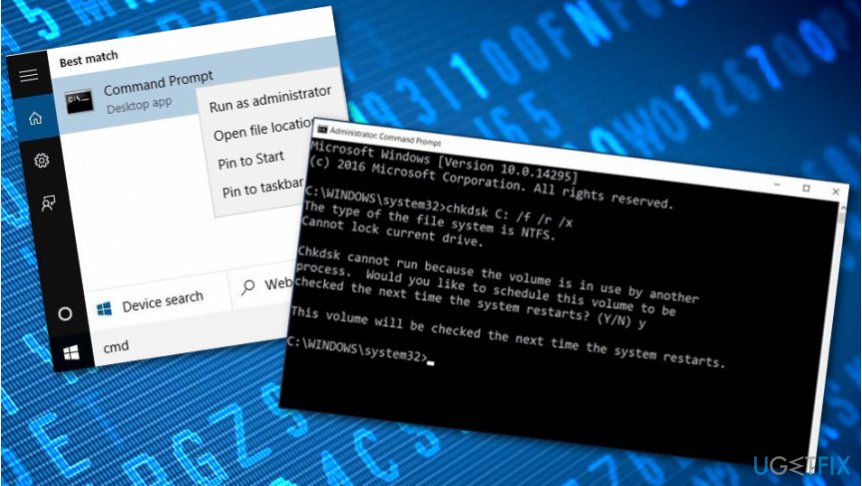
Perform a full disk checkup process - Wait for the process to finish and reboot your machine.
Method 4. Check your system for possible file corruption
If your Windows computer is including some corrupted system files, this also might be the case why you are seeing Error 0x800c0002 on your machine. Run an SFC scan to find out if this is true:
- Open Windows search once again.
- Launch Command Prompt as an administrator.
- Type sfc /scannow after the blinking cursor.
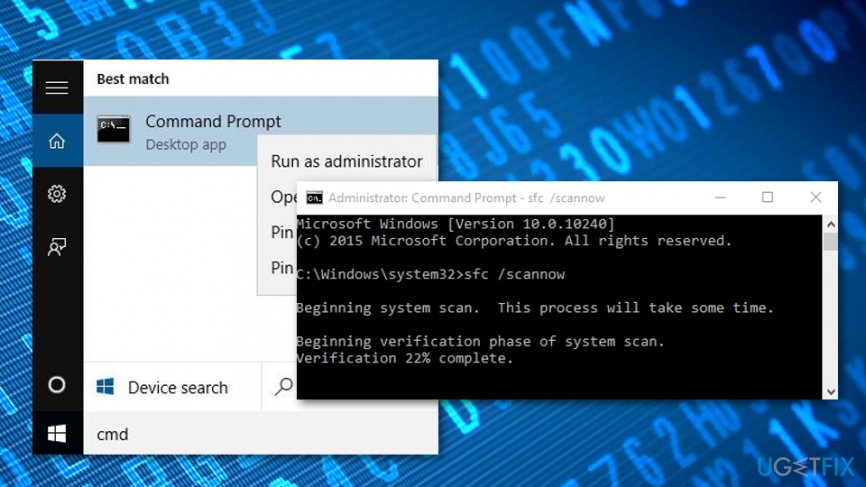
Check your system for possible file corruption - Press Enter and wait for the command to finish,
- Restart your Windows machine.
Bottom line
To fix Error 0x800c0002, you can run the Windows Update Troubleshooter, reset Windows Update components, and perform a full system scan with antivirus or anti-malware tools. If these methods do not resolve the issue, further manual checks for corrupted files and disk damages may be necessary.
Frequently asked questions
Error 0x800c0002 indicates a problem with your internet connection or Windows Update service, preventing updates from being downloaded properly.
To fix this error, try resetting your network settings, running the Windows Update Troubleshooter, or checking your firewall settings.
Yes, users of Windows 11 can also encounter error 0x800c0002, and the troubleshooting steps are similar to those for Windows 10.




Report an issue
What's wrong with this guide? We review every report and update or remove content.
Report received — thank you. We'll review and fix it.
You need a free account to submit a report.
Be the first to comment