How to fix
Error 0x87E00009 when trying to install Minecraft
on Windows
Resolve error 0x87E00009 when installing Minecraft on Windows 10 or 11 effortlessly. Follow our expert-tested solutions for a smooth setup!

What causes How to fix error 0x87E00009 when trying to install Minecraft on Windows?
- Temporary server issue on Microsoft's end
- Corrupted cache or outdated app data in Microsoft Store
- Problems with Windows Update components
- Network connectivity problems
- Firewall settings interfering with download
Repairs Windows system files, removes malware, and restores a clean OS state — without reinstalling.
I am trying to download and install Minecraft from the Microsoft Store but I keep getting an error, which says "Sorry about that! Something went wrong. We're aware of the issue and working to fix it. Try refreshing or come back later. Code: 0x87E00009." However, even after trying several times, the issue remains.
Understanding Error 0x87E00009 when installing Minecraft on Windows
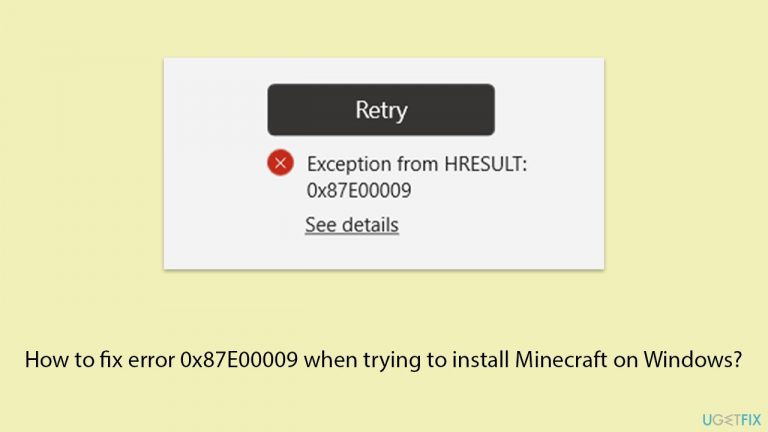
Error 0x87E00009 typically occurs when trying to download and install the Minecraft Launcher on a Windows system. This issue can also affect other Microsoft games, such as Microsoft Flight Simulator or Forza Horizon. The full error message reads as follows:
Sorry about that! Something went wrong. We're aware of the issue and working to fix it. Try refreshing or come back later. Code: 0x87E00009.
Reasons for error 0x87E00009
This error can arise from several causes. One common reason is a temporary server issue on Microsoft's end, preventing the download or installation process from completing. Another possible cause is a problem with the Microsoft Store, such as a corrupted cache or outdated app data.
Issues with Windows Update components can also contribute to this error, as they are closely linked with the Microsoft Store's functionality. Lastly, network connectivity problems or firewall settings might interfere with the download process, resulting in this error.
Potential solutions error code 0x87E00009
To fix error 0x87E00009, you can try the following troubleshooting steps:
- Run Windows Store apps troubleshooter.
- Reset Windows Update components.
- Reset the Microsoft Store cache.
- Check the Network connection and Firewall settings.
- Use another way to get Minecraft Launcher working via File Explorer.
You can consider employing a [d1] PC repair application for additional help, as it can automatically take care of underlying Windows problems, especially when the root cause is difficult to determine.

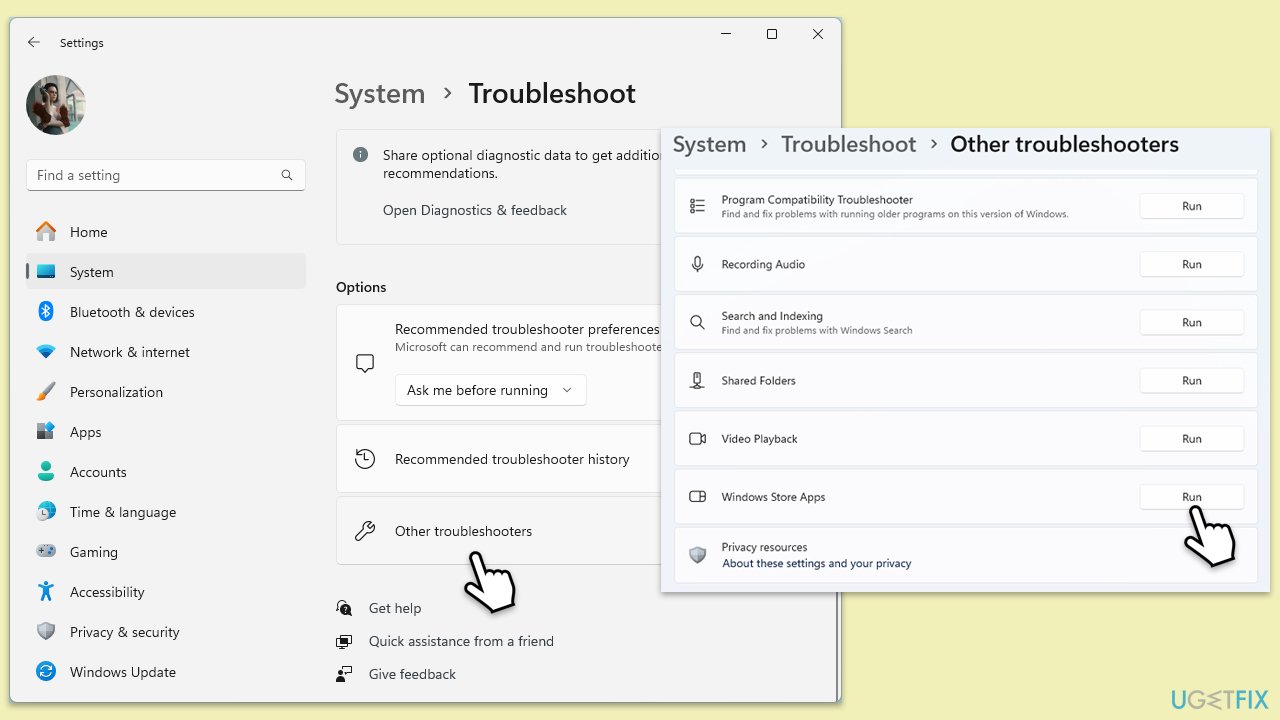
Fix 1. Run the Windows Store apps troubleshooter
This tool automatically detects and resolves issues related to the Microsoft Store, which can fix error 0x87E00009.
- Type Troubleshoot in Windows search and press Enter.
- Select Additional troubleshooters/Other troubleshooters.
- Find Windows Update from the list and select Run the troubleshooter/Run.
- Wait till the process is finished and apply the offered fixes.
Fix 2. Update Windows
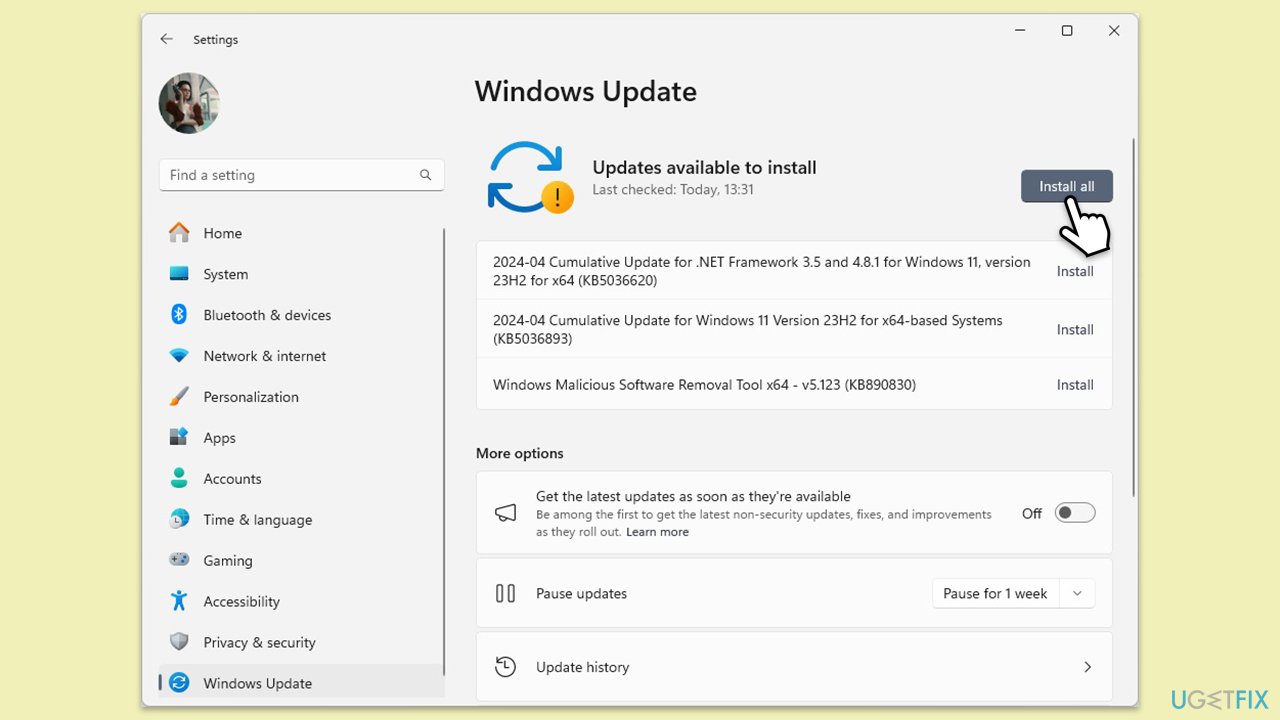
Outdated Windows versions can cause compatibility issues. Updating Windows ensures all components are current.
- Type Updates in Windows search and hit Enter.
- If updates are available, click Install updates.
- Otherwise, click Check for updates.
- If optional updates are available, install them as well.
- When all the update processes are complete, restart your device.
Fix 3. Launch GameLauncherHelper.exe from the Xbox Games directory
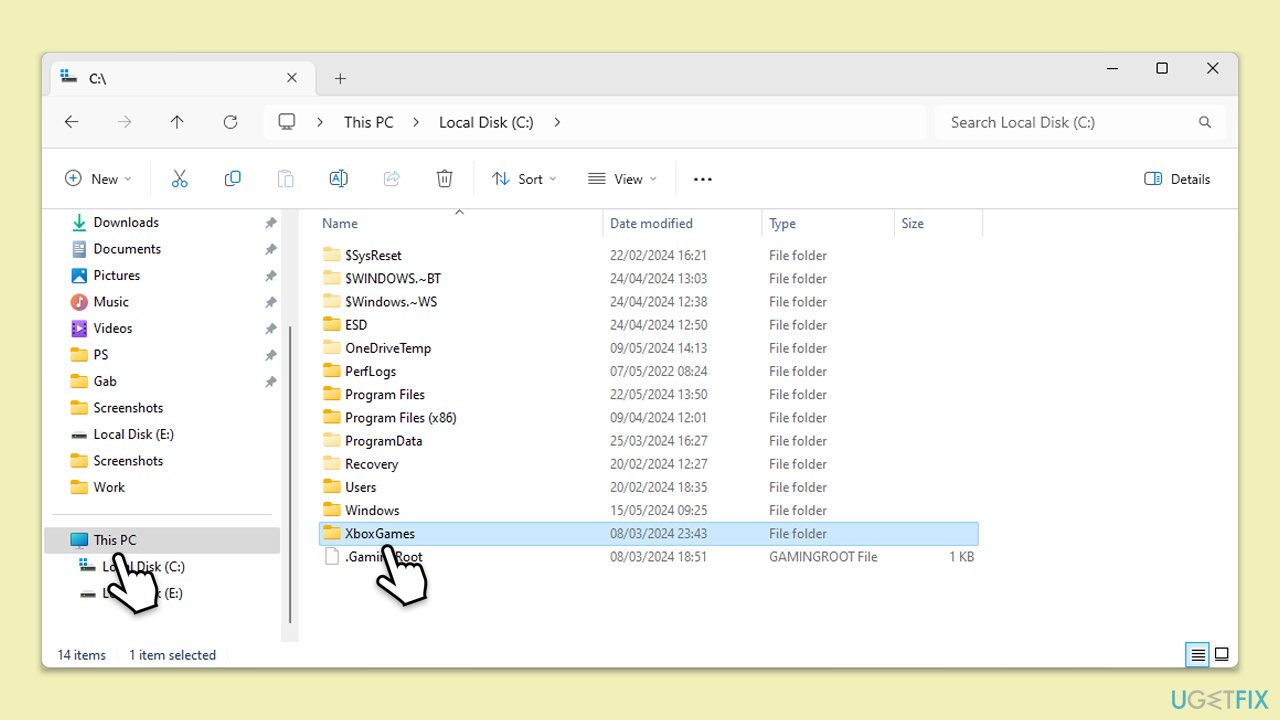
Launching GameLauncherHelper.exe can help resolve issues related to game installations by manually initiating the helper application.
- Press Win + E to open File Explorer.
- Click on This PC and then enter the main drive, which is usually drive C: by default.
- Select the Xbox Games folder.
- Here, access MC Launcher folder and then double-click on GameLauncherHelper.exe.
- This should allow you to access Minecraft Launched as usual.
Fix 4. Reset Windows update components
Problems with Windows Update services can cause this error. Resetting these components can often resolve the issue.
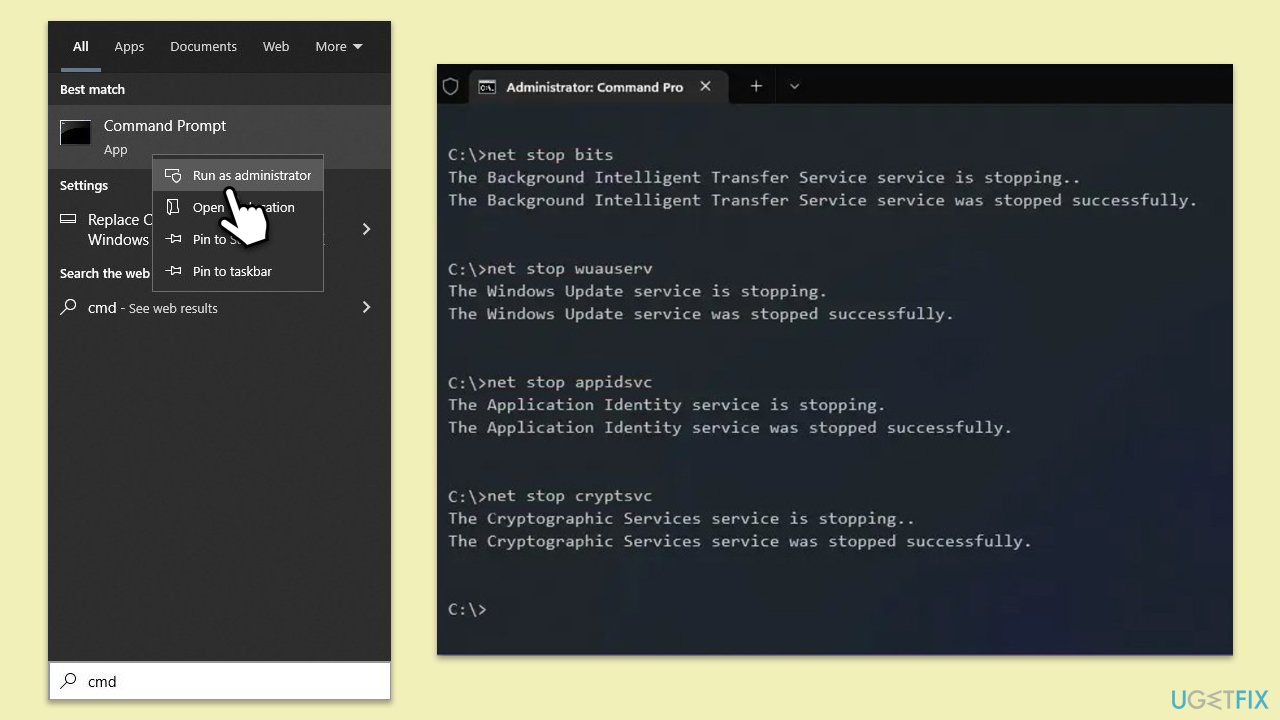
- Type cmd in Windows search.
- Right-click on Command Prompt and pick Run as administrator.
- User Account Control (UAC) will ask whether you want to allow changes - click Yes.
- Type the following commands, pressing Enter after each:
- net stop bits
- net stop wuauserv
- net stop appidsvc
- net stop cryptsvc
- Del “%ALLUSERSPROFILE%\Application Data\Microsoft\Network\Downloader\*.*”
- rmdir %systemroot%\SoftwareDistribution /S /Q
- rmdir %systemroot%\system32\catroot2 /S /Q
- regsvr32.exe /s atl.dll
- regsvr32.exe /s urlmon.dll
- regsvr32.exe /s mshtml.dll
- netsh winsock reset
- netsh winsock reset proxy
- net start bits
- net start wuauserv
- net start appidsvc
- net start cryptsvc
- Close the Command Prompt and restart your device.
Fix 5. Reset the Microsoft Store cache
A corrupted cache can interfere with downloads and installations. Resetting it can clear the problem.
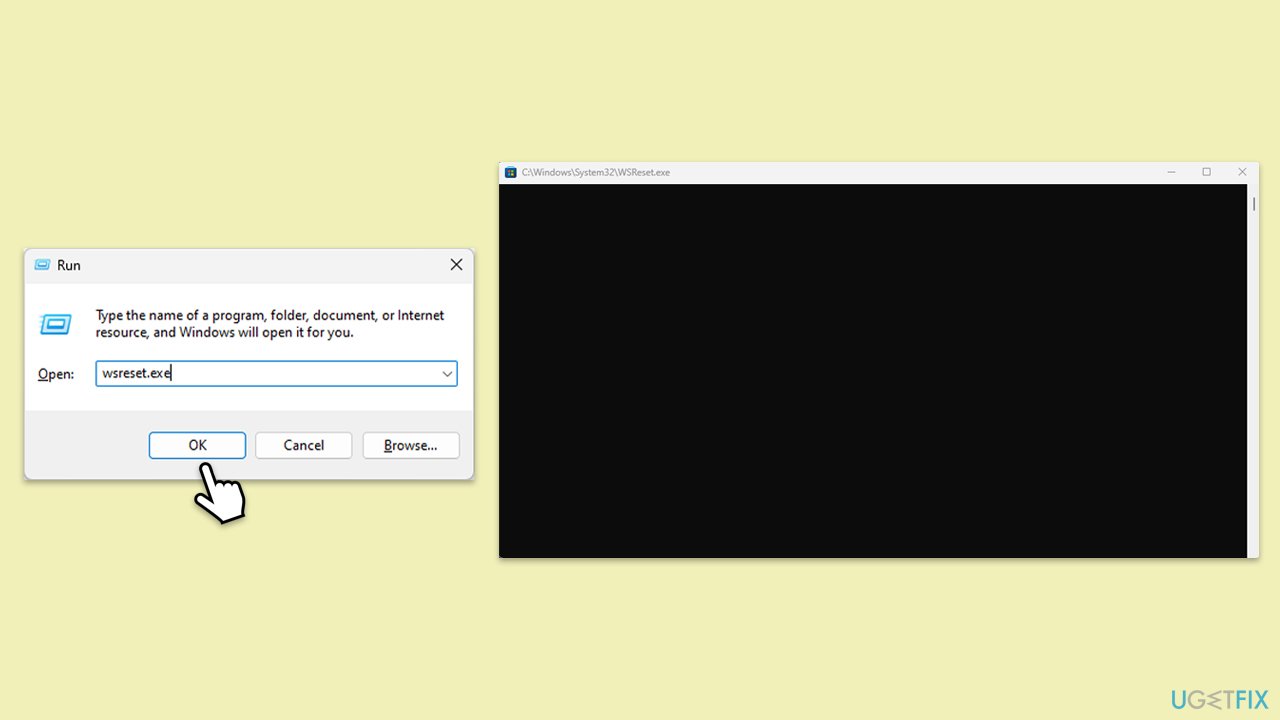
- Press the Win + R on your keyboard to open the Run dialog box.
- In the dialog box, type wsreset.exe and then hit Enter or click OK.
- A blank Command Prompt window will open (do not close it), and after about ten seconds, the window will close, and the Microsoft Store will open automatically.
- Try installing Minecraft again.
Fix 6. Adjust Firewall settings
Firewall settings can block the download process. Adjusting these settings can resolve the issue.
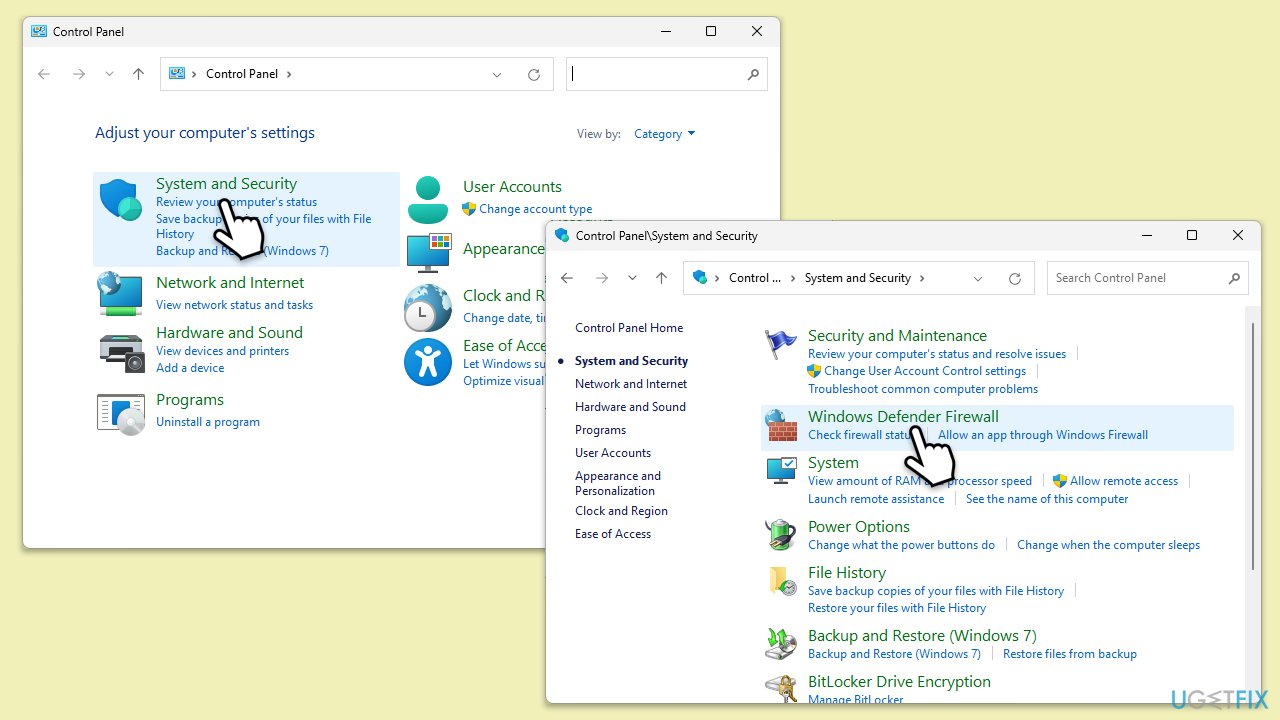
- Type in Control Panel in Windows search and hit Enter.
- Go to System and Security section.
- Under Windows Defender Firewall, select Allow an app through Windows Defender Firewall.
- In the main window, Click Change settings.
- Scroll down until you locate all the Minecraft entries, and tick the Private and Public checkboxes.
- Click OK and close the Control Panel.
Fix 7. Re-register the Microsoft Store
Re-registering the Microsoft Store can fix issues related to the app itself.
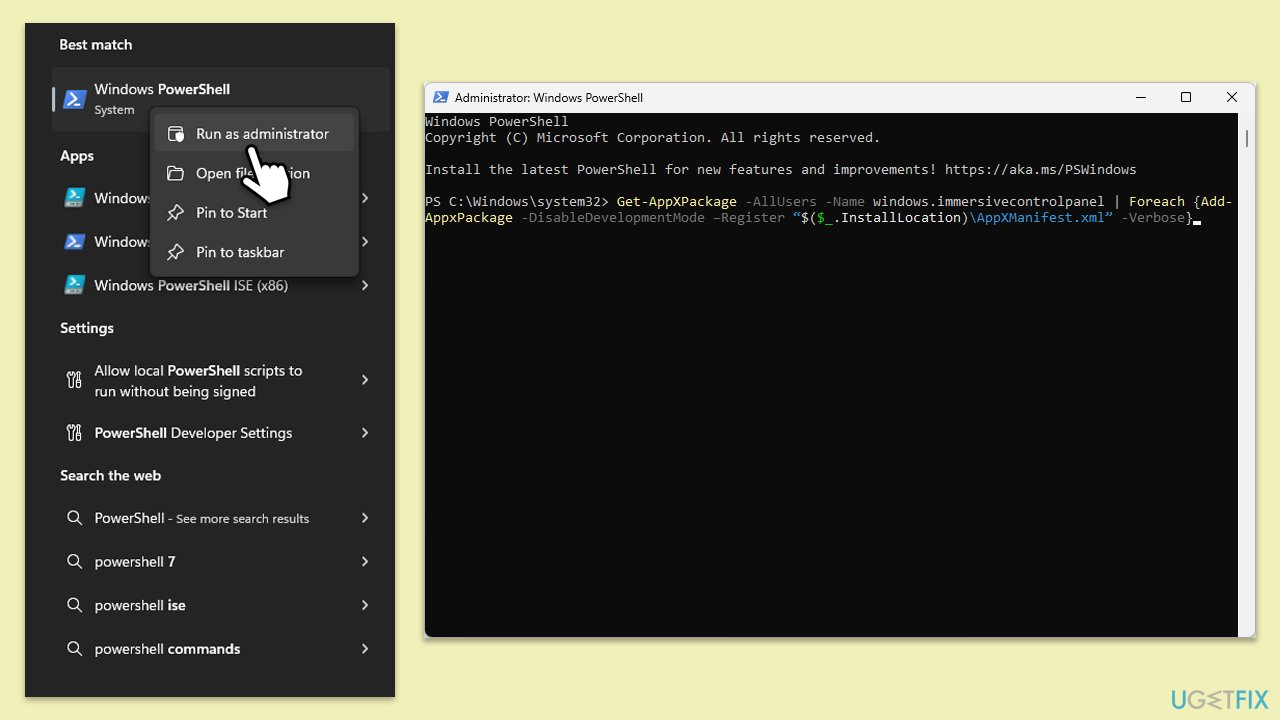
- Type PowerShell in Windows search.
- Right-click on PowerShell and select Run as administrator.
- When the UAC window shows up, click Yes.
- In the new window, copy and paste the following, and then press Enter:
Get-AppXPackage -AllUsers | Foreach {Add-AppxPackage -DisableDevelopmentMode -Register "$($_.InstallLocation)\AppXManifest.xml"} - Wait for the process to complete, then restart your computer.
Bottom line
To fix error 0x87E00009, you can try running the Windows Store apps troubleshooter, resetting Windows Update components, and clearing the Microsoft Store cache. Additionally, check your network connection and firewall settings. If none of these solutions work, consider using a PC repair application for further assistance.
Frequently asked questions
The error 0x87E00009 typically indicates that there is an issue with the Xbox services or the Microsoft Store, which can prevent Minecraft from installing properly.
You can resolve this error by resetting the Microsoft Store cache, ensuring Xbox services are running, and checking for Windows updates.
Yes, make sure that the Xbox Live Auth Manager and Xbox Live Game Save services are running, as they are crucial for Minecraft's installation process.




Report an issue
What's wrong with this guide? We review every report and update or remove content.
Report received — thank you. We'll review and fix it.
You need a free account to submit a report.
Be the first to comment