How to fix
Error 0x887a0005 in COD Modern Warfare II/Warzone 2
on Windows
Fix error 0x887a0005 in COD Modern Warfare II/Warzone 2 on Windows 10 and 11 with expert-tested solutions. Get back to gaming in minutes!


What causes How to fix error 0x887a0005 in COD Modern Warfare II/Warzone 2?
- GPU driver incompatibility or outdatedness
- Corrupted game files
- Overclocking causing instability
- In-game overlays conflicting with graphics processes
Repairs Windows system files, removes malware, and restores a clean OS state — without reinstalling.
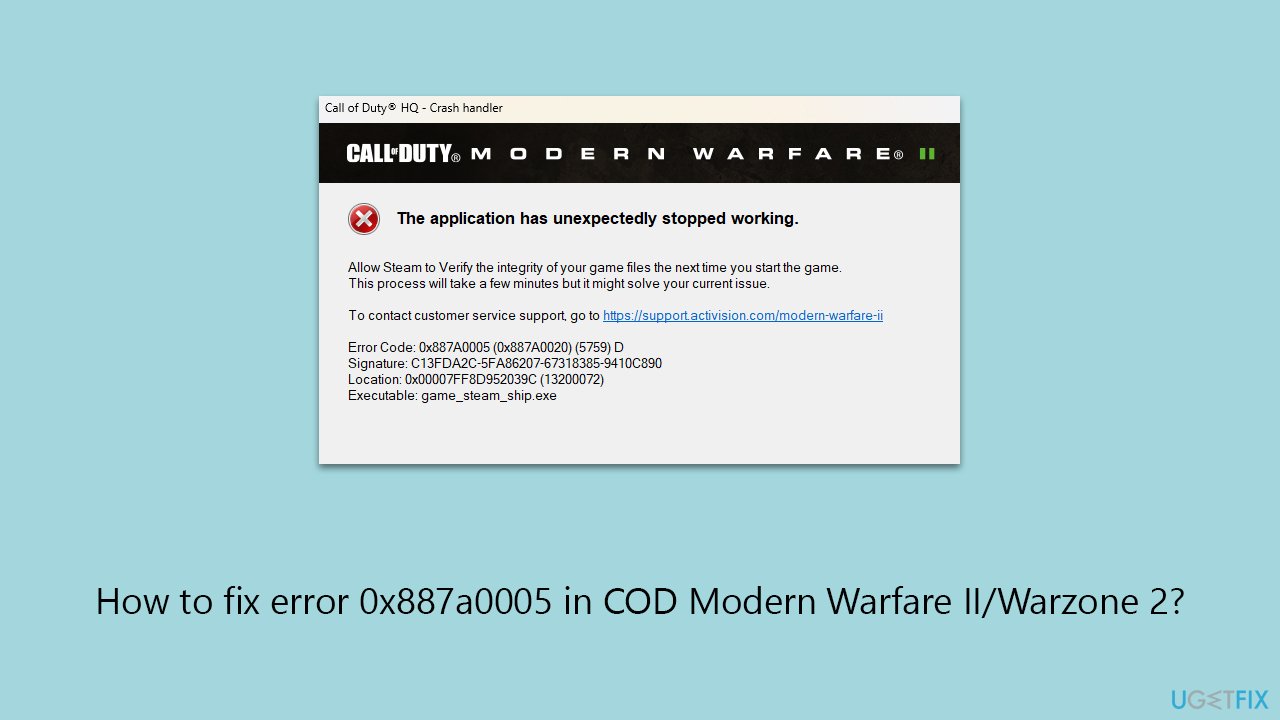
I was playing Modern Warfare III and received a crash with an error code 0x887a0005. I didn't pay attention at first, but then it started repeating itself, making it a huge problem.
The Call of Duty series, renowned for its engaging gameplay, has been a staple in the gaming community for years. The latest installments, Warzone 3 and Modern Warfare III continue to attract numerous players, making any gameplay interruptions highly frustrating. A common issue faced by players is the error code 0x887a0005, which causes the game to crash unexpectedly. This error is particularly troublesome as it ejects players from both multiplayer and campaign modes.
At the heart of this issue often lies a problem with GPU (Graphics Processing Unit) drivers. These drivers are essential for rendering game graphics, and any incompatibility or outdatedness can lead to such errors. It suggests that your GPU drivers might need a check for their compatibility with the game’s requirements.
Beyond GPU drivers, corrupted game files can also be a factor. These files are vital for smooth gameplay, and if corrupted, due to reasons like incomplete updates or installation interruptions, they can cause 0x887a0005. Other potential causes include overclocking, which, despite its intention to boost performance, can lead to game instability, and in-game overlays, which might conflict with the game's graphics processes.
Addressing the 0x887a0005 error code could involve ensuring up-to-date GPU drivers, verifying game file integrity, adjusting overclocking settings, and managing in-game overlays. These steps help in aligning all game-interacting components for optimal performance.
To further tackle any underlying Windows issues that might be affecting your gaming experience, consider using a PC repair tool. These tools are designed to diagnose and automatically resolve a variety of Windows-related problems, simplifying your troubleshooting efforts.
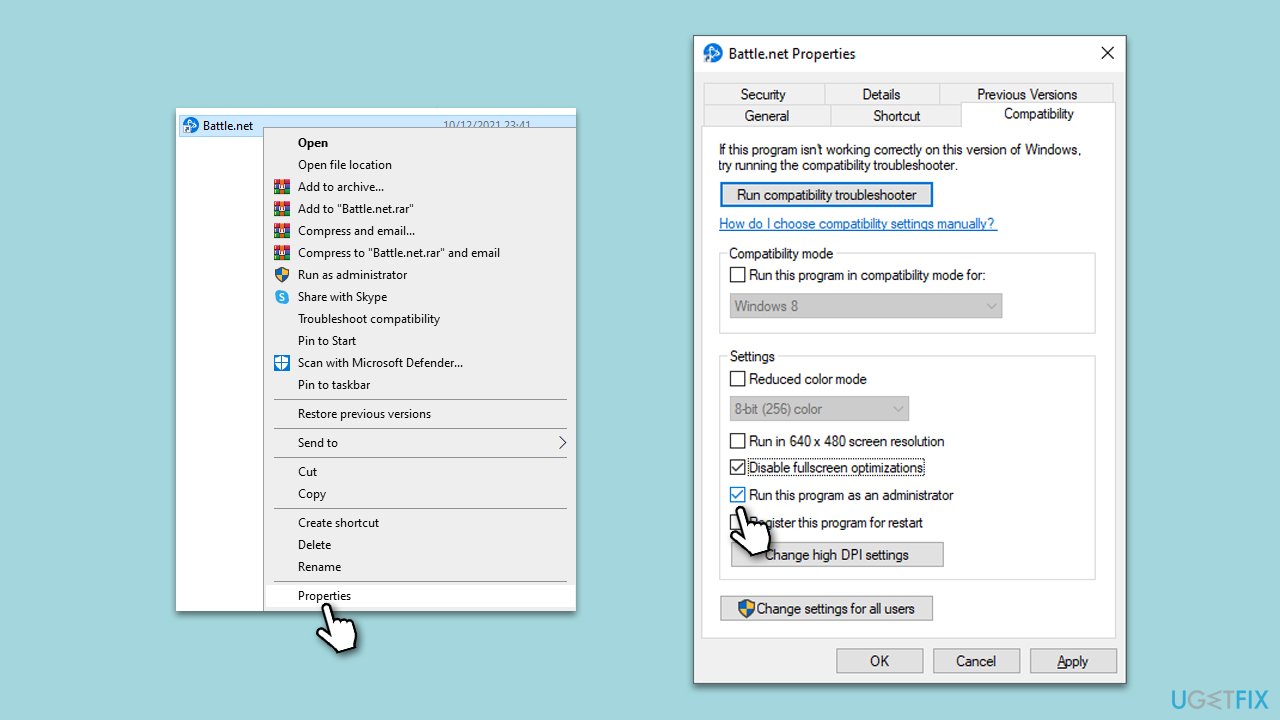
Fix 1. Run Steam or Battle.net as administrator
Running Steam or Battle.net as an administrator gives the program extra permissions that can solve access or permission-related issues causing the error. This approach ensures the game has the necessary rights to access system resources and files.
- Right-click on the Steam or Battle.net shortcut on your desktop.
- Select Properties.
- Navigate to the Compatibility tab.
- Check the box next to Run this program as an administrator.
- Click Apply, then OK.
- Launch the game through Steam or Battle.net.
Fix 2. Update GPU drivers
Outdated or incompatible GPU drivers often lead to various game errors, including error 0x887a0005. Updating your drivers ensures compatibility with the latest game versions, which can resolve the error.
- Right-click on the Start button and select Device Manager from the menu.
- Expand the Display adapters section.
- Right-click on your graphics card and select Update driver.
- Pick Search automatically for drivers.
- If updates are found, allow them to install.
- Restart your computer after updating all necessary drivers.
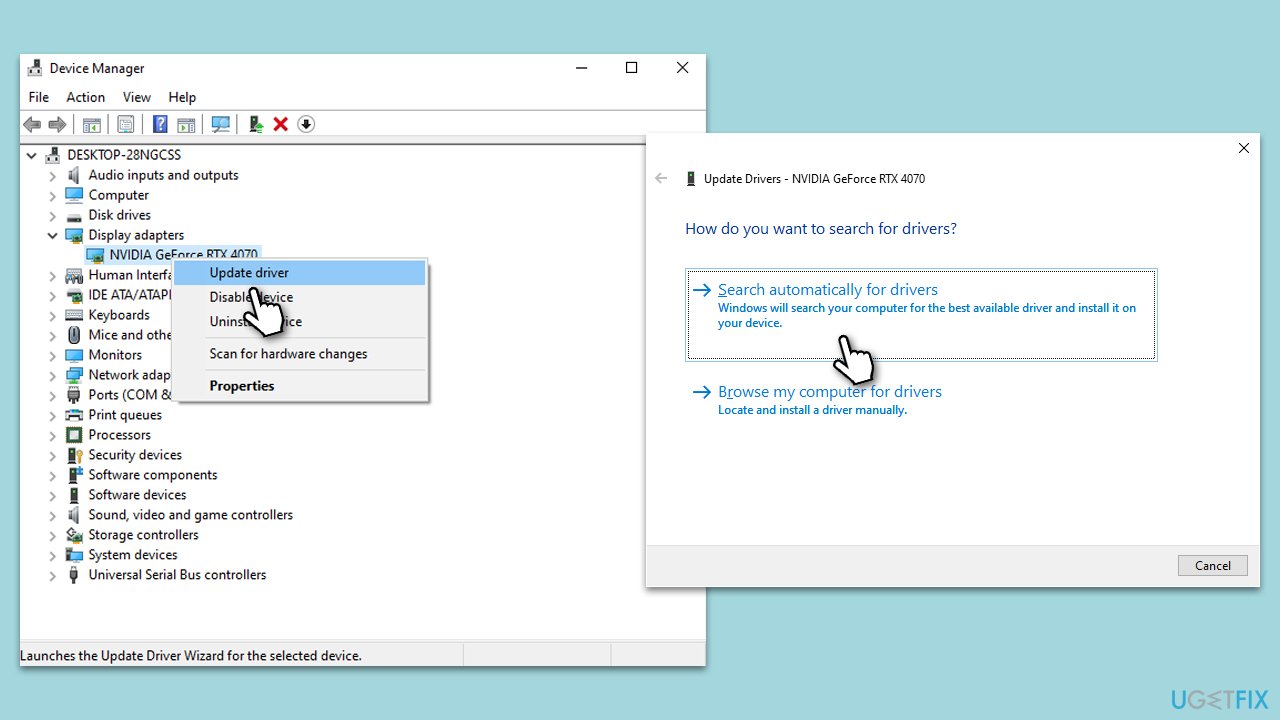
If Windows does not find any updates, you should visit the official website of the GPU maker and download/install the latest driver from there. For a quick fix, use automatic software like [rev id="DriverFix"].
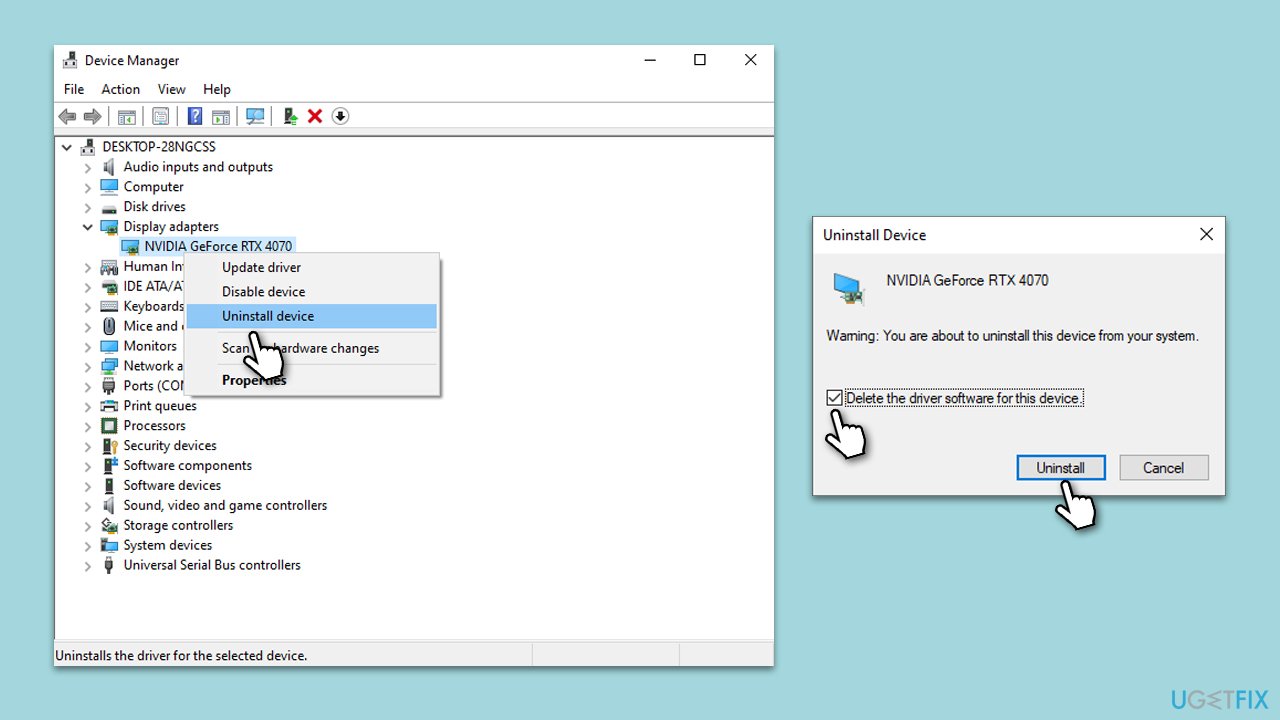
Fix 3. Reinstall GPU drivers
Reinstalling GPU drivers can fix issues caused by corrupted or improperly installed drivers. A fresh installation ensures that drivers are set up correctly.
- Right-click on Start and pick Device Manager.
- Expand Display adapters.
- Right-click on your GPU and select Uninstall device.
- Mark the Delete the driver software for this device tickbox.
- Click Uninstall and follow the instructions to finish the process.
- Restart your device and use one of the methods above to install the latest drivers.
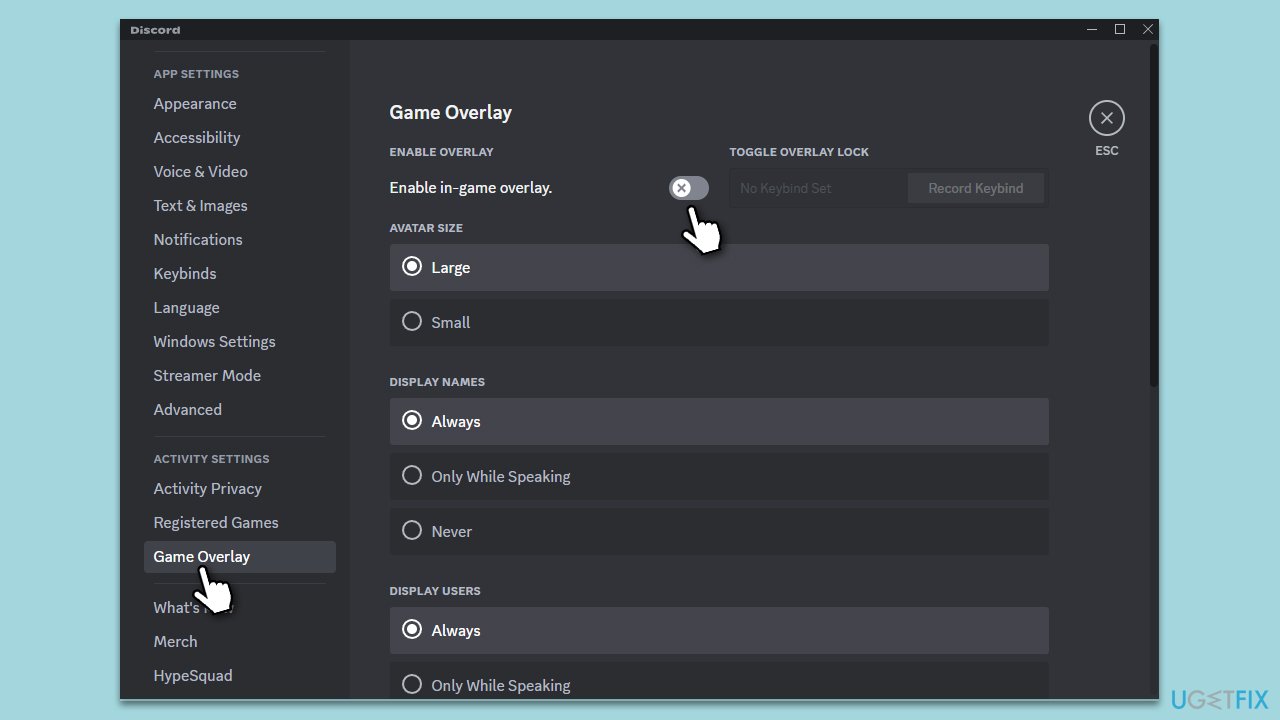
Fix 4. Disable third-party in-game overlays
In-game overlays from third-party software can interfere with game performance and cause errors. Disabling these overlays can improve stability.
- Open the settings of any third-party software with in-game overlay (e.g., Discord, NVIDIA GeForce Experience).
- Look for an in-game overlay option.
- Turn off the overlay feature.
- Restart your game to see if the error persists.
Fix 5. Verify the integrity of game files
Corrupted or missing game files can cause errors. Verifying the integrity of game files through the game launcher can fix these issues by replacing any problematic files.
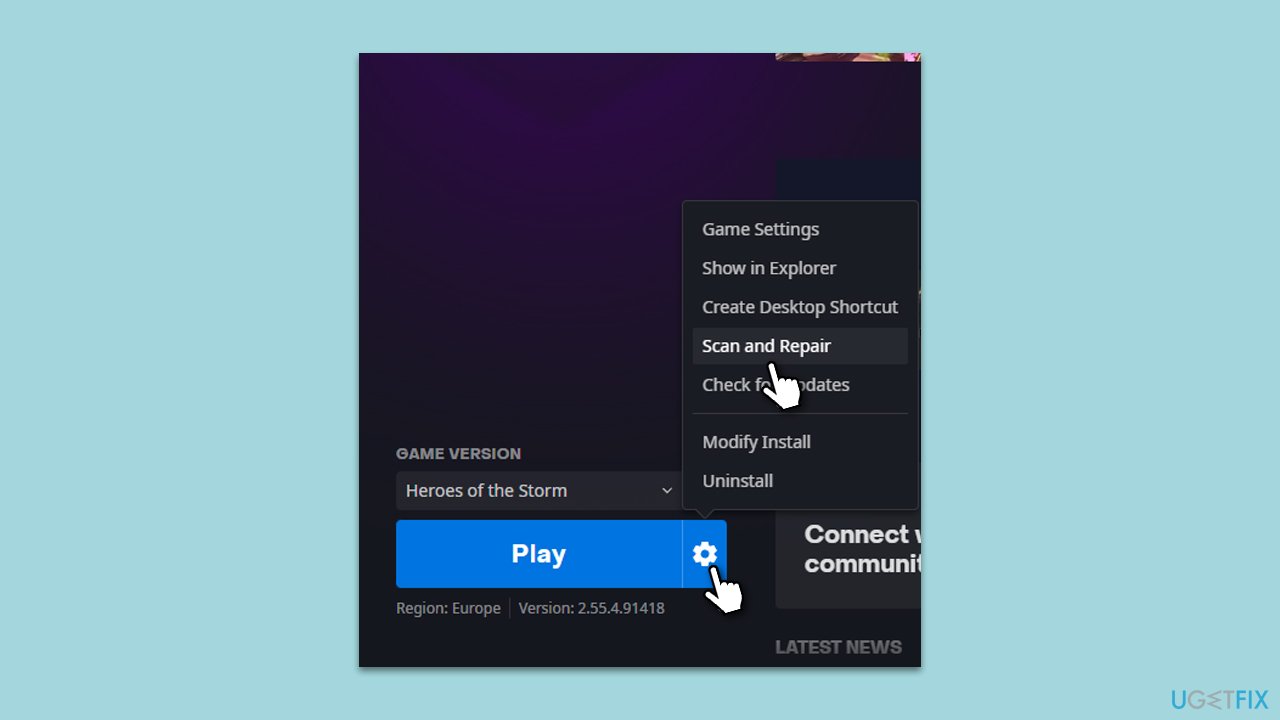
Battle.net
- Open the Battle.net client on your PC.
- Select Call of Duty MW/Warzone in the client.
- Click on the gear icon next to the Play button and select Scan and repair from the menu.
- Wait for the scan to finish.
Steam
- Open Steam and go to your Library.
- Right-click on the game and select Properties.
- On the left side, pick Local files.
- Click Verify integrity of game files...
- Wait till the process is finished.
Fix 6. Delete Shaders cache
Shader cache corruption can lead to game crashes. Deleting the shader cache forces the game to recreate these files, which can solve the issue.
- Press Win + E to open File Explorer.
- Go to the following location:
\Call of Duty\_retail_\shadercache for Battle.net
\steamapps\common\Call of Duty HQ\shadercache for Steam - Delete everything located within these folders by pressing Ctrl + A and then Shift + Del.
- Launch the game as normal.
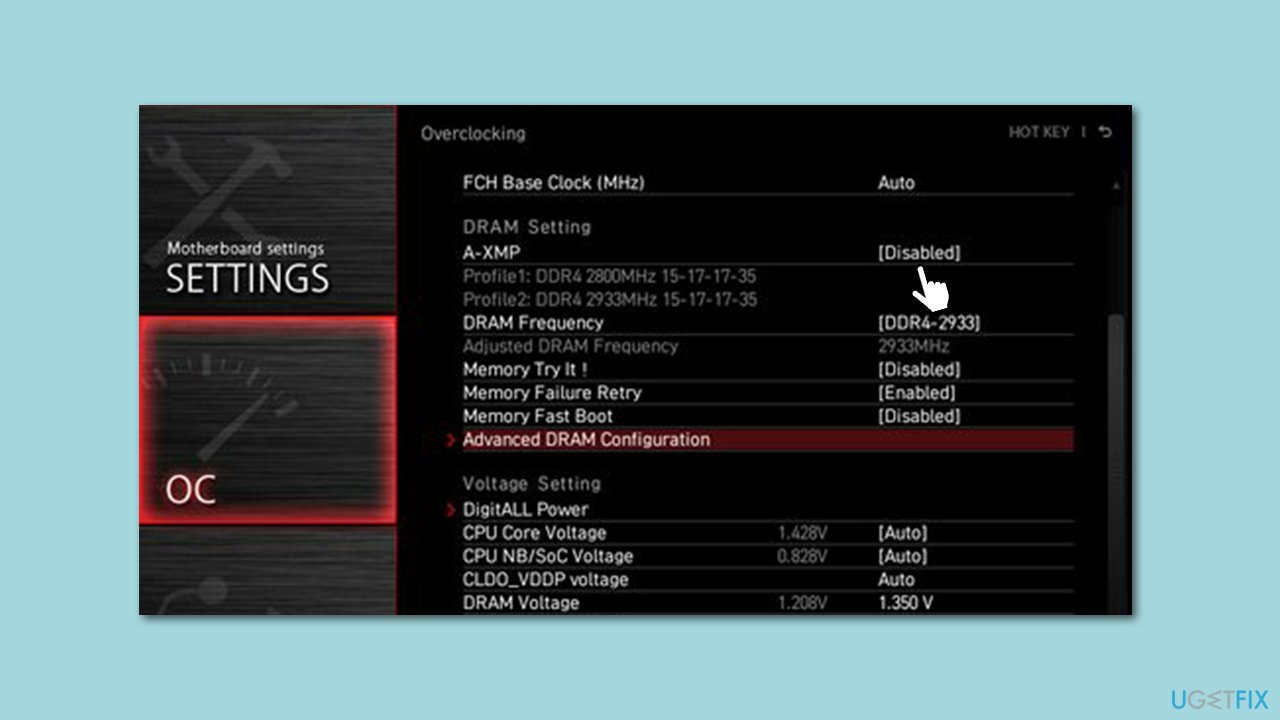
Fix 7. Disable XMP and other overclocking
Extreme Memory Profile (XMP) can sometimes cause instability in games. Disabling XMP in BIOS can enhance system stability.
- Restart your computer and press the BIOS key as it begins to boot up (typically F2, F10, F12, or Del, depending on the manufacturer).
- In the BIOS interface, navigate to the Advanced, Performance, or Overclocking tab (the name varies by motherboard).
- Look for options such as CPU Configuration, Overclocking Settings, or similar.
- Reset these settings to default or disable the overclocking options, including XMP.
- Save and Exit from BIOS, which will reboot your system.
Fix 8. Update BIOS
An outdated BIOS can lead to system instability and game errors. Updating the BIOS can improve system compatibility and performance.
- Before proceeding, backup your data as a precaution.
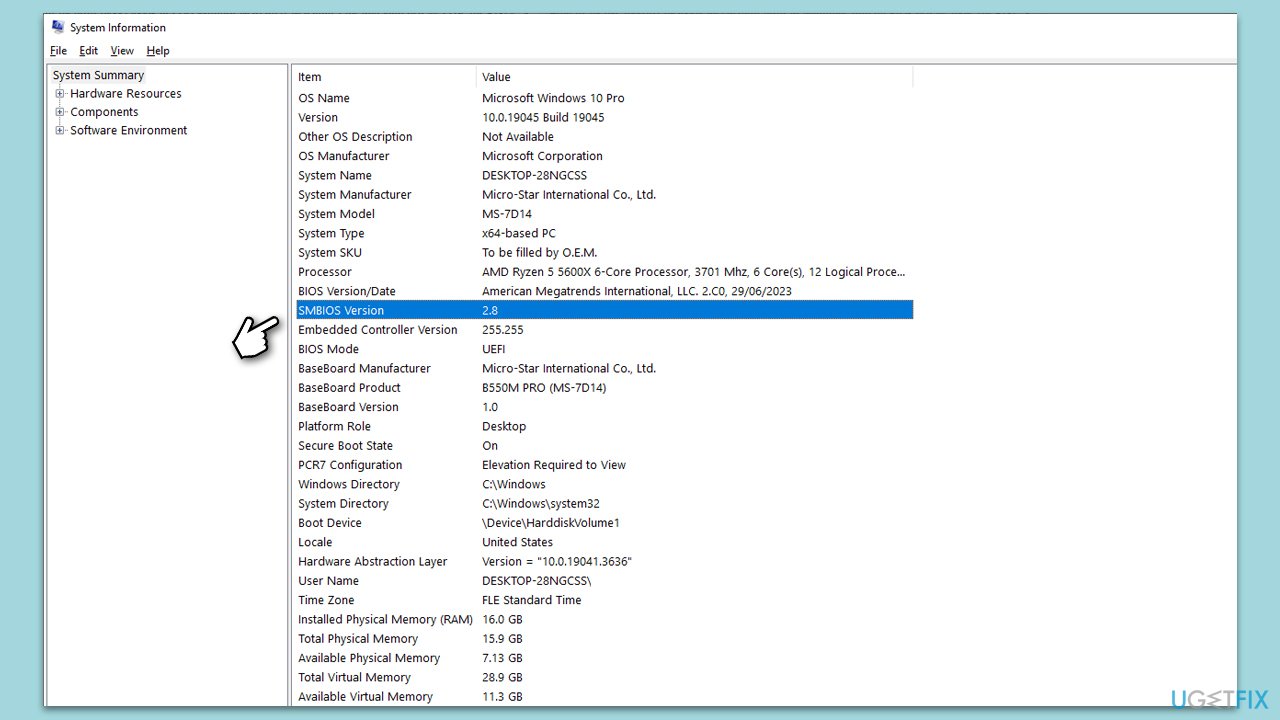
- Visit the manufacturer's website and download your specific model's latest BIOS update file (you can check which BIOS you are using by typing System information in Windows search and checking the BIOS Version/Date and BaseBoard Product entries there).
- Extract the BIOS update files and read any provided instructions or documentation.
- Create a bootable USB drive with the BIOS update files, if required.
- Update the BIOS using the manufacturer's recommended method, which may be through a built-in utility or booting from a USB drive.
- Restart your device to complete the process.
Extra tips for in-game settings
Adjusting certain in-game settings can improve game stability and performance.
- Launch the game and go to the settings menu.
- Set the Frame Rate Limit to 90 or 60 FPS.
- Disable DLSS if your system supports it and if it’s enabled.
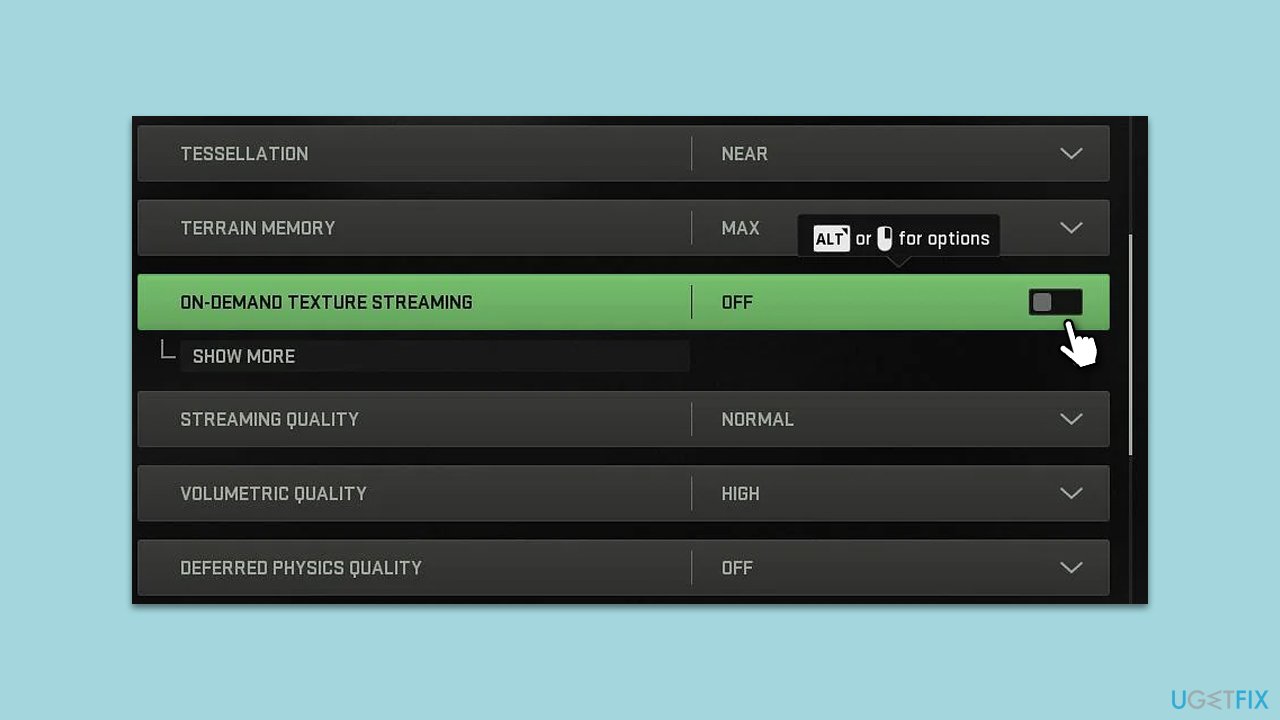
- Turn off On-demand Texture Streaming to reduce the load on your GPU and internet connection.
Bottom line
To fix error 0x887a0005, ensure your GPU drivers are up-to-date, verify the integrity of game files, adjust any overclocking settings, and manage in-game overlays. If these steps do not resolve the issue, consider using a PC repair tool to diagnose and fix underlying Windows problems.
Frequently asked questions
Error 0x887a0005 typically indicates a problem with your graphics settings or drivers, often related to DirectX or GPU compatibility issues.
To update your graphics drivers on Windows 11, go to Device Manager, find your graphics card under Display adapters, right-click it, and select 'Update driver'.
Yes, try lowering the graphics settings, especially the resolution and texture quality, and ensure that DirectX is set to the latest version in the game settings.




Report an issue
What's wrong with this guide? We review every report and update or remove content.
Report received — thank you. We'll review and fix it.
You need a free account to submit a report.
Be the first to comment