
How to fix error 0xA00F4241 in Windows?

Prefer to fix it yourself? The manual steps follow.
- 9methods
- 5 to 30 minutes
- Easy
Applies to Windows 11, Windows 10; the Windows Camera app with built-in, USB, DSLR and virtual cameras
9 methods in this guide
- What the error means
- Why it appears
- The fixes
- 1. Camera on and free
- 2. Enable the camera
- 3. Restart Frame Server
- 4. Roll back or reinstall driver
- 5. USB Video Device driver
- 6. Fix the virtual camera
- 7. Remove the registry tweak
- 8. Repair the Camera app
- 9. Updates and troubleshooter
- Still broken
- Keep it from coming back
- FAQ
Hello. My laptop has two webcams. Recently, one of them stopped working, so I tried to switch to the other one, but I received the 0xA00F4241<CameraSwitchFailed> error. What should I do to fix this?
Error 0xA00F4241 <CameraSwitchFailed> appears in the Windows Camera app when you switch to another camera and Windows cannot start it. The code in brackets after it tells you why. Check first that the second camera is switched on, enabled and not held by another app.
The Camera app could not start the camera you switched to. Make sure that camera is switched on, its shutter is open and no other app uses it, then restart the PC (Fix 1). If the code in brackets is 0x800706BE, restart the Windows Camera Frame Server service (Fix 3). If the camera works in other apps, repair the Camera app (Fix 8).
| Error | Can't start your camera, code 0xA00F4241<CameraSwitchFailed> followed by a second code in brackets, for example (0x800706BE). |
|---|---|
| Where it appears | In the Windows Camera app, the moment you select Change camera to move from one camera to another (front to rear, built-in to USB, real to virtual). |
| Main cause | The camera you switch to cannot be started: it is turned off, disabled, busy in another app, or its driver or the camera service fails. |
| Fastest fix | Close every app that uses a camera, check the switch, shutter or Fn key of the second camera and restart Windows (Fix 1). |
| Also written as | 0xa00f4241, 0xA00F4241 CameraSwitchFailed, cameraswitchfailed, "camera switch failed", 0xA00F4241 (0xC00DABE0), 0xA00F4241 (0xC00DABE7). |
| Affects | Windows 11 and Windows 10. Reports we read name tablets and laptops with two cameras, USB webcams shared over the network and DSLR webcam tools. |
| Microsoft's status | No public article for 0xA00F4241. Microsoft documents related camera codes such as 0xA00F4244 and 0xA00F4243 and gives the same driver and permission steps. |
| Where the cause is logged | Event Viewer > Windows Logs > Application: look for a crash of svchost.exe_FrameServer at the time of the error. |
| Time to fix | 5 minutes for the checks in Fixes 1 to 3, up to 30 minutes for a driver change. |
Facts checked on 15 October 2026. Steps written for Windows 11 (25H2 and 26H2) and Windows 10 22H2.
What error 0xA00F4241 <CameraSwitchFailed> means
The message comes from the Windows Camera app. One report on Microsoft's Q&A forum quotes it in full. The heading is Can't start your camera, followed by "If you're sure the camera is connected and installed properly, try checking for updated drivers." The code line reads "If you need it, here's the code:" and 0xA00F4241<CameraSwitchFailed> (0x800706BE). That user saw it on Windows 10 with an ASUS tablet whose rear camera failed.
The name says what happened: the switch to the other camera failed. The app was running, you selected Change camera, and Windows could not start the next device. People search the same error as 0xa00f4241, cameraswitchfailed or simply camera switch failed. The text in angle brackets is the same in every spelling.
Microsoft has not published a page for 0xA00F4241 itself. The code in round brackets after it is a standard Windows code, and that one names the cause. Write it down before you start.
| Code in brackets | Windows name | What it means here |
|---|---|---|
0x800706BE | RPC_S_CALL_FAILED, "The remote procedure call failed." | The camera service the app talks to stopped or crashed during the switch. |
0xC00DABE0 | MF_E_NO_CAPTURE_DEVICES_AVAILABLE, "No capture devices are available." | Windows has no camera it can start at that moment. |
0xC00DABE7 | MF_E_CAPTURE_SOURCE_NO_VIDEO_STREAM_PRESENT | The device answered but offers no video stream, typical of DSLR webcam tools and virtual cameras. |
0x80004003 | E_POINTER, "Pointer that is not valid" | A general failure inside the driver or the app, with no specific cause. |
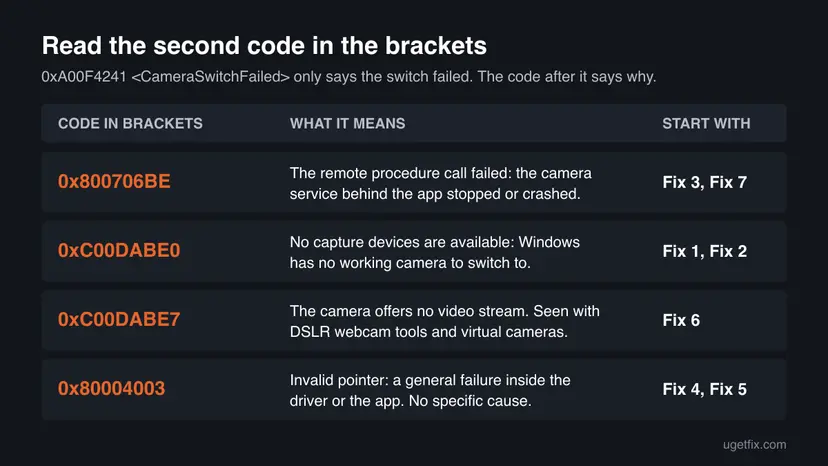
We could not confirm the exact wording of this message in the newest Windows 11 Camera app. The code and the name in angle brackets stay the same in every version and every language.
Why the Camera app cannot switch cameras
Most often the second camera is simply not available: it is switched off, covered by a privacy shutter, disabled in Settings, or already in use by another app. Less often the Windows Camera Frame Server service crashes during the switch, or the camera's driver fails. Rarely the cause is a virtual camera, the Camera app itself, or an old registry tweak.
| Cause | How often | How to tell | Fix |
|---|---|---|---|
| Second camera is off, covered, unplugged or used by another app. | Most often | The camera light is off, a meeting app is open, or the second code is 0xC00DABE0. | Fix 1 |
| Second camera is disabled in Settings or Device Manager. | Often | It is listed under Disabled cameras, or Device Manager offers Enable device. | Fix 2 |
| Windows Camera Frame Server crashed. | Sometimes | The second code is 0x800706BE and Event Viewer shows svchost.exe_FrameServer failing. | Fix 3, Fix 7 |
| Camera driver was updated, damaged or does not fit. | Sometimes | The error started after an update, or the camera has a yellow sign in Device Manager. | Fix 4, Fix 5 |
| DSLR webcam tool or virtual camera gives no picture. | Sometimes | The camera you switch to is software, and the second code is 0xC00DABE7. | Fix 6 |
| The Camera app is damaged. | Rarely | The same camera works in Teams, a browser or another desktop app. | Fix 8 |
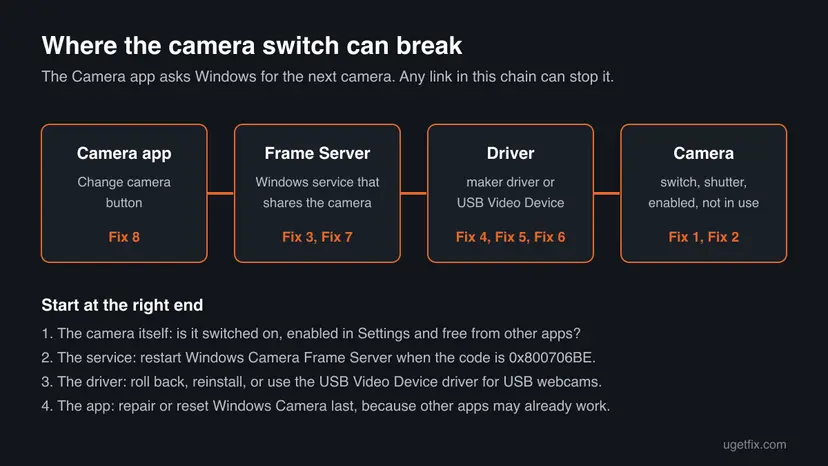
The user on Microsoft's forum noticed a useful sign: the rear camera failed in the Windows Camera app and in the Store version of Skype, but worked in desktop apps such as Viber and OneNote 2016. When the camera works somewhere else, the camera and its driver are fine, and the problem sits in the service or the app.
How to fix camera error 0xA00F4241 <CameraSwitchFailed>
Fixes 1 and 2 make sure the camera you switch to can start at all, and solve most cases. Fixes 3 to 7 repair the service, the driver or the camera software behind it. Fixes 8 and 9 are for the app and for what Windows Update can still deliver.
| What you see or have | Start with |
|---|---|
| Laptop or tablet with two cameras, or a webcam that worked a moment ago. | Fix 1, then Fix 2 |
| Second code 0x800706BE. | Fix 3, then Fix 7 |
| Second code 0xC00DABE0. | Fix 1, then Fix 2 |
| The error started after a driver or Windows update. | Fix 4 |
| External USB webcam. | Fix 5 |
| DSLR camera used as a webcam, phone camera or virtual camera, or code 0xC00DABE7. | Fix 6 |
| The camera works in other apps, only Windows Camera fails. | Fix 8 |
Fix 1. Make sure the camera you switch to is on and not in use
5 minutesNo riskEveryone, first. Especially a laptop or tablet with two cameras, or a USB webcam.
Windows can only switch to a camera it can open. A camera that is switched off, covered or held by another app cannot start, and the switch fails. Microsoft names a camera switch or button, a loose cable and apps using the camera as common reasons a camera will not start.
- Close every app that may use a camera: Teams, Zoom, Skype, browsers with a video call and tools from your camera maker.
- Right-click the taskbar, open Task Manager and end any of these apps that are still running in the background.
- Look for a camera switch on the laptop: a key used with Fn, a camera key, a sliding switch on the side or a small shutter over the lens. Turn it on or open it.
- For a USB webcam, unplug it, wait 10 seconds and plug it into a different USB port, directly on the PC rather than a hub.
- Restart Windows with Start > Power > Restart. Waking the PC from sleep is not the same thing.
- Open Camera from the Start menu and select Change camera once more.
Help with closing a background app: Close a frozen app (Task Manager, Force Quit)
It worked if: The Camera app switches and shows the picture of the second camera.
If not: If the second camera is still refused, check that Windows has it enabled in Fix 2.
Fix 2. Check that the second camera is enabled and allowed
5 minutesNo riskThe switch still fails, or one of the two cameras has stopped working.
Windows 11 can disable a single camera in Settings, and a disabled camera is not offered to apps. The Settings page also starts a preview of each camera, which shows at once whether the camera itself works outside the Camera app.
- Open Settings > Bluetooth & devices > Cameras.
- If the camera you need is listed under Disabled cameras, select it and select Enable. This needs an administrator account.
- Under Connected cameras, select each camera in turn. Windows starts a preview of it.
- Open Settings > Privacy & security > Camera and make sure Camera access, Let apps access your camera and Camera in the app list are turned on.
- On Windows 10, the same switches are in Settings > Privacy > Camera. To enable a camera there, open Device Manager, expand Cameras, right-click the camera and select Enable device if it is offered.
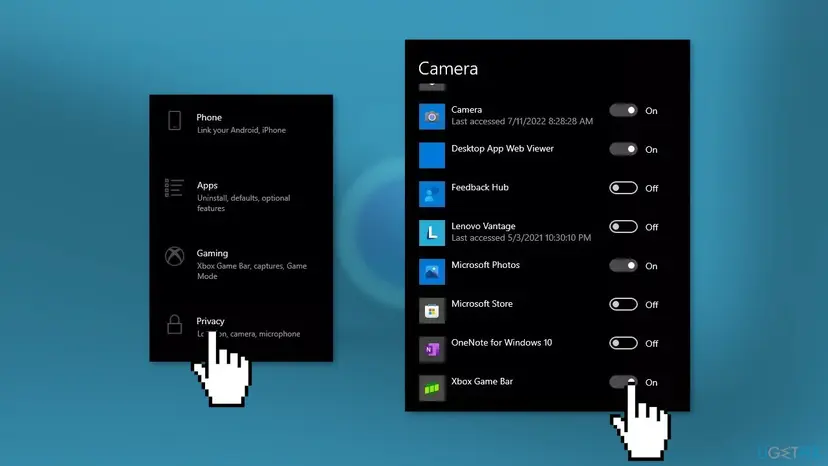
If Camera access is greyed out, an administrator or a work policy has turned the camera off for the device. Only that administrator can turn it on again.
It worked if: Both cameras are under Connected cameras, each shows a preview, and the Camera app can switch between them.
If not: If the preview in Settings fails too, the problem is below the app. Note the second code and go to Fix 3 or Fix 4.
Fix 3. Restart the Windows Camera Frame Server service
5 minutesNo riskThe second code is 0x800706BE, or Event Viewer shows svchost.exe_FrameServer crashing.
Since Windows 10 version 1607 the Camera app reaches the camera through the Windows Camera Frame Server service. Code 0x800706BE means "The remote procedure call failed": the app called that service and got no answer, which is what happens when the service has crashed.
- Close the Camera app.
- Press Win + R, type
services.mscand press Enter. - Find Windows Camera Frame Server in the list.
- Right-click it and select Restart. If it is not running, select Start.
- Open the Camera app and switch cameras again.
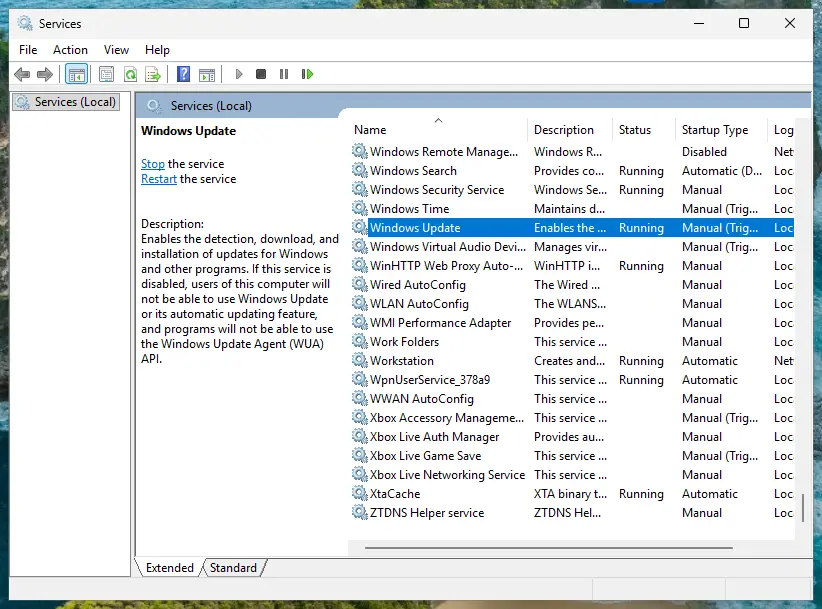
To check whether the service crashed, open Event Viewer, go to Windows Logs > Application and look for an error at the time of the switch whose faulting application is svchost.exe_FrameServer. More about the Services window: Check and restart Windows services
It worked if: The service shows Running and the next switch works.
If not: If the service crashes again at each switch, the camera driver is the likely trigger. Go to Fix 4, and check Fix 7 for an old registry tweak.
Fix 4. Roll back or reinstall the camera driver
10 minutesLow riskThe error started after a Windows or driver update, or the camera shows a yellow warning sign in Device Manager.
Microsoft's camera troubleshooting article gives exactly this order for a camera that stopped after an update: roll back the driver, then uninstall the device and let Windows find it again. A fresh driver also gives the Frame Server a clean device to open.
- Right-click Start and select Device Manager.
- Find the camera under Cameras, Imaging devices or Sound, video and game controllers. If it is missing, select Action > Scan for hardware changes.
- Right-click the camera you switch to, select Properties and open the Driver tab.
- If Roll Back Driver is available, select it, choose a reason and select Yes. Restart and test.
- If it is greyed out or did not help, select Uninstall Device, tick Attempt to remove the driver for this device and select OK.
- Select Action > Scan for hardware changes, wait for the camera to come back, restart the PC and test the switch.
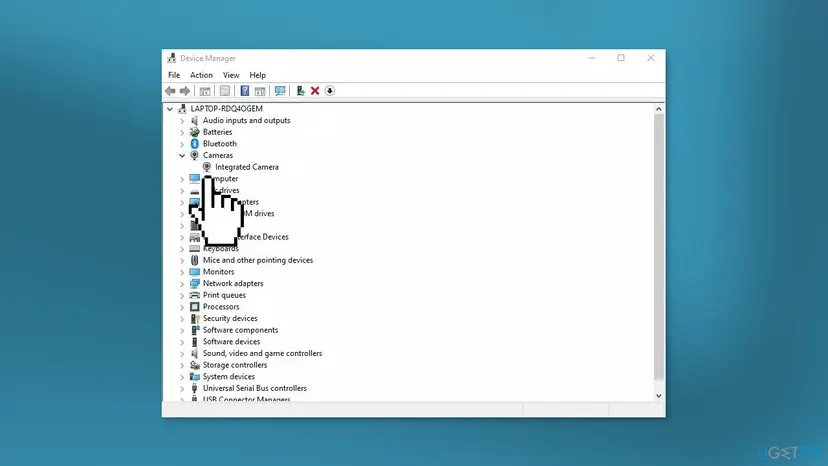
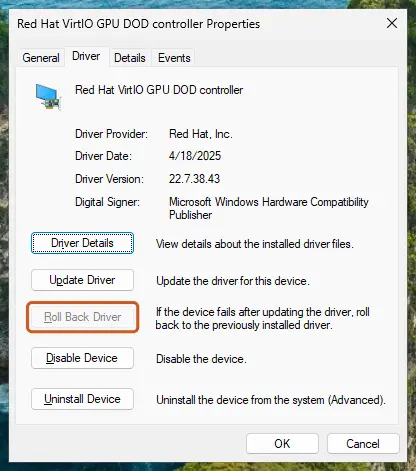
If the camera is built into a laptop or tablet, the maker's support page often has a newer camera driver than Windows Update. Full steps for all three actions: Update, roll back or reinstall a driver
It worked if: The camera appears again under Cameras without a warning sign, and the switch works.
If not: For a USB webcam go on to Fix 5. For a built-in camera, try the driver from the PC maker's site, then Fix 7.
Fix 5. Switch a USB webcam to the USB Video Device driver
5 minutesLow riskThe camera you switch to is an external USB webcam.
Most USB webcams follow the USB Video Class standard and run on the driver built into Windows, Usbvideo.sys, shown as USB Video Device. Microsoft suggests this swap when a webcam misbehaves on its maker's driver.
- Open Device Manager and find the webcam under Cameras or Imaging devices.
- Right-click it and select Update driver.
- Select Browse my computer for drivers.
- Select Let me pick from a list of available drivers on my computer.
- Select USB Video Device and then Next.
- Select Close, then test the switch in the Camera app.
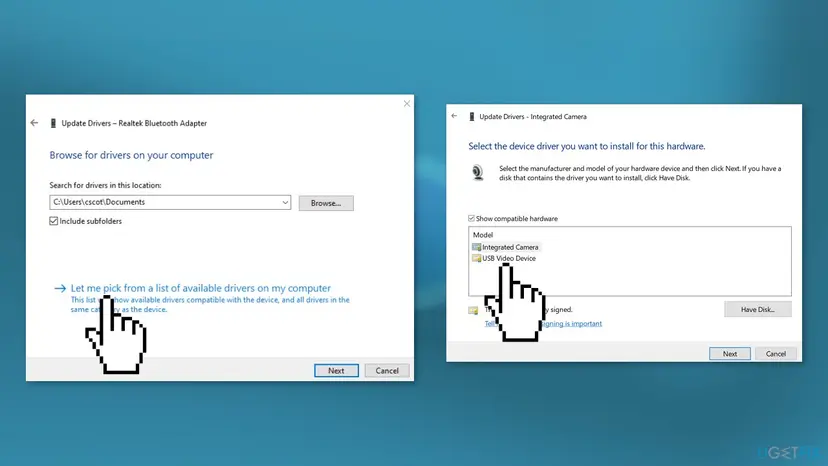
The built-in driver may not support every feature of your camera. Microsoft warns that Windows Hello face sign-in can stop working if the maker's driver provided it. To go back, use Roll Back Driver on the Driver tab (Fix 4).
It worked if: The webcam is listed under Cameras as a USB Video Device and gives a picture after the switch.
If not: If USB Video Device is not offered, the webcam does not follow the standard. Install its maker's latest driver instead, then go to Fix 7.
Fix 6. Update or remove the DSLR webcam tool or virtual camera
10 minutesLow riskThe camera you switch to is a DSLR or mirrorless camera, a phone used as a webcam, or a virtual camera from OBS, NVIDIA Broadcast or similar software. Also when the second code is 0xC00DABE7.
Such cameras exist only while their software runs, and they deliver a picture only when it feeds them one. Code 0xC00DABE7 is the Media Foundation code for a source with no video stream, and a user of Canon's EOS Webcam Utility reported exactly this pair of codes.
- Start the program that creates the camera, and connect and switch on the real camera behind it.
- Check in the program that it shows a live picture before you switch to it in the Camera app.
- Install the newest version of the program from its maker's site.
- If you no longer use it, uninstall the program in Settings > Apps > Installed apps and restart.
- Switch cameras again in the Camera app.
To keep the software but hide its camera from apps, see our guide how to disable a virtual camera in Windows. Uninstall steps: Uninstall a program or app in Windows
It worked if: The virtual or DSLR camera shows the picture its program sends, or it is gone from the list and the real cameras switch normally.
If not: Ask the program's maker for support, since the camera exists only through their driver. Then go on to Fix 8.
Fix 7. Remove an old EnableFrameServerMode tweak from the registry
5 minutesRead the warningThe Frame Server keeps crashing after Fix 3 and Fix 4, and you or a tool changed camera settings in the registry before.
Old webcam tips set a value named EnableFrameServerMode to bypass the Frame Server. The user on Microsoft's forum reports that it broke his other camera too, and a Microsoft support specialist advised deleting the value for a crashing Frame Server.
A wrong change in the registry can stop programs from starting. Export a backup and delete only the one value named here. How to make the backup: Back up the registry before editing it
- Press Win + R, type
regedit, press Enter and select Yes. - Go to the key shown below and look for a value named EnableFrameServerMode on the right.
- If it is not there, close Registry Editor. This fix is not for you.
- If it is there, close Registry Editor, open Command Prompt as administrator and run the command below.
- Restart the PC and test the switch.
The key
HKEY_LOCAL_MACHINE\SOFTWARE\Microsoft\Windows Media Foundation\PlatformThe command from Microsoft's support answer
reg delete "HKEY_LOCAL_MACHINE\SOFTWARE\Microsoft\Windows Media Foundation\Platform" /v EnableFrameServerMode /fIt worked if: The value is gone, the Frame Server no longer crashes and both cameras start.
If not: If the value did not exist, the tweak is not your cause. Go to Fix 8.
Fix 8. Repair or reset the Windows Camera app
5 minutesLow riskThe camera you switch to works in Teams, a browser or another desktop app, and only Windows Camera fails.
When other apps can use the same camera, the camera, driver and service work, and the fault is in the Camera app. A Microsoft support specialist gives Repair and Reset of this app as a step for camera crashes.
- Open Settings > Apps > Installed apps.
- Find Camera, select the three dots next to it and select Advanced options.
- Select Repair and test the switch.
- If it still fails, select Reset. The app's own settings, such as photo quality and grid lines, go back to default.

Full steps for Windows 11 and Windows 10: How to repair or reset an app in Windows
It worked if: The Camera app opens with default settings and switches cameras.
If not: Update the app in Microsoft Store > Library > Get updates, then try Fix 9.
Fix 9. Install optional driver updates and run the Camera troubleshooter
15 minutesNo riskEvery fix above has failed, or Windows has updates waiting.
Microsoft's first steps for any camera error are its automated troubleshooter and the camera drivers that Windows Update offers as optional updates. They are general, so they come last here, after the checks that fit this error.
- Open Settings > Windows Update and select Check for updates.
- Select Advanced options > Optional updates and install any driver offered for your camera.
- Restart the PC.
- On Windows 11, open Settings > System > Troubleshoot > Other troubleshooters and select Run next to Camera.
- Follow the troubleshooter and test the switch again.
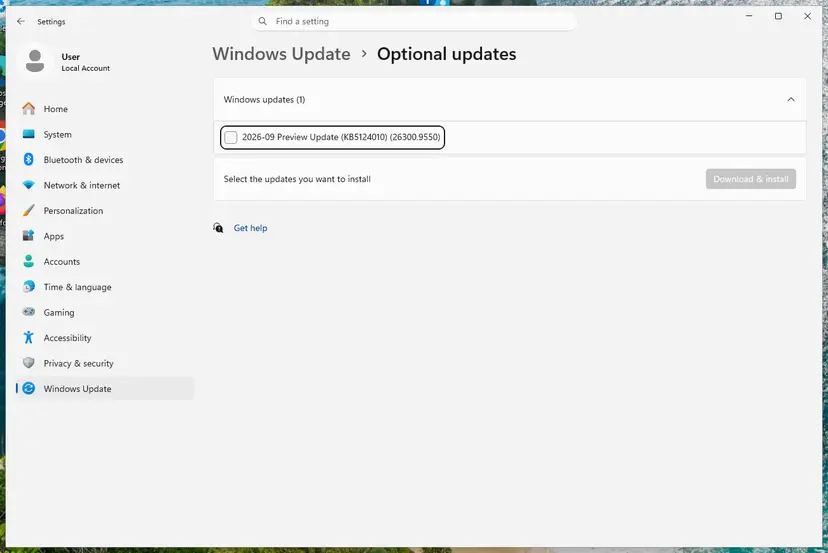
If Windows Update itself is stuck: Run the Windows Update troubleshooter For damaged Windows files that a camera driver depends on: Run DISM and SFC to repair Windows system files
It worked if: Windows is up to date, the troubleshooter reports what it changed, and the camera switch works.
If not: Read the log as described under "If the error is still there" and check for a hardware fault.
If error 0xA00F4241 is still there
Find out where the switch stops. The Camera app shows only codes, but Windows writes the crash of the camera service to its event log, and the Settings preview shows whether the camera works without the app.
- Right-click Start, open Event Viewer and go to Windows Logs > Application.
- Switch cameras in the Camera app once more, then select Refresh in Event Viewer.
- Look for an Error at that time. A faulting application
svchost.exe_FrameServerpoints to the service and the driver (Fix 3, Fix 4, Fix 7). - Open Settings > Bluetooth & devices > Cameras and select the camera. If its preview fails there too, the app is not the cause.
- What to send to support: the full message with both codes, the camera name from Device Manager, the driver version from its Driver tab, the Windows version from Settings > System > About, and the Event Viewer error.
- Who to ask: for a built-in camera, the laptop or tablet maker. For a USB webcam, its maker. For a DSLR or virtual camera, the maker of the program that creates it.
- When it is hardware: the camera is missing from Device Manager even after Scan for hardware changes, a USB webcam fails on a second PC as well, or the camera light never turns on. Microsoft suggests testing an external camera on a different device to rule out the hardware.
If the camera works in desktop apps but not in Windows Camera after every fix, you can keep using those apps. The forum user with the ASUS tablet ended up in the same place: desktop apps worked, Store apps did not.
How to keep the camera switch from failing again
- Close meeting apps before you open the Camera app, so no camera is held in the background.
- Take camera drivers from Windows Update or from your PC or webcam maker.
- Uninstall virtual camera programs you no longer use.
- Restart, not just wake from sleep, after a driver update.
- Do not apply registry tweaks for the camera from old forum posts without a backup.
- Do not install driver updater programs from unknown sites.
- Do not leave a camera disabled in Settings and forget it. It will not appear in any app.
Windows 10 left support on 14 October 2025, so its camera drivers and the Camera app no longer get regular fixes. The steps on this page still work there, but a lasting fix for a Frame Server bug is more likely on Windows 11.
Frequently asked questions
What does 0xA00F4241 <CameraSwitchFailed> mean?
It means the Windows Camera app tried to switch from one camera to another and Windows could not start the second one. The app shows it under the heading "Can't start your camera". Microsoft has not published a description of this code. The second code in round brackets is more useful: 0x800706BE points to the camera service, 0xC00DABE0 to a camera that is not available, and 0xC00DABE7 to a camera that gives no video stream. Start with Fix 1, then follow the second code.
What does "camera switch failed" mean on Windows 11?
It is the plain reading of CameraSwitchFailed, the name inside the angle brackets of error 0xA00F4241. On Windows 11 and on Windows 10 it appears when you select Change camera in the Camera app and the next camera does not start. The fixes are the same on both versions. Windows 11 adds one helpful page: Settings > Bluetooth & devices > Cameras, where you can enable a disabled camera and see a live preview of each camera outside the Camera app.
Why does my rear camera fail while the front camera works?
Each camera on a tablet or laptop is a separate device with its own driver entry, so one can fail while the other works. Check that the rear camera is not disabled in Settings > Bluetooth & devices > Cameras, then look at the second code. The ASUS tablet owner on Microsoft's forum had 0x800706BE, with the Windows Camera Frame Server crashing in Event Viewer. Restart that service (Fix 3) and reinstall the rear camera's driver (Fix 4). Tablets often have an infrared camera as a third device; that one is for face sign-in only.
What is the Windows Camera Frame Server?
It is a Windows service, added in Windows 10 version 1607, that sits between apps and the camera. It lets more than one app receive frames from the same camera and handles camera profiles. In Task Manager and Event Viewer it appears as svchost.exe_FrameServer. When this service crashes during a camera switch, the Camera app gets no answer and reports 0xA00F4241 with 0x800706BE. Restarting it in services.msc is quick and safe, because Windows starts it again whenever an app needs a camera.
Will the Camera app's permission settings cause 0xA00F4241?
Usually not, but check them once. With Camera access turned off, Windows blocks every camera and the app tends to show a different camera code. Open Settings > Privacy & security > Camera on Windows 11, or Settings > Privacy > Camera on Windows 10. Turn on Camera access, Let apps access your camera and the switch next to Camera. Desktop apps such as browsers and Teams need Let desktop apps access your camera too. If the switch is greyed out, an administrator has blocked the camera.
Should I turn off my antivirus to fix the camera error?
Not as a fix. Microsoft lists security software as the cause of a different camera code, 0xA00F4246, where the camera is locked by the security program. Some security suites have their own webcam protection that asks before an app may use the camera. Look in your security program for a webcam or camera setting and allow the Camera app there. If you want to test with protection paused, do it for one attempt only and turn it back on: Turn off Microsoft Defender protection for a moment
Are 0xA00F4240, 0xA00F4244 and 0xA00F4246 the same error?
No. They come from the same Camera app and look alike, but each names a different failure. Microsoft describes 0xA00F4244 as a camera the system cannot detect, 0xA00F4243 as a camera used by another app and 0xA00F4246 as a camera locked by security software. 0xA00F4241 is only about switching cameras. Many checks overlap, such as permissions, other apps and drivers. If your code is not 0xA00F4241, search for that exact code, because the first fix differs.
What does "scene switch failed" on the camera mean?
We found no Microsoft description of a message called scene switch failed. People search it together with this error, so it most likely describes the same moment: the camera did not start after you changed cameras or modes. If you see it in the Windows Camera app, follow Fix 1 and Fix 2 first, because a busy or disabled camera is the most common reason. If it comes from a program made by your camera or PC maker, check that program's help pages, since the wording is theirs.
I searched in another language or just typed "what is this error". Does this page fit?
Yes, if your screen shows the code 0xA00F4241 or the word CameraSwitchFailed. The code is the same in every language of Windows, only the text around it is translated. This page uses the English names of menus and buttons; in another language they sit in the same places. If your code is a different one, for example 0x887A0004, which is a graphics error and not a camera error, this page is not about it. Search for that exact code instead.
Sources
- Microsoft Support: Camera doesn't work in Windows (camera error codes, UVC driver, roll back, troubleshooter) (support.microsoft.com)
- Microsoft Support: Camera app shows error 0xA00F4244 NoCamerasAreAttached (support.microsoft.com)
- Microsoft Support: Manage cameras with Camera settings in Windows 11 (support.microsoft.com)
Did this fix work?
One click, no account. It tells the next reader which guides are worth their time.
Questions and experiences: fix error 0xA00F4241 in Windows
Still broken, or found a fix we did not cover? Ask here: members and our editors answer. Reading is open; writing needs a free account.
…